By Design Bundles
How to Use Brushes in Affinity Designer
Affinity Designer has a vast array of tools for creating and editing designs. One of these tools is the brush tool. Brushes are available for purchase in both vector format and raster format. They both work in a similar way however there are a fewdifferences.
Locating the Brush Tool
After opening Affinity Designer you can find the brush tools in the left tool bar. In pixel persona the brush tool is an icon of a paint brush.

In designer persona the vector brush tool is an icon of a brush with a wavy line underneath it.

Change Between Brushes
Changing between brushes is an easy process. Let's run through the stepof changing between brushes.
Switching Brushes On iPad
On the iPad versionto switch to a different category you can toggle between them by clicking on the arrow next to the category name.

You can also change category by clicking on the name of the category and a drop down panel will list all the brush categories that you currently have installed. Click on any one of them to jump directly to that category.

Switching Brushes On PC/Mac
On the PC/Mac version to change the category you will need to click on the arrow icon next to the name of the category and another panel will drop down with all your currently installed categories.

Using Affinity Designer Brushes
1. Changing the Brush Settings
Select the Brush Tool and then go to your Brush Studio. Select the brush you wish to use and then select the color you want your brush stroke to be.


2. Settings for Pixel Brushes
In the settings within Pixel Persona you can change the size of your brush, the hardness, flow and opacity. You also have options to go to advanced settings by clicking on more. This is where you can make infinite changes to the brushes. It’s fun to play around with the settings and see what brushes you can come up with, by just changing the settings of an existing brush.
3. Settings For Vector Brushes
Your options are more limited with vector brushes, but there are still settings to play with if you want to.
1. Adjusting the stroke size
With a vector brush you can adjust the size of the stroke after you draw it. Open the stroke panel at the top right and change the size of the stroke.


2. Adjusting Nodes on a Vector Stroke
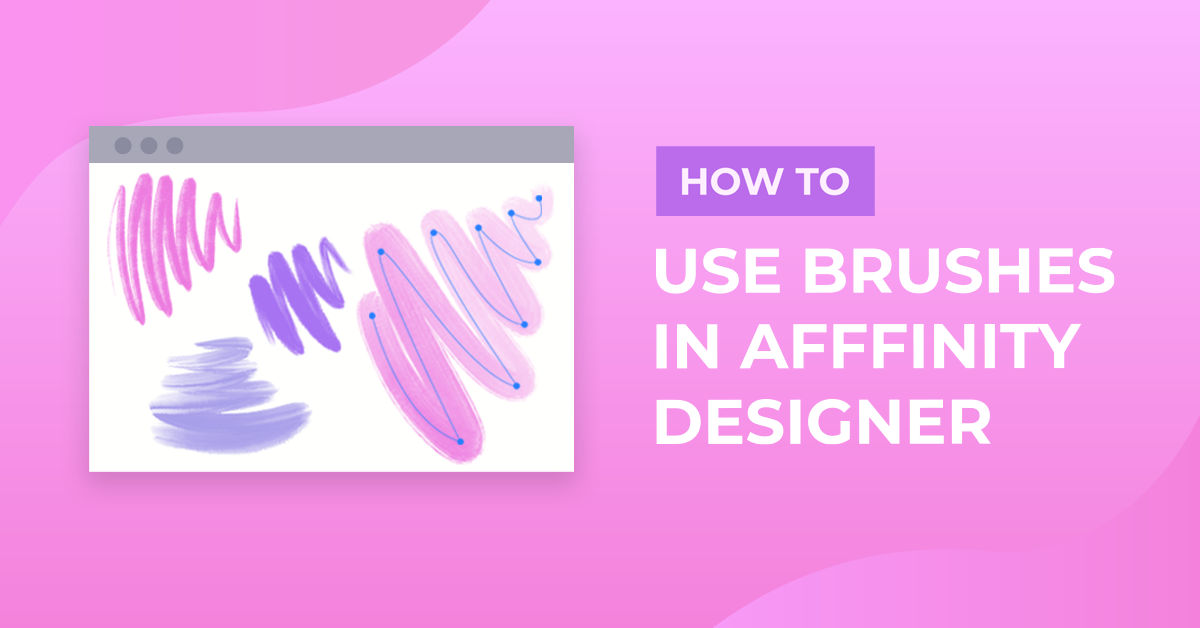
You can also move the nodes on a vector brush stroke to change the shape of your line after you draw it.

Select the node tool on the left hand side of the screen and use it to move any one of the nodes to change the shape. 
What Other Types of Brush Files Work in Affinity Designer?
The only other type of brushes that are usable in Affinity Designer are Photoshop brushes. They must be installed in the Pixel Persona but once installed they function just the same as Affinity Brushes.
Next up, check out our guides on warping textand slicing shapes in Affinity Designer.