By Design Bundles
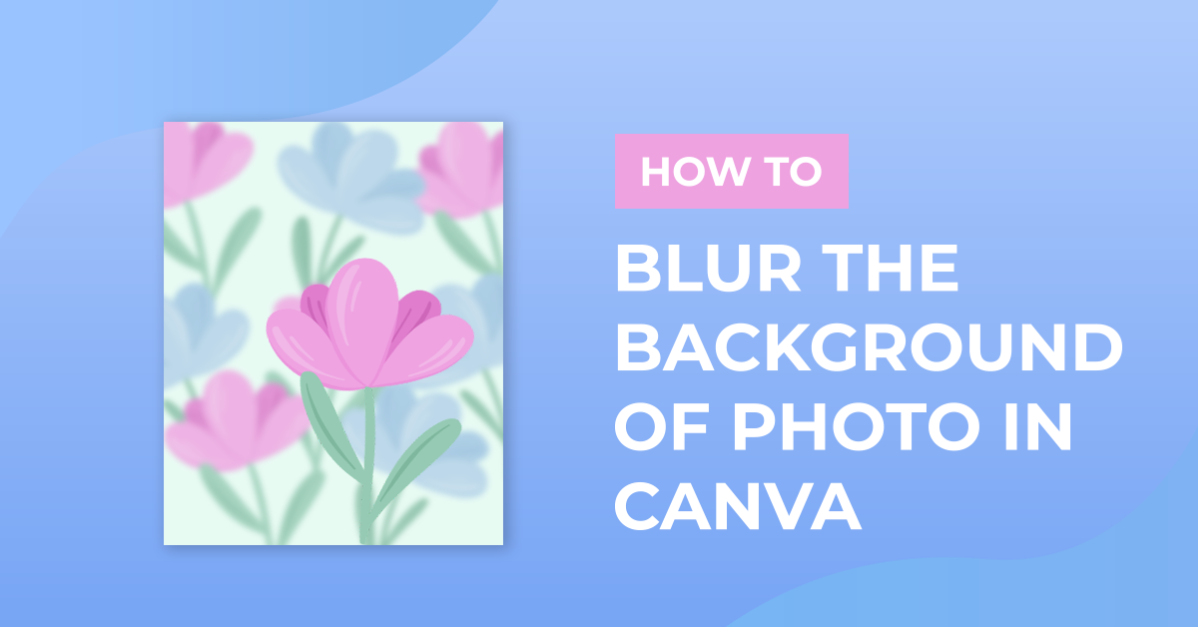
How to Blur the Background of Photo in Canva
Bokeh effect or out-of-focus blur in the background of your photos gives your portrait an aesthetic quality and professional look. You can achieve it with a special camera lens and photography skills. But did you know that with Canva, you can create the same effect with just a few steps?
In this tutorial, we’re going to show you how you can create a fake blur or bokeh effect behind your photo in Canva. You will need a feature from the Pro subscription which is background remover to be able to do this.
Step 1 - Insert your photo to Canva
Create a new document, and upload the image from your computer. From the side panel, click on the Uploads tab and then click on Upload Media.

Click Upload from Device and select the image you’d like to work with. We’ll be using this woman shopping photo from the Design Bundles Plus Membership. Click open and wait for the upload.

Once uploaded, your image will then show up in the Gallery tab. Click on the image you just uploaded, it will be inserted into your canvas. Position your photo by clicking any of the white circle handles on the corner and drag it out.

Step 2 - Duplicate your photo
Duplicate your photo and paste it to a new canvas by clicking the “duplicate page” button.

You now have two photos.

Step 3 - Remove the background of your photo
Remove the background of your second photo by clicking on the Effects button on the top corner and select Background Remover. For the complete tutorial on removing photo background, check out our tutorial on how to use the background remover tool.

Step 4 - Use the Blur Effect in Canva
Go back to your original photo and with it selected, click the “adjust” button from the toolbar above. Add some blur by dragging the blur slider to the right. We’ll go with 12. Try not to make it too blurred to make it look natural.

Bring your second photo back with the background removed and position it exactly where it was.

Step 5 - Use other filter adjustments
You can also play around with the other adjustments like desaturating your background by dragging the saturation slider to the left to make your subject stick out.

There you have it, a blurred photo background in Canva.
For more Canva tutorials, check out our guide on how to make a digital calendar and how to use alternate glyphs.