By Design Bundles
Canva Tutorials9 min
How to Curve Text in Canva
After many years of waiting, Canva has finally released its Curved Text option. Gone were the days when you still have to manually arrange your letters in Canva to curve them. With this new feature, you can transform your text to your desired shape with just a few clicks.
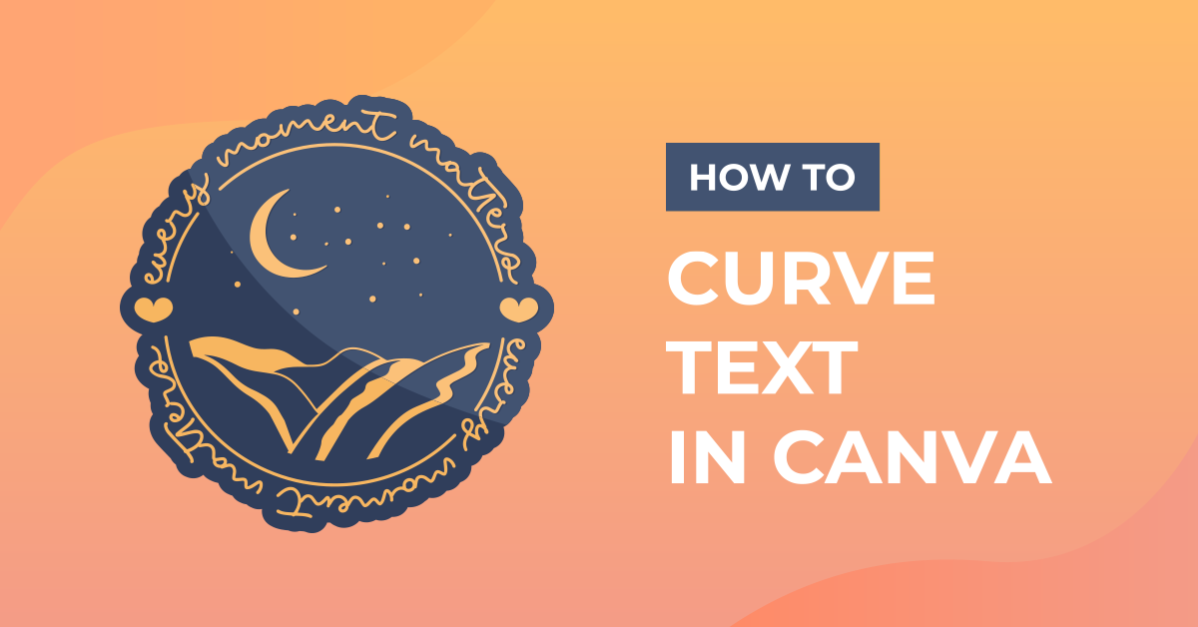
This is perfect for designing logos, circular stickers, and badges. In this tutorial, we’re going to show you how to use the curve text feature, where to find it, and an example of how to use it to create awesome designs. You can use any of the free fonts in the Canva library but if you want to upload and use your own paid font from Font Bundles, you need to have a Pro account for that.
You can select a design type by clicking a layout you like or you can customize the dimensions of your design by tapping the Custom Size button and entering your preferred dimension. Here, we are going to use a 500 x 500 px logo size template. Click Create new design.

Your design space will appear in a new window

Click on uploads. Select the pre-uploaded design that you want to use with your curved text. It will appear in your design space.

Click on the text icon. Then click Add a heading and a sample text will appear.

With the sample text selected/highlighted, start typing your own text. It will automatically change the sample text.

Change the font by clicking on the font name drop down and scroll through the options. Select the font you'd like to apply to your text. Here, we choose a font from Canva library.
If you like to upload your own font, at the bottom click the Upload a font button.

It will bring you to your Brand kit page. Click the upload a font and find the font you want to upload from your computer file, click on it and click open. We’ll be using this Slab Serif font called Shirens from Font Bundles.

Your uploaded font will now be included in your uploaded font library. For a complete tutorial on this, check out our tutorial on “How to Use Your Purchased Fonts in Canva”. Now click that font to apply changes to your text.

Position your text at the top. To curve your text, click on Effects and choose the curve option from the left panel. It will automatically curve your text.

Adjust the placement of your text then use the slider to adjust the shape of your curve. We’ll go around 64.

Duplicate your text by clicking the 3 dots in the toolbar for more options, then click the duplicate button.

Change the angle of the second text to the opposite direction by clicking the effects again and sliding the curve slider to the left. We’ll go around -63.

You can also adjust the letter spacing of your text by clicking on the spacing option and dragging the slider to adjust the text appearance.

And here’s our finished design. A curved text made easy in Canva.

For more tutorials, check out how to use alternate glyphs in Canva and how to animate text in Canva.
This is perfect for designing logos, circular stickers, and badges. In this tutorial, we’re going to show you how to use the curve text feature, where to find it, and an example of how to use it to create awesome designs. You can use any of the free fonts in the Canva library but if you want to upload and use your own paid font from Font Bundles, you need to have a Pro account for that.
1. Open Canva and Set-up your template
You can select a design type by clicking a layout you like or you can customize the dimensions of your design by tapping the Custom Size button and entering your preferred dimension. Here, we are going to use a 500 x 500 px logo size template. Click Create new design.
Your design space will appear in a new window
2. Insert Design
Click on uploads. Select the pre-uploaded design that you want to use with your curved text. It will appear in your design space.
3. Insert Text
Click on the text icon. Then click Add a heading and a sample text will appear.
With the sample text selected/highlighted, start typing your own text. It will automatically change the sample text.
Change the font by clicking on the font name drop down and scroll through the options. Select the font you'd like to apply to your text. Here, we choose a font from Canva library.

4. Uploading your purchased font
If you like to upload your own font, at the bottom click the Upload a font button.
It will bring you to your Brand kit page. Click the upload a font and find the font you want to upload from your computer file, click on it and click open. We’ll be using this Slab Serif font called Shirens from Font Bundles.
Your uploaded font will now be included in your uploaded font library. For a complete tutorial on this, check out our tutorial on “How to Use Your Purchased Fonts in Canva”. Now click that font to apply changes to your text.
5. Curve your text
Position your text at the top. To curve your text, click on Effects and choose the curve option from the left panel. It will automatically curve your text.
Adjust the placement of your text then use the slider to adjust the shape of your curve. We’ll go around 64.
Duplicate your text by clicking the 3 dots in the toolbar for more options, then click the duplicate button.
Change the angle of the second text to the opposite direction by clicking the effects again and sliding the curve slider to the left. We’ll go around -63.
You can also adjust the letter spacing of your text by clicking on the spacing option and dragging the slider to adjust the text appearance.
And here’s our finished design. A curved text made easy in Canva.
For more tutorials, check out how to use alternate glyphs in Canva and how to animate text in Canva.
Related Tutorials
Procreate Tutorials
How to Curve Text in Procreate
Learn how to curve text in Procreate using different methods in this step by step tutorial
Inkscape Tutorials
How to Curve Text in Inkscape
Discover how to easily curve and transform your text in Inkscape with 5 easy steps.
Affinity Tutorials
How to Curve Text in Affinity Designer
In this tutorial learn how to curve text in Affinity Designer in only 5 steps!
Canva Tutorials
How to Use Canva Text Effects
Discover the many Text Effects in Canva in this step-by-step tutorial!
Cricut Tutorials
How to Curve Text in Cricut Design Space Mobile App
Today we’ll focus on how to curve Text in Cricut Design Space App....
Cricut Tutorials
How to Curve Text in Cricut Design Space
Discover how to quickly curve text in Cricut Design Space with this step by step tutorial