By Leah Verona
How to Make Snapchat Filter in Canva
Snapchat filters are custom filter designs. You can create them for any occasion for friends and guests to use, making your event one to remember. With Canva, you can customize the premade Snapchat filter templates in literally minutes.
Use your own color scheme and font styles or create one from scratch. You can use elements found in the Canva library or purchased elements from Design Bundles.
In this tutorial, we will show you the process of creating a Snapchat filter from scratch. We have chosen to create a wedding style using String Light Clipart and a script font called Hella Mella. We’re also going to use some elements from the Canva library.

Step 1 - Create a New Document
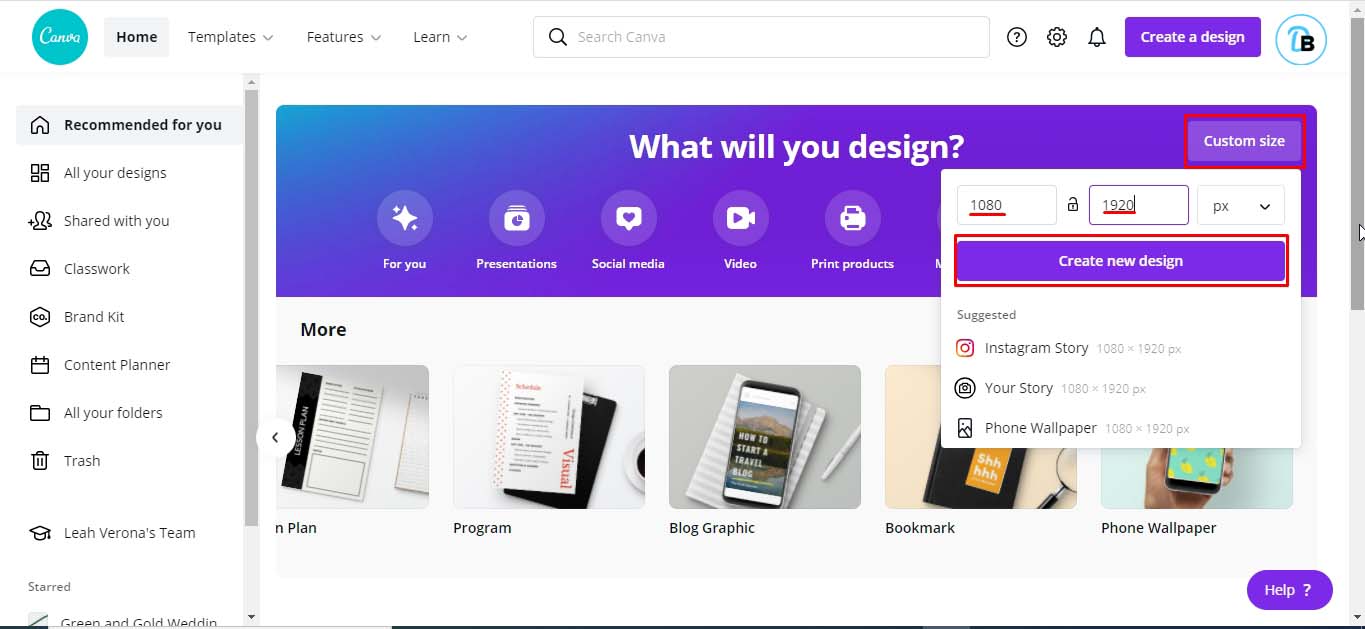
Create a new document with customized dimensions by tapping the Custom Size button and entering your preferred dimension. Snapchat geofilters are typically 1080 x 1920 pixels. Type that size in and click Create new design.
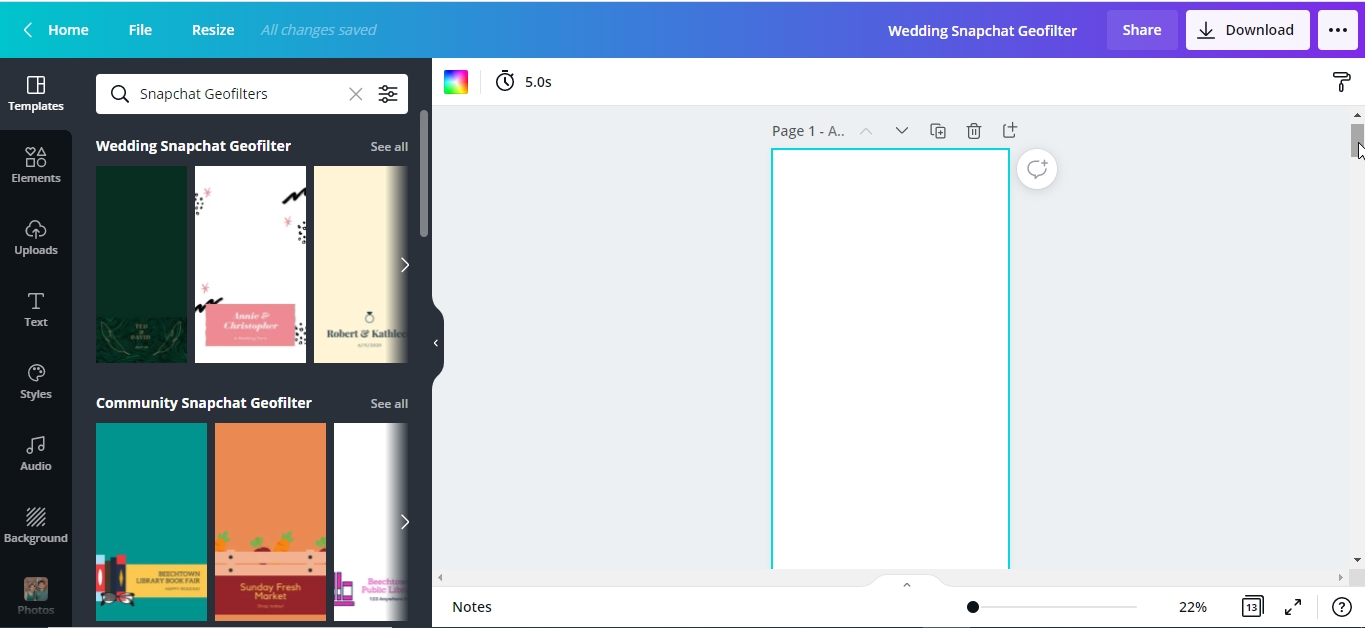
Alternatively, you can start with a template. On Canva’s homepage, type “Snapchat Geofilter” on the search bar at the top part of the page and press enter.

This will bring up a page of several pre-made Snapchat Geofilter. If you want to make one from a template, you can scroll through and select the one that you like. Since we're creating one from scratch, we will click the Create a blank Snapchat Geofilter.

Your design space will appear in a new window.
Step 2 - Add a background
You can skip this step if you will be using colored elements and text. As we will be making a wedding filter with no particular color scheme, our elements and text will all be in white. The default canvas is white so we need to add a colored background first. This will allow us to see and edit our design elements.
To add a background to your design, click on the color tile on the toolbar. Then click on any color on the left side panel to apply the color to your background. We clicked pink.

Step 3 - Add elements for Embellishments
To embellish our design, we will be using both a purchased graphic element and an element from Canva library.
Using Purchased Element
From the side panel, click on the Uploads tab > Upload Media and locate the file from your computer. Then, click the elements you’d like to use in your design.
We will use our string light clipart from Design Bundles. The selected element will now appear in the uploads panel. Click on it to add to your design.

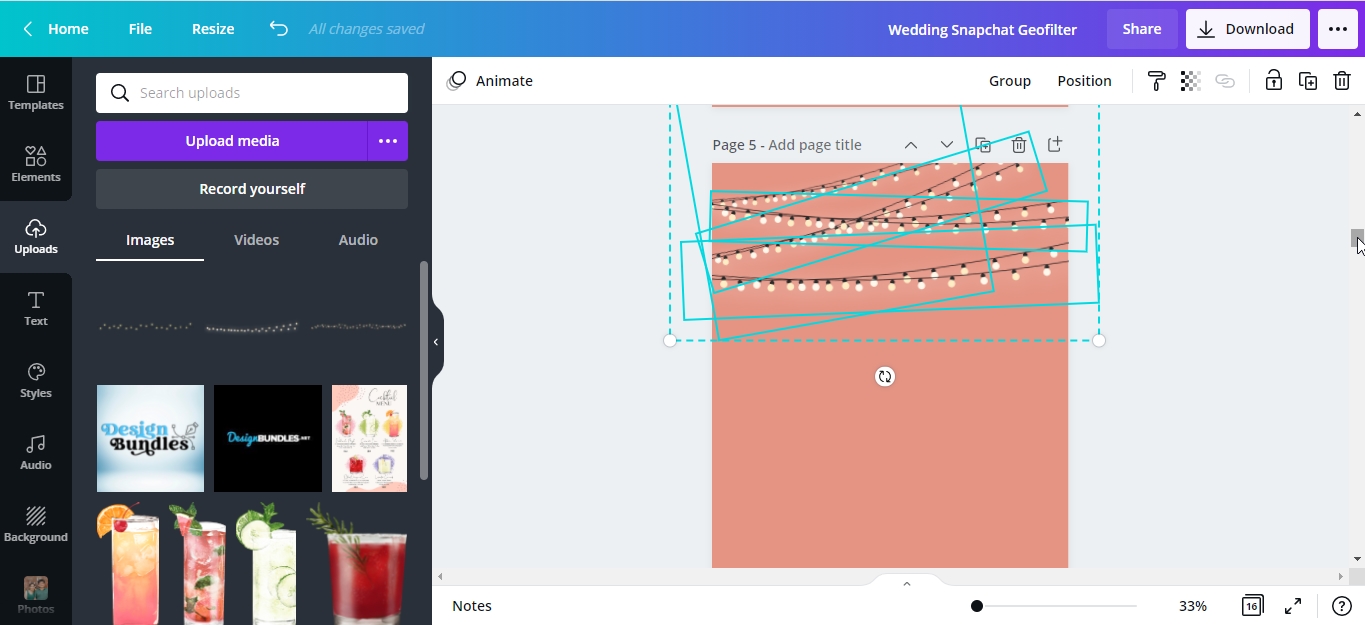
Make another three copies of the string lights so we have four in total. Select/highlight it > right-click > copy or press Ctrl/⌘ + C > paste or press Ctrl/⌘ + V.
Make the size of each of the string lights slightly bigger than the other. You can scale your element to the desired size by dragging the corners in or out.
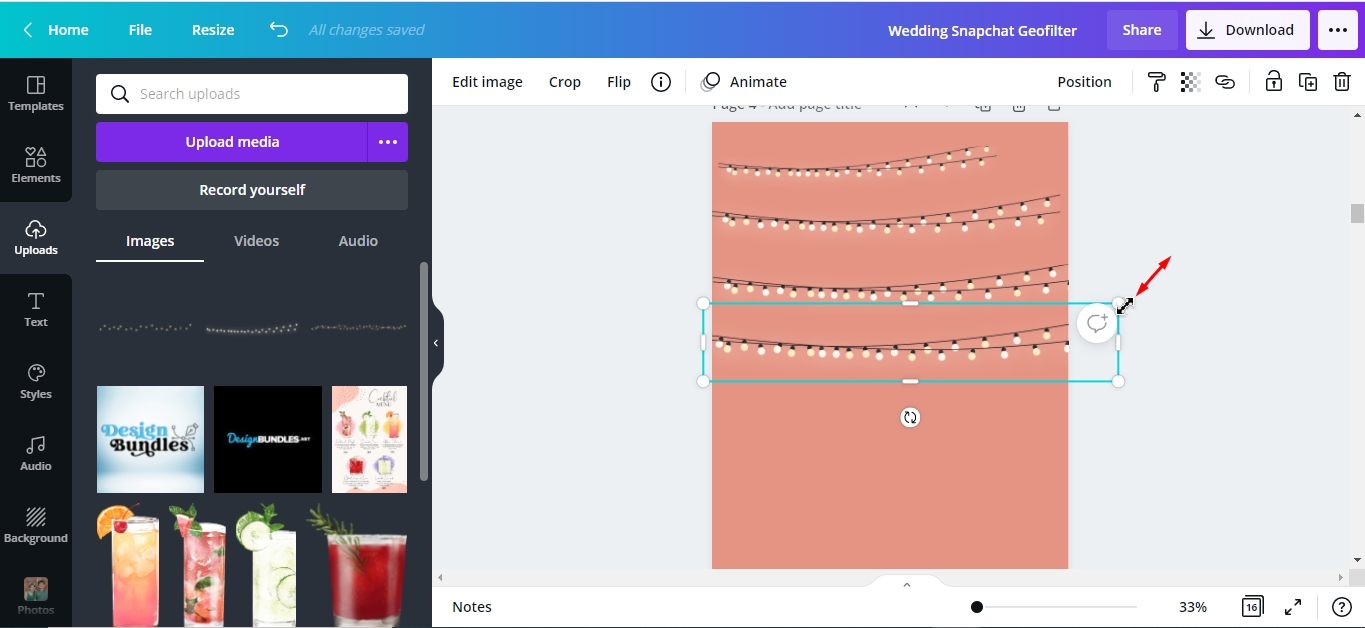
We placed the string lights on the top of our design in a criss-cross arrangement. The smallest one was placed at the back and the largest one in front.
Using Element From Canva
To find elements from the Canva library, click Elements > type the keyword on the search bar > enter > graphics. We want a lace one so we will type "corner lace" for our keyword. Scroll through the choices and click the one that you like.

After adding the lace element, duplicate it. Select/highlight it > right-click > copy or press Ctrl/⌘ + C > paste or press Ctrl/⌘ + V.
Select the duplicate element > Flip > Flip Horizontal.
We will also change the color of the lace border to white. Click on the color tile on the toolbar. Next, click on the white tile on the left side panel to apply the color change.

Next, we will drag our lace border to the bottom left and right corners of our design.

Step 4 - Add and Edit Text
For our text, we will be using the Hella Mella font from Font Bundles that we uploaded earlier. To add text, click the text button > Add a heading or just simply type "T" to quickly add a textbox.With the sample text selected/highlighted, start typing your own text. It will automatically change the sample text. We typed the phrase “We Do”.
Change Font
Change the font by clicking on the font name drop-down menu and scroll through the options. Once you have selected your font, it will be applied to your text.

Change Font Color
Let's change our font color to white by clicking on the color tile on the toolbar. Then click on the white tile on the left side panel to apply the color change.

Add a Shadow Effect
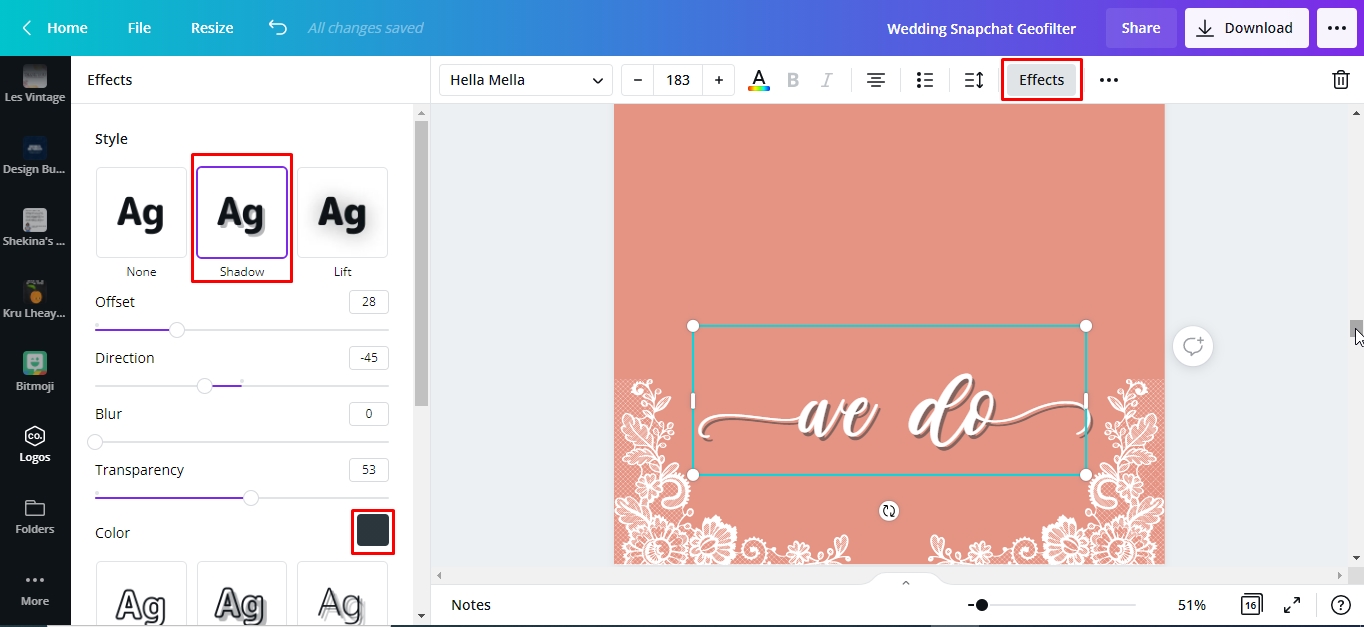
To make our text pop and not look flat, especially as it’s white, we will also add a shadow effect. Select/click the text, then click Effects, and choose Shadow.
You can fine tune each setting according to your liking by dragging the control sliders to the left or right. Offset can increase or decrease the shadow's distance from the text. Direction can change the direction of the shadow from the text. Blur can sharpen or blur your shadow, while transparency changes the opacity of the shadow.
We can also change the shadow's color by clicking on the color tile below and choosing the preferred color. We changed the shadow to gray.
Add Your Second Text
To add more text, follow the same process above. This time we typed the names of the couple and their wedding date.For this text, we used a sans serif font from the Canva library. The font color was changed to white then a gray shadow was added to make the text pop.

Step 5 - Remove Background then download Snapchat filter
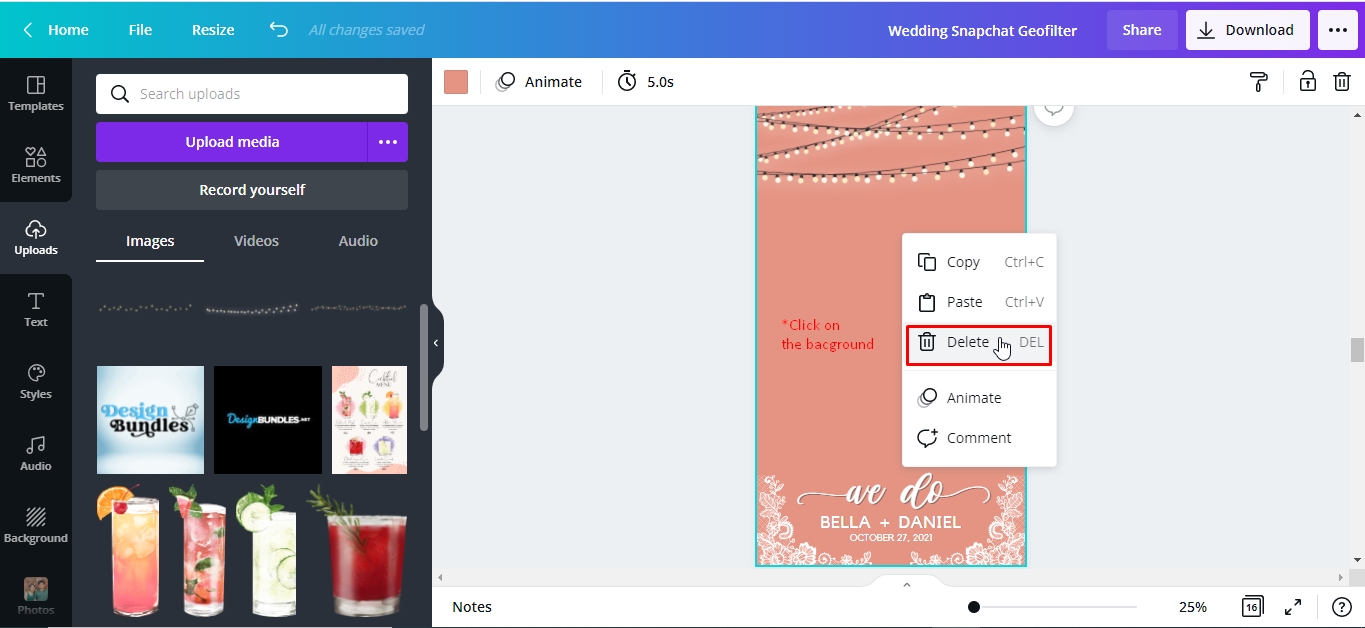
If you are satisfied with your layout, you can now remove the background. Since we are making a filter, we need our design to have a transparent background. Click your background> right click> delete.
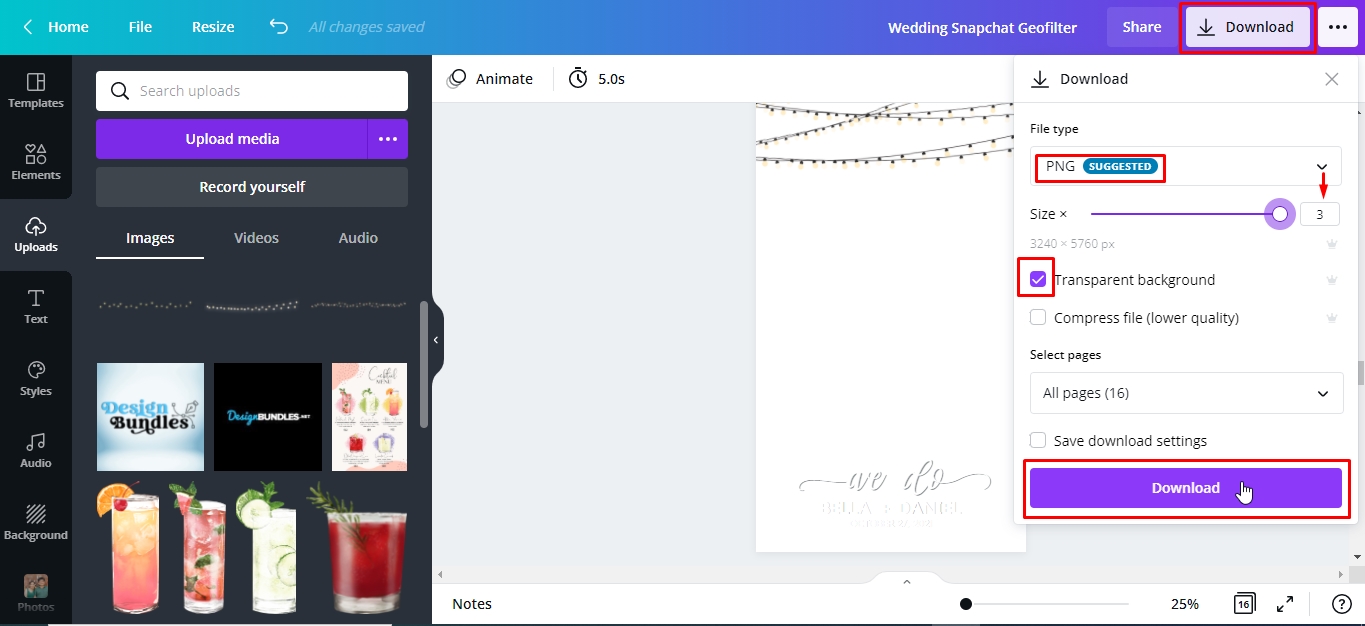
Now that our background has been removed we can download our Snapchat filter. Click the Download icon in the upper-right of the menu bar. Then, click on the down arrow under File type to scroll through the different file types. Make sure that you select PNG and that Transparent background is checked. Click Download.
Once done, you can upload your finished design to Snapchat then share it with friends, family, and your followers.
Let us try our filter with some wedding photos from the Canva library so we can see the final result.
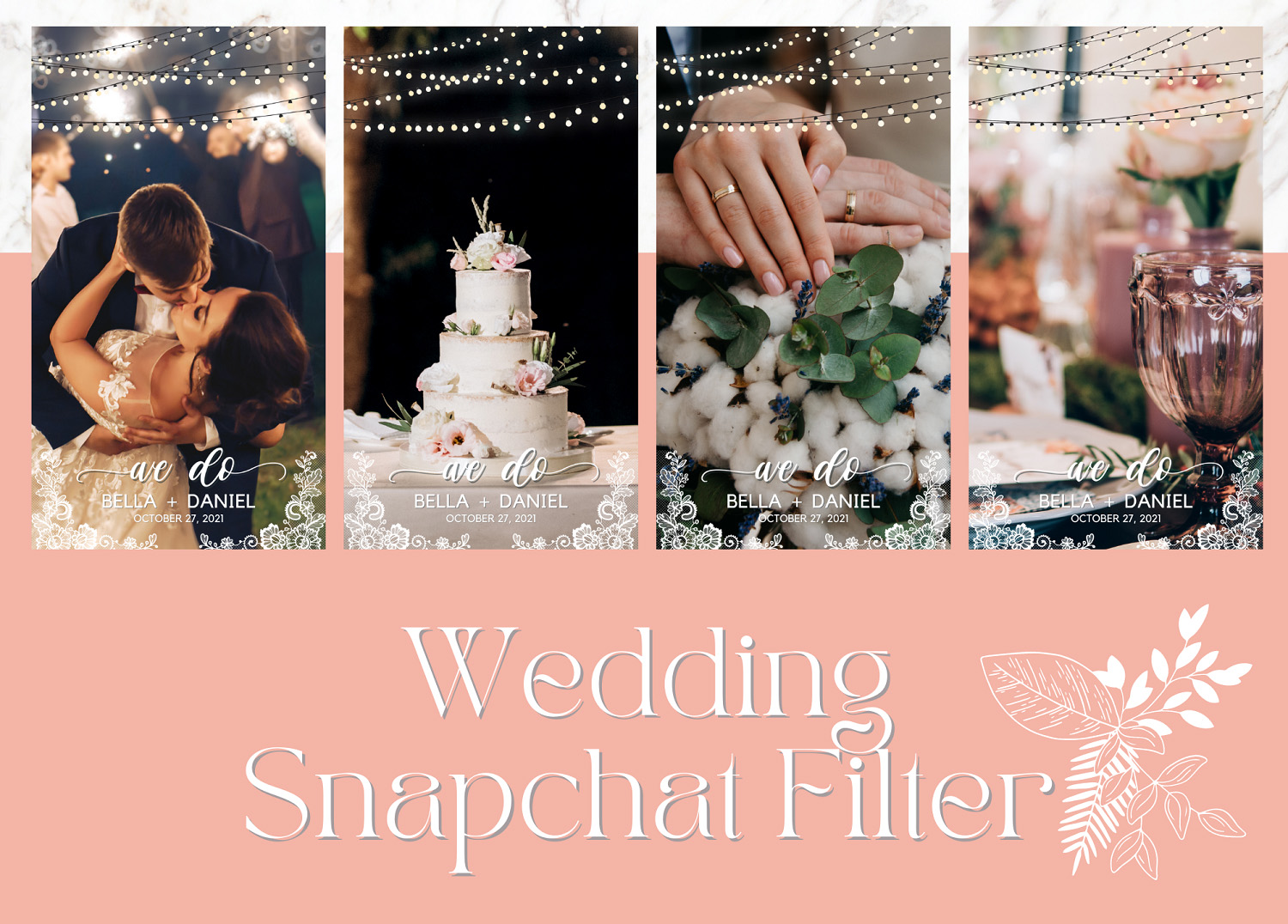
Next up check out our other tutorials on how to create a calendar in Canva, how to make Instagram highlight covers, and how to create an Instagram puzzle.