By Design Bundles
Canva Tutorials6 min
How to Use Canva Templates on iOS Device
Canva for both iPad and iPhone has been out for a while now. On iOS device, our favorite online graphic design software functions the same, but instead of operating by the clicking of the mouse, it works by touch making it more finger-friendly and possible for using Canva “on the go”.
In this tutorial, we’re going to walk you through how to use Canva templates on your iPad / iOS device. Design Bundles has a wonderful selection of Canva Templates ranging from social media graphics, branding, and more. For this tutorial, we are going to use a thank you for your order template from the Design Bundles Plus Membership.
Download your purchased template by clicking on the "Download now" button on the product page.
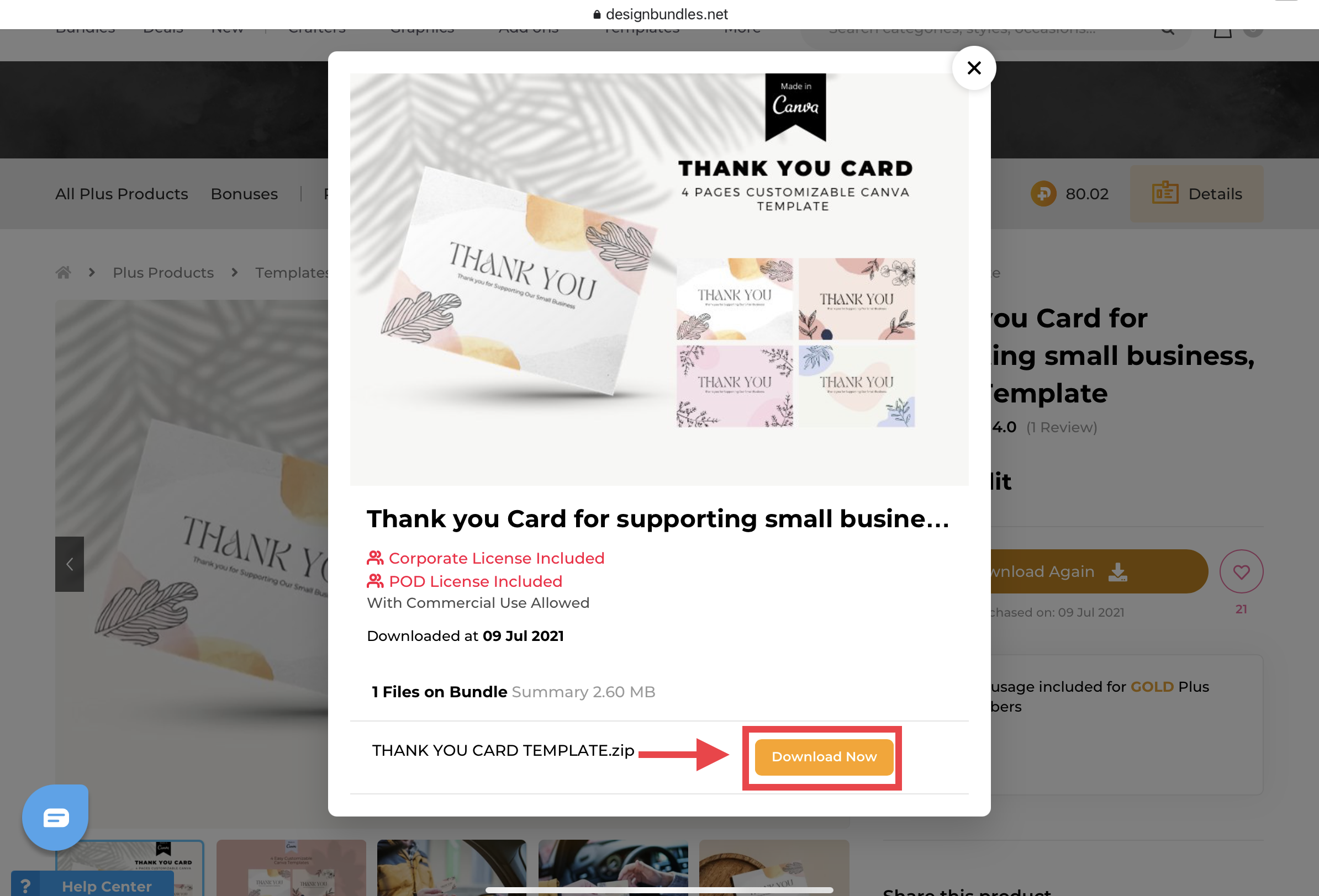
A pop-up will appear indicating that your template is in a zip file. Click "Download".
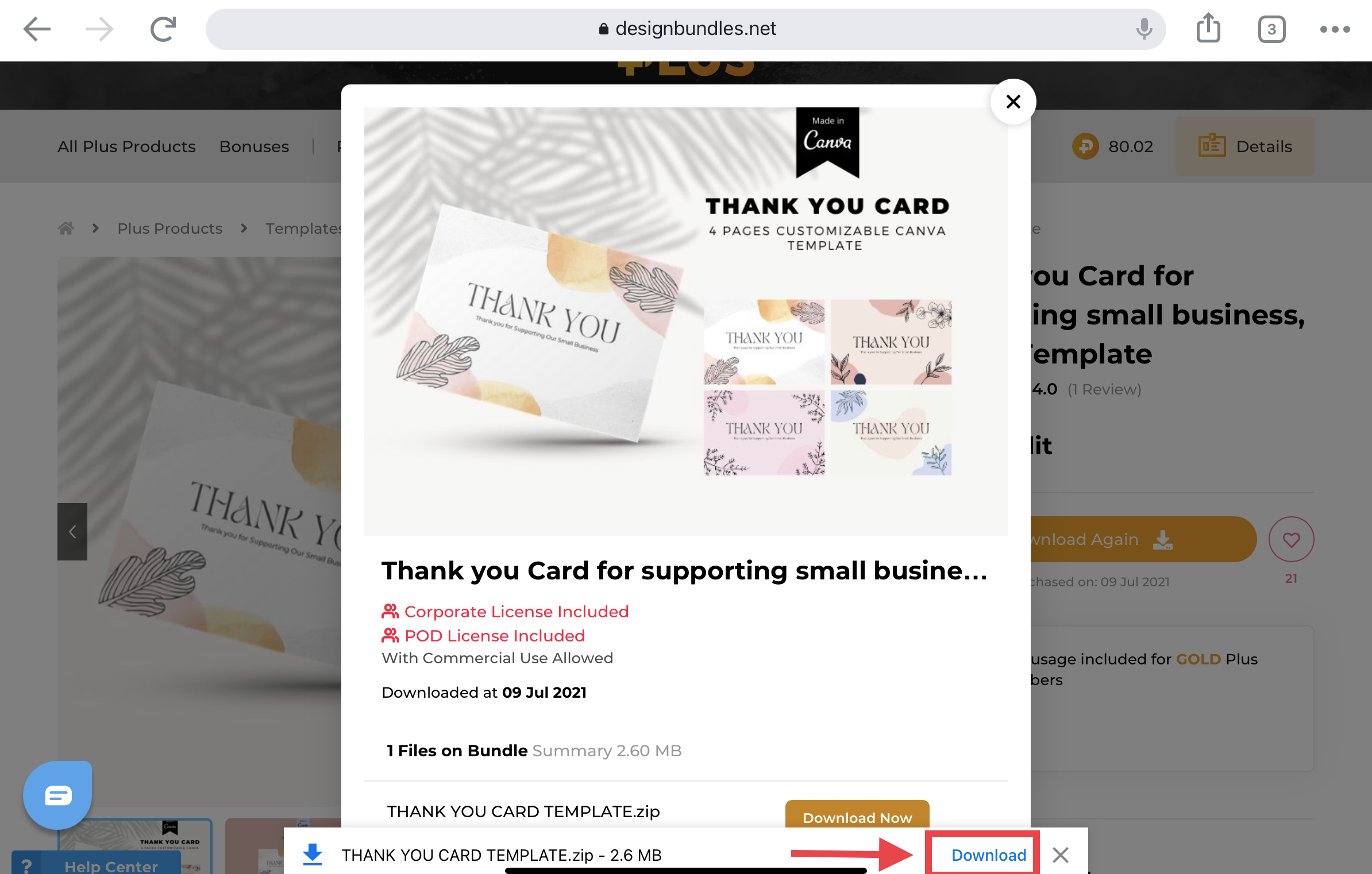
An "open in" button will appear. Click it.
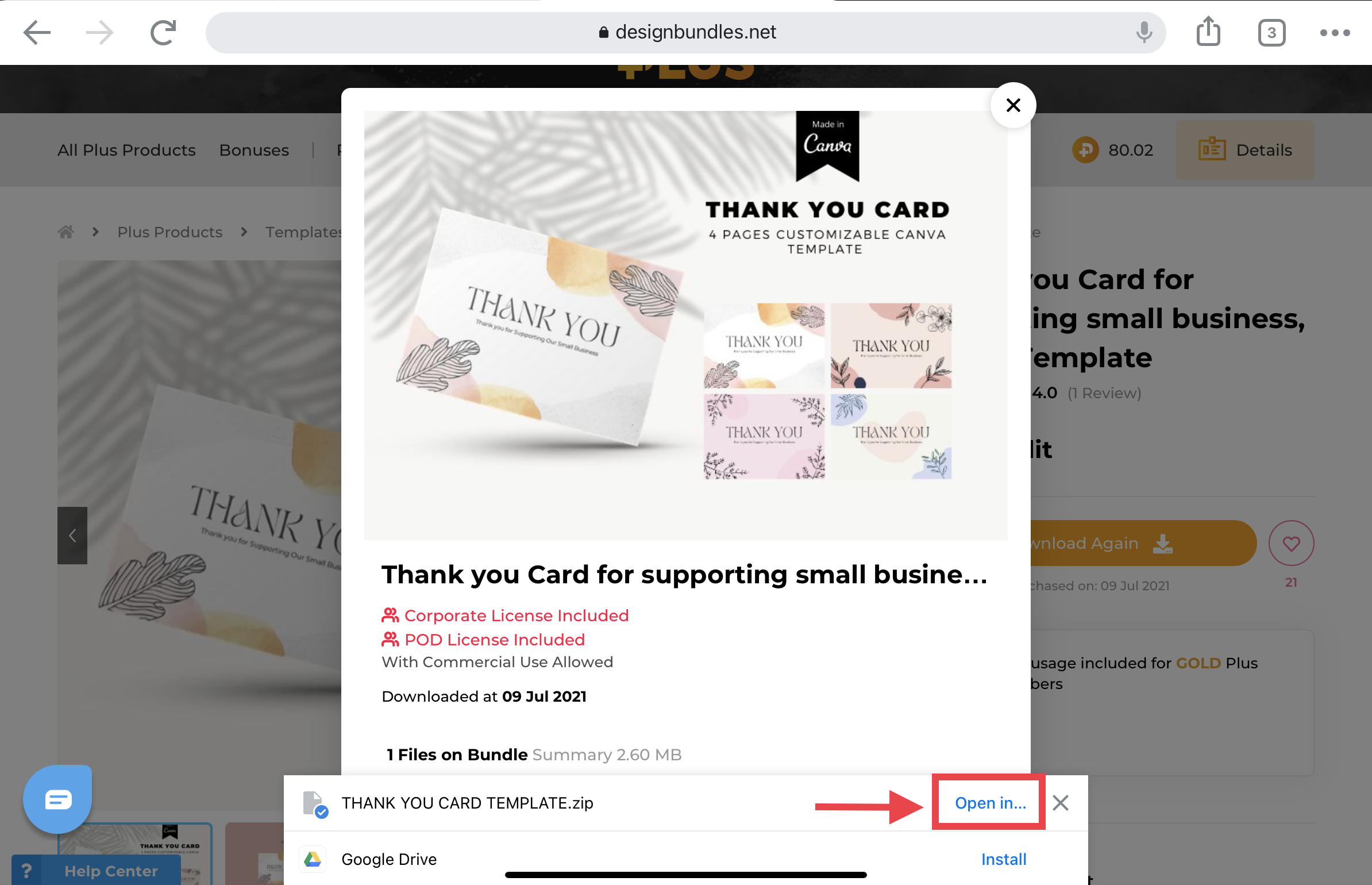
It will give you some options on what you want to do with your downloaded file. We'll select the "Open in Downloads" option.
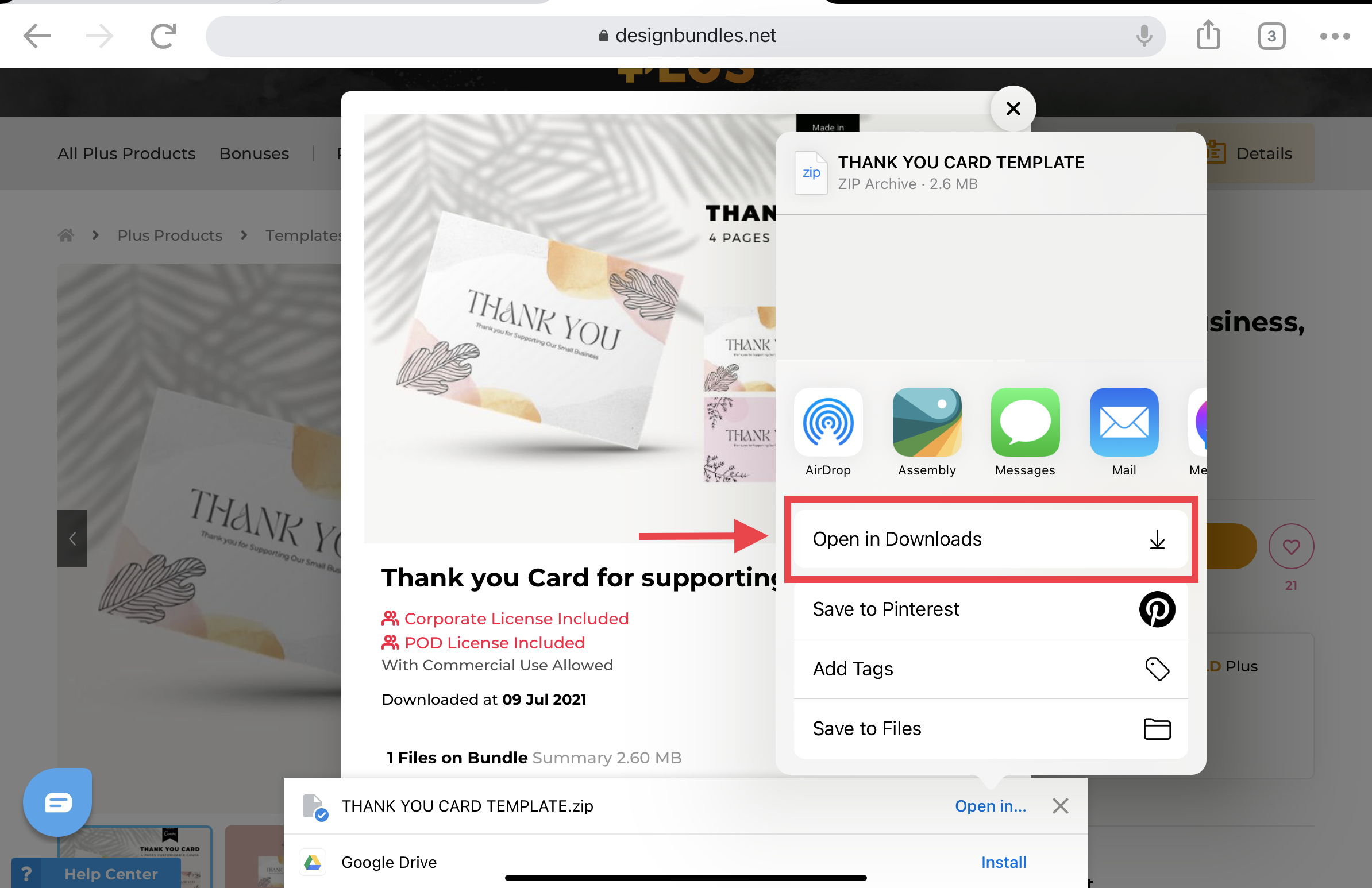
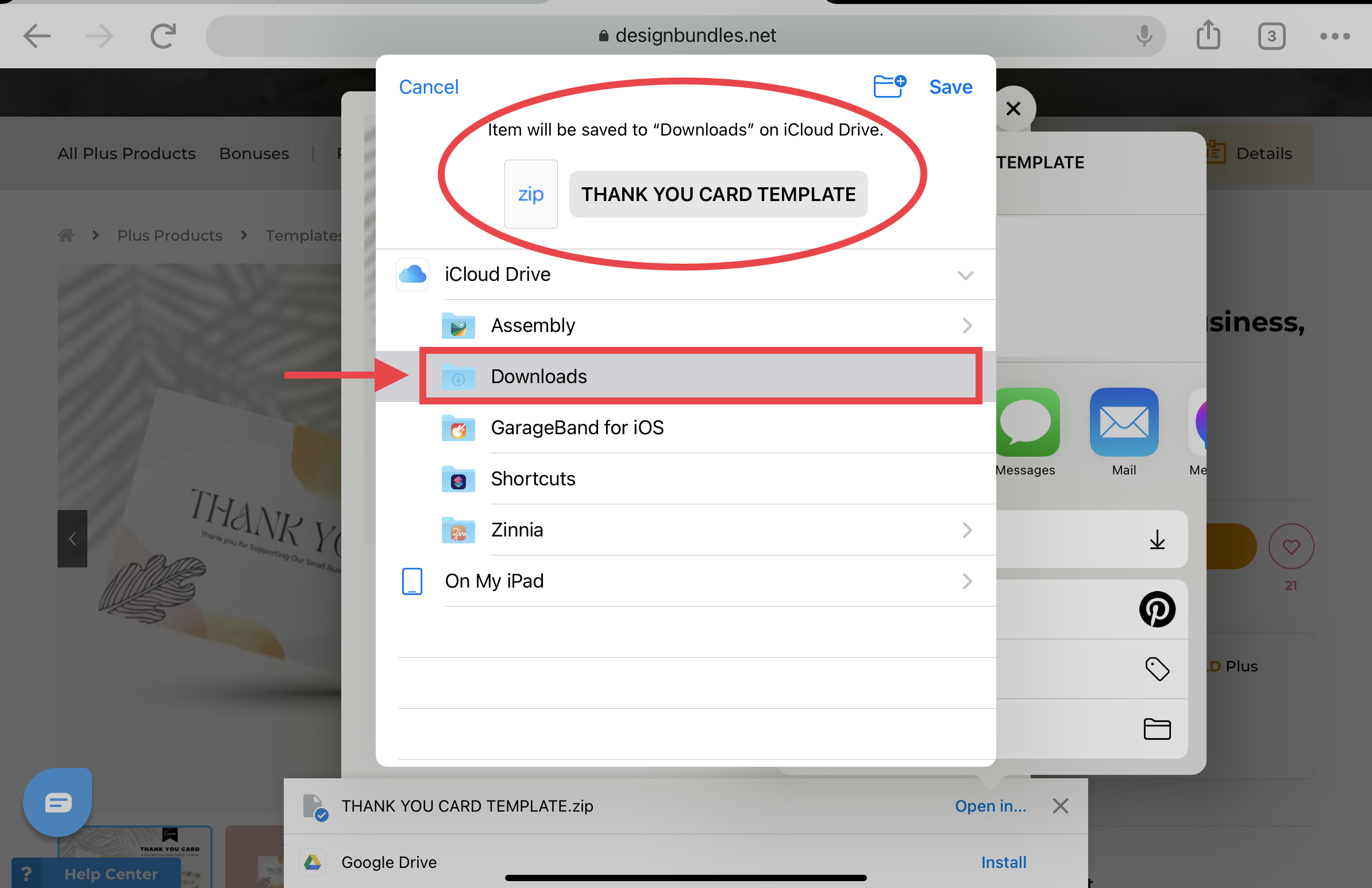
It will then show you the location of your downloaded template. Since we selected the "Open in downloads" earlier, we're going to click the "Downloads" folder.
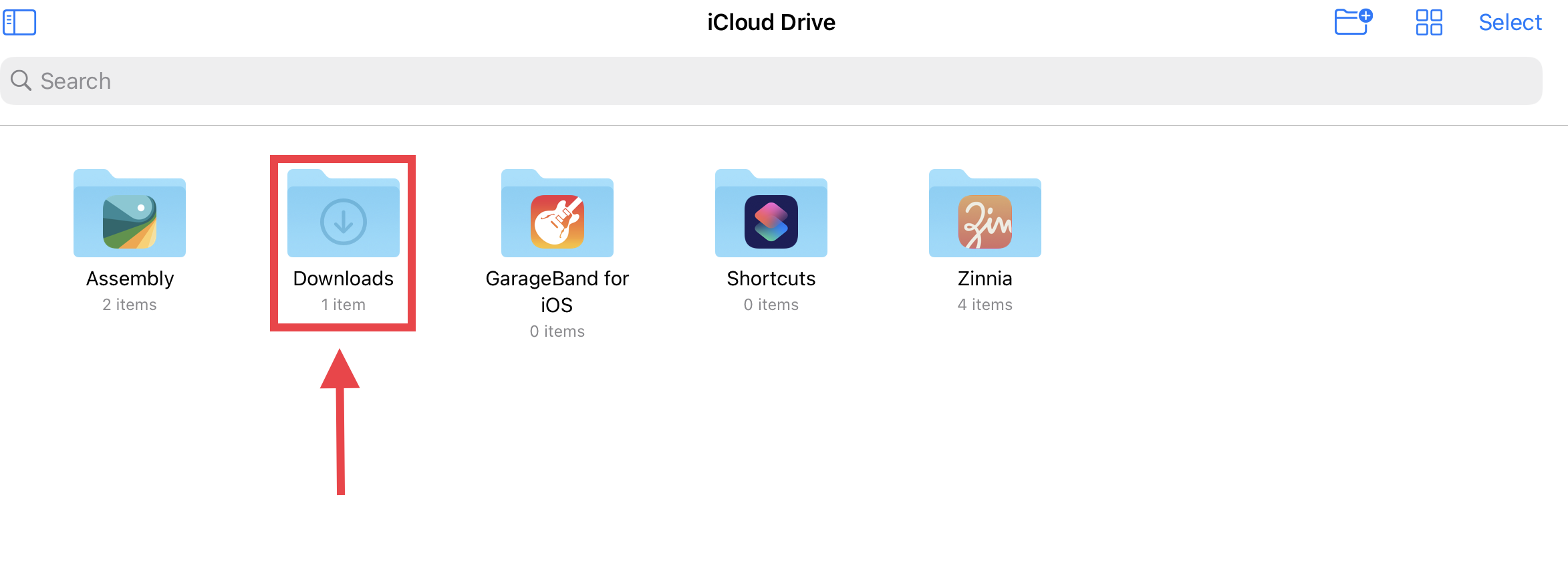
Your file will be in your iCloud drive, in the Downloads folder. Click that folder.
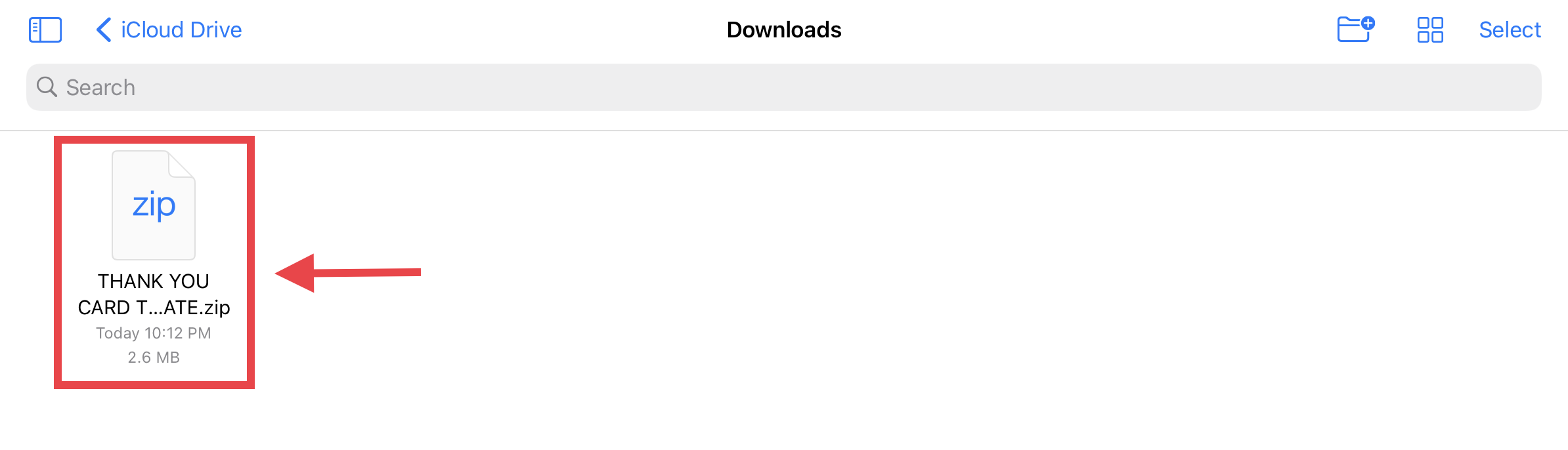
Click on the zip folder and it will automatically unzip for you.
Click on the blue folder.
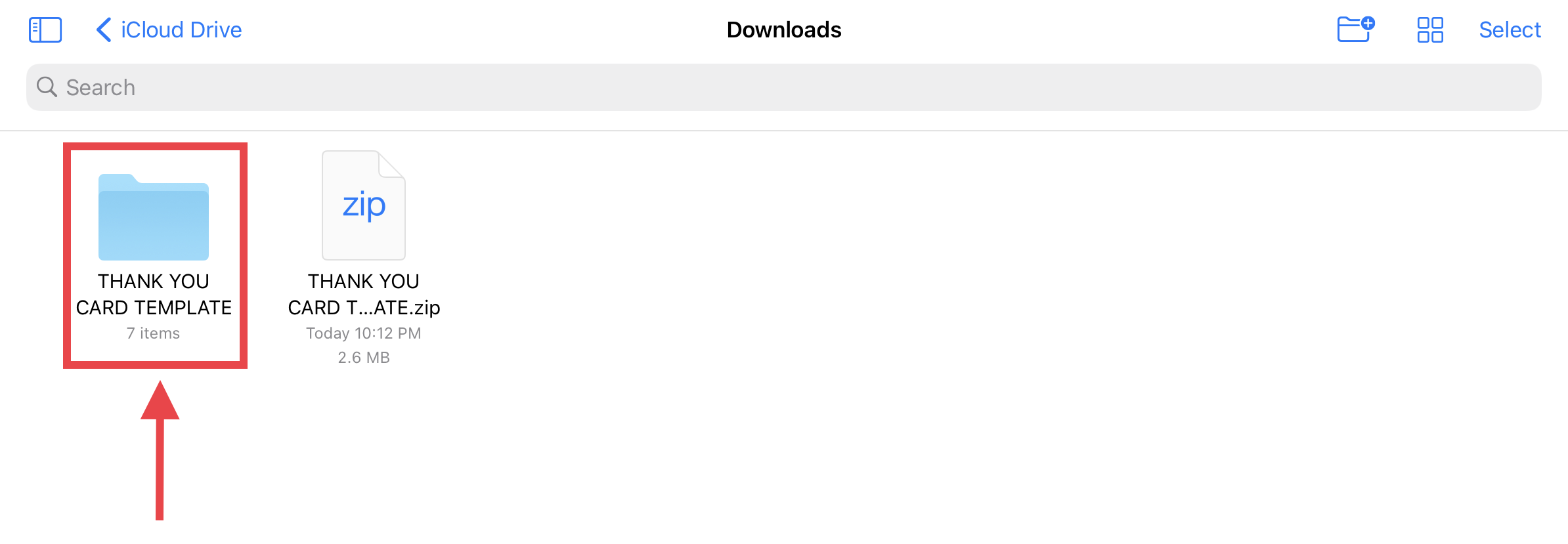
There will be several files in the folder. Select the PDF file.
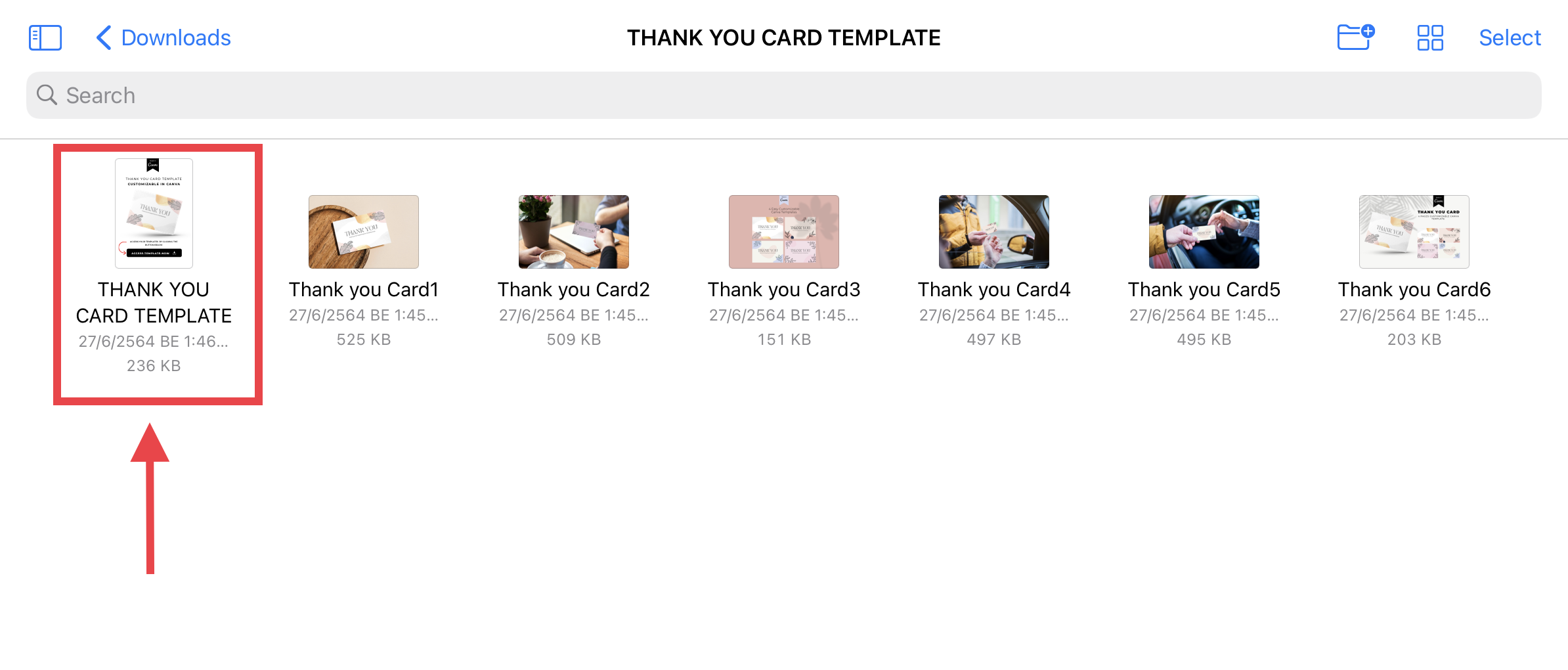
Press the “Access Template Now” button to click on the embedded Canva link. A pop-up will appear asking you if you want to leave the Files app and open the link. Click "Open".
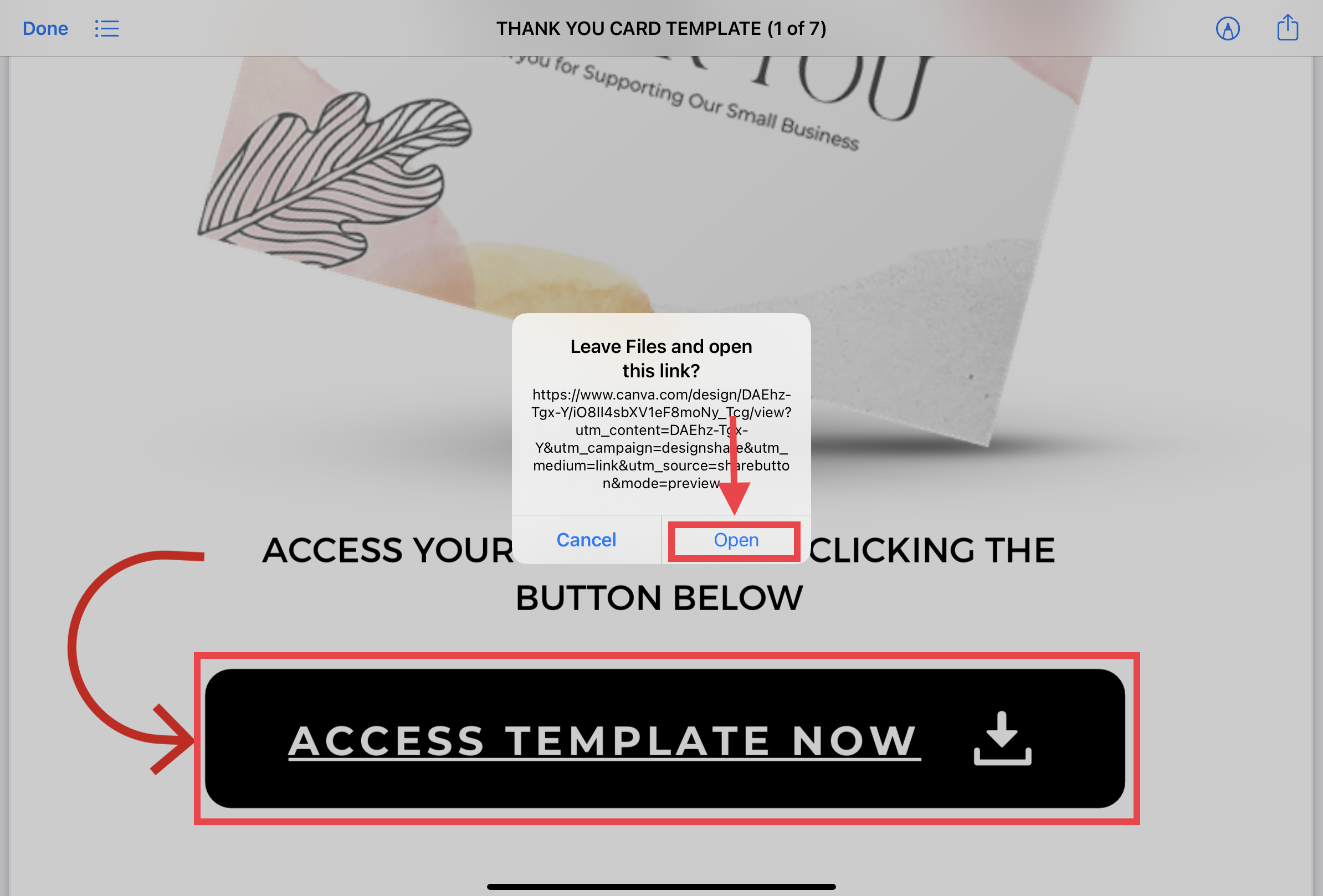
It will open a new window. Click the “Use Template” button.
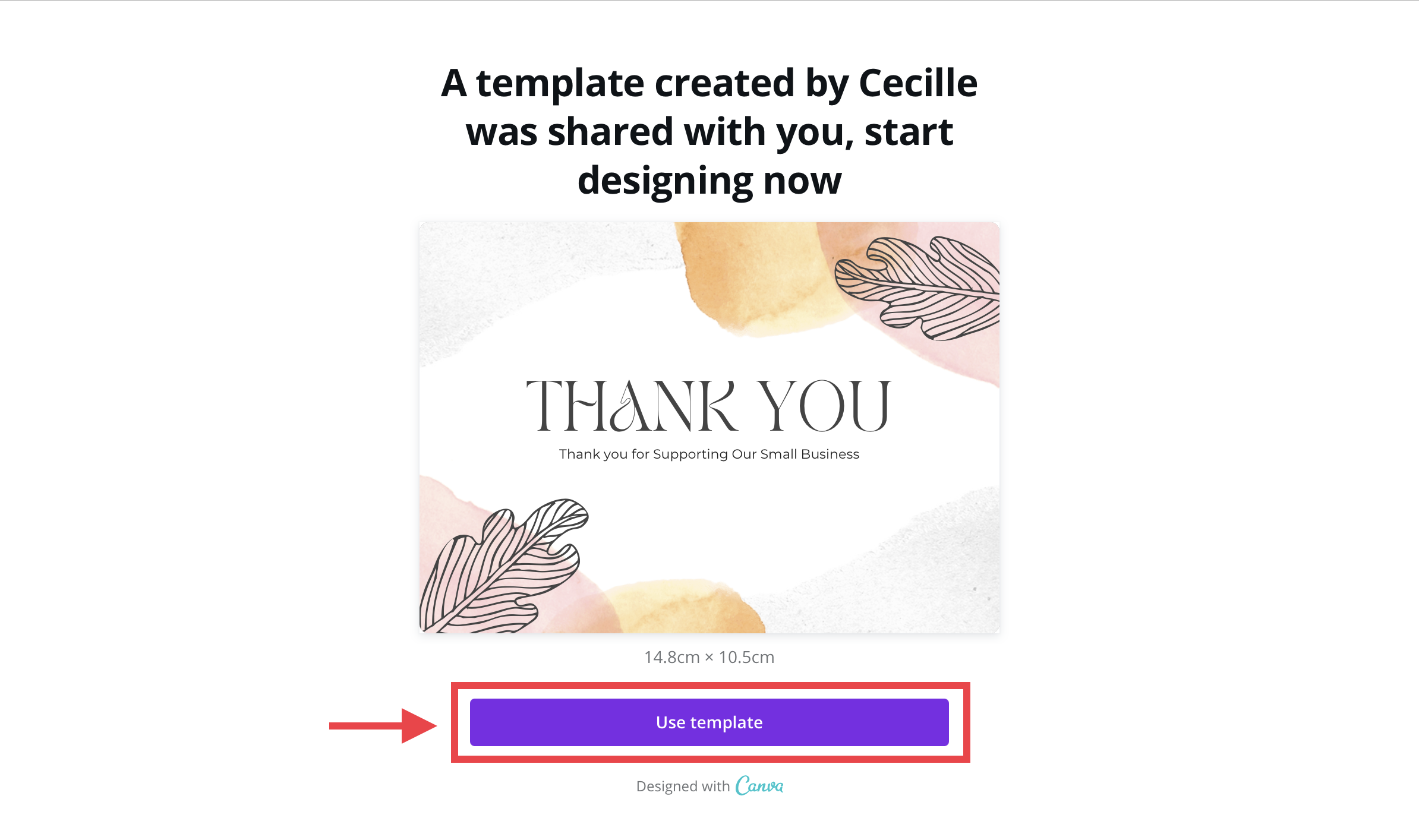
This will automatically create a copy of the template and save it to your Canva account.
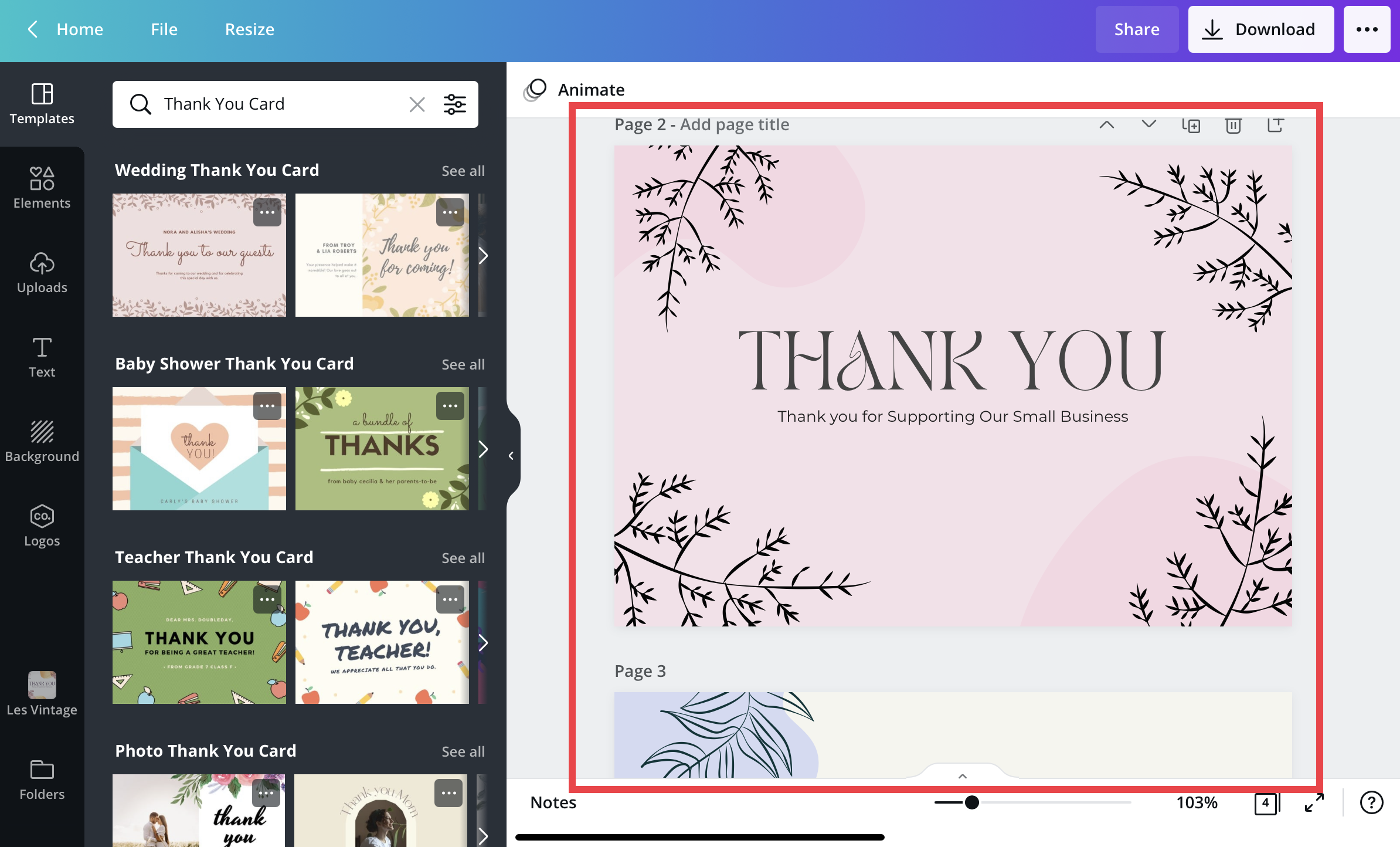
You can now start customizing the template according to your liking. For a complete tutorial on customizing a Canva template, check out our tutorial on How to Create an Instagram Puzzle Feed in Canva.
In this tutorial, we’re going to walk you through how to use Canva templates on your iPad / iOS device. Design Bundles has a wonderful selection of Canva Templates ranging from social media graphics, branding, and more. For this tutorial, we are going to use a thank you for your order template from the Design Bundles Plus Membership.
Step 1: Download your template
Download your purchased template by clicking on the "Download now" button on the product page.
A pop-up will appear indicating that your template is in a zip file. Click "Download".
Step 2: Open downloaded template
An "open in" button will appear. Click it.
It will give you some options on what you want to do with your downloaded file. We'll select the "Open in Downloads" option.
It will then show you the location of your downloaded template. Since we selected the "Open in downloads" earlier, we're going to click the "Downloads" folder.
Your file will be in your iCloud drive, in the Downloads folder. Click that folder.
Click on the zip folder and it will automatically unzip for you.
Click on the blue folder.
Step 3: Access the template
There will be several files in the folder. Select the PDF file.
Press the “Access Template Now” button to click on the embedded Canva link. A pop-up will appear asking you if you want to leave the Files app and open the link. Click "Open".
It will open a new window. Click the “Use Template” button.
This will automatically create a copy of the template and save it to your Canva account.
You can now start customizing the template according to your liking. For a complete tutorial on customizing a Canva template, check out our tutorial on How to Create an Instagram Puzzle Feed in Canva.
Related Tutorials
Font Tutorials
How to use Anyfont to Add Fonts to an iPhone or iOS device
Seamlessly integrated with Font Bundles, easily download and install fonts with the Anyfont App.
Canva Tutorials
How to Use Digital Scrapbook Templates in Canva
In this easy to follow guide you will learn how to use digital scrapbook templates in Canva.
Canva Tutorials
How to Use Templates in Canva
Learn how to use templates in Canva with this quick two step tutorial,
Canva Tutorials
How to Use Your Purchased Fonts in Canva
In a few steps you'll be using your brand font, or any other custom font perfect for your project!
Canva Tutorials
How to Use icons in Canva
In this tutorial learn how to use icons in Canva that will add visual impact to your projects.
Canva Tutorials
How to Use Text Options in Canva
Learn all about the text options in Canva with this tutorial!