By Design Bundles
Cricut Tutorials6 min
How to Use Bundles in Cricut on iPad
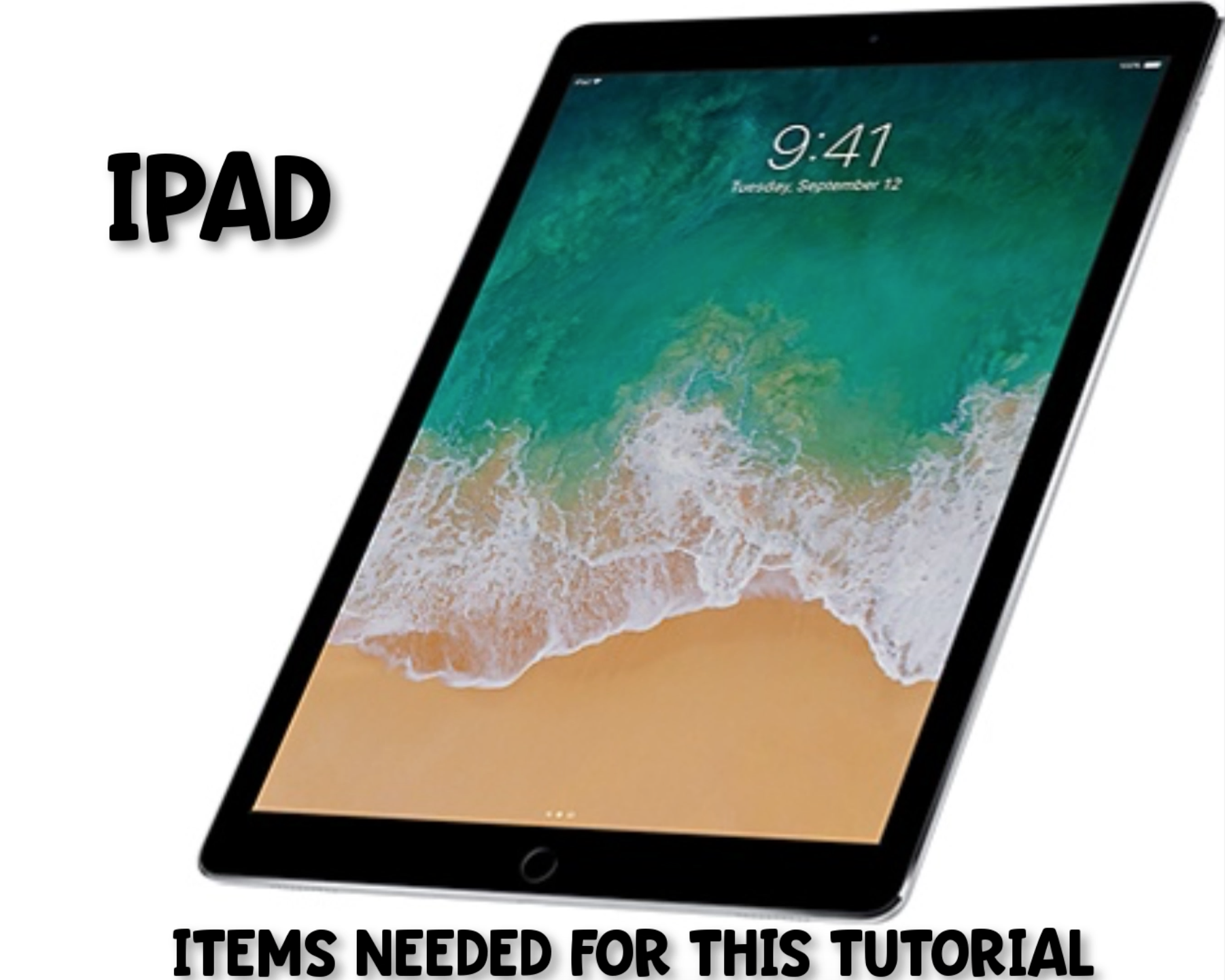

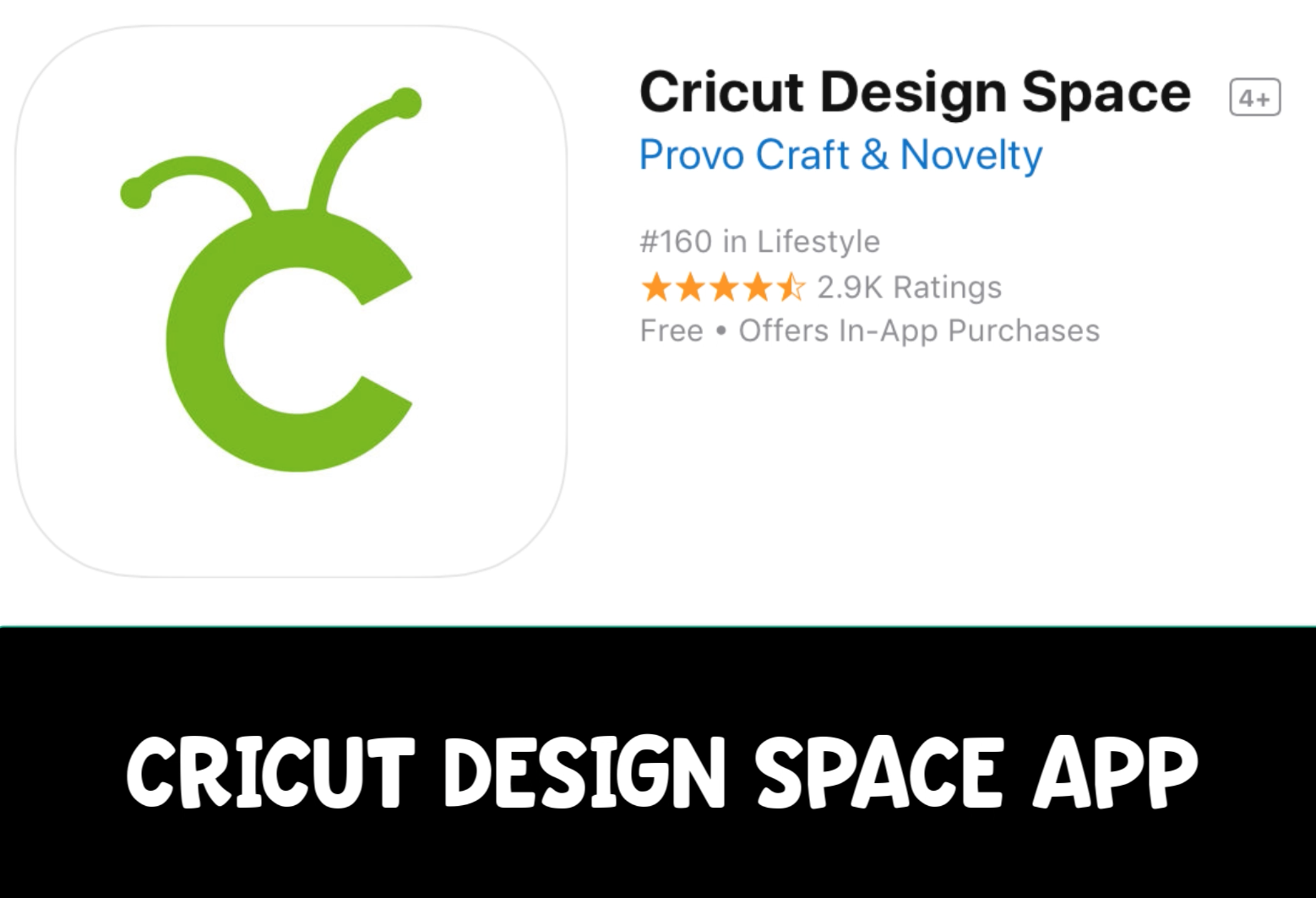
Today we are going to talk about utilizing your DesignBundles.net purchases on your Cricut app for iPad. There are a few things you will need to follow this tutorial.
- Ipad
- Zip Viewer App
- Cricut App
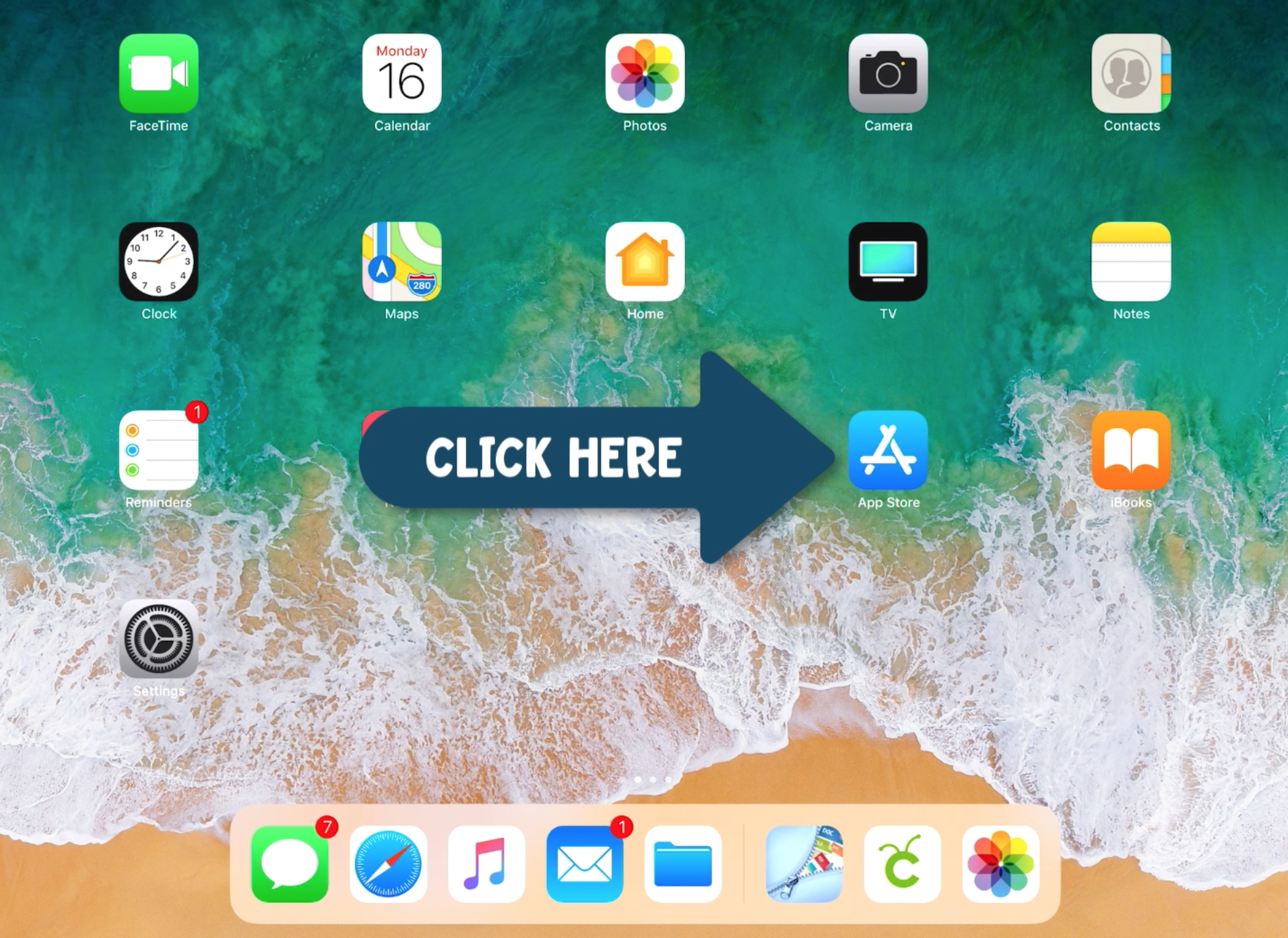
Let's start by downloading the Zip Viewer App in the App Store. Click on your App Store icon.
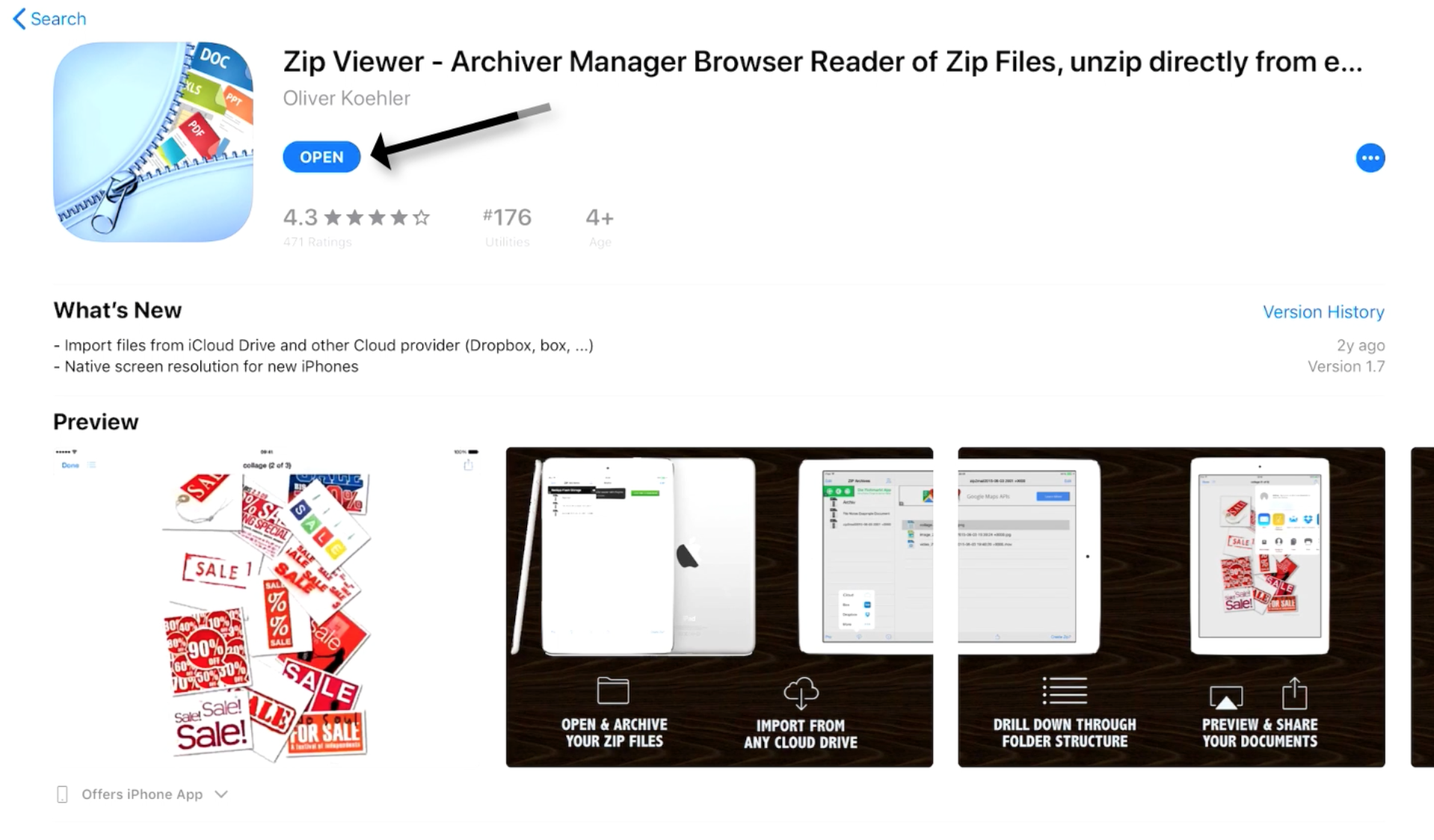
Search for the Zip Viewer App and download.
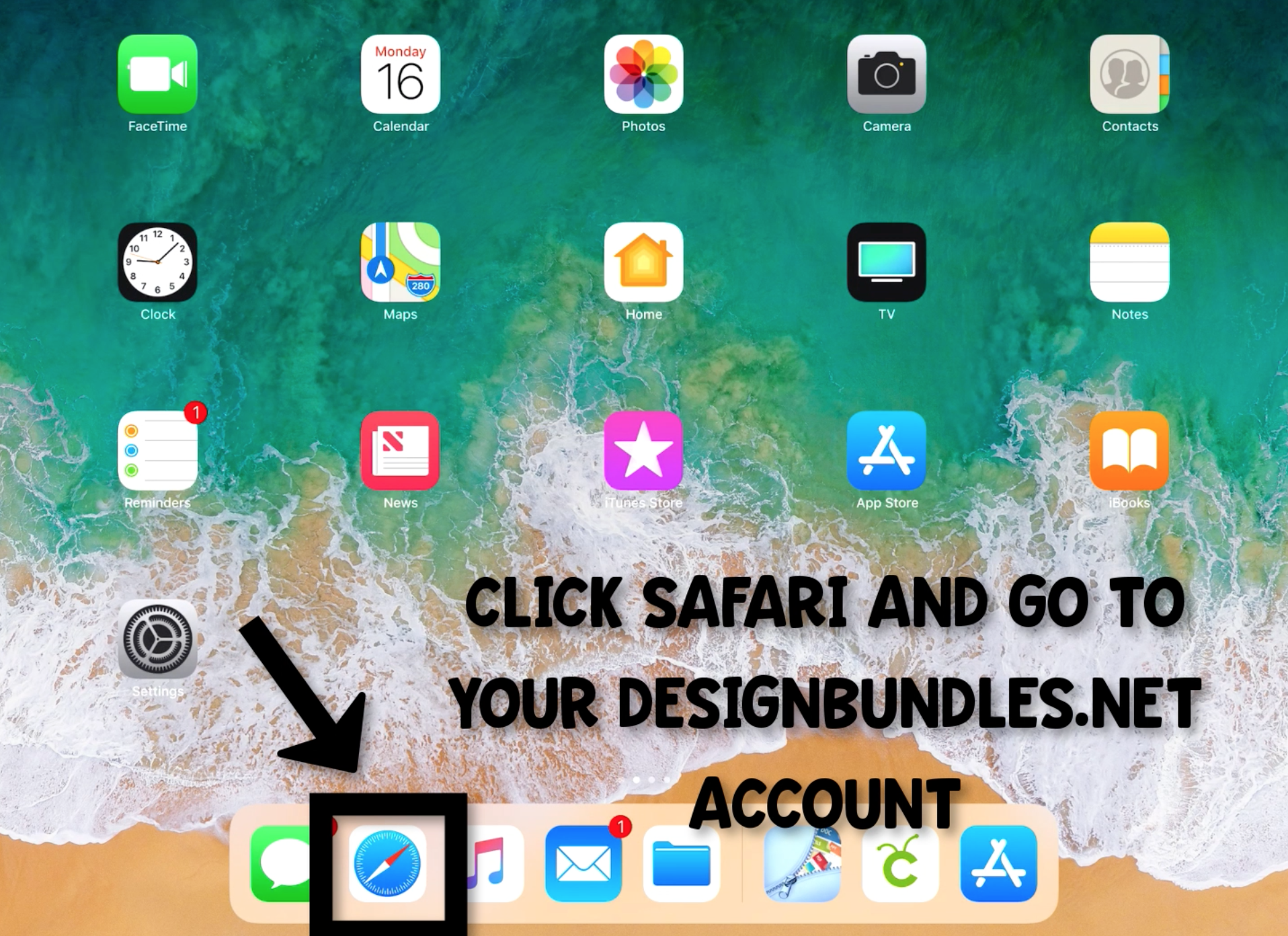
Click Safari and go to your DesignBundles.net account.
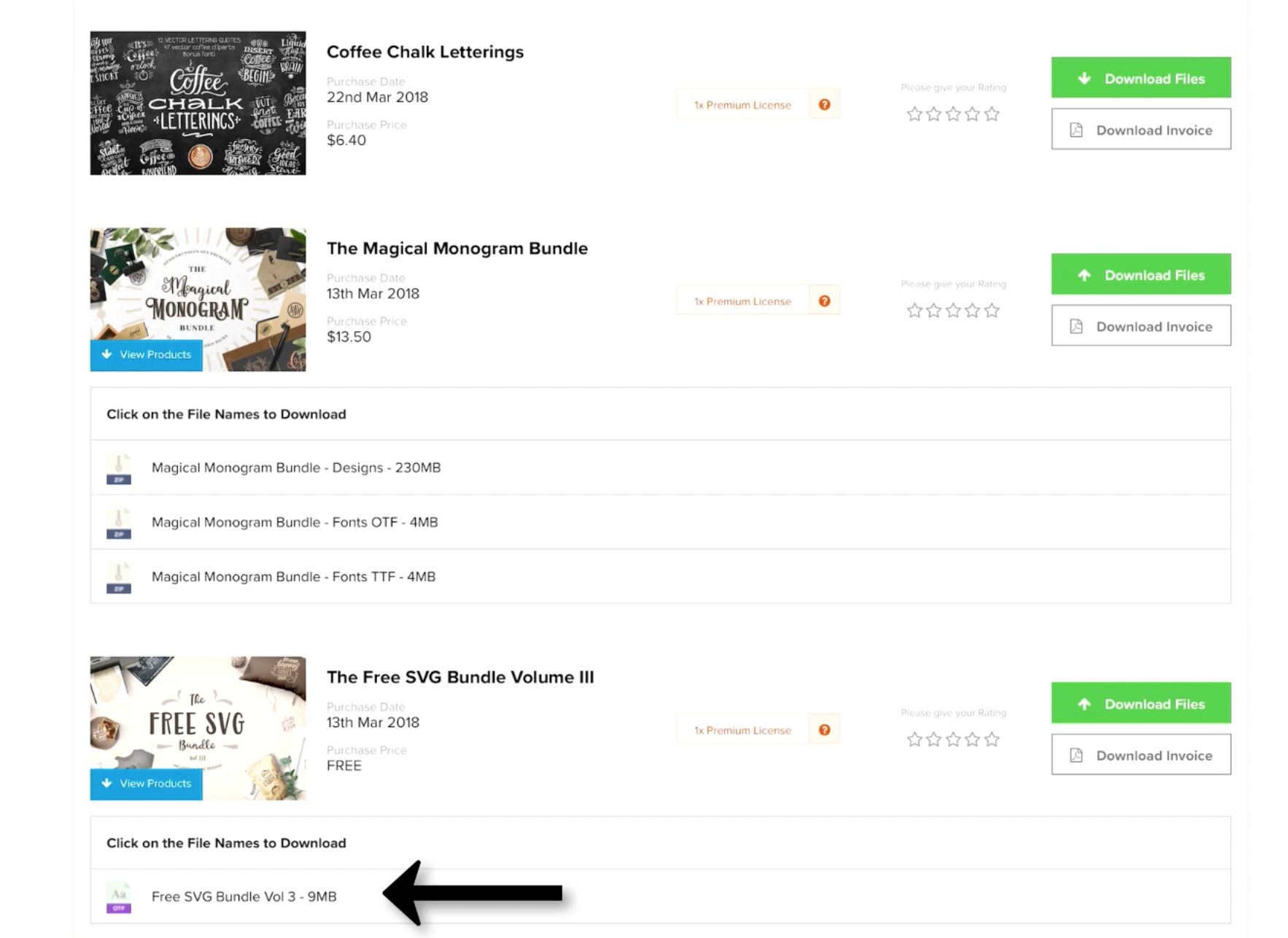
Click the link to the bundle you want to use.
When finished downloading, it will ask you where you want to open. Select Zip Viewer. If this option is not here, select more and then scroll to the right until you find the Zip Viewer tool.
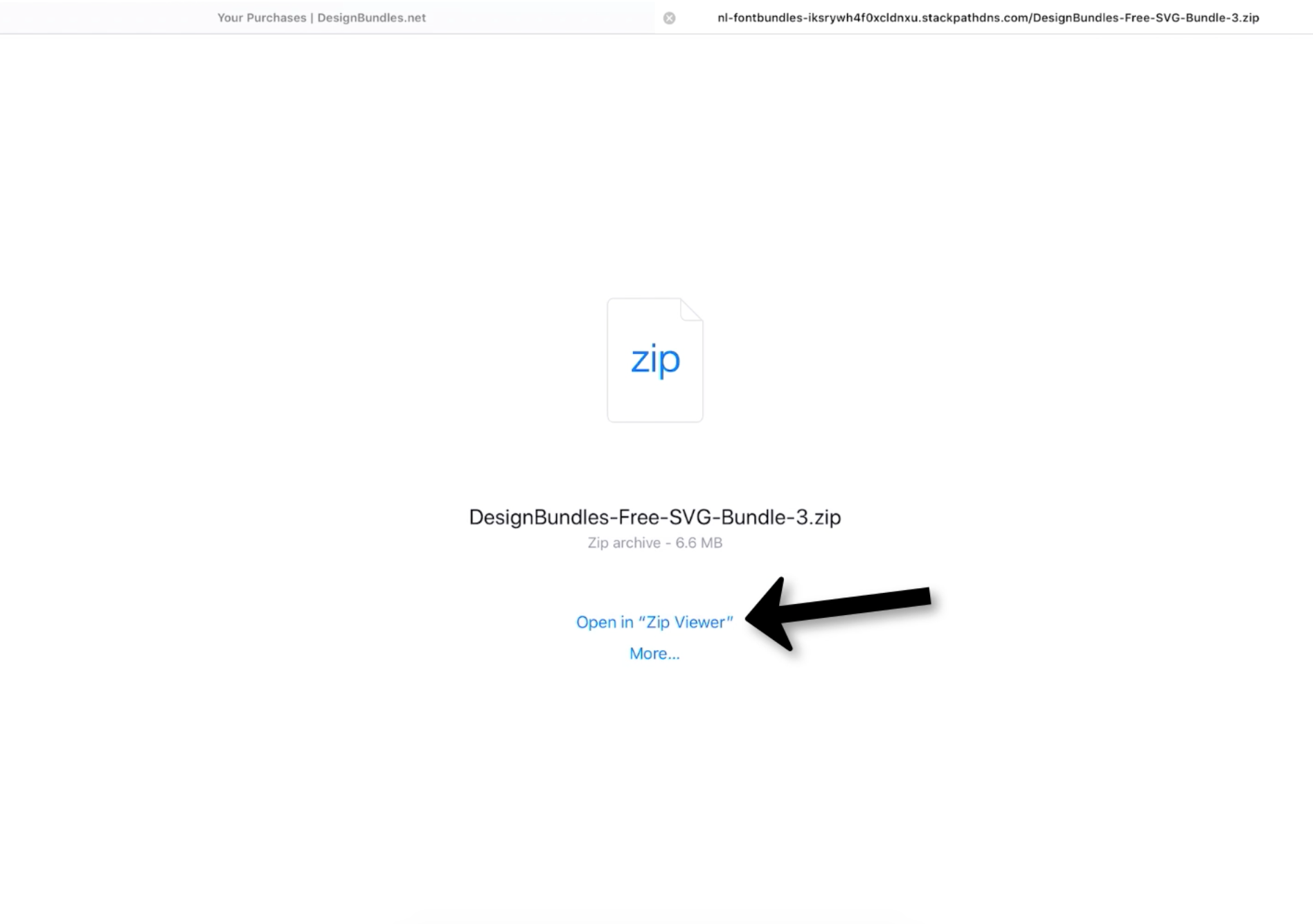
You should now see the bundle you just downloaded. Click on the bundle title.
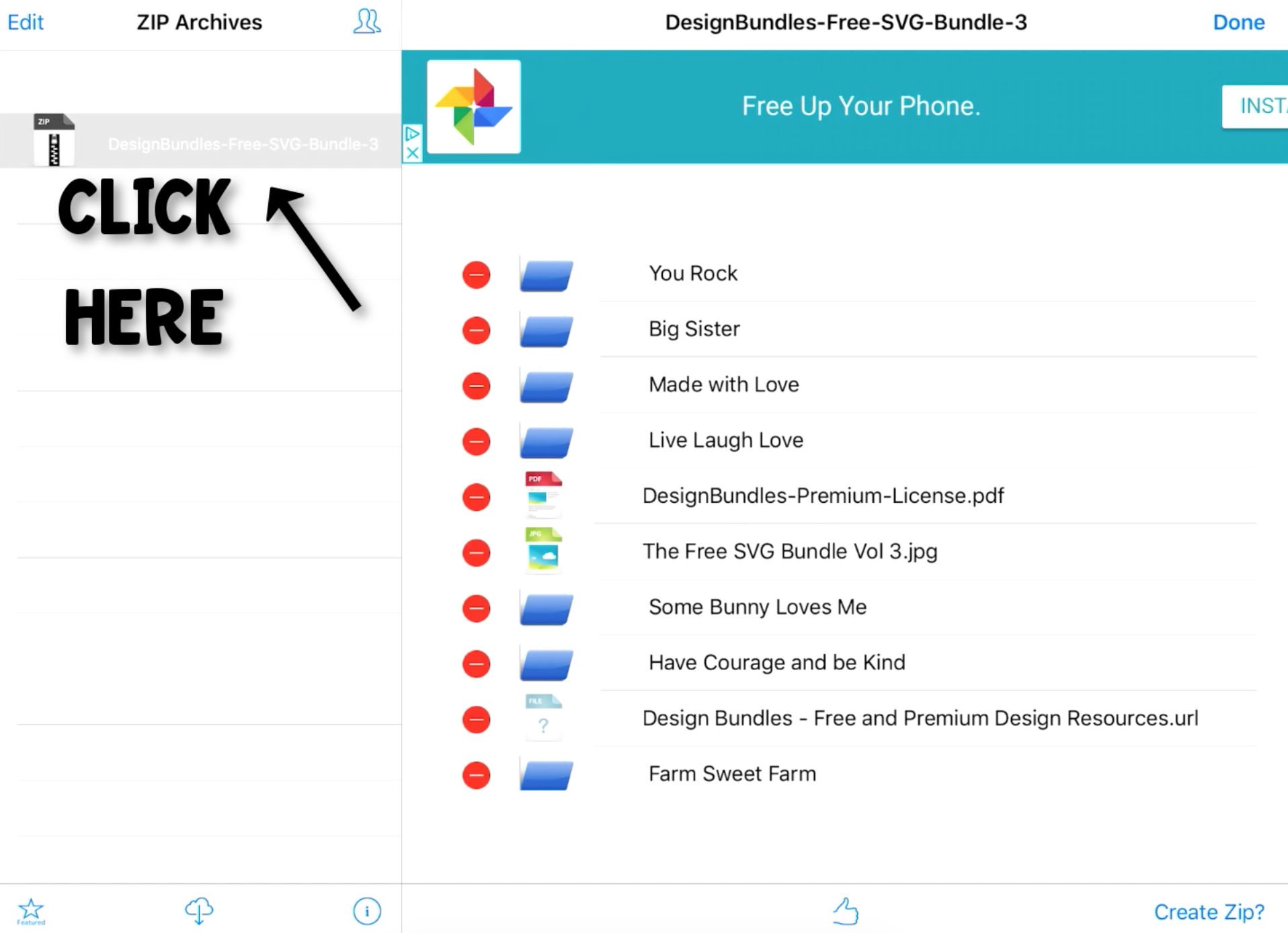
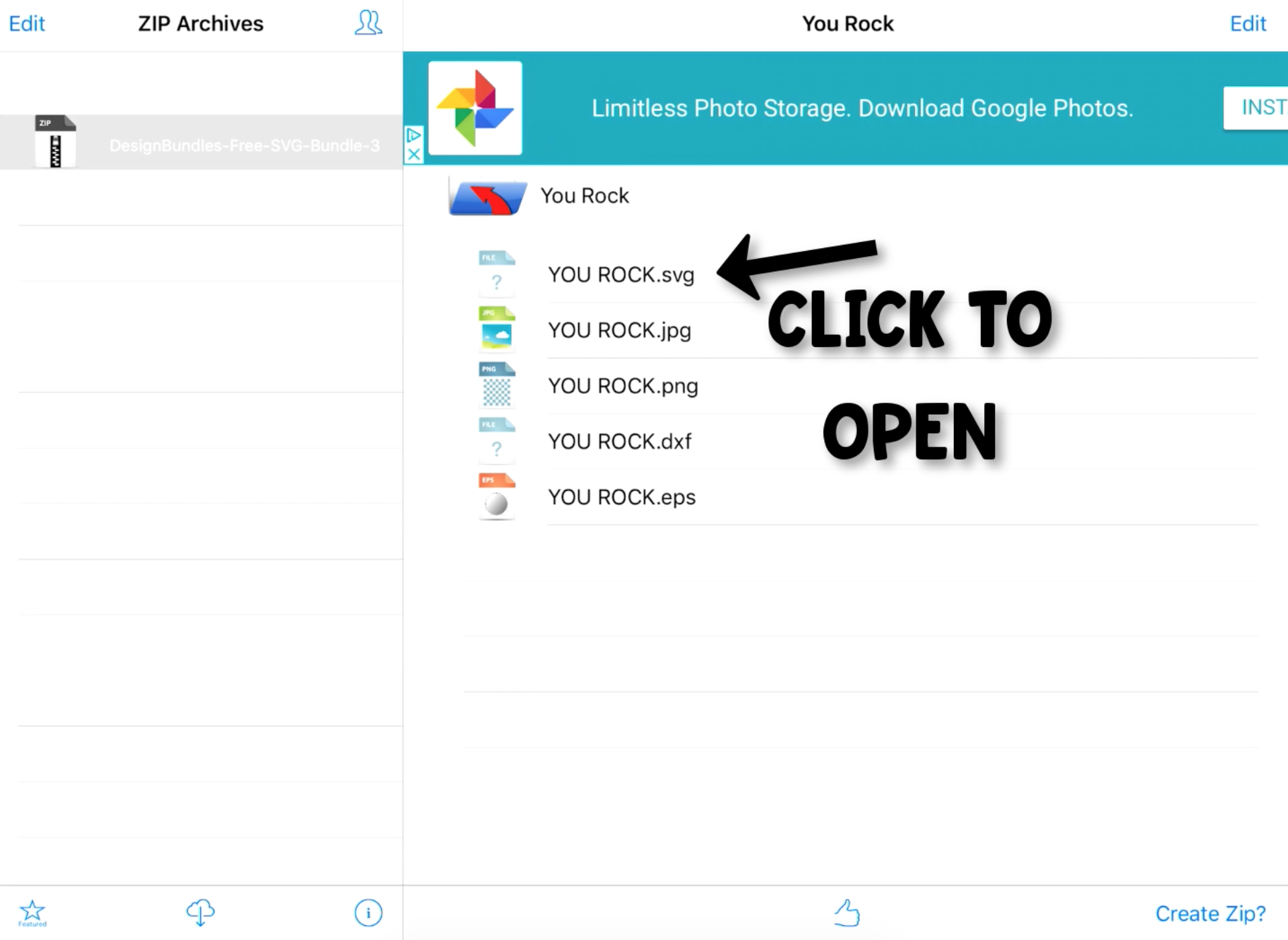
Click the SVG design you want to use.
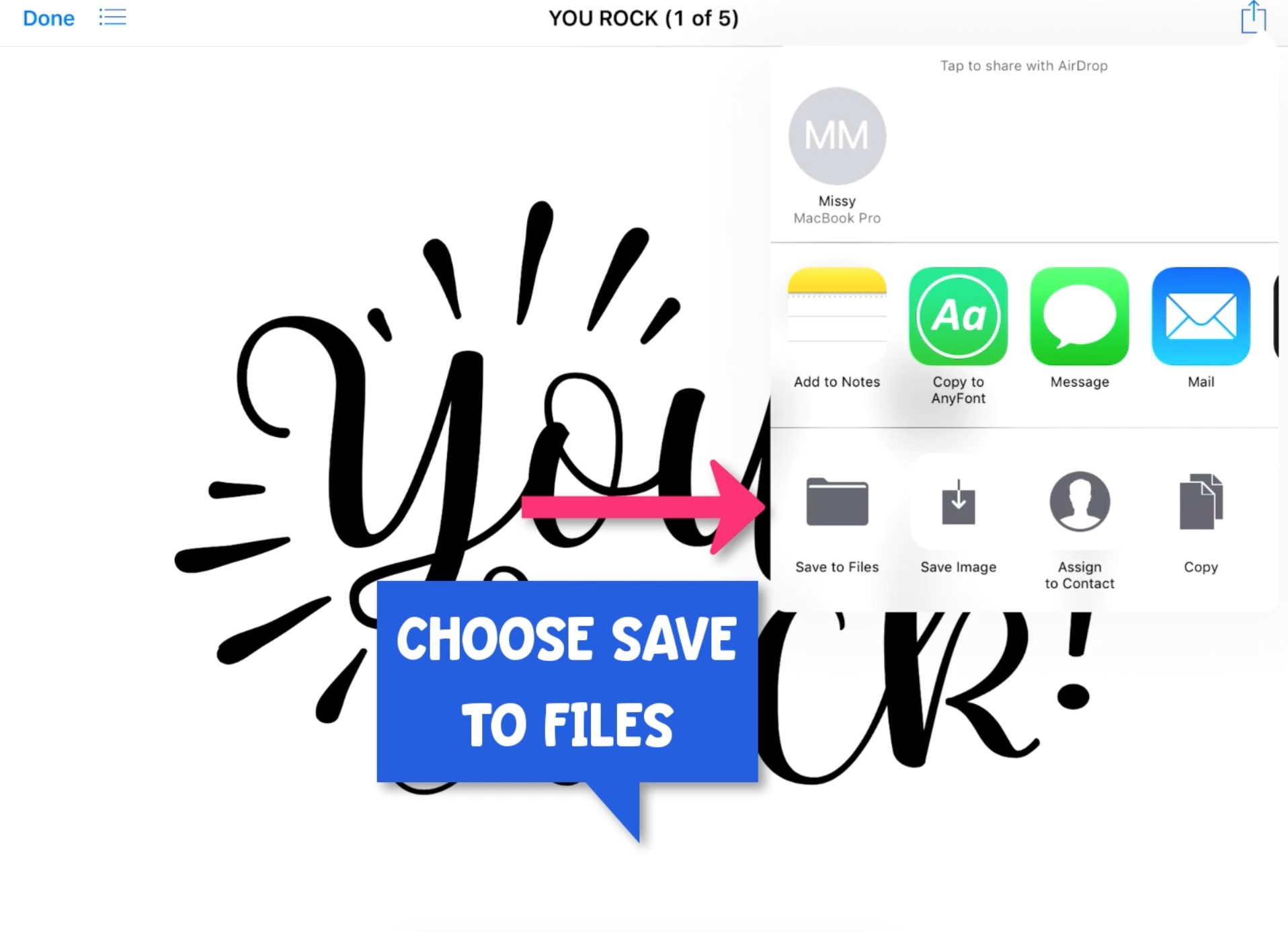
The preview window will pop up so you can see the item you selected. Click the "send to" icon in the top right corner.

Click the Save to Files option.
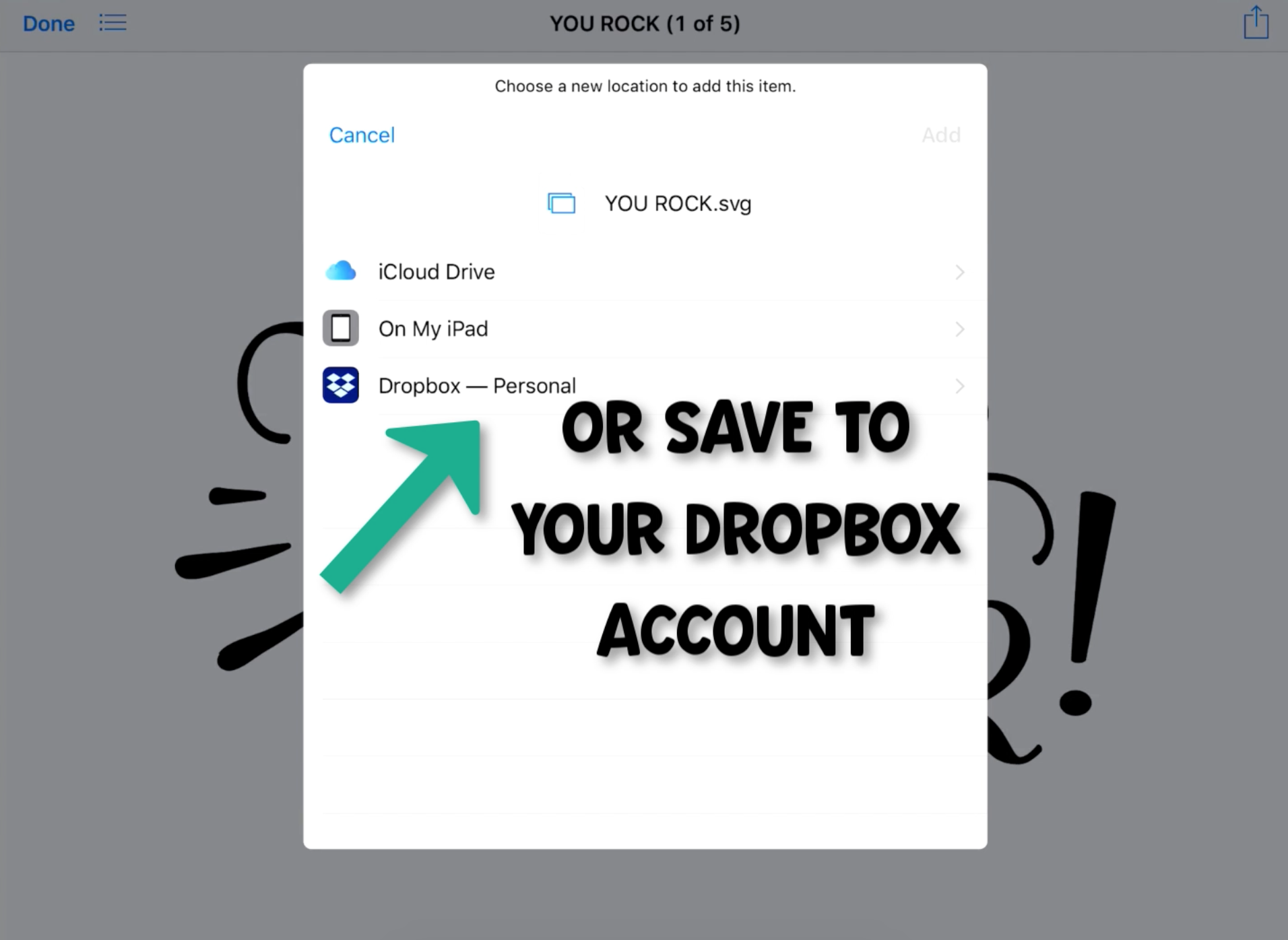
 At this point, you have two options. You can save to your iCloud Drive or Dropbox account.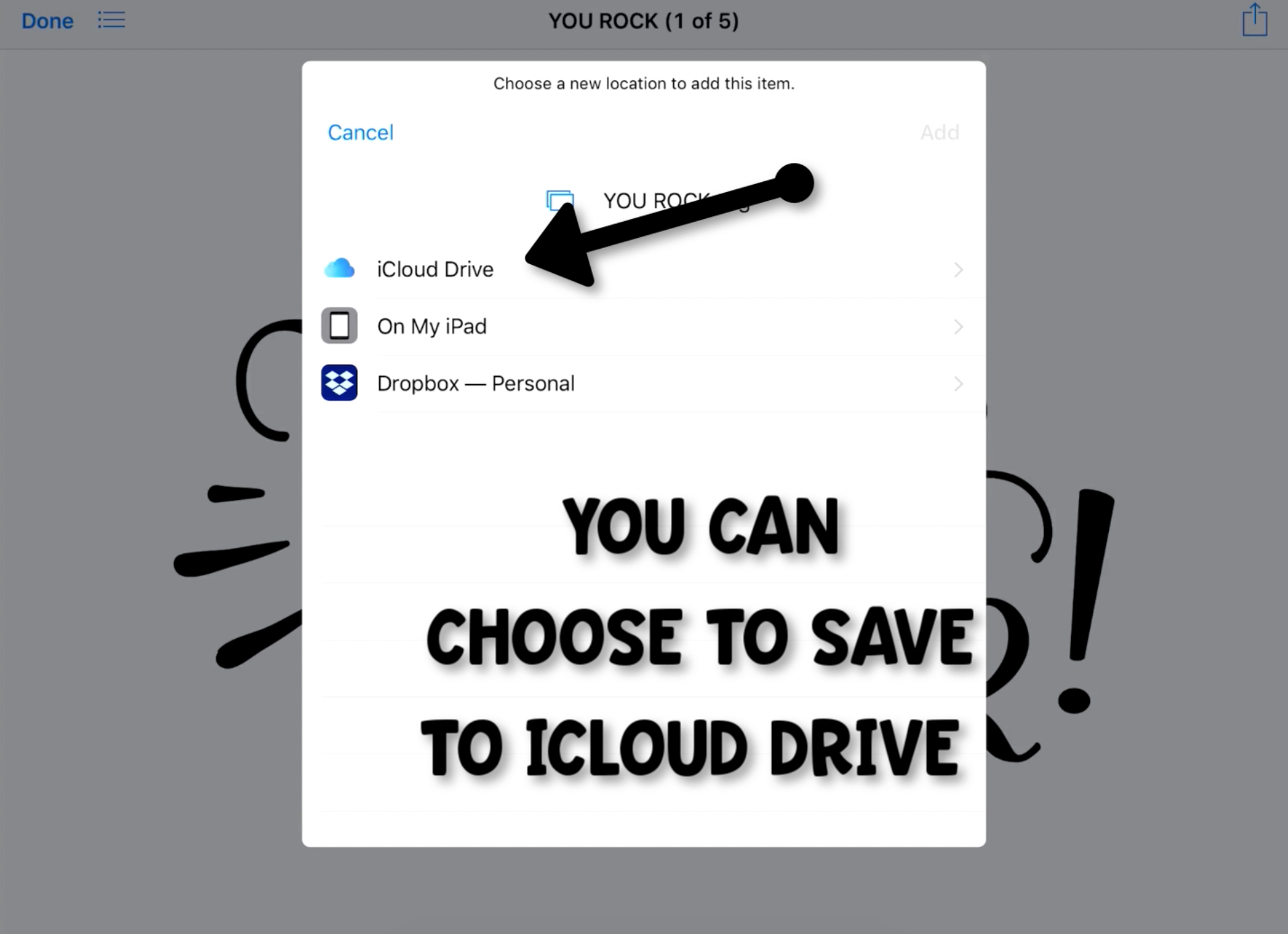
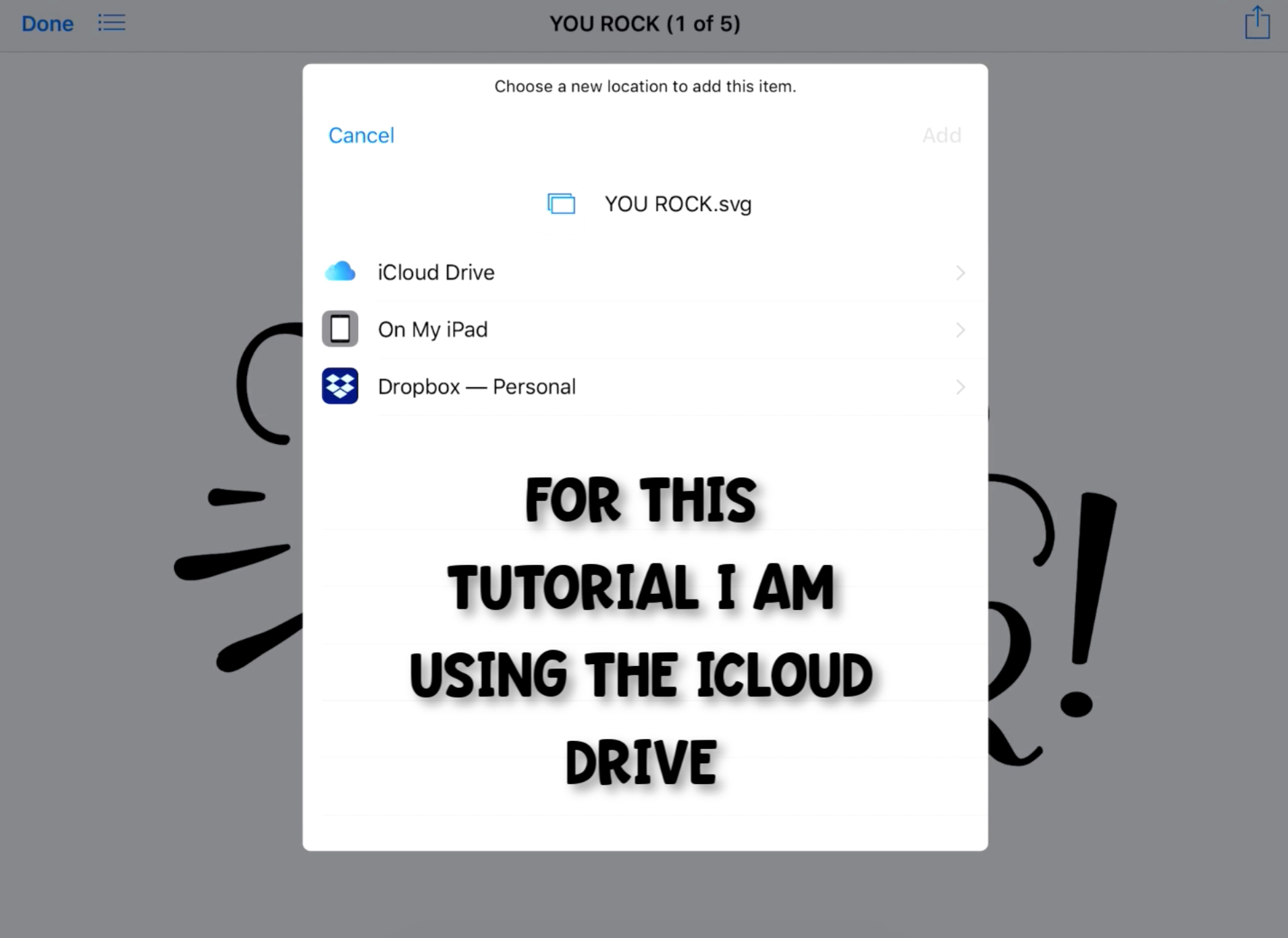 I am using the iCloud Drive for this tutorial.
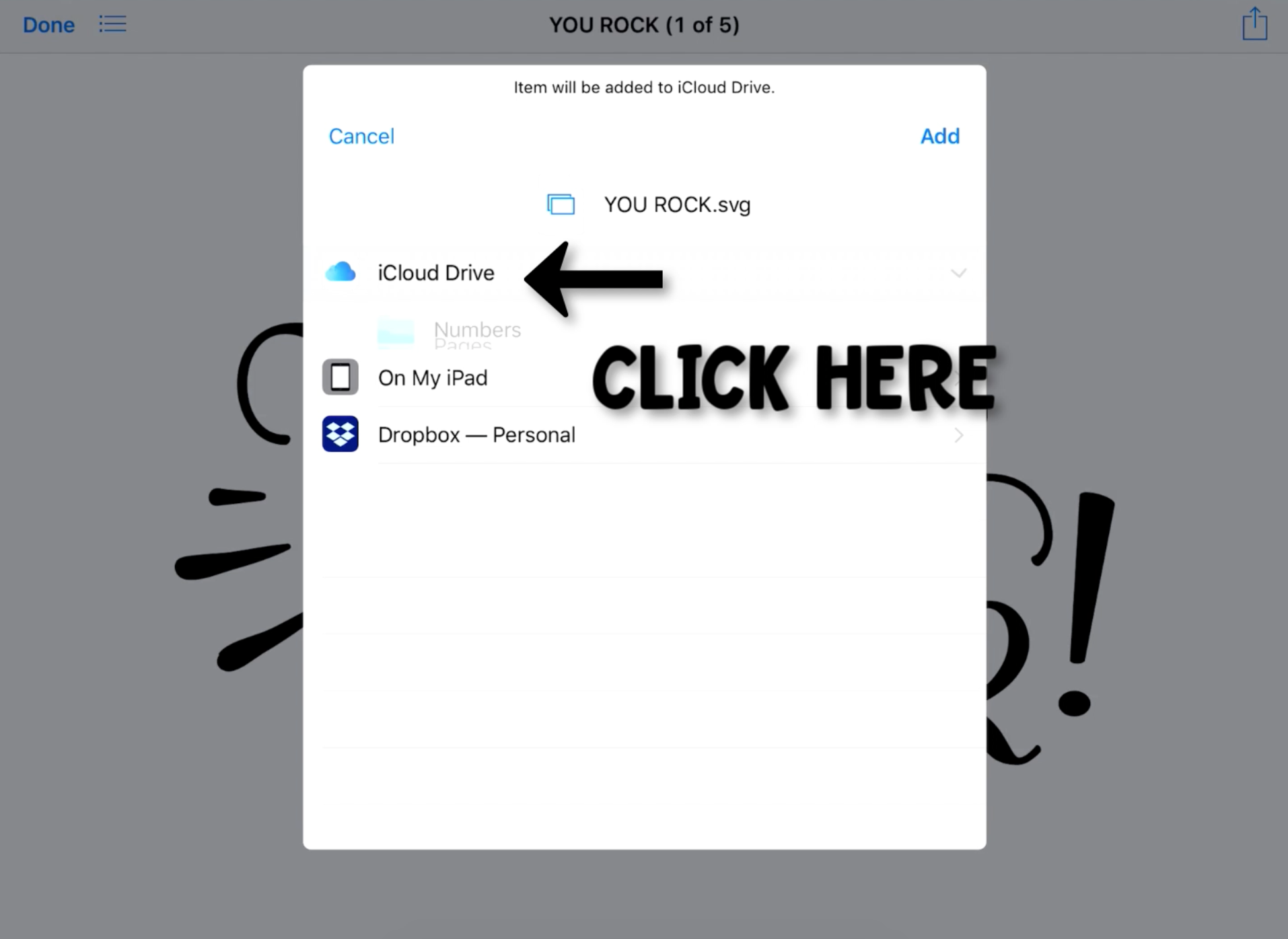 After clicking on the iCloud Drive, select Add.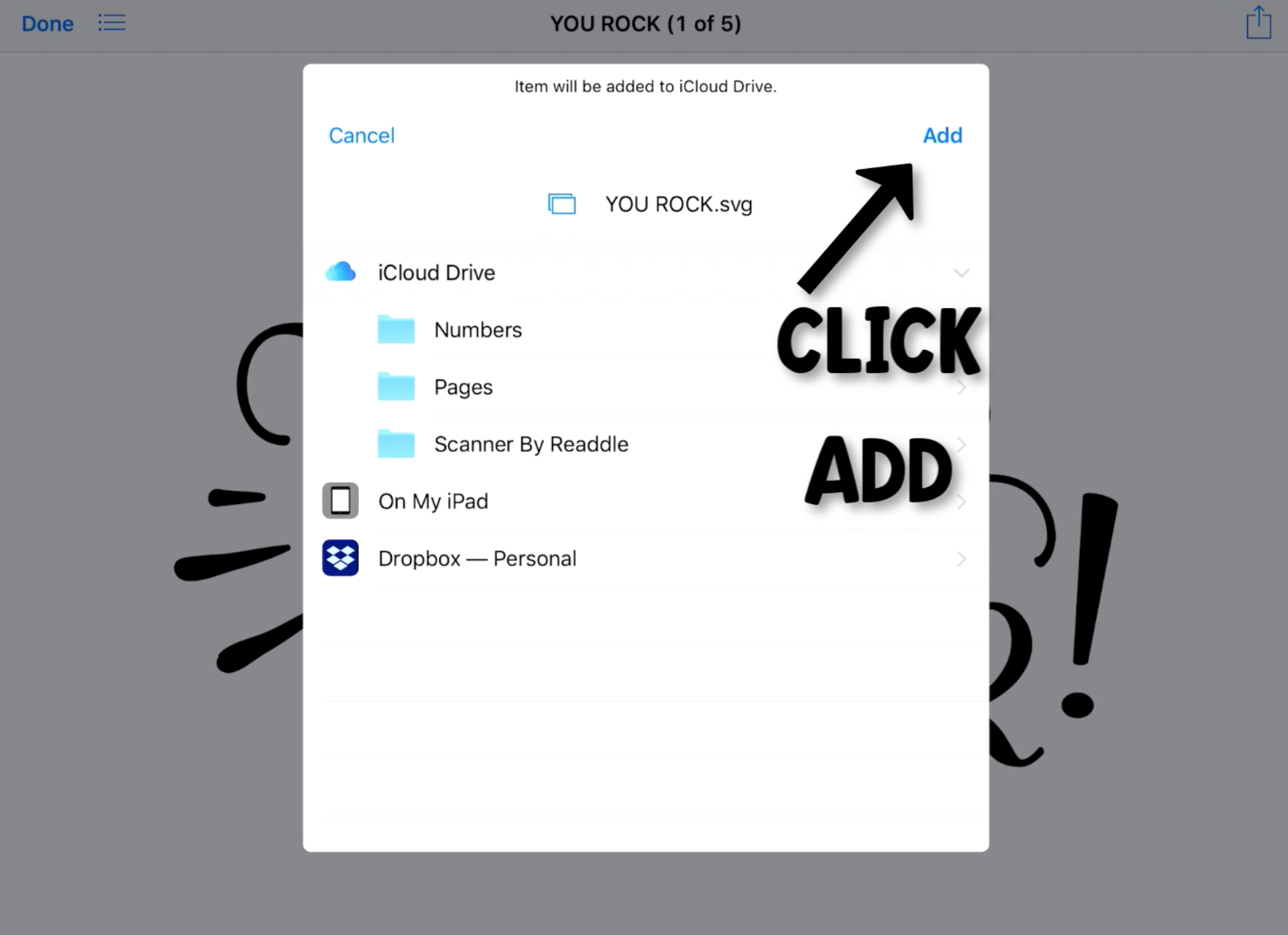
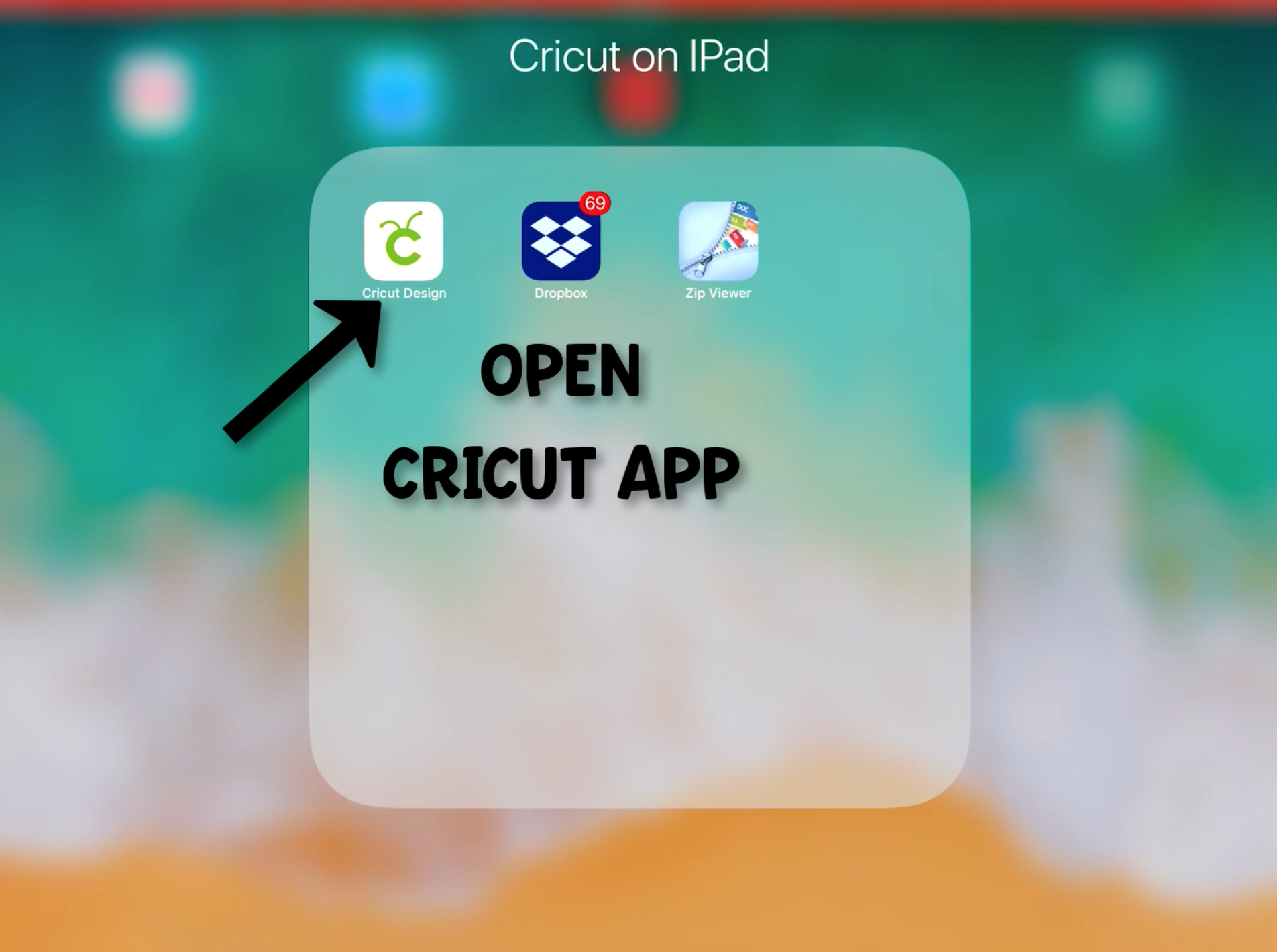
Ok. Now we have the file saved in the system and it is time to open up the Cricut App. Navigate to your apps and locate Cricut Design on your iPad.
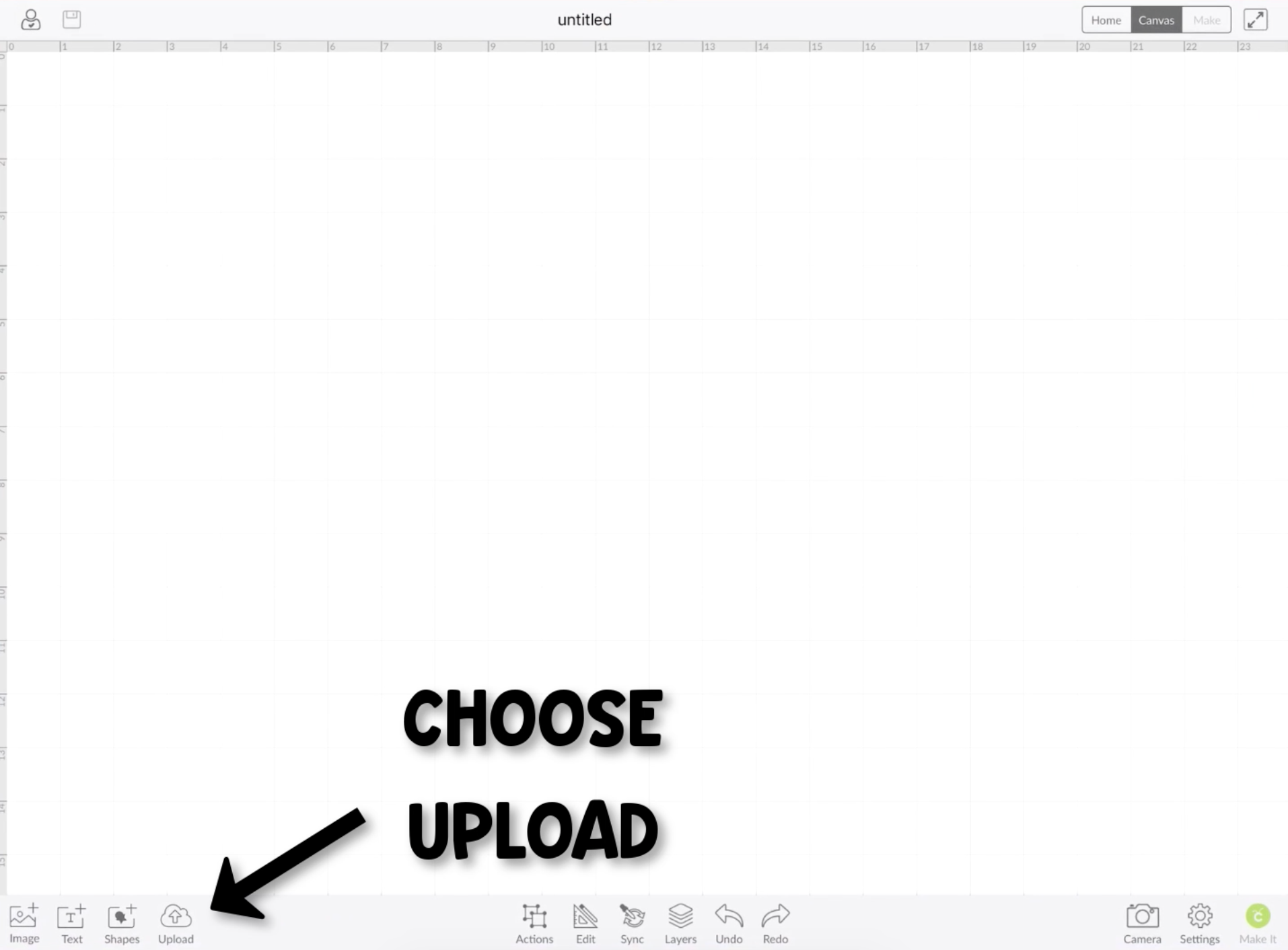
On the bottom right hand side of your Design Space you will see the upload option, click here.
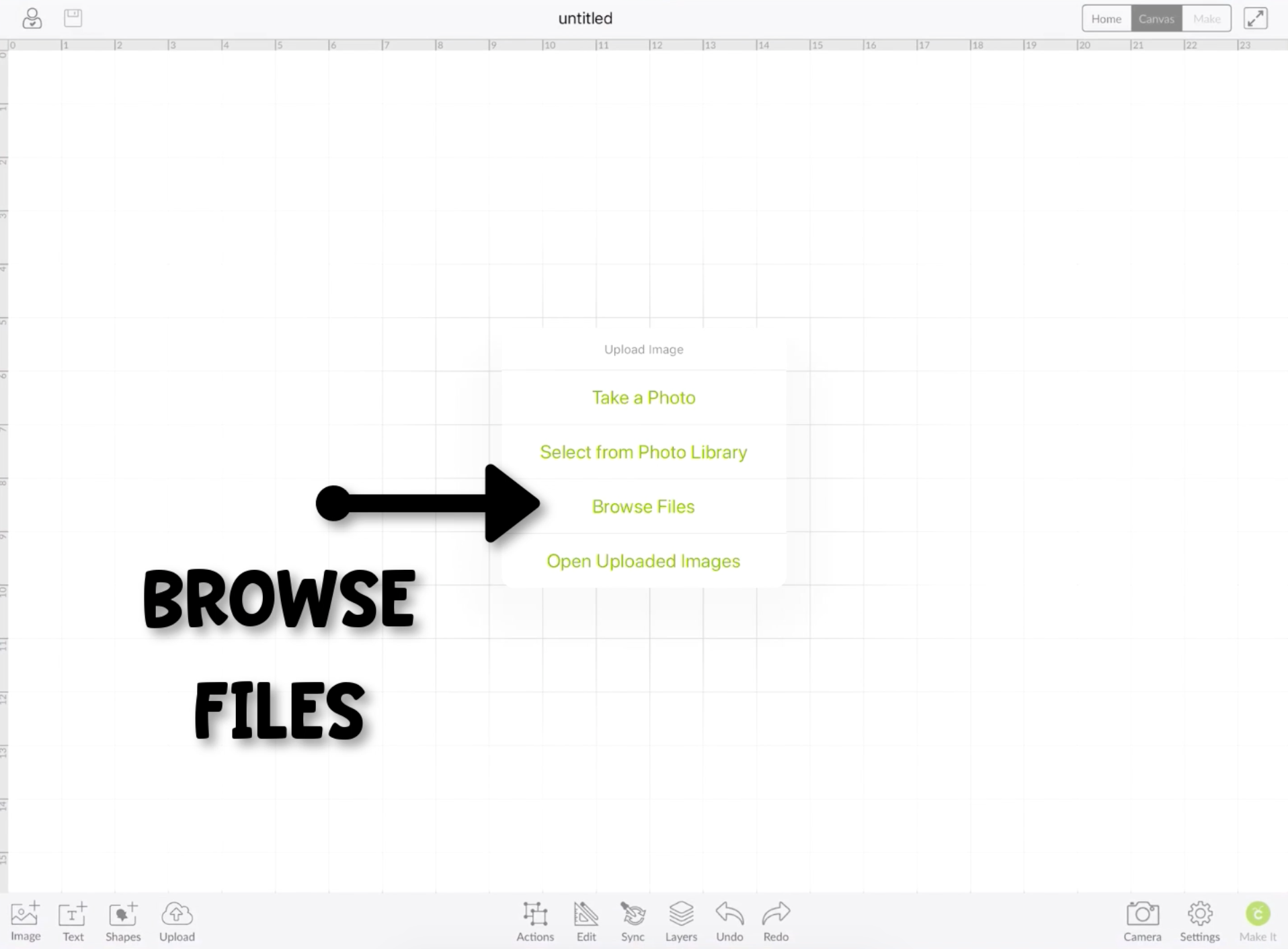
Select Browse Files.
Choose iCloud or Dropbox (depending on where you saved your file.)
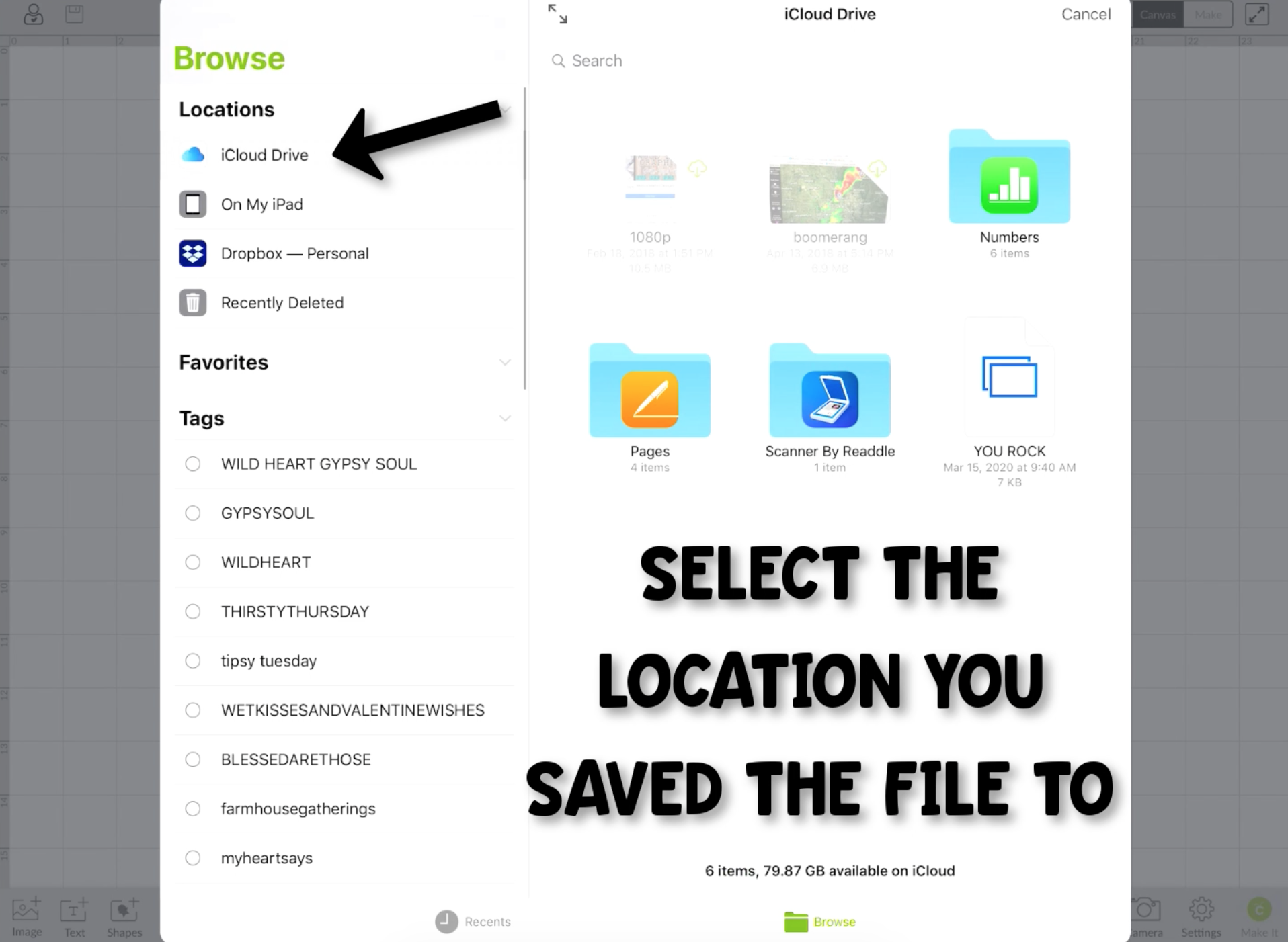
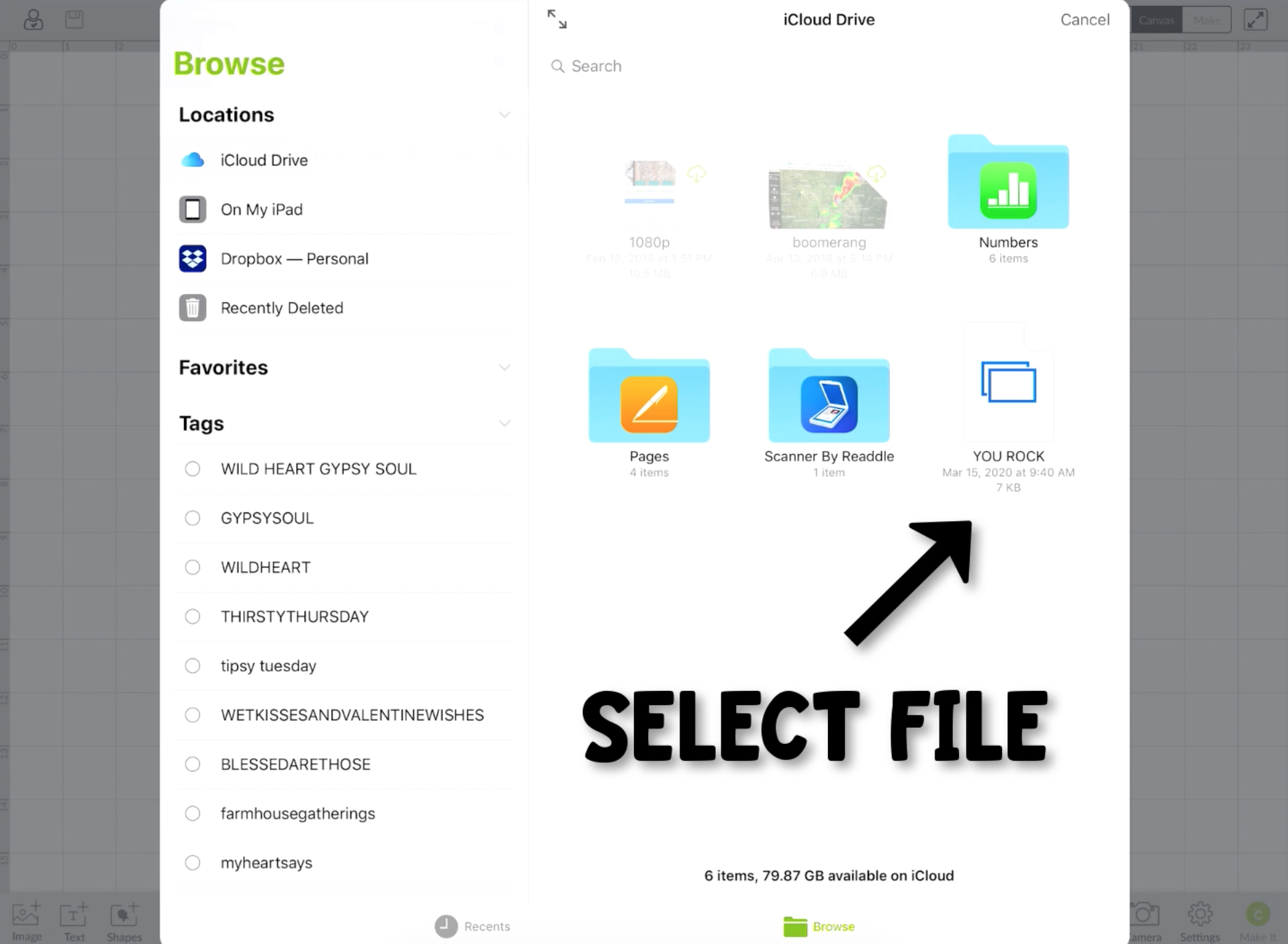
Click the file you want to open.
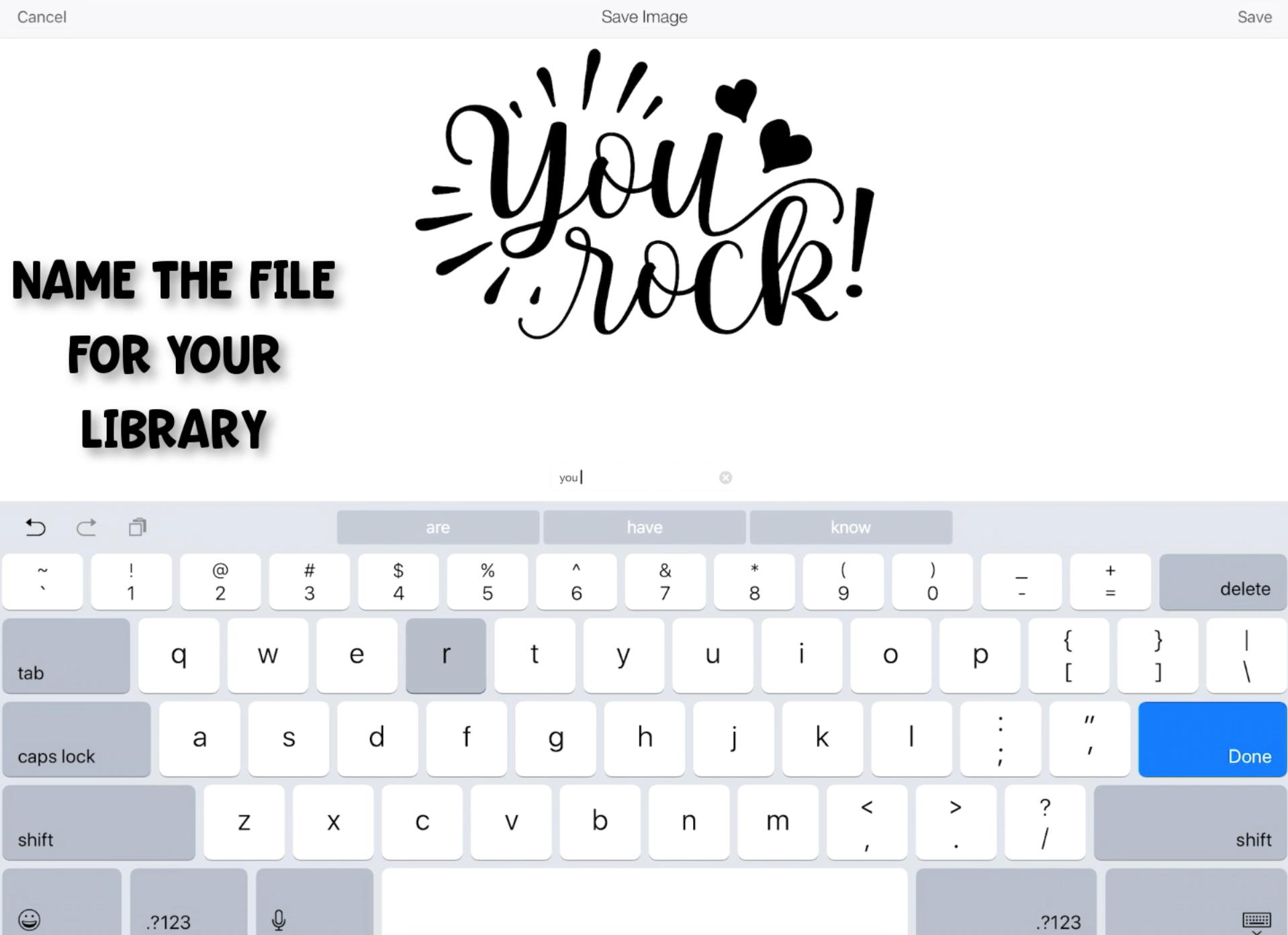
Name the file for your library.
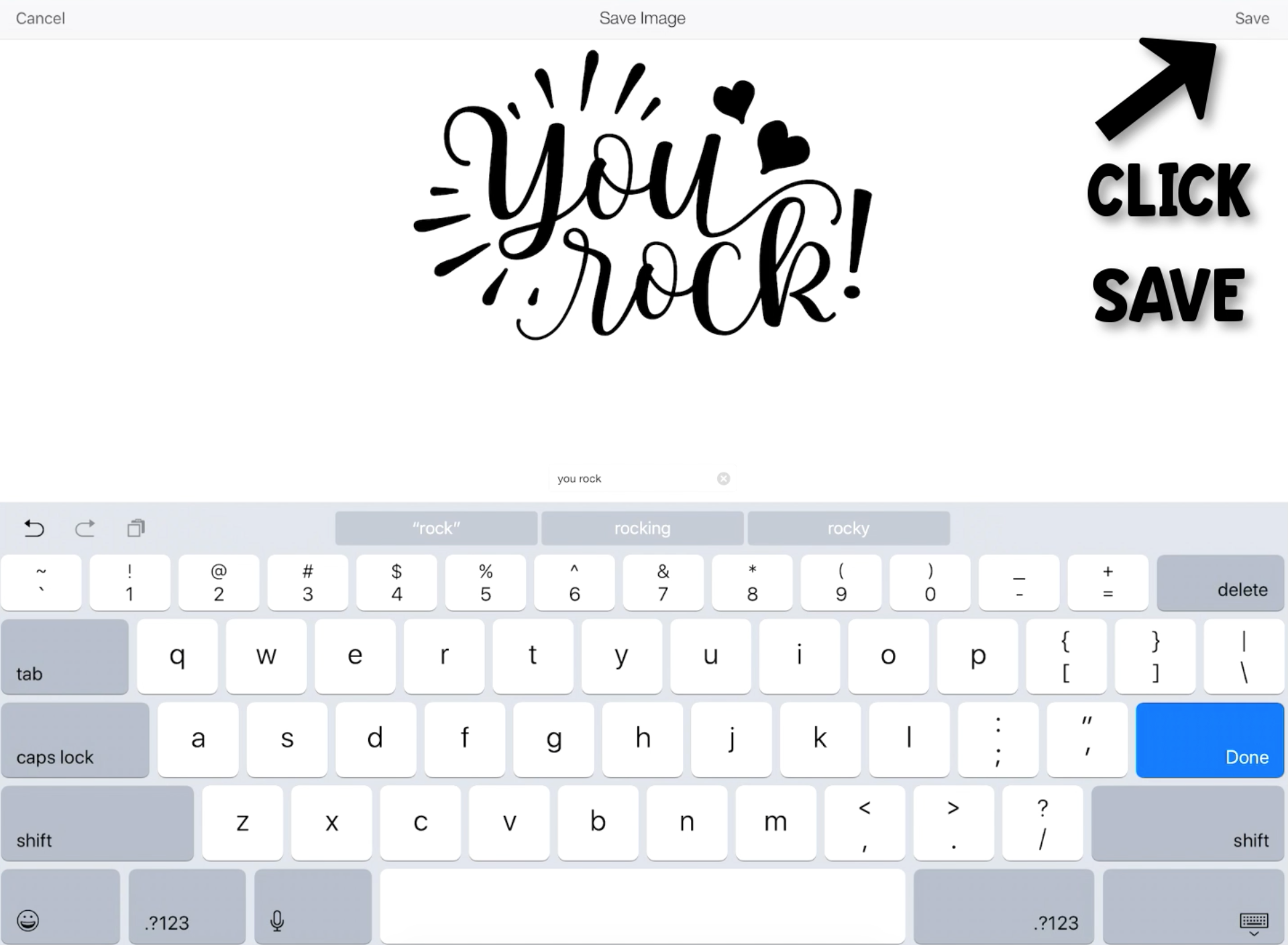
Click the Save button.
Click the appropriate file in your library and select "Insert" on the bottom right hand corner.
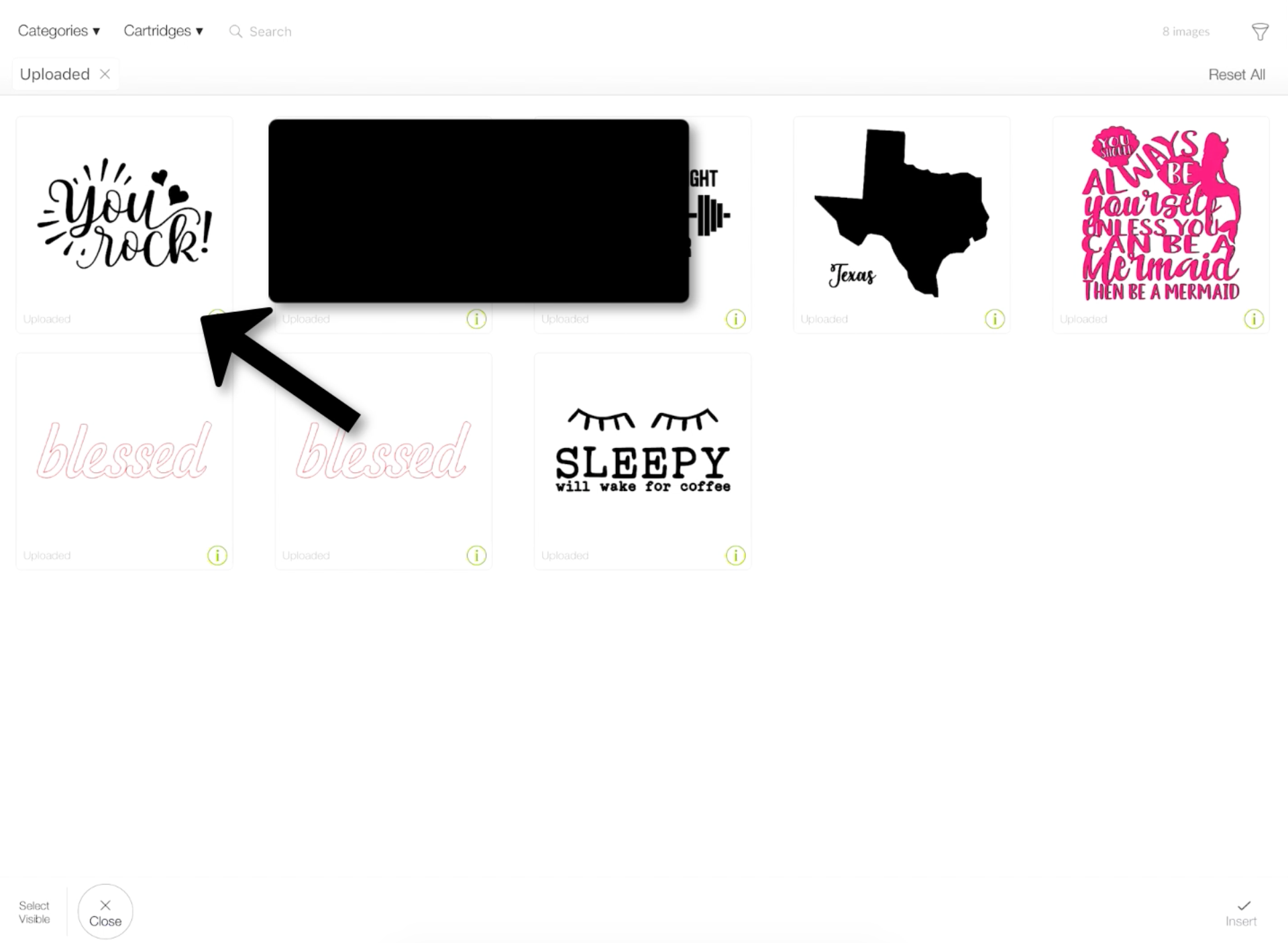
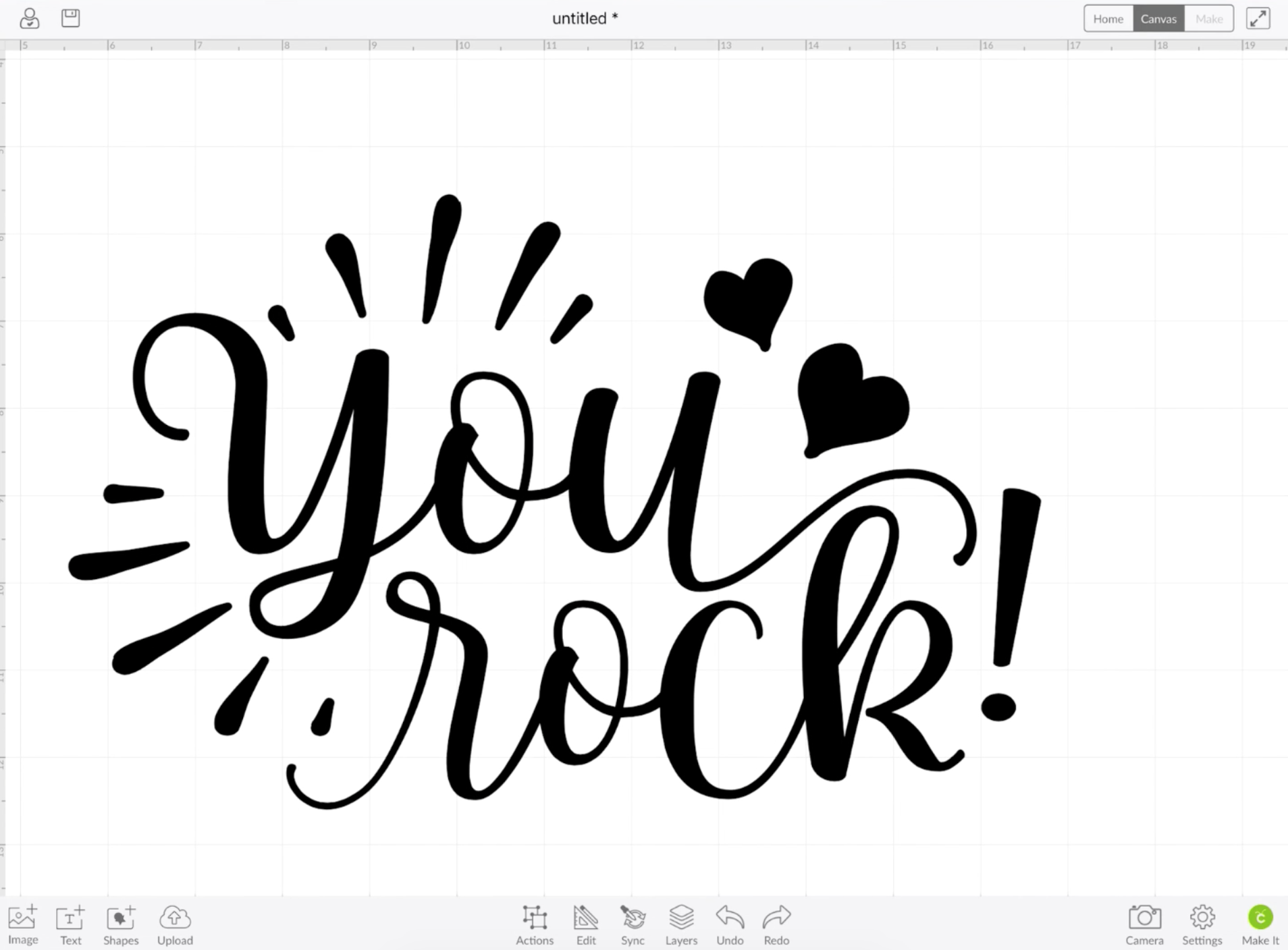
You Rock!!!
You did it. You have successfully imported your designs from DesignBundles.net to your iPad. Now have fun creating on the go and make sure you come back and share your creations with us in the Facebook group!!!
Stay Crafty!!!

Related Tutorials
Cricut Tutorials
How to Use Font Glyphs in Cricut Design Space on iPad
Learn how to use Font Glyphs on iPad with Cricut today! Transform your text designs in a few steps.
Cricut Tutorials
How to Use Cricut Iron on Vinyl
Discover how to use Cricut iron on vinyl with this easy to follow tutorial
DesignScape Tutorials
How to Use DesignScape on an iPad
Discover how to use DesignScape on an iPad and take it with you anywhere you have internet access.
Cricut Tutorials
How to use Fonts In Cricut Design Space
Learn how to successfully use Fonts in Cricut Design Space with this step-by-step tutorial.
Cricut Tutorials
How to Use the Snap Rotation Function in Cricut Design Space
Cricut Tutorials