By Kia Lor
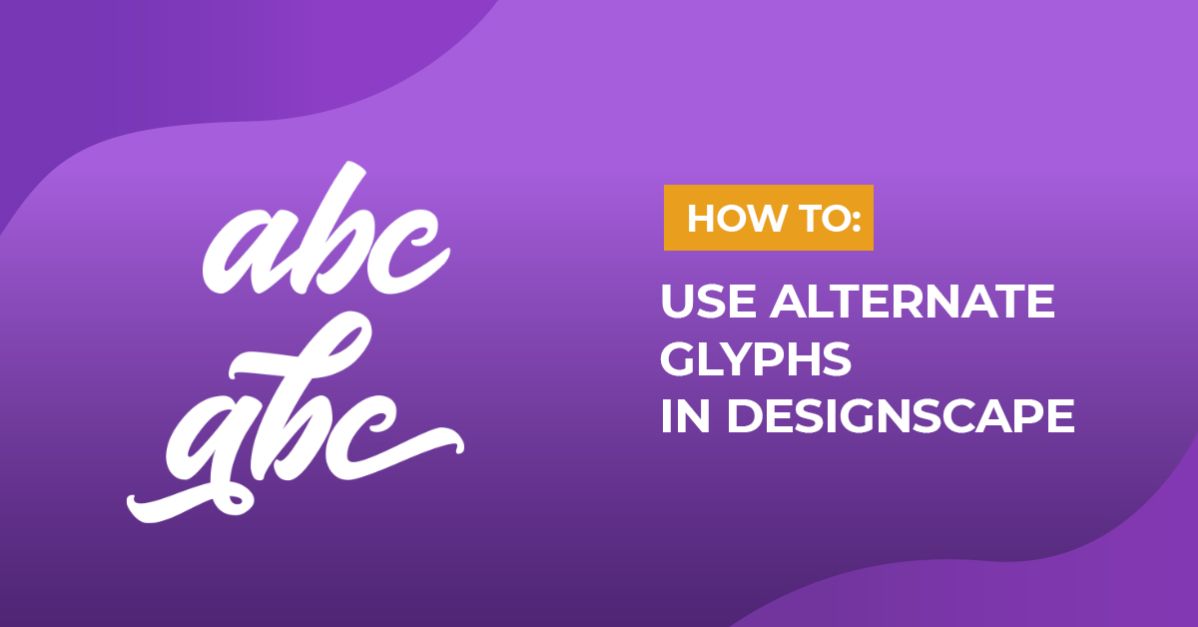
How to Use Alternate Glyphs in DesignScape
Using alternate glyphs/characters can make your designs more unique. The great thing is that you can use fonts with alternate characters in DesignScape! DesignScape is an online alternative to Photoshop/Illustrator that is available for Gold Plus Members only. Because it's included with a Gold Plus membership, there's no extra cost! You don't need to download it, and you can still use all the fonts you have on your computer by importing them. If you're not a Gold Plus Member yet, you can test out DesignScape today by signing up for a free 30-day trial of the Gold Plus Membership!

We will be using the fun script font, Butterfly Script, in this tutorial. There are many beautiful free script fonts available on Font Bundles for you to pick from.
First, we will import the font to DesignScape and create a new project document.
Step 1 - Select the Type Tool and Add a Text Box by Clicking and Dragging
Select the Type Tool (T) in the left toolbar. Next click and drag on the canvas to create a text box or simply click anywhere on the canvas.

Step 2 - Select the Font in the Character Panel or Top Toolbar
To change the font, you can select Cha on the right to open the Character panel and click the current font name, or you can simply click the current font name in the top toolbar. Then pick the font you want to use from the drop-down list.
Note: if you don't see "Cha" on the right, go to Window > Character.

Step 3 - Access the Glyphs Panel
Then click the Glyphs panel or Gly on the right. The Glyphs panel will show you all the characters and alternate glyphs included in the currently selected font.
Note: if you don't see the Glyphs panel or "Gly", go to Window > Glyphs.

Step 4 - Enter Your Text by Typing or Clicking the Character(s) in the Glyphs Panel
You can start typing or click on a character in the Glyphs panel to add it to the text box. Once you're done entering the text, click the checkmark in the top toolbar.

Accessing alternate glyphs in DesignScape is easy to do, and they're so fun to use! If you're interested in learning more, you can take a look at the rest of the DesignScape tutorials we have available.