By Design Bundles
How to use Illustrator AI files Downloaded from our Website
Sometimes when you purchase a product from Design Bundles, the file will come with an .AI file extension, meaning it is designed for use in the Adobe Illustrator software.
Adobe Illustrator is the Industry's leading Vector editing software. It's widespread usage in the professional market and backwards-compatibility is unrivaled. It is certainly worth it's high pricetag, which may be too high for casual designers.
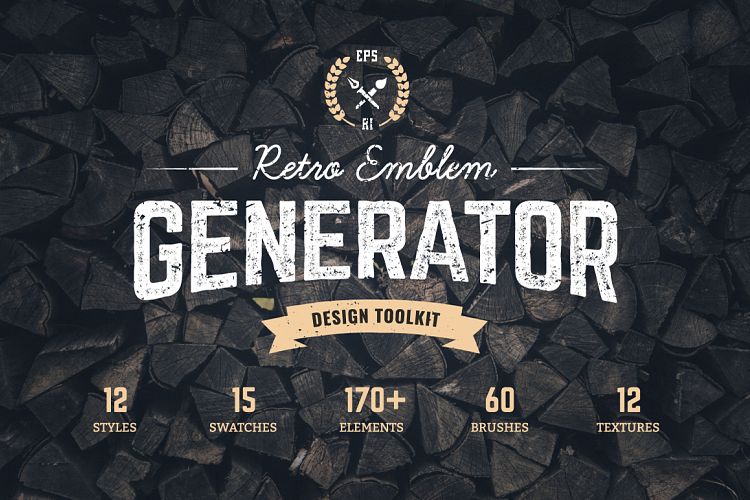
This tutorial will walk you through opening the .AI file in Illustrator. The file used in the tutorial is Logo Maker Retro Emblem Generator.
1. The Download
When you first download a file from Design Bundles, it will come as a ZIP file which must be opened in order to access the files inside.

2. Unzipping
To Unzip the file, simply double click on it.

3. Locate the AI File
When the file is unzipped, it will create a folder containing the actual content files of the product. Locate the AI file within this folder.

4. Open the AI
Double click the .AI file to open it in Adobe Illustrator.

5. Locate an element you wish to use.
A standard AI document containing elements will have them laid out and ready to be used as you require. Locate a vector element you wish to use in your design.

6. Copy the Element
Drag over the element to select it, and then go to Edit > Copy or use the hotkey (Ctrl+C on PC, Cmd+C on Mac).

6. Paste the Element
You can then create a new design document in illustrator and paste the object in by going to Edit > Paste or using the hotkey (Ctrl+V on PC, Cmd+V on Mac). As the file is a vector, the advantage is it may be scaled to any size that you wish.

At this stage you can copy more elements into your new design document, add Vector text, or modify the shape as required.