By Design Bundles
How to Use the Shape Builder Tool in Illustrator
The shape builder tool is great for designing illustrations or icons that can be created by using various shapes, as it allows you to combine and subtract one shape from another. This tutorial is going to go through the fourways in which you can benefit from using this tool, by using basic shapes for ease of understanding what you can achieve.
In this tutorial we will cover the following Modes of the Shape Builder Tool:
Merge Mode - Merge multiple shapes
Draw and overlap various shapes, then highlight all of your shapes and select the Shape Builder Tool from the left toolbar. As you hover your cursor over the individual shapes, the shapes will turn grey.
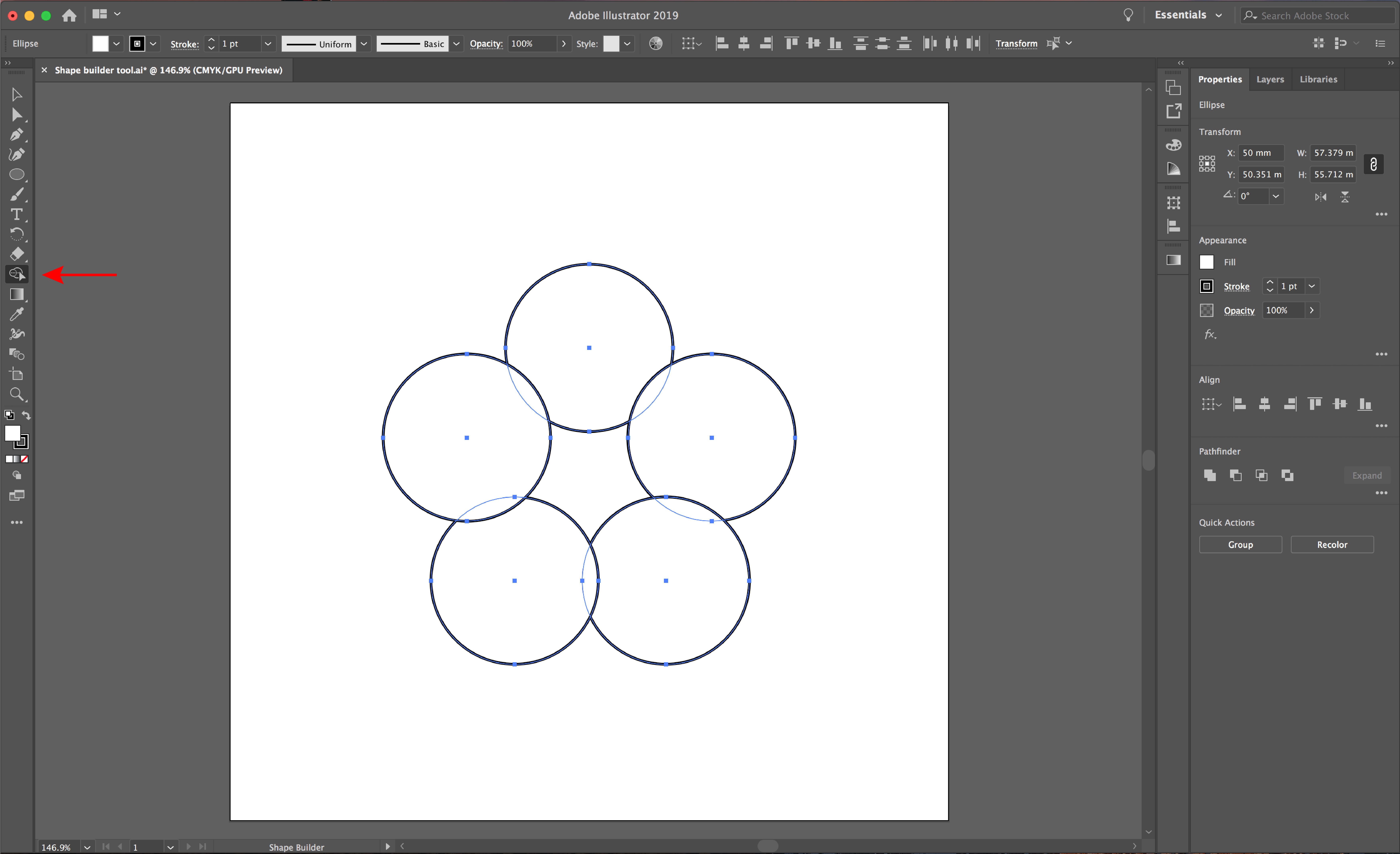
Click into any shape and drag your cursor across all the shapes you want to merge. The red outline will depict your remaining shape when you release your cursor, so you can use this as a guide.

Your shape should look something like this.

Extract Mode - Create new shapes from the overlapped shapes
Draw and overlap various shapes, then highlight all of your shapes and select the Shape Builder Tool from the left toolbar. Click in the shape of the overlapping shapes, then using the Selection Tool (black arrow) drag your new shape to the side.

This is the result.

Erase Mode - Remove overlapping shapes to create new shapes
Draw and overlap various shapes, then highlight all of your shapes and select the Shape Builder Tool from the left toolbar. As you drag over the shapes you want to remove, hold down Alt or Option on your keyboard, you will notice a minus symbol appear. As you release, you will be left with your new shape.

Here is the result.

Create Mode - Create shapes from negative space
Draw and overlap various shapes, then highlight all of your shapes and select the Shape Builder Tool from the left toolbar. Click in the negative space in the center of your shapes, then delete the outer shapes to reveal your new shape.

Here is the result.

Now that you know the basics of the Shape Builder Tool, you can go on to experiment with creating more complex designs. If you liked this tutorial, check out some of our other tutorials such as how to use the Pathfinder tool and how to make SVGs in Illustrator.