
By Design Bundles
Inkscape Tutorials9 min
How to Make a Long Shadow in Inkscape
Long shadows are popular in logos and they are easy to make in Inkscape. In this tutorial, we will use the font Lagoon font.
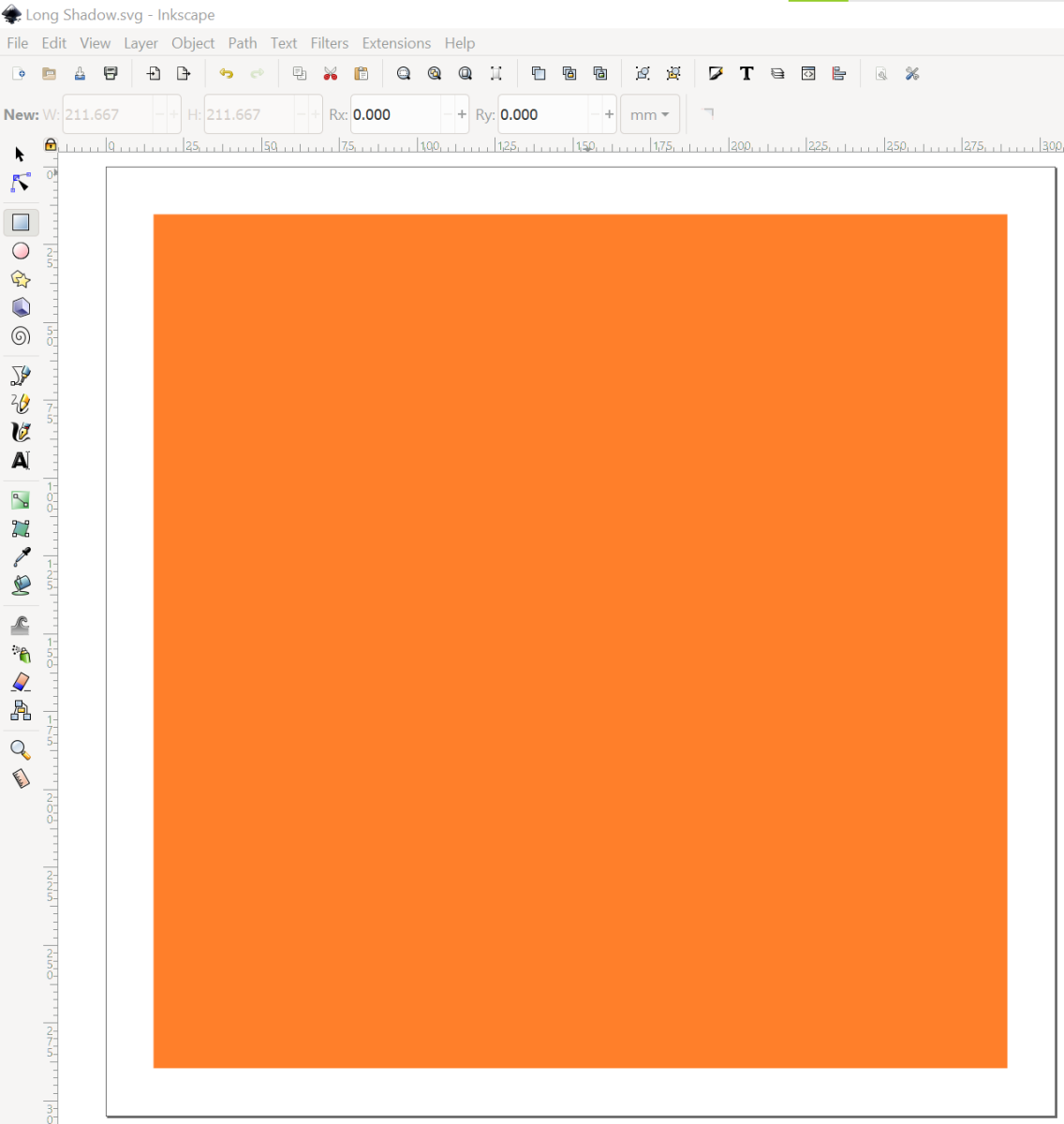
Step 1 - Draw a Square
Use the Create Rectangles and Squares tool to draw a square.
Step 2 - Type out your word or phrase
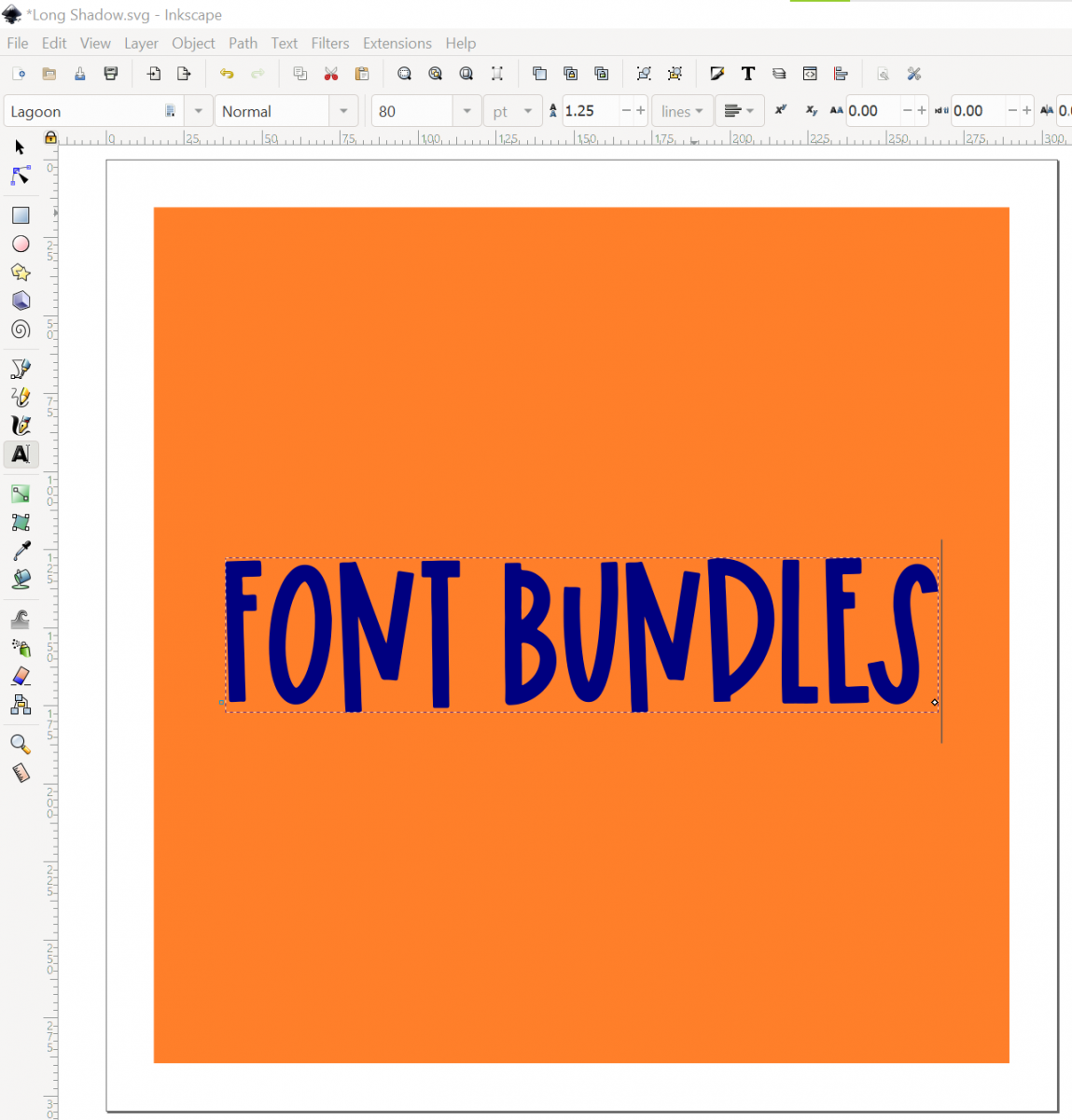
Use the Create and Edit Text Objects tool. For this example, we'll type out Font Bundles. Adjust the sizing, spacing, and coloring as you like.
Step 3 - Convert the text to a path
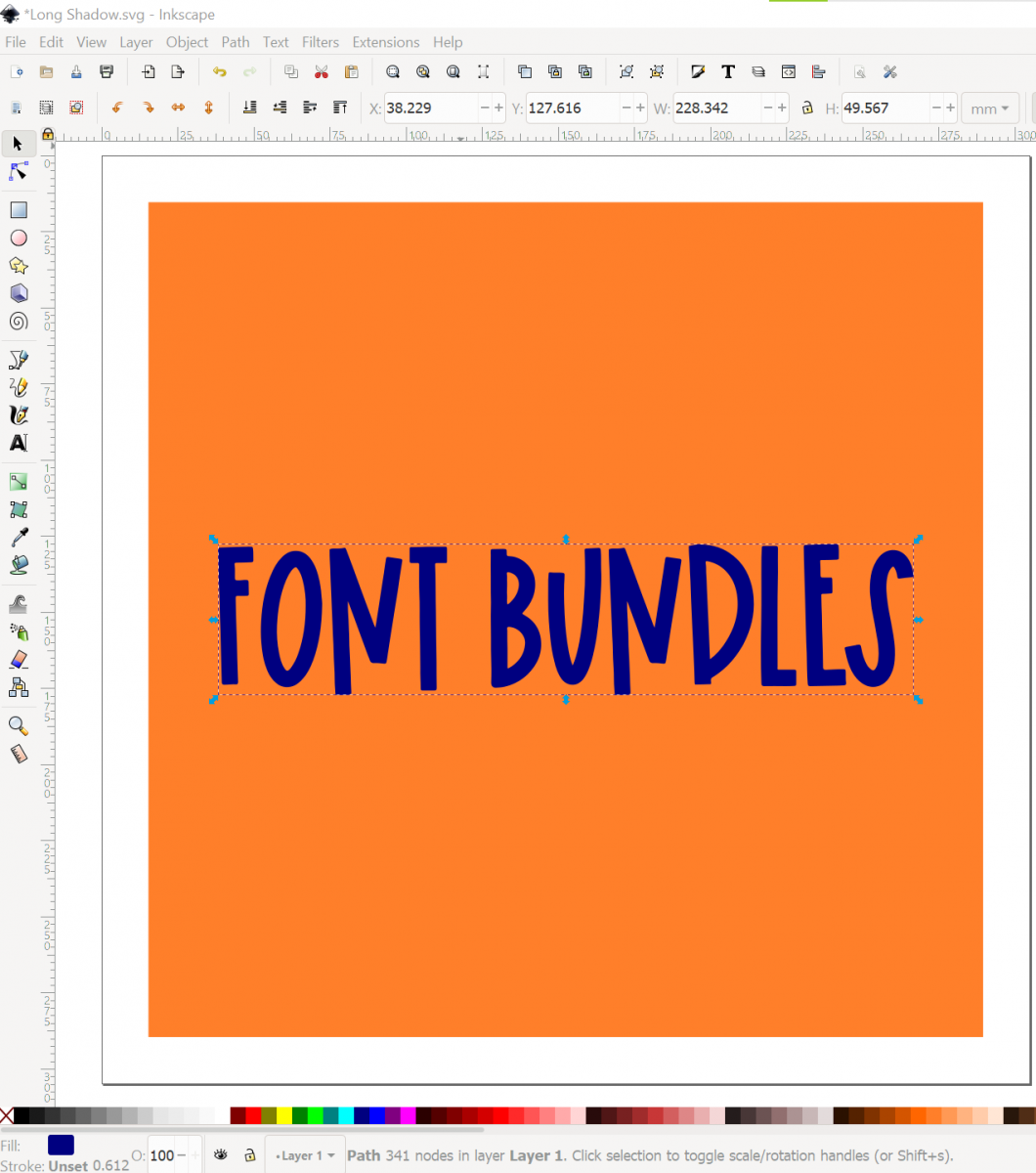
Click on the text with the Select Tool. Go to Path > Object to Path, then Object > Ungroup, then Path > Union. To ensure you did this step correctly, you want to see Path and a number of nodes in the bottom bar of Inkscape.
Step 4 - Duplicate the path
Select the word then duplicate (Ctrl + D) to create a second set of words.
Step 5 - Use the Transform Tool to move the duplicate words
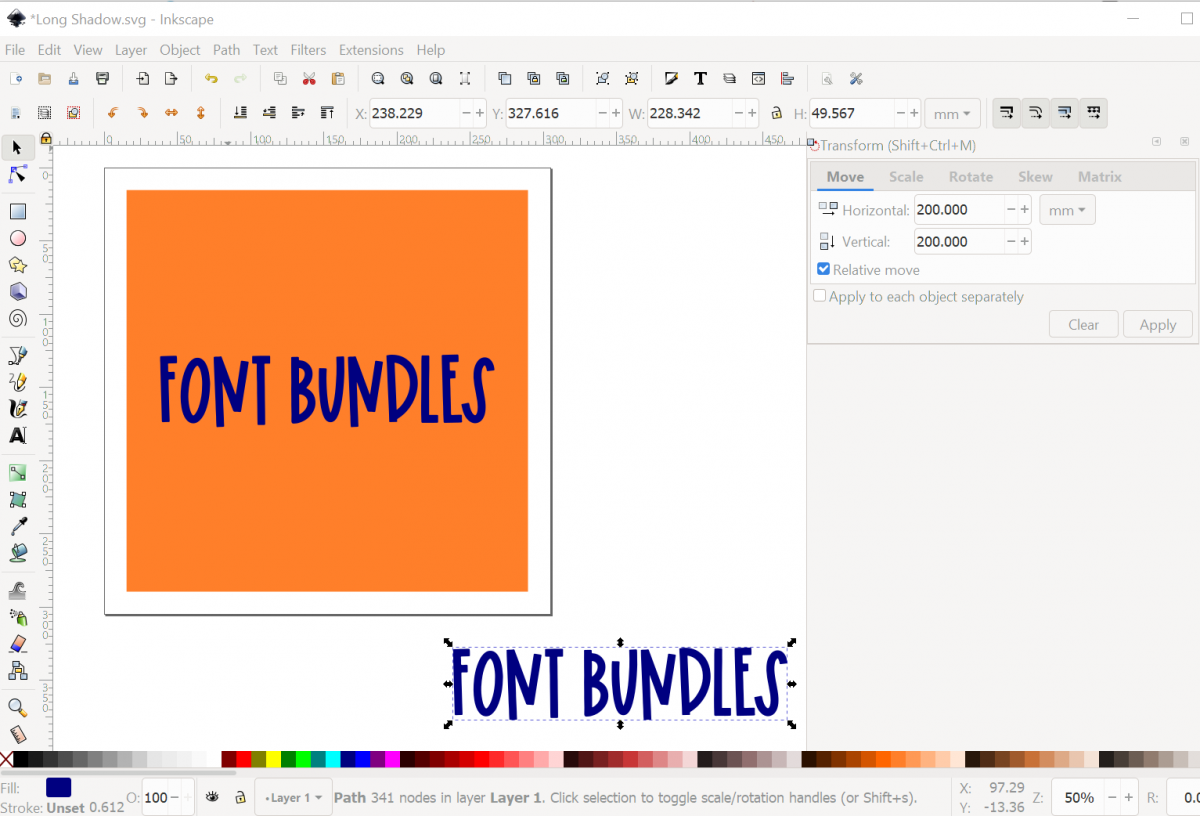
Go to Object > Transform to open the Transform Tool. We want to make sure that the duplicate words is moved outside of the square. I am able to move to object 200 mm to the right and 200 mm down to get it out of the square, but your measurements may be different. Click the Apply button and then the duplicate text will move.
Step 6 - Select both sets of words and Interpolate
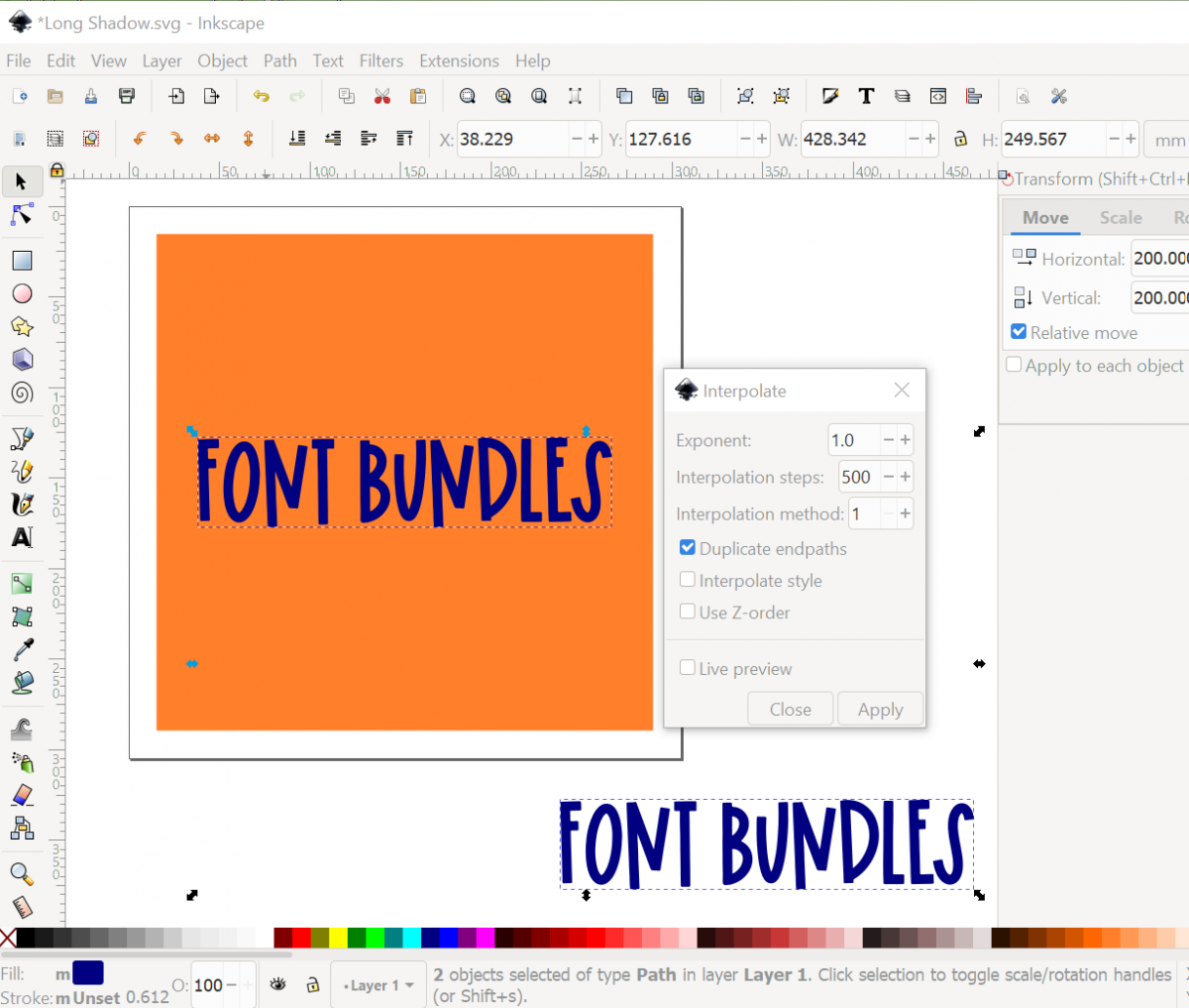
Hold down the shift key and click on both sets of words to select them both. Go to Extensions > Generate from Path > Interpolate. Adjust the settings to match what is showing in the below screenshot (exponent 1.0, interpolation steps 500, interpolation method 1, and only the box for duplicate endpaths is checked). Then click the Apply button. This step can take some time and Inkscape will freeze up, but just be patient.
Step 7 - Convert the interpolation into a path
Select the interpolation, our long shadow, that was created between the two sets of words. It will be a group of 502 objects. Go to Objects > Ungroup, then Path > Union to make it a path. To ungroup and union this many objects will take some time, so be patient.
Step 8 - Move the shadow behind the words
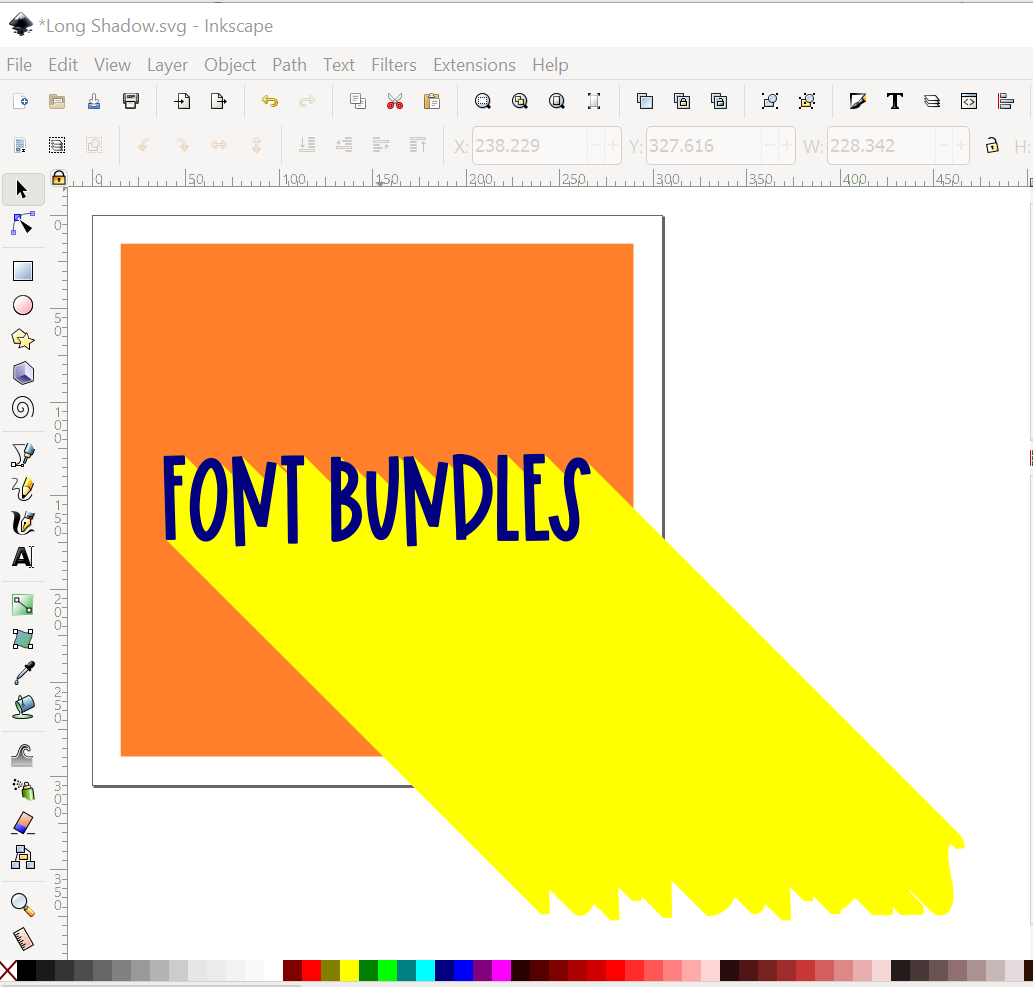
Change the color of the long shadow and move it behind the words (you want the long shadow below the words and above the square). Delete the second set of words that is outside of the square.
Step 9 - Use Intersection to complete the long shadow
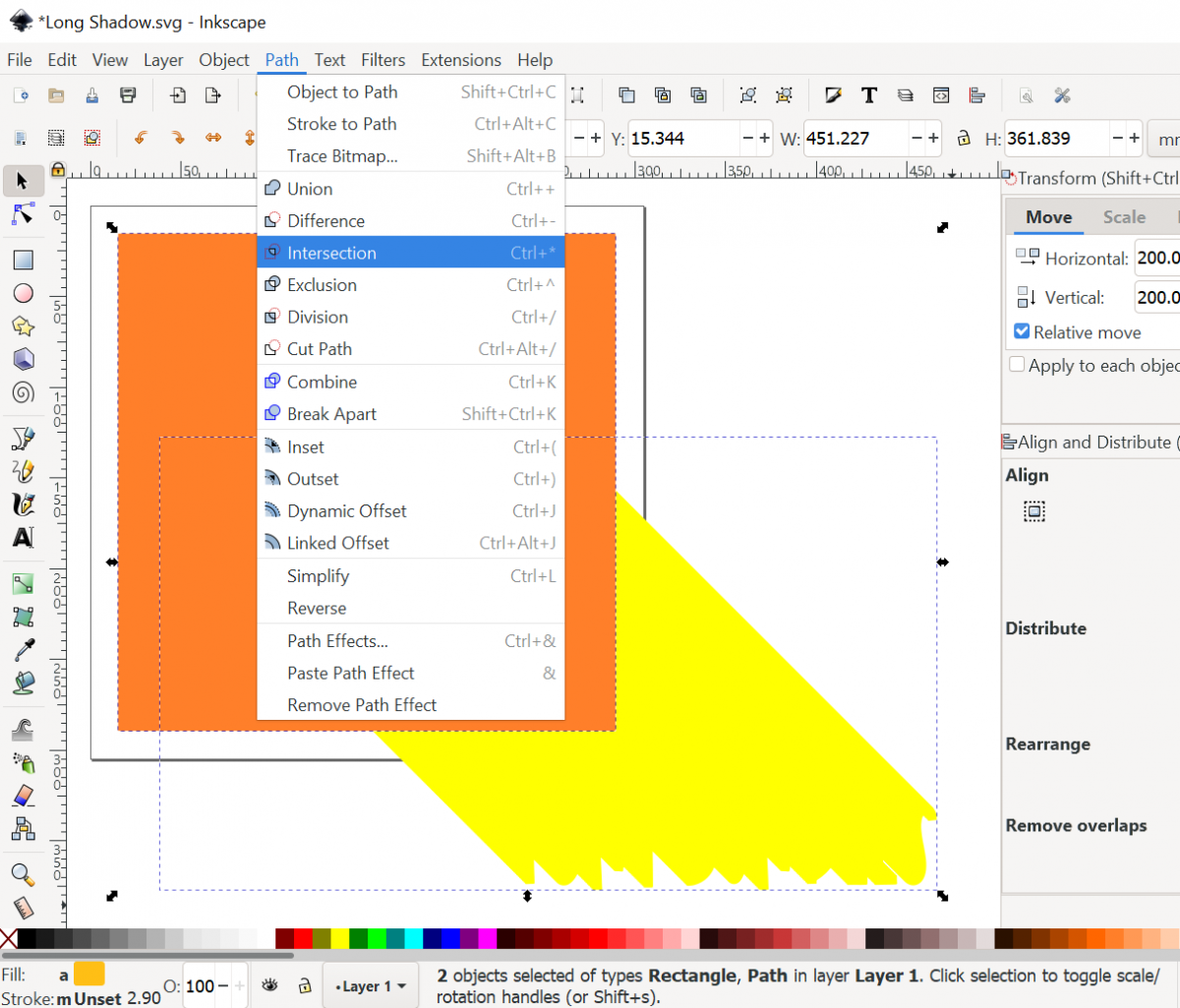
Select the square and duplicate it (Ctrl + D). The duplicated square will be on top of everything else. Select the duplicated square and the long shadow then go to Path > Intersection.
This will leave you with your completed long shadow.

The long shadow is now ready to export as a PNG. If you want to convert this to an SVG, you will want to clean up the nodes in the long shadow.
Now that the shadow has been created, you can add a gradient.
We also have guides on how to create a long shadow in Illustrator and how to create a long shadow in Photoshop.
Related Tutorials
DesignScape Tutorials
How to Make a Long Shadow Effect in DesignScape
Learn how to create a long shadow effect in DesignScape with this tutorial.
Inkscape Tutorials
How to Make an SVG in Inkscape
In this tutorial, discover how to make and save a SVG in Inkscape.
Inkscape Tutorials
How to Make a Gradient in Inkscape
Learn how to make a linear or radial gradient with a font in this step-by-step Inkscape tutorial.
Inkscape Tutorials
How to Make a Seamless Pattern in Inkscape
Discover how to make a seamless pattern Inkscape using a template.
Inkscape Tutorials
How to Make a Pie Chart in Inkscape
In this tutorial, discover how to make a pie chart Inkscape.
Inkscape Tutorials