By Design Bundles
How to open and save a PDF in Inkscape
Opening and saving a PDF file in Inkscape is an extremely useful feature to have. Inkscape converts PDF files into editable vector formats. This is especially great for purchased designs that only have PDF files available. You can also save designs as PDF files for your customers. In this tutorial we will guide you on how to open and save a PDF in Inkscape.
During this tutorial we will be using a fun zodiac sign SVG by Digital Rainbow Shop.
Step 1 - Import the PDF File
When opening a PDF file in Inkscape, the process is simple but the import window might be a bit confusing. Open Inkscape, and, depending on your version, click New Document. We can import the PDF file either by going to File > Open or drag and drop the PDF into Inkscape.
When you open a PDF file in Inkscape, you are presented with the PDF Import Settings. You will have a selection of settings and a preview of the file. Leave the settings as is and click Ok.
You will notice that "Replace PDF fonts by closest-named installed fonts" is selected. This is because a font in the PDF file may not be on your system. So Inkscape will do it’s best to find a similar font to replace it. Most of the time it does a good job, as it did with our file.

The PDF file may take a few seconds to open depending on the size. You are now able to resize the image in Inkscape as needed.

Step 2 - Ungroup the PDF file elements
In order to make adjustments we need to ungroup the design elements. Go to the Object menu top of the screen and select Ungroup. Now, depending on the design, you may need to ungroup more than once to release the elements. For this PDF file we needed to ungroup twice.
As you can see in the image below the elements are now separated.

Step 3 - Edit the PDF file elements
With the design elements now individual objects, we can go ahead and edit them. You can adjust the color and stroke of each object by using the Color Palette at the bottom of the screen. Alternatively you can open the Fill and Stroke panel by going to Object > Fill and Stroke.

You can also reposition and adjust the size of each element as you want. Here we changed the size of the wording "Virgo", and repositioned a few other elements.
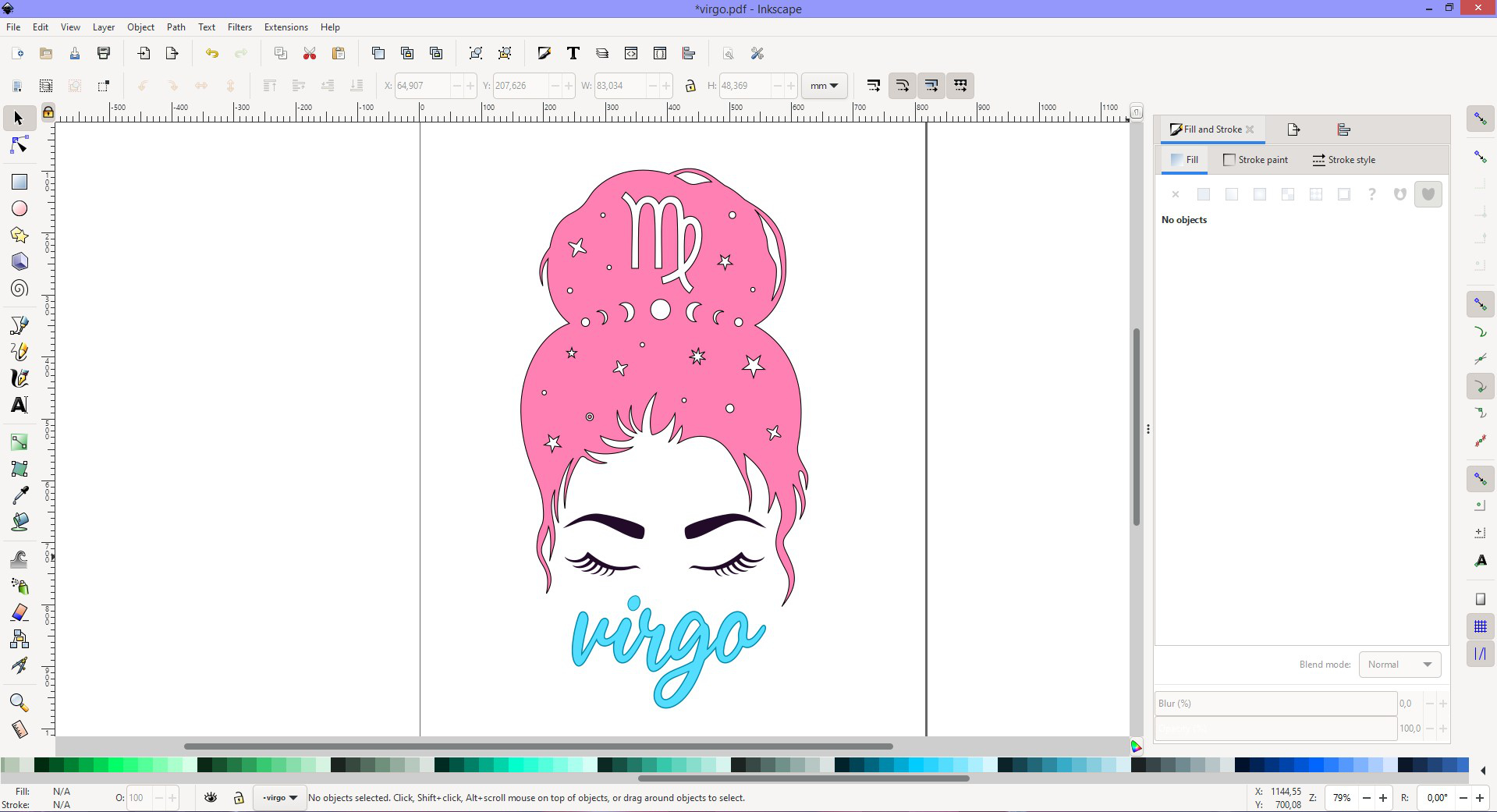
You can do further editing with the Edit path by nodes tool or use the Bezier curve if needed.
Step 4 - Save as a PDF File
Even though this is still a PDF file in Inkscape, you don’t want to just save it. That will cause the program to overwrite the original with your edits. Instead you want to create a new PDF file by going to File > Save As.
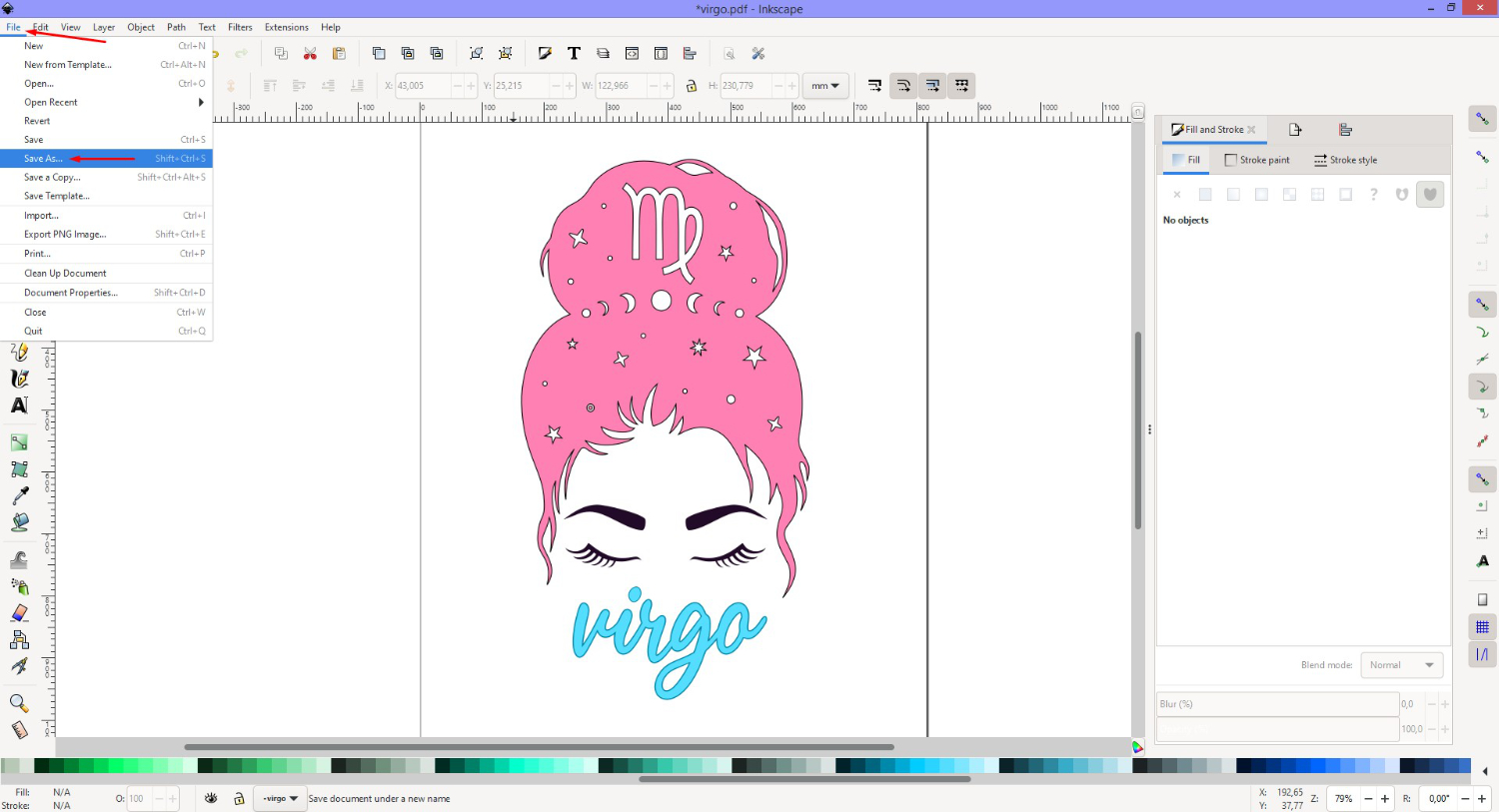
In the Save As settings window, choose your location and name your file. Click on the Save as Type drop down menu and scroll down to Portable Document Format (*pdf). Next, click Save.

Once you click Save, a new dialogue box called Portable Document Format will appear. This will contain all of your PDF settings including embedding fonts or making them into curves. We left our settings as is and clicked Ok.

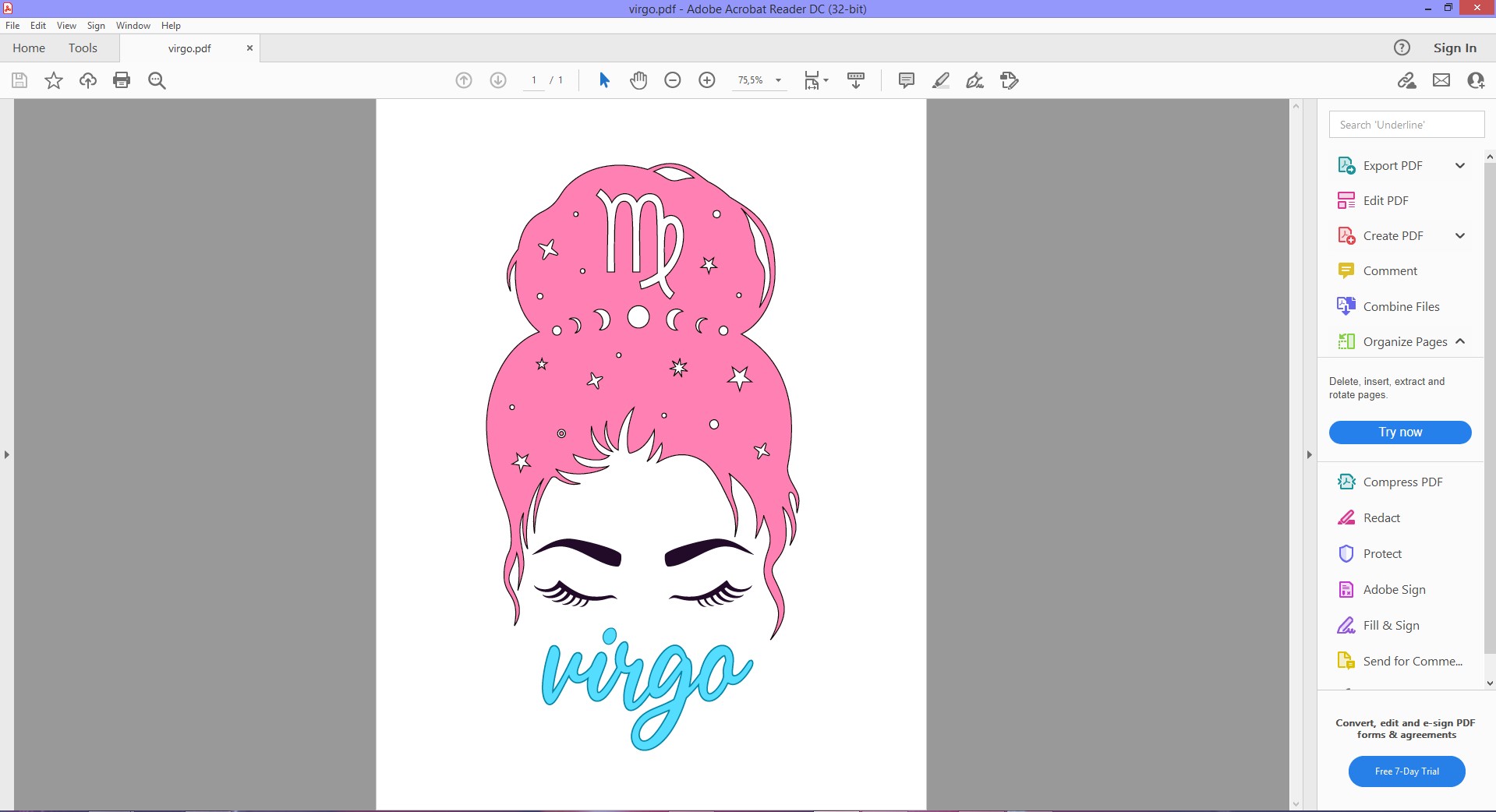
We then opened our PDF file to check that it was saved correctly. As you can see, it did.
There you go, as easy as that. You can open, edit and save your PDF file in Inkscape in just a few easy steps.
If you found this tutorial helpful, have a look at saving Silhouette Files as PDF for Photoshop and using a PDF file in Cricut Design Space.