By Nadine Spires
How to Use the Plus File Converter
If you ever needed to know how to use the Plus File Converter, then this is the tutorial for you. The Plus File Converter is available to all Plus Members, but if you're interested in the Gold Plus Membership, we have an amazing free 30-day trial available. You can convert one file format to another such as converting an SVG to PNG. In this tutorial, we will provide a quick guide on using the Plus File Converter.
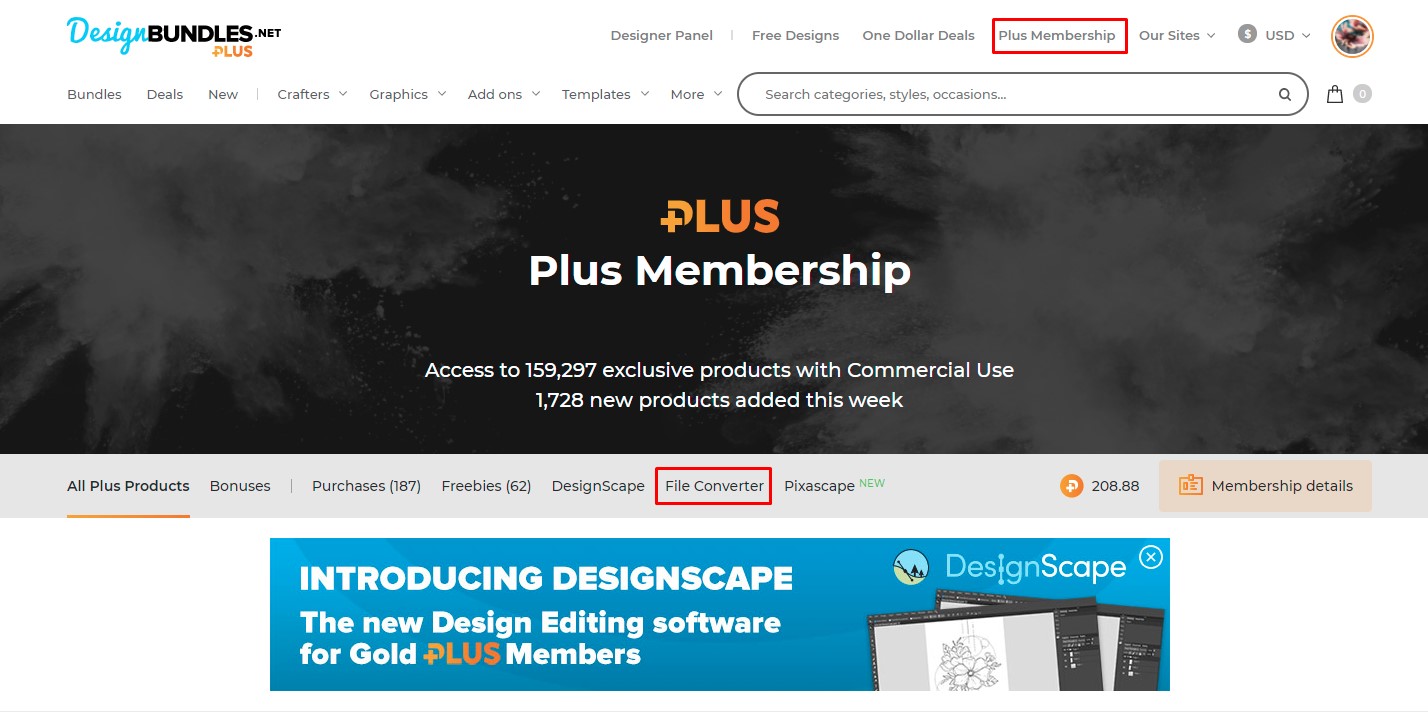
You can find the Plus File Converter by clicking the Plus Membership at the top of the Design Bundles web page. Just a bit further down the page, you will find the File Converter.
To show just how versatile this file converter is, we will be using an EPS file from this cow SVG bundle. If you want to use another design be sure to check out our selection of cute cow SVGs on Design Bundles.
Step 1 - Upload the File Format
We want to convert an EPS file into multiple file formats all at once instead of individual files. You can either drag and drop the file into the File Converter or click the Choose Files button.
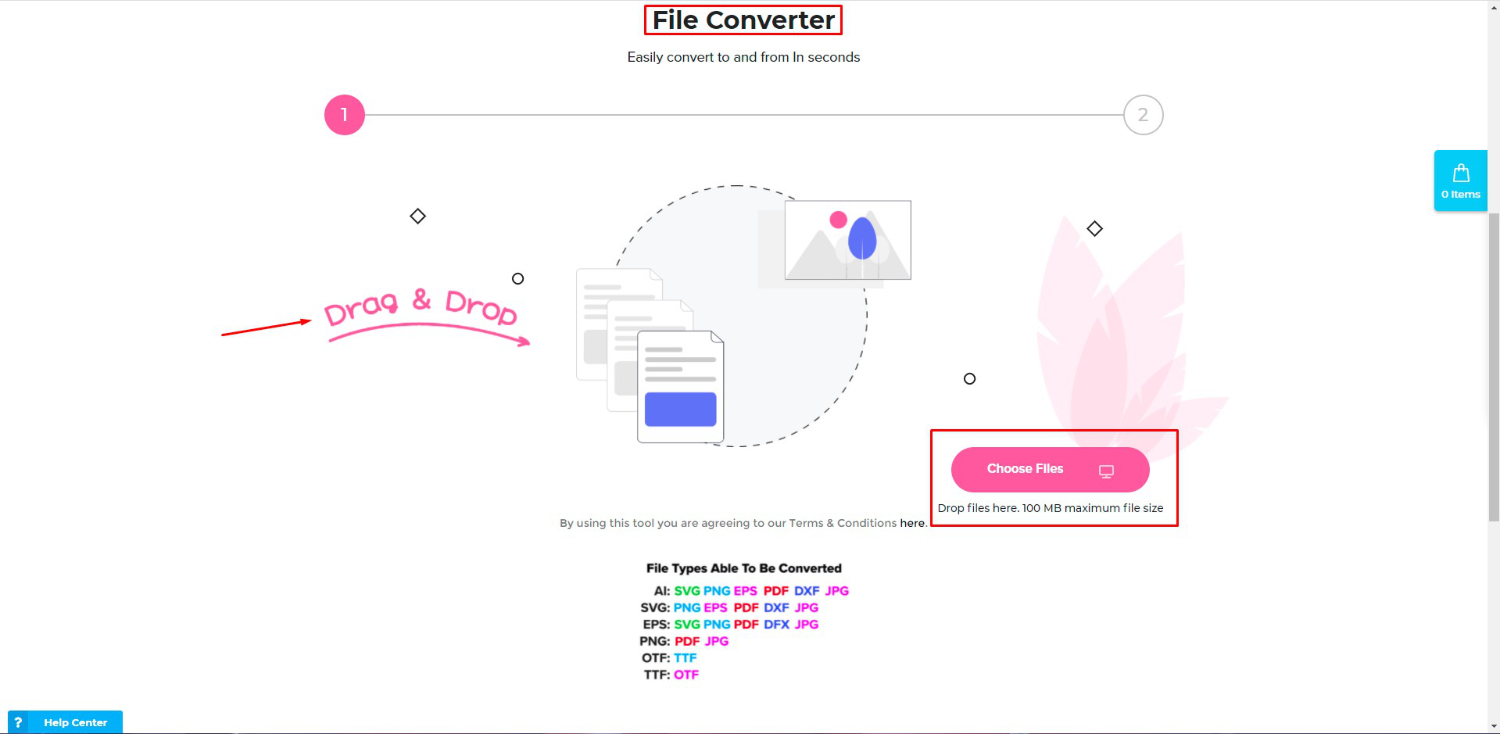
We chose to drag and drop our EPS file into the File Converter. If you are not certain which file is an EPS file, right-click > Properties and look for the extension next to Type of File.

When you drag and drop, the screen will change to Drop File Here!

Step 2 - Convert and Download File Formats
Now wait for the file to upload. Once ready, you will be given the option of converting and downloading selected files or all the formats offered.
Lower down you will see the file types that can be converted.
AI convert options: SVG, PNG, EPS, PDF, DXF, JPG
SVG convert options: PNG, EPS, PDF, DXF, JPG
EPS convert options: SVG, PNG, PDF, DXF, JPG
PNG convert options: PDF, JPG
OTF convert options: TTF
TTF convert options: OTF
The maximum file size that you can upload is 100MB. One thing to note is that Raster files can be saved as PNG, JPG, and PDF. Vector files can be saved as EPS, SVG, PNG, JPG, and PDF. However, Raster files cannot be saved as vectors.
We chose to convert to all of the file formats. These will then download as a single zip file. If you need more information, we have a great tutorial on how to unzip files on a PC to help you get started.

Once downloaded you should be able to locate it in your downloads file. Remember to unzip your folder before using the file formats in any program. Here we have unzipped our folder and now have a DXF, JPEG, PDF, PNG,and SVG file format all converted from an EPS file.

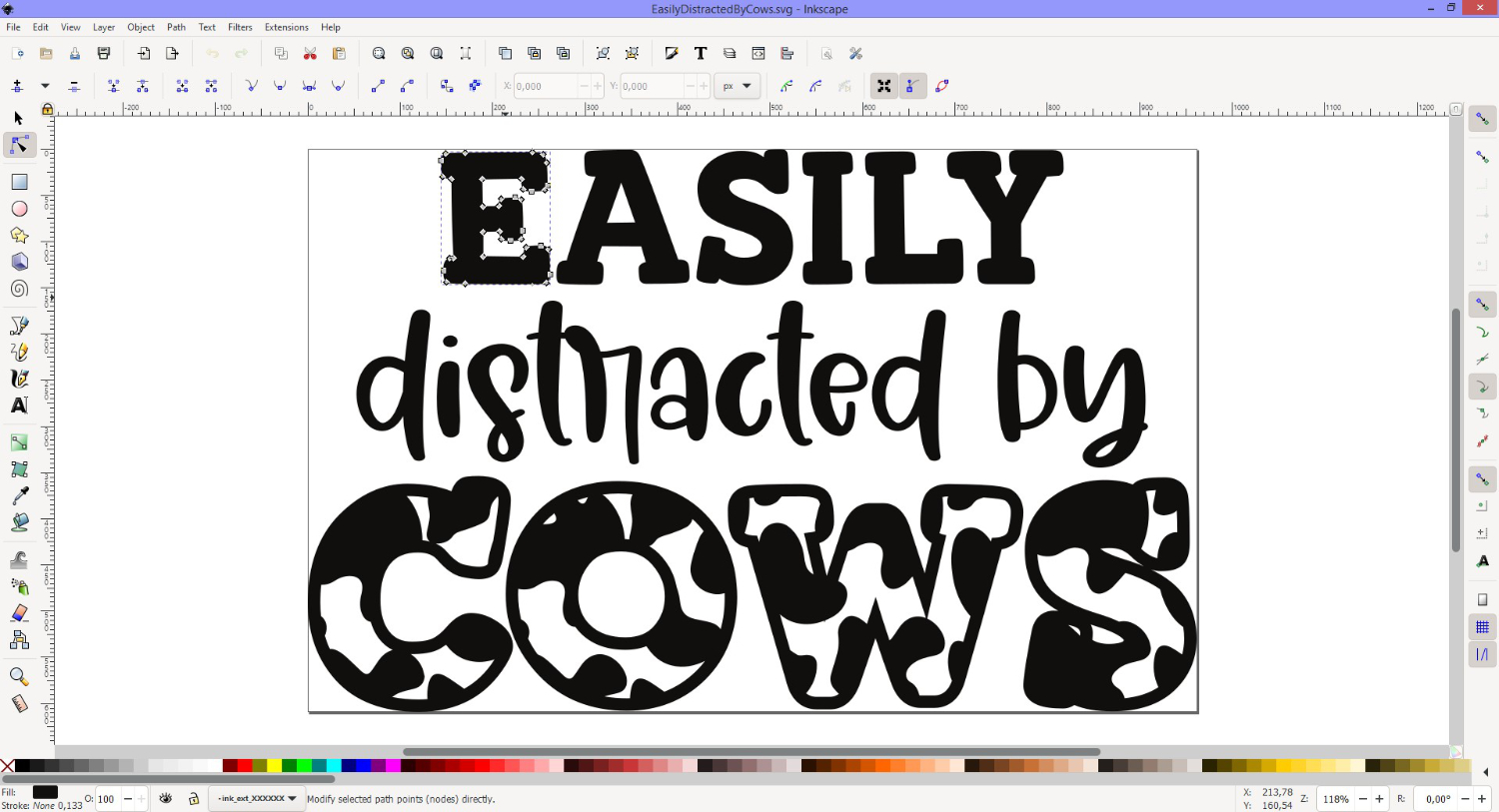
To test out how well the conversion worked, the SVG file was opened in Inkscape. We were able to easily access the nodes for each part of the design.
As quickly as that, you have learned how to use the Plus File Converter. With so many conversion options available, you can download a format specific to your needs. This browser based converter, as an SVG converter alone, can be extremely helpful for projects that require certain file formats.