Get Unlimited Access to Millions of Craft Designs, Templates, Fonts and More! Start Creating for Free Now

DesignBundles.NET
Pricing
DesignBundles.NET

Categories

New

Account

Start Free Trial
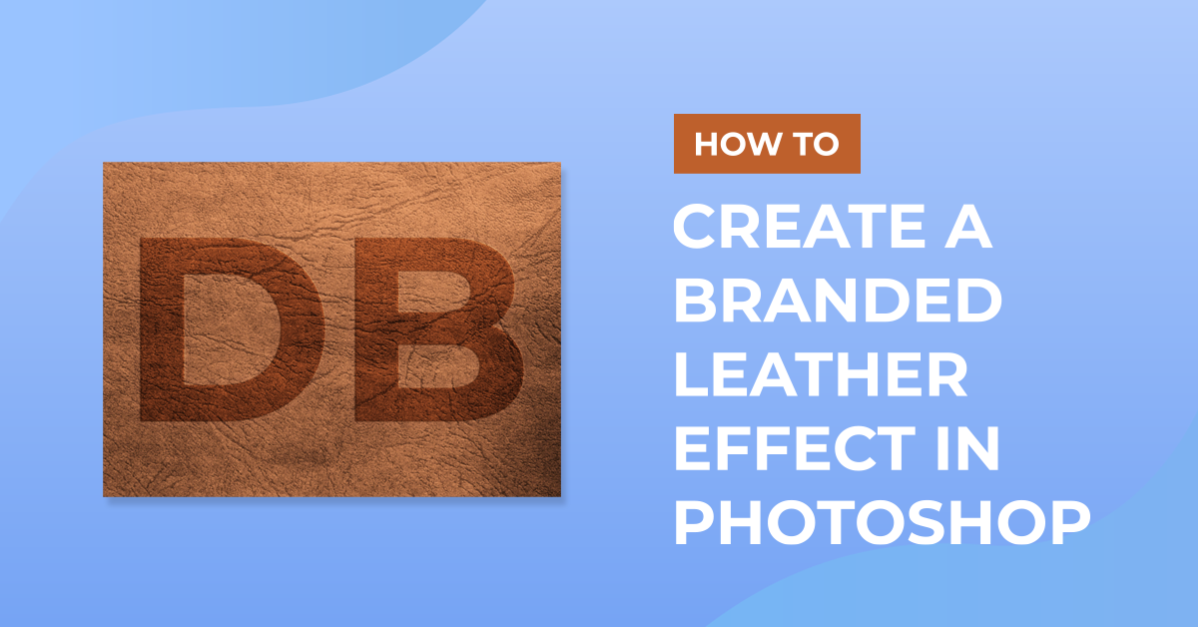
Pressed Leather Effect in Photoshop

By Design Bundles

Pressed Leather Effect in Photoshop

For this tutorial you will need an image of leather large enough to cover your background and a vector image of what you want to brand onto the leather.

1 – If your vector image is an Illustrator file or has a non-transparent background open the file in Illustrator, select the part of the vector you want to use and click Command/Control + C to copy it.

2 – In Photoshop open your leather background and then click Command/Control + P to paste the vector into Photoshop. Choose “Smart Object” in de dialog. If you want, resize your vector and then click Enter.

3 -Double click on your vector layer to invoke the “Blending Options” dialog and set the following values: Set the Blend Mode to Soft Light and lower the Fill Opacity to 0.

In Color Overlay use:

In Bevel & Emboss use:

In Inner Glow use:

In Outer Glow use:

In Inner Shadow use:

And in Drop Shadow use:

4 – Your image is ready.

5 - You can save this preset and use with other images. Just click “Styles” inside the “Blending Options” dialog and click the “New Style” button.

Related Tutorials

Photoshop Tutorials

How to Make a Peeling Sticker Effect in Photoshop

Make a peeling sticker effect in Photoshop with this tutorial.
Photoshop Tutorials

How to Make a Graffiti Text Effect in Photoshop

Learn how to create a realistic grafitti text effect in Photoshop.
Photoshop Tutorials

How to Make a Halftone Effect in Photoshop

Learn how to make a halftone effect in Photoshop and how to change the colors of the halftone effect
Photoshop Tutorials

How to Create a Holographic Text Effect in Photoshop

Discover how to create a holographic text effect in Photoshop with this step by step tutorial.
Photoshop Tutorials

How to Create a Faded Blur Effect in Photoshop

Create a faded blur effect in Photoshop using these technique and add mystery to your images.
Photoshop Tutorials

Cloud Effect Photoshop

Discover how to create a cloud effect with this in depth Photoshop tutorial.

Keep going

You may also like

All photoshop tutorials
The weekly drop

Fresh tutorials, trends & free files.

Join 6 million makers getting our best craft guides and exclusive freebies straight to their inbox.

No spam. Unsubscribe anytime.
Pressed Leather Effect in Photoshop - Design School | Design Bundles