By Design Bundles
Photoshop Tutorials9 min
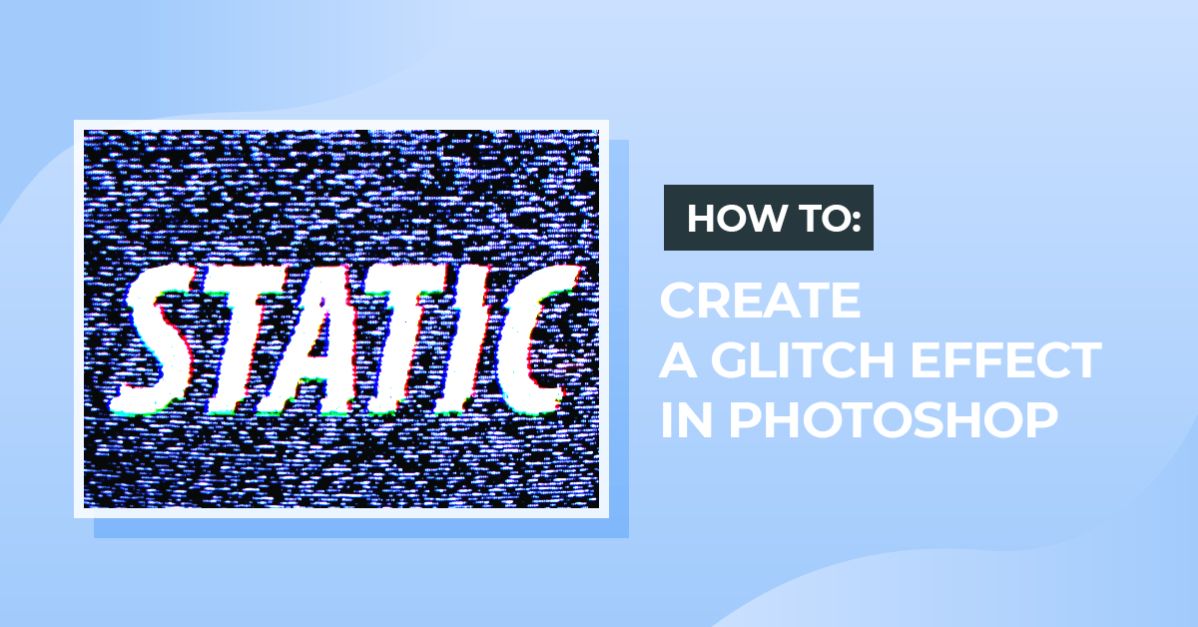
Glitch Effect Photoshop
For this tutorial, we are using a background image of a screen and/or static lines.
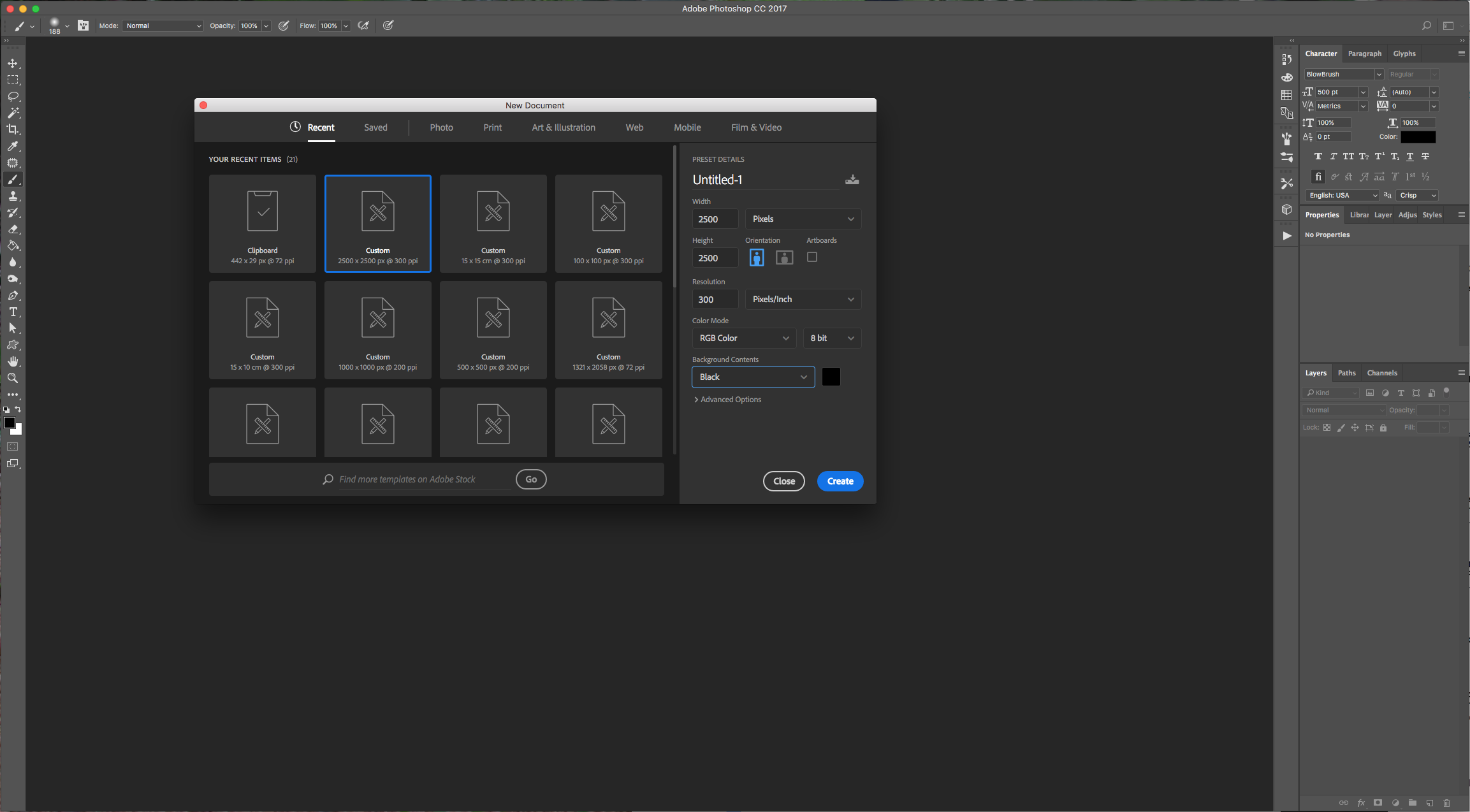
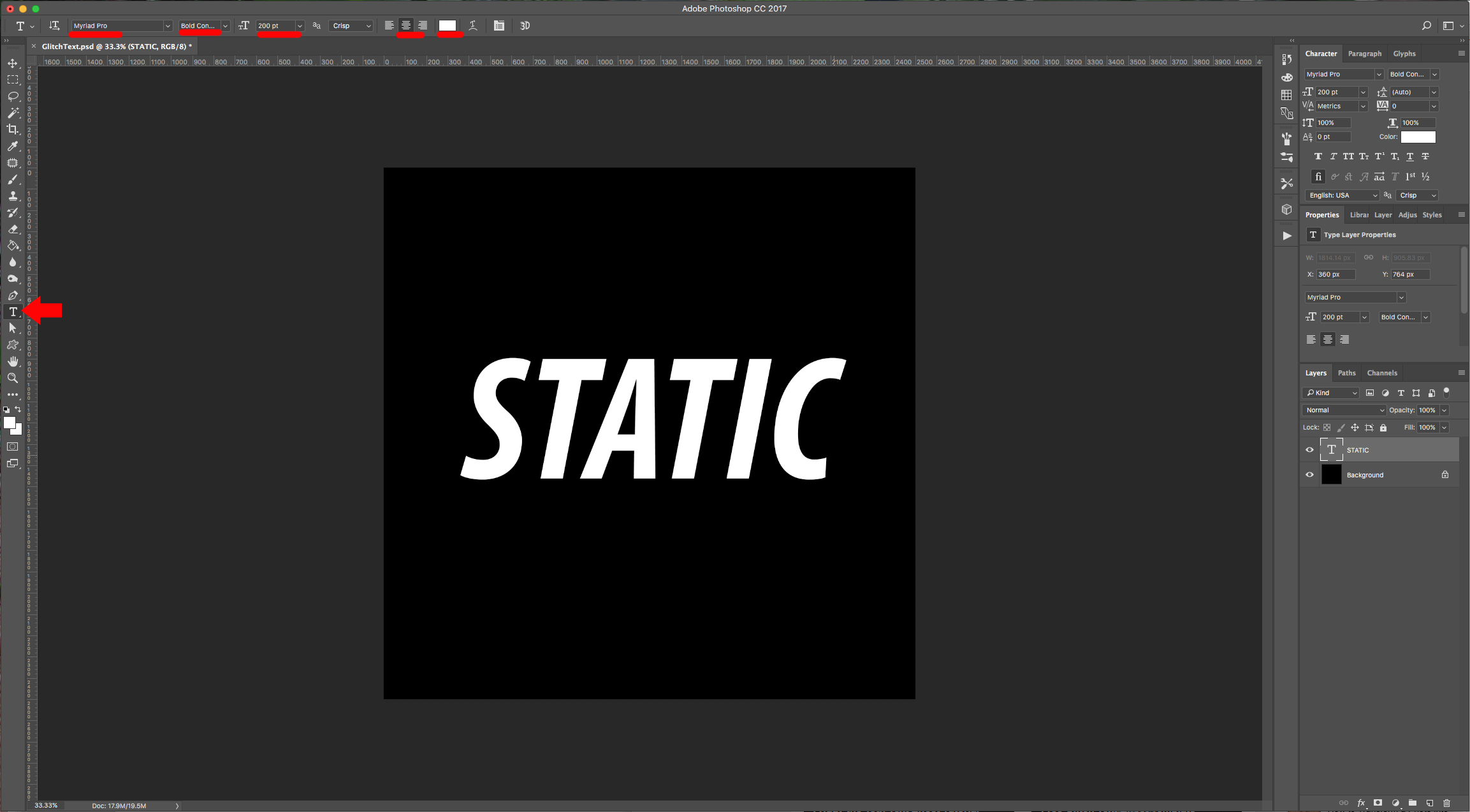
1 - In Photoshop, create a New Document. Select the “Type Tool” (T), choose your font (we used Myriad Pro Bold Condensed Italic), size and use white as “Fill” color. Type your text.
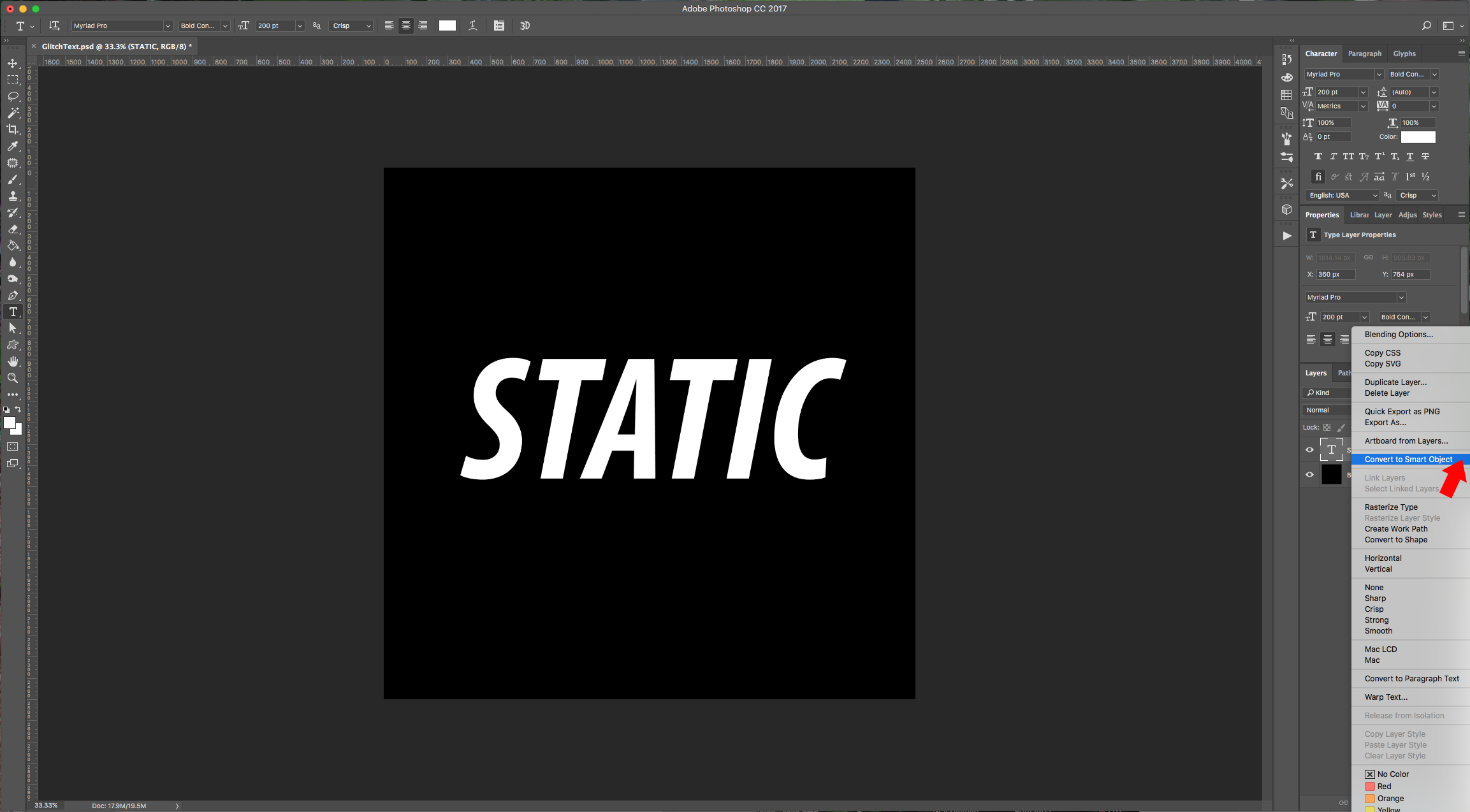
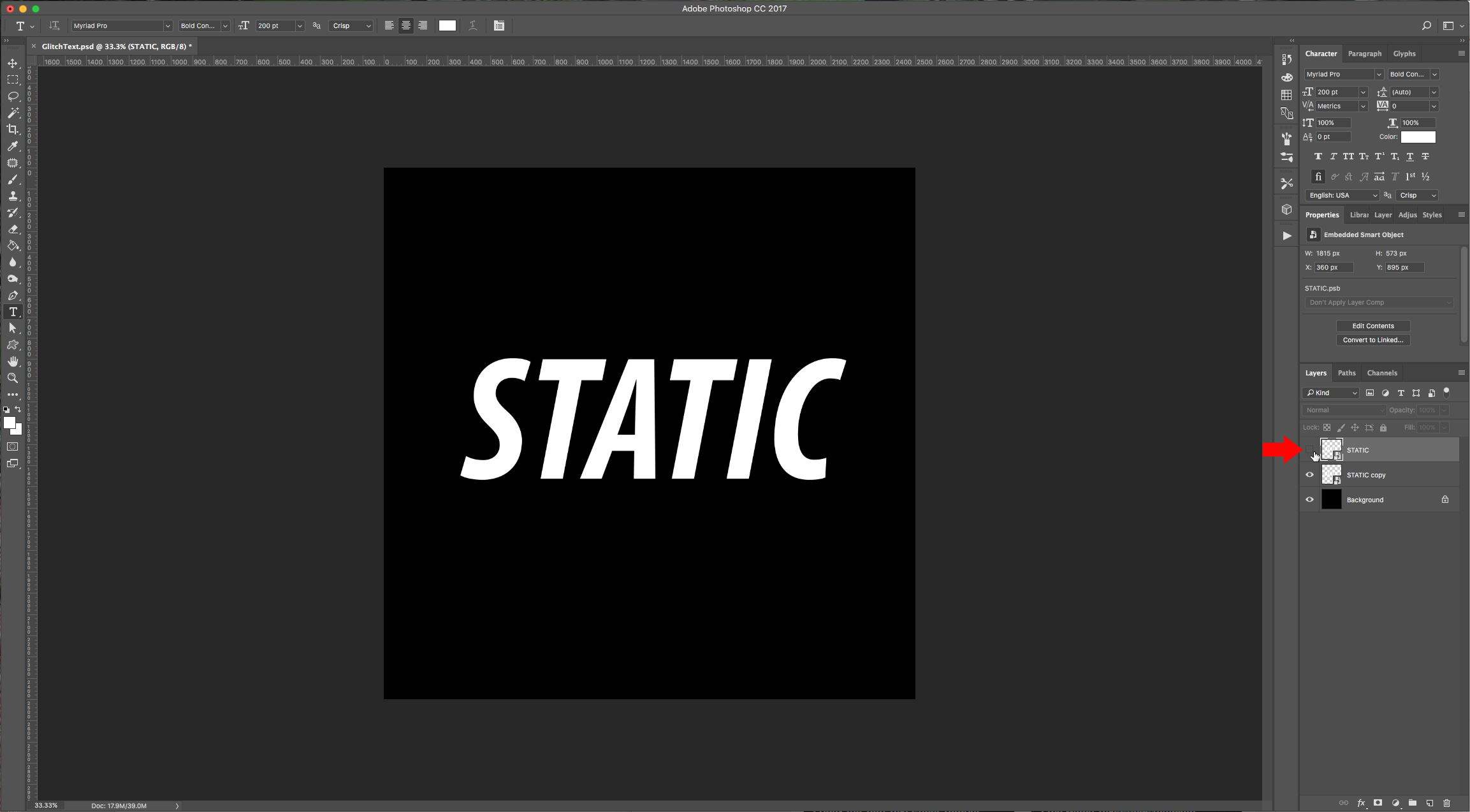
2 - Right-click on your text and choose “Convert to Smart Object”. Duplicate the layer (Command/Control + J), place the original layer on top and hide it by clicking the little eye icon to the left of the thumbnail.
3 - Go to Filter > Distort > Wave and apply the following values:
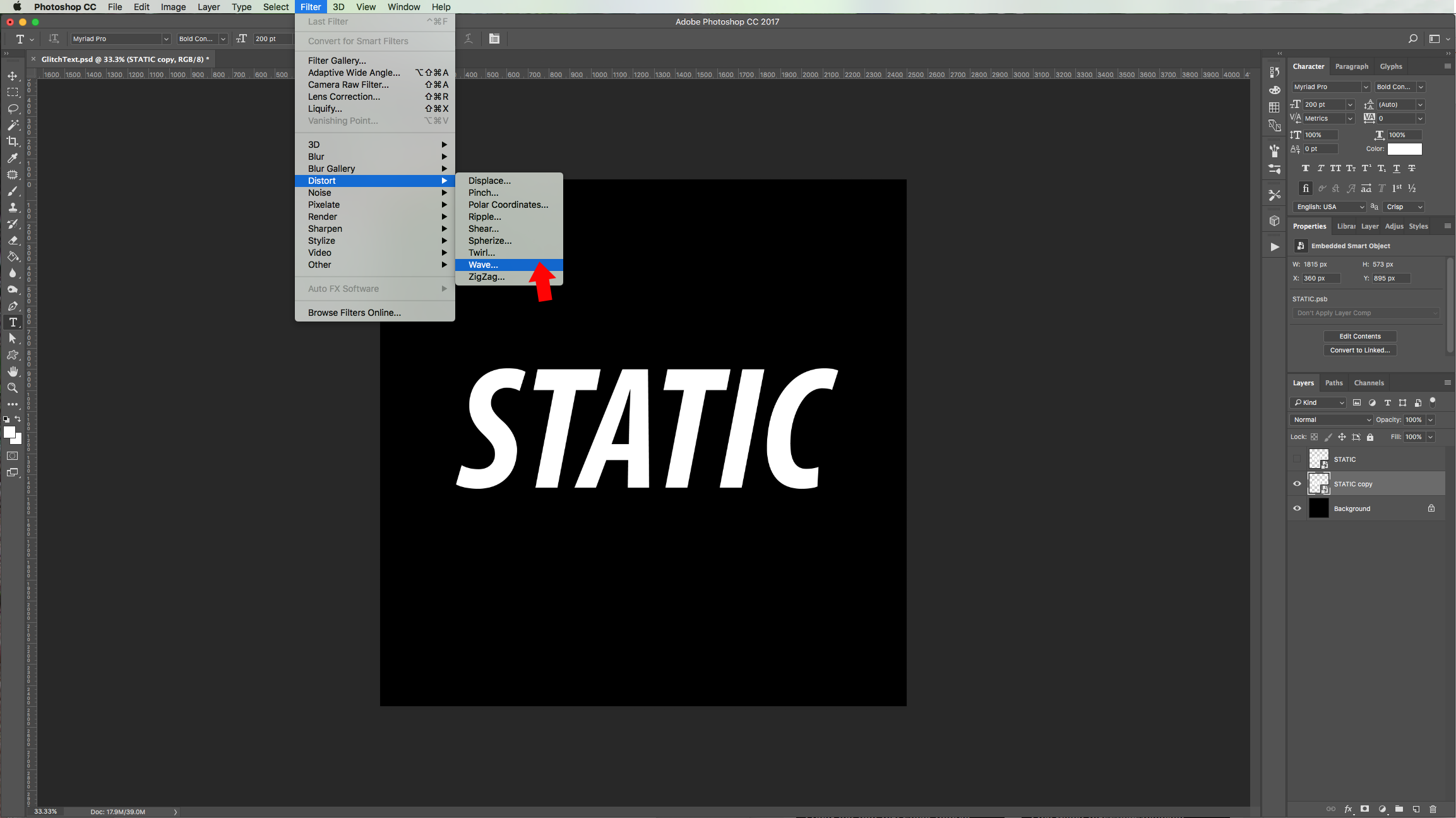
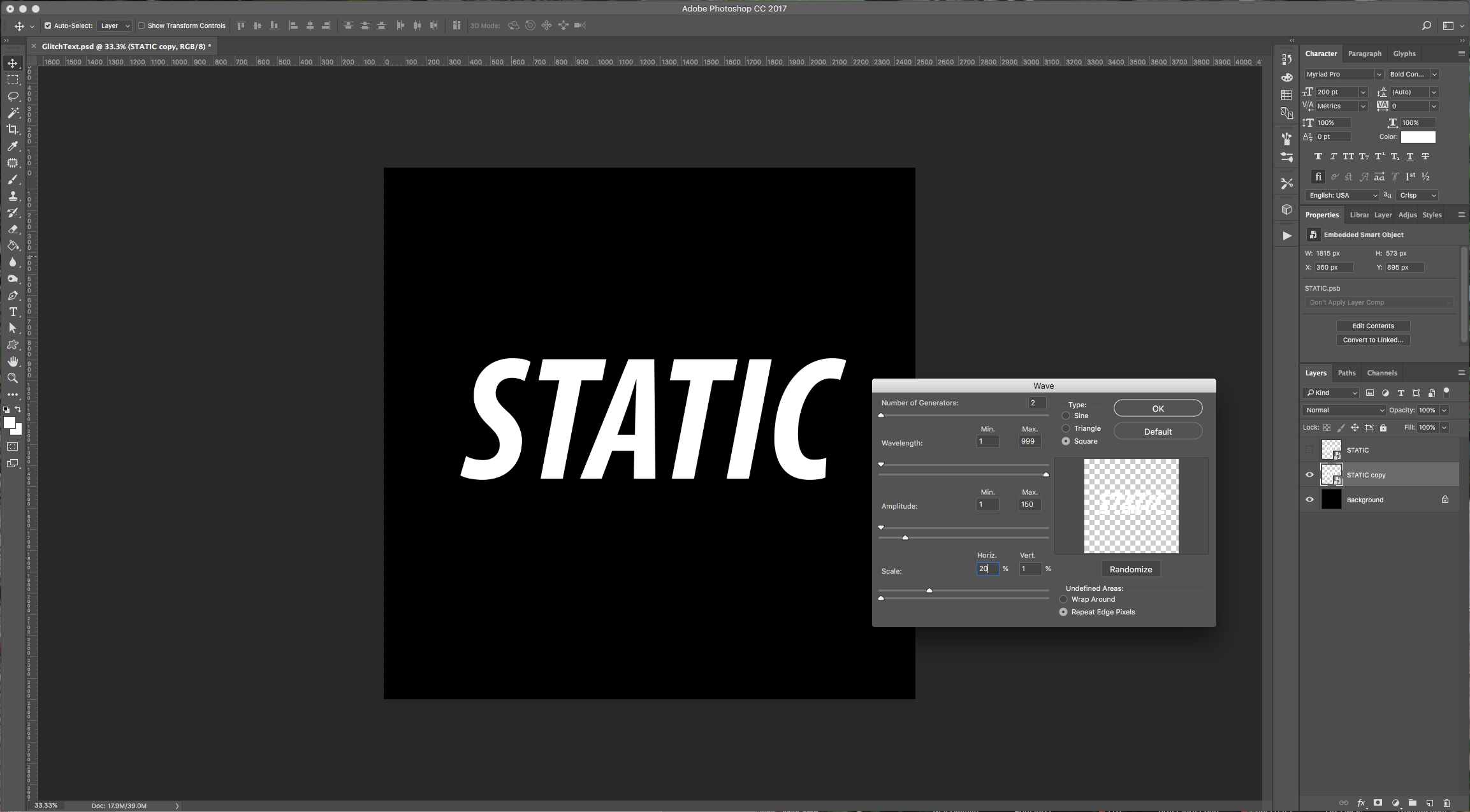
(You may need to play around with the values depending on your font and text size).
4 - To modify your filter double-click on the thumbnail and the dialog will open. Try clicking the “Randomize” button and check the results.
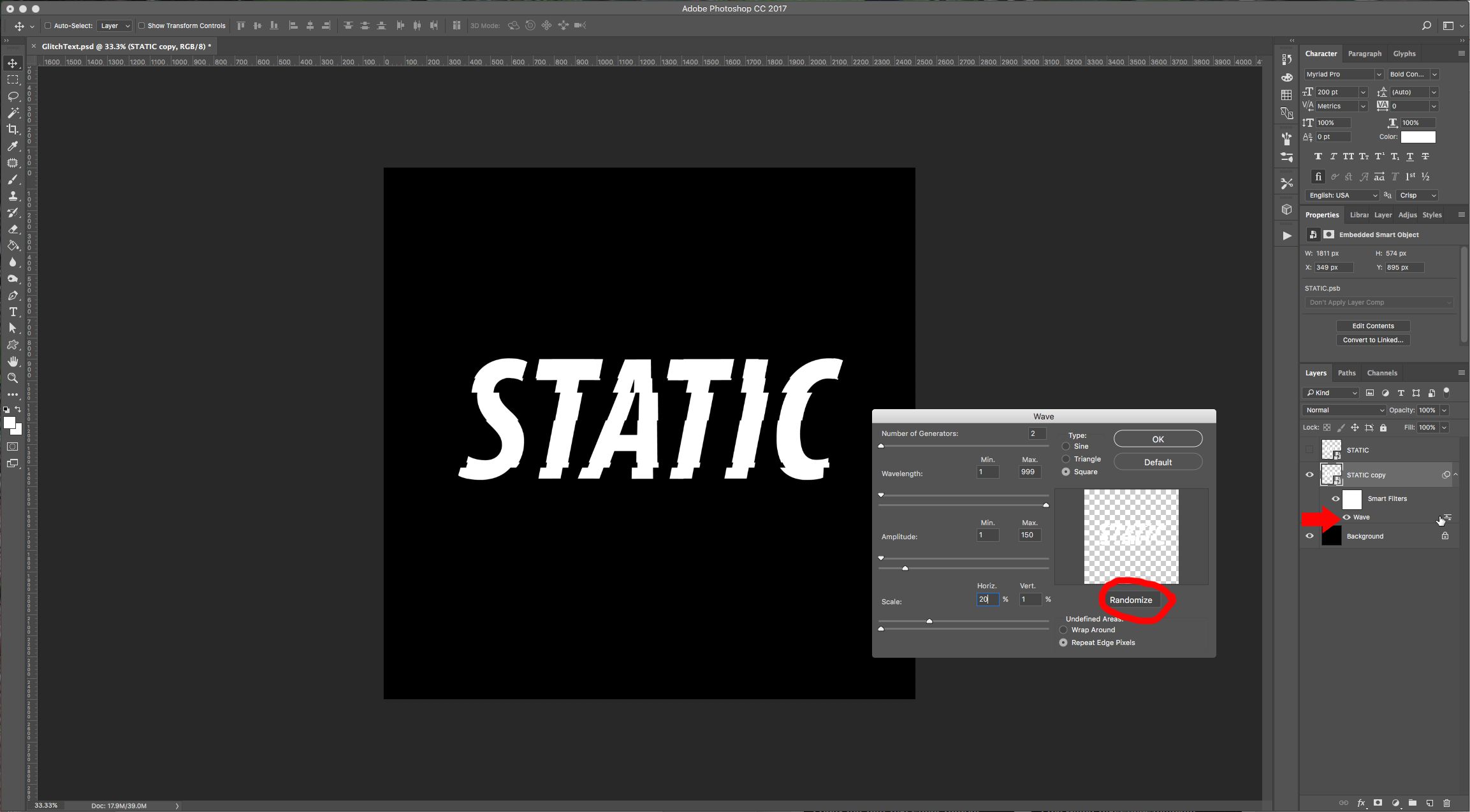
5 - Once you are happy with your text, make 3 duplicates and name them R, G, and B. Place your “RGB” layers under the “Text” layer and hide the later for now.
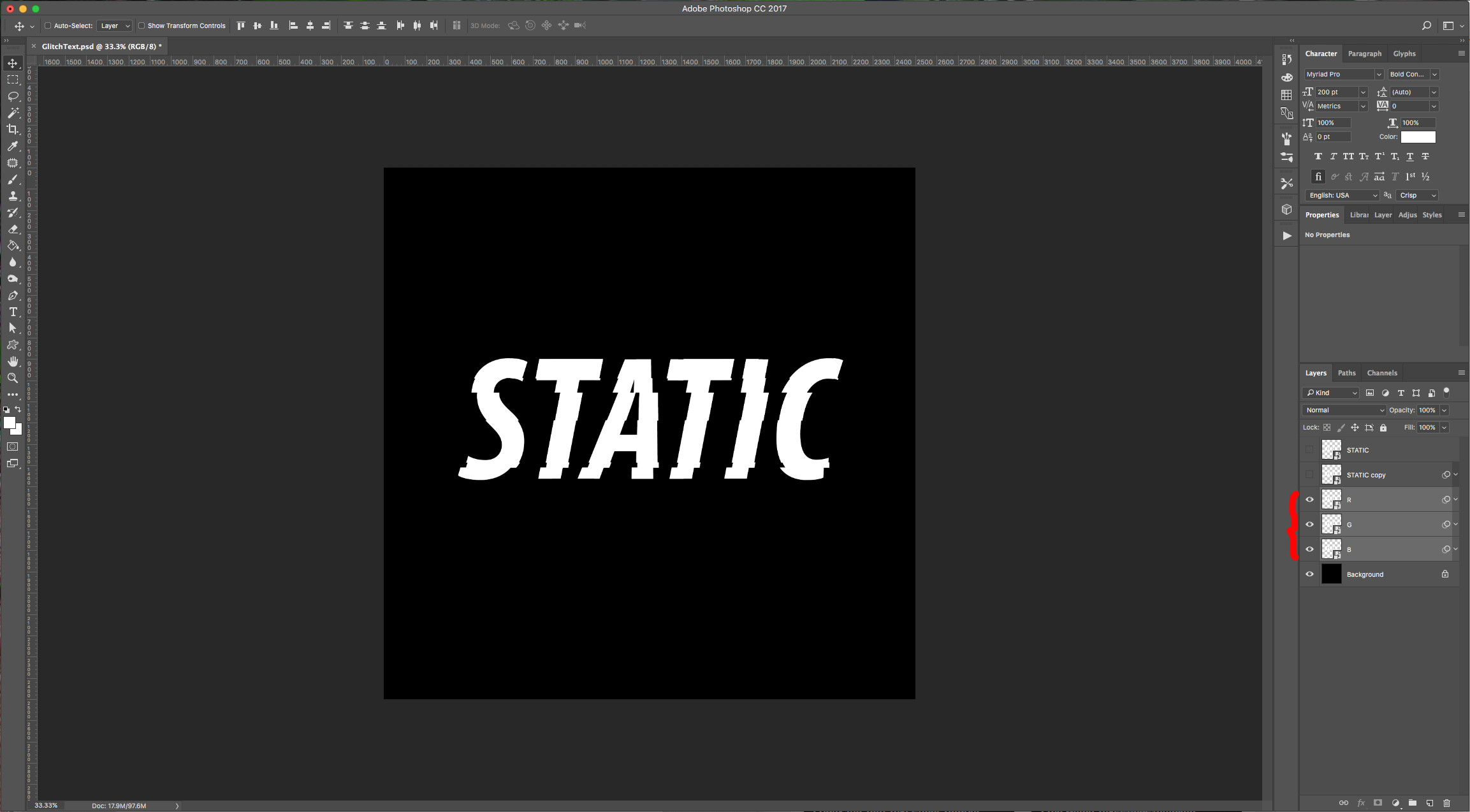
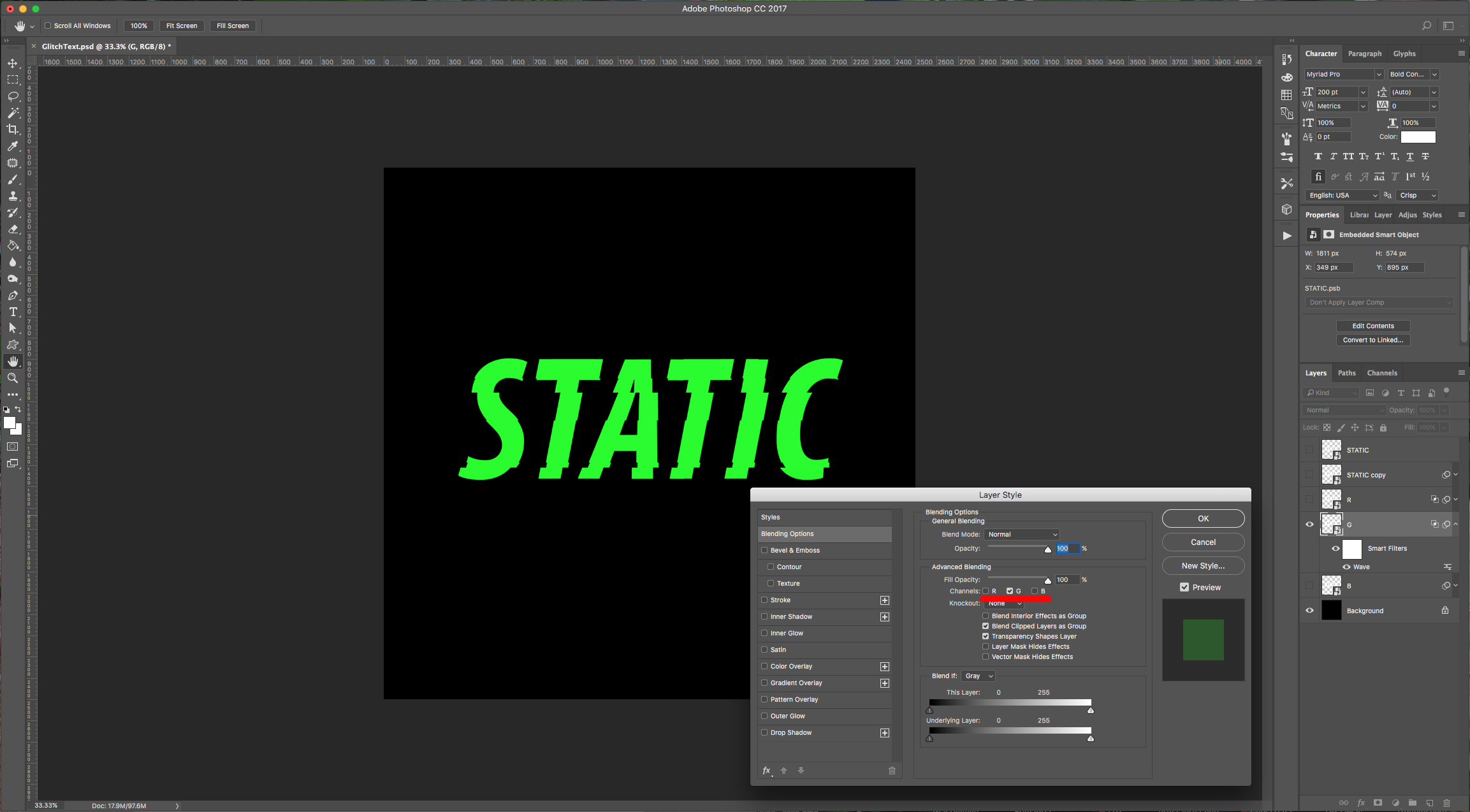
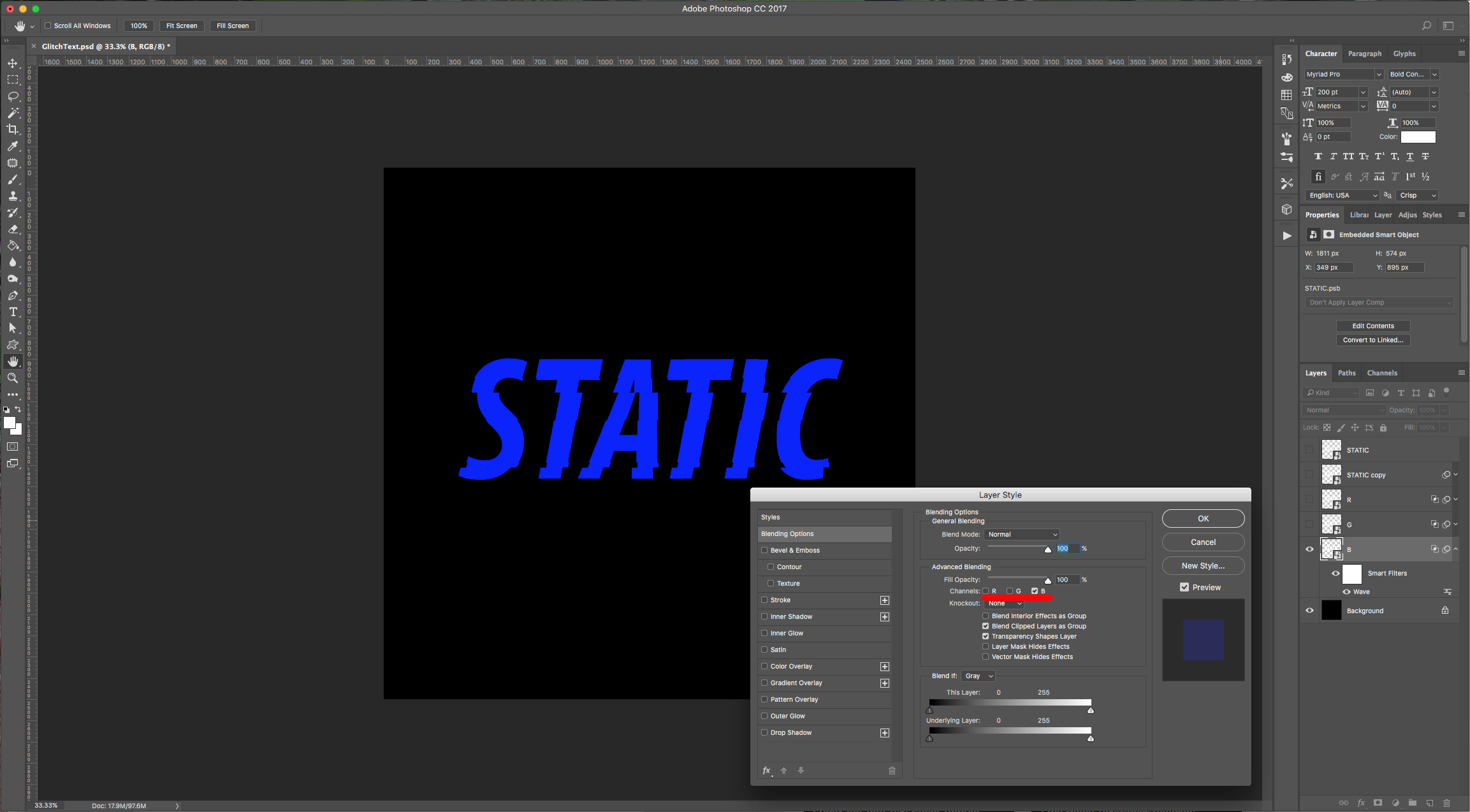
6 - Double-click on the “R” layer and uncheck the “G” and “B” Channels in the “Blending Options” window.
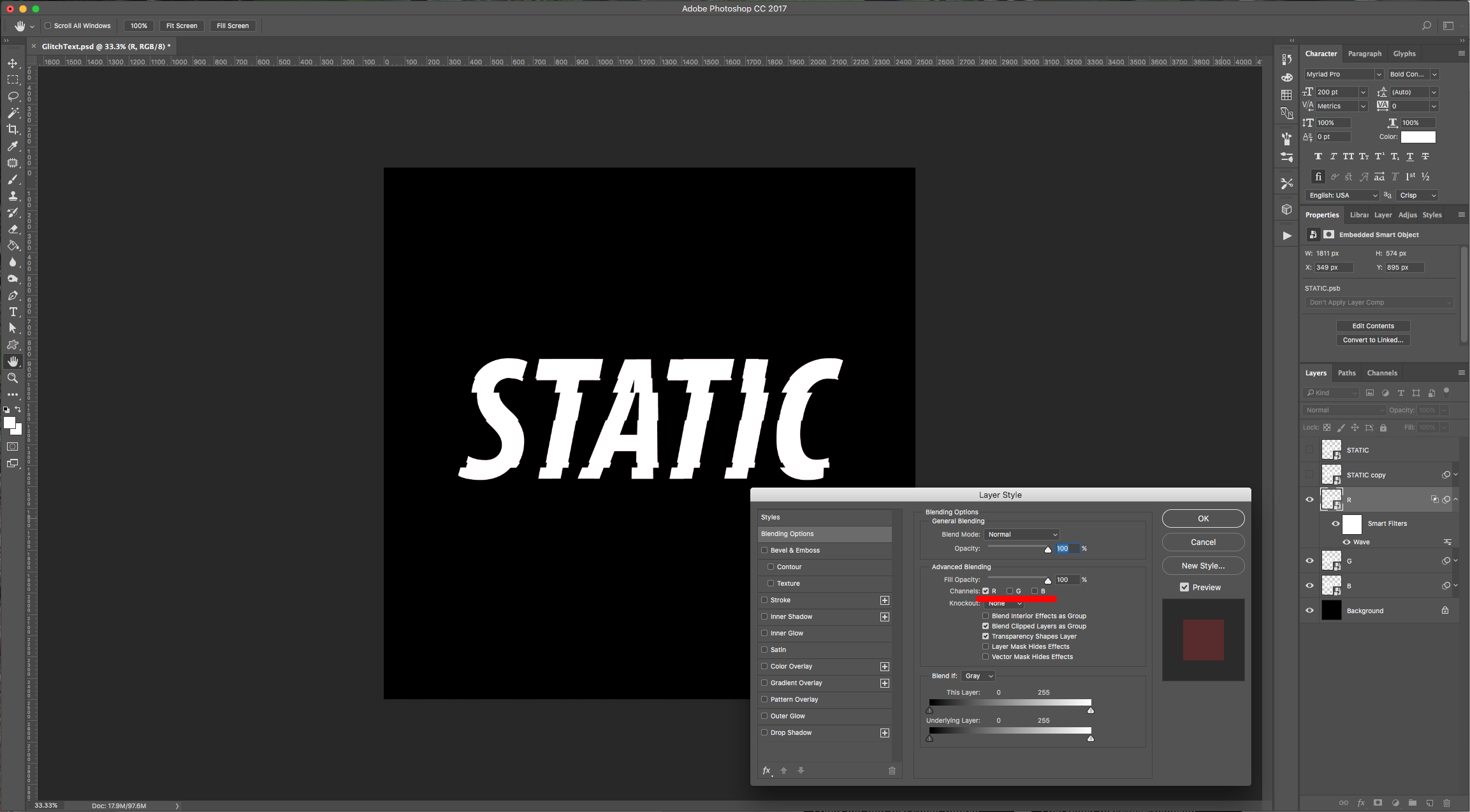
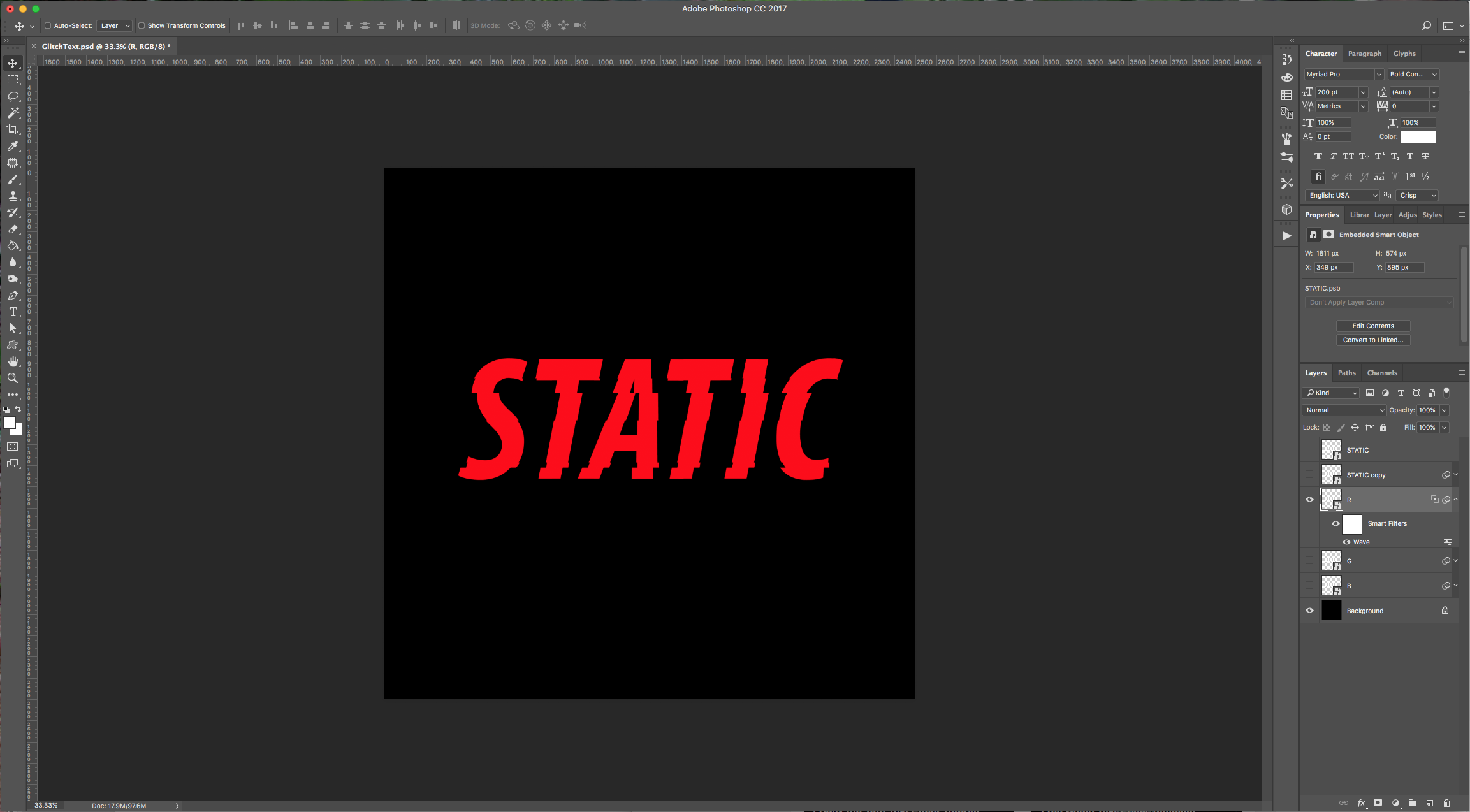
(Turn off the other layers to see the effect).
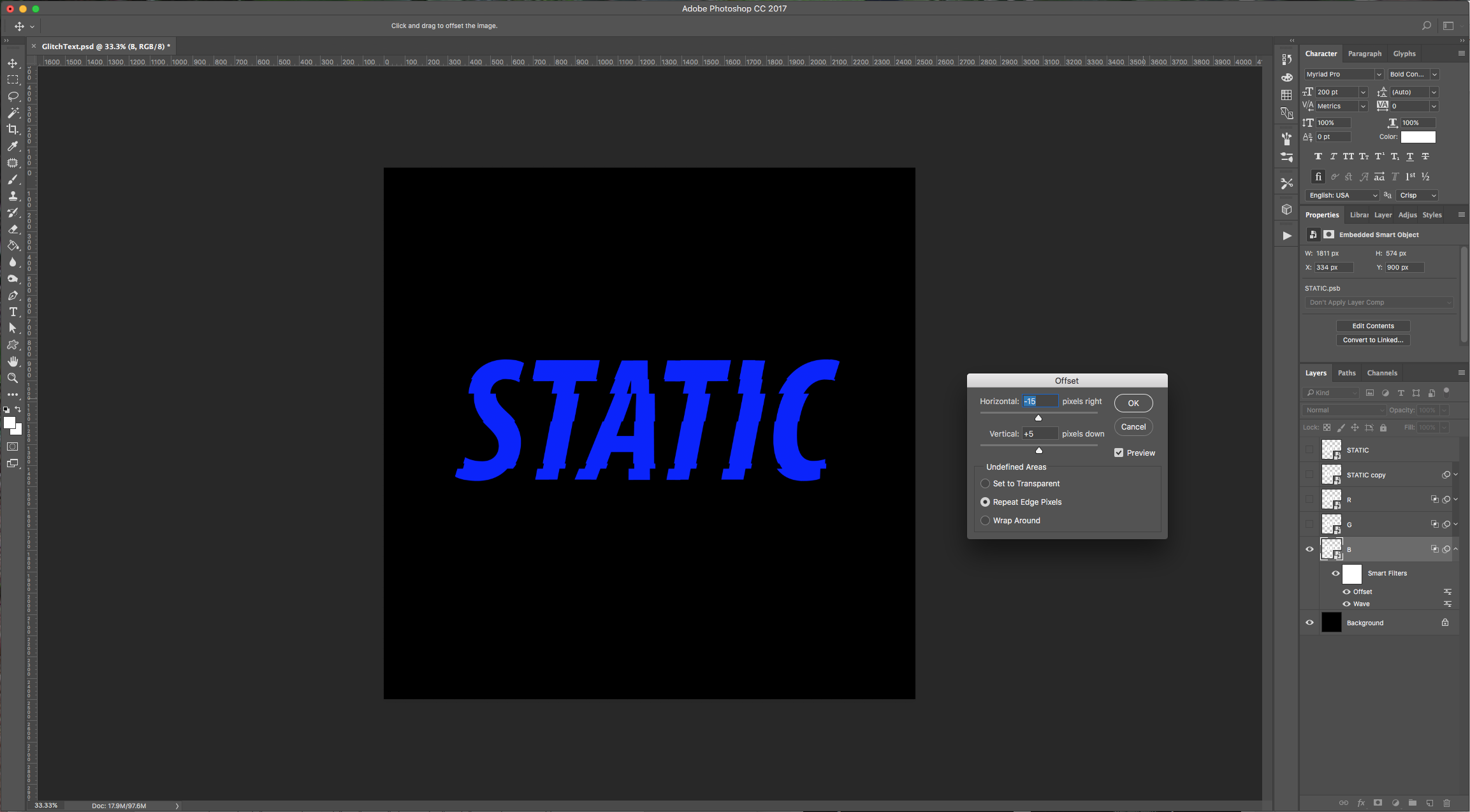
7 - Go to Filter > Other > Offset and apply the following values: Horizontal: +15 pixels right, Vertical: -5 pixels down, check “Repeat Edge Pixels”.
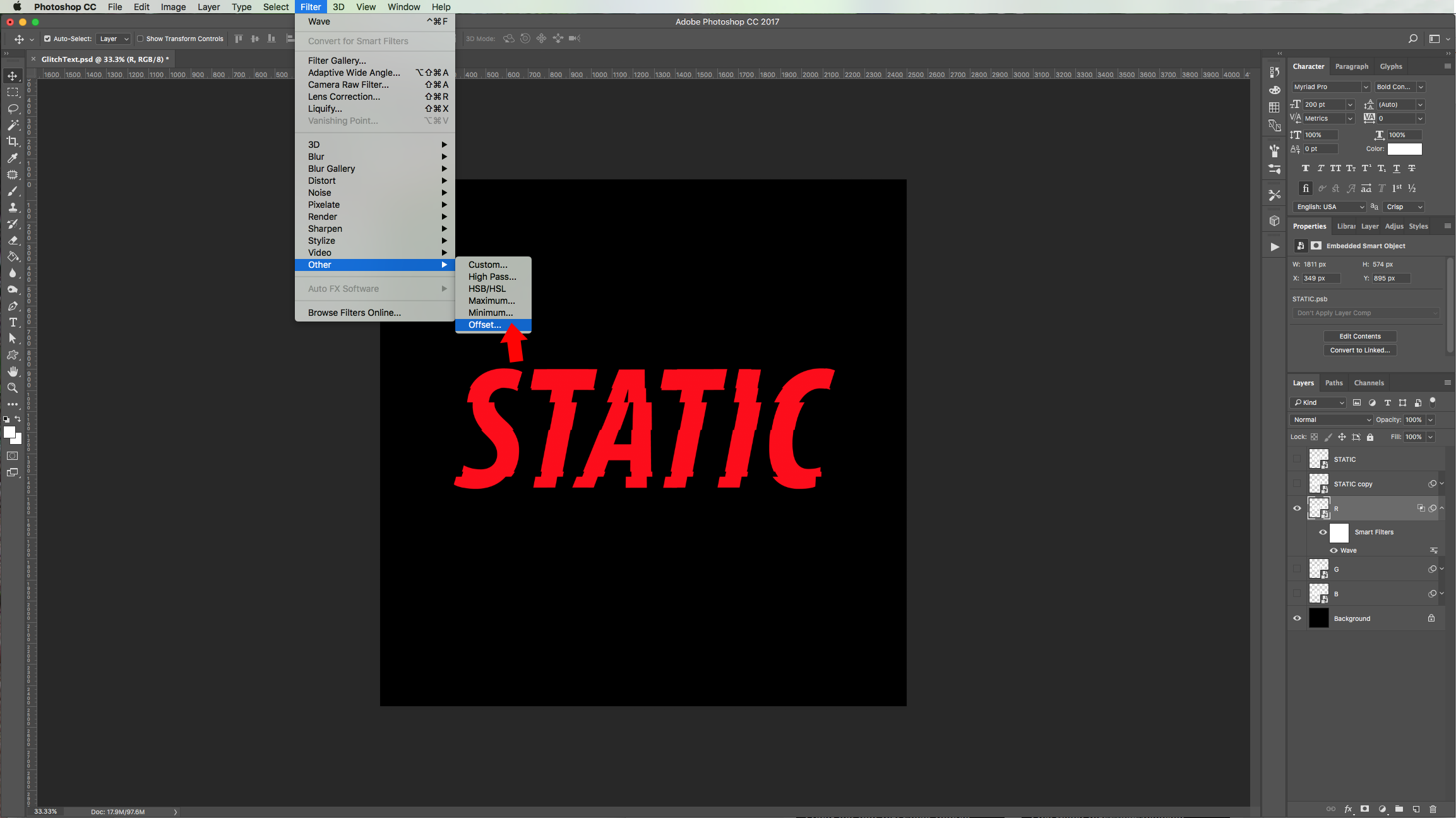
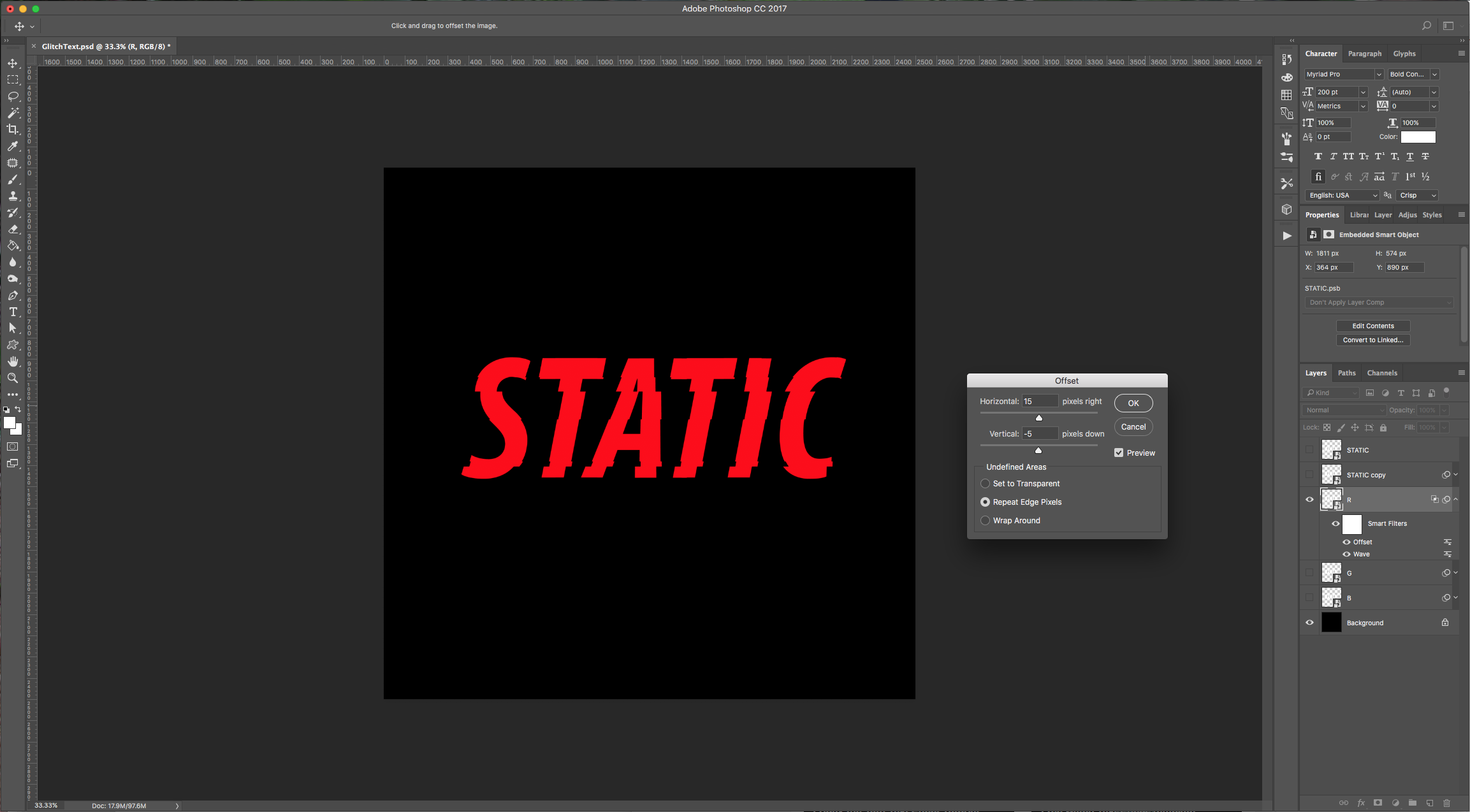
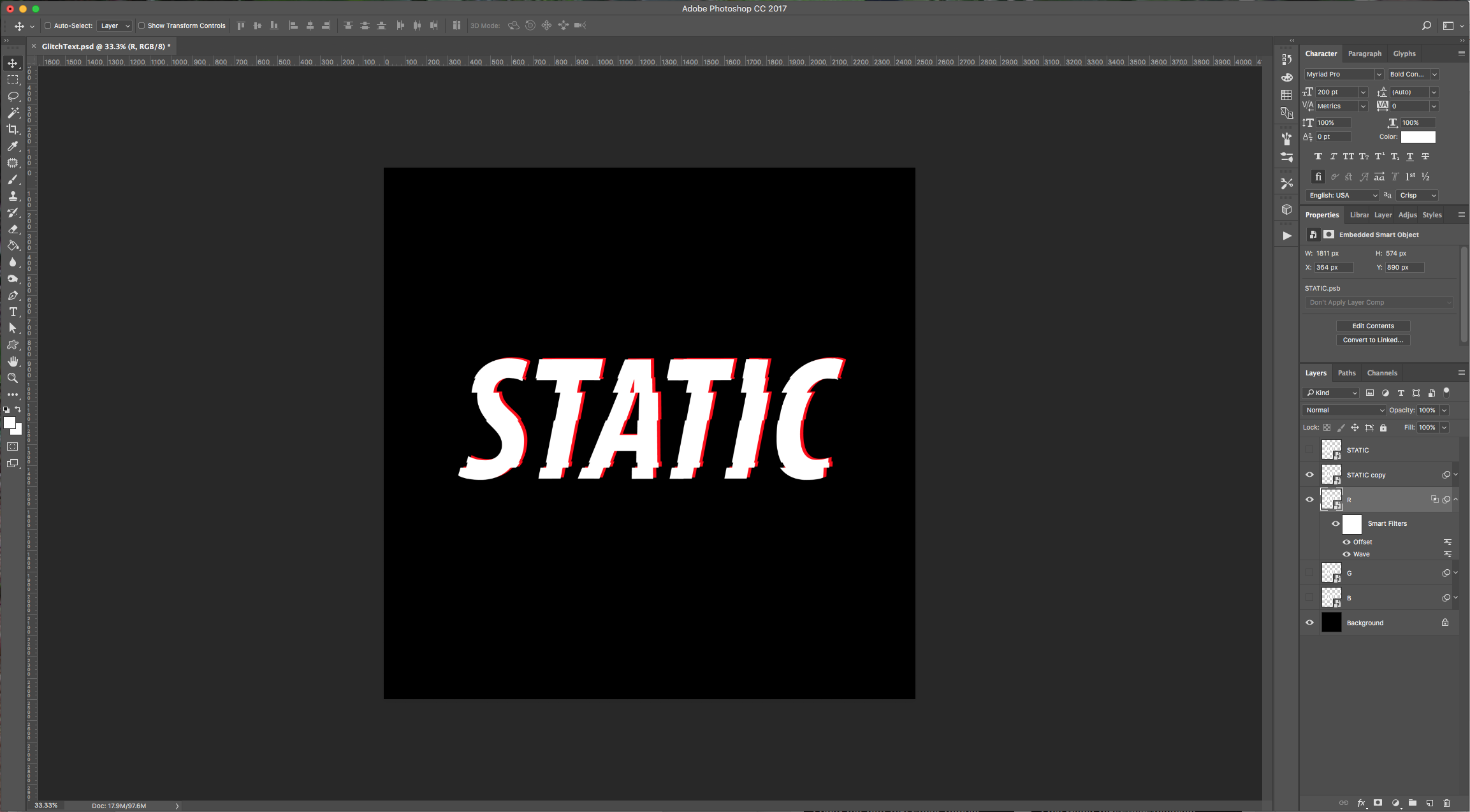
(Turn on your “text” layer to check if you like the results).
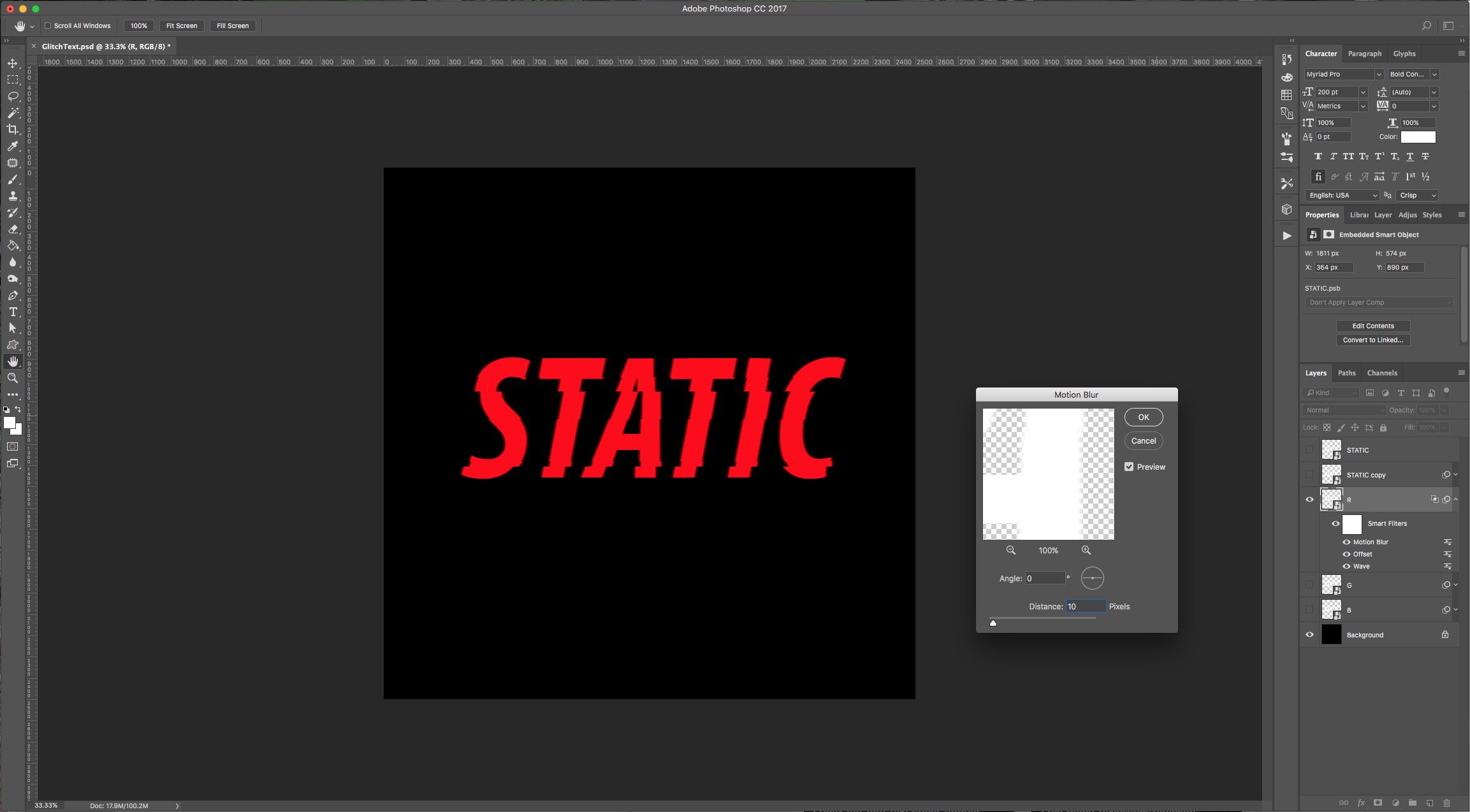
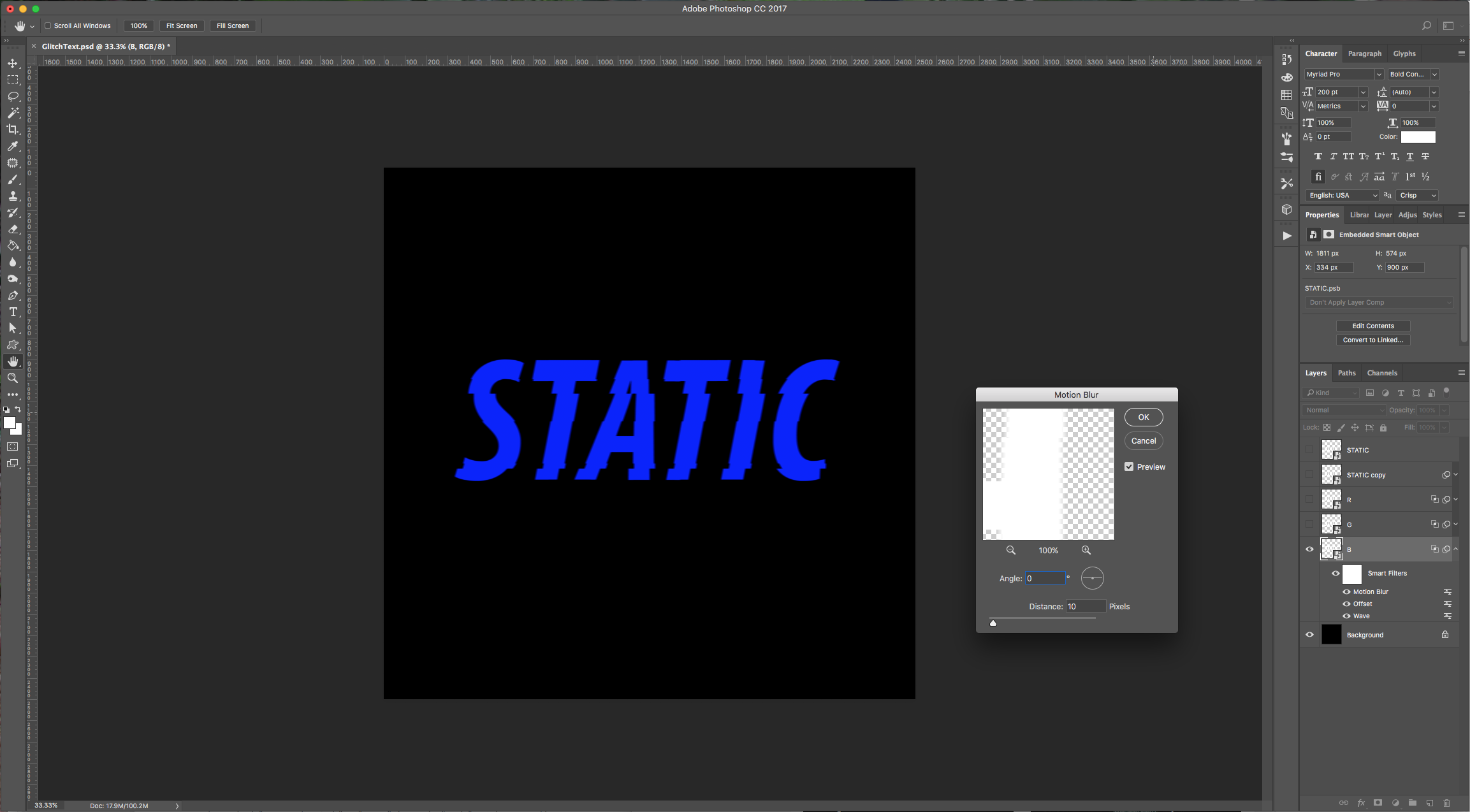
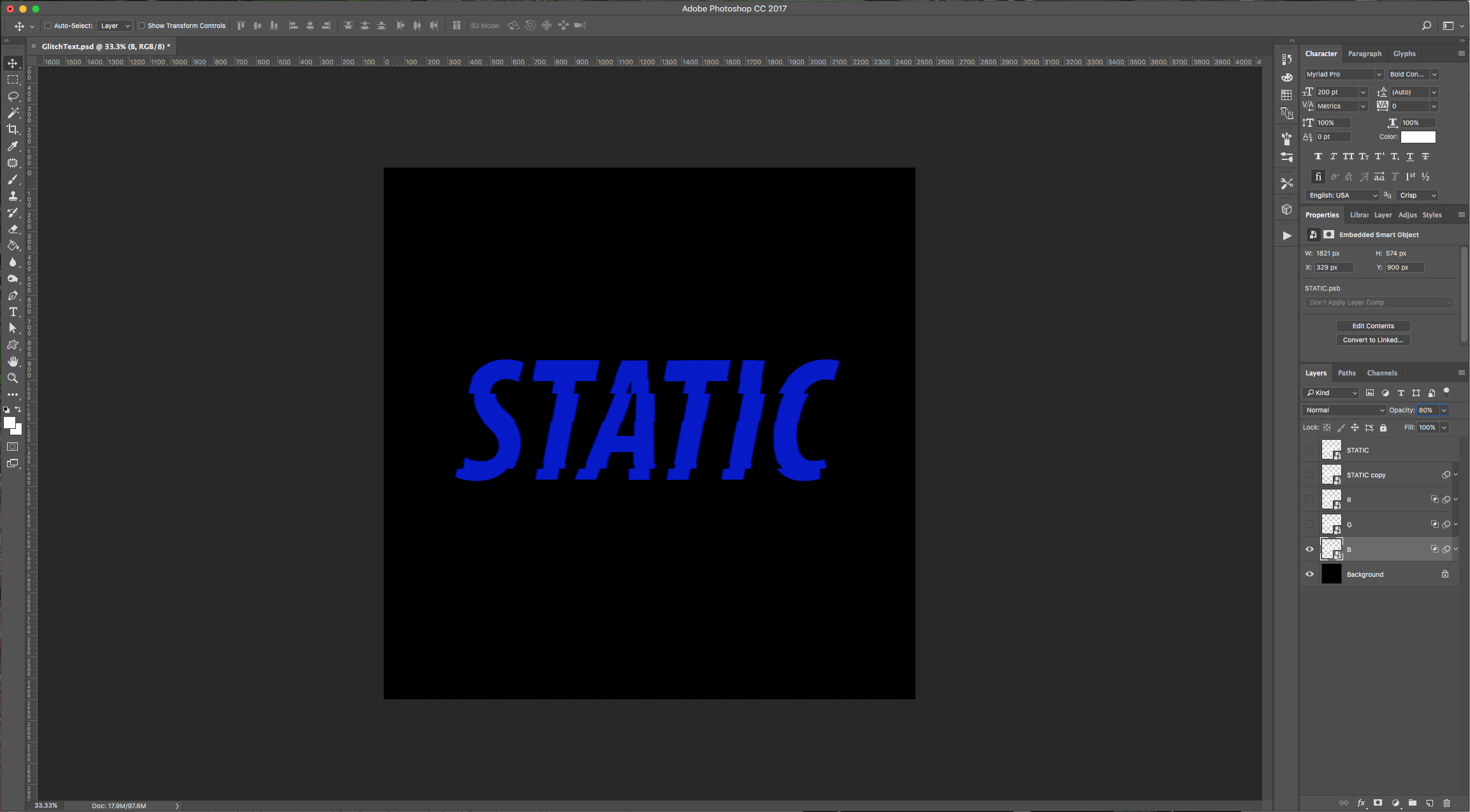
8 - Finally, go to Filter > Blur > Motion Blur and use a “Distance” of 10 Pixels (Keep 0 for Angle). Then lower the “Opacity” of the layer to 80%.
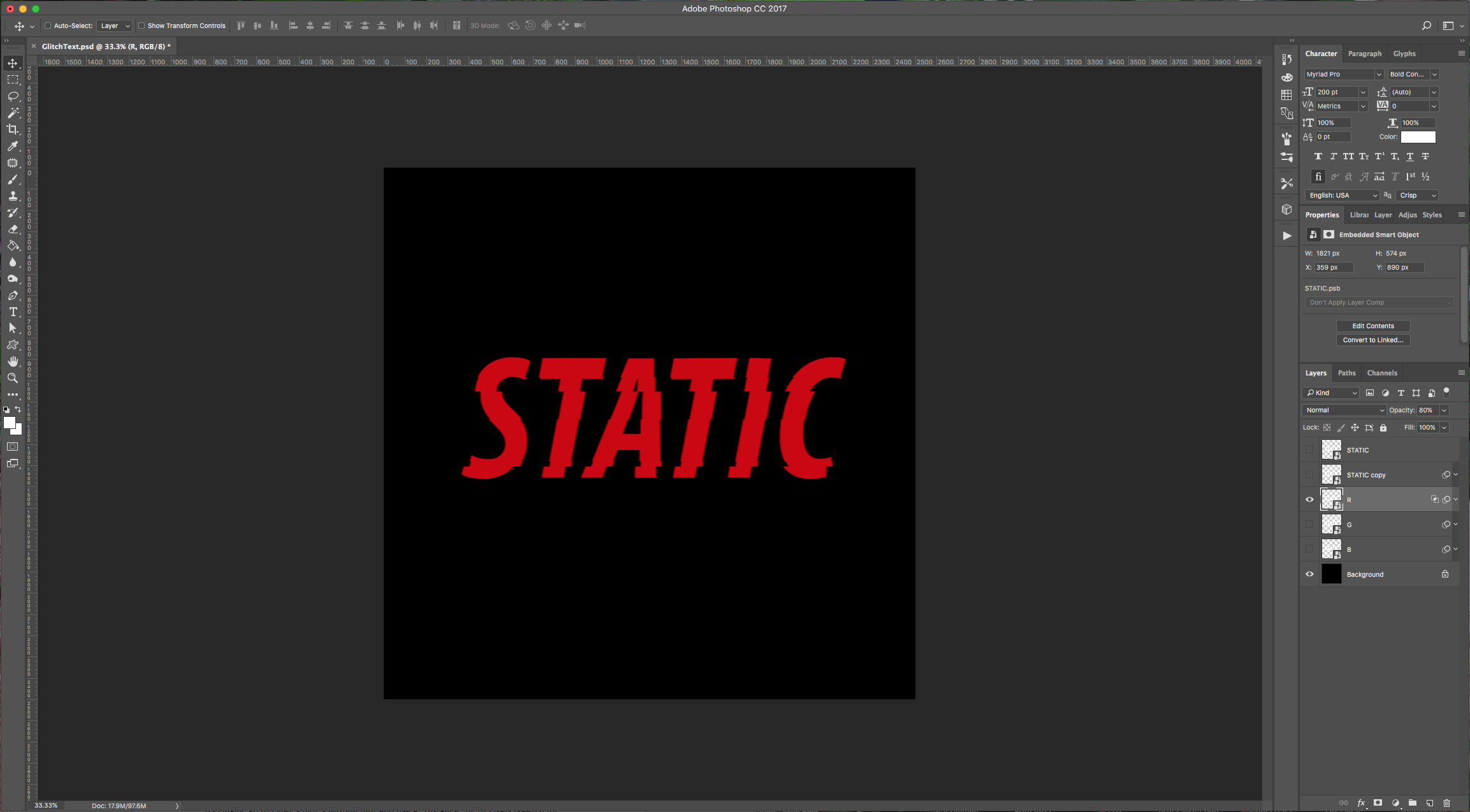
9 - Hide the “R” layer and turn on the “G” layer. Repeat Steps 6 to 8, but in “Step 6” uncheck the “R” and “B” Channels (your text should be green) and in “Step 7”, change the values to: Horizontal: 0 pixels right, Vertical: +15 pixels down, check “Repeat Edge Pixels”. In “Step 8” change the “Angle” to 90 degrees and keep the “Distance” value of 10 pixels. Lower the “Opacity” to 80%.
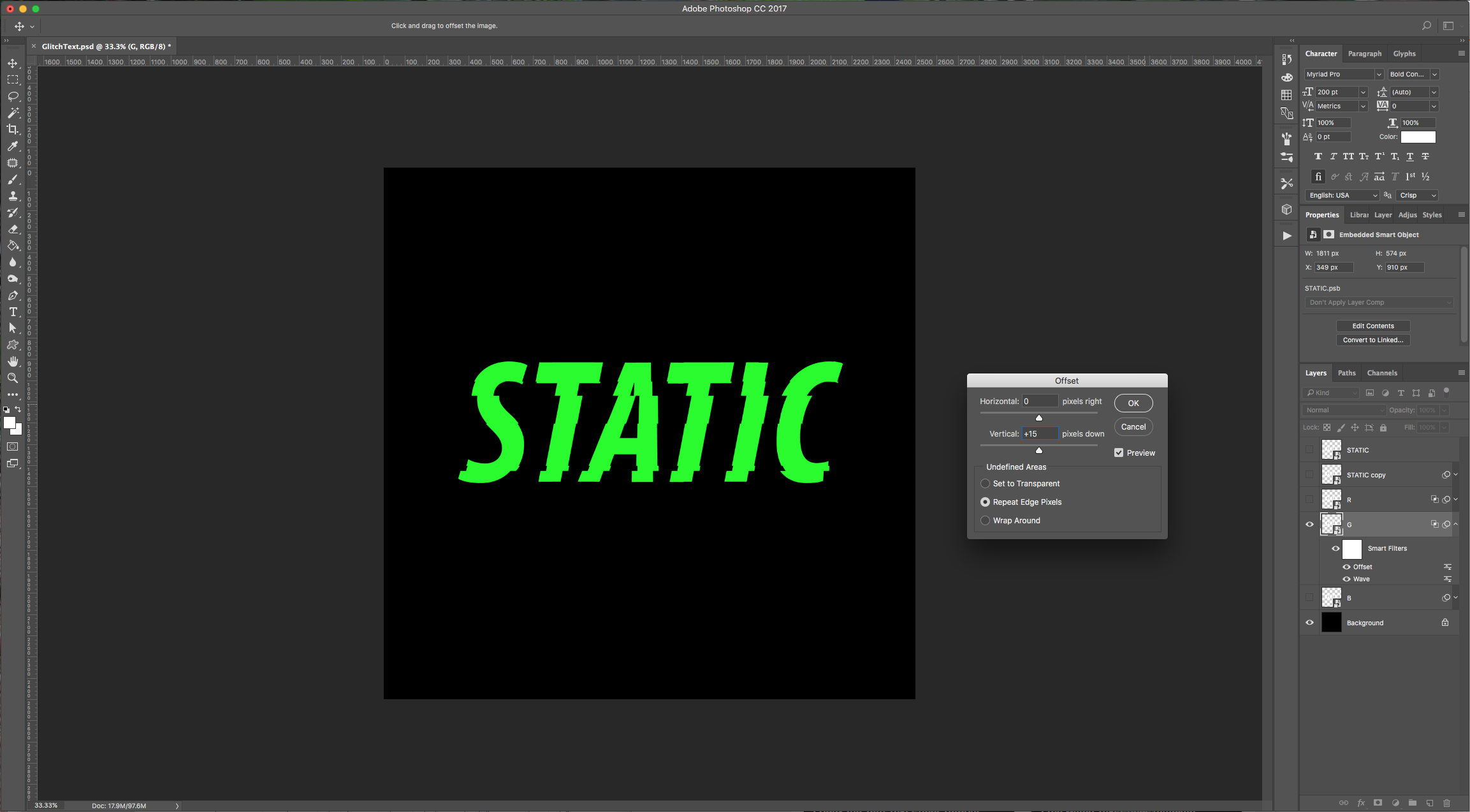
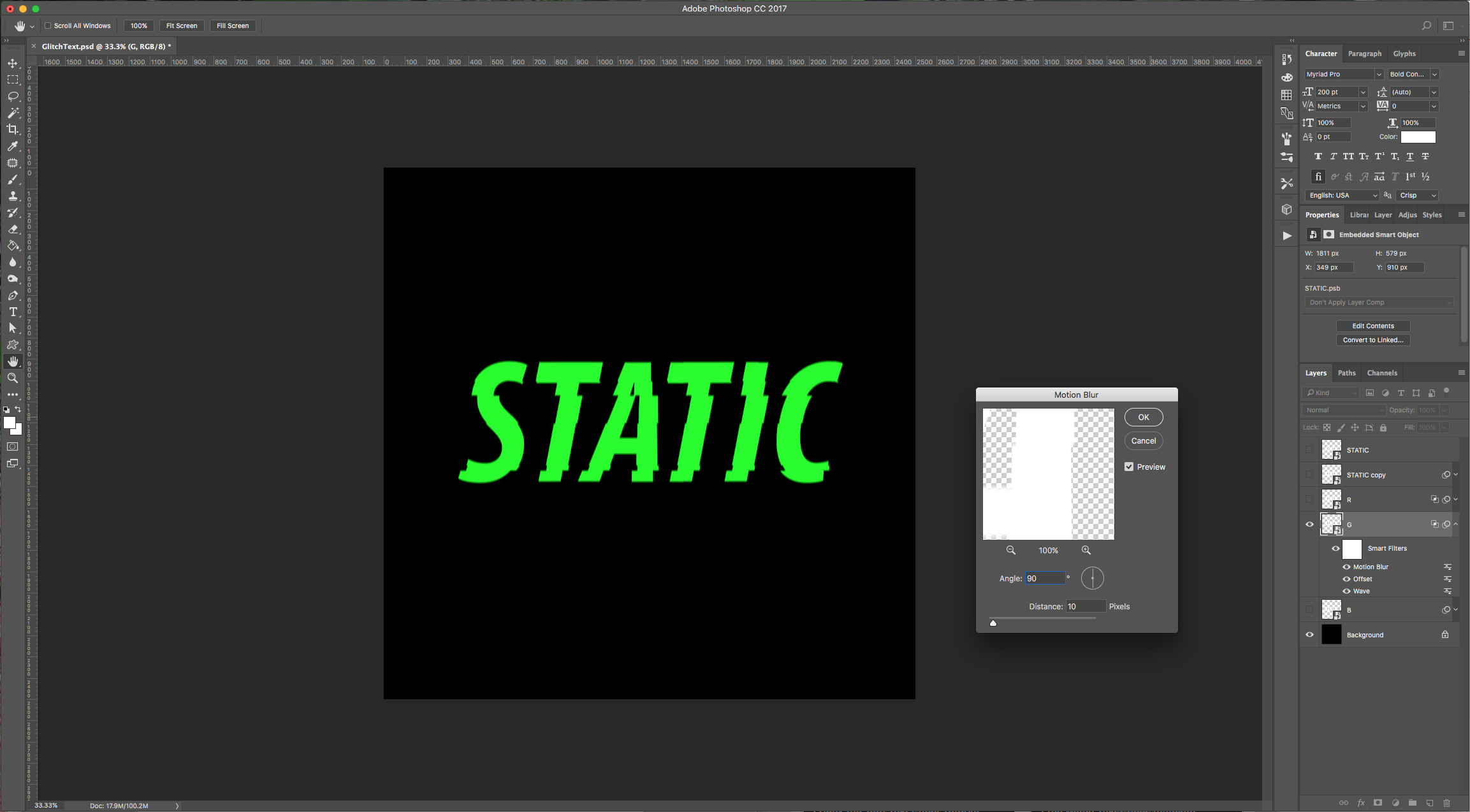
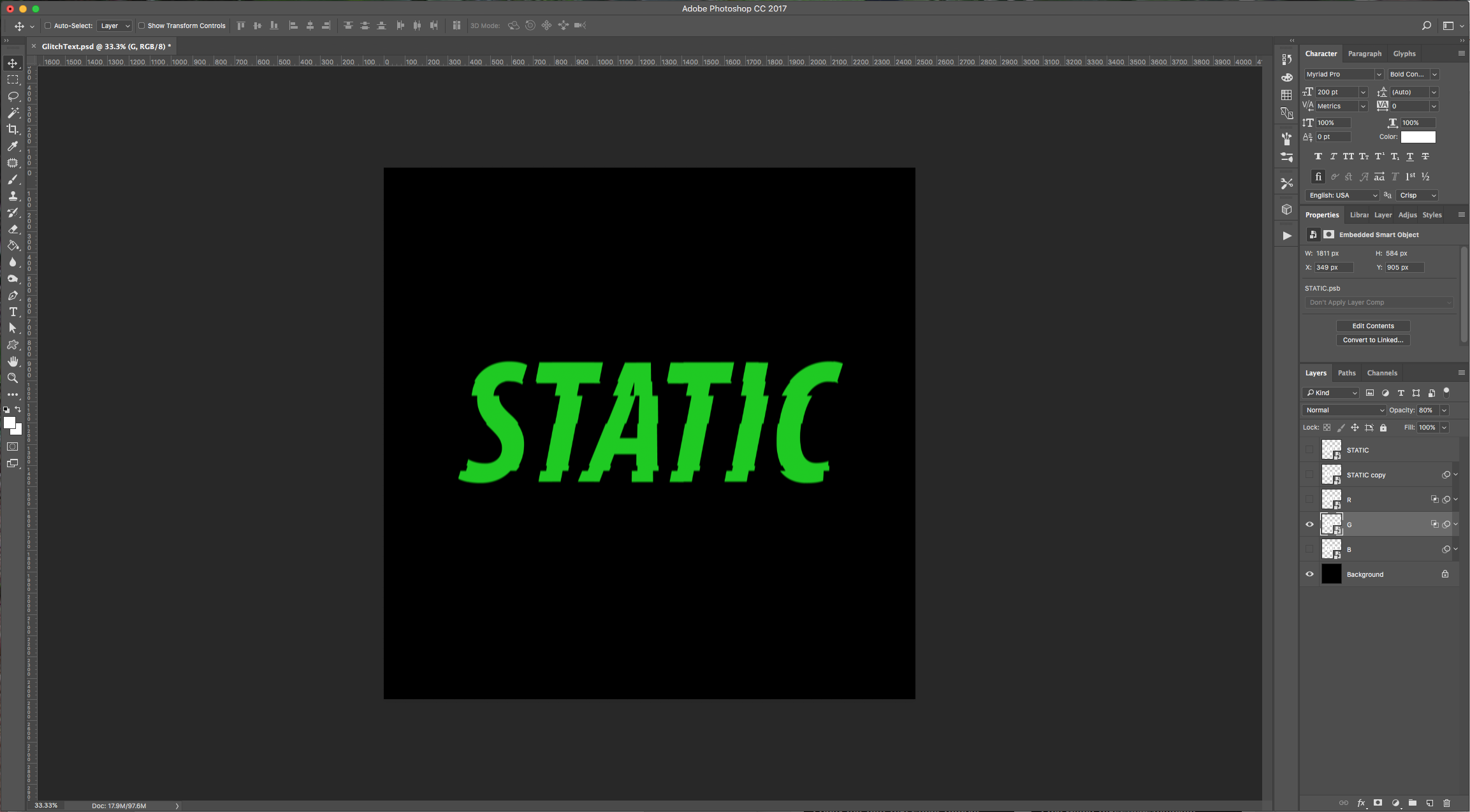
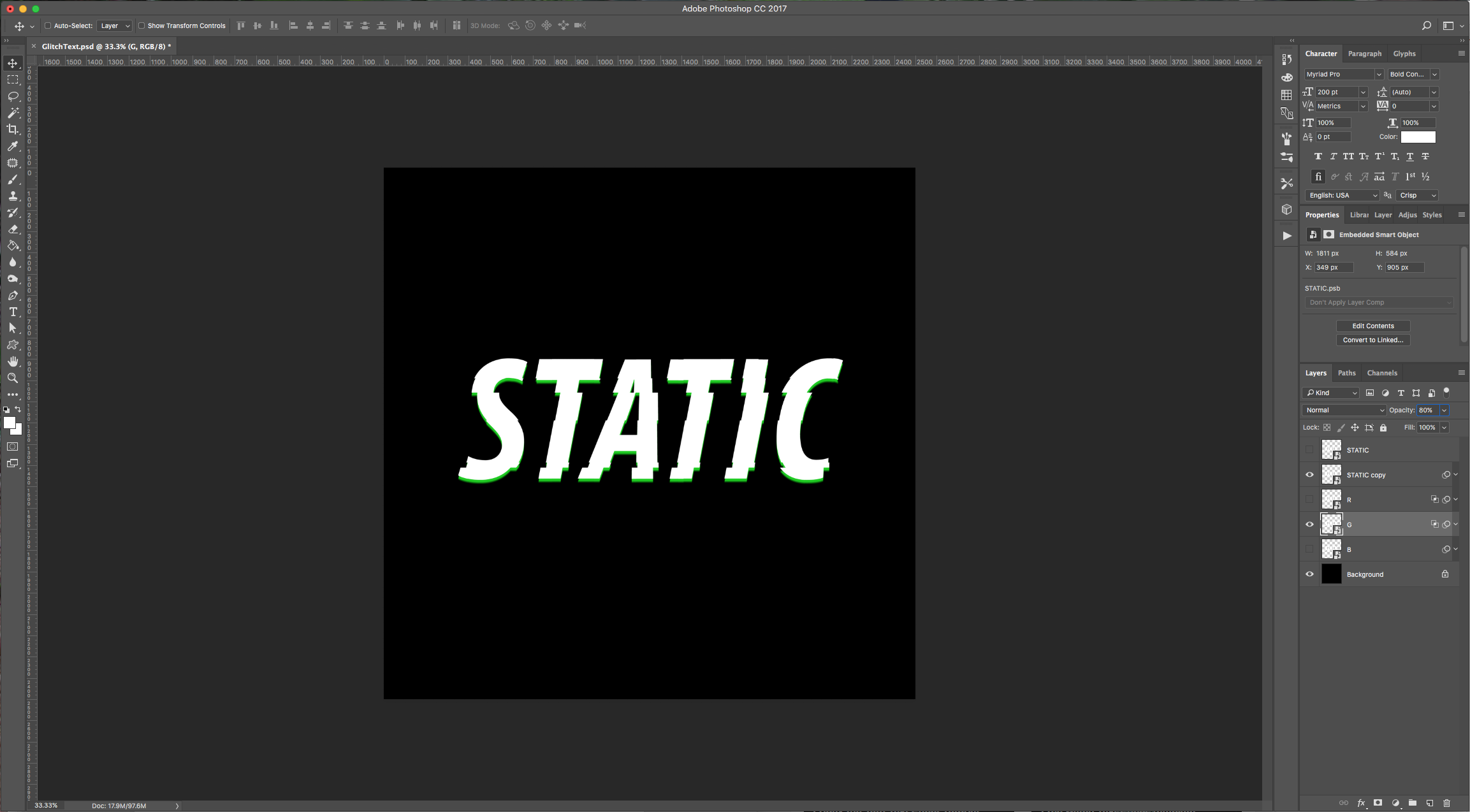
10 - Same as before, hide the “G” layer and turn on the “B” layer. Repeat the “Steps” using the following values: in “Step 6” uncheck the “R” and “G” Channels (your text should be blue), in “Step 7”, change the values to: Horizontal: -15 pixels right, Vertical: +5 pixels down, check “Repeat Edge Pixels”. In “Step 8” change the “Angle” to 0 degrees and keep the “Distance” value of 10 pixels. Lower the “Opacity” to 80%.
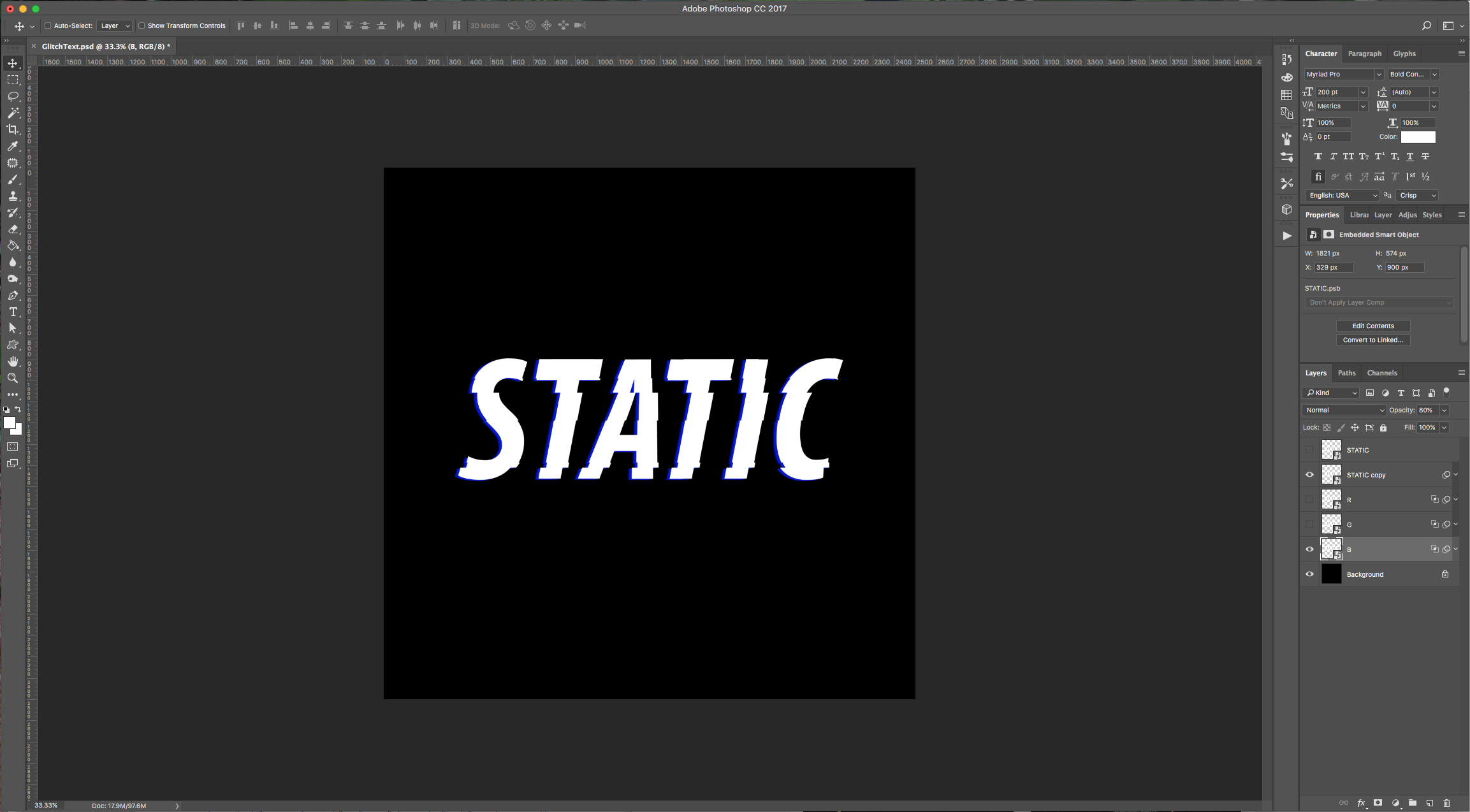
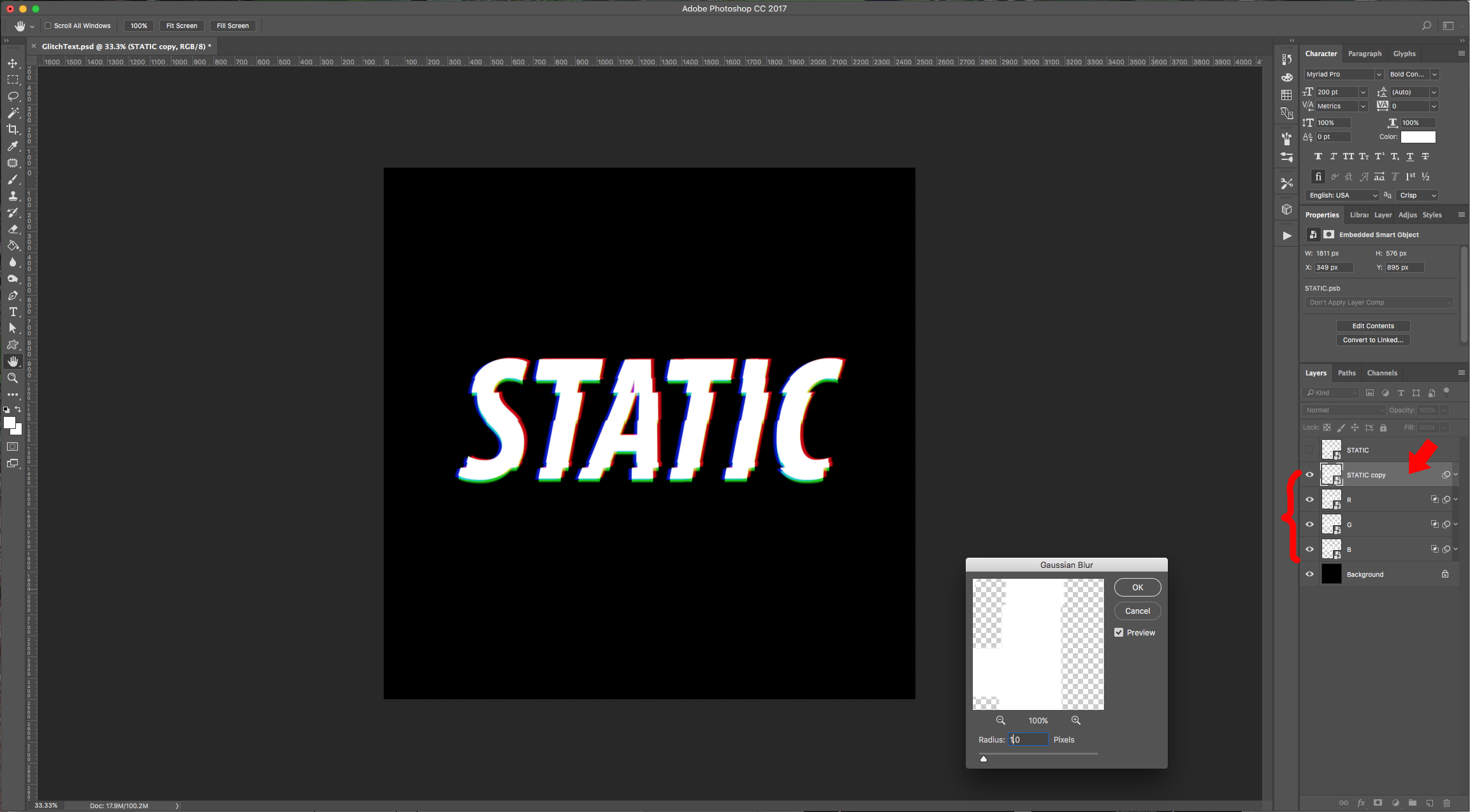
11 - Turn on your “RGB” and “Text” layers and select the Text layer, go to Filter > Blur > Gaussian Blur and use a value of 1.0 pixels.
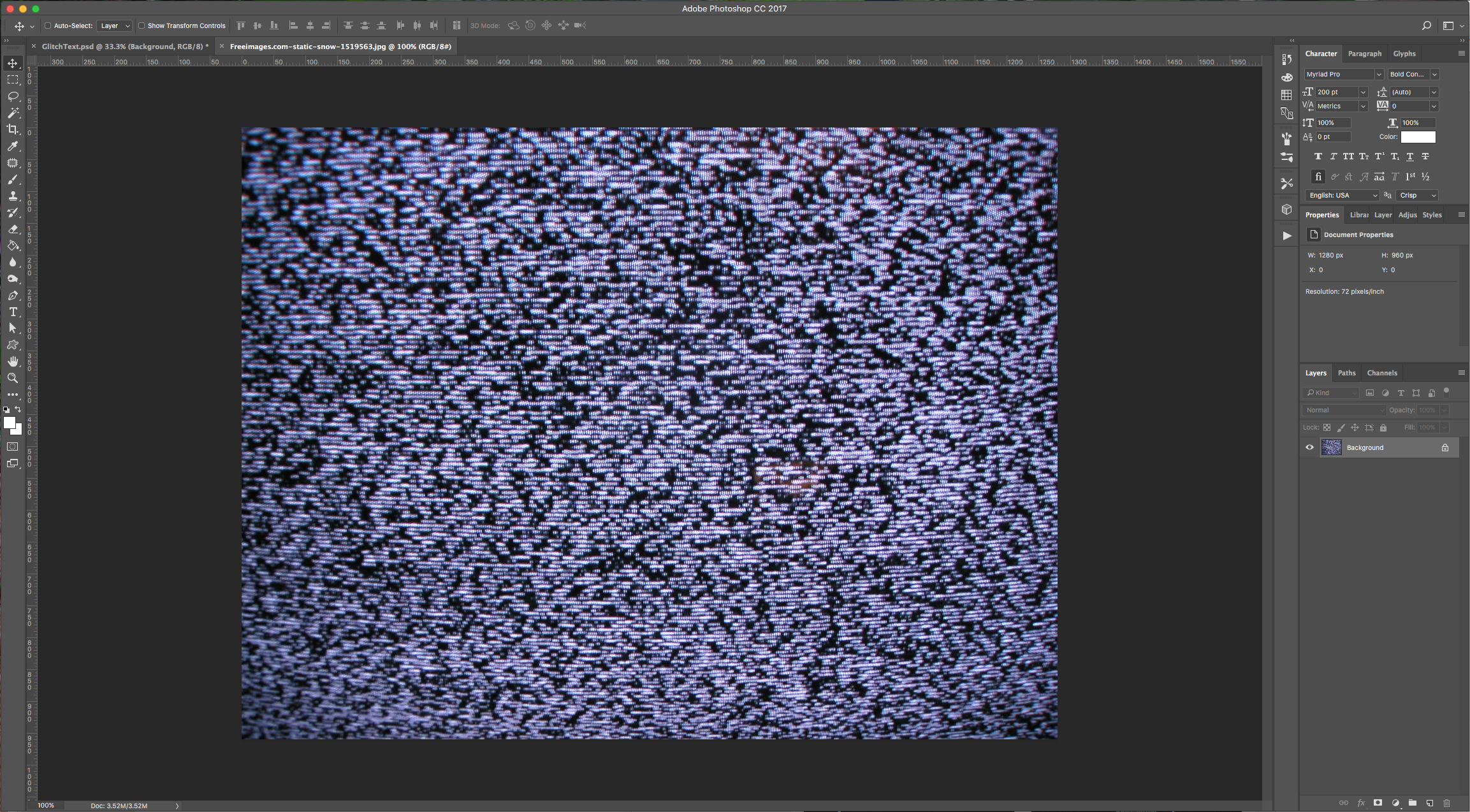
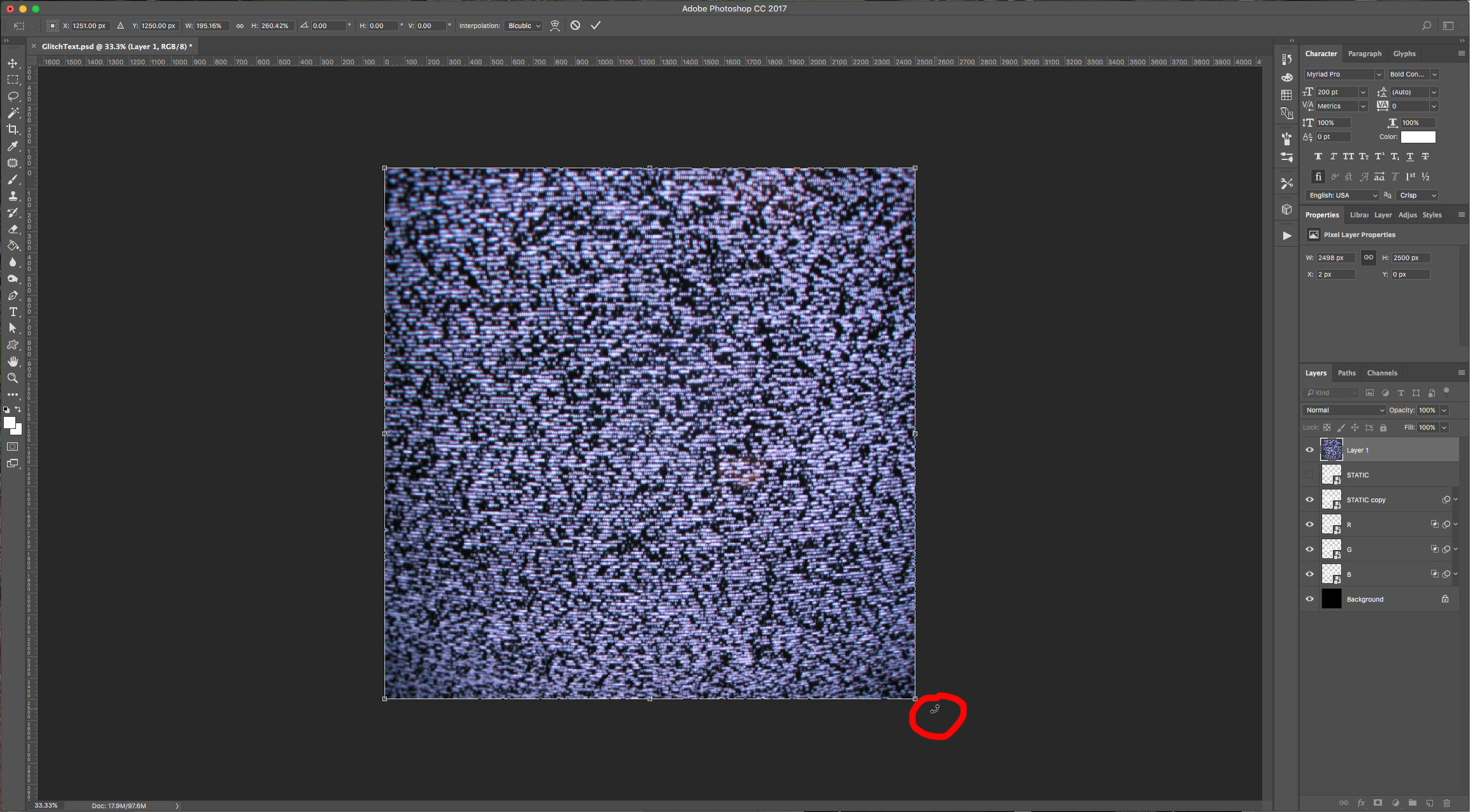
12 - Open the image you chose for the “Background” and paste it into your document. Resize it (Command/Control + T) if it’s necessary. Change the “Blending Mode” to Color Dodge”, duplicate the layer, place the duplicate on top and change the “Blending Mode” to Vivid Light”. Lower the “Opacity” to 80%.
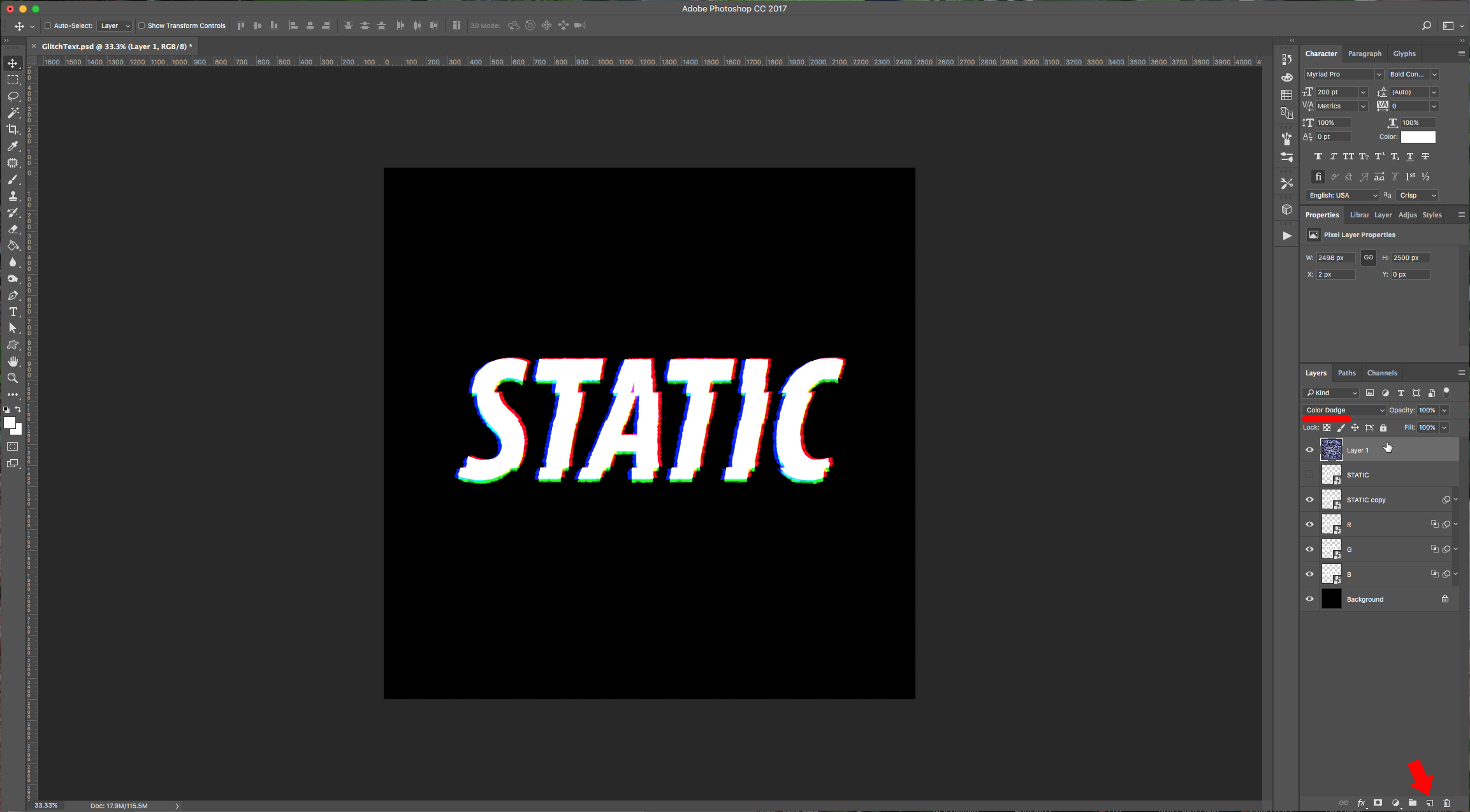
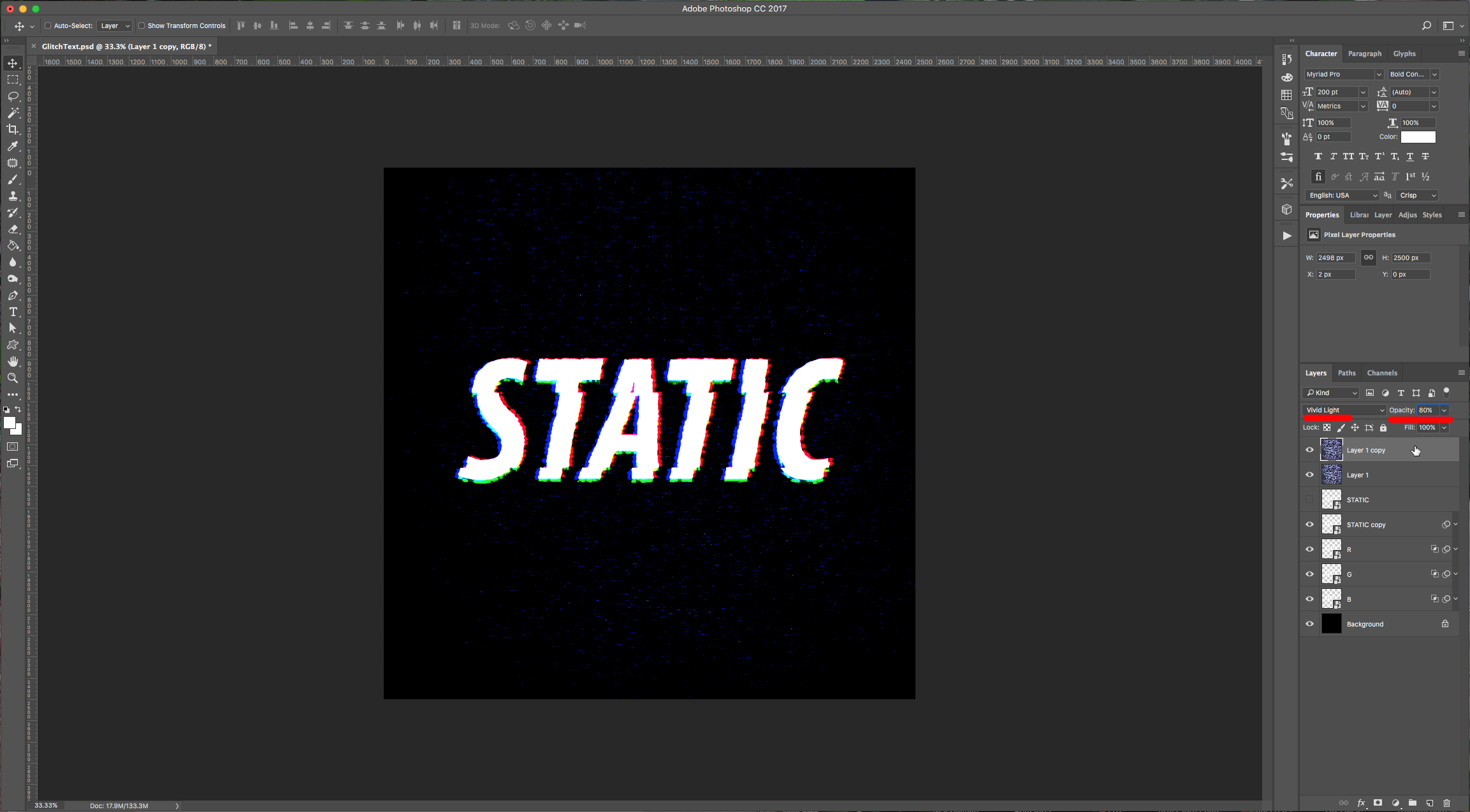
13 - Your text should look like this:
1 - In Photoshop, create a New Document. Select the “Type Tool” (T), choose your font (we used Myriad Pro Bold Condensed Italic), size and use white as “Fill” color. Type your text.
2 - Right-click on your text and choose “Convert to Smart Object”. Duplicate the layer (Command/Control + J), place the original layer on top and hide it by clicking the little eye icon to the left of the thumbnail.
3 - Go to Filter > Distort > Wave and apply the following values:
(You may need to play around with the values depending on your font and text size).
4 - To modify your filter double-click on the thumbnail and the dialog will open. Try clicking the “Randomize” button and check the results.
5 - Once you are happy with your text, make 3 duplicates and name them R, G, and B. Place your “RGB” layers under the “Text” layer and hide the later for now.
6 - Double-click on the “R” layer and uncheck the “G” and “B” Channels in the “Blending Options” window.
(Turn off the other layers to see the effect).
7 - Go to Filter > Other > Offset and apply the following values: Horizontal: +15 pixels right, Vertical: -5 pixels down, check “Repeat Edge Pixels”.
(Turn on your “text” layer to check if you like the results).
8 - Finally, go to Filter > Blur > Motion Blur and use a “Distance” of 10 Pixels (Keep 0 for Angle). Then lower the “Opacity” of the layer to 80%.
9 - Hide the “R” layer and turn on the “G” layer. Repeat Steps 6 to 8, but in “Step 6” uncheck the “R” and “B” Channels (your text should be green) and in “Step 7”, change the values to: Horizontal: 0 pixels right, Vertical: +15 pixels down, check “Repeat Edge Pixels”. In “Step 8” change the “Angle” to 90 degrees and keep the “Distance” value of 10 pixels. Lower the “Opacity” to 80%.
10 - Same as before, hide the “G” layer and turn on the “B” layer. Repeat the “Steps” using the following values: in “Step 6” uncheck the “R” and “G” Channels (your text should be blue), in “Step 7”, change the values to: Horizontal: -15 pixels right, Vertical: +5 pixels down, check “Repeat Edge Pixels”. In “Step 8” change the “Angle” to 0 degrees and keep the “Distance” value of 10 pixels. Lower the “Opacity” to 80%.
11 - Turn on your “RGB” and “Text” layers and select the Text layer, go to Filter > Blur > Gaussian Blur and use a value of 1.0 pixels.
12 - Open the image you chose for the “Background” and paste it into your document. Resize it (Command/Control + T) if it’s necessary. Change the “Blending Mode” to Color Dodge”, duplicate the layer, place the duplicate on top and change the “Blending Mode” to Vivid Light”. Lower the “Opacity” to 80%.
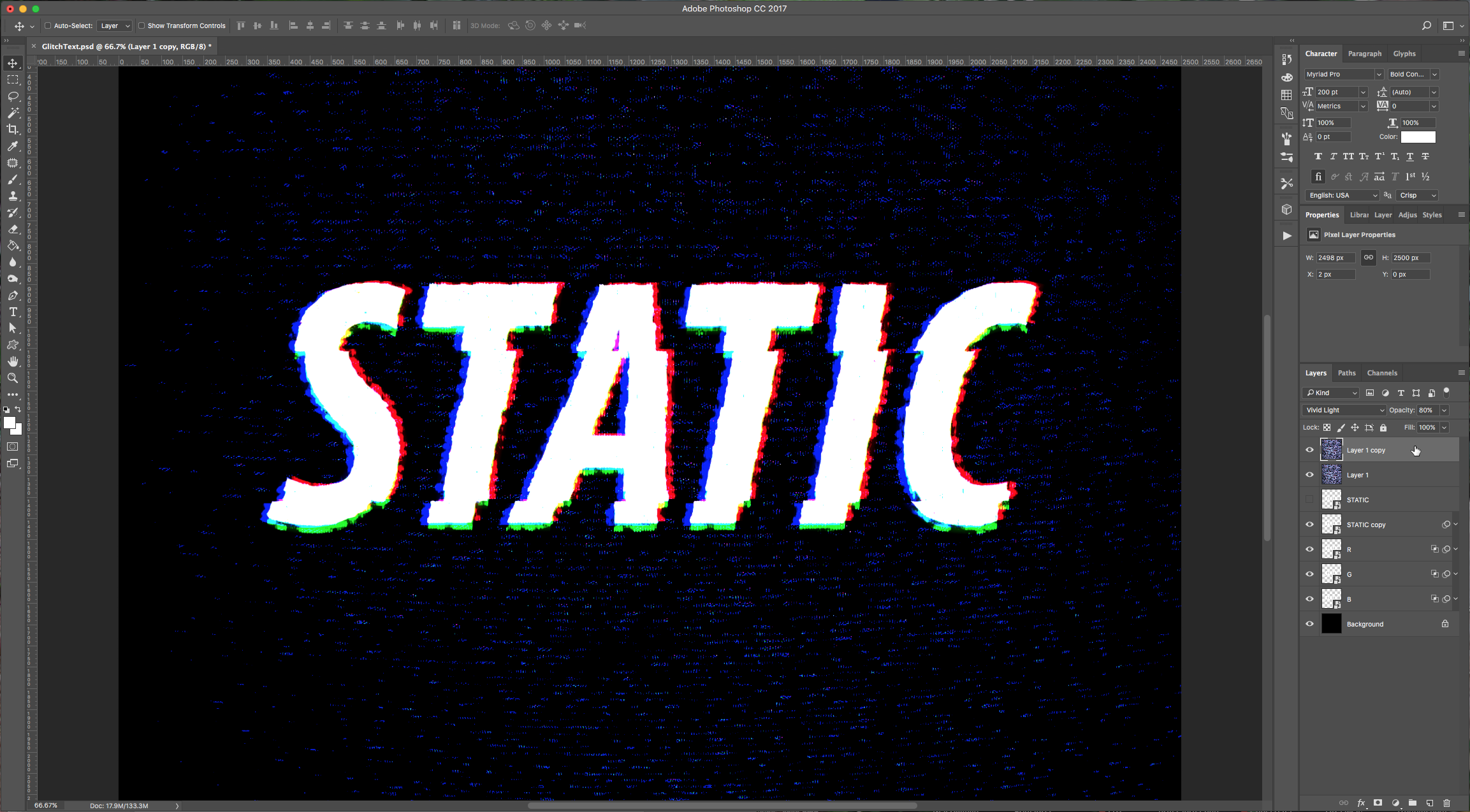
13 - Your text should look like this:
by @lornacane
Related Tutorials
Photoshop Tutorials
How to Create a Glitch Effect in Photoshop
In this Photoshop tutorial, discover how to create a glitch effect using multiple different filters.
Photoshop Tutorials
How to Make a Peeling Sticker Effect in Photoshop
Make a peeling sticker effect in Photoshop with this tutorial.
Photoshop Tutorials
How to Make a Graffiti Text Effect in Photoshop
Learn how to create a realistic grafitti text effect in Photoshop.
Photoshop Tutorials
How to Make a Halftone Effect in Photoshop
Learn how to make a halftone effect in Photoshop and how to change the colors of the halftone effect
Photoshop Tutorials
How to Create a Holographic Text Effect in Photoshop
Discover how to create a holographic text effect in Photoshop with this step by step tutorial.
Photoshop Tutorials
How to Create a Faded Blur Effect in Photoshop
Create a faded blur effect in Photoshop using these technique and add mystery to your images.