By Design Bundles
Photoshop Tutorials2 min
How to curve text in Photoshop
1-Open Photoshop.
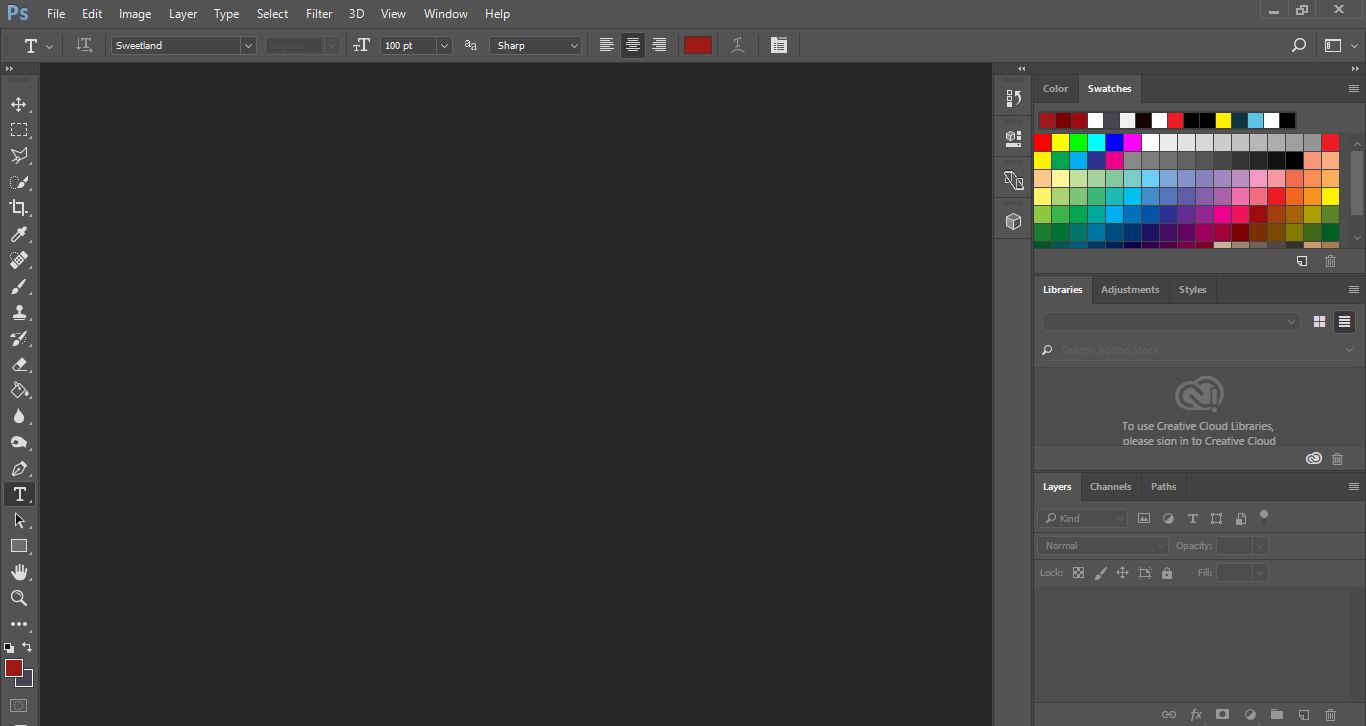
2- Create a new document.
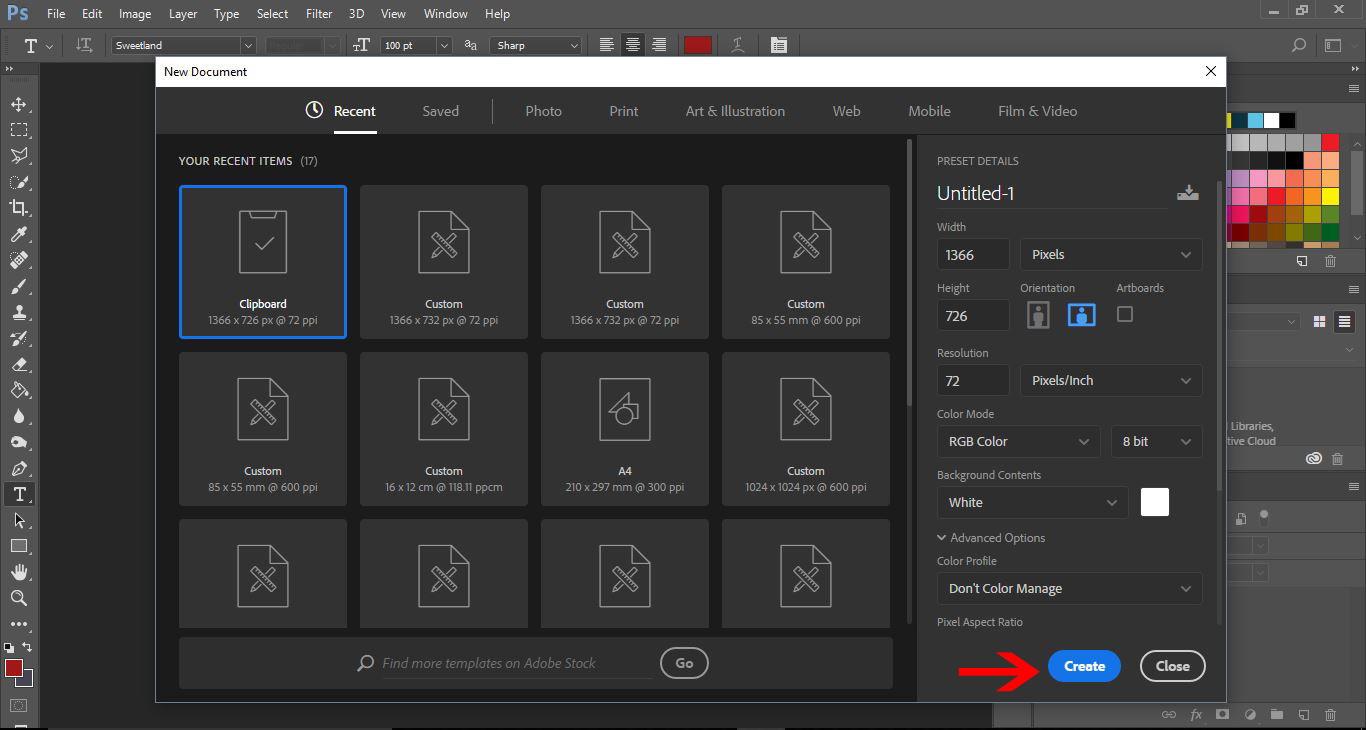
3- Create a new layer.

4- Select the pen tool.
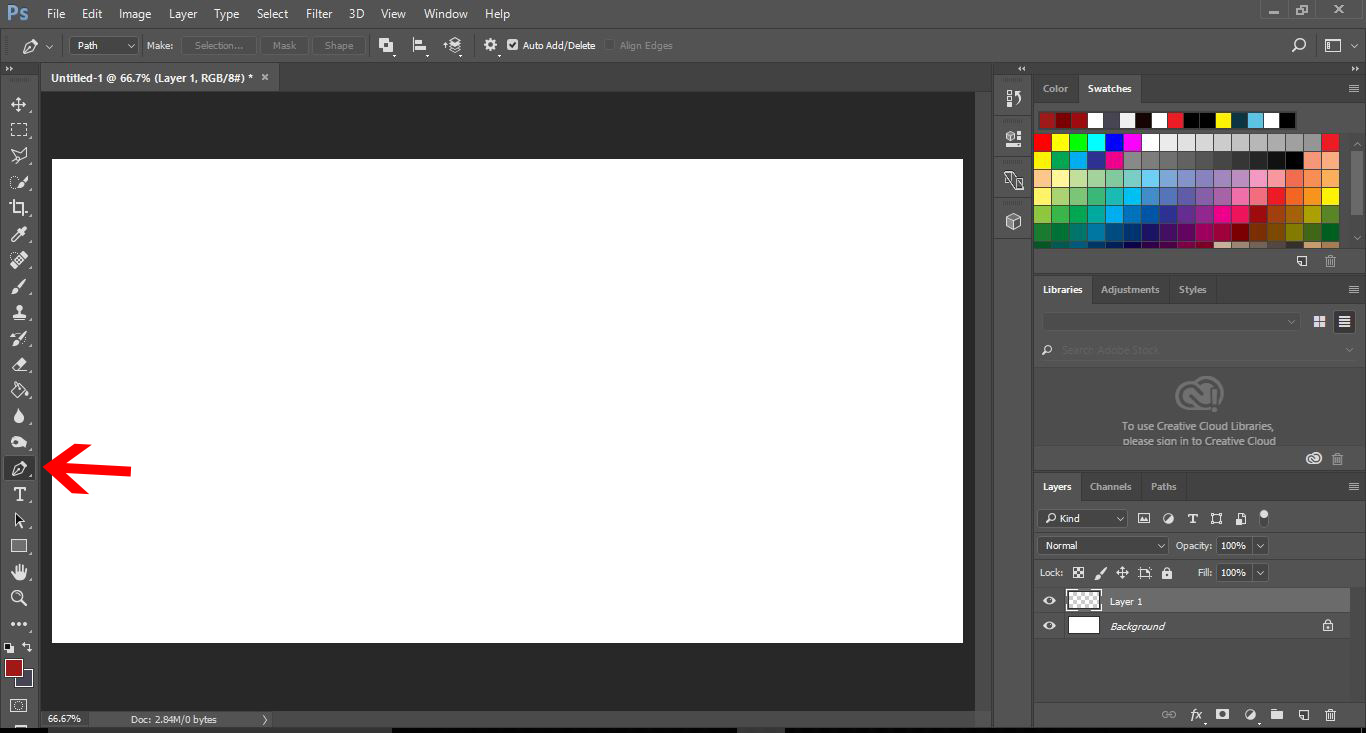
5- Create your curve line with the pen tool. Adjust the nodes to suit your curve.
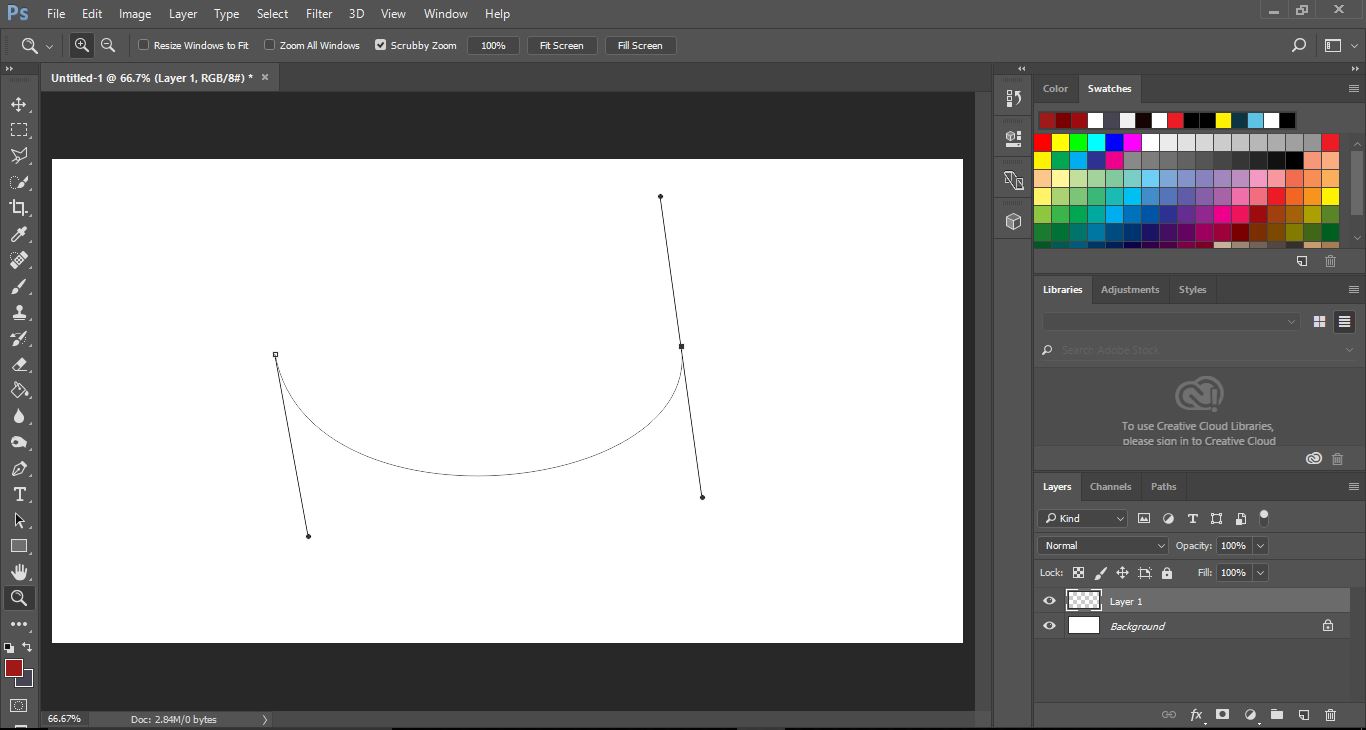
6- Select the text tool (1) Hover it over your curved line, you will see the cursor change to a cursor with a squiggly line. Click on the line.
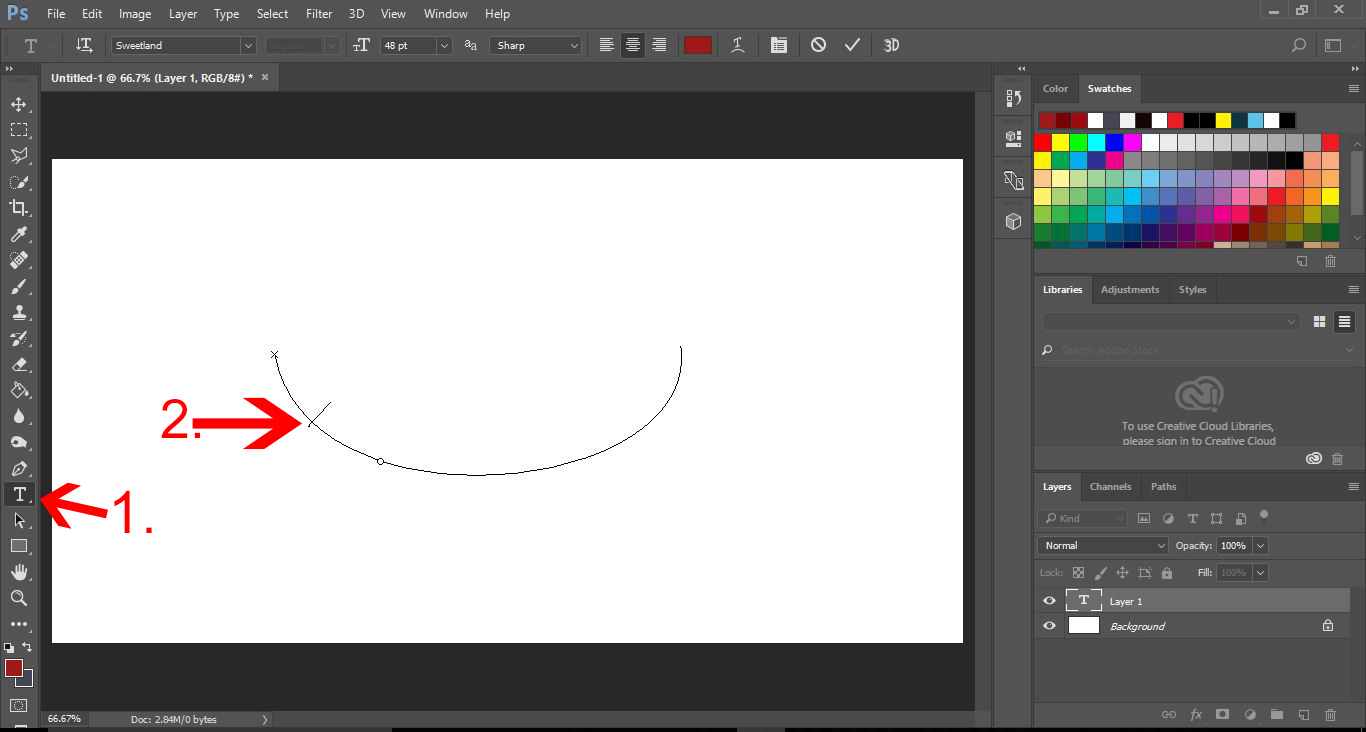
7- The cursor will not write on the path of the curved line.
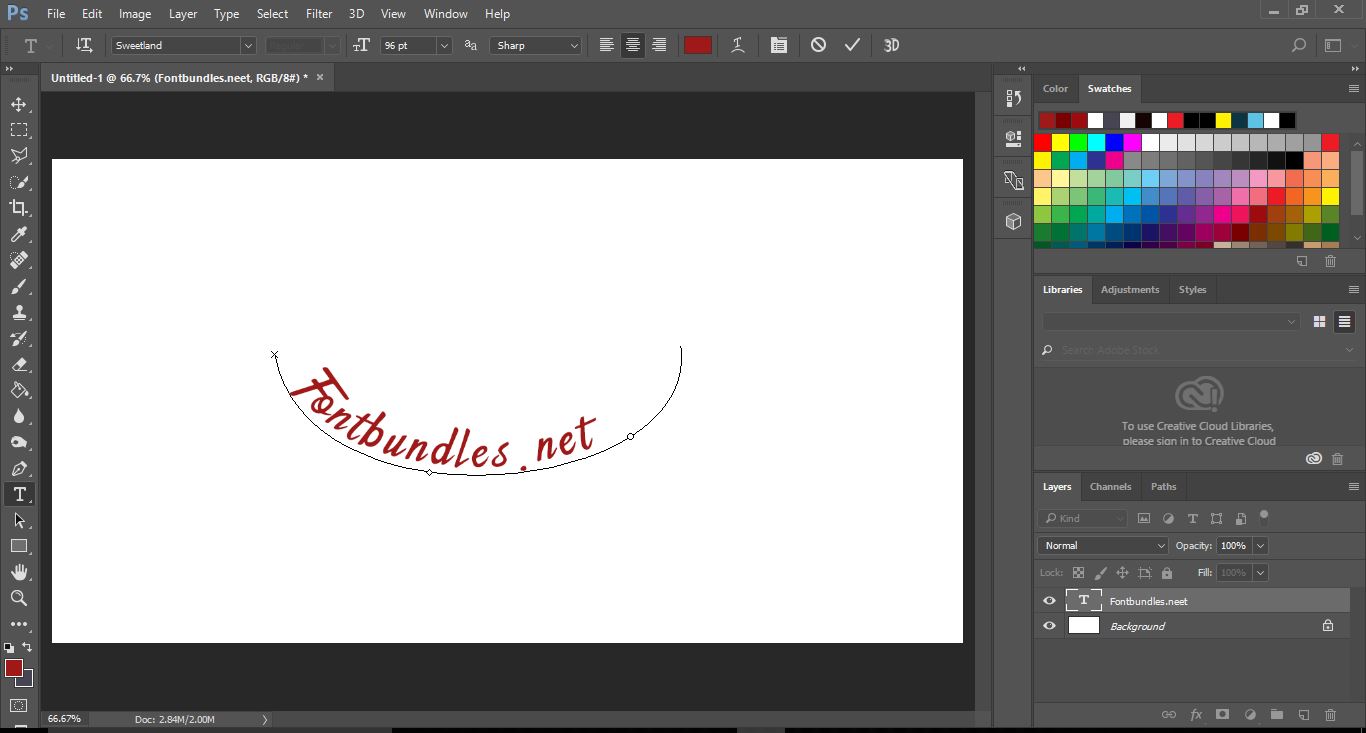
We used a typeface font called Sweetland but you can use any font of your choice. We have a super collection of modern calligraphy fonts for you to choose from for your projects.
Related Tutorials
Photoshop Tutorials
How to Curve Text in Photoshop
This step by step tutorial will show you how to curve text in Photoshop in a few ways.
Procreate Tutorials
How to Curve Text in Procreate
Learn how to curve text in Procreate using different methods in this step by step tutorial
Inkscape Tutorials
How to Curve Text in Inkscape
Discover how to easily curve and transform your text in Inkscape with 5 easy steps.
Affinity Tutorials
How to Curve Text in Affinity Designer
In this tutorial learn how to curve text in Affinity Designer in only 5 steps!
Photoshop Tutorials
How to Use Text Effects in Photoshop
With Photoshop Text Effects, you can create text with impact in just a few steps.
Photoshop Tutorials
Easy See through Cut Out Text in Photoshop
Create a see-through cut out text design in Photoshop with these easy to follow steps.