By Design Bundles
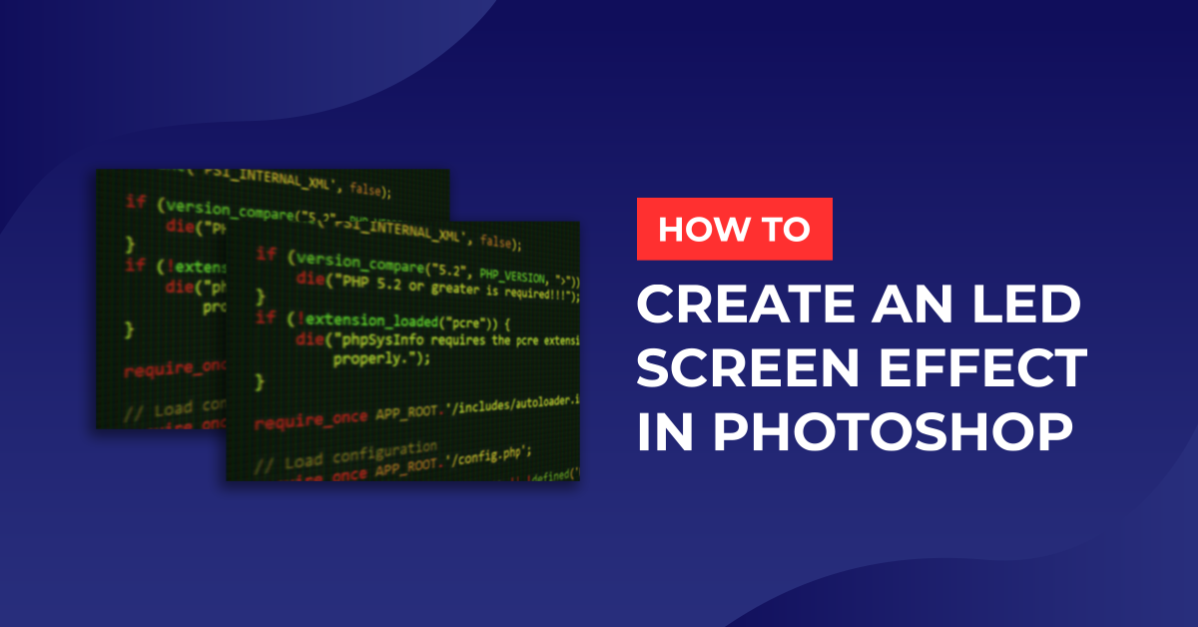
Led Screen Effect Photoshop
For this Tutorial, we need and image to be used as our screen background. You can also use text.
1 - First, we need to make the “Led” Pattern to use in our artwork. So, create a “New Document, make it 30 x 30 Pixels, 300 Dpi, and use “RGB Color Mode”.

2 - Zoom in (Command/Control +) as much as you can.

Place some “Guides” every 10 Pixels to create a grid (you can just drag and drop the guides, or go to View > New Guide and input the “Horizontal” and “Vertical” values.


3 - Select the “Rectangle Tool” (U), draw a square that fits the first quadrant of your grid.

Now change the “Fill” color to #8484fe.

Duplicate your square by holding the “Option/Alt” key while dragging your shape down to the next quadrant.

Then double-click on the thumbnail and change the “Fill” color to #6a6afa.

Repeat one more time and use #5353ed as “Fill” color.

4 - Select your 3 squares, duplicate them and place them in the middle quadrants.

Change the “Fill” color of the squares to shades of “Red” (#fc8888, #e86e6e and #e14949 from top to bottom).


Repeat the same process to fill the right quadrants. Use “Green” this time (#84fe84, #6cea6c and #55dc55 from top to bottom).


5 - Once you are done, right-click on your thumbnails and select “Flatten Image”. Select everything (Command/Control + A), go to Edit > Define Pattern, name it “RGB Texture” and click “OK”.


6 - Create a “New Document”, this time make it 1920 x 1024. Click in the “Create a New Fill or Adjustment Layer” button at the bottom of the “Layers” Panel, choose “Solid Color” and use a dark grey (we used #171515). Delete your original “Background” if you want.


7 - Double-click on the “Color Fill” Layer thumbnail and apply a “Pattern Overlay” Layer Style with the following values:

8 - Open the image you want to use, copy it (Command/Control + C) and paste it (Command/Control + V) into your file. Change its “Blending Mode” to “Exclusion”.


9 - Right-click on the layer thumbnail and choose “Convert to Smart Object”. Then, double-click on your layer and apply a “Pattern Overlay” using the following values:


10 - Go to Filter > Blur > Gaussian Blur and use a “Radius” of 2.0 Pixels. Then go to Filter > Blur > Motion Blur, use a 0° Angle and a “Distance” of 5 Pixels. Finally, go to Filter > Pixelate > Mosaic, and use a “Cell Size” of 2 square.


11 - Let’s add some light, double-click on your Layer thumbnail and apply a “Inner Glow” Layer Style with the following values:

Then lower the “Opacity” to 80%.

12 - Go to the “Adjustments” Panel and create a “Color Balance Adjustment Layer”. For “Midtones” And “Shadows” make the “Magenta-Green” value +10 and for “Highlights” make it +30.


13 - Select all your layers by holding the “Shift” key while clicking on their thumbnails, then right-click on them and choose “Convert to Smart Object”. Zoom out (Command/Control -) to leave some space around your document and open your “Transform Tool” (Command/Control + T).

14 - First distort your image. Hold the Command/Control key and select one of the corners and pull it, repeat this with all your corners. Then, to scale the image, release the Command/Control key and drag the corners. Once you are happy, click “Enter”.


15 - To modify your artwork double-click on top of the “Smart Object” thumbnail and a new document will open. You can replace your image with text and play around with the settings.

You have now created an LED screen effect in Photoshop.