By Design Bundles
How to Use Alternate Glyphs in Procreate
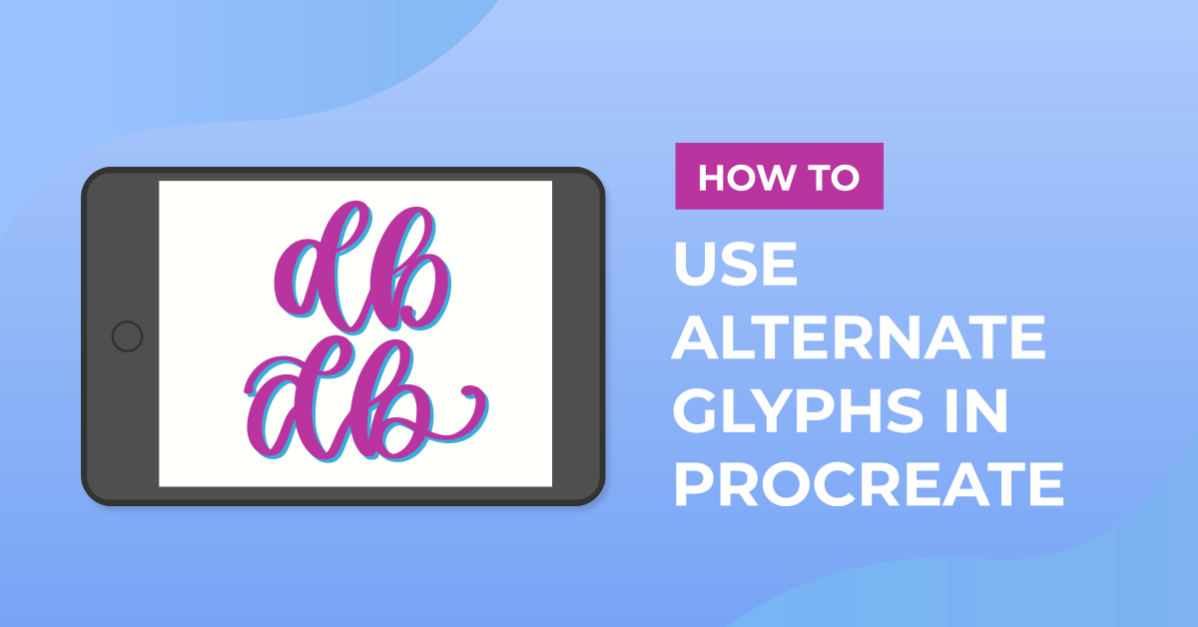
You’ve found a beautiful Script font with loads of swashes and alternate Glyphs. But, how exactly do you use alternate Glyphs in Procreate? I’m going to show you how you can do just that with an App called Unicode Character Viewer for $0.99. Unfortunately, alternate Glyphs can’t be accessed directly within Procreate (but we sure hope they add an update for that).
If you are looking for ways to use Glyphs on other platforms, we also have tutorials on how to use Alternate Glyphs with Windows, and how to use Glyphs on Mac.
In this tutorial, we will be using an elegant script font called Memories. With the app and our font installed, let’s get started and add Alternative Glyphs in Procreate.
Step 1 - Add text
With our canvas open, the first step we are going to take is to add text. You can add text by tapping on the Actions (Wrench) icon at the top left of your toolbar. Tap on “Add” and select “Add text”. This will add a text box to your canvas.

Step 2 - Change the font
Type out the word or phrase you want to add alternate Glyphs to. To change the default font of your text, double tap on the text (it will be highlighted blue). A text options box will pop up above your text, tap on the font name (My default font is Eina 01).

You will now see a new font options panel showing at the bottom of your screen. Below “Font” scroll and find the font you want to use. You can also change your font “Design” like the size, spacing, and opacity. Once you are done making the changes tap on “Done”.

Step 3 - Choose an Alternate Glyph
To see alternate Glyphs for your font open Unicode Character Viewer. Tap on “Browse Fonts” which is the first option you see. From there tap on the font name you want to use and it will display a character Glyph map.

To make this easier to see all Glyphs available and quickly add these to Procreate, I’m going to make it a split-screen between Unicode Character Viewer and Procreate.
With my split-screen, I’m going to look for an alternate glyph for the capital letter D and tap on it. The next step is to copy the glyph from Unicode Character Viewer and paste it into my Procreate text.
To copy the glyph tap on the share icon at the top right corner. From the options select “Share Glyph”.

A new window will pop up, from the options tap on “Copy”. This will copy the Glyph as a working text that you can paste into Procreate.

Step 4 - Add the Glyph
After the Glyph has been copied, tap on the text box in Procreate and then tap 2 times (Not double-tap) where you want to place the new glyph. The text options box will pop up, from there tap on “Paste”. This will automatically paste the new Glyph we copied.

I’m going to follow steps 3 to 4 again to add an (s) with a swash. When you are done with adding alternative glyphs you can close and expand Procreate to style and continue working on your design.

Tip: Before you rasterize your text to work on it in Procreate, duplicate your text layer and keep a working type layer to easily make changes when you need to.
Next up, learn how to duplicate in Procreate.