

By Design Bundles
SCAL Tutorials3 min
Sure Cuts A Lot 4 Basics - Lattice function
*Note- SCAL4 pro used.
1- Open SCAL4 software.
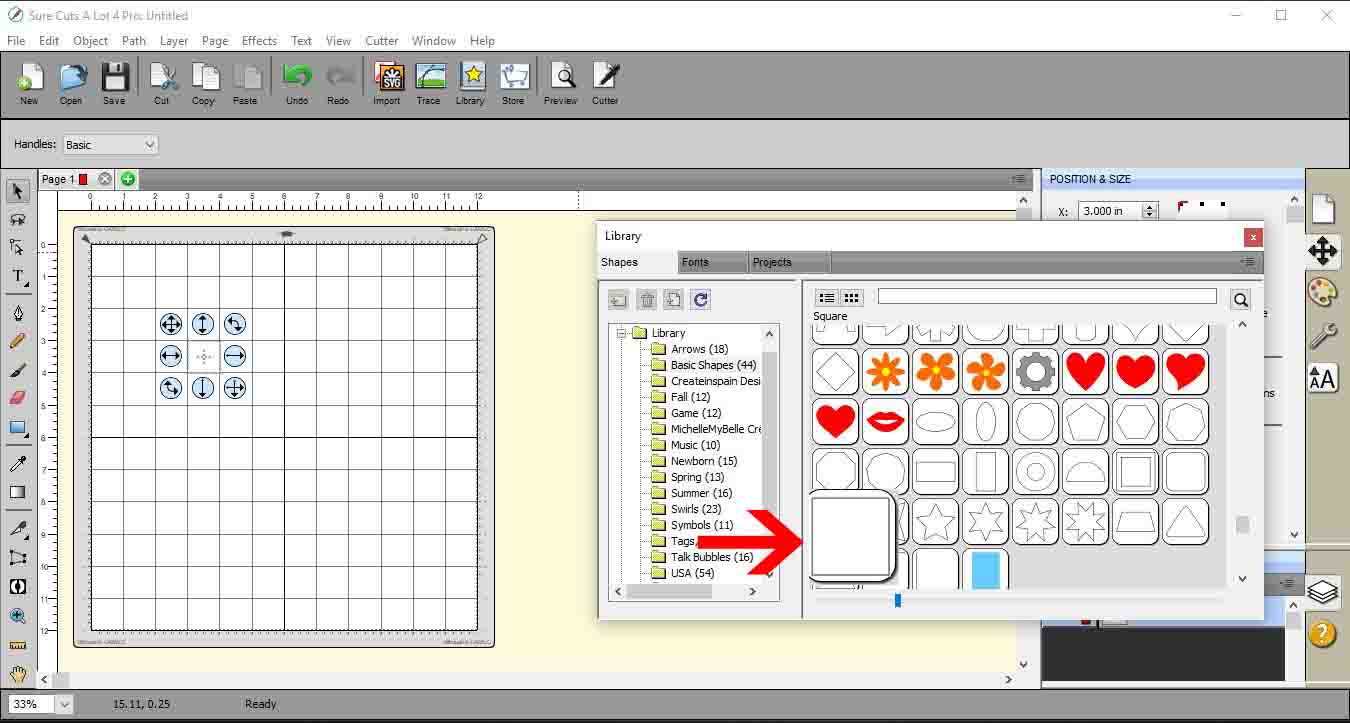
2- Select a shape in the library. I have used a square.
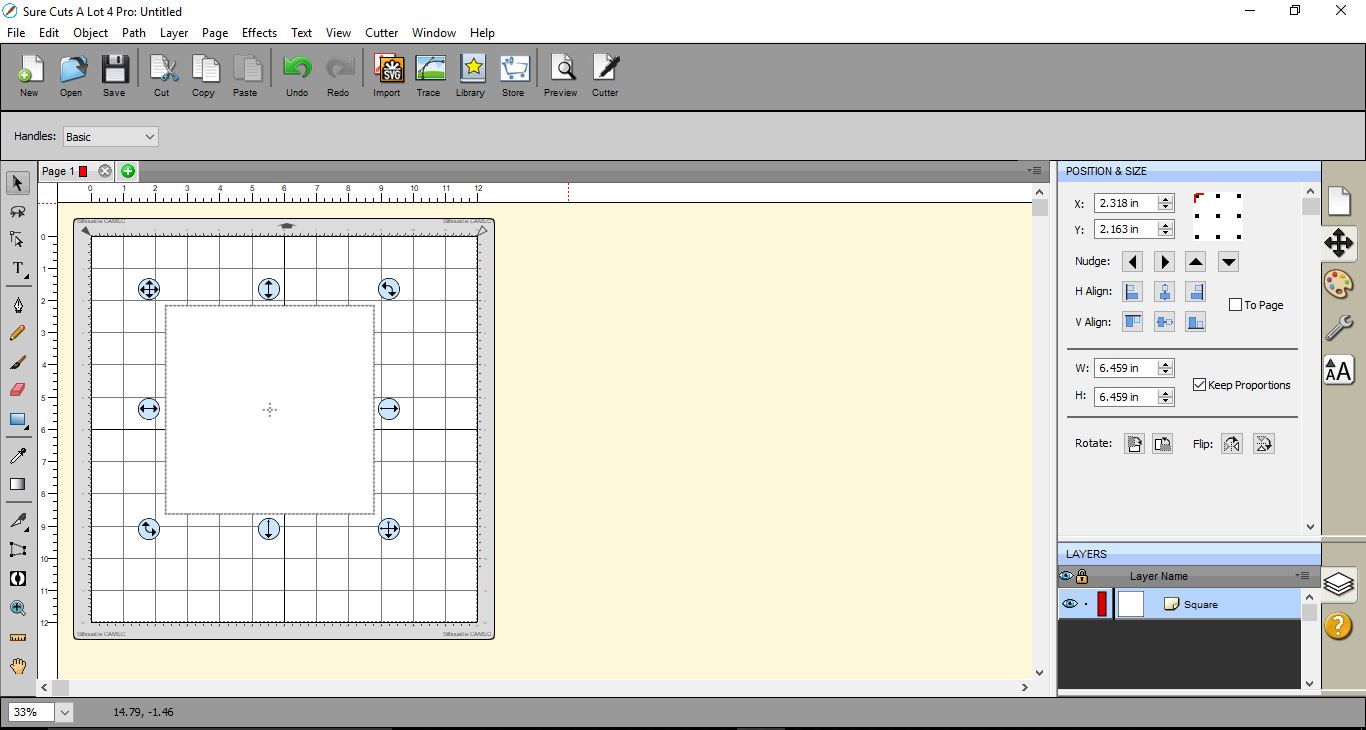
3- Resize the square to the size you would like your lattice.
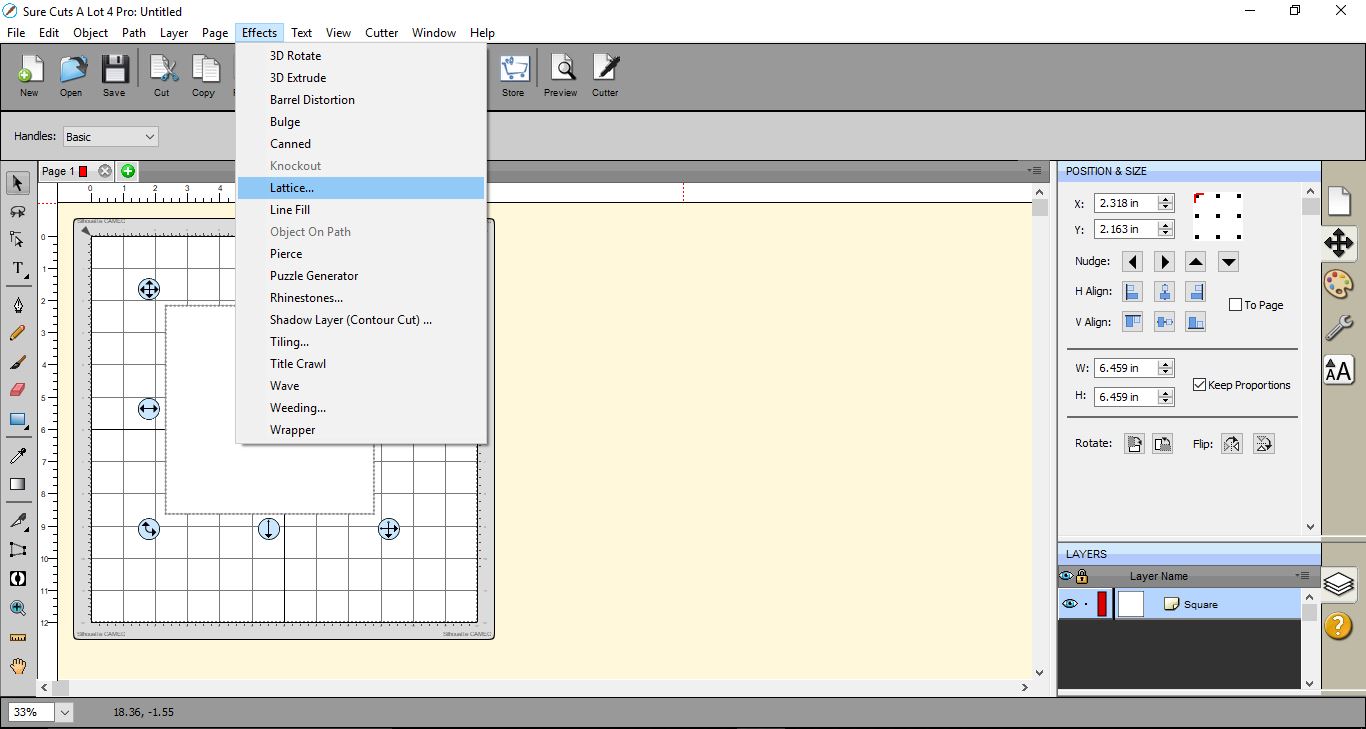
4- Go to Effects > Lattice.
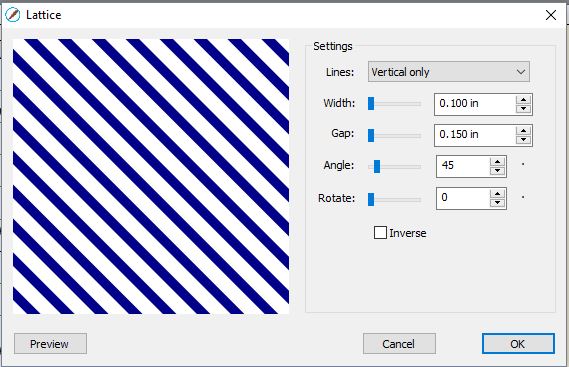
5- A new window will appear. This is the lattice setting window.
6- Here in the lattice settings you can change the width of the lattice.
7- You can also adjust the gap, which will make your lattice thinner.
8- you can also change the angle, making the lattice straight and not on a diagonal angle.
9- You can also rotate the lattice effect.
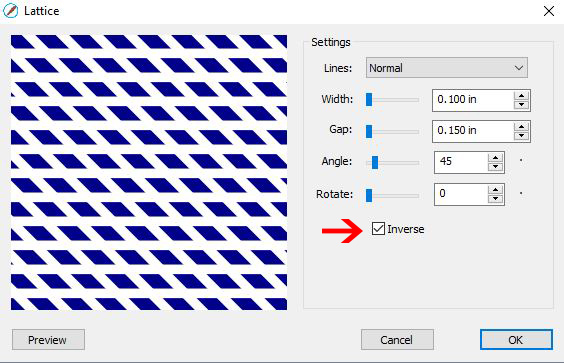
10- You can also inverse. This will then cut the inside not the actual lattice.
11- You also have a small drop down menu to adjust the lines.
12- You can choose horizontal lines
13- Or vertical lines. and depending on where you have the angle they can be straight vertical.
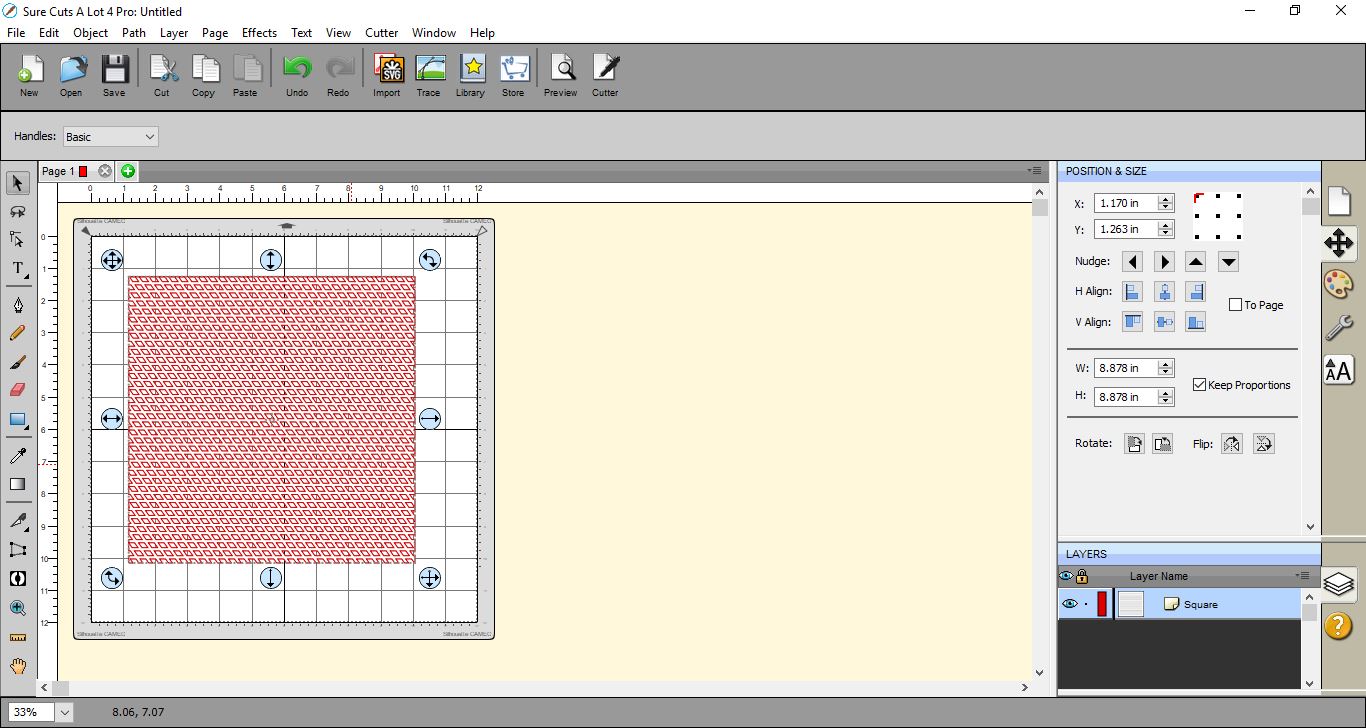
14- Once you are happy click OK. The lattice will appear on your design mat and you can now color fill and resize to your needs.
1- Open SCAL4 software.
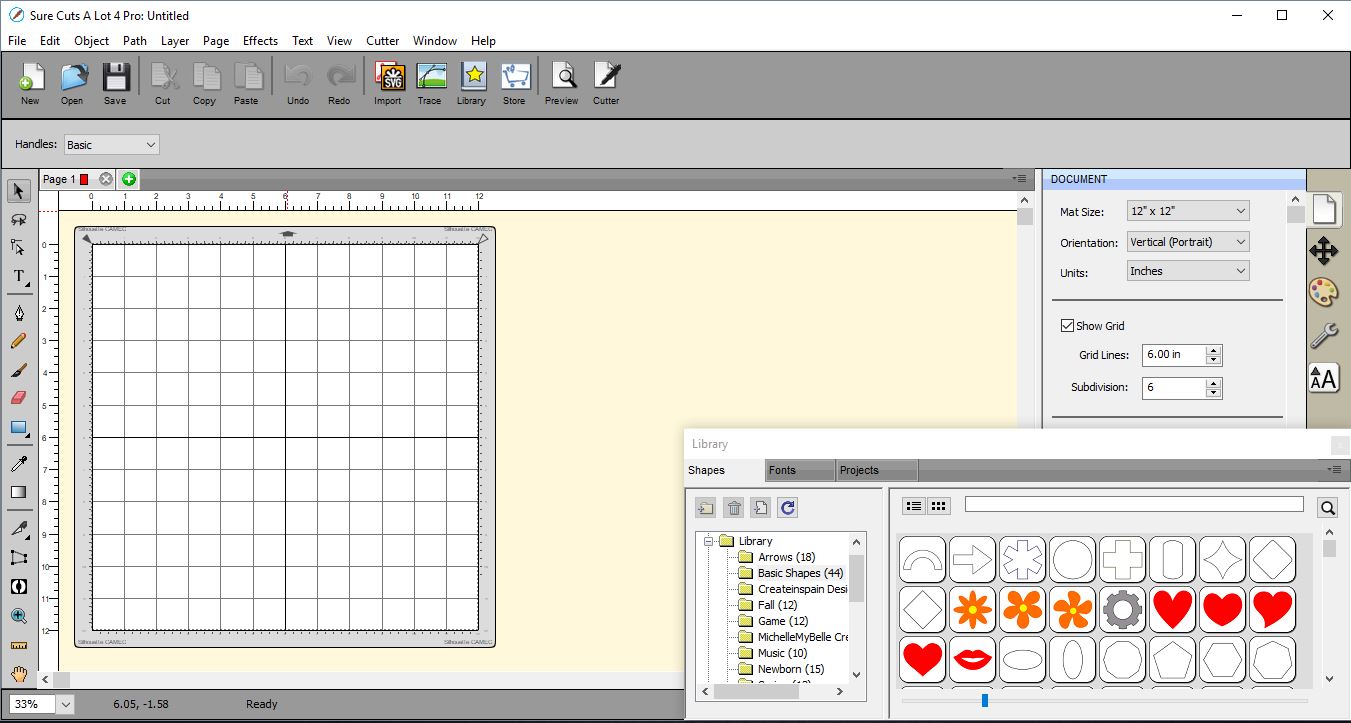
2- Select a shape in the library. I have used a square.
3- Resize the square to the size you would like your lattice.
4- Go to Effects > Lattice.
5- A new window will appear. This is the lattice setting window.
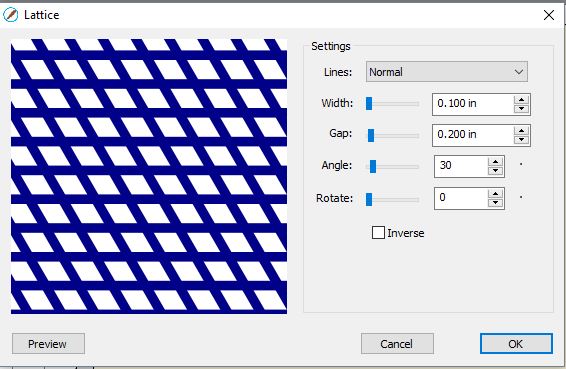
6- Here in the lattice settings you can change the width of the lattice.
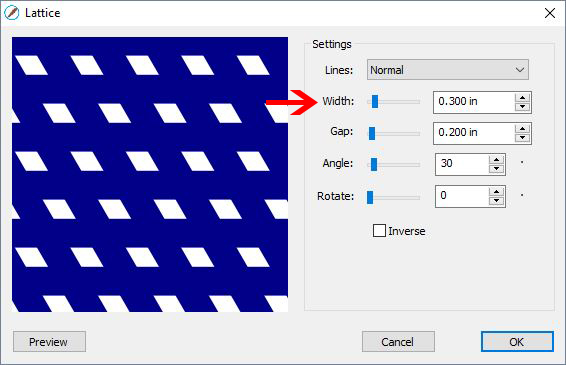
7- You can also adjust the gap, which will make your lattice thinner.
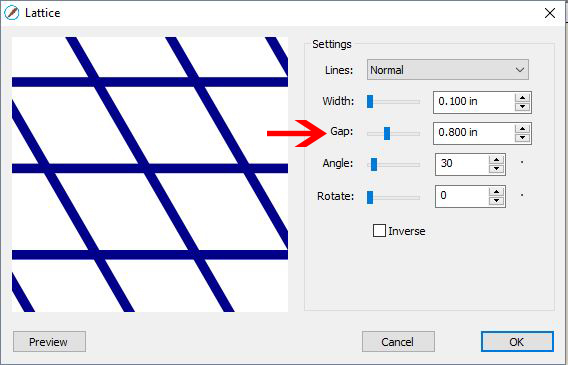
8- you can also change the angle, making the lattice straight and not on a diagonal angle.
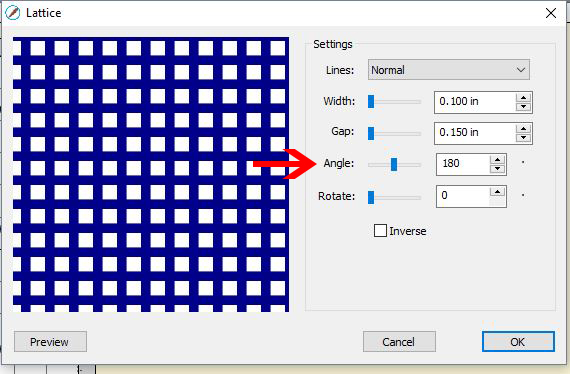
9- You can also rotate the lattice effect.
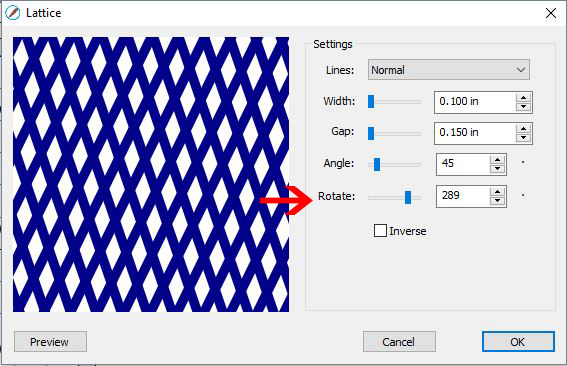
10- You can also inverse. This will then cut the inside not the actual lattice.
11- You also have a small drop down menu to adjust the lines.
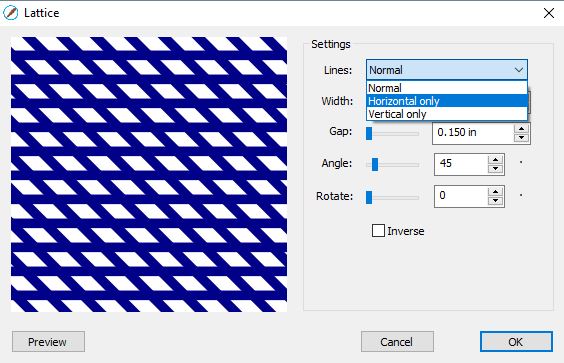
12- You can choose horizontal lines
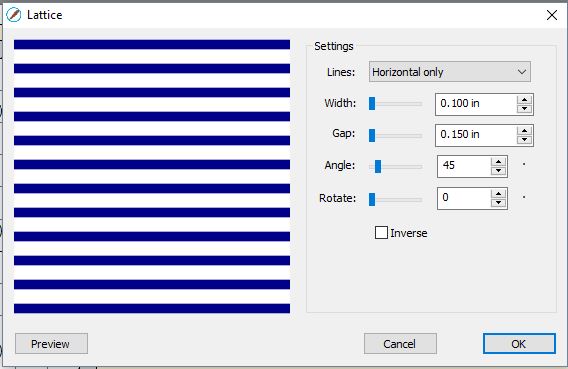
13- Or vertical lines. and depending on where you have the angle they can be straight vertical.
14- Once you are happy click OK. The lattice will appear on your design mat and you can now color fill and resize to your needs.
Related Tutorials
SCAL Tutorials
Sure Cuts a Lot 4 Basics - Font Preview function
SCAL Tutorials
Sure Cuts A Lot 4 Basics - Knockout Function
SCAL Tutorials
Sure Cuts a Lot 4 Basics - Saving files
SCAL Tutorials
Sure Cuts A Lot 4 Basics - Tracing a colored image
SCAL Tutorials