

By Design Bundles
SCAL Tutorials4 min
Sure Cuts A Lot 4 Basics - Mat settings
*note- Sure Cuts A Lot 4 Pro used.
1- Open SCAL4.
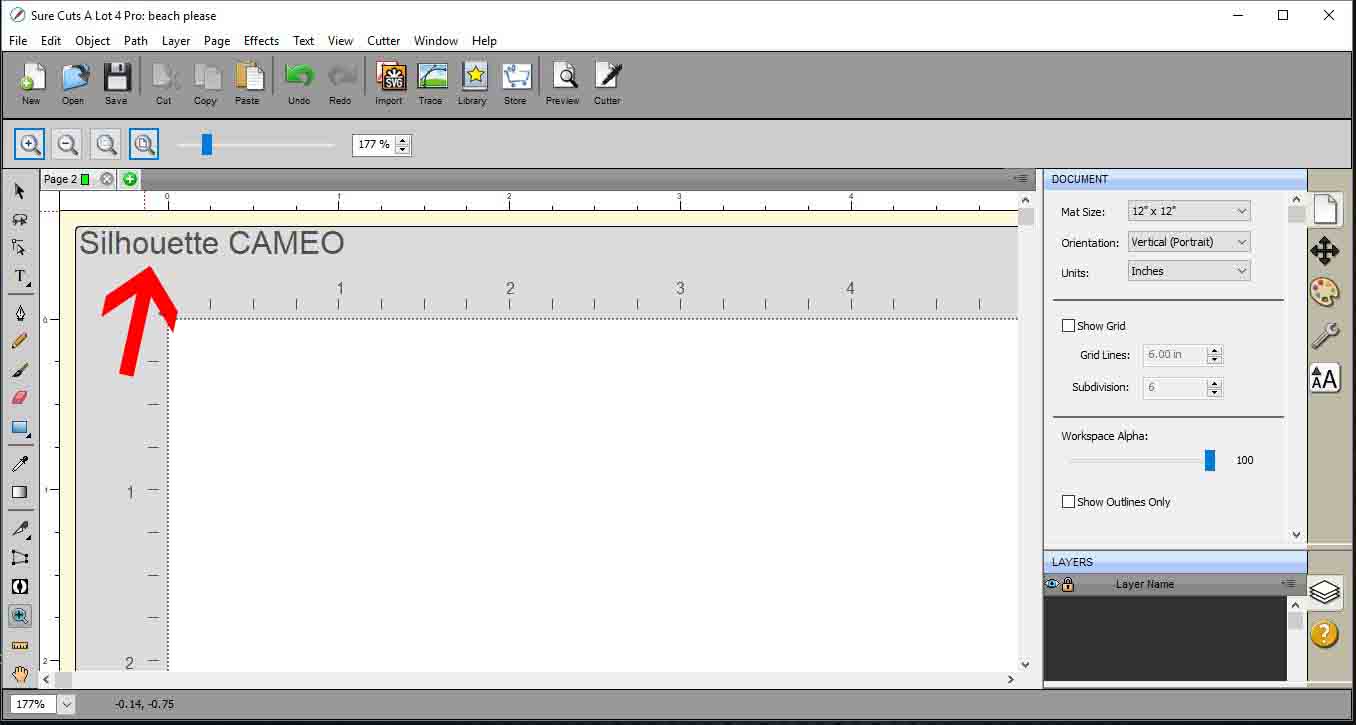
2- When you first open SCAL4 the cutter you have selected will be shown on your mat in the design area.
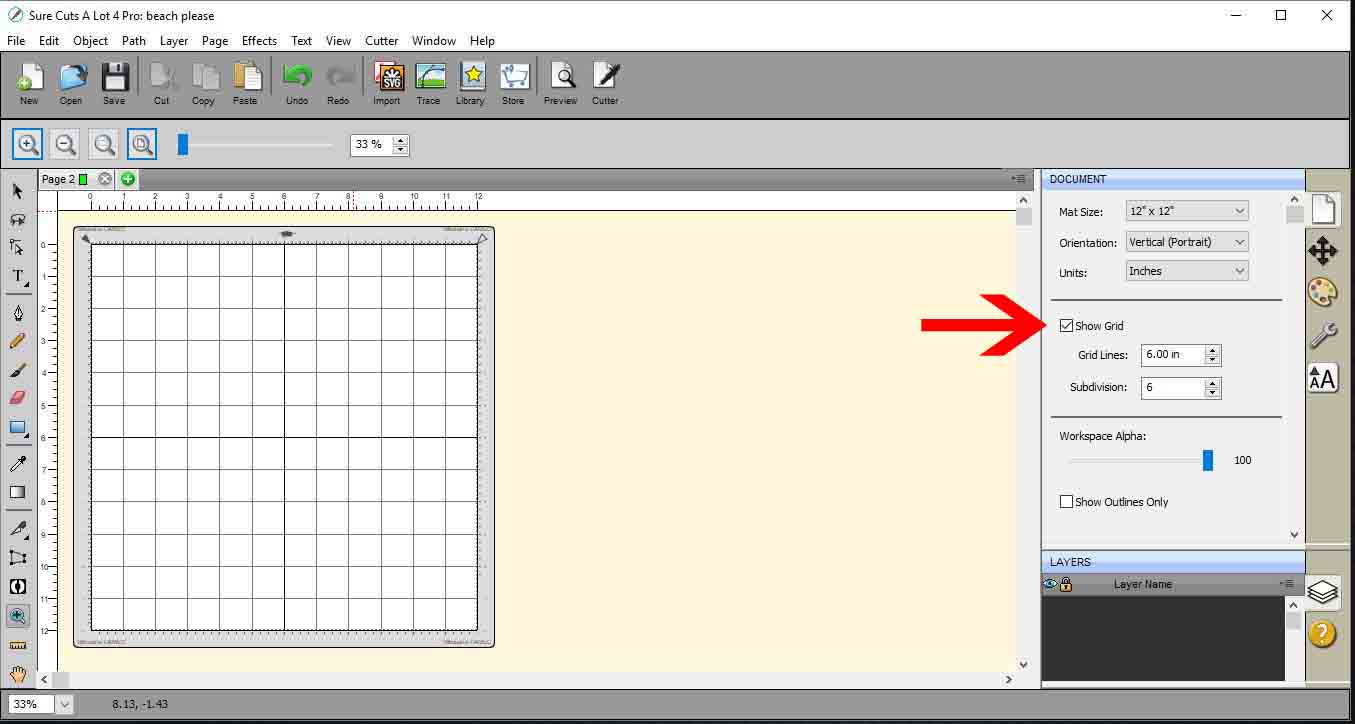
2- You have the option to either have the grid line on your mat or off your mat. To turn them on and off Select the document Option on the right toolbar and then click on the show grid box.
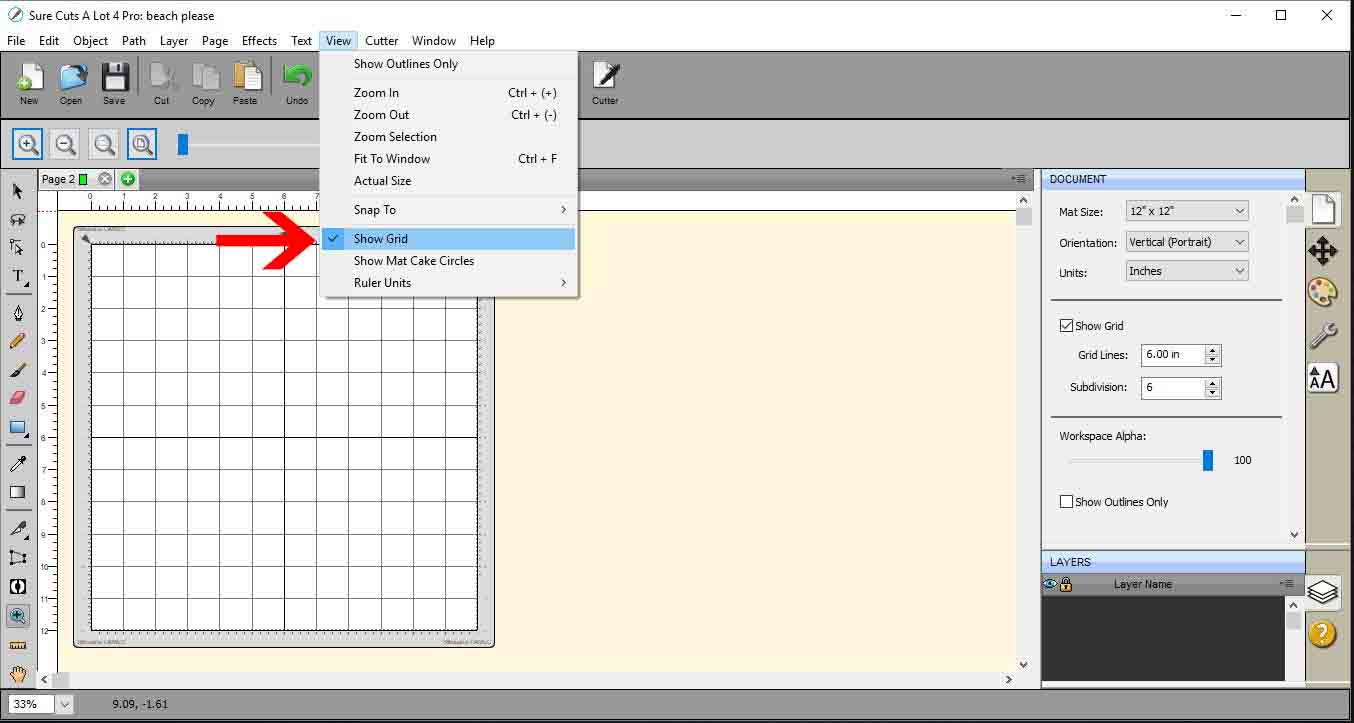
3- You can also select the grid on and off by selecting View > Show Grid.
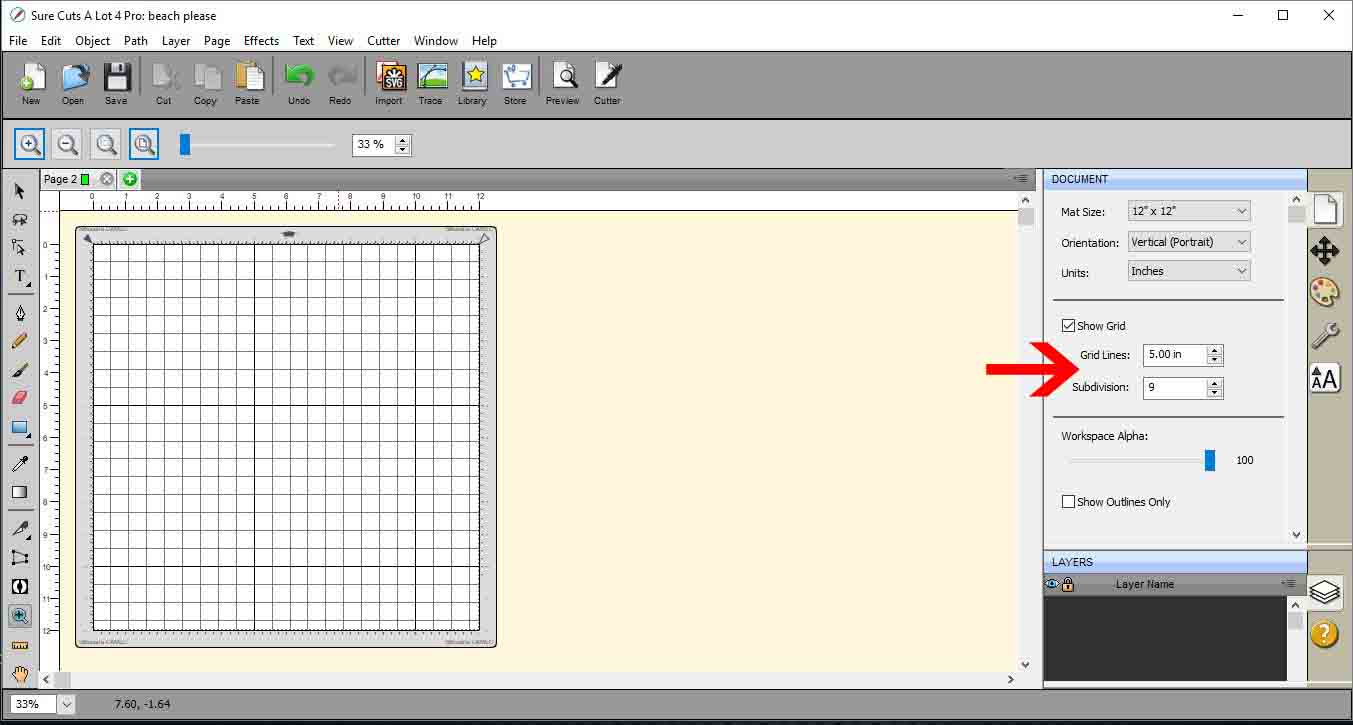
4- You can also change the grid line size. You have the option of changing via measurement (as in Inches/mm/cm) or by the subdivision.
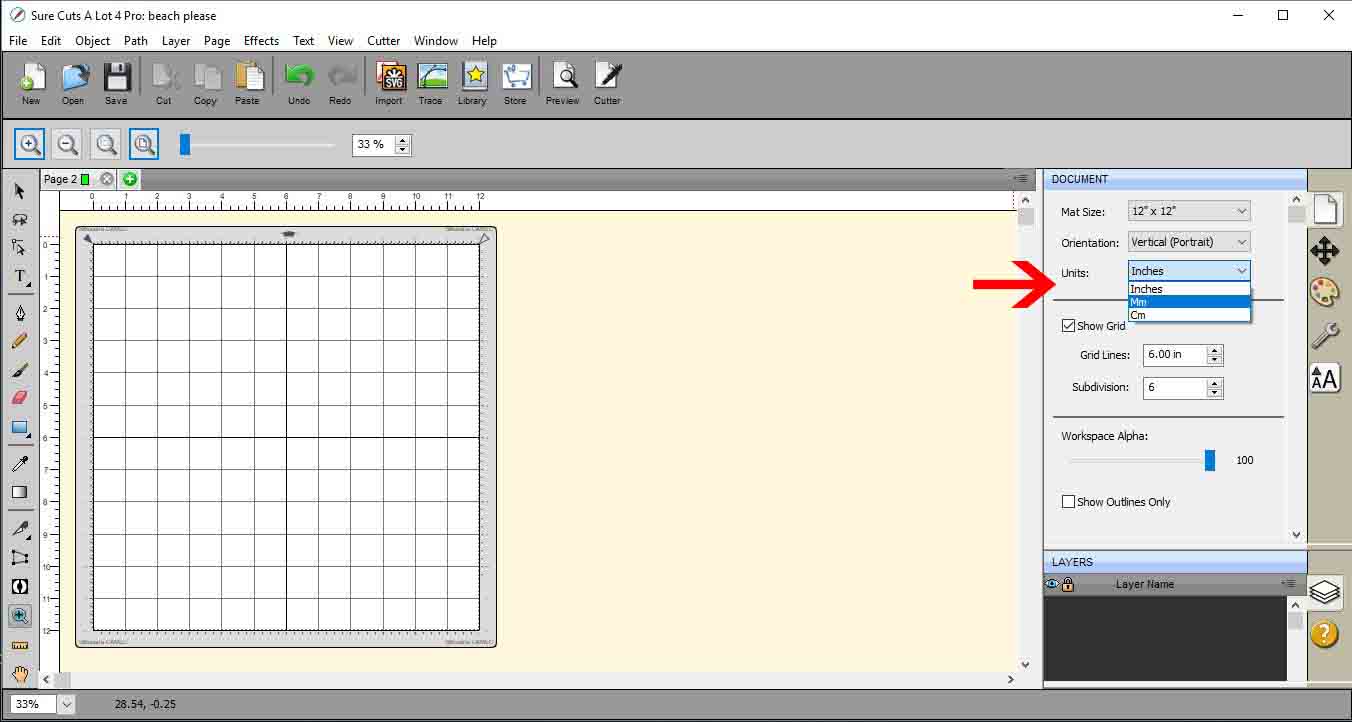
5- You can change the units you use also from inches to cm or mm.
6- Many cutters have different types of mats, you can change the mat size to suit the mat you are using.
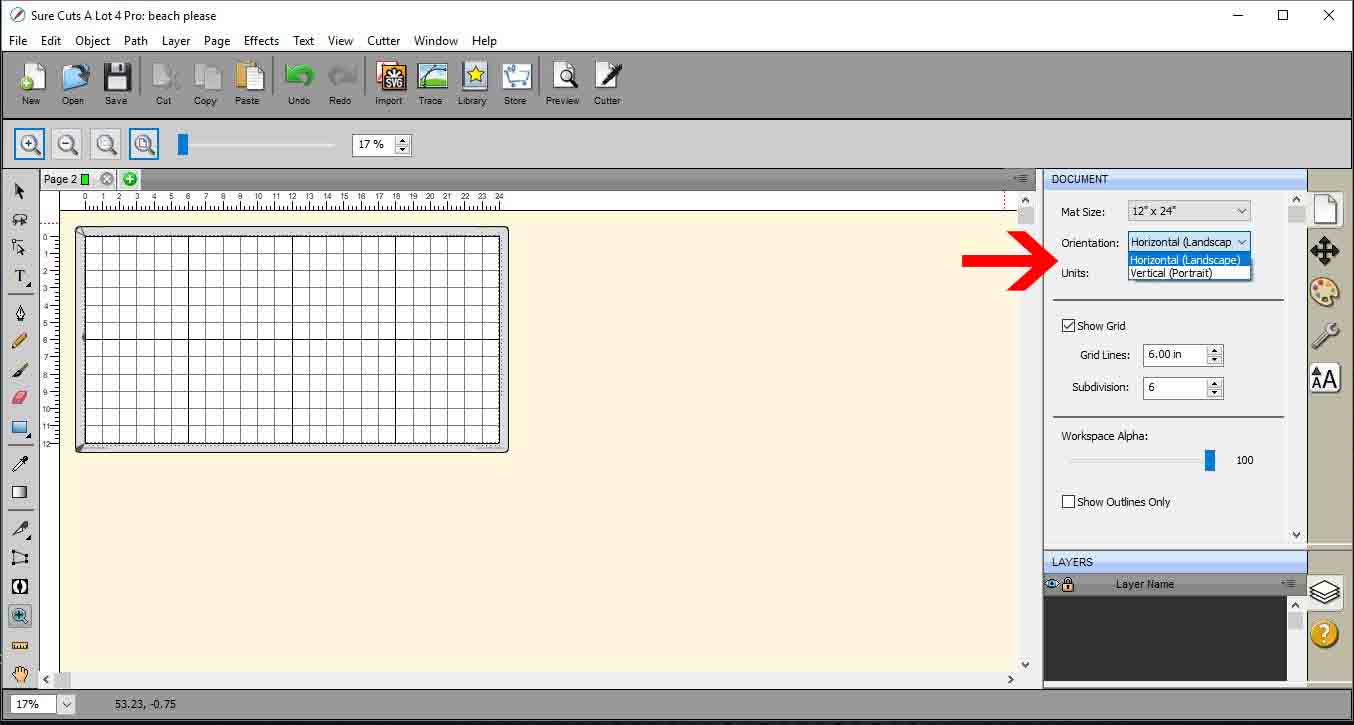
7- The orientation can also be adjusted. This is helpful if you are using a larger mat like 12 x 24 inches. This way you can change the orientation to better fit on the mat.
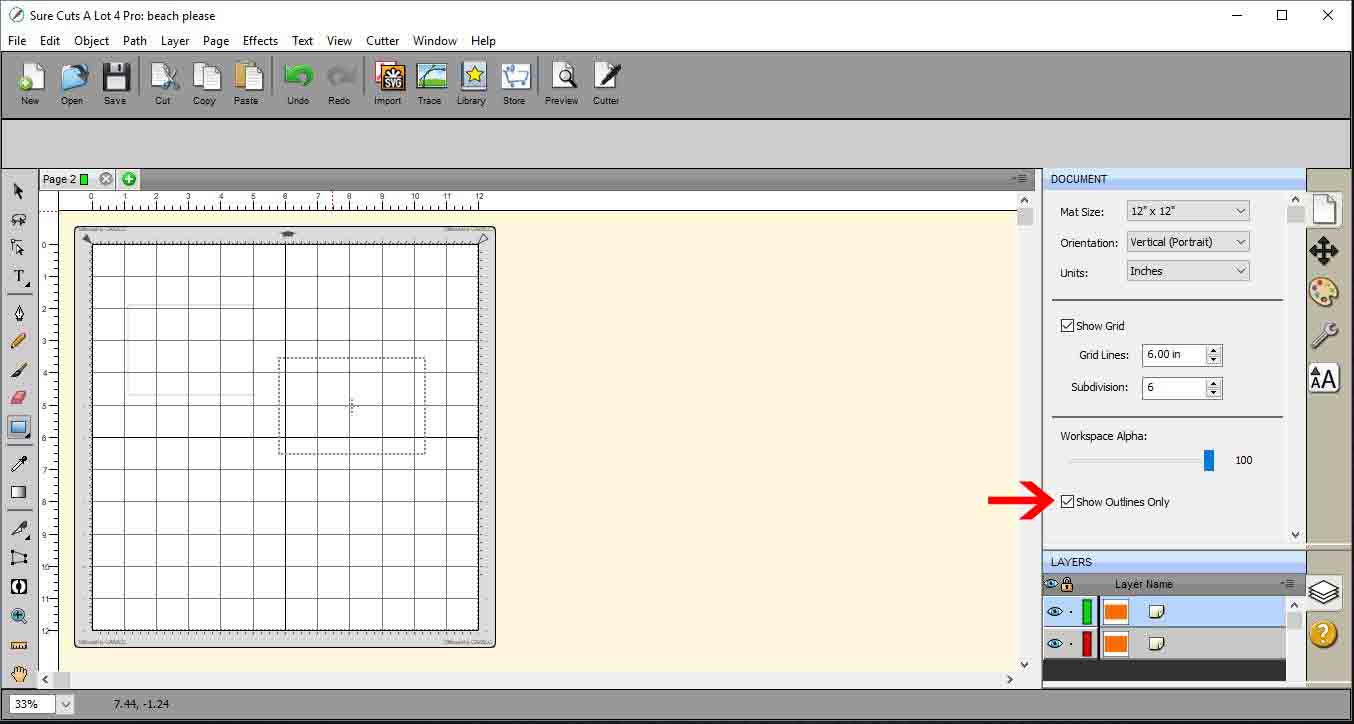
8- Lastly you can choose to show only the outlines on your images . The fill color is still there as you can see in the layers tab, but will now be seen on the mat when show outlines is selected.
1- Open SCAL4.
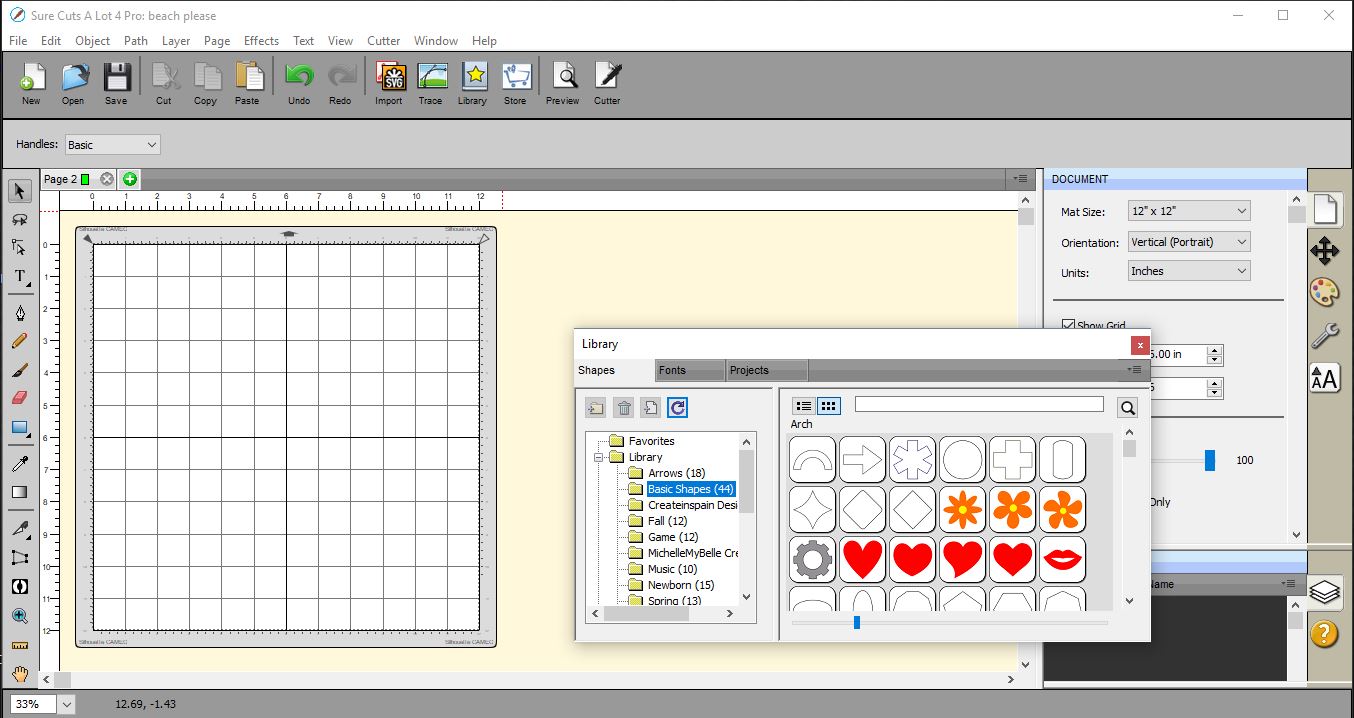
2- When you first open SCAL4 the cutter you have selected will be shown on your mat in the design area.
2- You have the option to either have the grid line on your mat or off your mat. To turn them on and off Select the document Option on the right toolbar and then click on the show grid box.
3- You can also select the grid on and off by selecting View > Show Grid.
4- You can also change the grid line size. You have the option of changing via measurement (as in Inches/mm/cm) or by the subdivision.
5- You can change the units you use also from inches to cm or mm.
6- Many cutters have different types of mats, you can change the mat size to suit the mat you are using.

7- The orientation can also be adjusted. This is helpful if you are using a larger mat like 12 x 24 inches. This way you can change the orientation to better fit on the mat.
8- Lastly you can choose to show only the outlines on your images . The fill color is still there as you can see in the layers tab, but will now be seen on the mat when show outlines is selected.
Related Tutorials
SCAL Tutorials
Sure Cuts a Lot 4 Basics - Saving files
SCAL Tutorials
Sure Cuts A Lot 4 Basics - Tracing a colored image
SCAL Tutorials
Sure Cuts A Lot 4 Basics - Cutter set up
SCAL Tutorials
Sure Cuts A Lot 4 Basics - The Text tool
SCAL Tutorials
Sure Cuts a Lot 4 Basics - Font Preview function
SCAL Tutorials