By Design Bundles
Scan N Cut Tutorials2 min
How to replicate in Brother scan and cut canvas workspace
1- Open canvas workspace. Click on the shape tool.
2- Select the shape you want to replicate.
3- Select your shape. Right click and select duplicate.
4- Your shape will now be replicated. If you need more than one of the same shape, you can select several shapes and then right click. and duplicate again.
5- As you can see below both shapes have replicated.
6- you can also replicate using the layers tab. Click the layers icon on the right toolbar (1) then select the shapes you want to replicate (2) then right click and duplicate(3).
7-You can also replicate using the icon at the bottom of your toolbar. this will directly replicate anything that has been selected.

2- Select the shape you want to replicate.
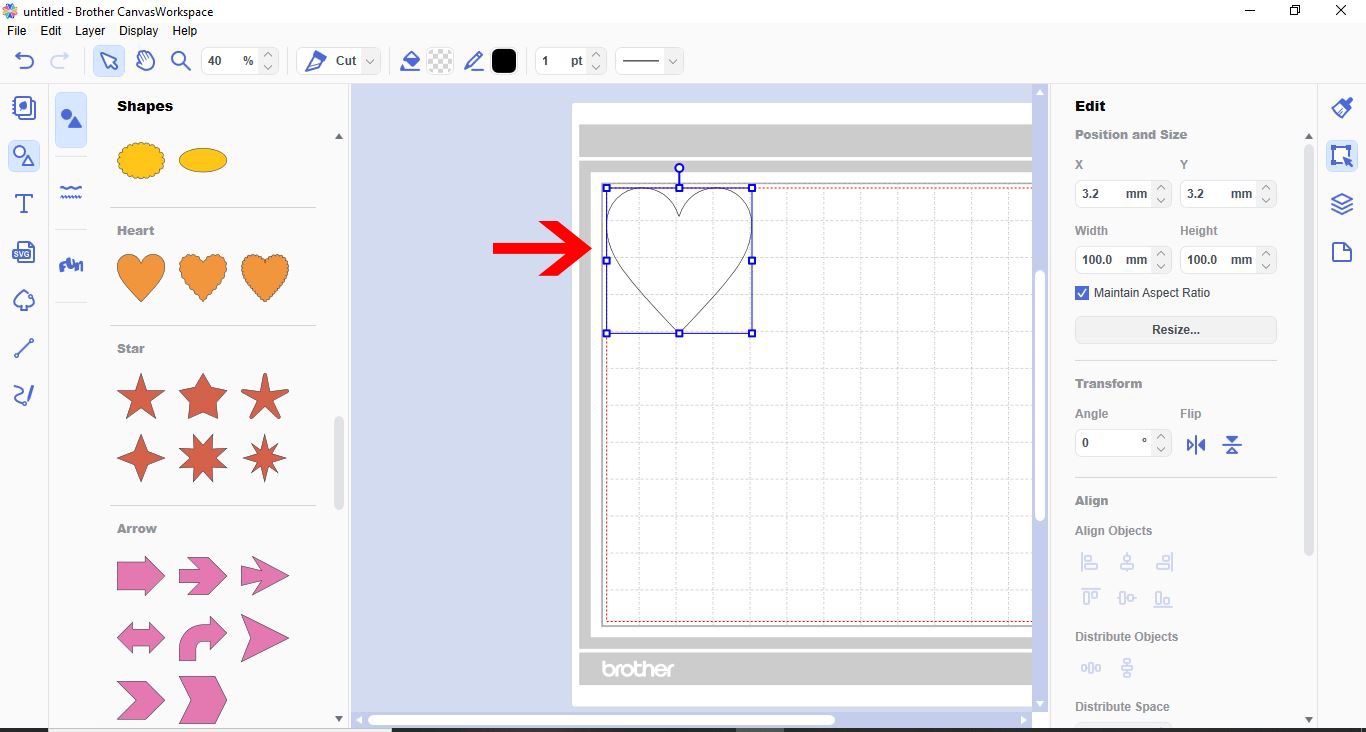
3- Select your shape. Right click and select duplicate.
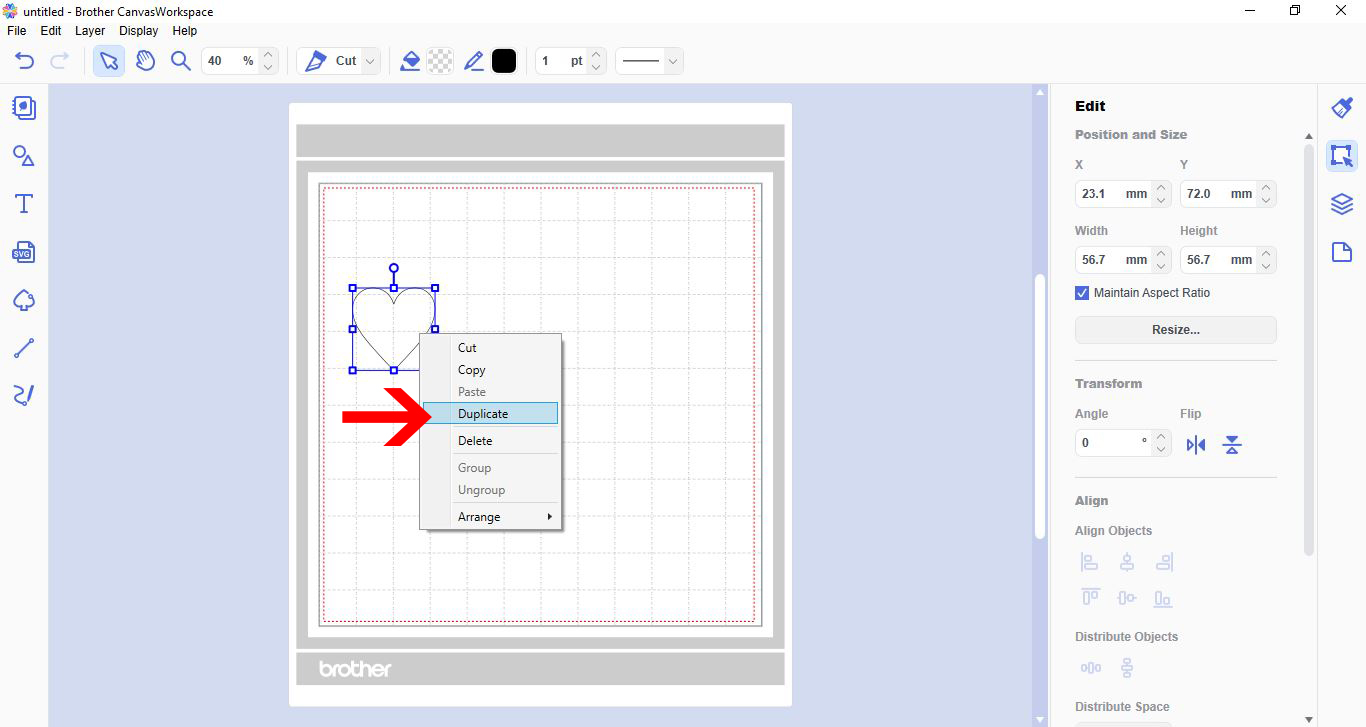
4- Your shape will now be replicated. If you need more than one of the same shape, you can select several shapes and then right click. and duplicate again.

5- As you can see below both shapes have replicated.

6- you can also replicate using the layers tab. Click the layers icon on the right toolbar (1) then select the shapes you want to replicate (2) then right click and duplicate(3).

7-You can also replicate using the icon at the bottom of your toolbar. this will directly replicate anything that has been selected.

Related Tutorials
Scan N Cut Tutorials
How to create curved text in brother scan and cut canvas workspace
Learn how to curve text in Brother Scan N Cut
Scan N Cut Tutorials
How to make a image larger than your cutting mat in Brother Scan N Cut canvas workspace
Learn how to cut designs larger than your cutting mat in Brother Scan N Cut canvas.
Scan N Cut Tutorials
Converting SVG to FCM cutting fine in Brother scan and cut canvas workspace
Scan N Cut Tutorials
Remove cut lines from shapes in brother scan and cut canvas workspace
Scan N Cut Tutorials