By Design Bundles
How to Print and Emboss with the Silhouette Curio
1- Open Silhouette Studio. Click on the cutting mat options and change to Curio. Change the size of the cut area to fit the curio mat.
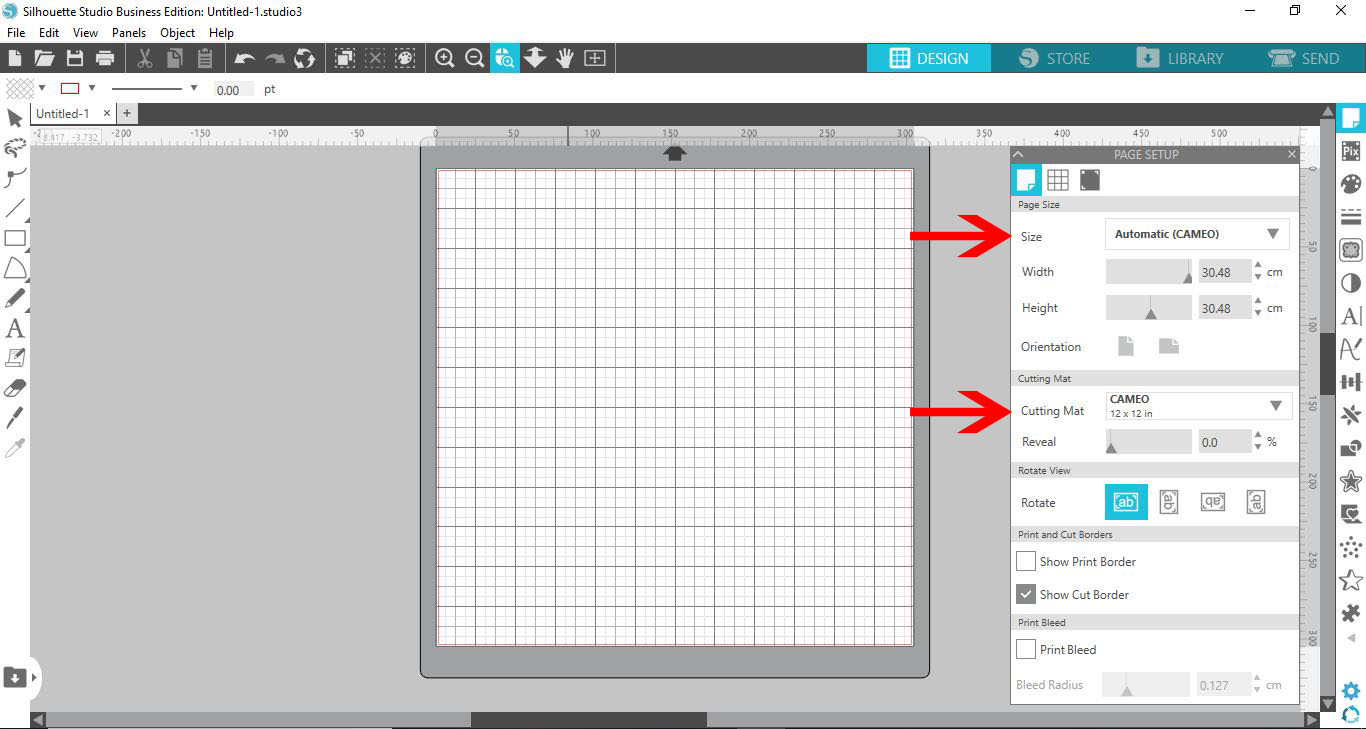
2- With the cutting mat and the size changed, you will see the curio mat appears on the design space.

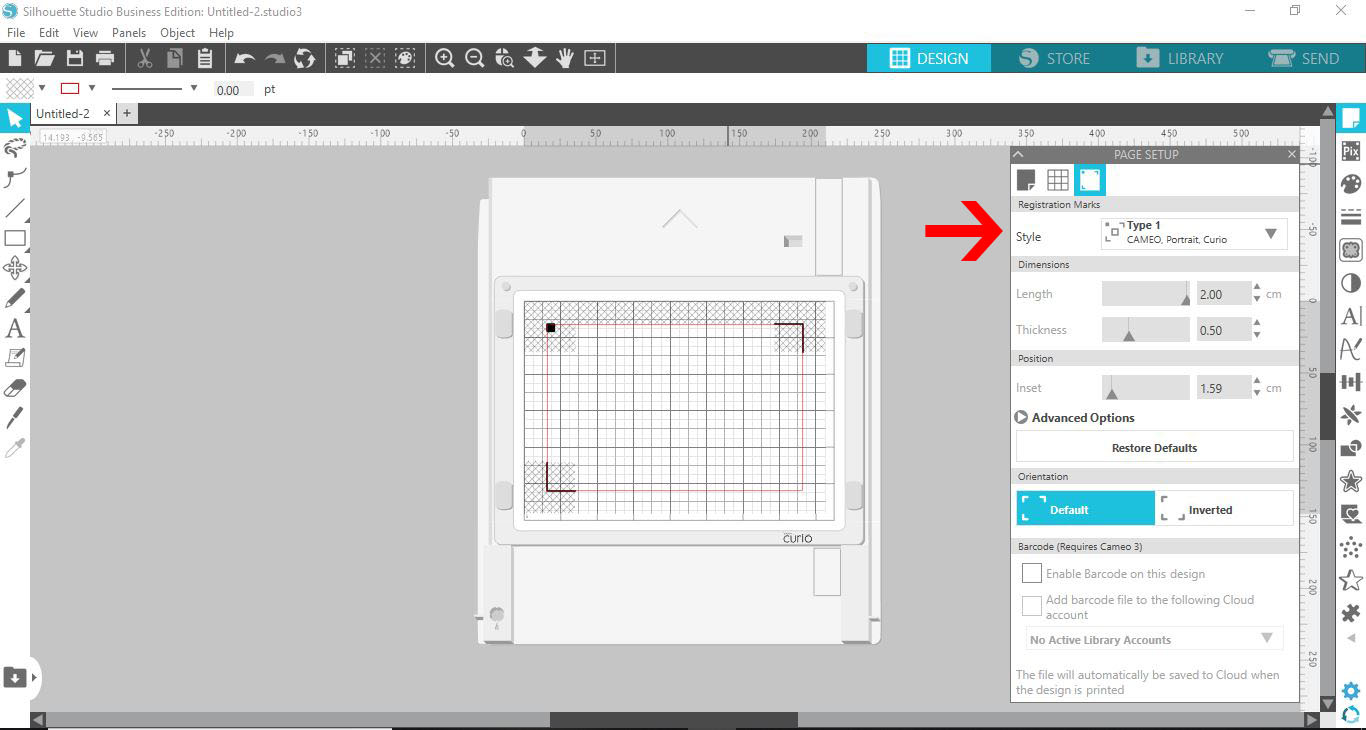
3- Go to page set up and select the registration marks.
4- Upload your designs.
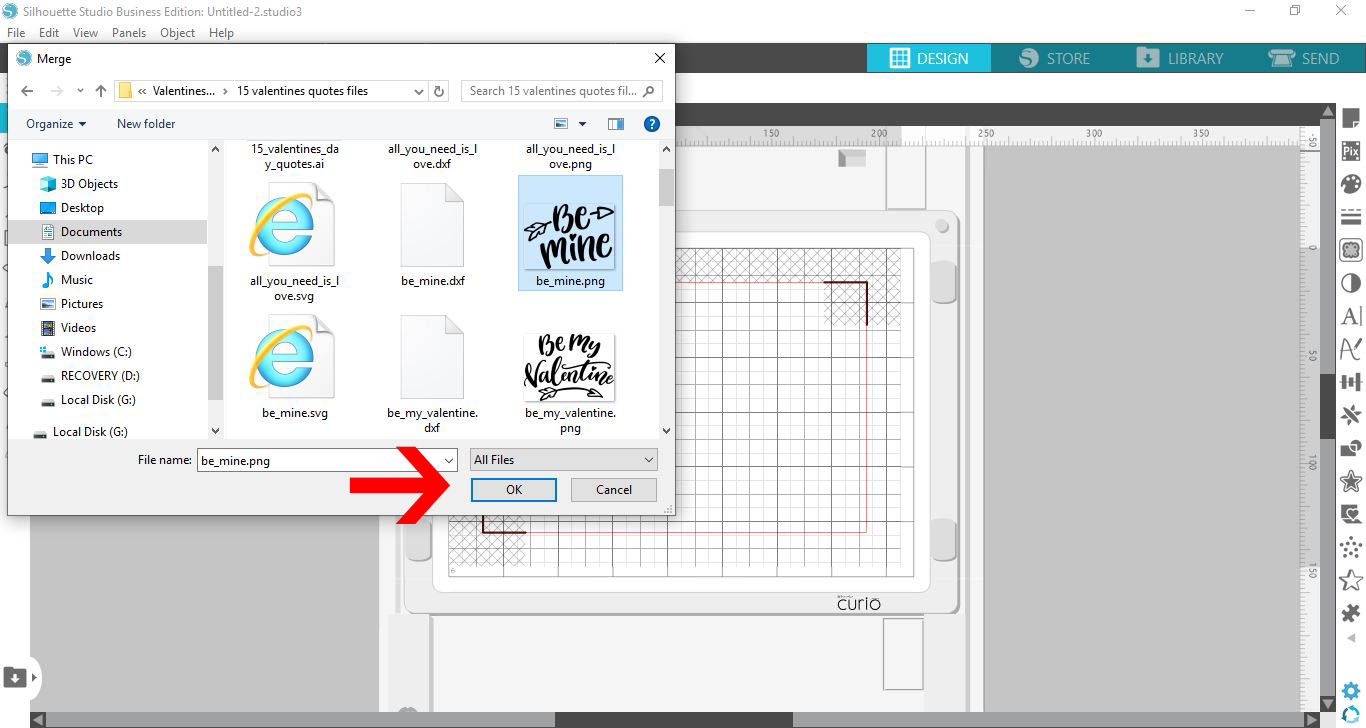
5- Resize the design. Go to the send screen.

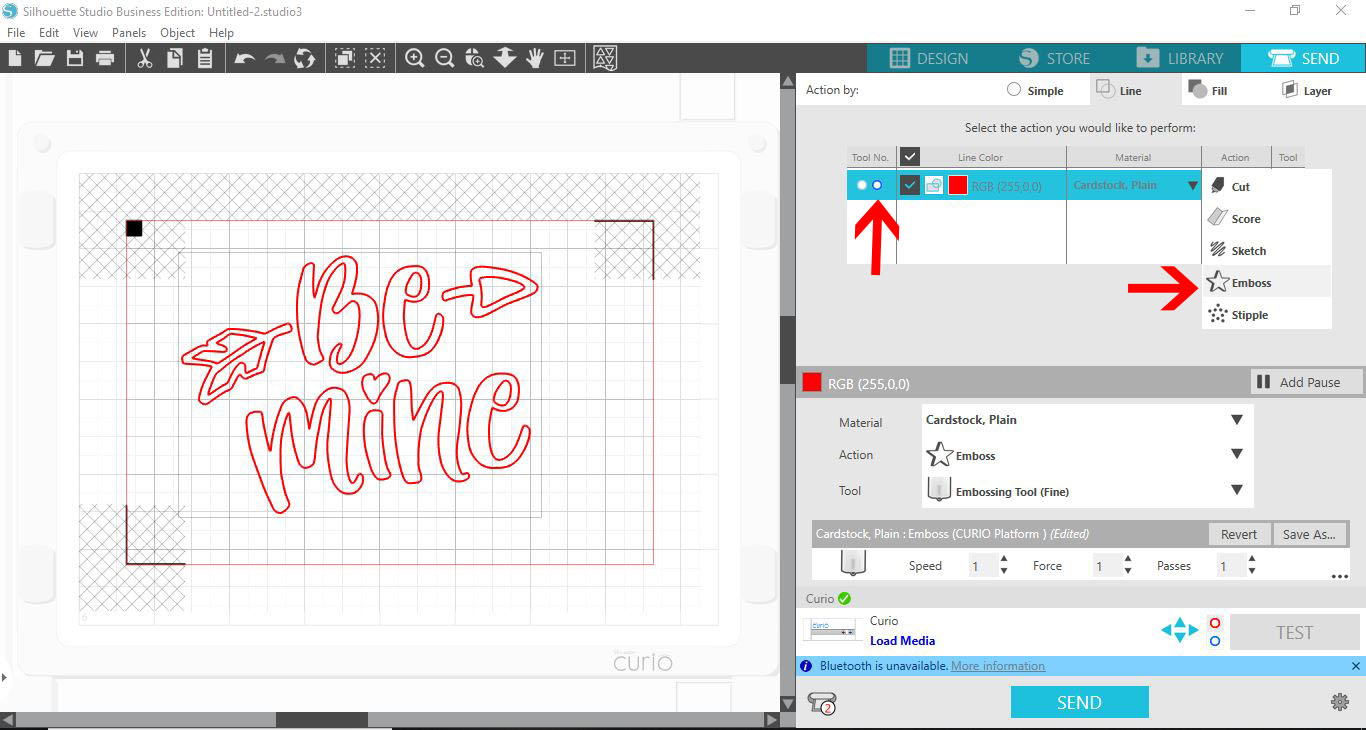
6- You will need to use the cut tool first then the emboss tool. Select the blue circle in the tool option. In the drop down box select the emboss option. Place the embossing tool into the blue circle tool holder and the cutting tool into the red circle holder
7- Click on the emboss/deboss panel.
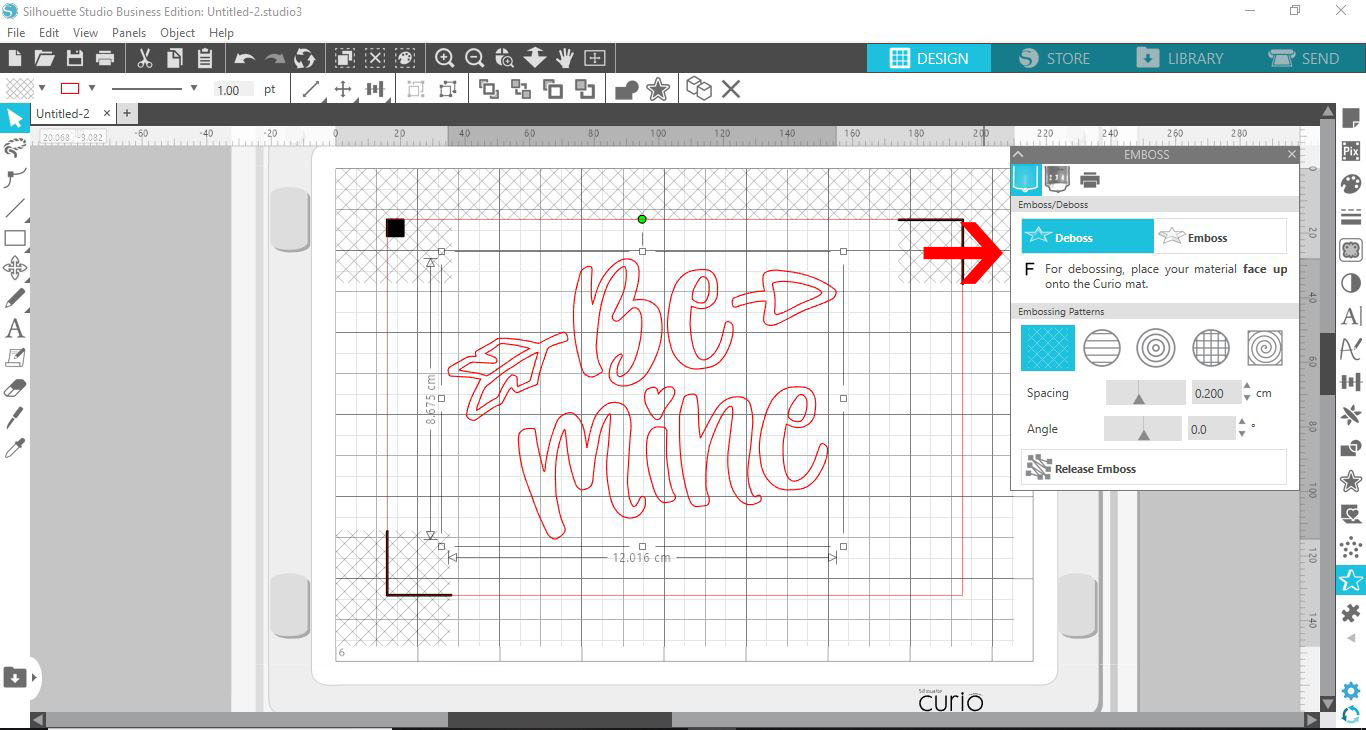
8- Click on the emboss option.
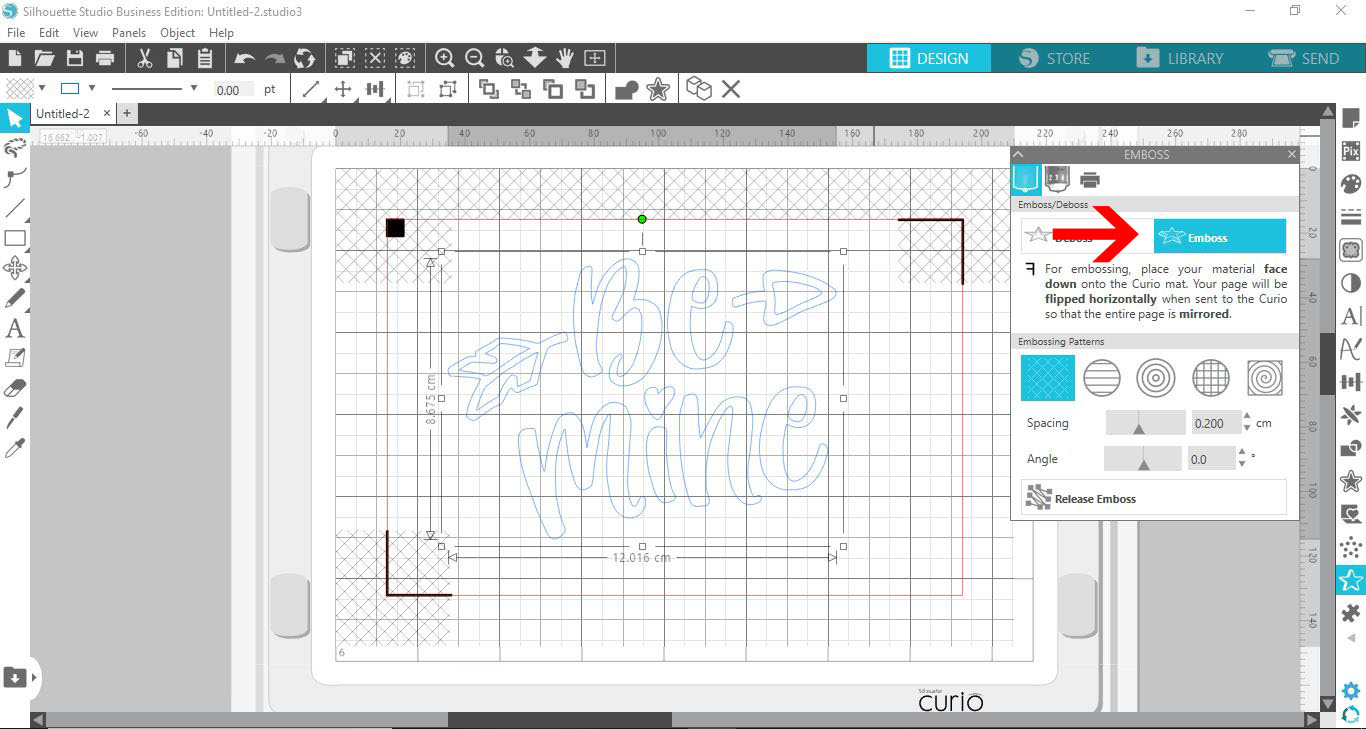
9- Next click on the print option.
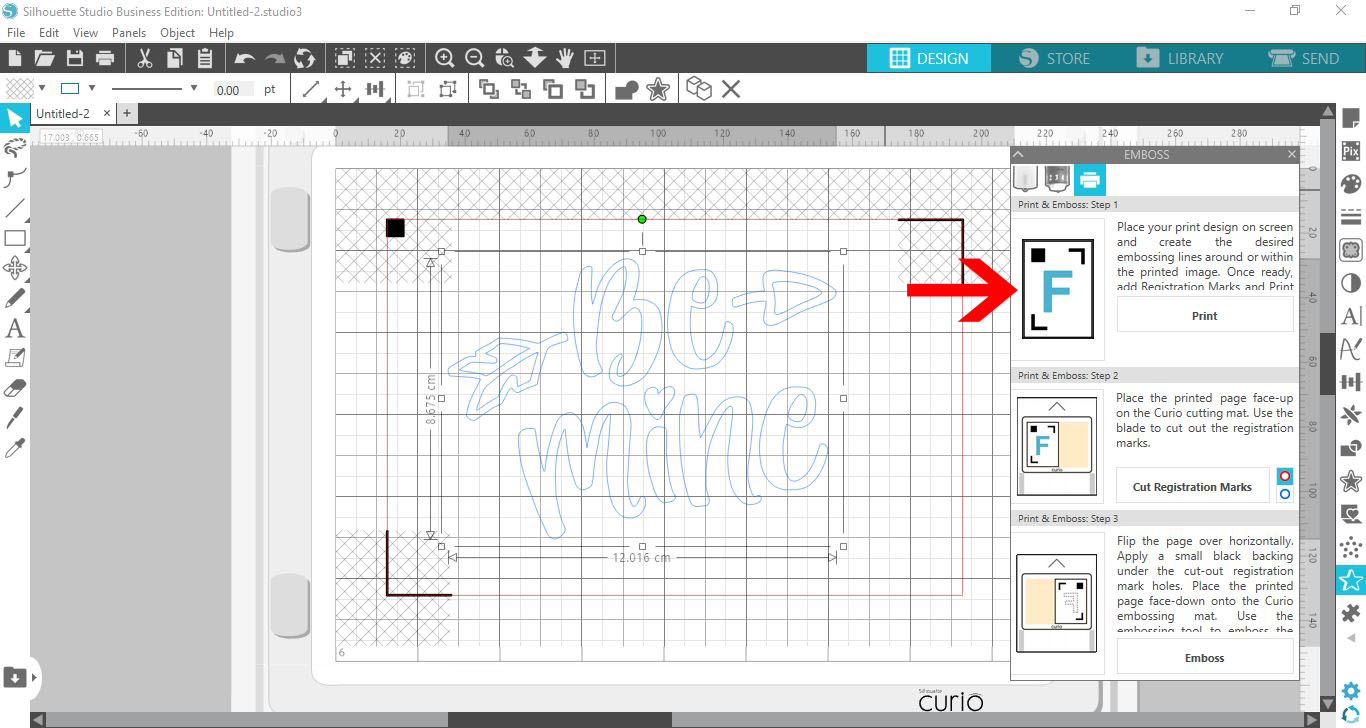
10- Select your printer and print the design with registration marks.
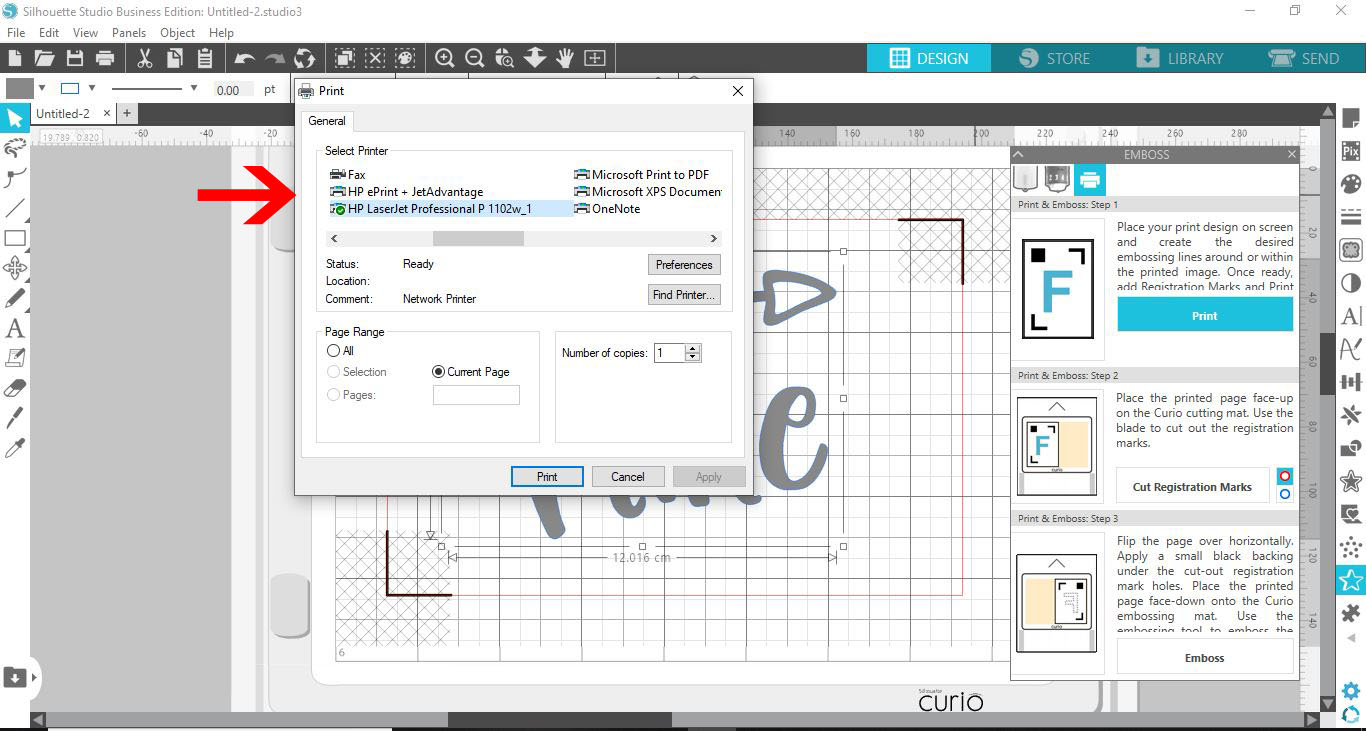
11- Place the design onto your cutting mat.

12- With the design onto the mat click on the cut registration marks.
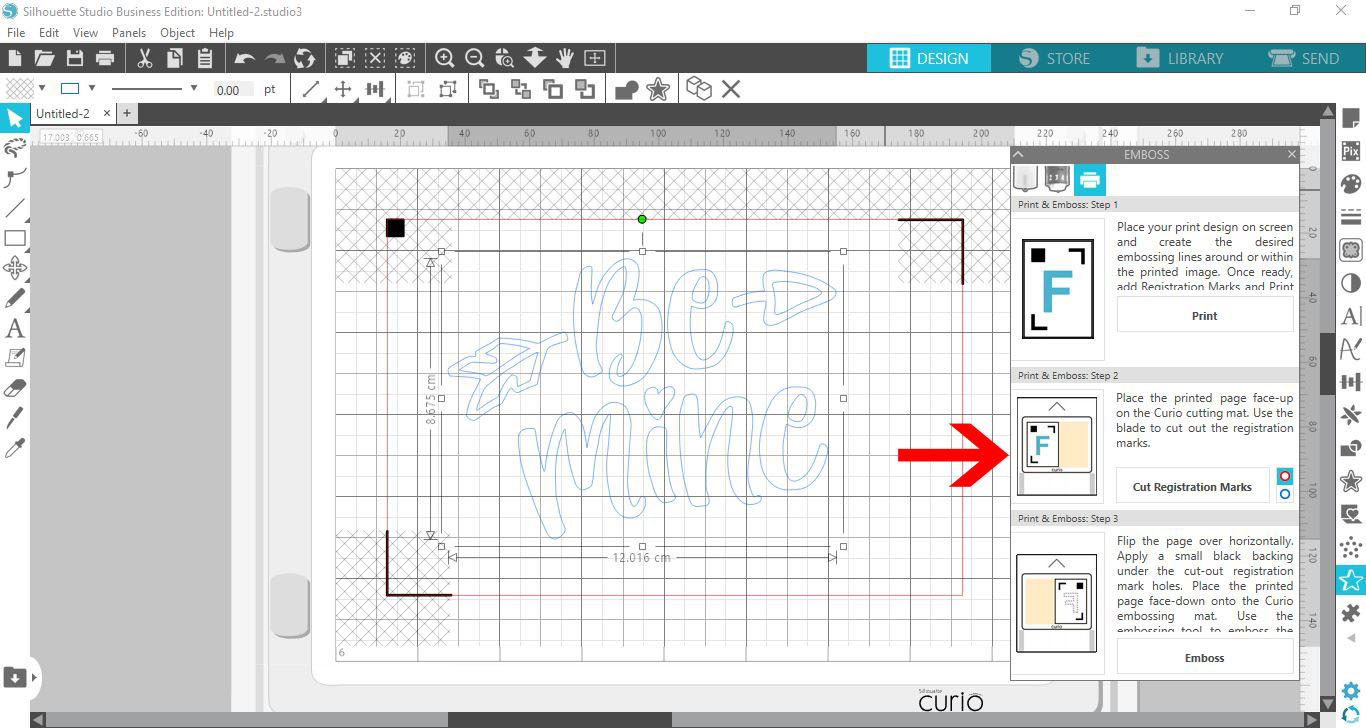
13- If the cutting does not start, click on the start cutting option.
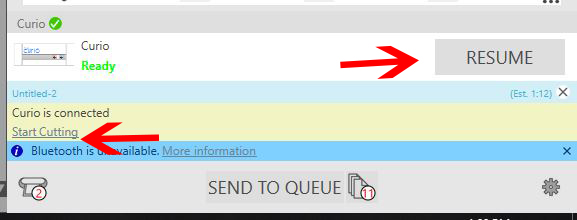
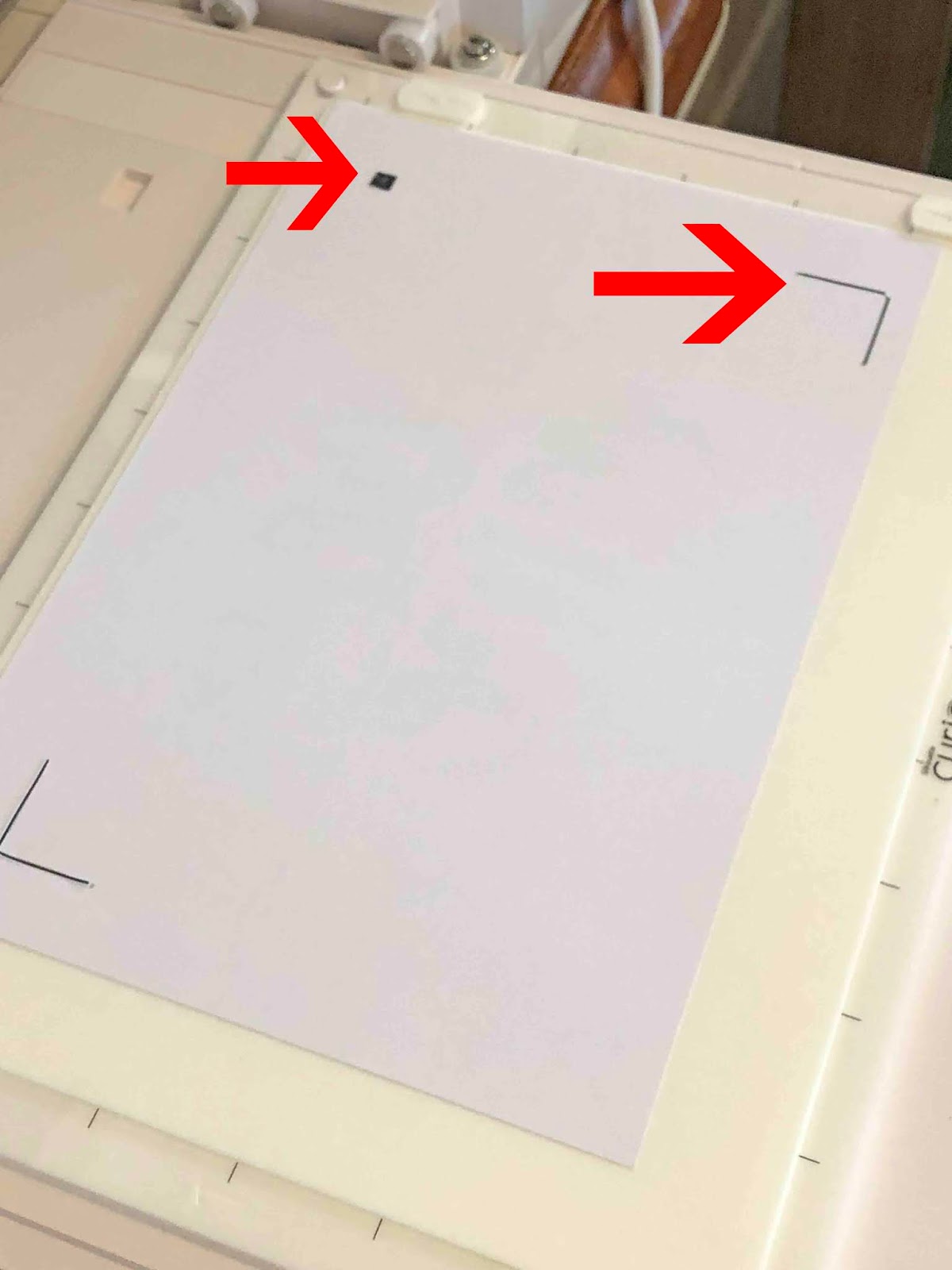
14- The registration marks will be cut out. Keep the cut out parts.

15- Place the Embossing mat on your curio board. (You will need a total of 5 with platform )Place the image face down. The little parts of the registration marks that were cut out, you can place them back in the spaces (this is so the curio can register the design.)
16- Click on the emboss part of the project.
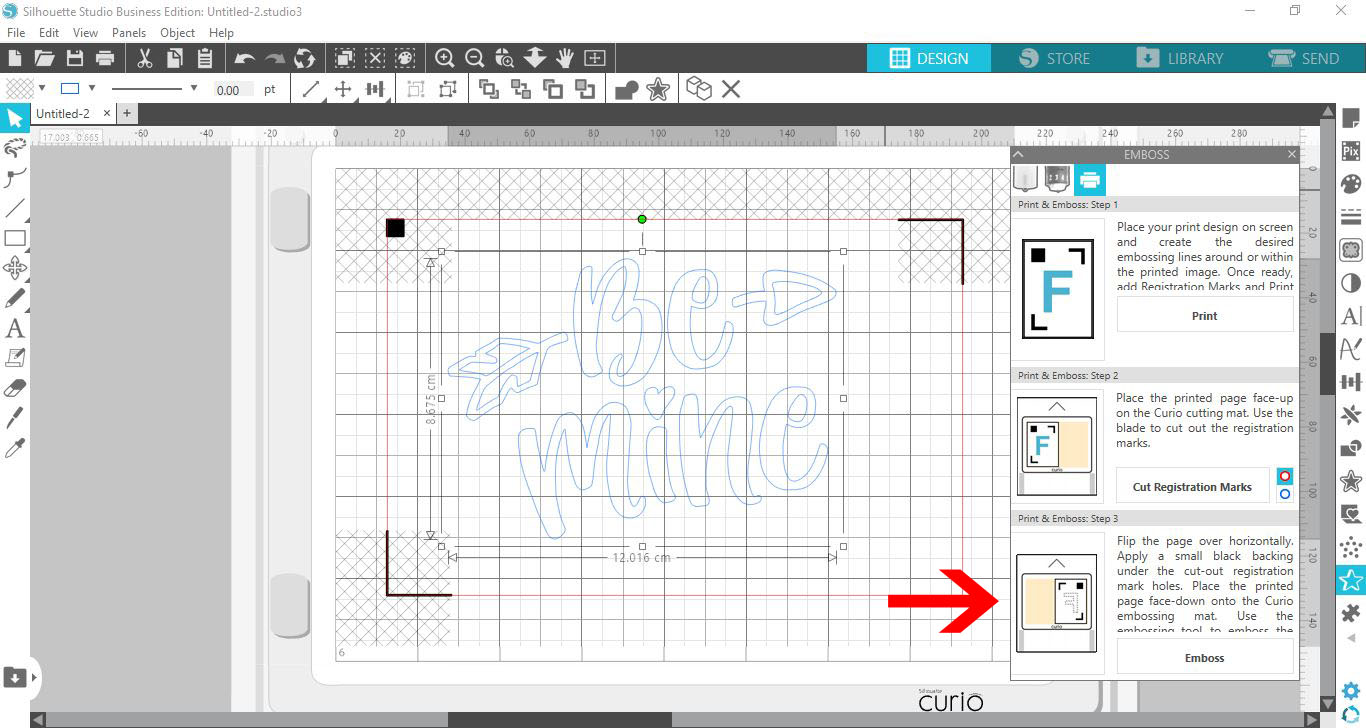
17 - If the design does not start embossing click on the resume icon this will start the embossing.
18- Your design will now emboss.
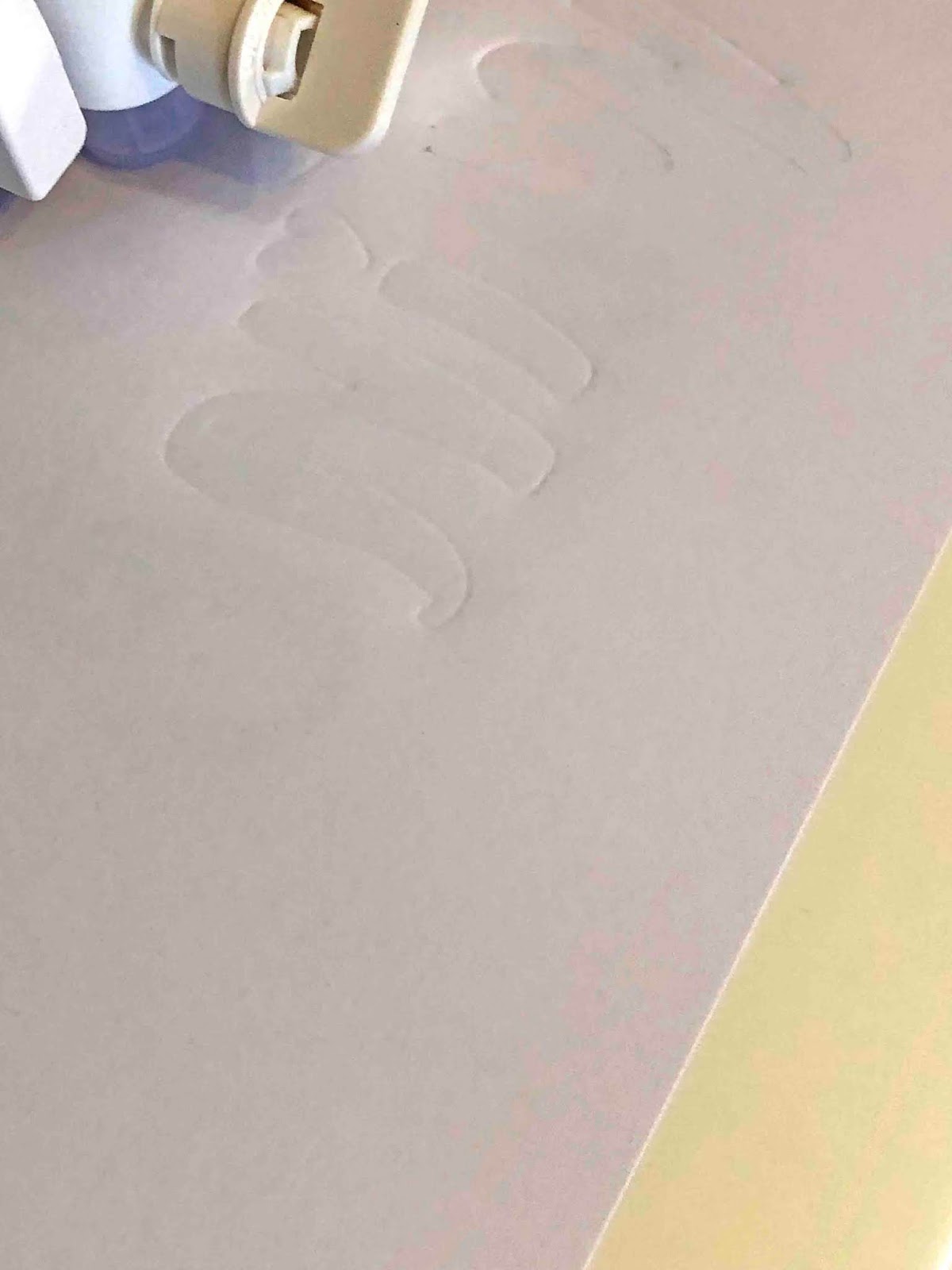
19- Your design will now be embossed. Carefully remove from the embossing mat.