By Design Bundles
How to Add Hyperlink in Canva
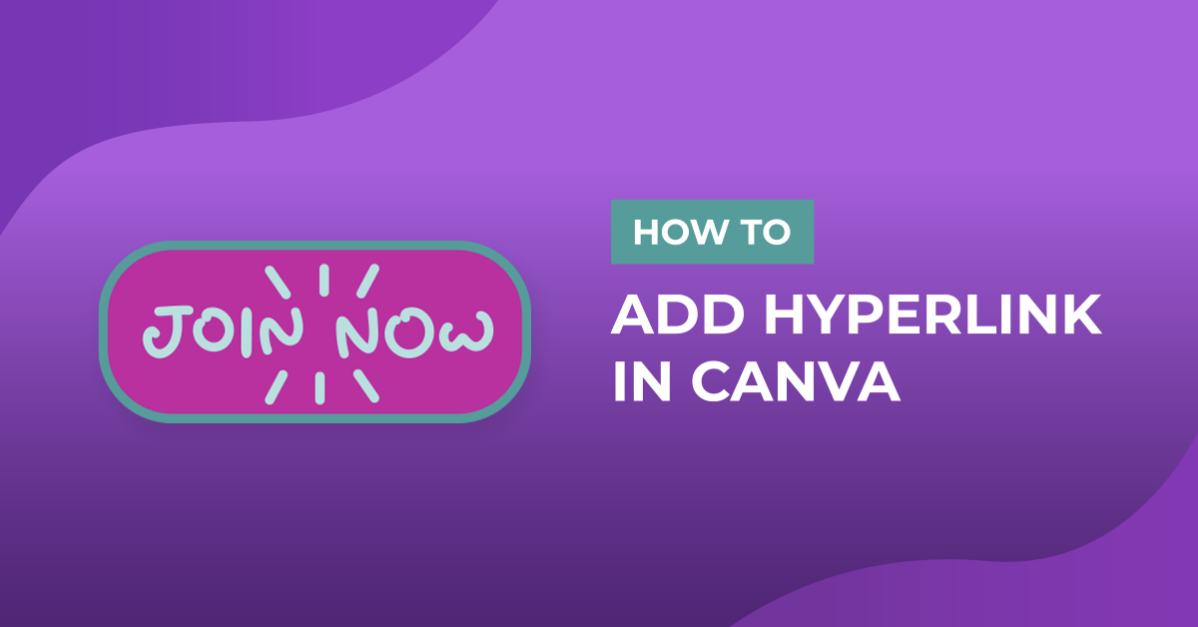
In our previous tutorial, I’ve discussed how to create an email signature from scratch in Canva. Now, we’re going to take that email signature and show you how to add hyperlinks to this document in Canva. A hyperlink is a word, phrase or image that you can click to bring you to a new page or a website.
You can add links to words, buttons and elements. Text hyperlinks are usually blue and underlined. Adding links to your Canva designs enable your readers to be redirected to a website while viewing your document.
Hey, did you know that Design Bundles offer FREE designs and FREE fonts? Some offers are available for a limited time only, so grab them while you can.
Get this Free Canva Template Bundle before it's gone!
Step 1: Open your design
Open your existing design where you want your text or element with hyperlink added. We're going to use the email signature we made in Canva in our last tutorial.

Step 2: Open the website
Open the website you want to link. Highlight the URL> Right click> Copy.

Step 3: Add a hyperlink
Go back to your design, select the element you want your clickable hyperlink attached to> click the link button in the toolbar. A spacebar will appear, paste your copied link there> apply.

Repeat the process to all elements you want a hyperlink attached to. We're going to add Design Bundles' social media links to all social media icons in our design.

To add a hyperlink to text, select the text you want your clickable hyperlink attached to>click the 3 dots in the toolbar> link button. A spacebar will appear, paste URL> apply.

Step 4: Check links
To see whether or not your link is working, we can test it out before we save the document, go down to the two arrows to the bottom right which says Present whole screen. We can check if the link is redirecting where you want them to redirect.

So if we click on the Design Bundle logo, it will open up Design Bundles' website in another window so we know that we linked it properly. We'll check each of the social media icons and see if it opens to Design Bundles' social accounts.

So that's how you add link to your Cava creations. Looking for more ways to boost your social media presence? Then check out the awesome selection of Canva Branding Templates on Design Bundles.
If you found this tutorial helpful you may also like our tutorials on how to curve text in Canva, create an Instagram puzzle feed, and how to download Canva Files.