By Design Bundles
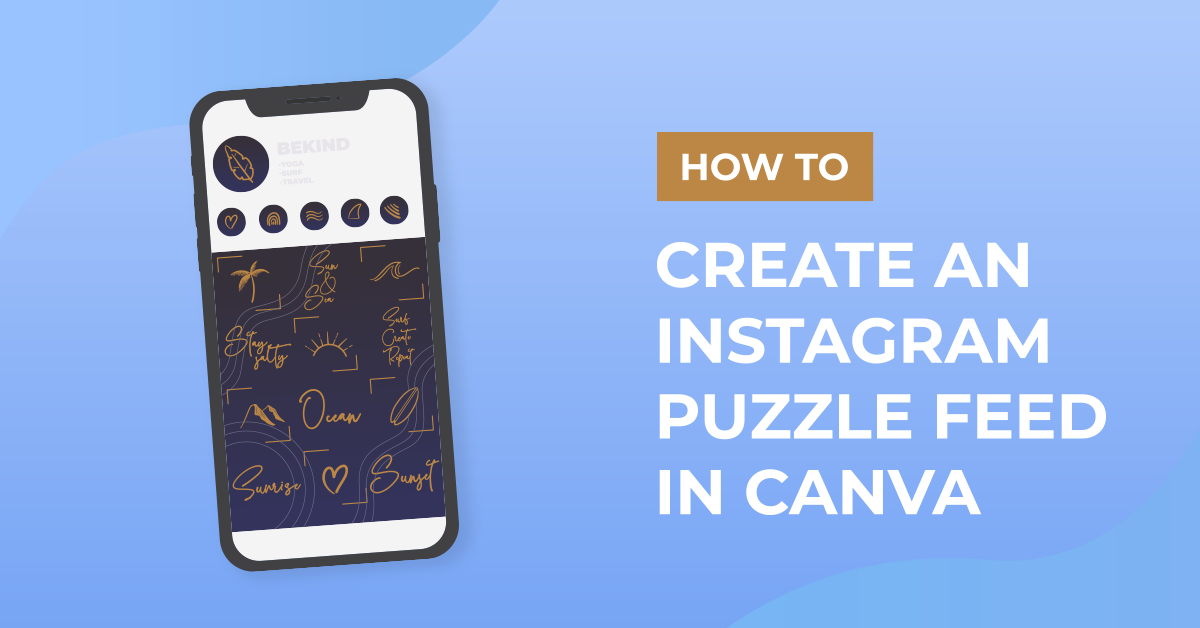
How to Create an Instagram Puzzle Feed in Canva
There are many ways you can design your Instagram feed but the most creative way to make your profile stand out is to create a puzzle feed. Instagram puzzle makes use of multiple photos that you post separately to create a large, eye-catching collage that connects shapes, colors, and images in a grid. It may look too complicated to make but it’s not.
With a variety of Canva templates to choose from on Design Bundles, creating your own puzzle feed will be as easy as a pie. All you have to do is open your purchased template in Canva and modify the content to your liking. In this tutorial, we will be looking at how to edit and customize an Instagram puzzle feed in Canva.
Step 1: Open template
Open the file location of your downloaded template from your computer. We’ll be using this Class Puzzle Canva Instagram Template from Design Bundles. Open the PDF included in the download. Then tap on the “Click here to access the template” button. It will open a new window. Click the “Use Template” button. This will automatically create a copy of the template and save it to your Canva account.

Step 2: Edit your template
Add photos
You can either upload your own image you want to use in your template by clicking the upload button on the left panel, or you can search images from the Canva library by clicking elements > photos and typing on the search bar the keywords for your design idea.
We're just going to use the available stock photos of women from the Canva library. We'll use the keyword close-up portraits.

Click your chosen photo and drag it to the grid of your choice. You can resize your photo by selecting it and dragging any of the white circle handles in or out. You can also arrange the placement of the photo for balance.

Change the background color
To change the background color, select the background and click on the color tile on the toolbar. The colors and other color suggestions from your existing document will be displayed on the editor panel on the left. Any color palettes you created previously will also be shown.
If you want more colors, you can click the + color tile on the top left corner to access the color slider and choose a color from there. Click on a color to change the color of your background.

Another way to change the background color is by selecting the background option on the left panel, then scroll through the different background styles. We'll use gradients. Click on gradients > see all to see all the available gradient backgrounds.

Let's use this peach one. Click it to apply the background.

Edit elements
You can also resize or change the color of the individual elements by selecting the element, clicking on the color tile on the toolbar, choosing a color on the editor panel on the left, and clicking on the color you want to replace it with. Here we changed our elements from black to brown.

Edit phrases
You can also change the phrases' fonts, colors, and sizes if you wish. You can change everything mentioned from the toolbar shown above after you have selected the text.

Our finished Instagram puzzle feed
Here's our finished Instagram puzzle feed.

You can now download it and post it on your Instagram account. There you go, now you have an amazing image for your social posts.