By Design Bundles
How to Group in Canva
In today's tutorial you will discover how to easily group in Canva for all of your design projects. You can group items in Canva including pictures, graphics, or even texts. However you want to combine elements or group things in Canva, the way to do it is always the same. Grouping elements is also a great way to keep your project organized.
There are tons of great Watercolor Illustrations available on Design Bundles. The one we will be using today is a Blue Floral Watercolor bundle by LABF Creations.
Step 1: Arrange the Elements' Placement
Arrange your elements according to the look that you like. You can move your elements around by clicking + dragging the mouse. If you are looking for more inspiration, be sure to have a look at the collection of Canva Graphics that Design Bundles has on offer.

Step 2: Select Elements
There are two ways that you can select multiple design elements. First is by clicking your mouse and dragging your cursor over the elements you want to group. This works well when the elements are all near or close to each other.

The other way is by holding down the shift key and clicking on each element you want to group. This works well if the elements are placed in different areas or are far from each other.

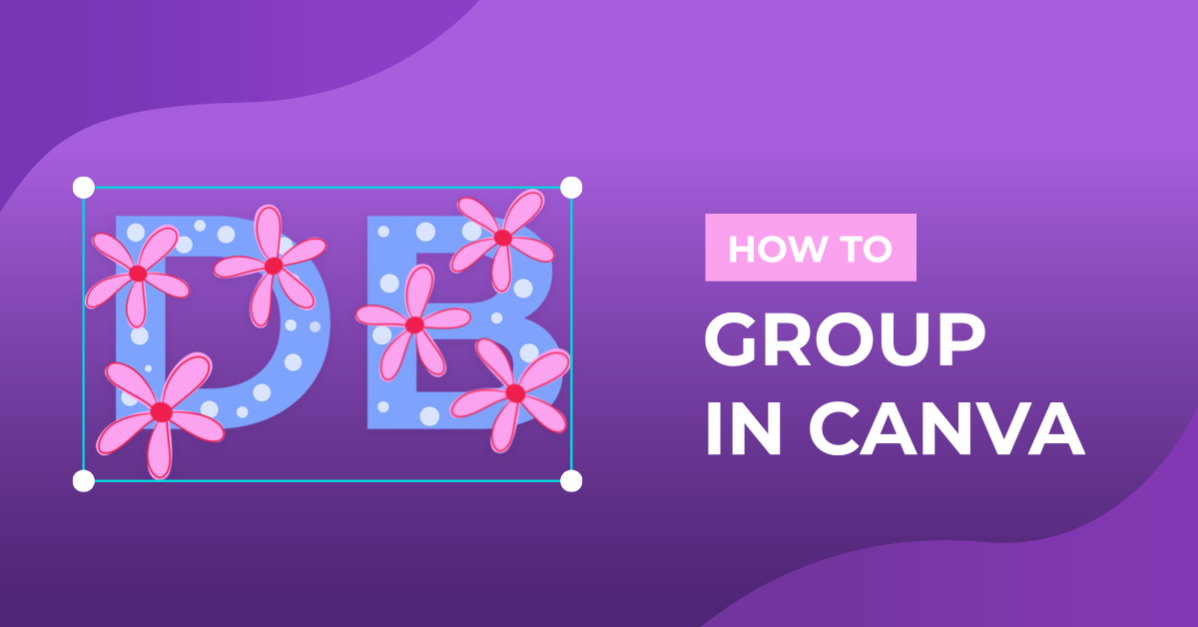
Either way, all the elements you selected will be inside either a solid blue line or a dotted blue line. In the image below you can see the solid and dotted lines.

Step 3: Group Selected Elements
Once everything is selected, there are two ways you can group elements. You can either use the keyboard shortcut: press ctrl/command + g or click the 3 dots on the toolbar > Group to group your selected elements.

When elements are grouped together, all elements will be inside one single box with a solid blue line and you can resize them or move the selection to different parts of the canvas without messing up your design.

Step 4: Ungrouping in Canva
Do take note that you won't be able to edit any of the elements individually until you ungroup them. To ungroup elements, with your grouped item selected, you will see that your available option on the toolbar will be "ungroup". Click on this option to ungroup your elements so they become individual elements.

In the visual guide below you an see how we group and ungroup design elements in Canva.

Well done, you have just learned how to group elements in Canva. If you found this tutorial helpful you may want to look at our other tutorials such as Saving a Design as a Canva Template, how to Download Canva Files, and how to use the Background Remover in Canva.