By Design Bundles
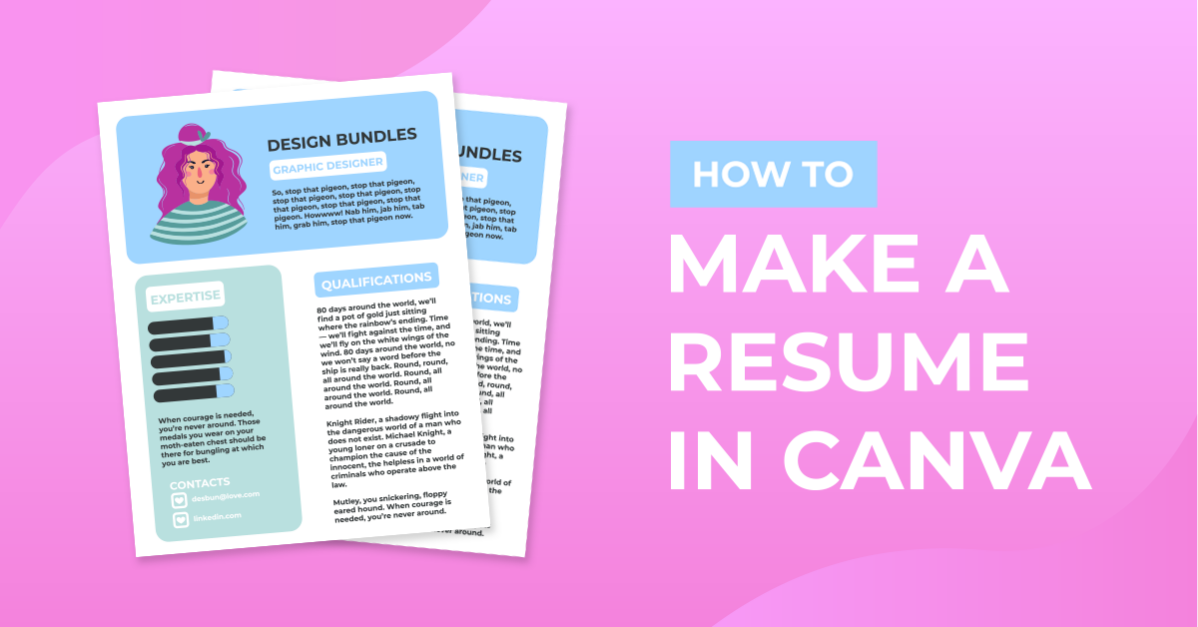
How to Make a Resume in Canva
First impressions always matter in an interview. Having a visually appealing resume gives you the advantageneeded. It helps you to stand out from other applicants and get your dream job. Canva provides a very efficient way of designing your resume using templates.
Design Bundles has a wide variety of professionally designed resume templatesthat you can customize with a few simple clicks. There are resume templates for Word, Adobe Photoshop, Illustrator, and Canva. In this tutorial, we will be using a teacher resume Canva template.

Step 1- Open template
Open the file location of your downloaded template from your computer. Open the PDF included in the download. Then tap on the “Click here to access the template” button. It will open a new window. Click the“Use Template”button.

This will automatically create a copy of the template and save it to your Canva account.

Step 2- Personalize your resume
The resume is ready to personalize with your required details. This includes uploading a photo and adding text.
Upload your own photo
We want to add our own photo so we need to delete the one in the template. Delete thesample photo- select the photo>right click> delete.

Next we will insert a frame for the headshot. On the editor side panel, clickelements> frames> see all.

Scroll down to see all the available frames. We're going to select portrait thin frame with rounded corners.

To make a professional looking headshot you canremove the background in Canvaorblur the background of your photo.
For this tutorial I will use abusinesswoman photo, which I uploaded earlier.Go to upload, click the photo and drag it inside the frame. Adjust the placement of the photo inside the frame.

Resize the frame and position. We placed it in the same position as the sample photo (left top corner). Make sure that all elements are aligned and the margin is maintained.

Fill in your details
The template has a holder text that you can use as a guide.Double click on the text box> ctrl/⌘ Aand start typing your own text to overwrite the sample text.Replace all the sample text with your profile informationand detailsthat suit both you and the job you’re applying for.
Once you’re done filling in your details, proofread your resume. Check for spelling and grammatical errors.

Edit text style
You can also change the fonts, colors, and sizes of the text if you wish.You could use the fontsavailable in Canva orinstall your own fonts. After yourfont is installed to Canvayou can begin editing the text.
You can change everything mentioned from the toolbar shown above after you have selected the text. For our resume, we're just going to change some of the texts' color from gray to white to make it more readable.Select text> color tile> select thewhite tile from the left panel to apply the color change.

Edit elements
The template can be customize with a color scheme that you like by changing the color ofthe individual elements.Select the element> click on thecolor tileon the toolbar> choose a color on the editor panel. Then on the left> click on the coloryou want to replace it with. Here we changed our taupe pink elementsto parmesan yellow and the lava gray elements to powder blue.

Once you're satisfied with the overall look of your resume, you can now download it,share it with potential employers andsnag that dream job.

If you enjoyed this tutorial, you may also like our tutorials ondownloading Canva filesandcurving text in Canva.