By Design Bundles
How to Use Your Purchased Fonts in Canva
In this tutorial you will learn how to use purchased fonts in Canva. Use your favorite fonts in your Canva projects by following these easy steps. Fonts add style and character to projects, drawing the viewer’s attention while sharing information. It’s important to note that this feature is only available in the Canva Pro version.
Before we begin, make sure that you have downloaded and unzipped your purchased fonts. We are using this hand letter script font called Islander.
Step 1 - Select the Text Icon
Log into Canva then click on the Create a Design button top right. You can choose a template size or create your own. We went with the Facebook Cover size.

The new window that opens will be your work area. On the left side panel, click on Templates and select a template you want to use. We chose this cute Spring themed template.
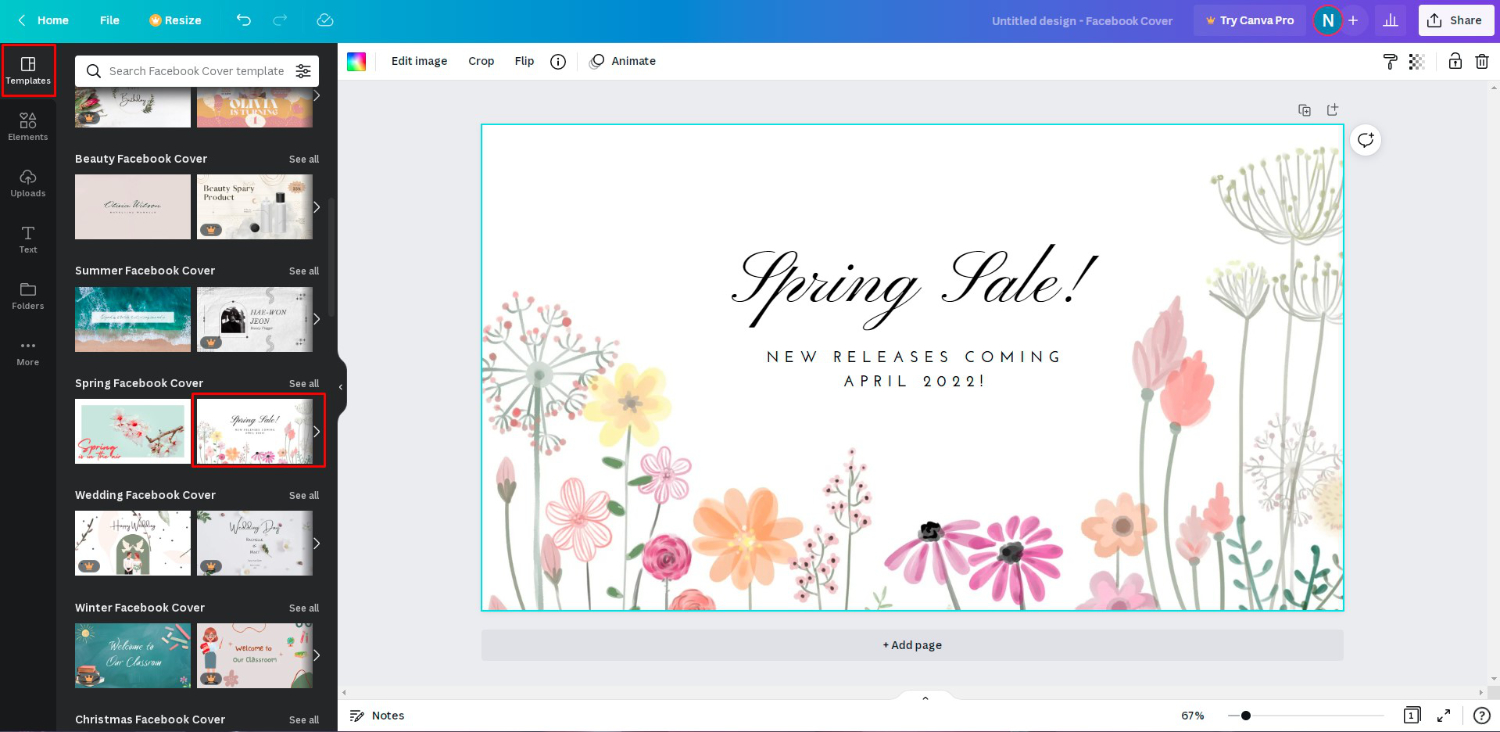
On the left side, click on the Text icon to open the options.

Step 2 - Upload your Purchased Font
Now, select the text that you want to change. We clicked on the text box Spring Sale. At the top toolbar click on the Font box. A selection of available fonts will appear on the left side.

At the bottom of the font panel on the left, click on Upload a font. A new window will open.
On the far right, once again, click on Upload a font.

Locate where your font is stored and click to upload. A pop up window will ask you to confirm that you have permission to use the font. If you agree, click Yes, upload away.

In the upload window, your font will be visible underneath Uploaded fonts. You can now click on the “X” to close out of the window.

Step 3 - Use your Purchased Font
With your text box still selected, click on your uploaded purchased font on the left side panel. You will find it under Uploaded fonts. It will then be applied to the text box.

You can now use the text effects in Canva to edit your text for more impact. If needed, resize the design elements in the template to create the effect that you want.

What a great way to showcase a Spring theme paired with a beautiful font! You have now learned how to use purchased fonts in Canva. Create eye-catching content using your favorite fonts and style up your designs.