By Design Bundles
Cricut Tutorials5 min
How to Use the Text Edit Panel in Cricut Design Space
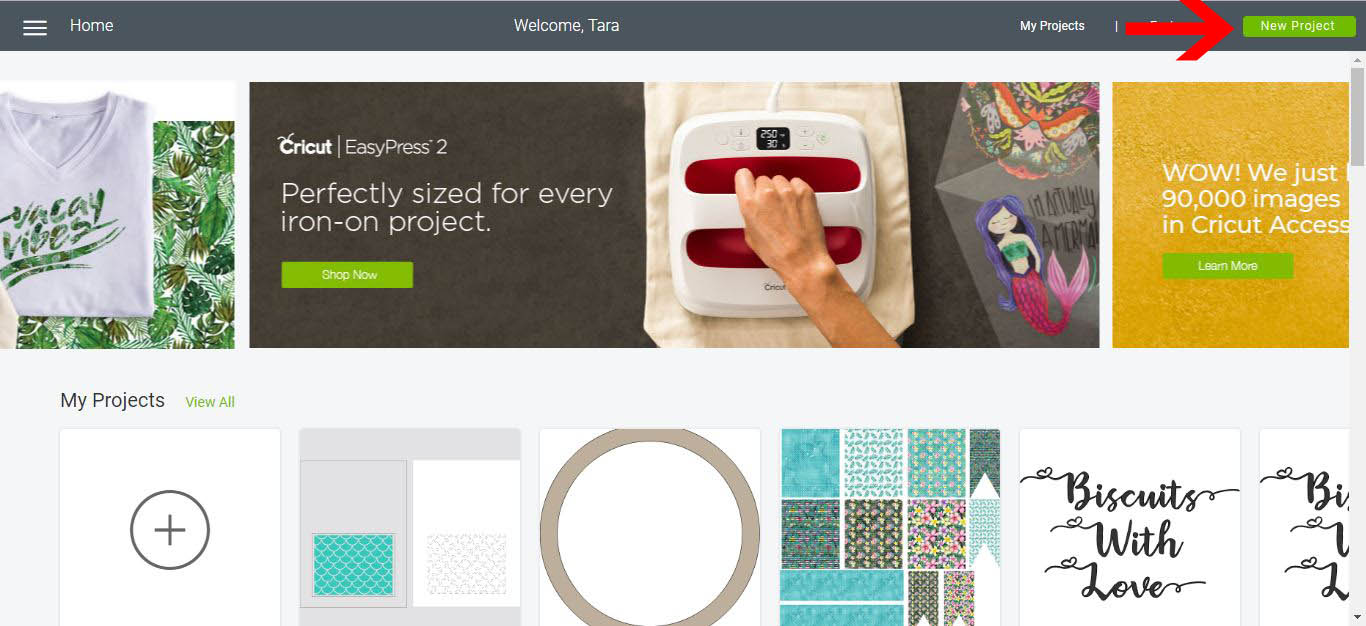
1- Open Cricut Design Space. Click on new project.
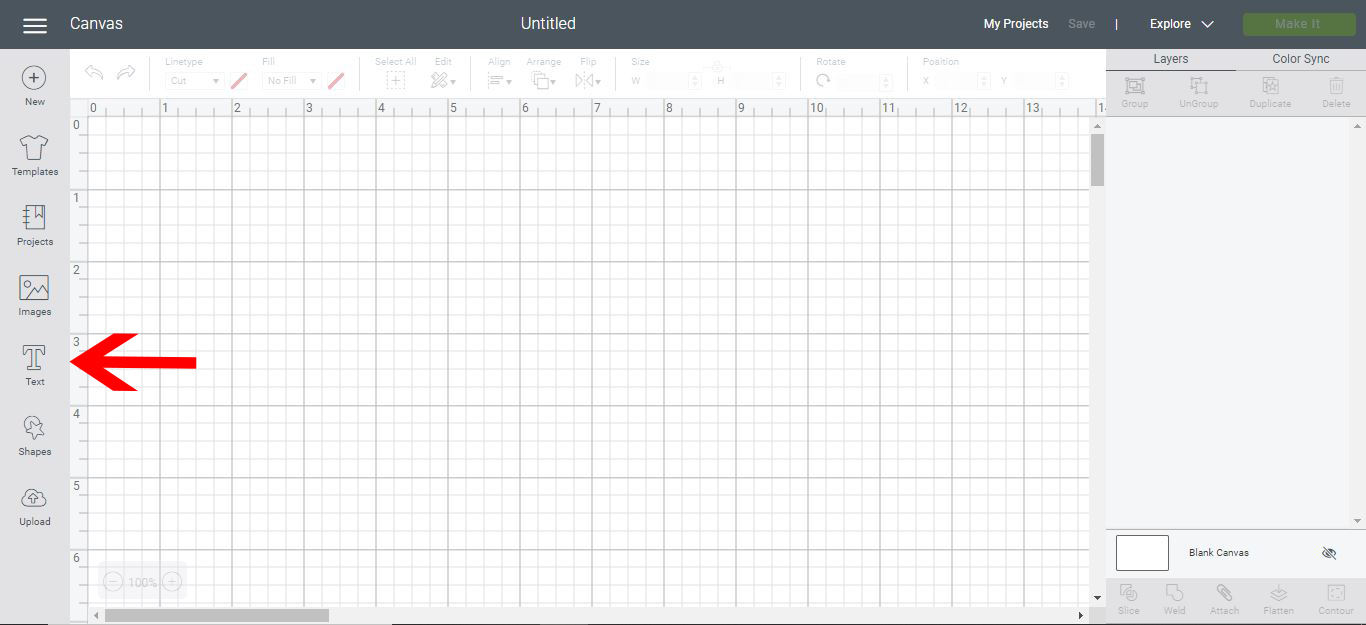
2- Select the text icon.
3- Type your text.
4- When you type your text and select it, the text edit panel will automatically appear.Click on the font drop down box.
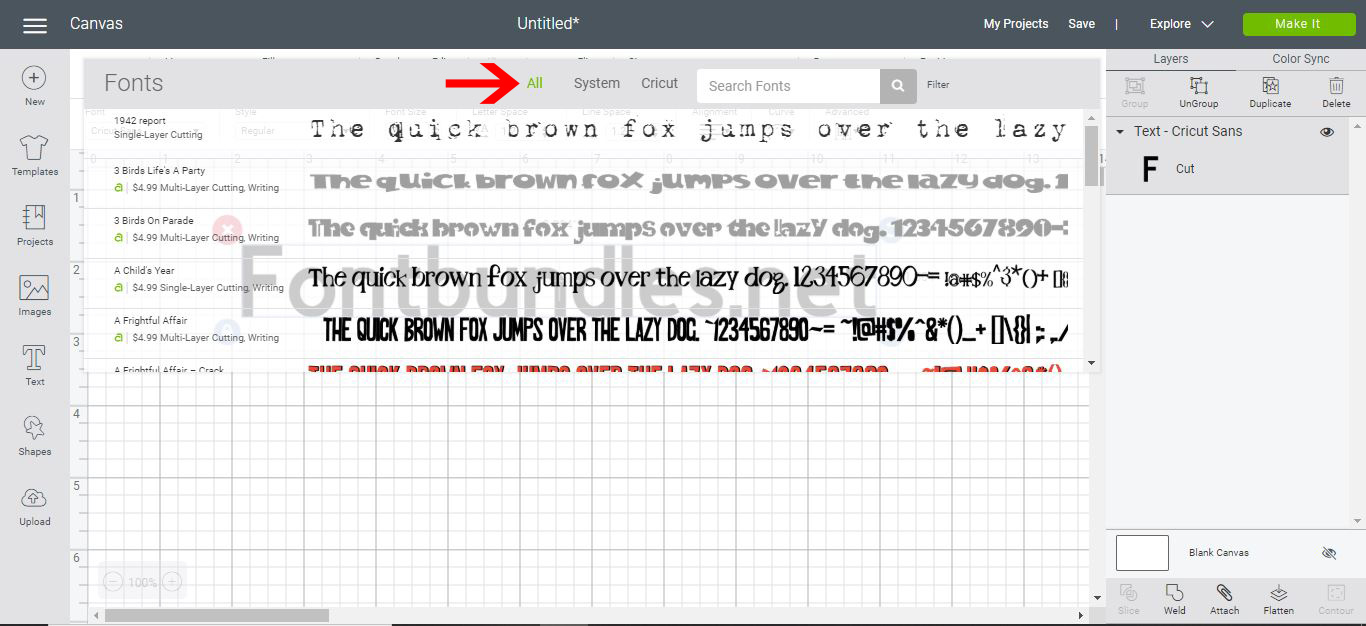
5- In the font drop down box there is several options to choose your fonts.
You can click on All fonts- which will access all of the fonts in your PC and cricut design space. System fonts - This will allow only the system fonts to appear in the drop down box. Cricut - which will show all the free fonts from cricut and the cricut fonts you can purchase.
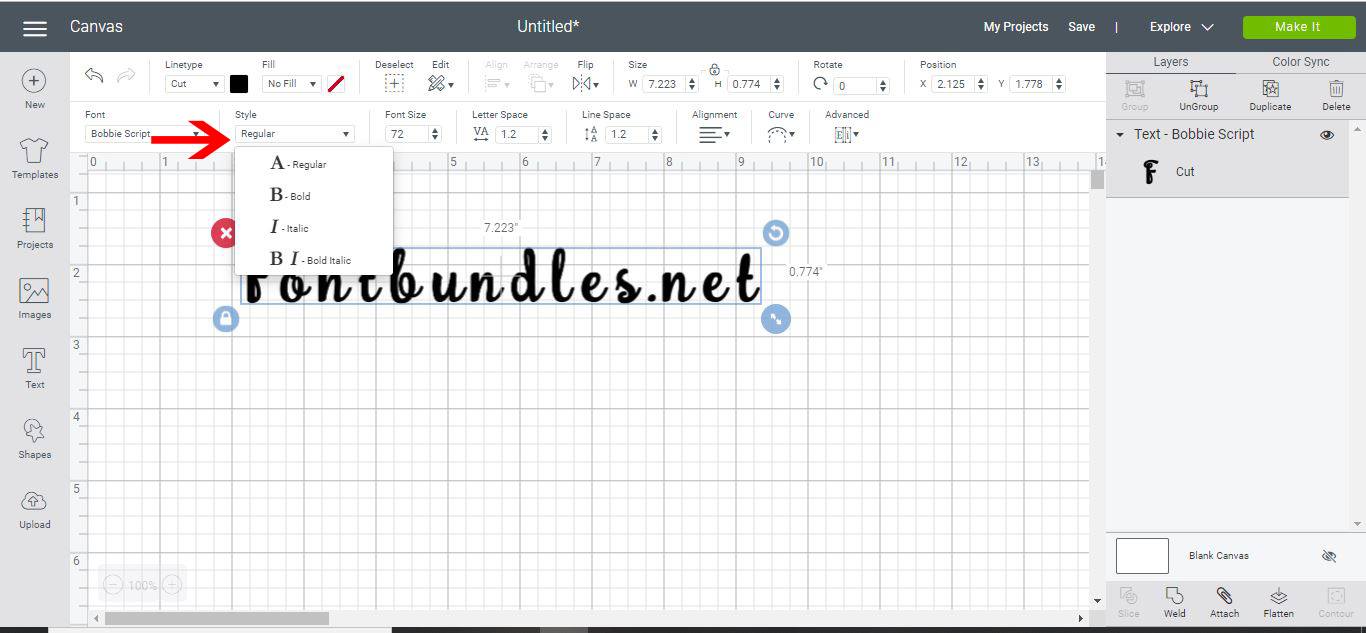
6- The style drop down box allows you to change the font type to italic, bold and bold italic.
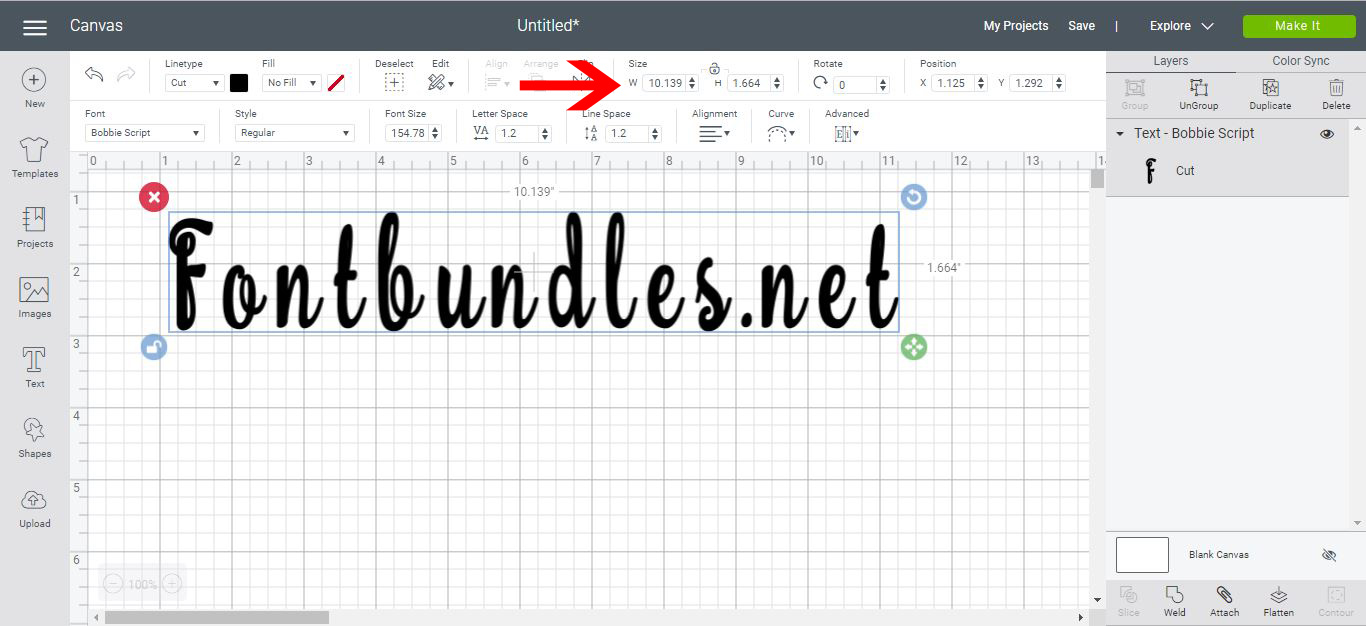
7- You can also change the size of your text. Either via aspect ratio with the lock text on or you can unlock and change the size of the font any way you like.
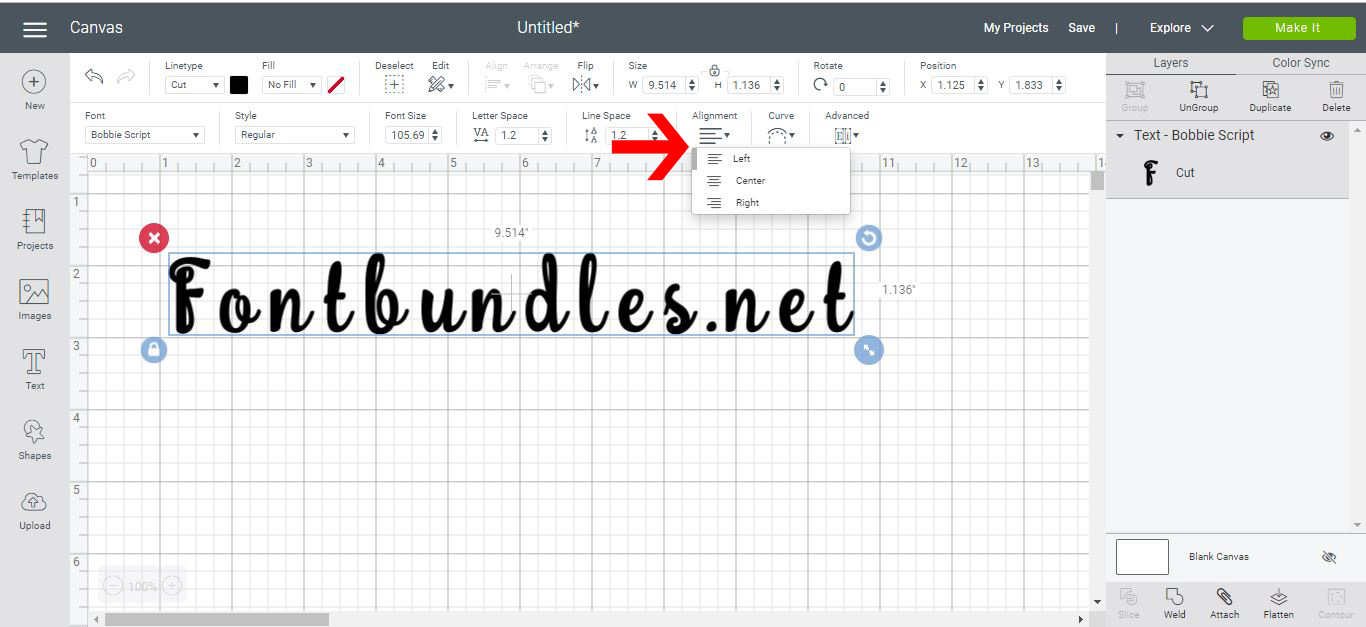
8- Click on the alignment drop down box to change the alignment of your text.
9- The edit icon will give you the option to copy, cut and paste your text.
10- The flip tool can change your text horizontally or vertically. This is a good tool when you need to flip text to cut with heat transfer vinyl.
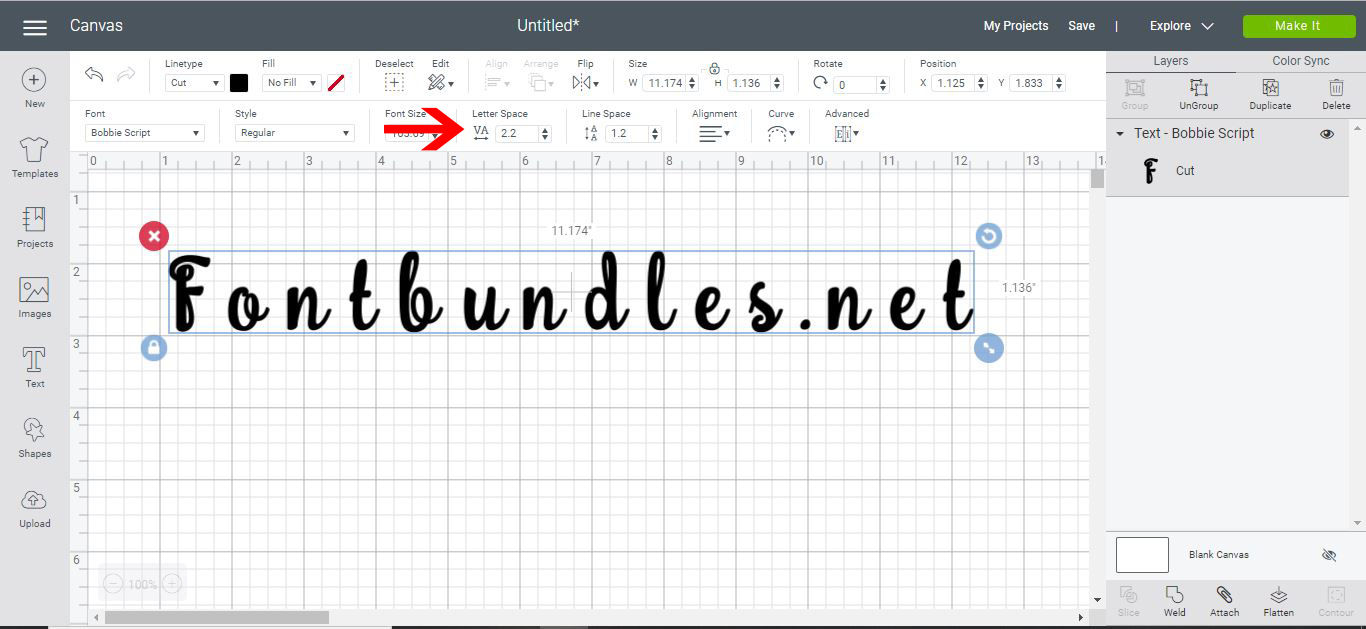
11- You also have the option to change the space between each letter and the space between each row of text.
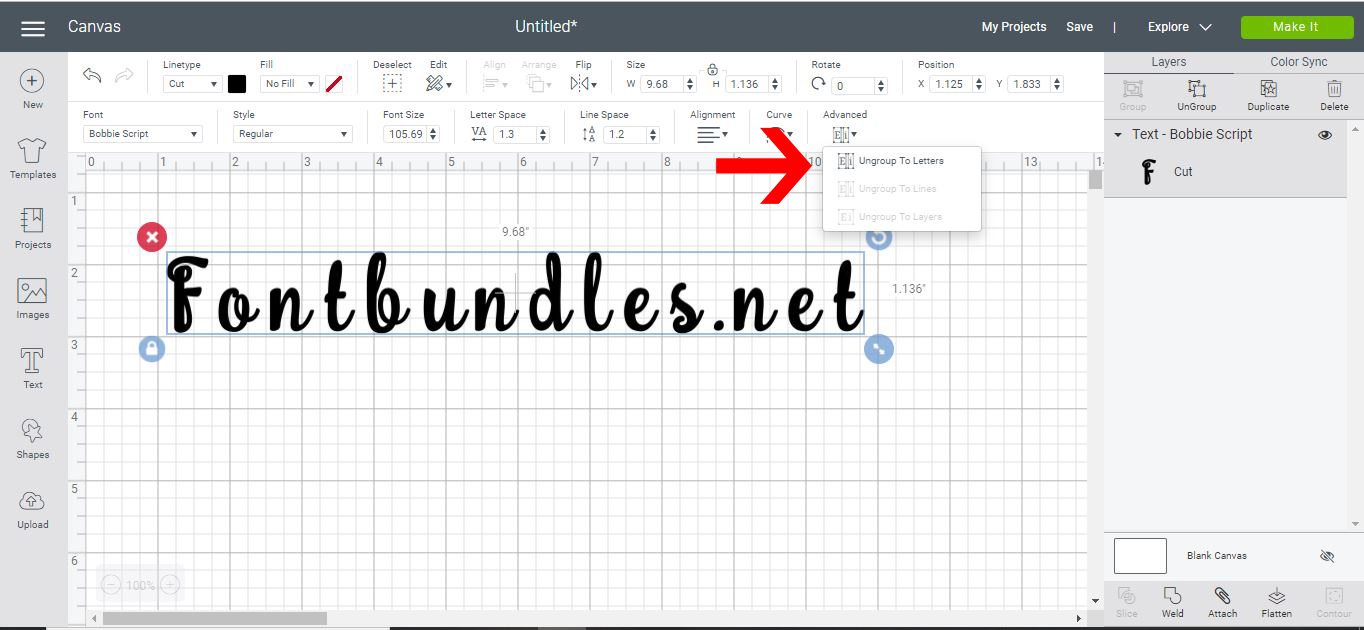
12- In the advanced drop down box you can ungroup your text by individual letter or by row of text.
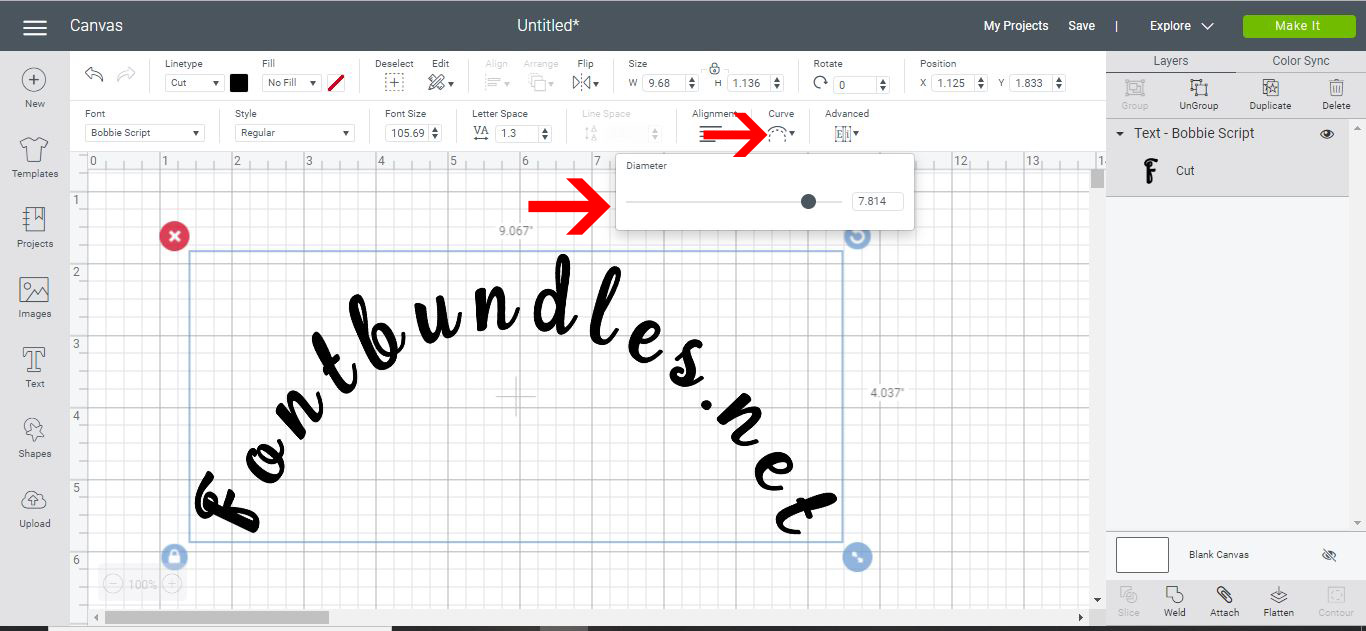
13- You now also have the option to curve your text. Just click on the curve icon and then adjust the toggle to change the curve.
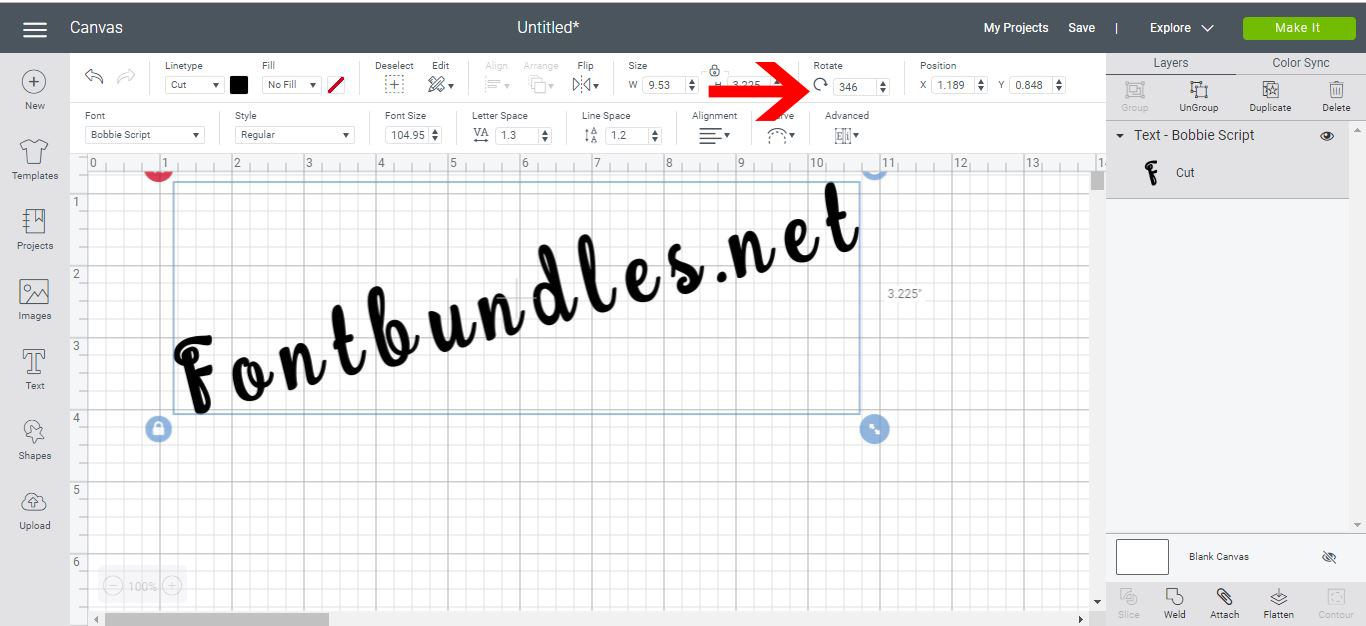
14- Lastly you can click on the rotate icon and rotate your text.
2- Select the text icon.
3- Type your text.
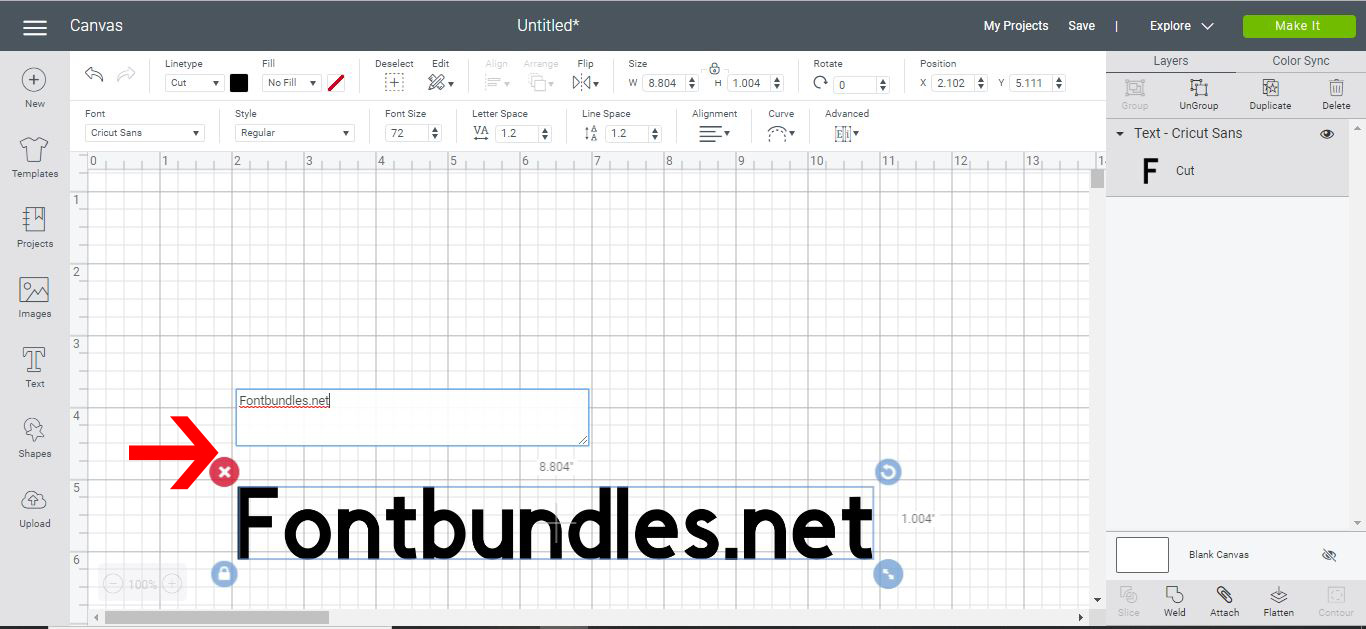
4- When you type your text and select it, the text edit panel will automatically appear.Click on the font drop down box.

5- In the font drop down box there is several options to choose your fonts.
You can click on All fonts- which will access all of the fonts in your PC and cricut design space. System fonts - This will allow only the system fonts to appear in the drop down box. Cricut - which will show all the free fonts from cricut and the cricut fonts you can purchase.
6- The style drop down box allows you to change the font type to italic, bold and bold italic.
7- You can also change the size of your text. Either via aspect ratio with the lock text on or you can unlock and change the size of the font any way you like.
8- Click on the alignment drop down box to change the alignment of your text.
9- The edit icon will give you the option to copy, cut and paste your text.
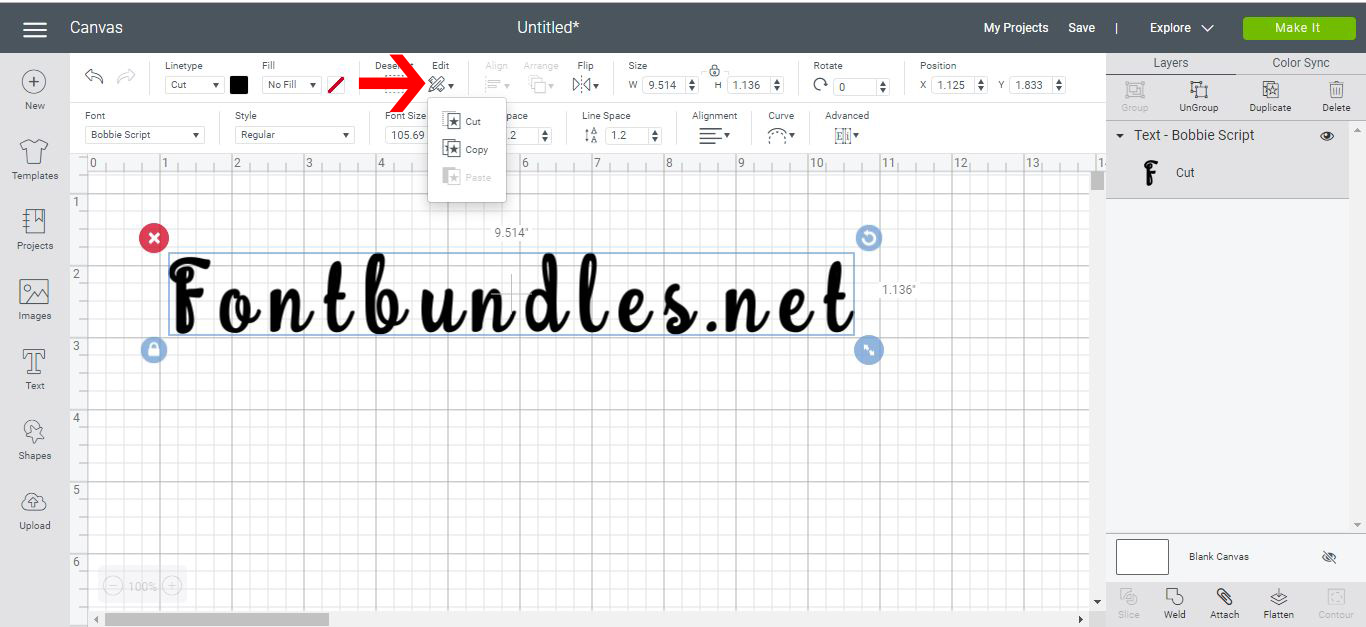
10- The flip tool can change your text horizontally or vertically. This is a good tool when you need to flip text to cut with heat transfer vinyl.
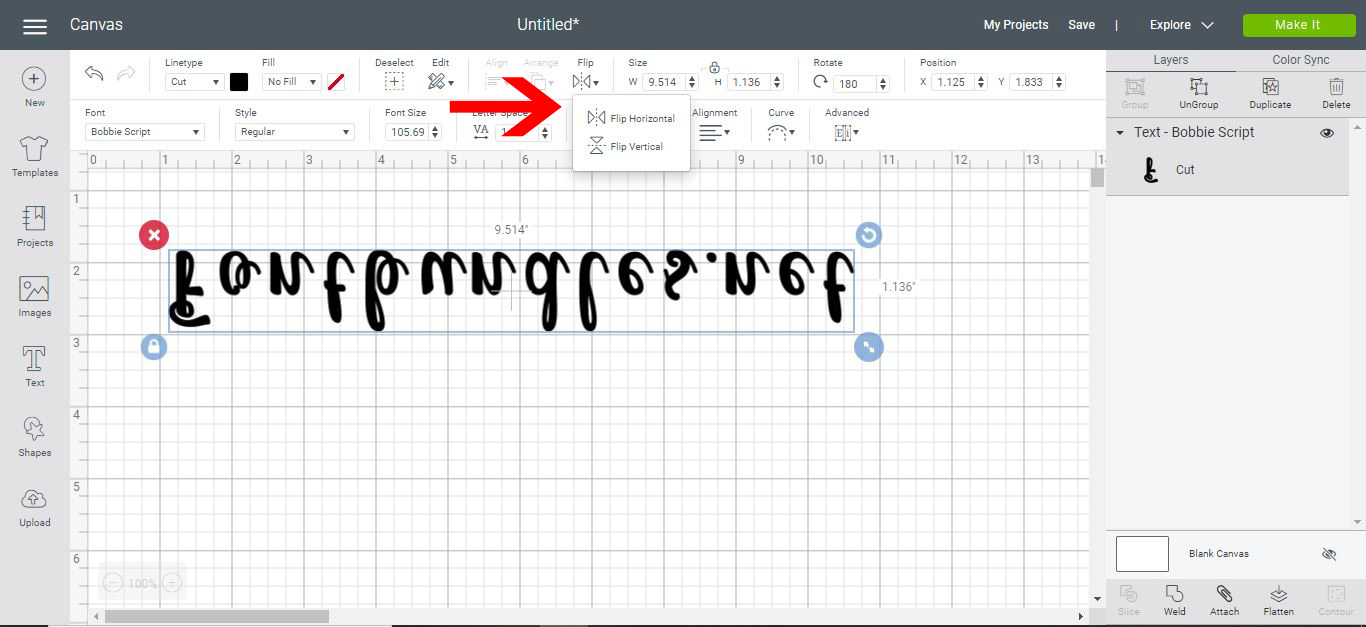
11- You also have the option to change the space between each letter and the space between each row of text.
12- In the advanced drop down box you can ungroup your text by individual letter or by row of text.
13- You now also have the option to curve your text. Just click on the curve icon and then adjust the toggle to change the curve.
14- Lastly you can click on the rotate icon and rotate your text.
Related Tutorials
Cricut Tutorials
How to Use the Edit Toolbar in Cricut Design Space Mobile App
Cricut Tutorials
How To Use The Slice Tool In Cricut Design Space To Split Images
Learn how easily to Split Images in Cricut Design Space using the Slice Tool.
Cricut Tutorials
How to Use a PDF File in Cricut Design Space
In this tutorial we guide you through the steps on using a PDF file in Cricut Design Space.
Cricut Tutorials
How to Edit Default Material Settings in Cricut Design Space
Learn how to easily change your default material settings in Cricut Design Space!
Cricut Tutorials
How to use Glyphs in Cricut Design Space
Discover how to use font glyphs/alternate characters in Cricut Design Space.
Cricut Tutorials
How to Curve Text in Cricut Design Space Mobile App
Today we’ll focus on how to curve Text in Cricut Design Space App....