By Design Bundles
See Through Vector Window in Illustrator
You will need a vectorized image of a “Window” and a “Landscape” to use as “Background”.
1 - In Illustrator, create a “New Document” (Command/Control + N).
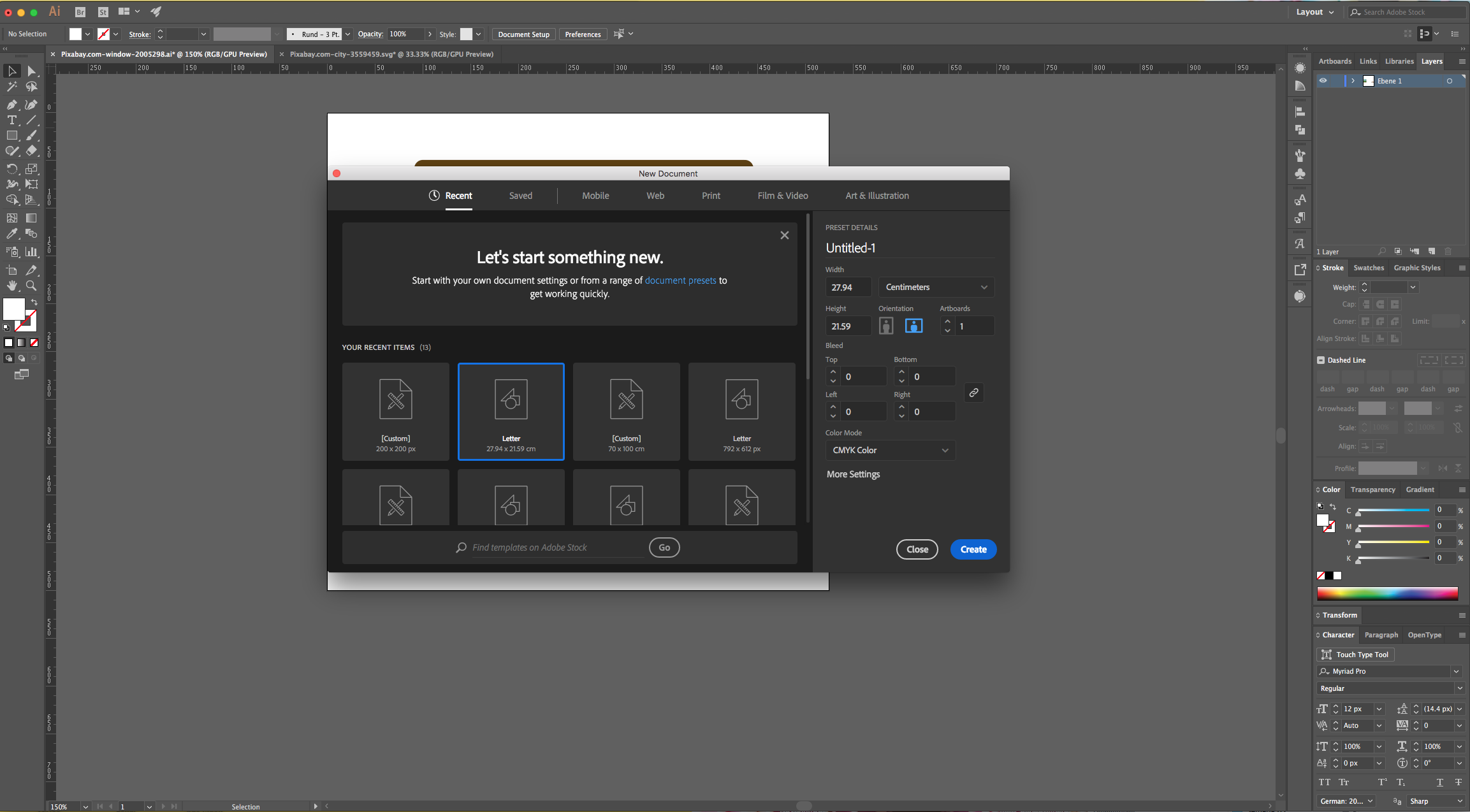
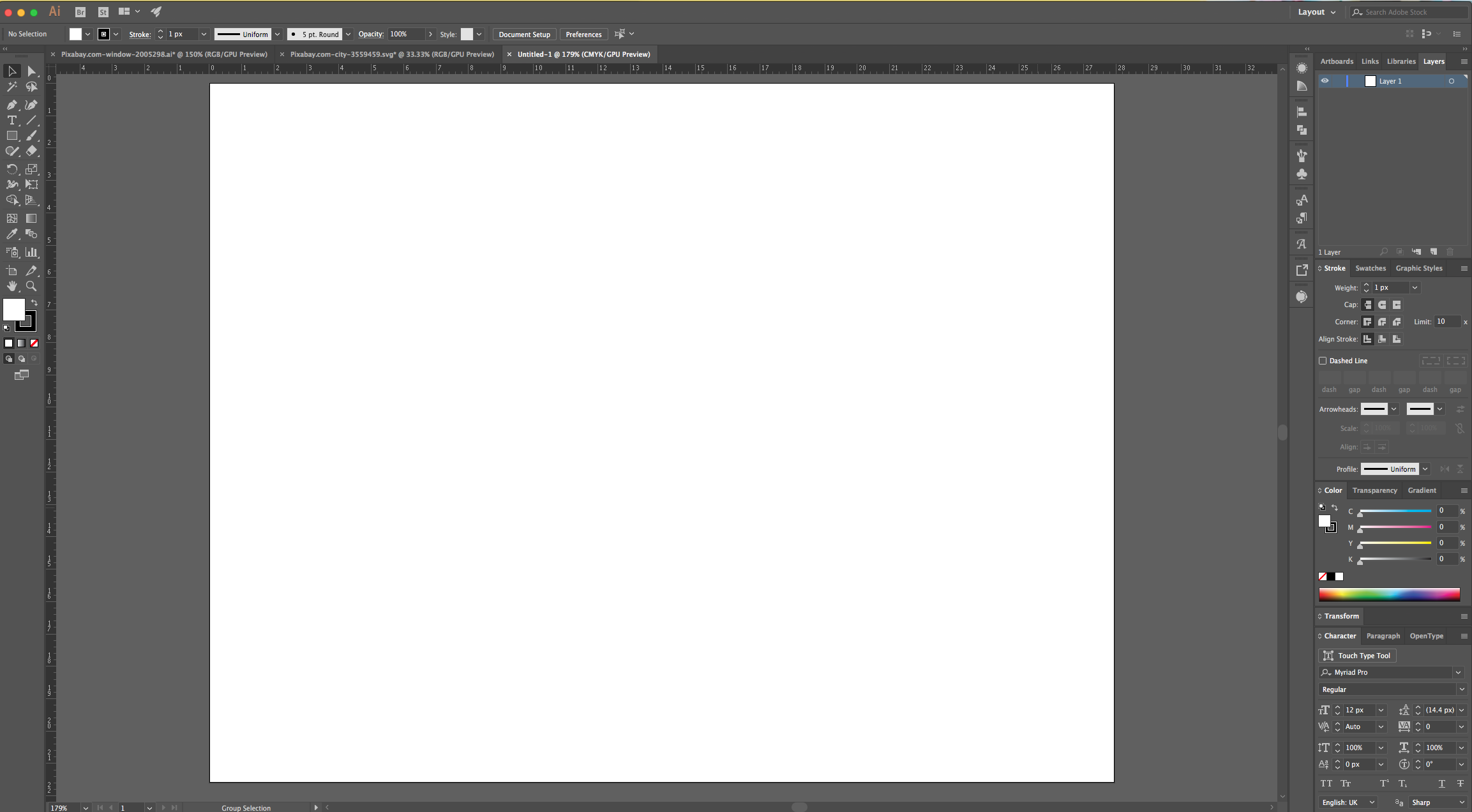
2 - Open the File containing the “Window” Image you chose, then “Copy” (Command/Control + C) and “Paste” it (Command/Control + V) inside your Document.
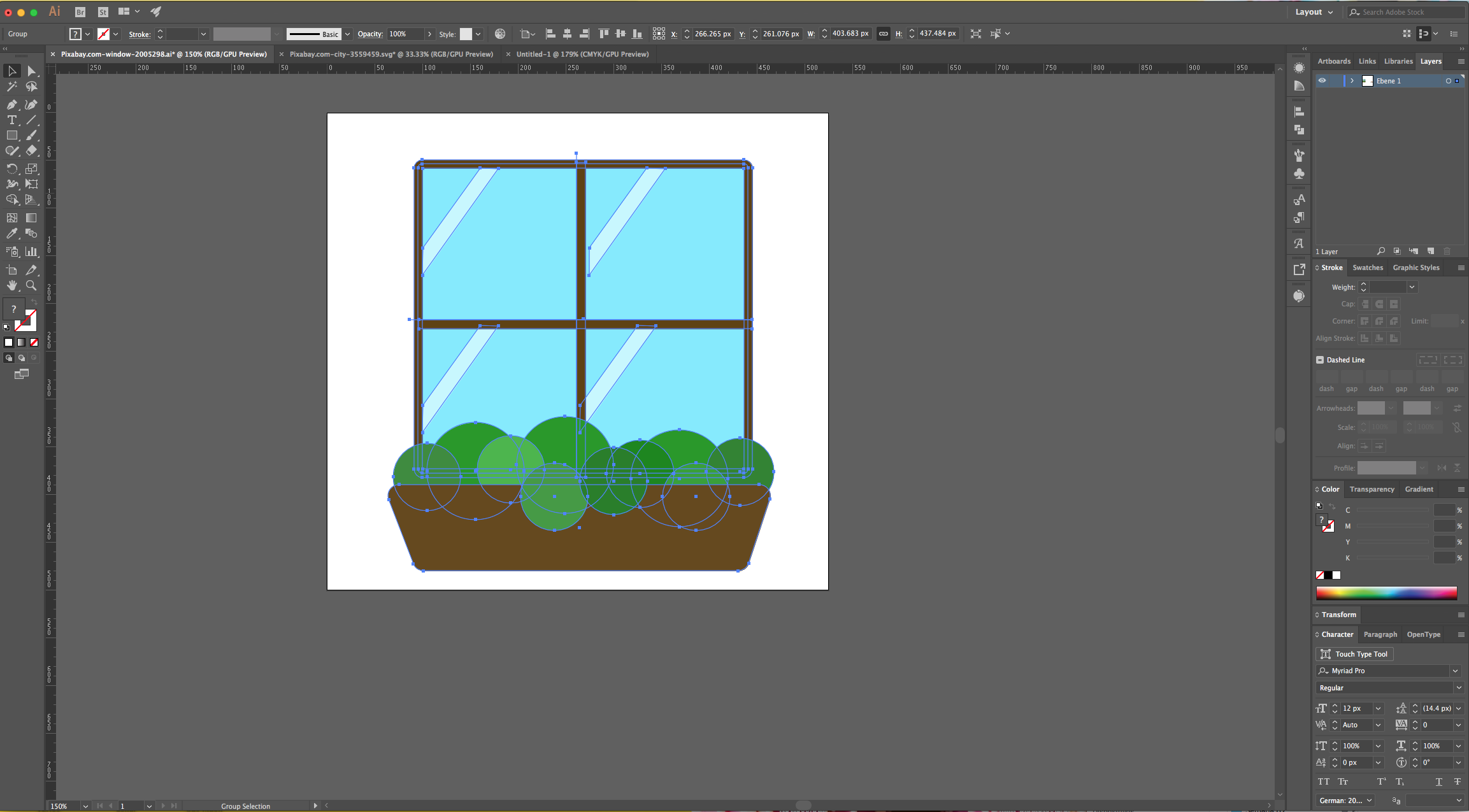
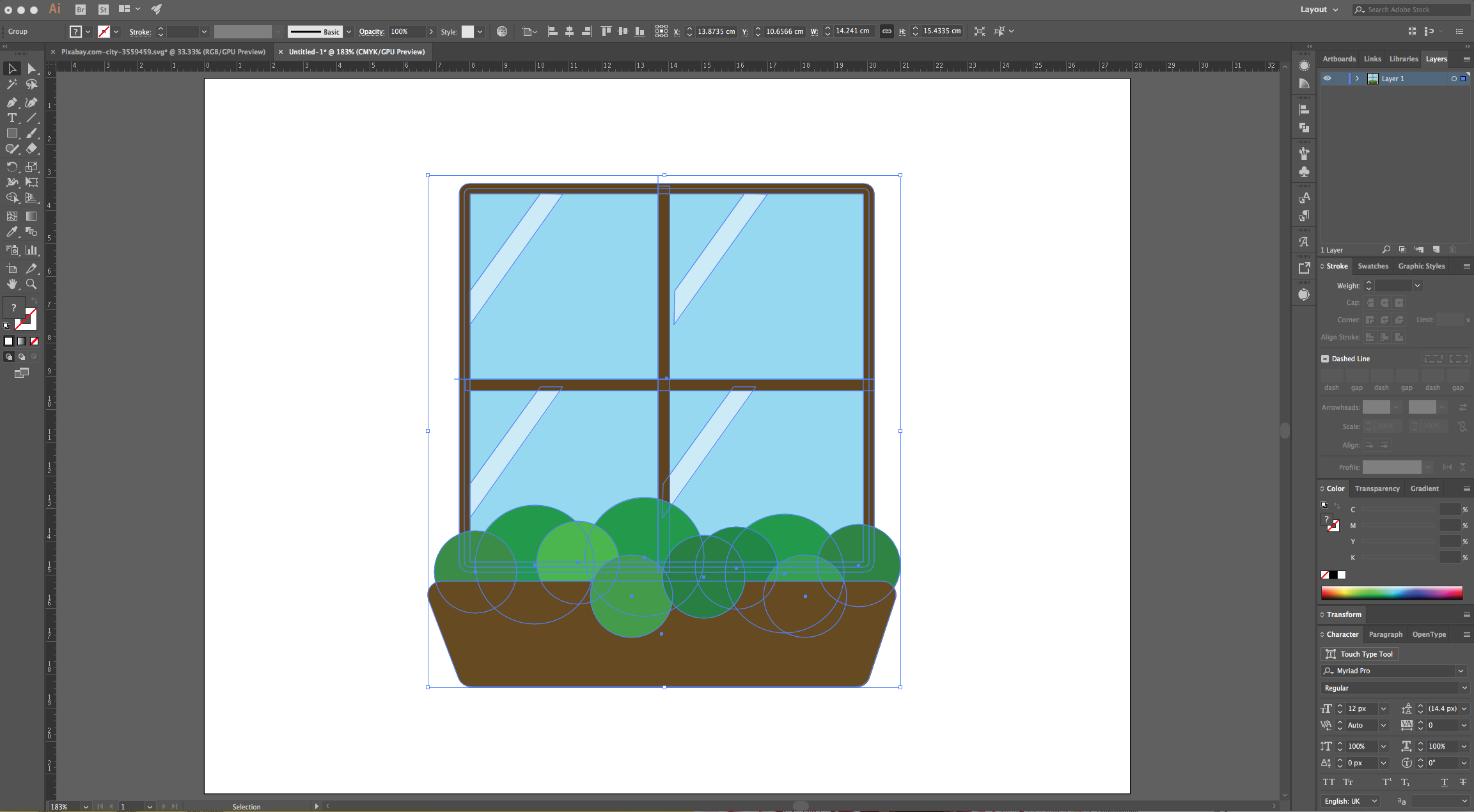
3 - Resize it if needed and then, right-click on top of the “Window” vector and choose “Ungroup”.
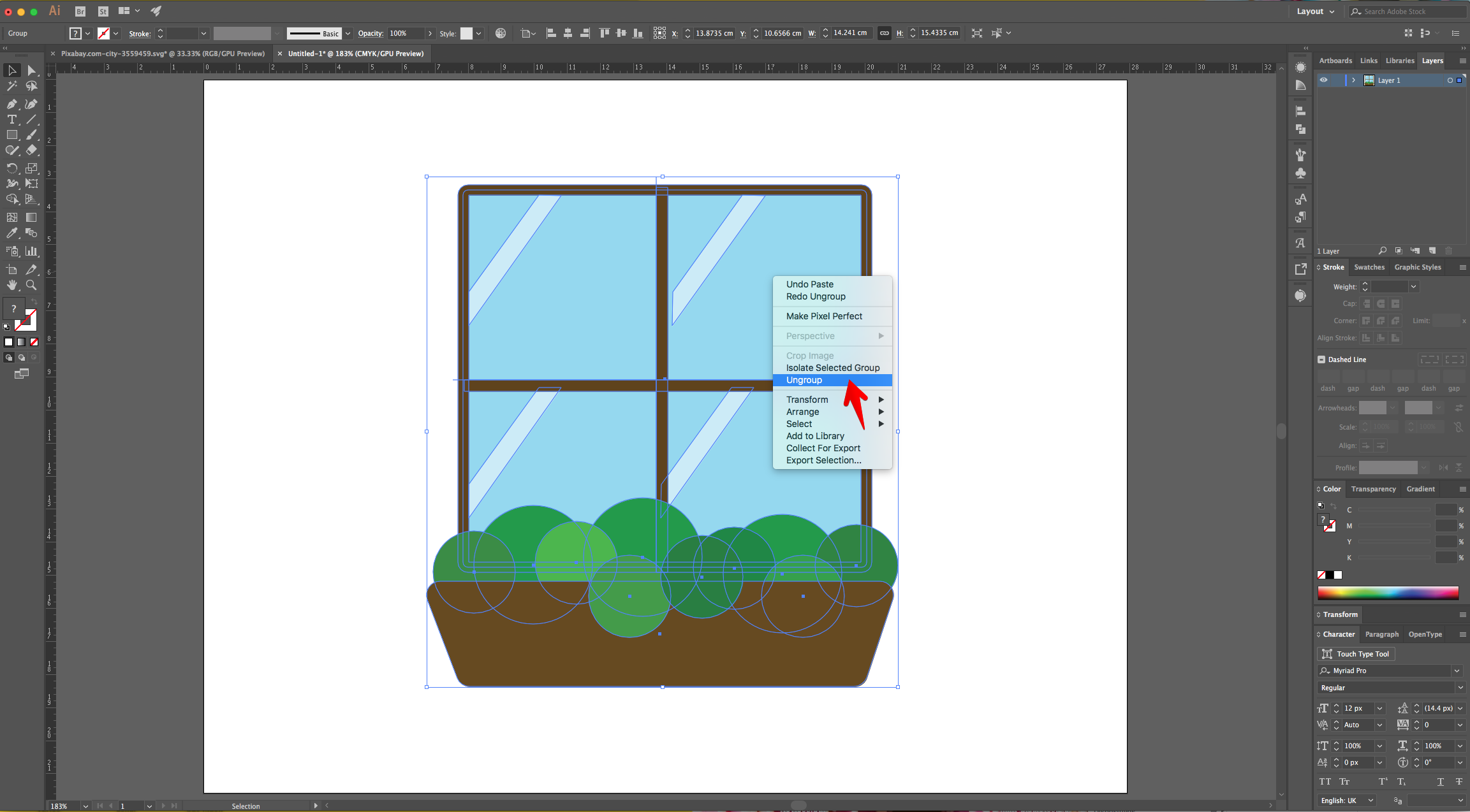
4 - Select the “Rectangle Tool” (M), click and drag from the Top - Left corner of your document and create a “Rectangle” that covers the entire “Canvas”. Use a contrasting color as “Fill” (we chose a bright Orange from the “Swatches Panel”).
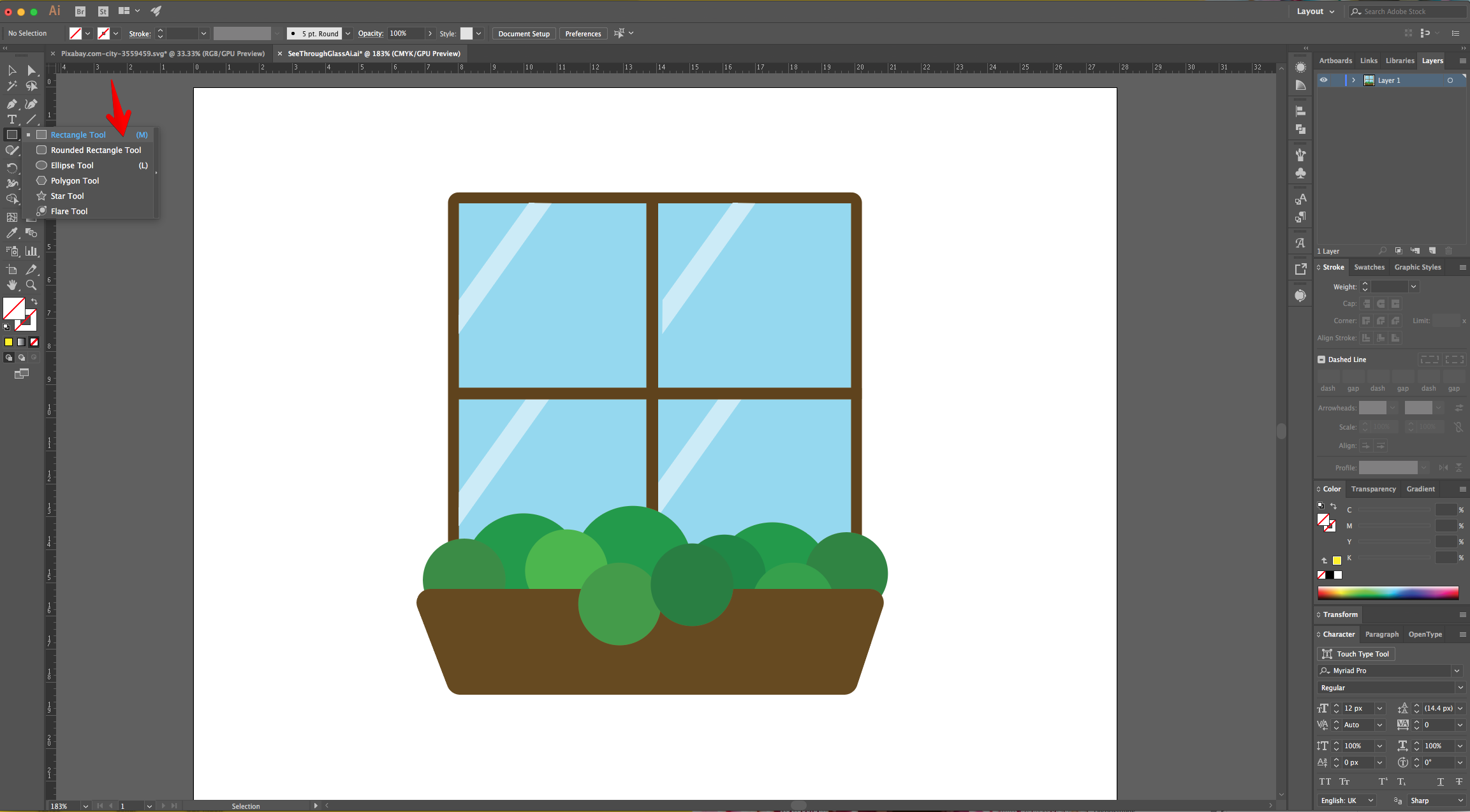
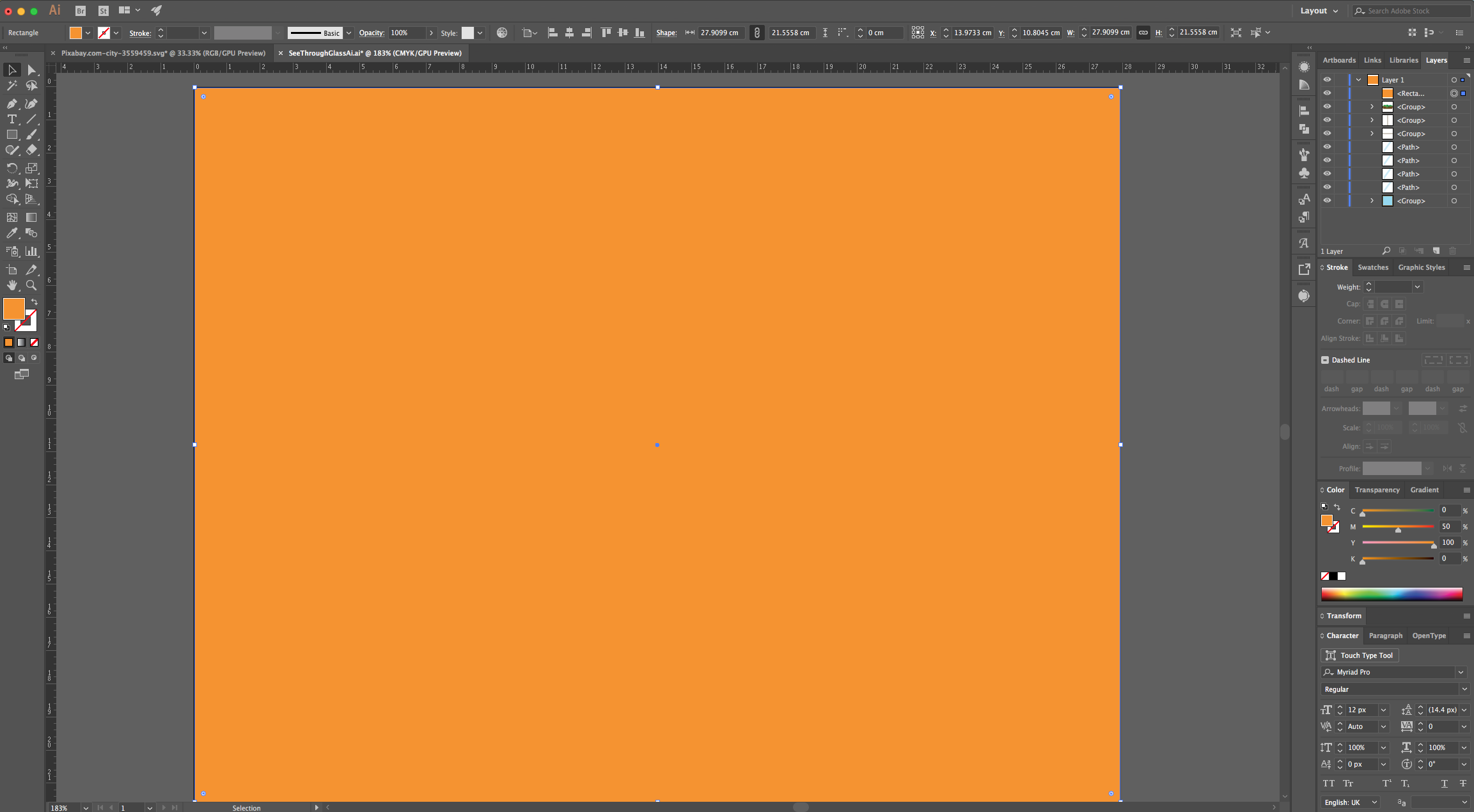
5 - Place the “Rectangle” under the “Window”. Select it in the “Layers Panel” and drag its Thumbnail down.
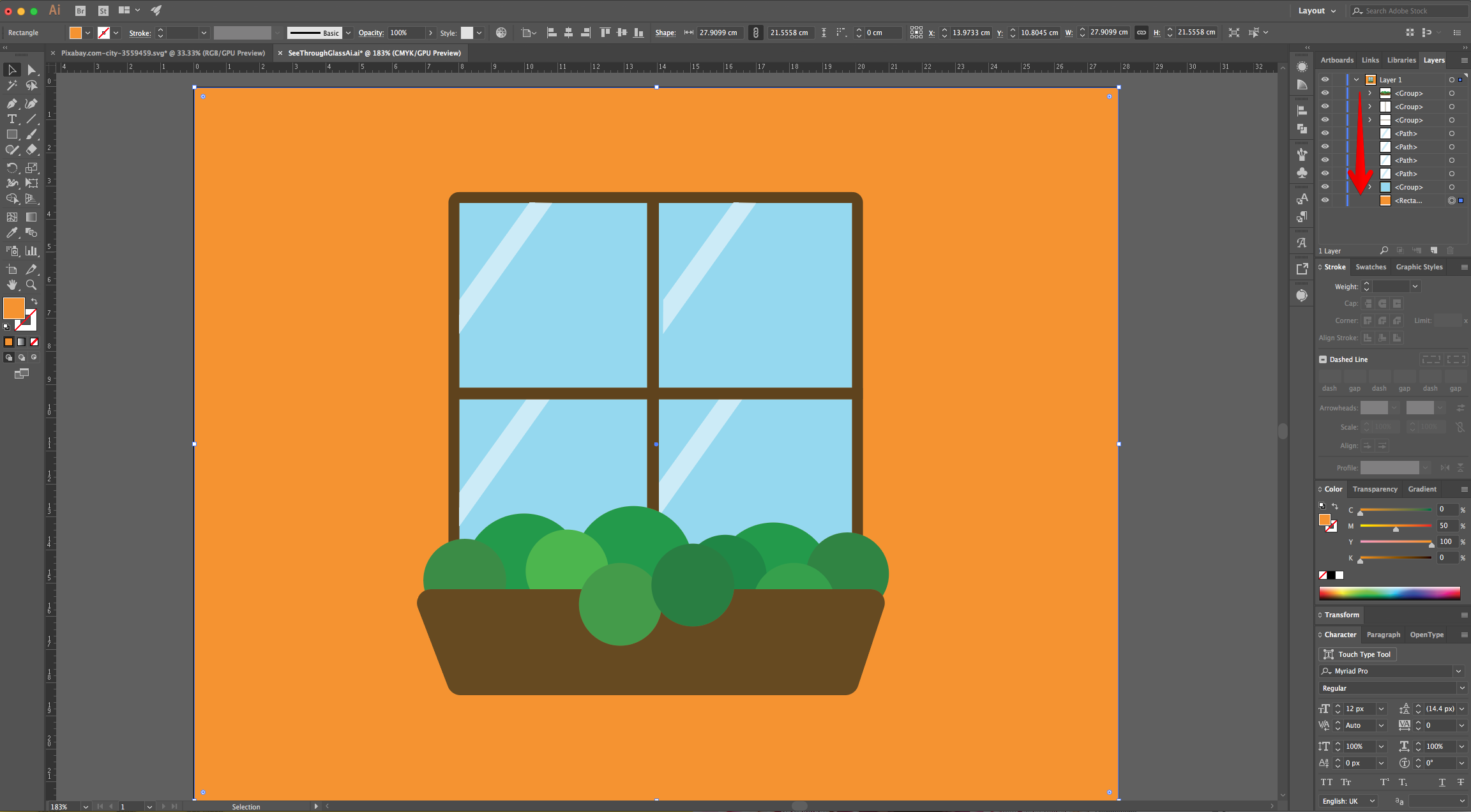
6 - Open the File containing the “Landscape” Image you chose, “Copy” (Command/Control + C) and “Paste in Back” (Command/Control + B) inside your Document. Resize it if needed and position it so the portion you want to show is under the “Glass” of the “Window”.
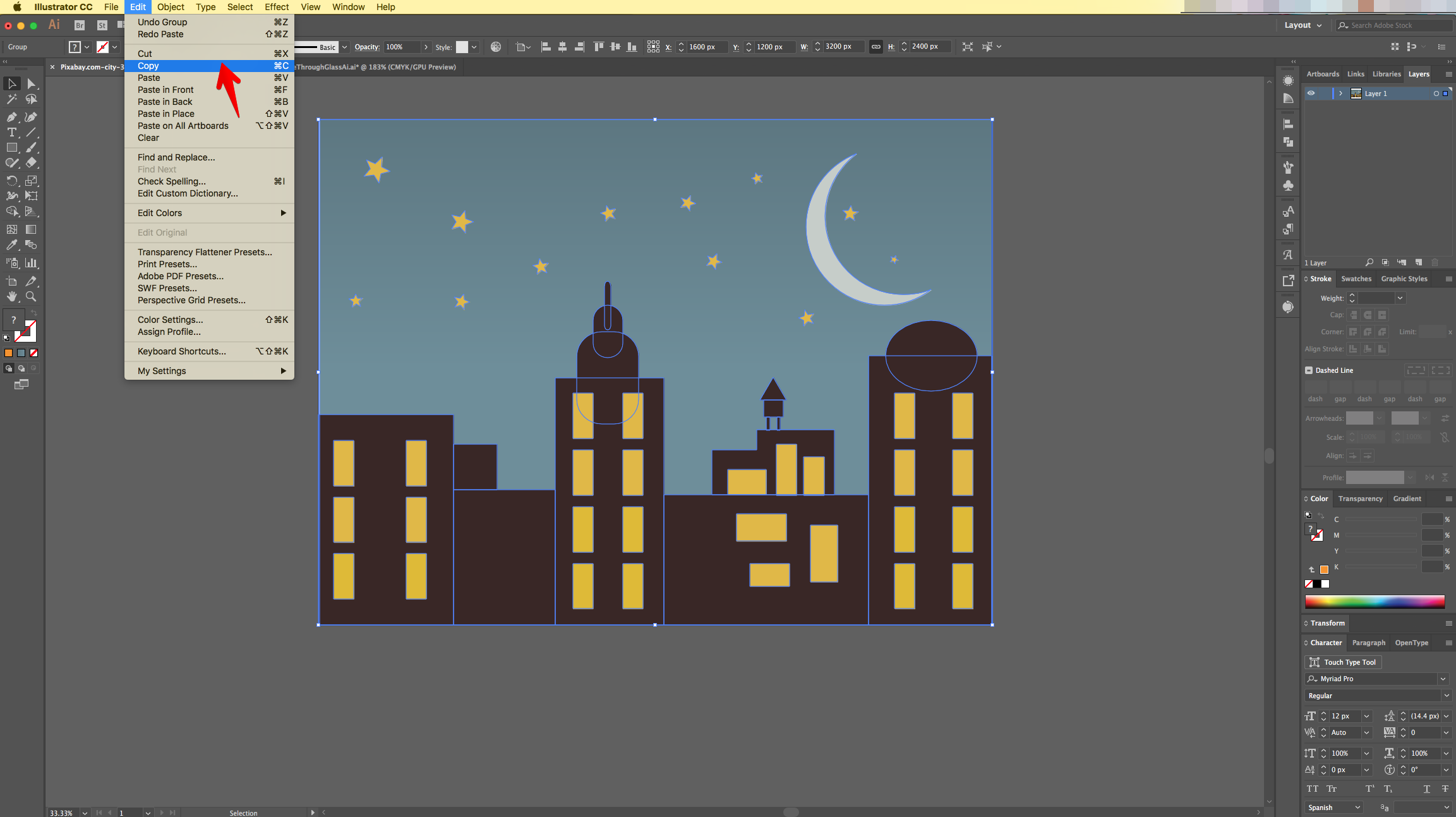
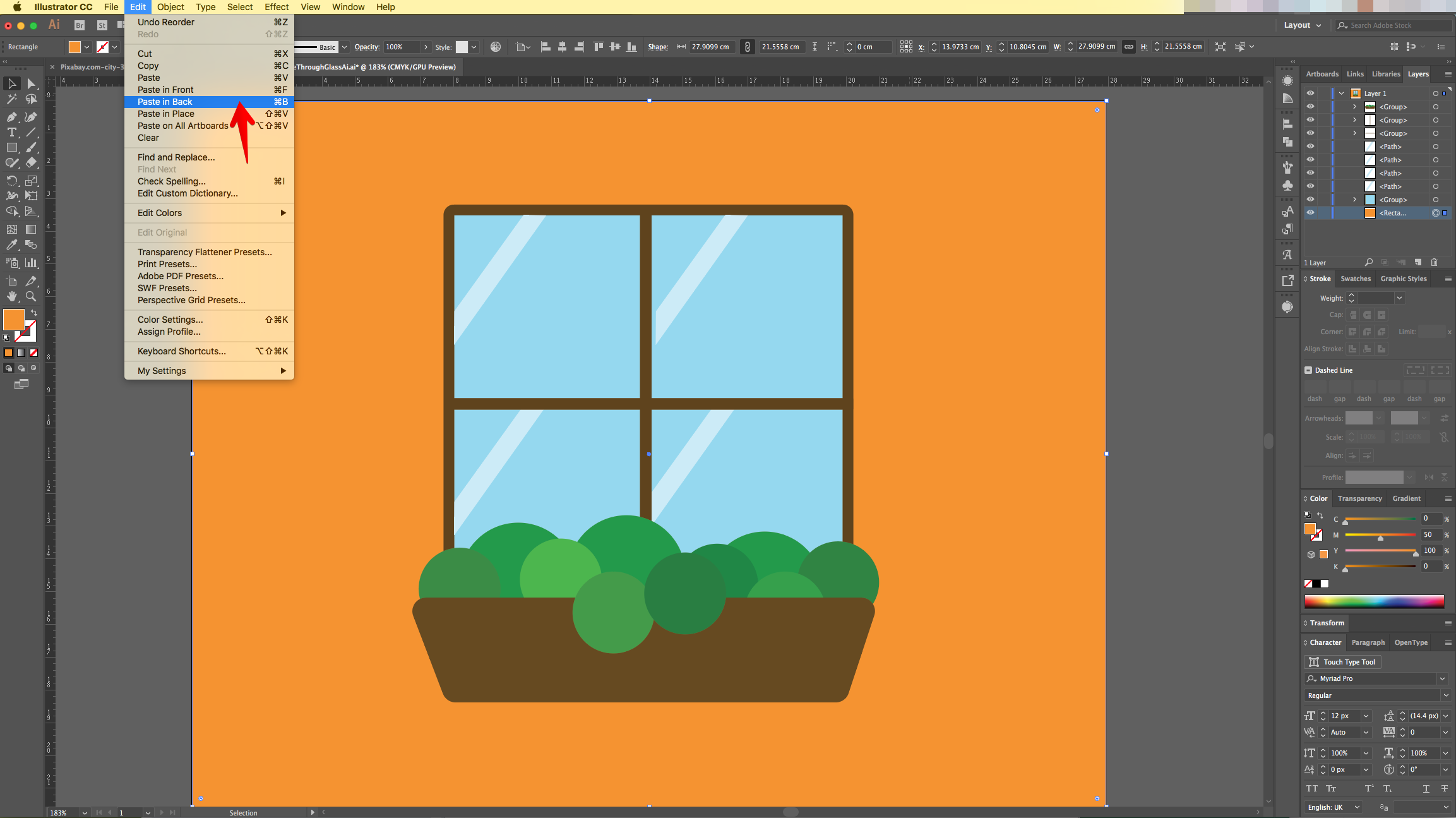
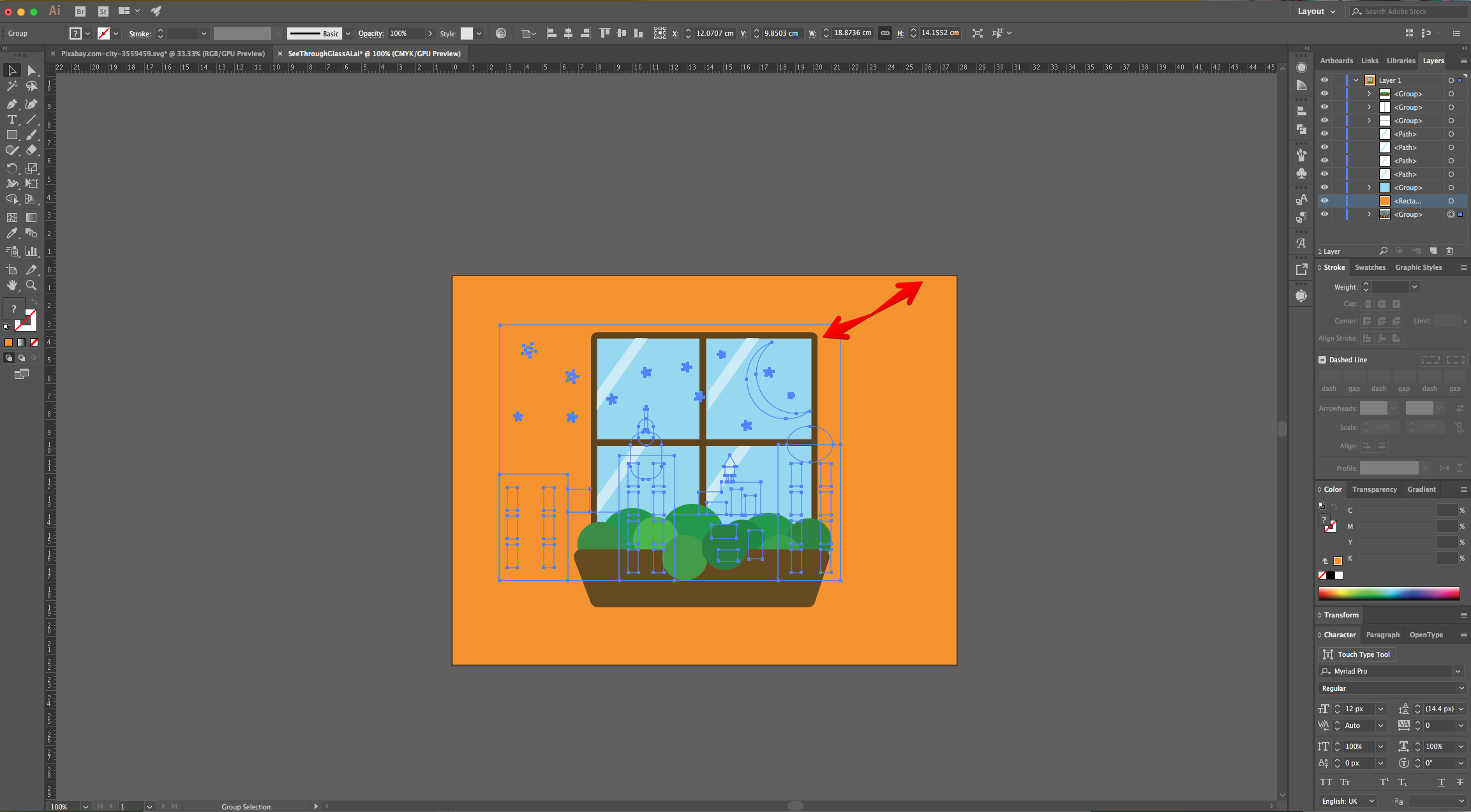
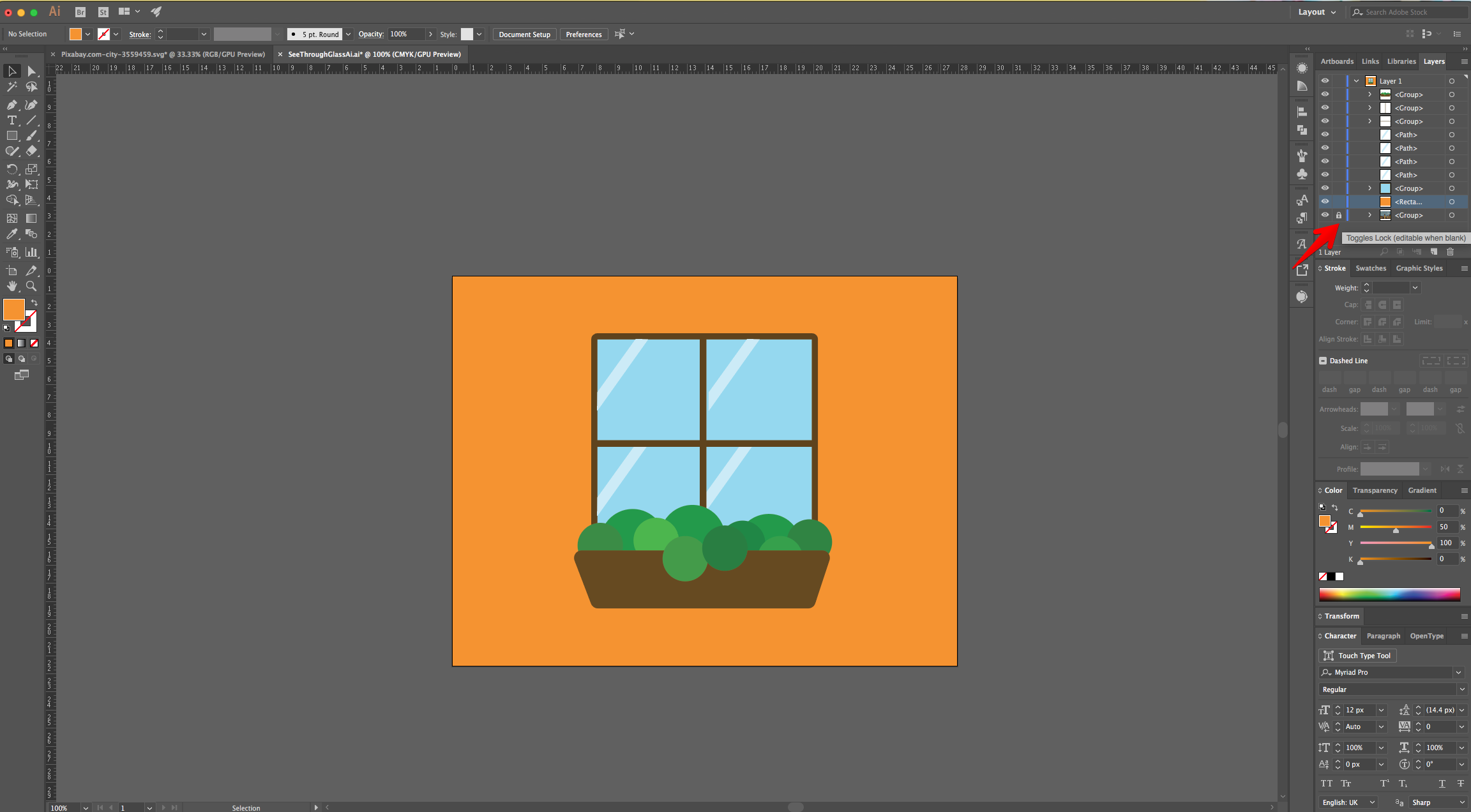
7 - “Lock” the background using the small “Padlock” icon on the left side of its Thumbnail in the “Layers Panel”. Then, “Copy” (Command/Control + C) and “Paste in Back” (Command/Control + B).
8 - Select the “Background Rectangle” and the “Glass” portion of the “Window” that sits on top of it.
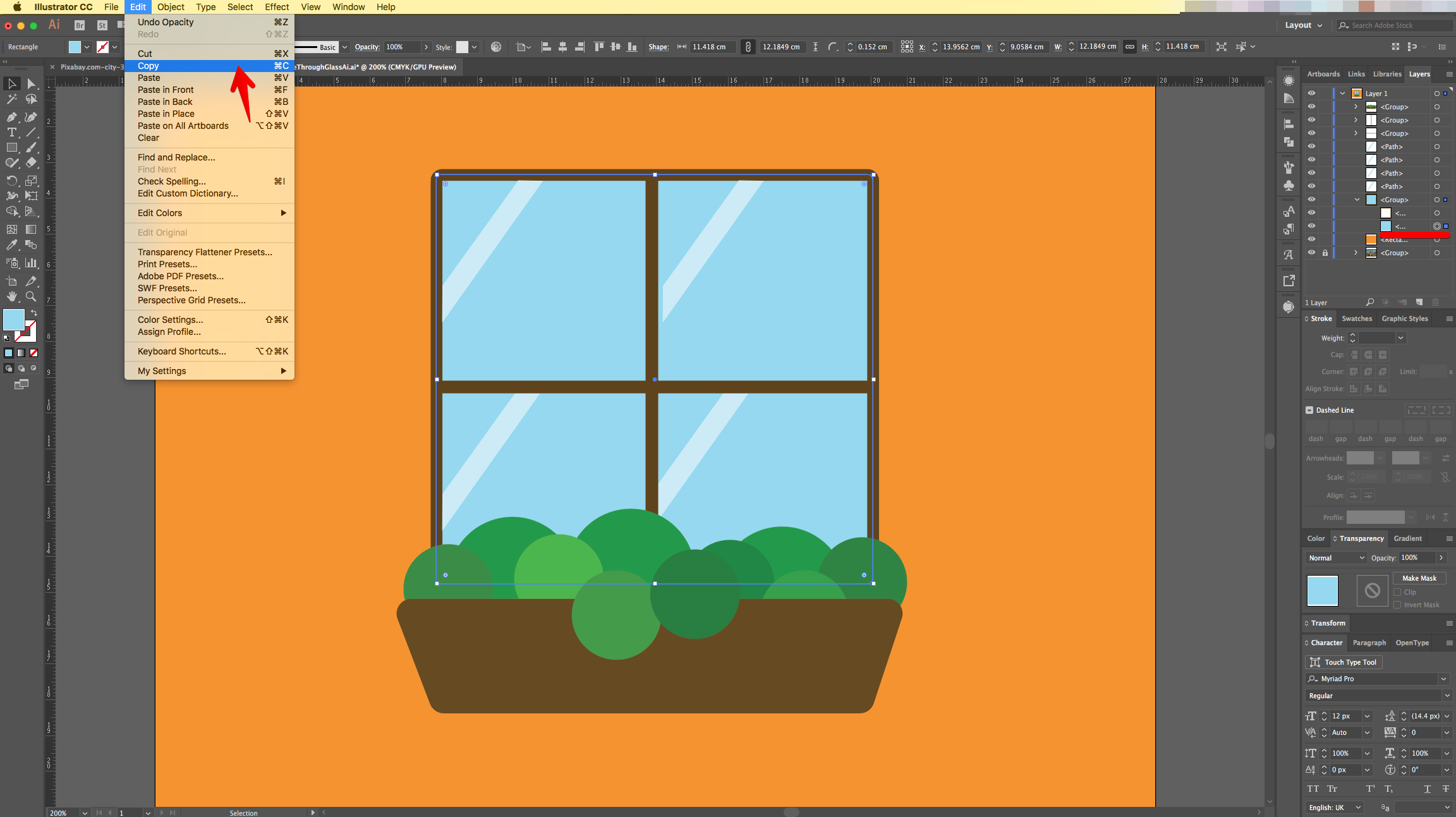
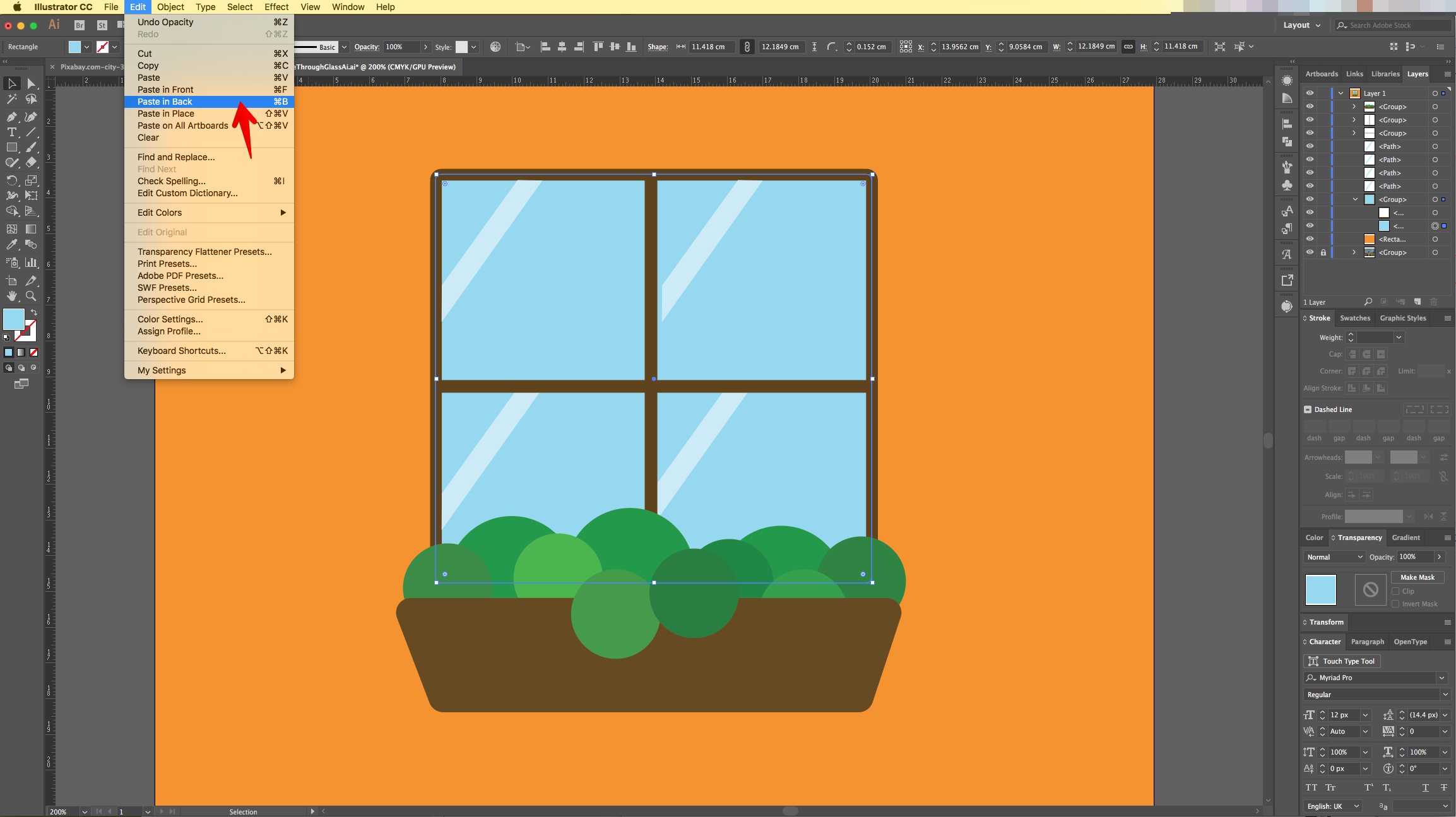
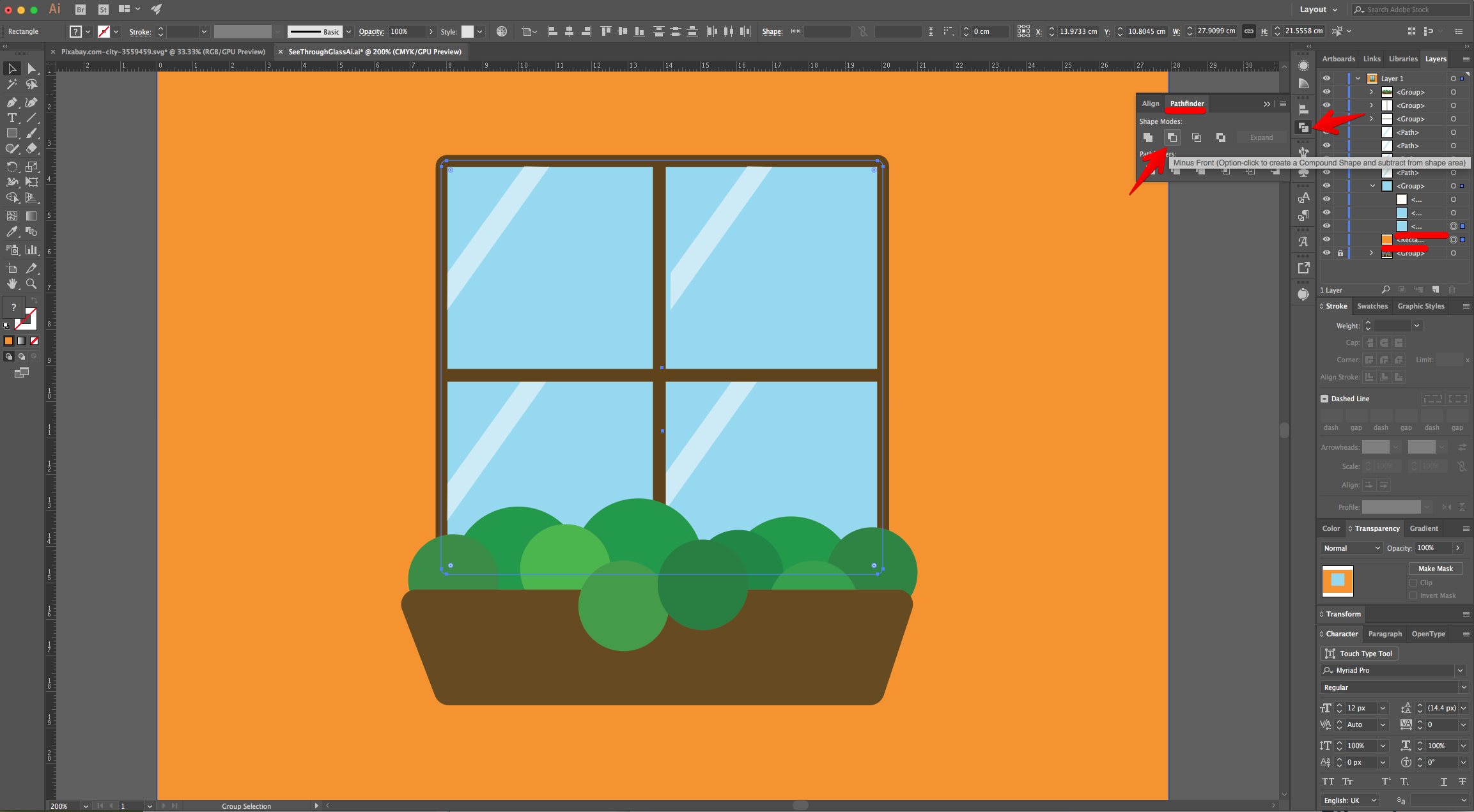
9 - Head to the “Pathfinder Panel” and choose “Minus Front” to cut a hole in the “Wall”.
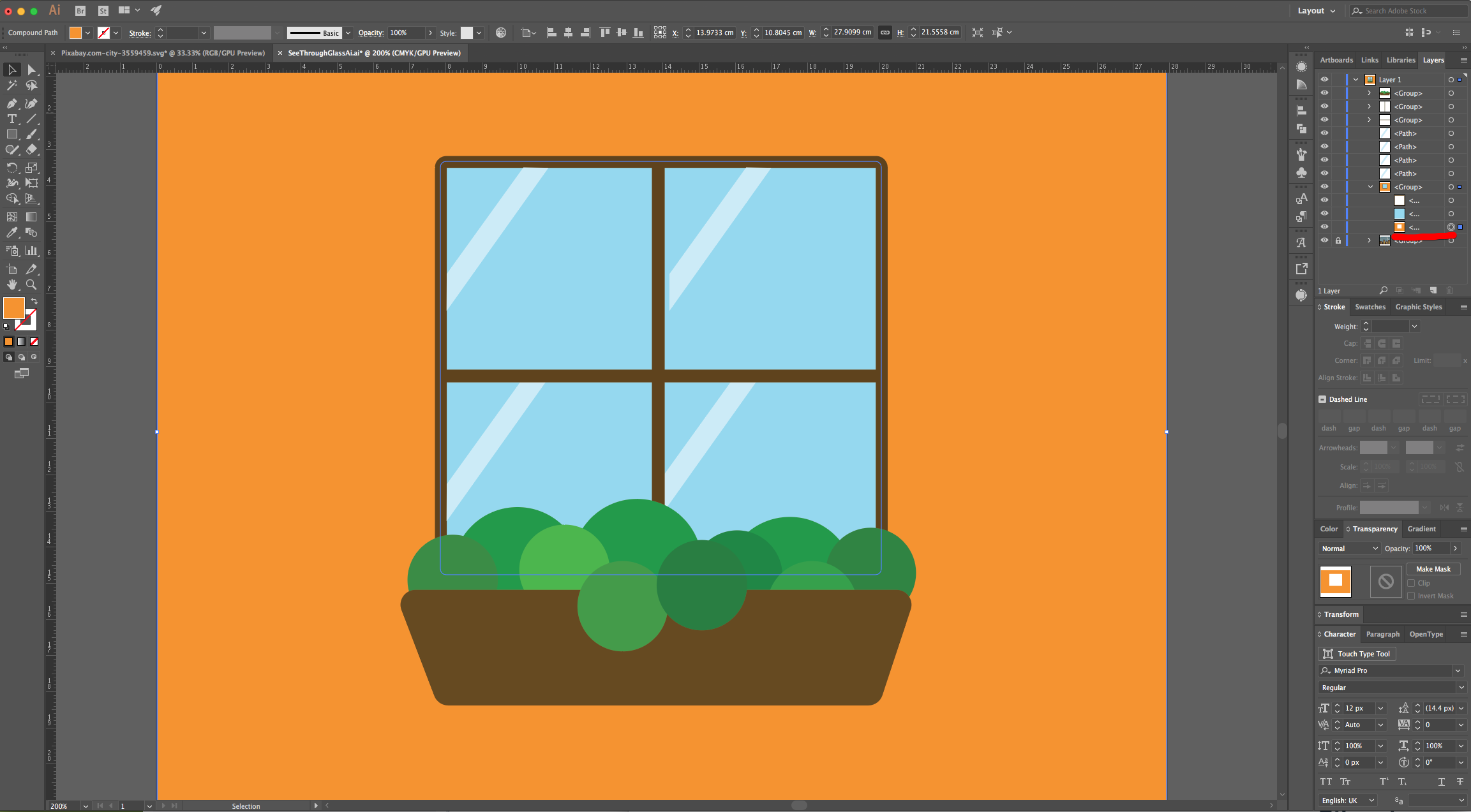
10 - Select the “Glass”, head to the “Transparency Panel” and lower its “Opacity” to 65%. Now you will be able to see the “Background” through the “Glass”.
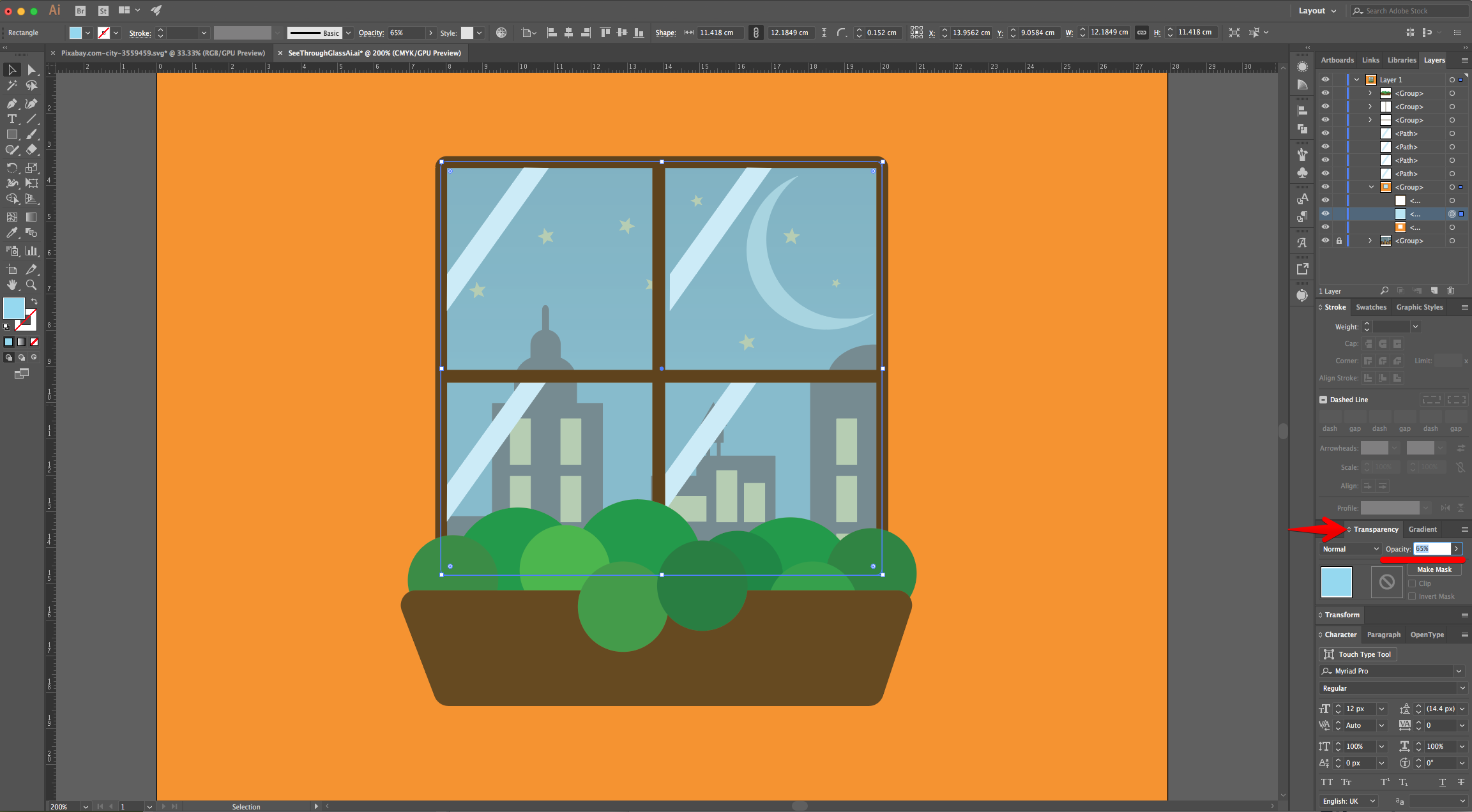
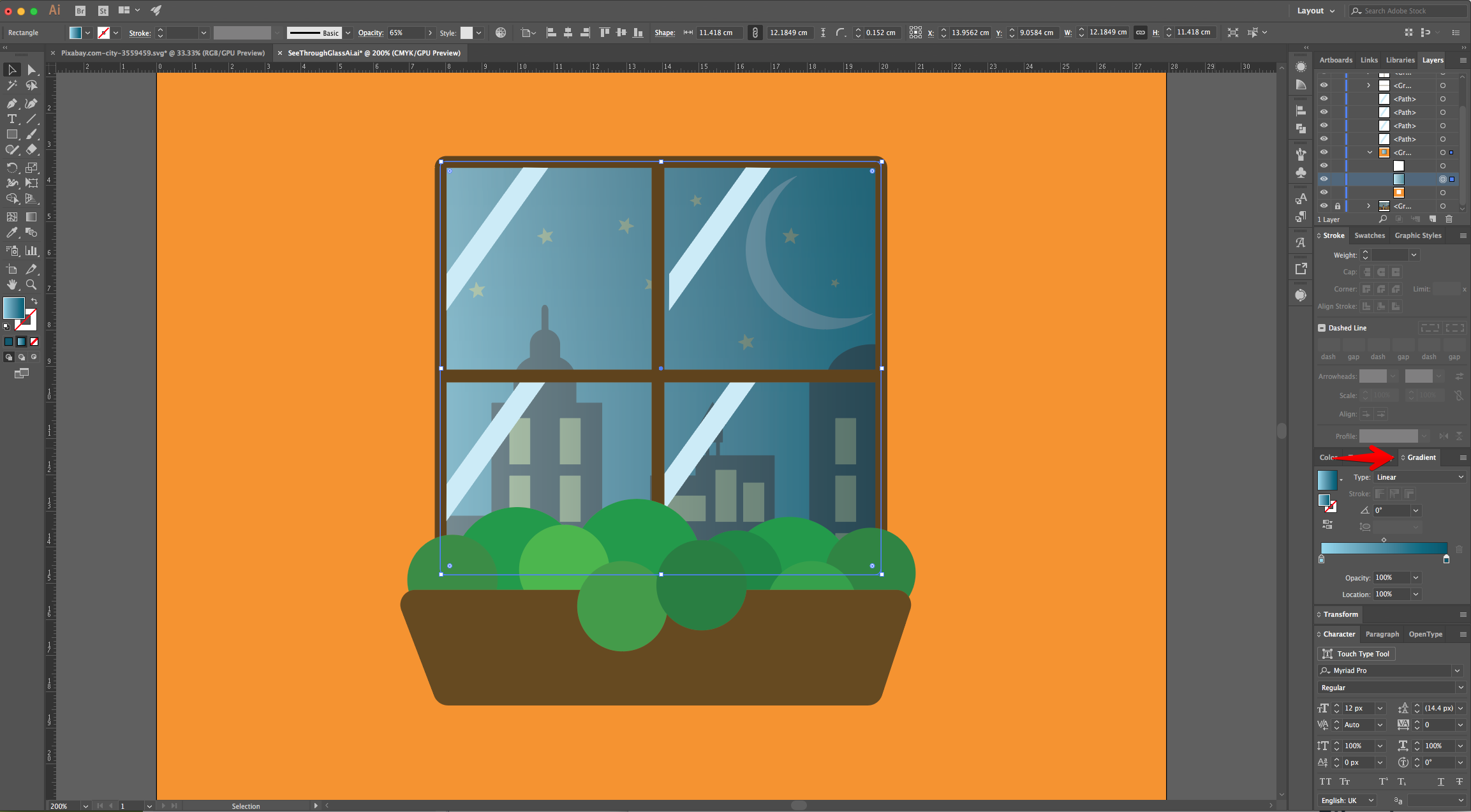
11 - Select the “Glass” and change the “Fill” to “Linear Gradient” from a Light Blue to a darker shade (we used #95d8ee and #00576f).
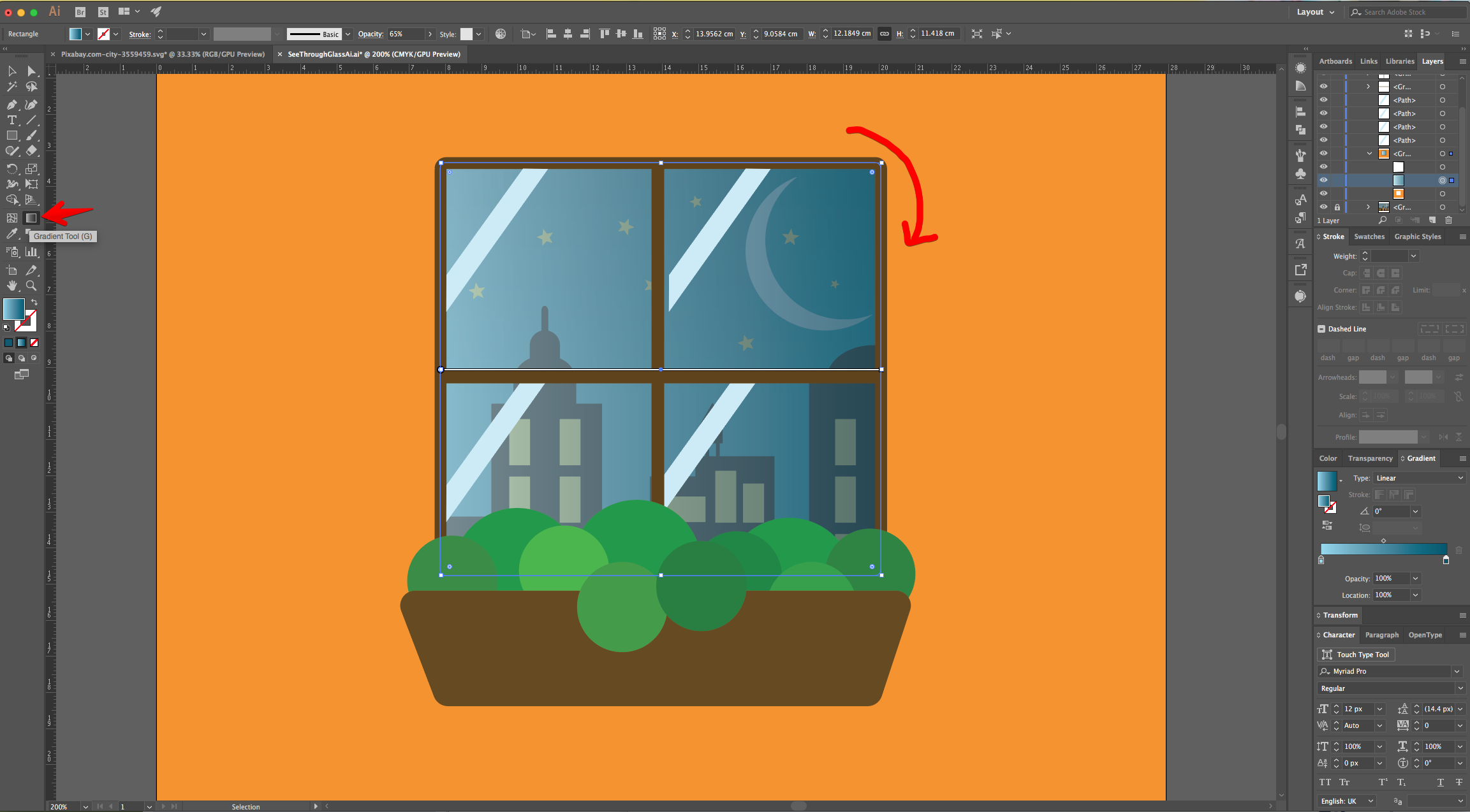
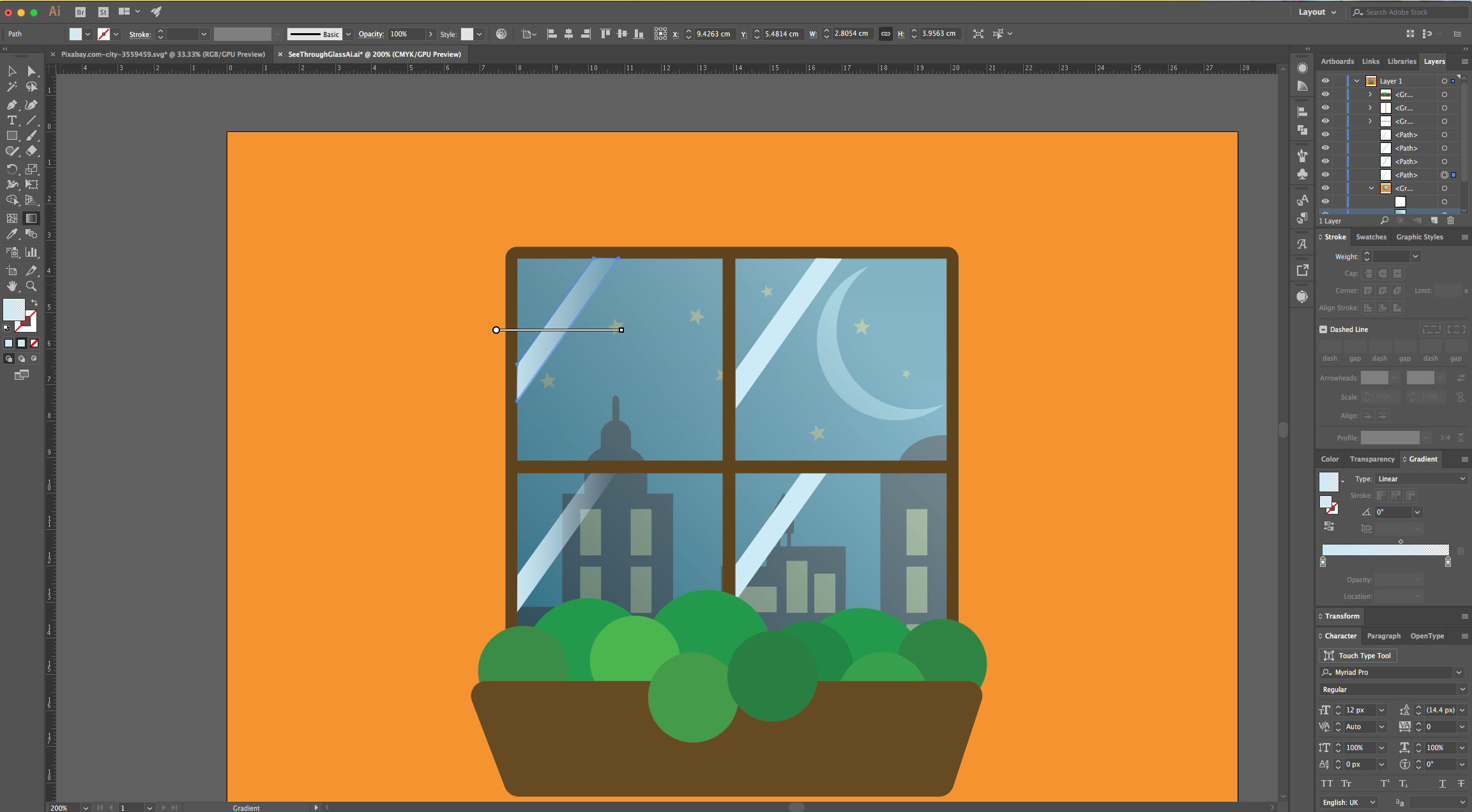
12 - Click on the “Gradient Tool” (G) in the “Toolbar” to see the “Gradient Slider” on top of the Vector and rotate it so the lighter portion coincides with the light source.
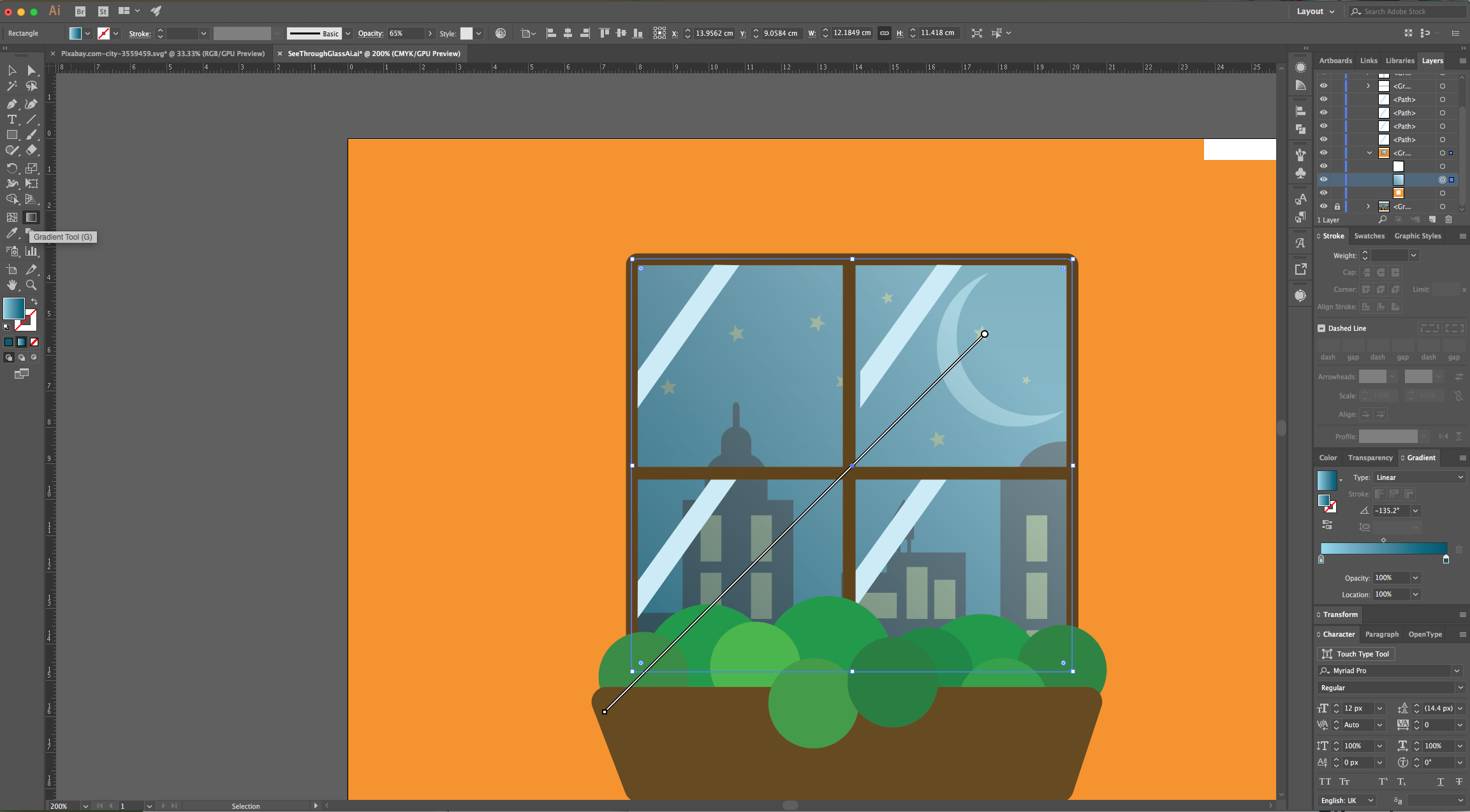
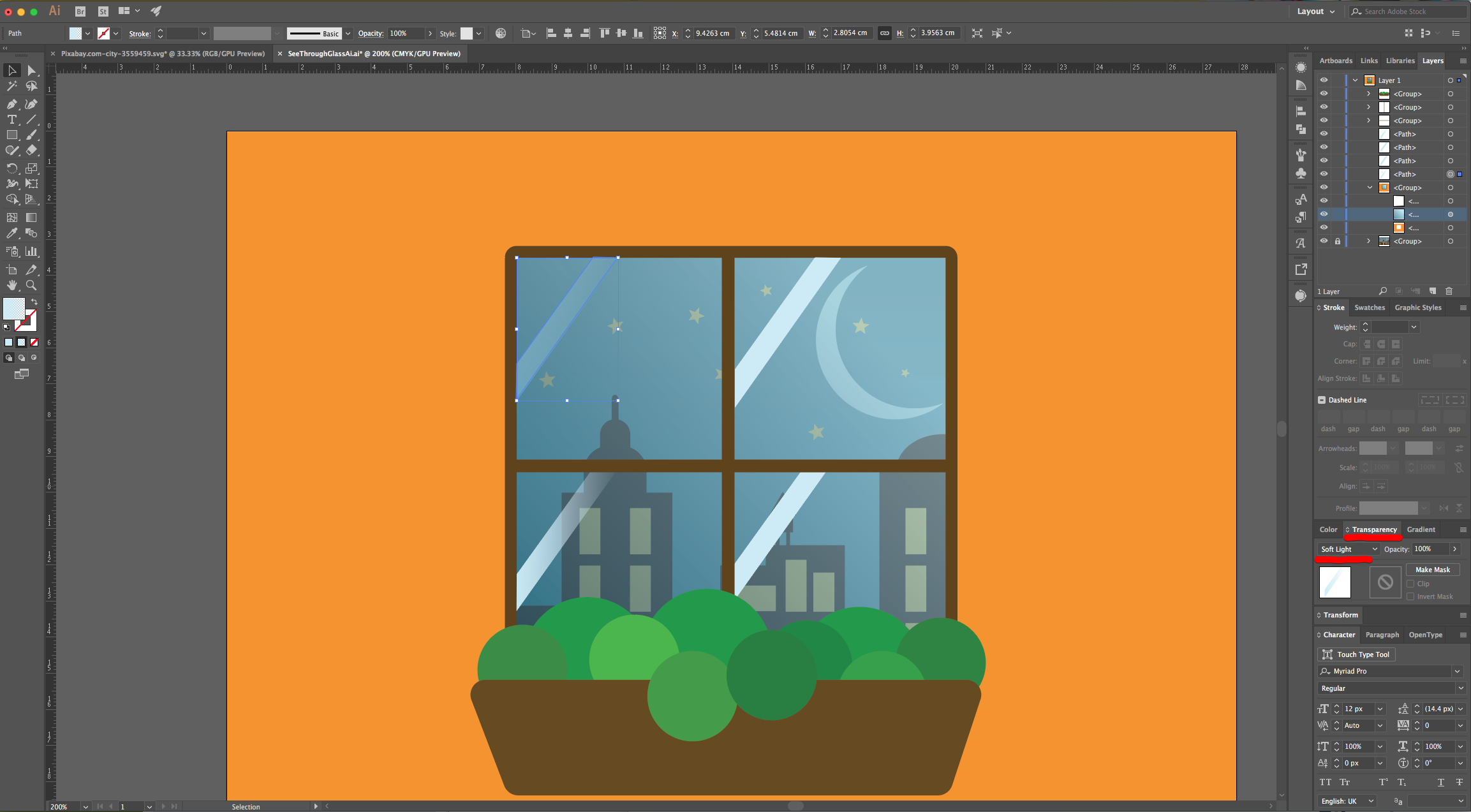
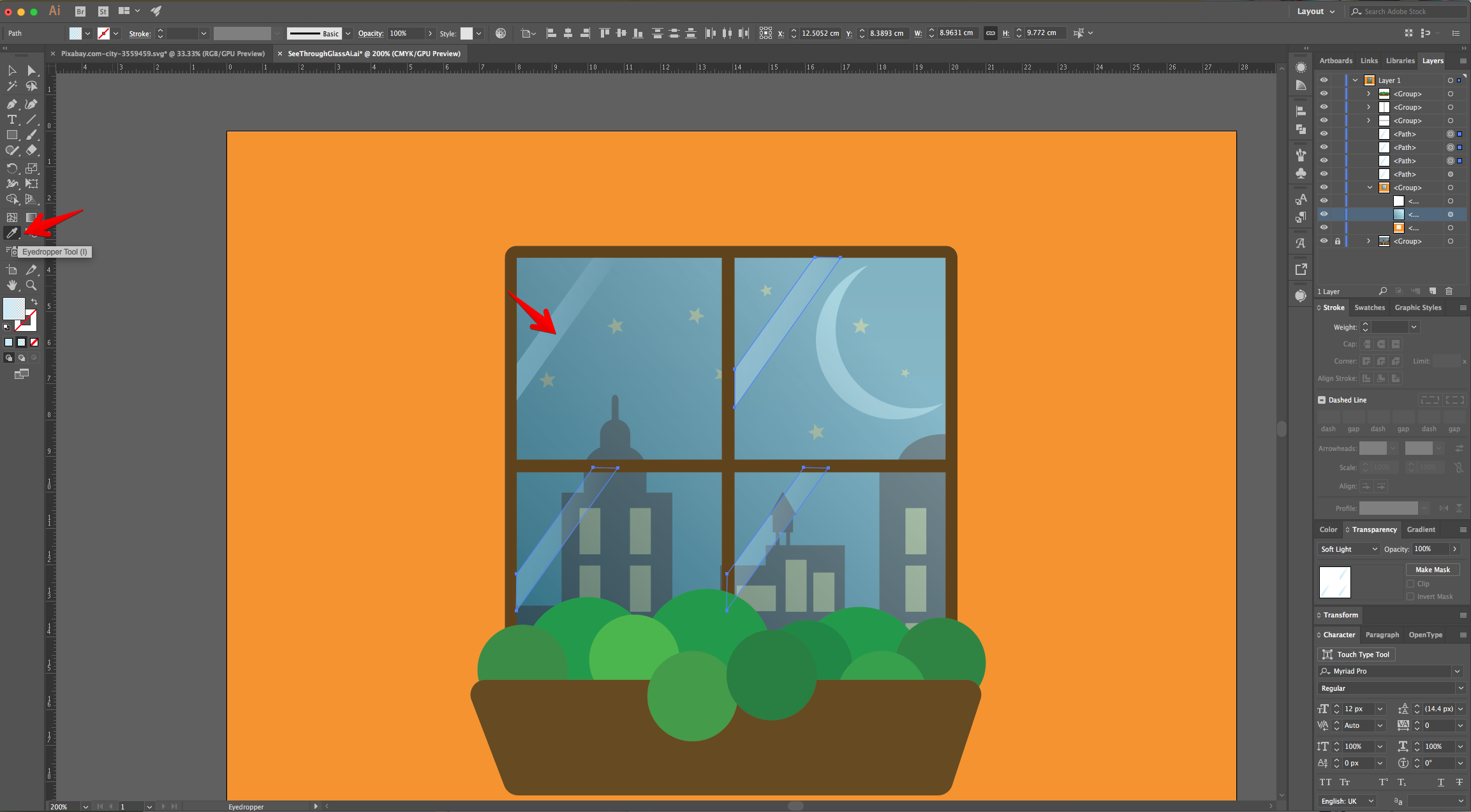
13 - Select or create some perpendicular Rectangles inside the “Glass” to mimic a light reflection, fill them with a “Linear Gradient” from a Light Blue (#ccebf6) to Transparent. Change the “Blending Mode” to “Soft Light” in the “Transparency Panel”. You can use the “Eyedropper Tool” to copy the gradient fill to other reflections if needed.
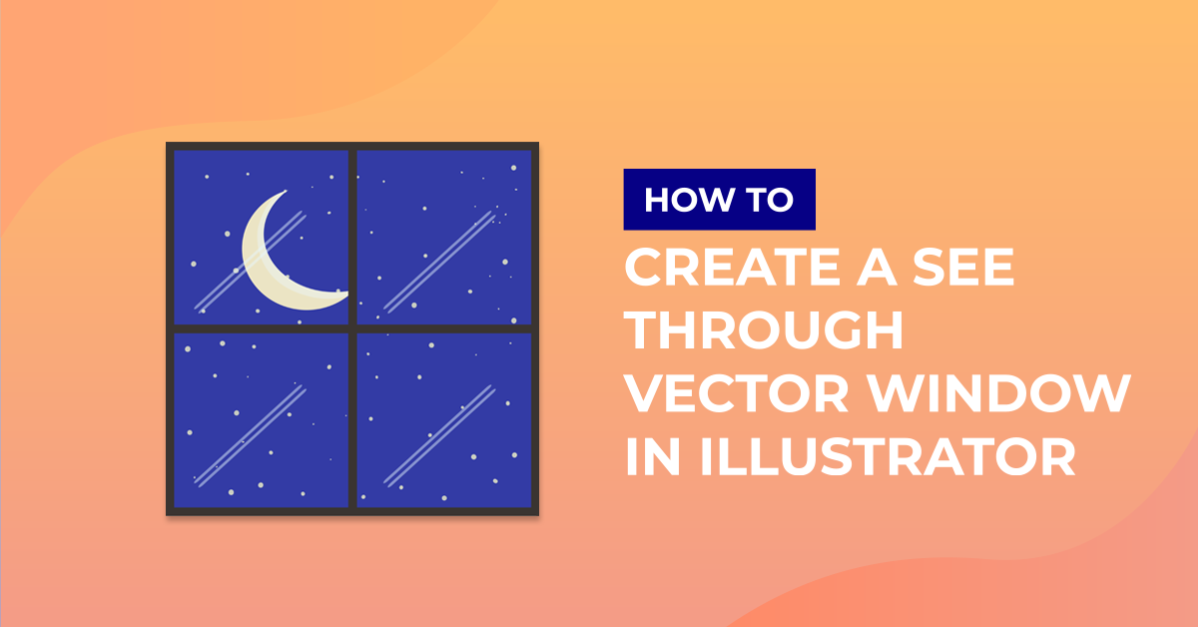
14 - Your work should be similar to this.
1 - In Illustrator, create a “New Document” (Command/Control + N).
2 - Open the File containing the “Window” Image you chose, then “Copy” (Command/Control + C) and “Paste” it (Command/Control + V) inside your Document.
3 - Resize it if needed and then, right-click on top of the “Window” vector and choose “Ungroup”.
4 - Select the “Rectangle Tool” (M), click and drag from the Top - Left corner of your document and create a “Rectangle” that covers the entire “Canvas”. Use a contrasting color as “Fill” (we chose a bright Orange from the “Swatches Panel”).
5 - Place the “Rectangle” under the “Window”. Select it in the “Layers Panel” and drag its Thumbnail down.
6 - Open the File containing the “Landscape” Image you chose, “Copy” (Command/Control + C) and “Paste in Back” (Command/Control + B) inside your Document. Resize it if needed and position it so the portion you want to show is under the “Glass” of the “Window”.
7 - “Lock” the background using the small “Padlock” icon on the left side of its Thumbnail in the “Layers Panel”. Then, “Copy” (Command/Control + C) and “Paste in Back” (Command/Control + B).
8 - Select the “Background Rectangle” and the “Glass” portion of the “Window” that sits on top of it.
9 - Head to the “Pathfinder Panel” and choose “Minus Front” to cut a hole in the “Wall”.
10 - Select the “Glass”, head to the “Transparency Panel” and lower its “Opacity” to 65%. Now you will be able to see the “Background” through the “Glass”.
11 - Select the “Glass” and change the “Fill” to “Linear Gradient” from a Light Blue to a darker shade (we used #95d8ee and #00576f).
12 - Click on the “Gradient Tool” (G) in the “Toolbar” to see the “Gradient Slider” on top of the Vector and rotate it so the lighter portion coincides with the light source.
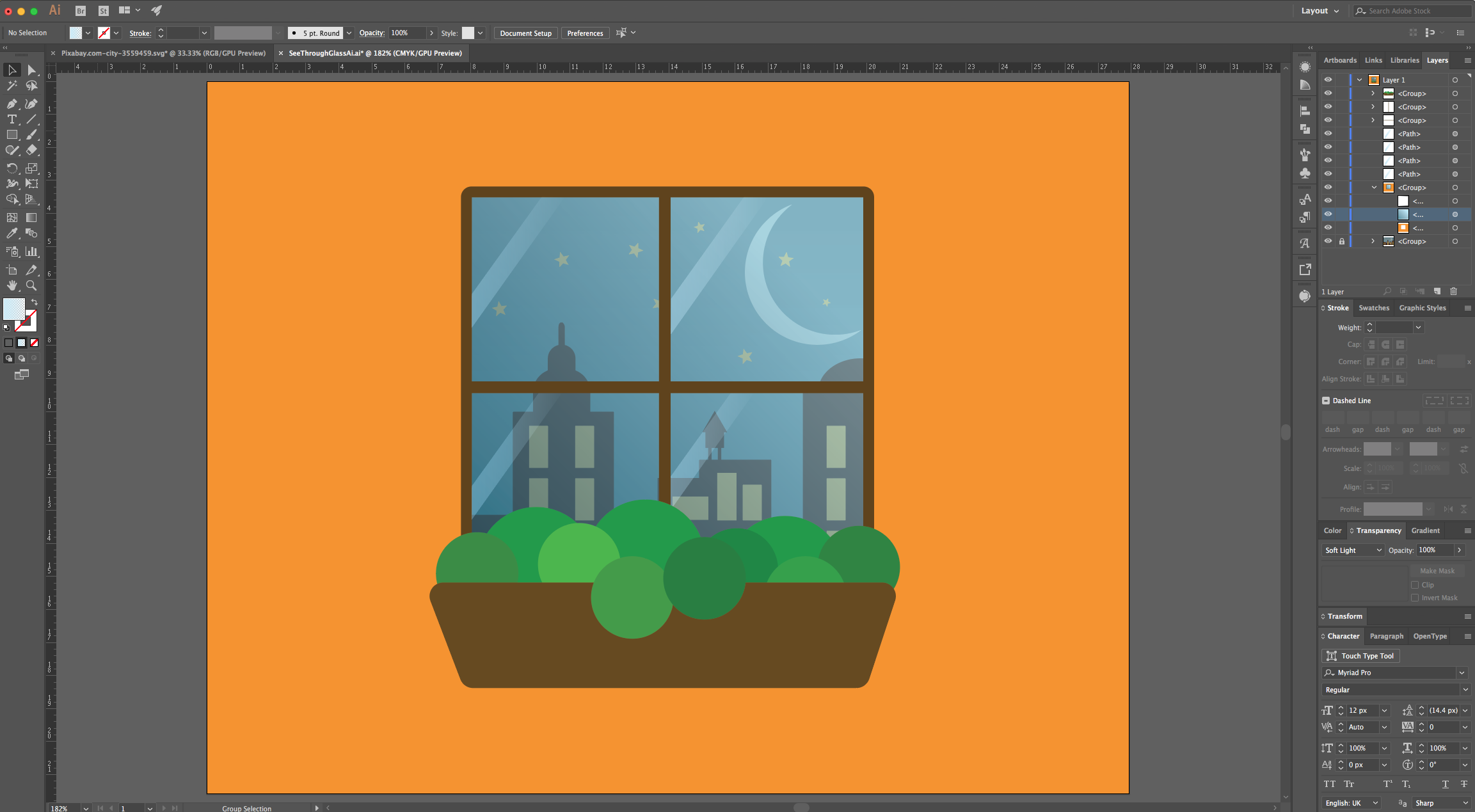
13 - Select or create some perpendicular Rectangles inside the “Glass” to mimic a light reflection, fill them with a “Linear Gradient” from a Light Blue (#ccebf6) to Transparent. Change the “Blending Mode” to “Soft Light” in the “Transparency Panel”. You can use the “Eyedropper Tool” to copy the gradient fill to other reflections if needed.
14 - Your work should be similar to this.
by @lornacane
Related Tutorials
Photoshop Tutorials
Easy See through Cut Out Text in Photoshop
Create a see-through cut out text design in Photoshop with these easy to follow steps.
Illustrator Tutorials
How to Convert a Drawing to a Vector in Adobe Illustrator
Discover how to convert a drawing to a vector in Adobe Illustrator.
Illustrator Tutorials
Pop Art Vector Images in Illustrator
Discover how to make a pop art inspired design in Illustrator with this step by step tutorial.
Illustrator Tutorials
Flat Vector Diamonds in Illustrator
Learn how to create a simple flat vector Diamond in Illustrator.
Illustrator Tutorials
Vector Snowflakes in Illustrator
Illustrator Tutorials