By Design Bundles
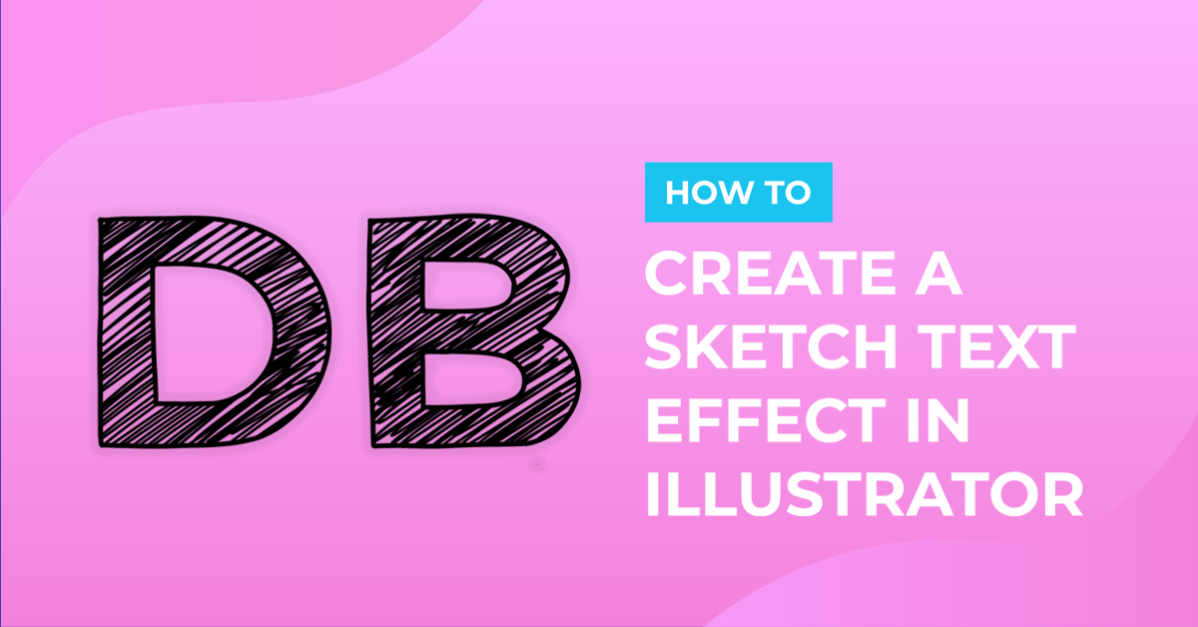
Sketch Text Effect in Illustrator
1 – In Illustrator create a New Document or Open an existing one.

2 – Select your “Type Tool” (T) and type some text then choose a font. We used Hot Deals from Fontbundles.net. Set the “Fill” and “Stroke” colors to none.


3 – Open the pop up menu in the Appearance Panel and choose “Add New Fill”. Keep the default black as fill color.


4 – Select the new fill in the Appearance Panel and go to Effect > Stylize > Scribble. With the dialog open, change the angle to 45 degrees, Path Overlap Centered, with a Variation of 2 px. Line Options: Stroke with of 1 px, a Curviness of 0 with a Variation of 20%, a Spacing and Variation of 1.5 px.


5 – Select the Stroke in the Appearance Panel, give it a value of 1 point and with the stroke still selected go to: Effect > Distort & Transform > Roughen. In the dialog use a value of 0.5% for the Size, select the Relative button and give the Detail a value of 30/in and the Smooth button.


6 – With this treatment you still can edit your text. And to use it in other occasions you can create a Graphic Style to apply. Select the text and click the New Graphic Style button in the Graphic Styles Panel.

7 – Test your style with other text.

2 – Select your “Type Tool” (T) and type some text then choose a font. We used Hot Deals from Fontbundles.net. Set the “Fill” and “Stroke” colors to none.
3 – Open the pop up menu in the Appearance Panel and choose “Add New Fill”. Keep the default black as fill color.
4 – Select the new fill in the Appearance Panel and go to Effect > Stylize > Scribble. With the dialog open, change the angle to 45 degrees, Path Overlap Centered, with a Variation of 2 px. Line Options: Stroke with of 1 px, a Curviness of 0 with a Variation of 20%, a Spacing and Variation of 1.5 px.
5 – Select the Stroke in the Appearance Panel, give it a value of 1 point and with the stroke still selected go to: Effect > Distort & Transform > Roughen. In the dialog use a value of 0.5% for the Size, select the Relative button and give the Detail a value of 30/in and the Smooth button.
6 – With this treatment you still can edit your text. And to use it in other occasions you can create a Graphic Style to apply. Select the text and click the New Graphic Style button in the Graphic Styles Panel.
7 – Test your style with other text.
by @lornacane
Related Tutorials
Illustrator Tutorials
Repeating Outline Text Effect in Illustrator
Discover how to make a repeating outline text effect in Illustrator.
Illustrator Tutorials
How to Create a Marquee Sign Text Effect in Illustrator
Illustrator Tutorials
Plastic Text Effect in Illustrator
Illustrator Tutorials
Glitch Text Effect in Illustrator
Learn how to create a glitch effect in Illustrator following these techniques.
Illustrator Tutorials
Blood Text Effect in Illustrator
Illustrator Tutorials