By Design Bundles
Wavy Ribbon Gradient in Illustrator
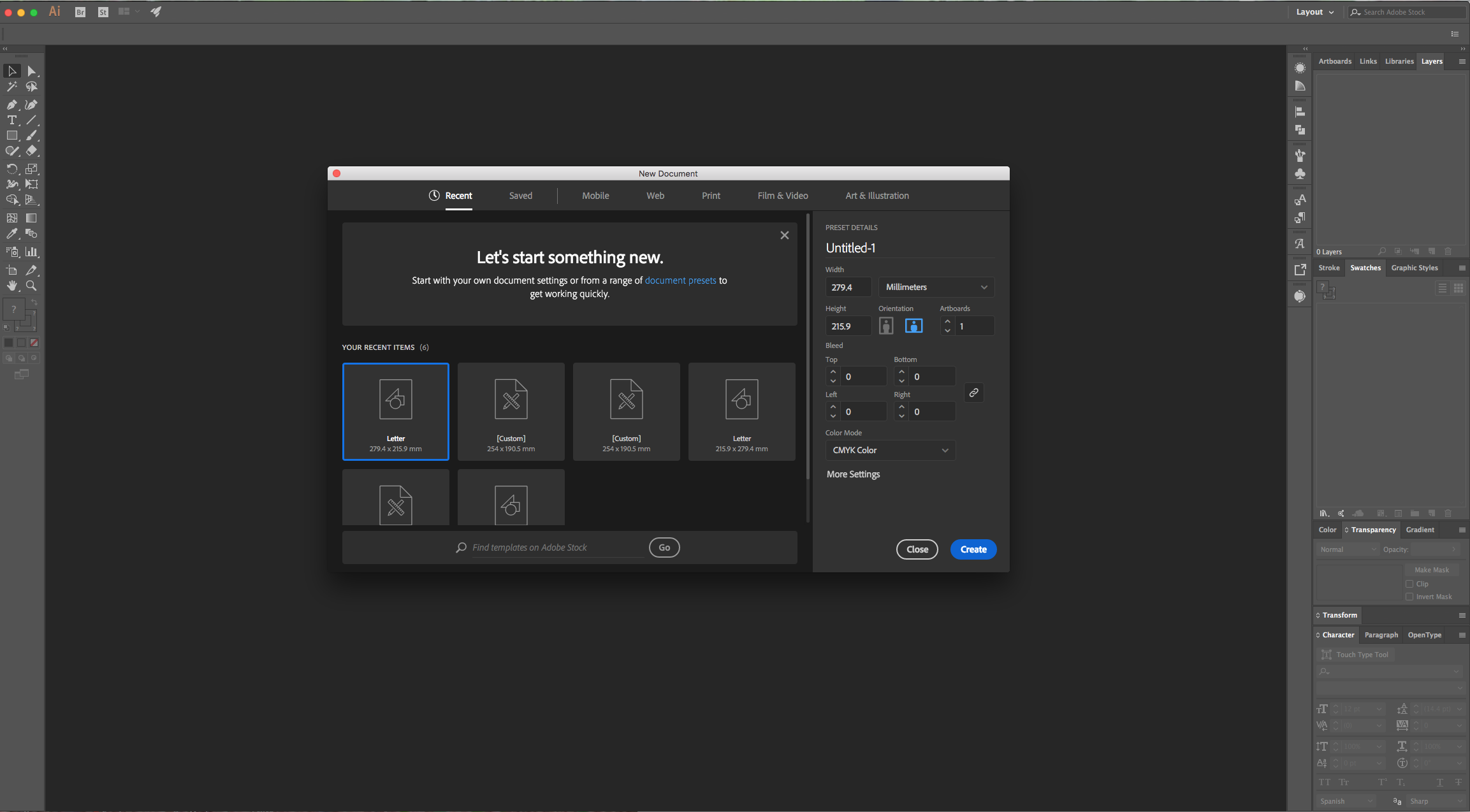
1 - In Illustrator, create a “New Document”.
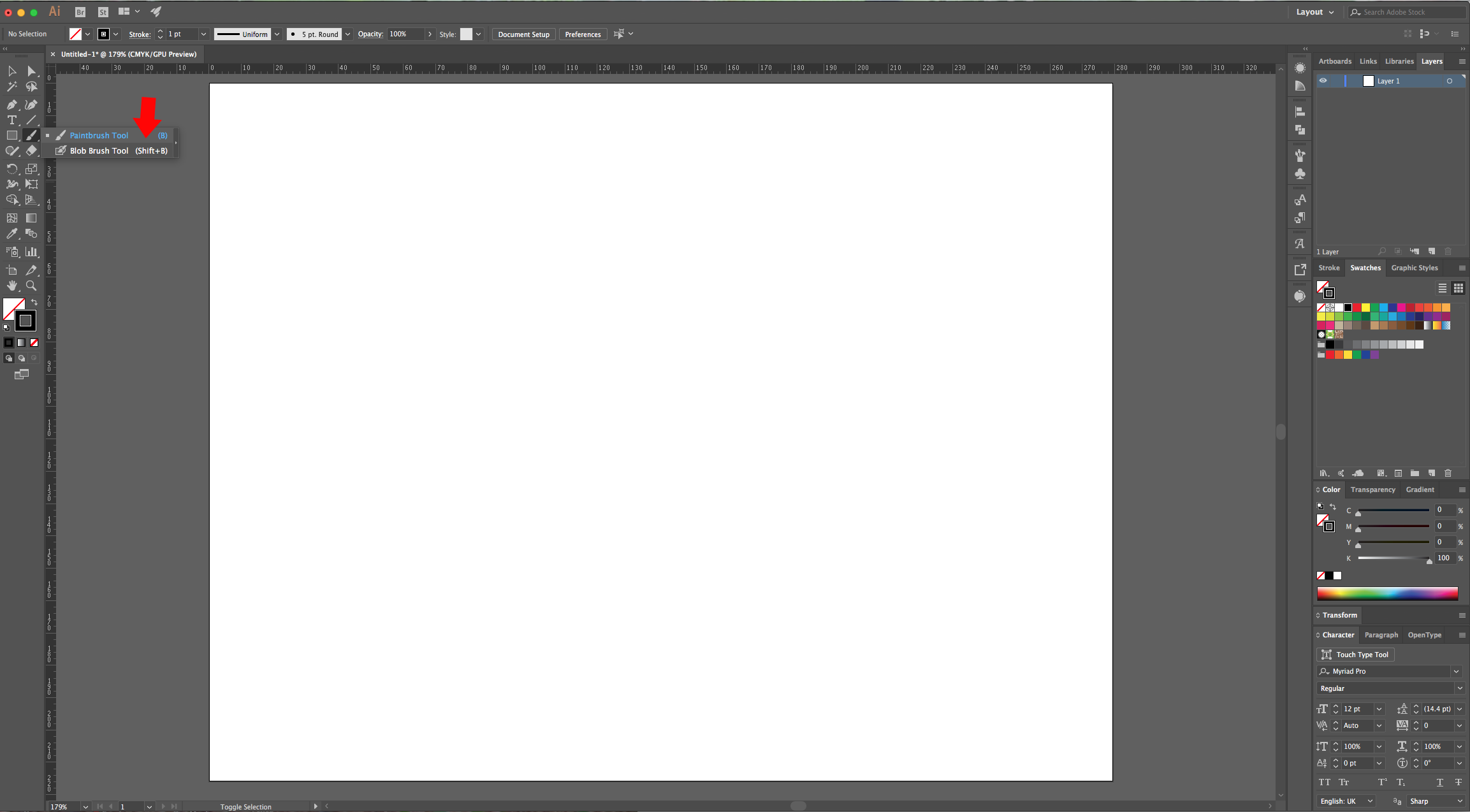
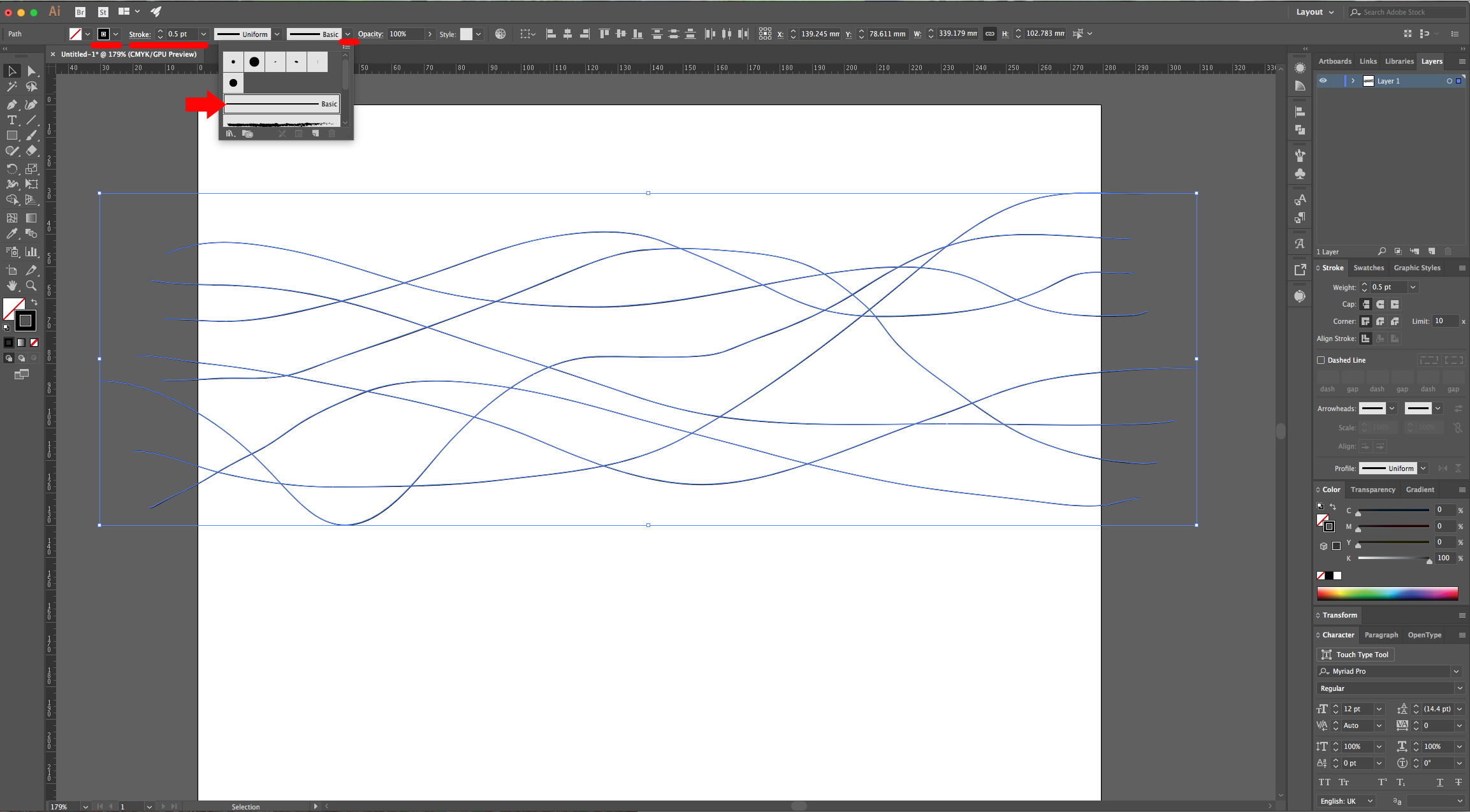
2 - Select the “Brush Tool” (B) and draw some wavy lines from side to side. Once you are happy with them, select them all and change their “Weight” to 0.5 pt and choose the “Basic” shape.
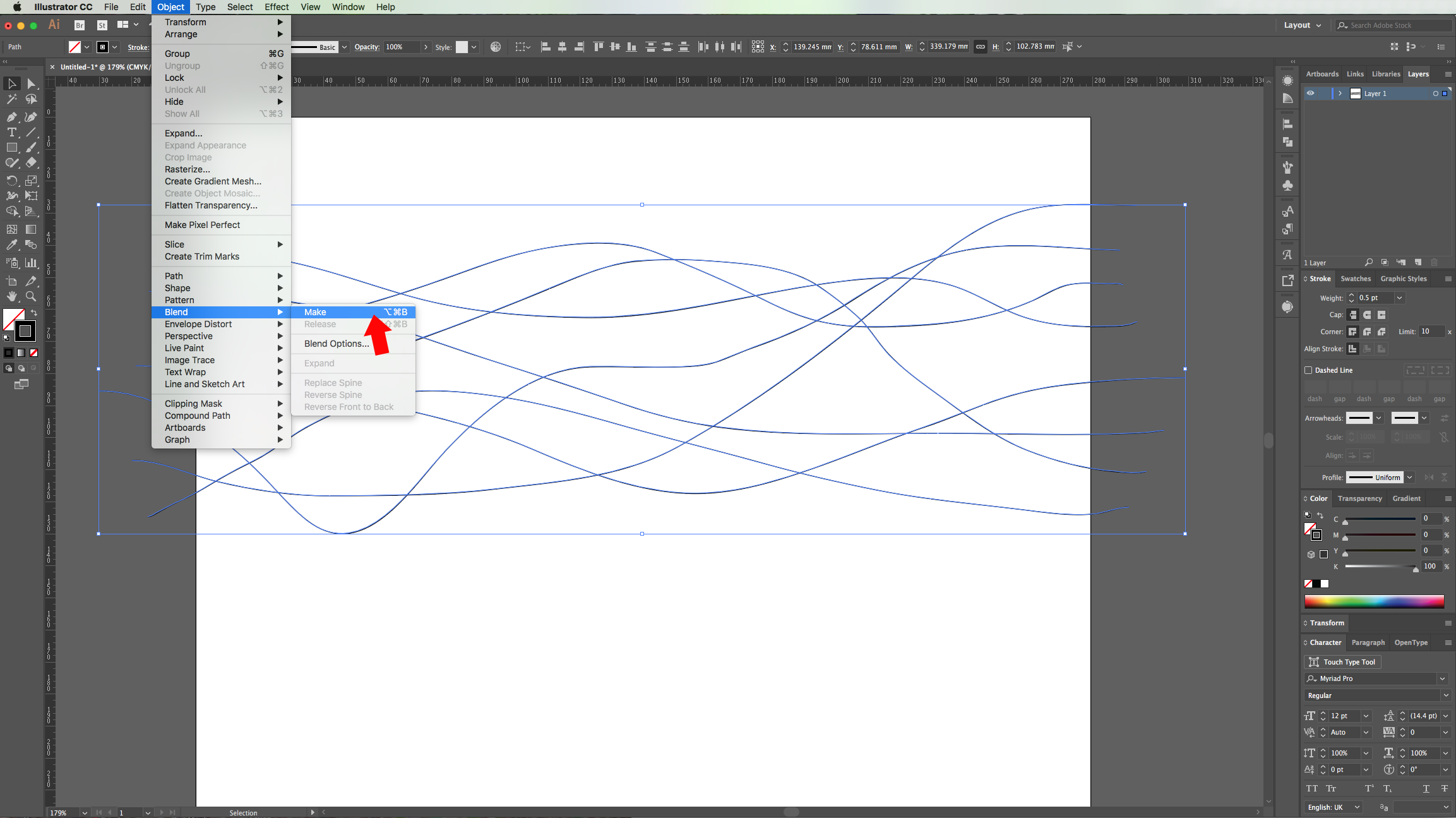
3 - Go to Object > Blend > Make (Shift + Command/Control + B) to create some more waves with the default preset.
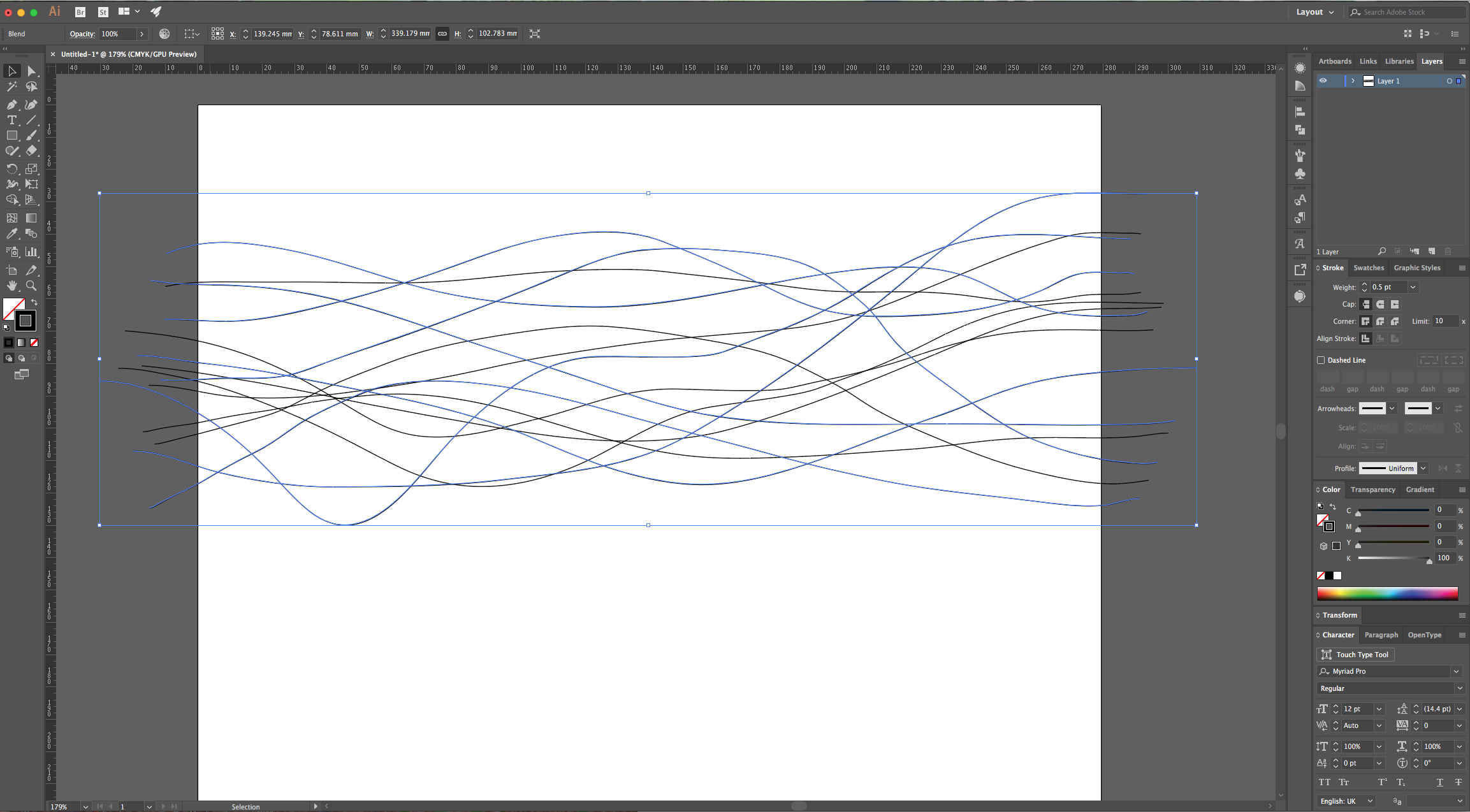
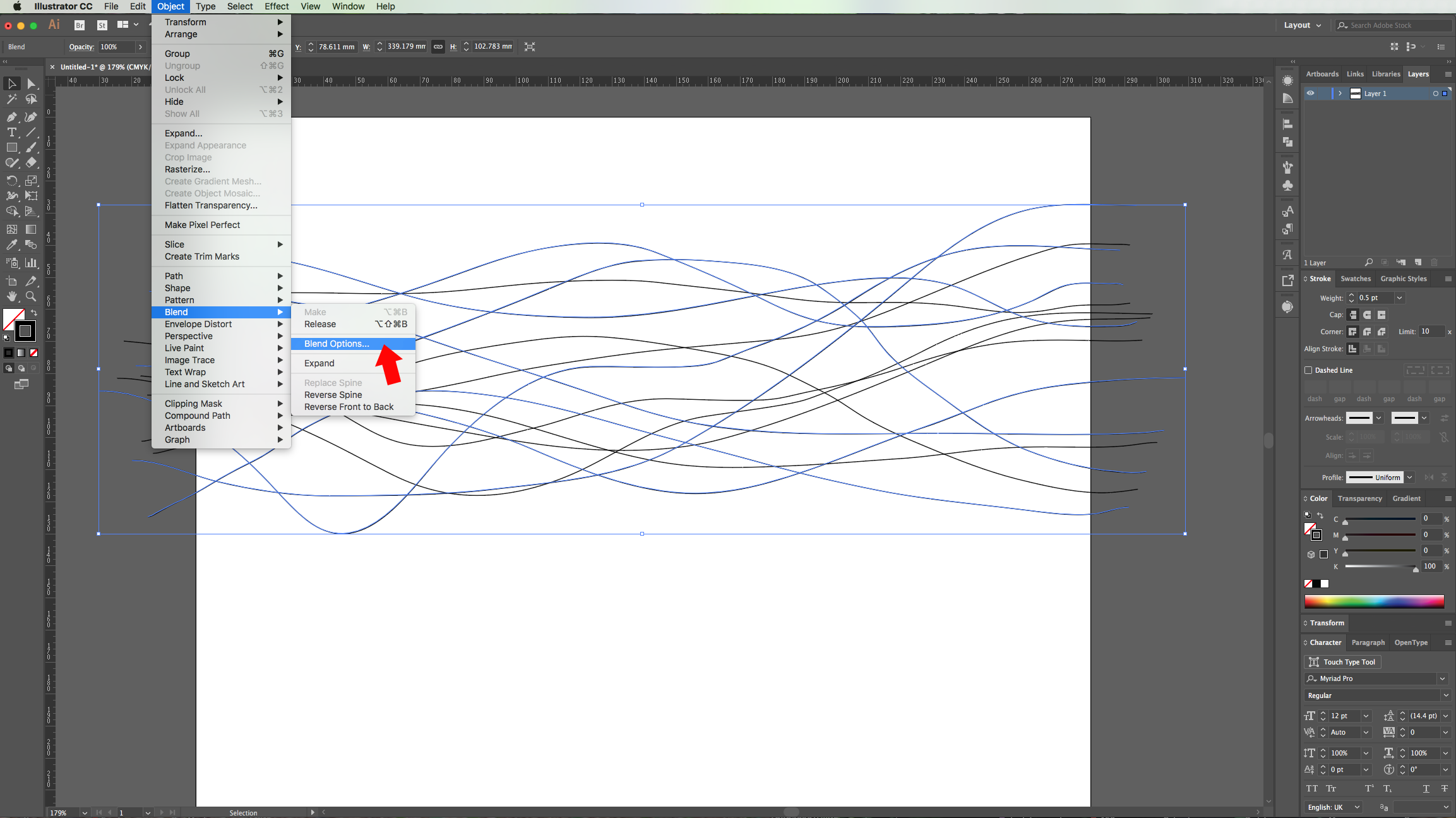
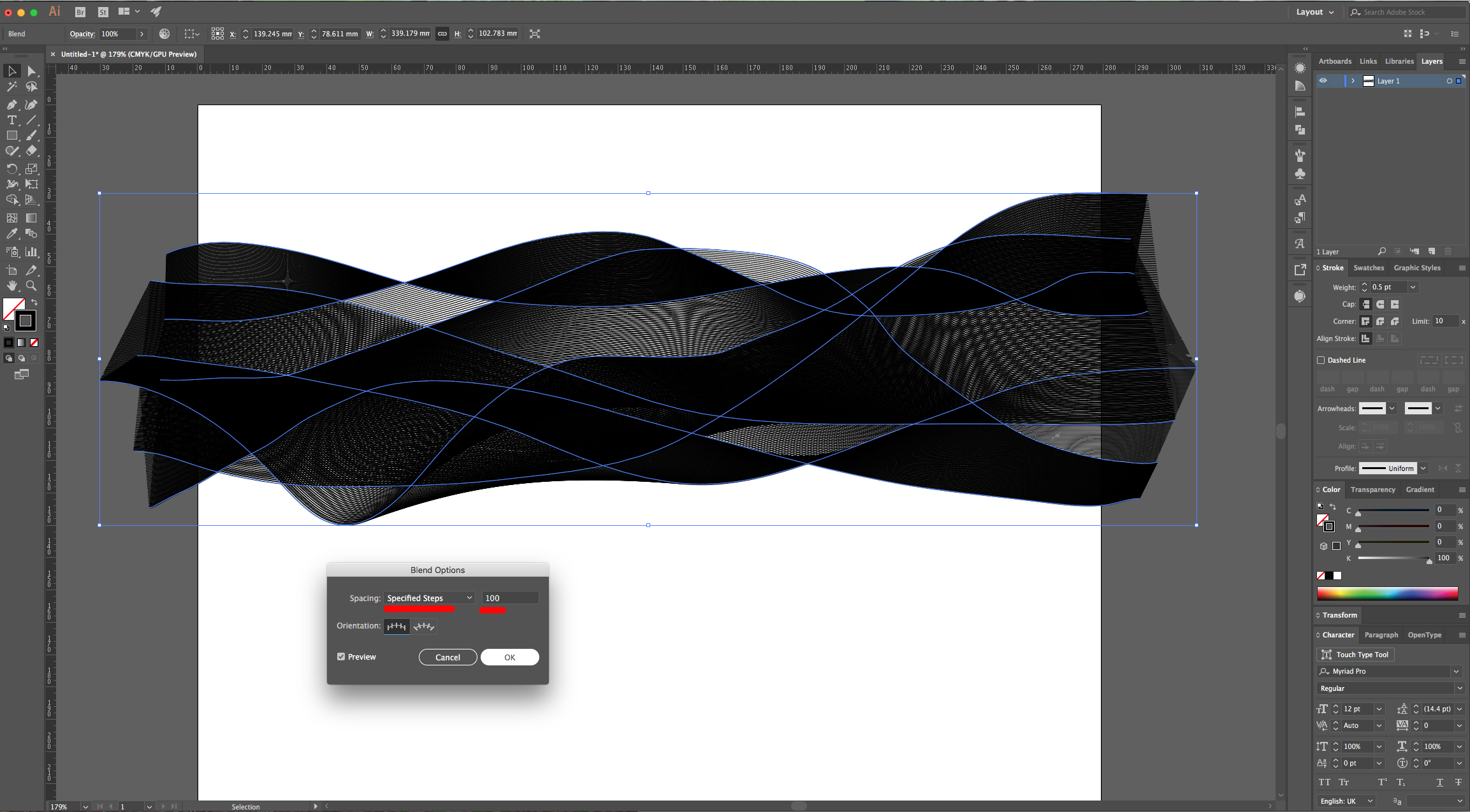
4 - Then, go to Object > Blend > Blend Options, change the “Spacing” to “Specified Steps” and use 100 or more. Click “OK”.
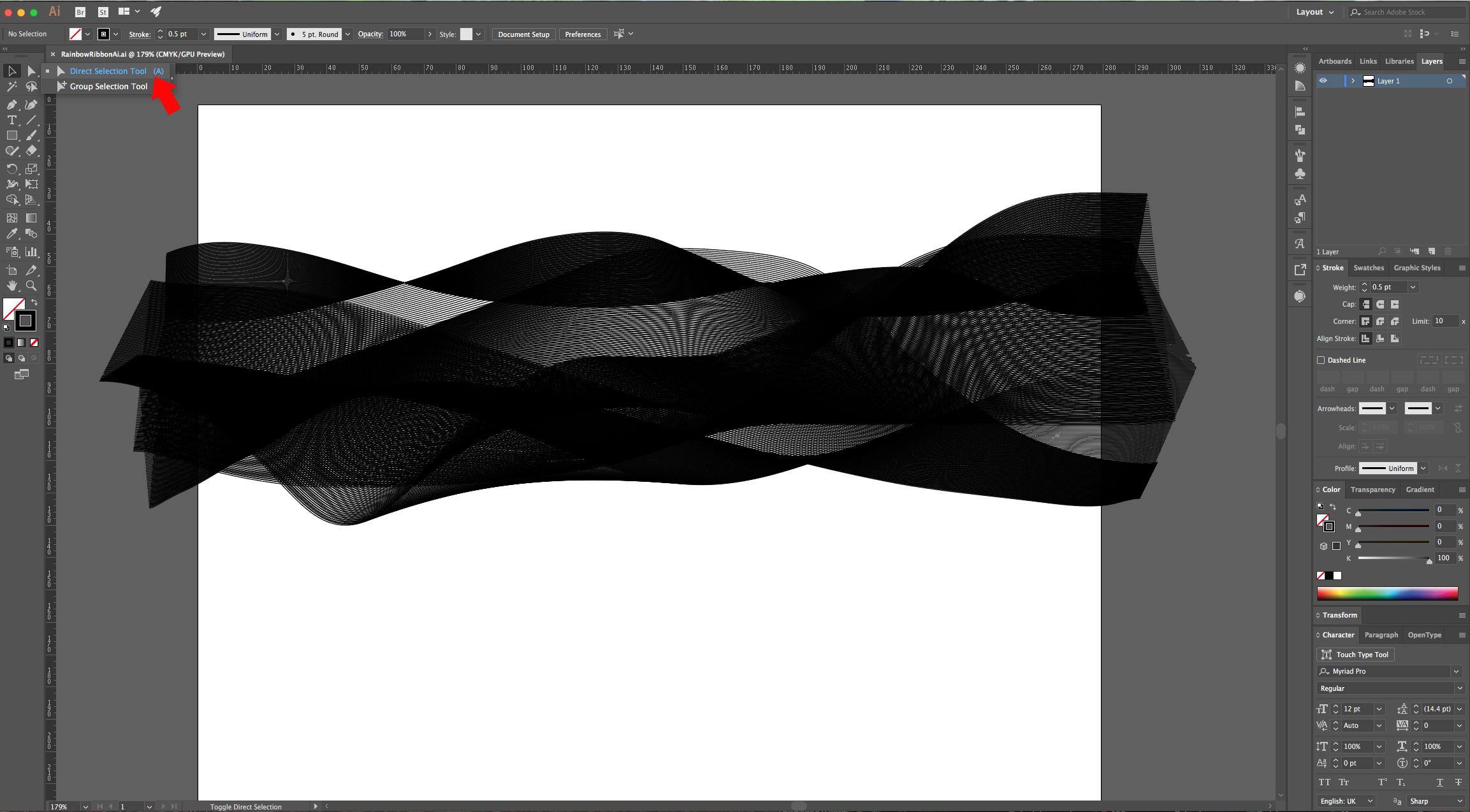
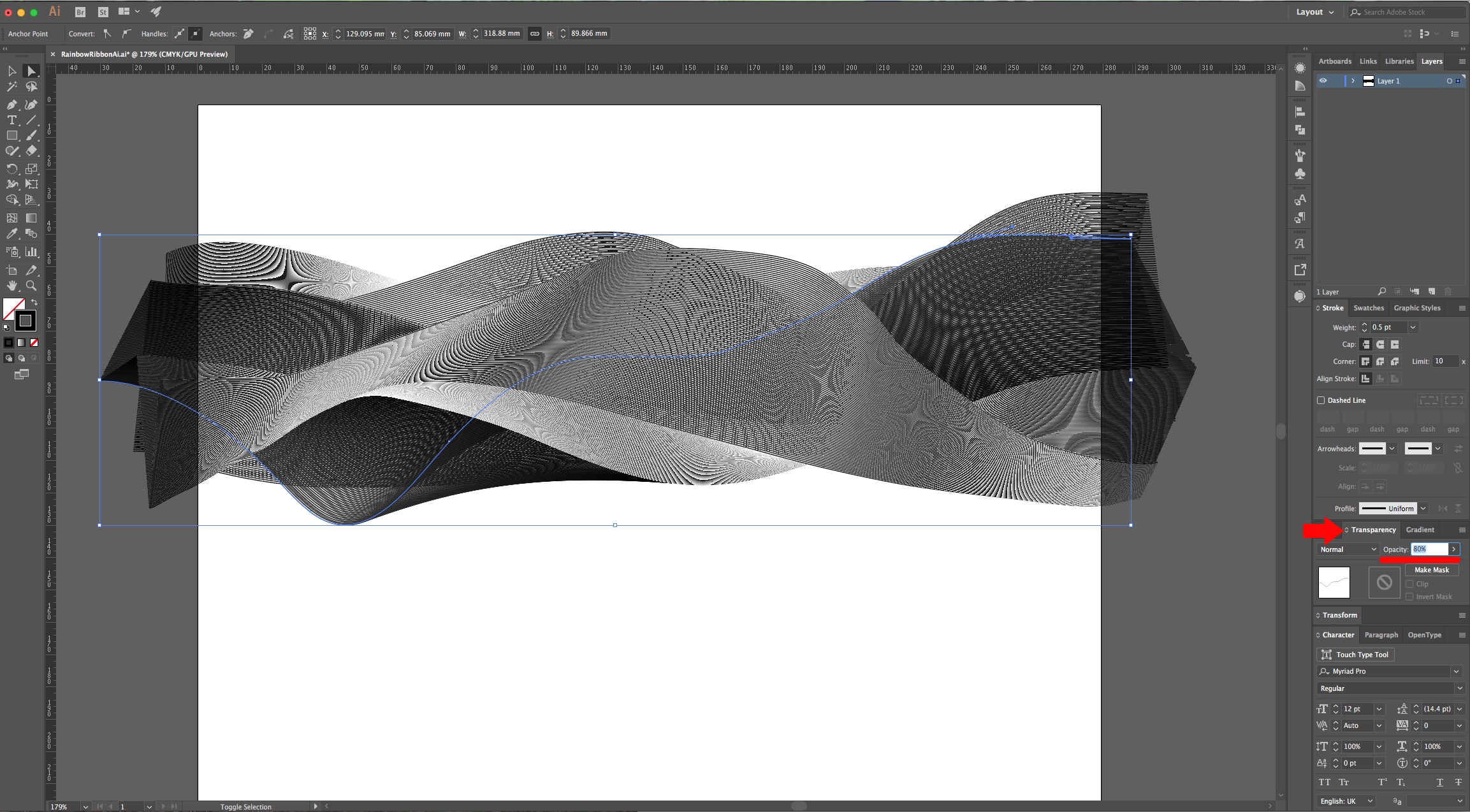
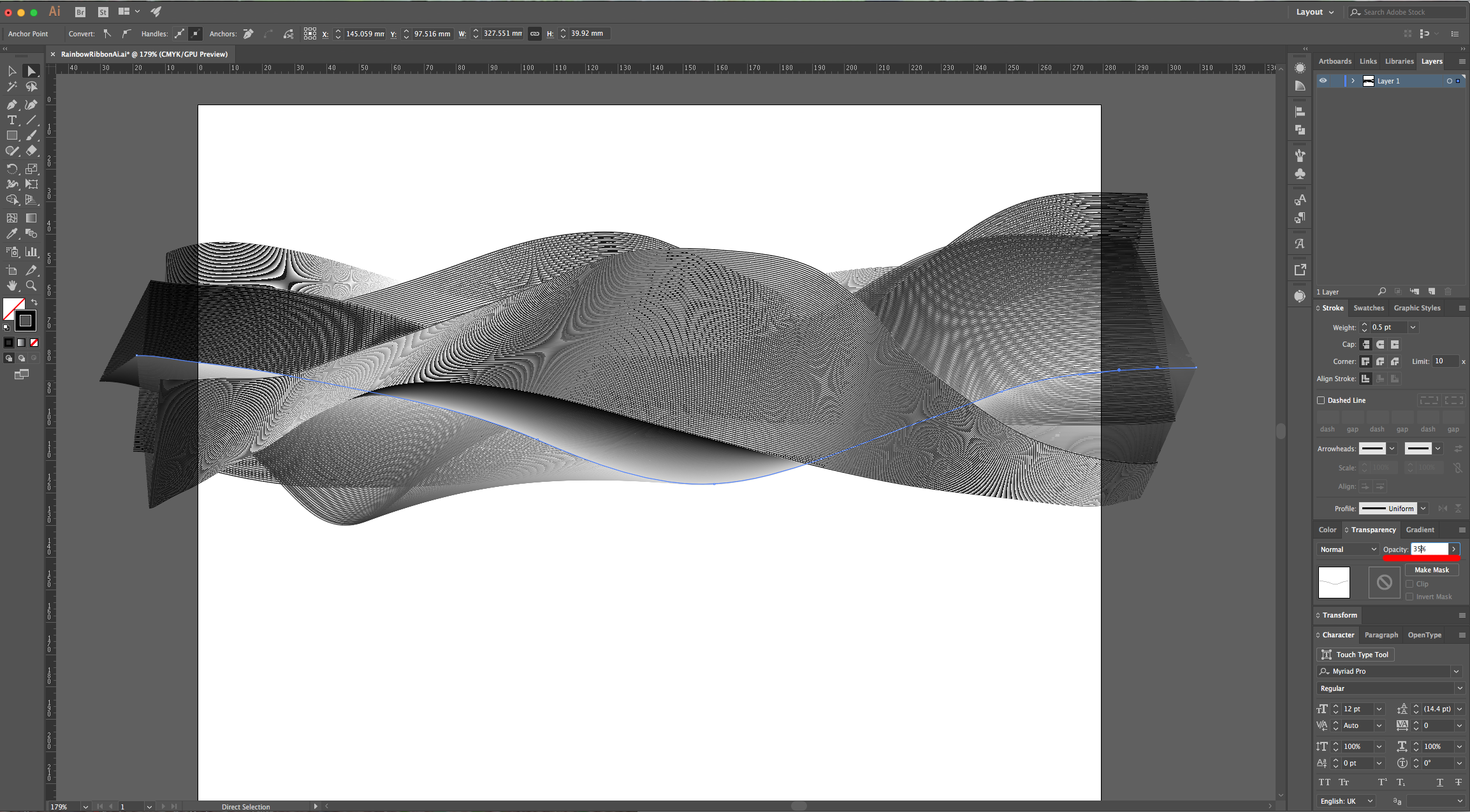
5 - With the “Direct Selection Tool” (A) click on one of the original lines to select it and change its “Opacity” in the “Transparency Panel”. Do this to some of the other lines with different percentages to create some depth in your “Ribbon” shape.
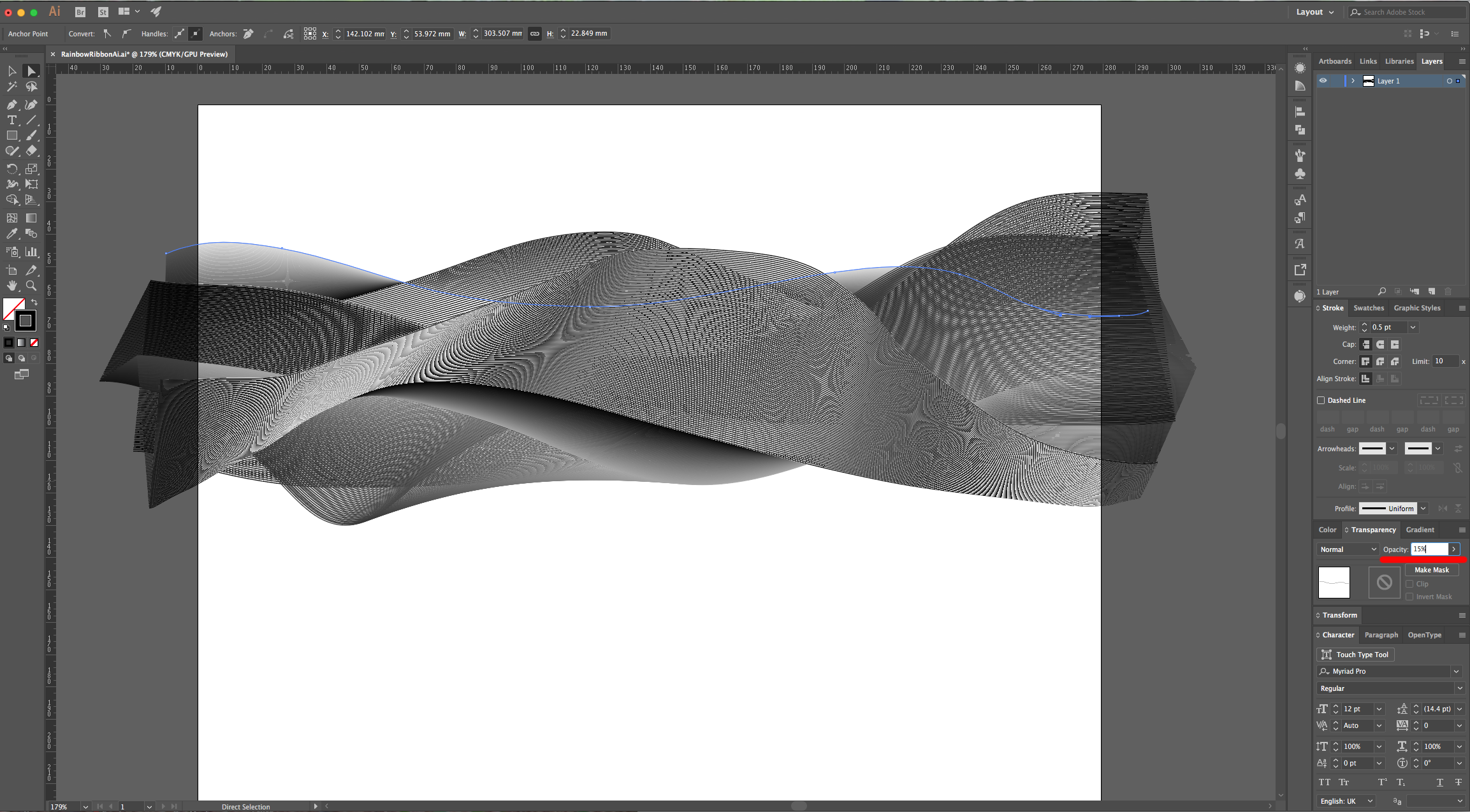
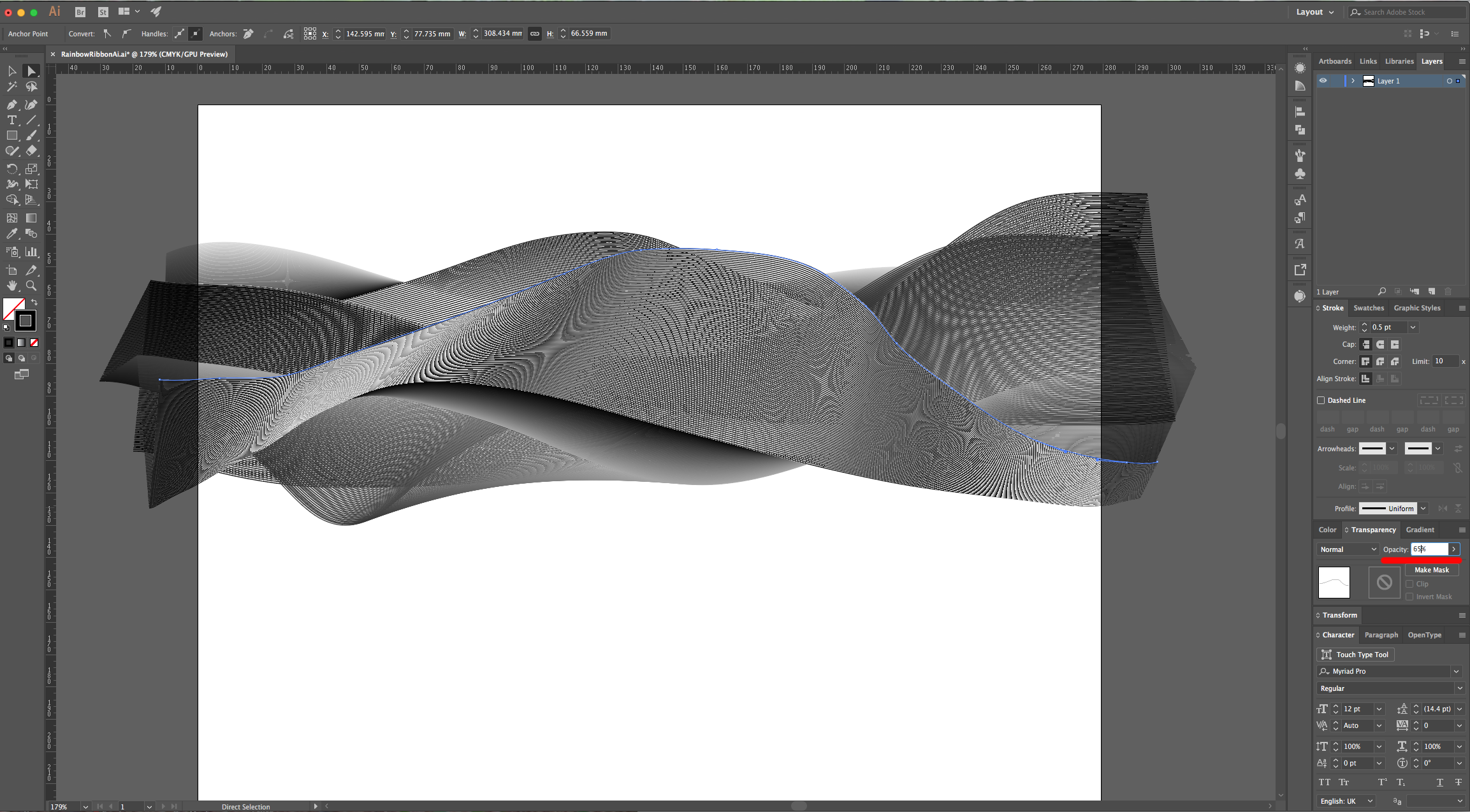
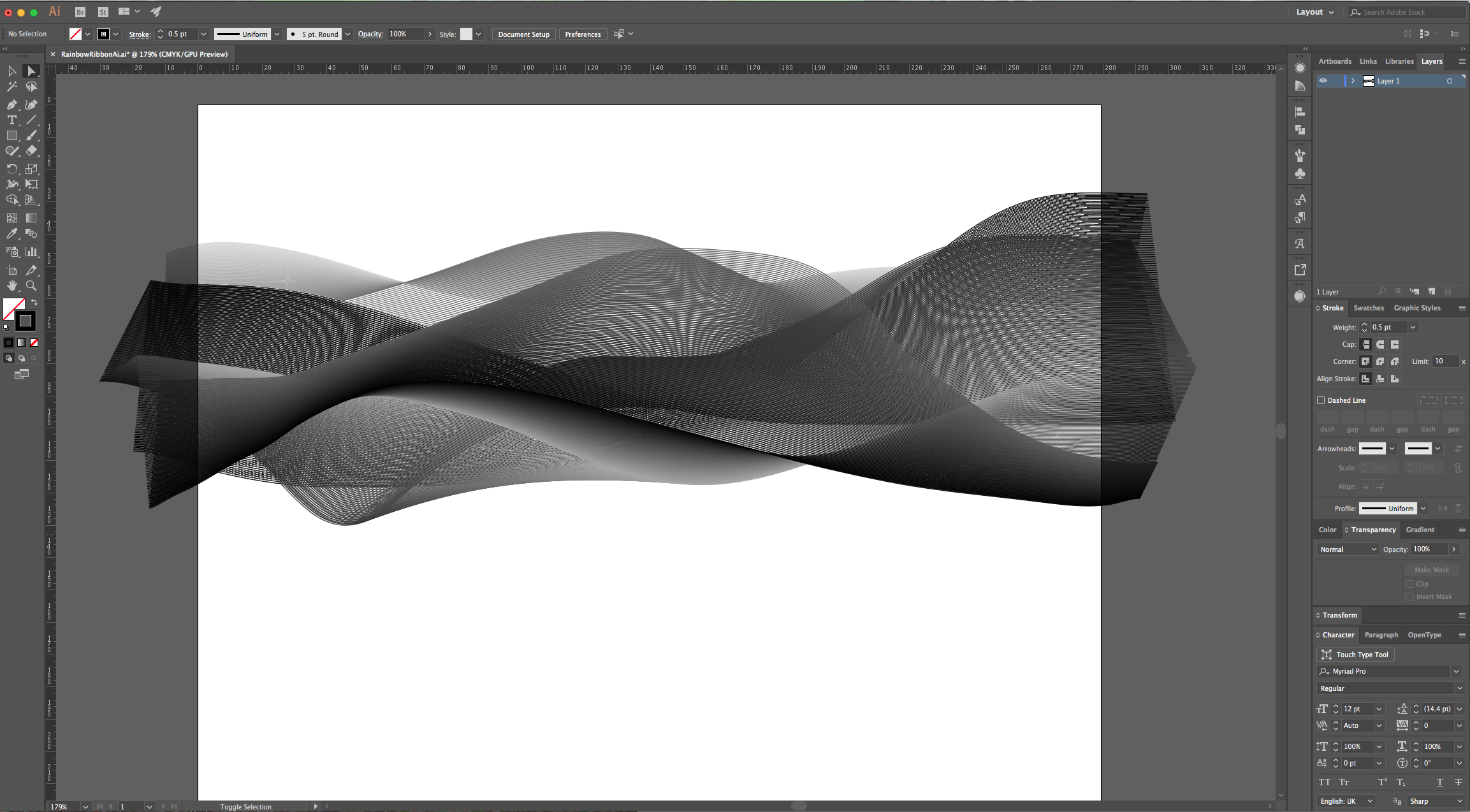
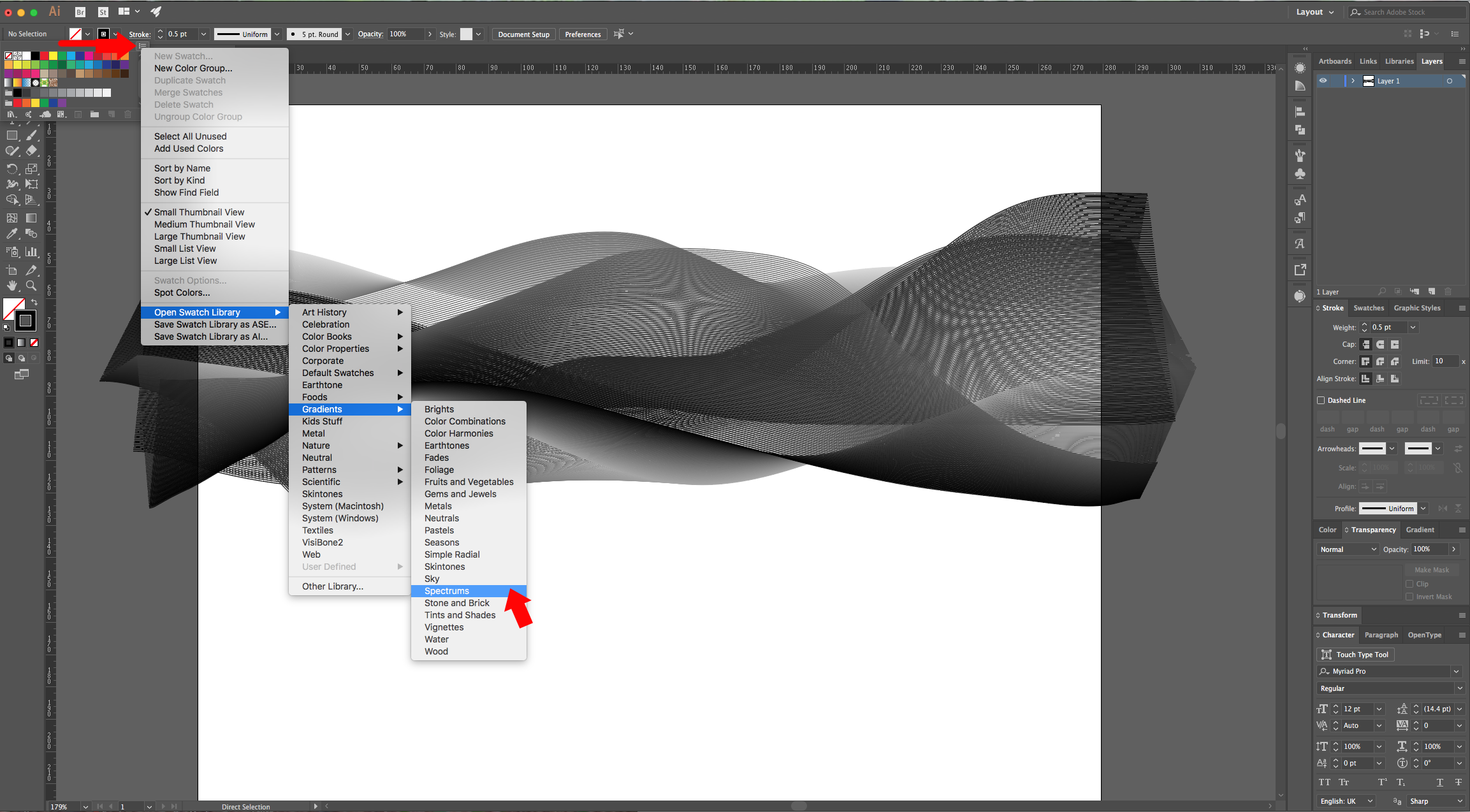
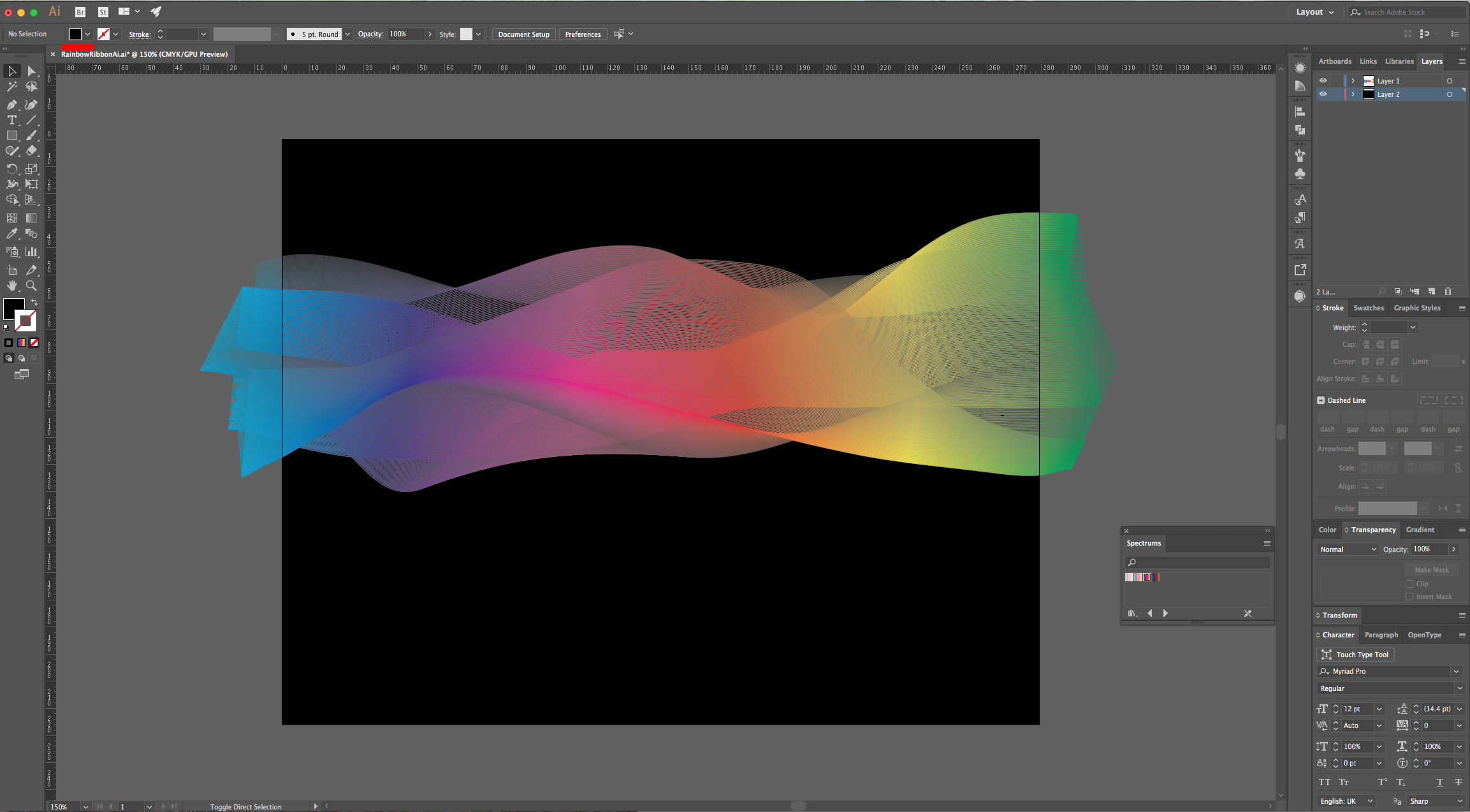
6 - Once you are satisfied, select everything, go to the “Swatches Panel”, click on the Menu on the Top-Right corner and navigate to Open Swatch Library > Gradients > Spectrums. Choose one of the “Gradients”.
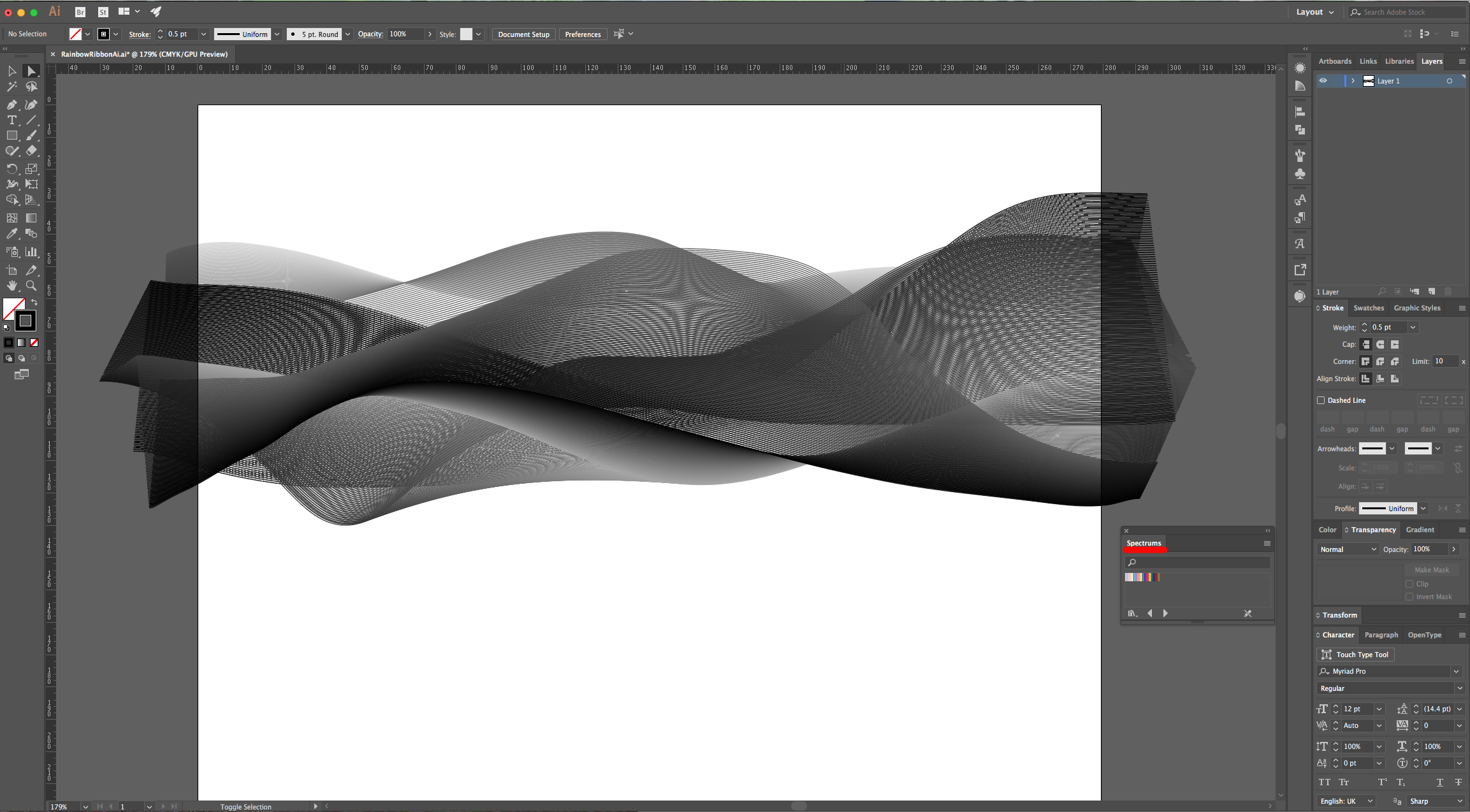
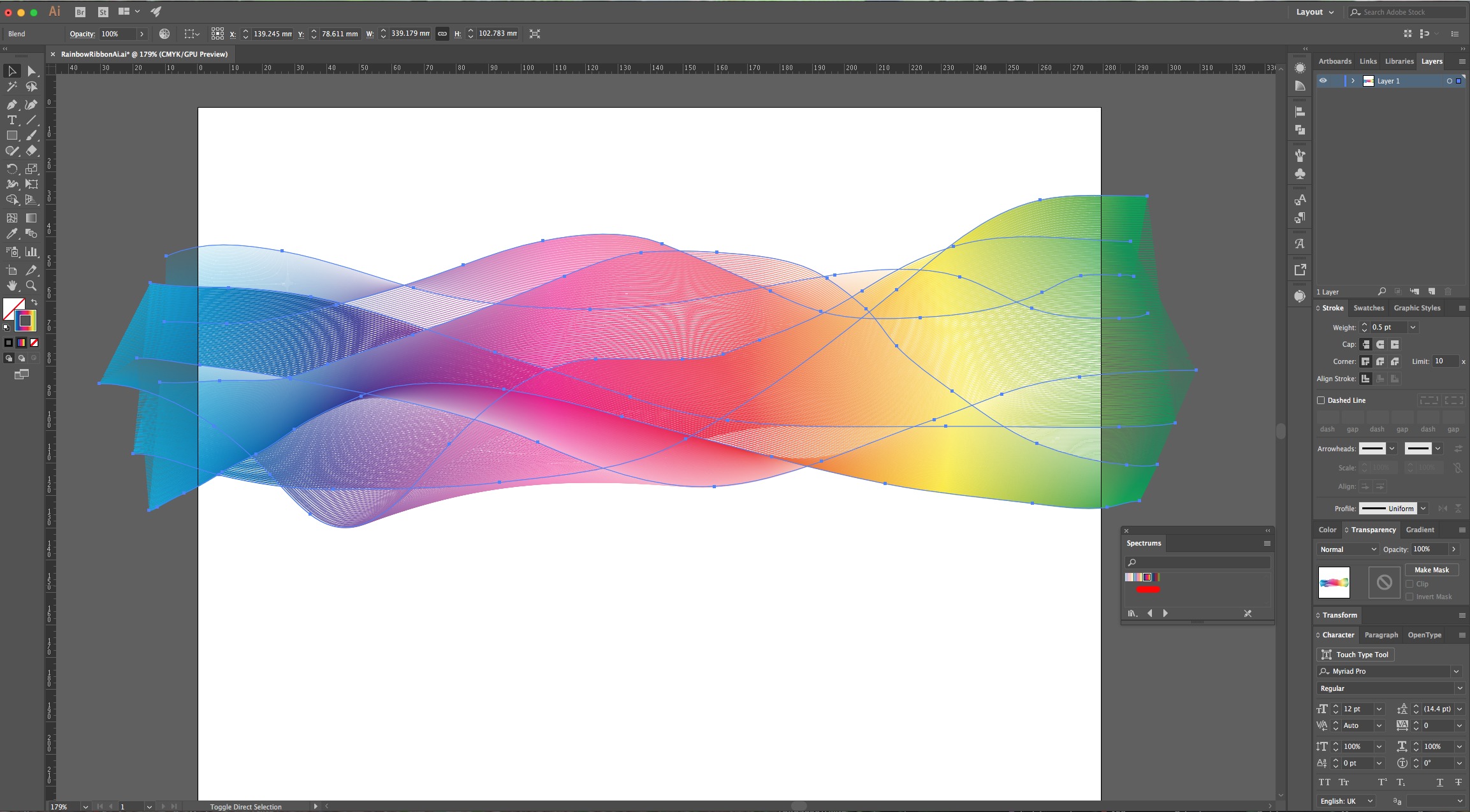
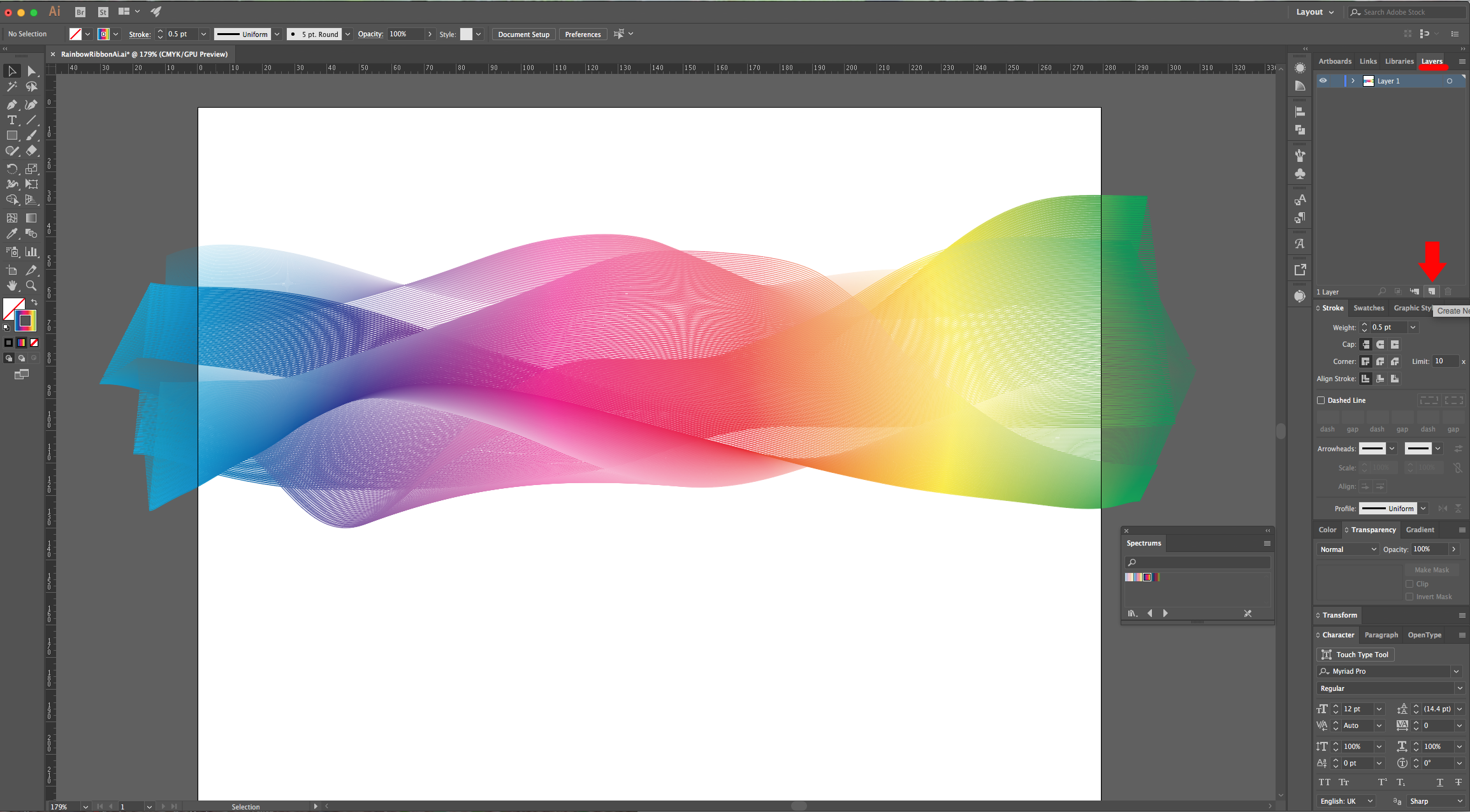
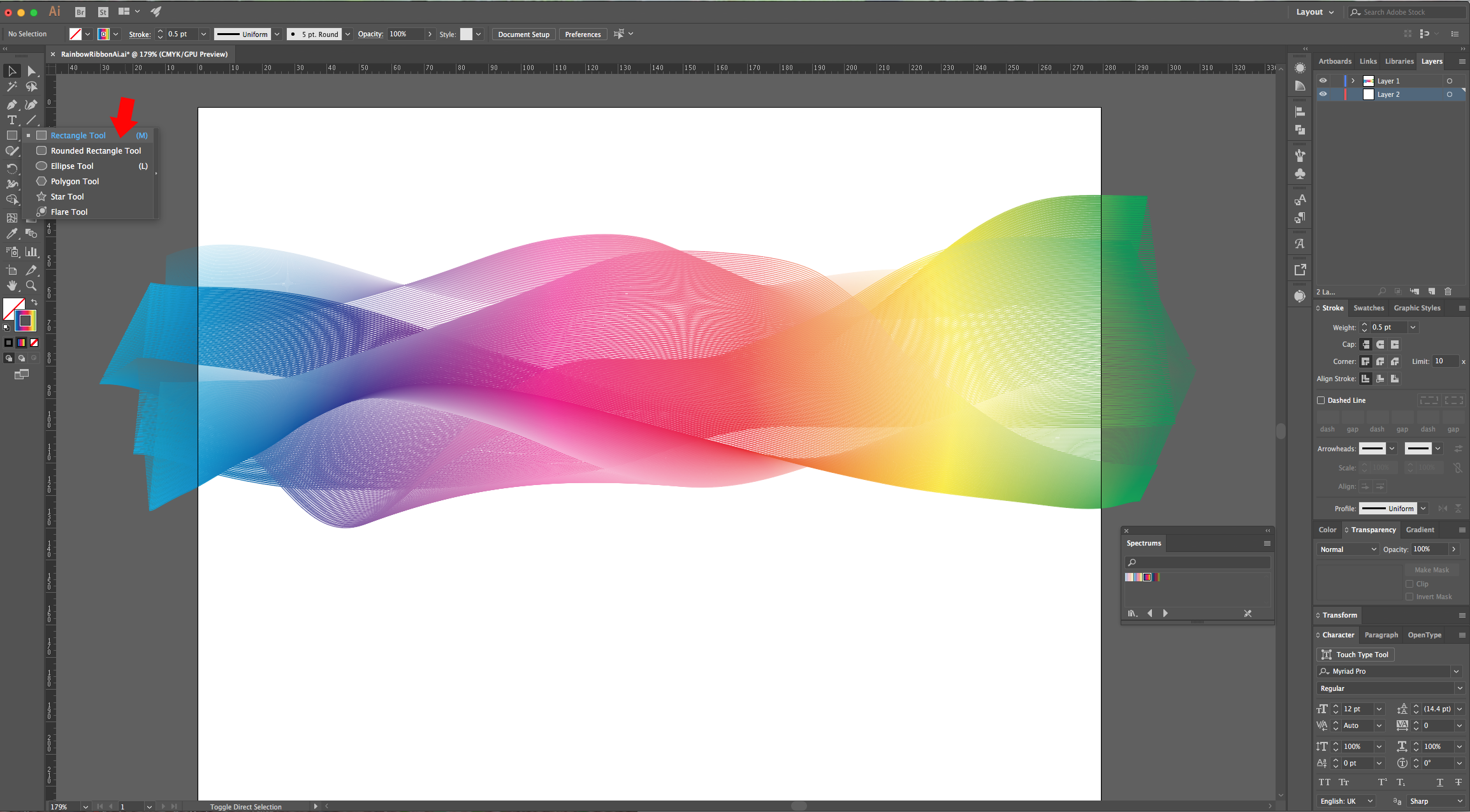
7 - In the “Layers Panel” click on the small “Create New Layer” button at the bottom, drag that layer to place it under your first one and select the “Rectangle Tool” (M) with Black as “Fill” color and cover all your canvas with a black rectangle.
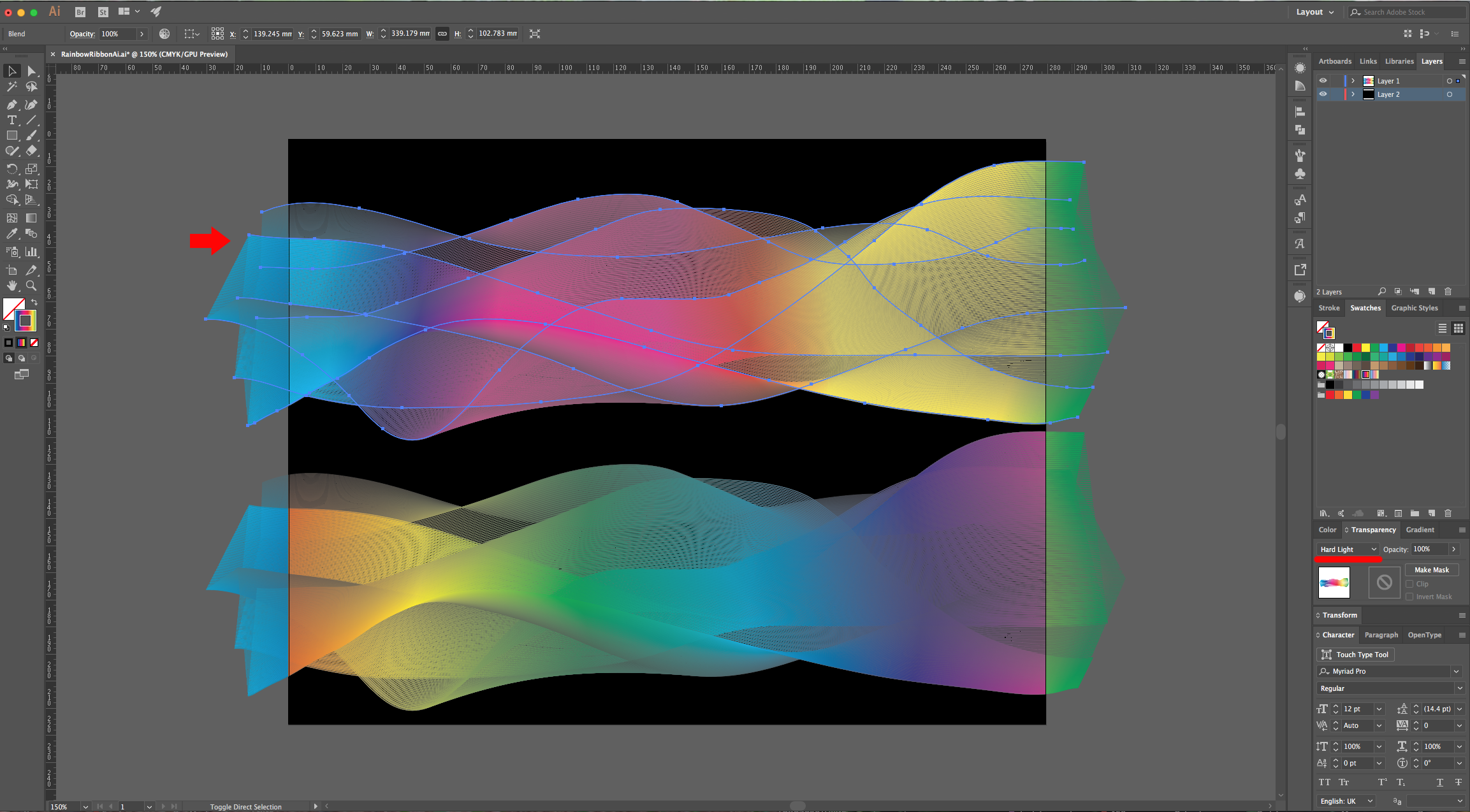
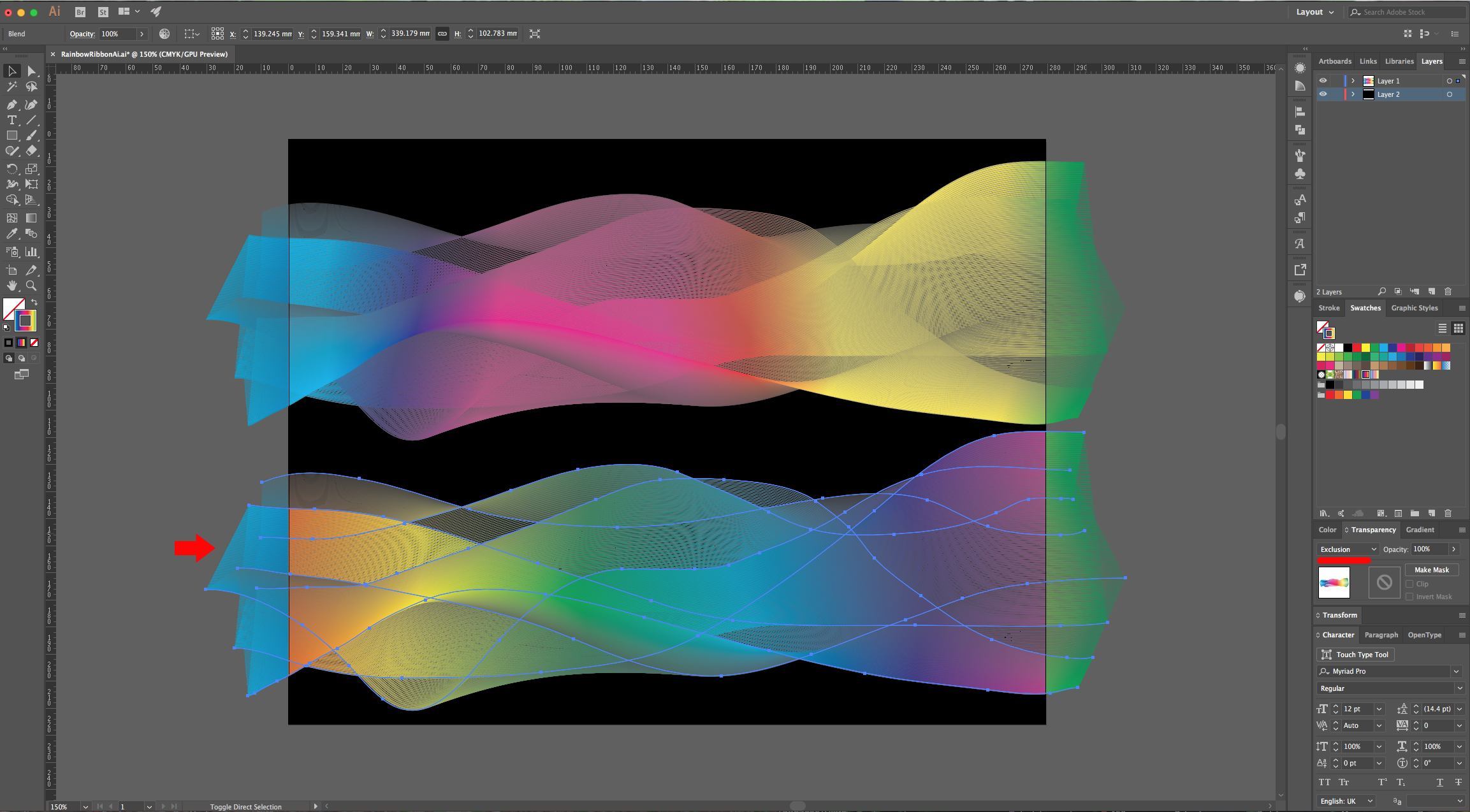
8 - You can duplicate your “Ribbon” by holding the “Alt/Option” key while dragging it down. Then, try changing the “Blending Mode” in the “Transparency Panel”. We used “Hard Light” in the first one to make the color pop a bit more and “Exclusion” in the second to get a different color combination.
9 - To crop the “Ribbons”, create a new rectangle with no “Fill” and “Stroke” on top of your paths, lock the bottom Layer by clicking to the left of its Thumbnail and bring out the small “Padlock”. Then, select everything on the top layer, right-click on top your selection and choose “Make Clipping Mask”.
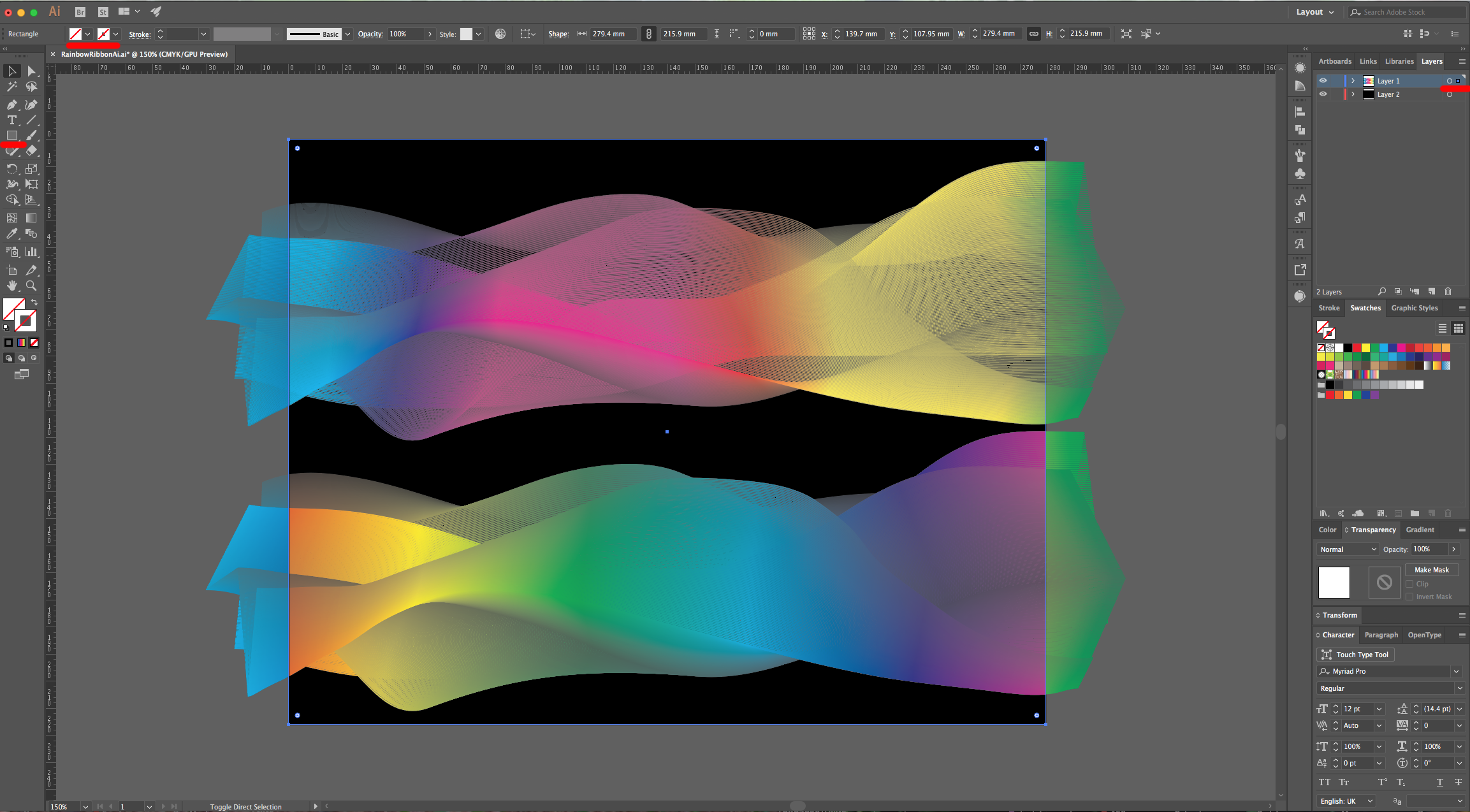
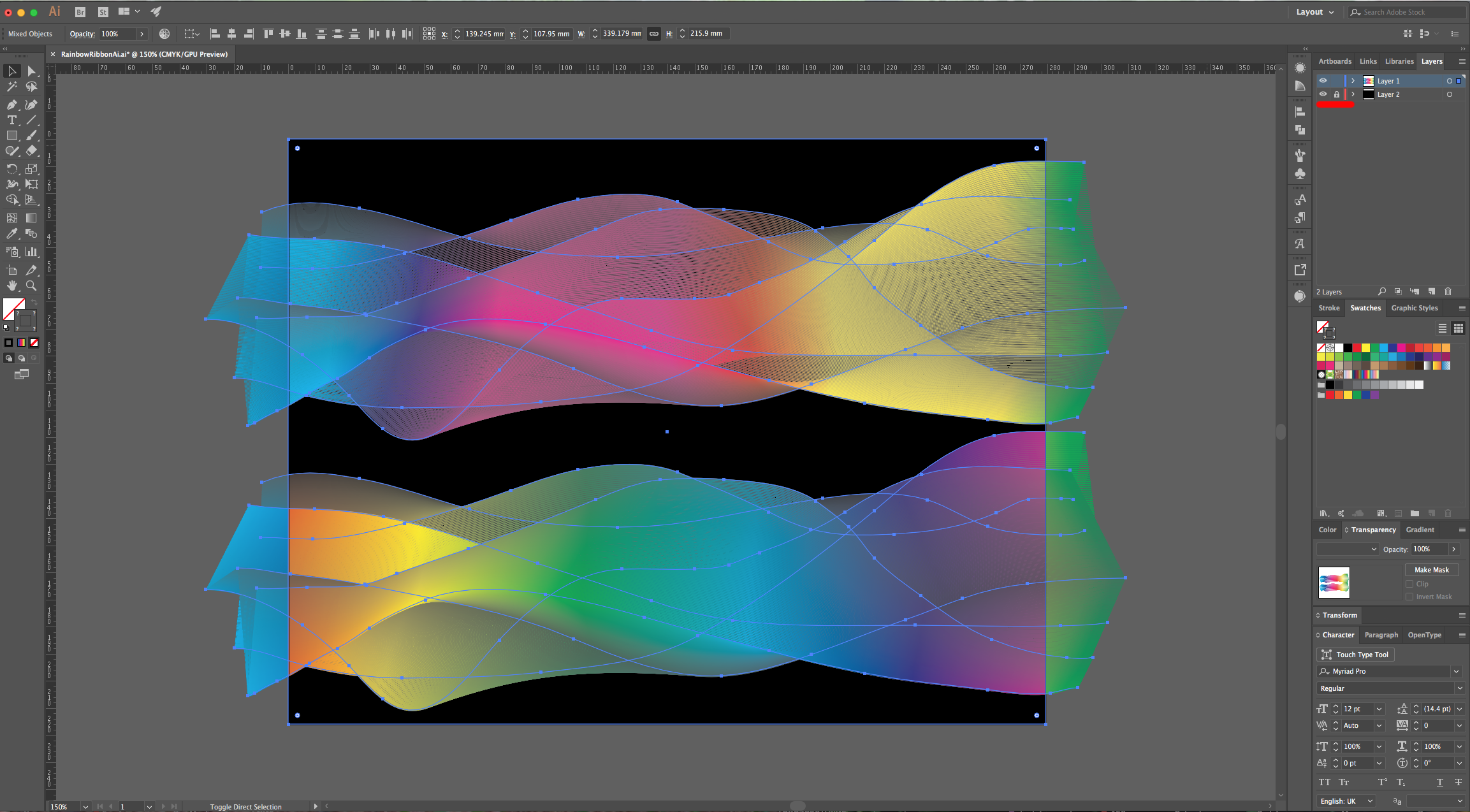
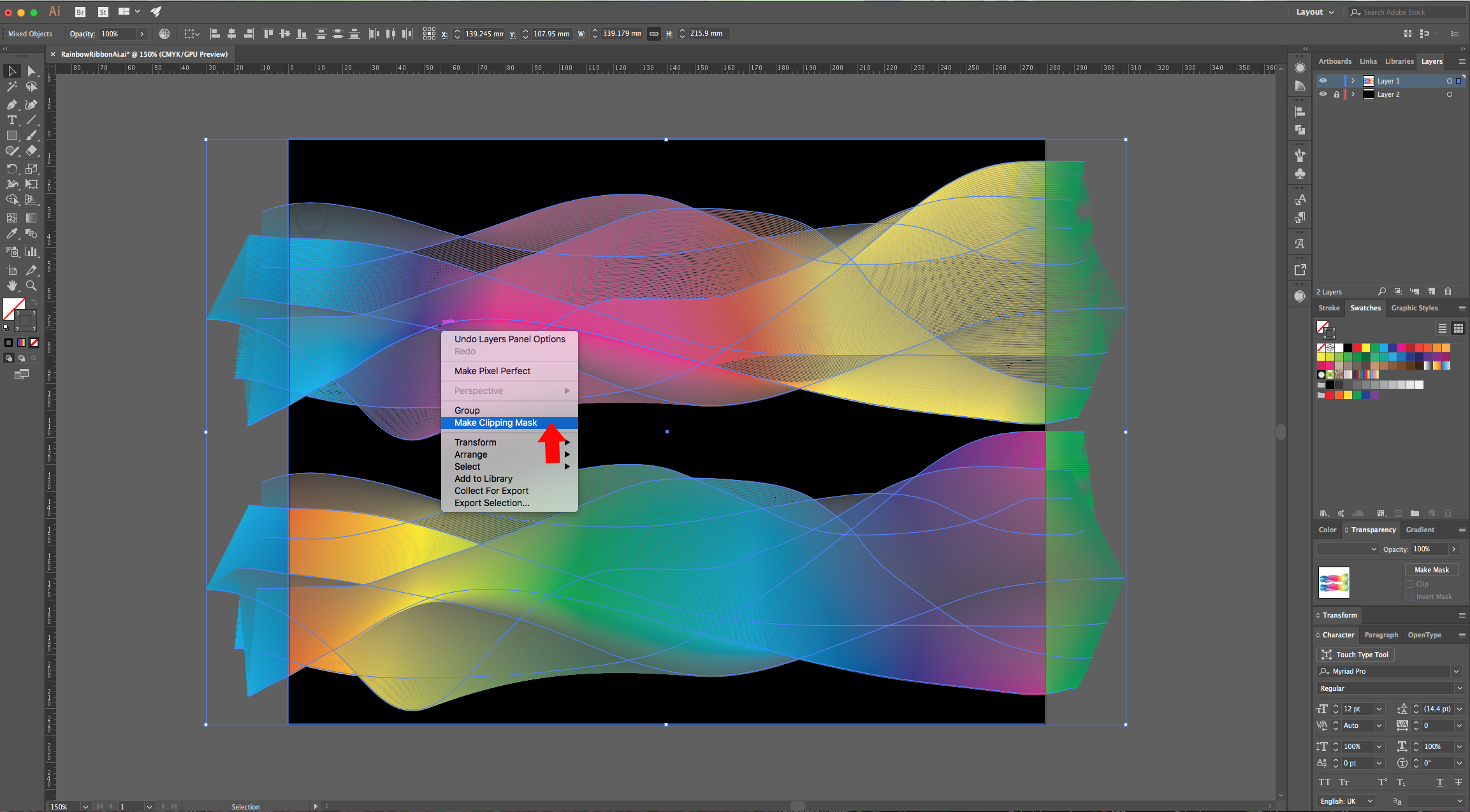
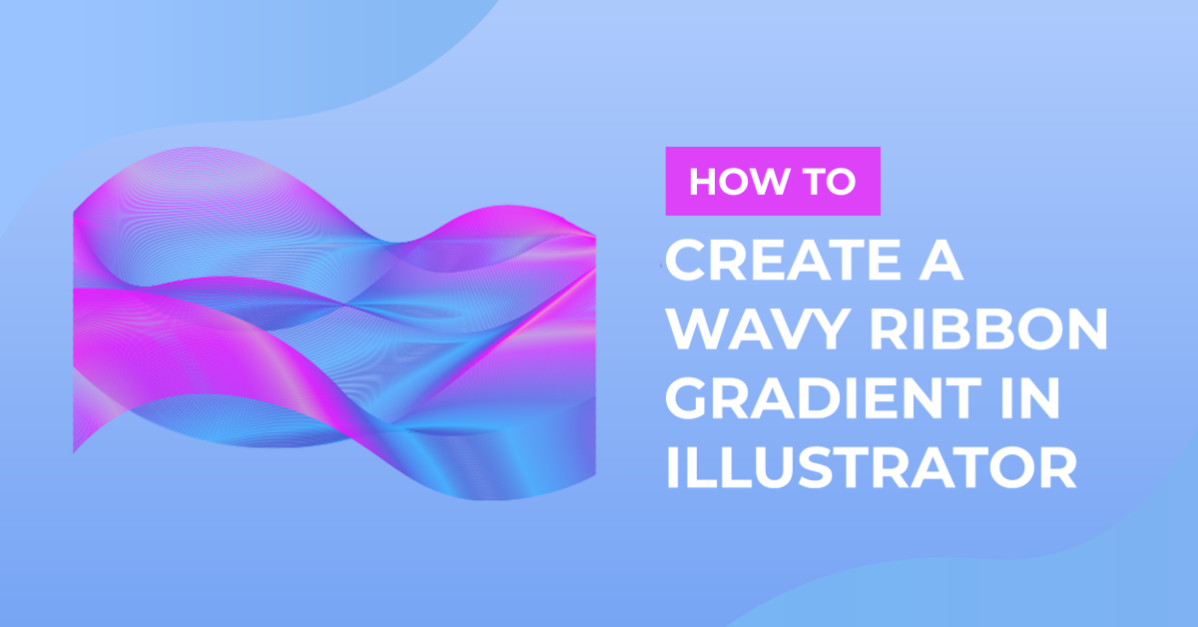
10 - Your “Artwork” should look similar to this.
2 - Select the “Brush Tool” (B) and draw some wavy lines from side to side. Once you are happy with them, select them all and change their “Weight” to 0.5 pt and choose the “Basic” shape.
3 - Go to Object > Blend > Make (Shift + Command/Control + B) to create some more waves with the default preset.
4 - Then, go to Object > Blend > Blend Options, change the “Spacing” to “Specified Steps” and use 100 or more. Click “OK”.
5 - With the “Direct Selection Tool” (A) click on one of the original lines to select it and change its “Opacity” in the “Transparency Panel”. Do this to some of the other lines with different percentages to create some depth in your “Ribbon” shape.
6 - Once you are satisfied, select everything, go to the “Swatches Panel”, click on the Menu on the Top-Right corner and navigate to Open Swatch Library > Gradients > Spectrums. Choose one of the “Gradients”.
7 - In the “Layers Panel” click on the small “Create New Layer” button at the bottom, drag that layer to place it under your first one and select the “Rectangle Tool” (M) with Black as “Fill” color and cover all your canvas with a black rectangle.
8 - You can duplicate your “Ribbon” by holding the “Alt/Option” key while dragging it down. Then, try changing the “Blending Mode” in the “Transparency Panel”. We used “Hard Light” in the first one to make the color pop a bit more and “Exclusion” in the second to get a different color combination.
9 - To crop the “Ribbons”, create a new rectangle with no “Fill” and “Stroke” on top of your paths, lock the bottom Layer by clicking to the left of its Thumbnail and bring out the small “Padlock”. Then, select everything on the top layer, right-click on top your selection and choose “Make Clipping Mask”.
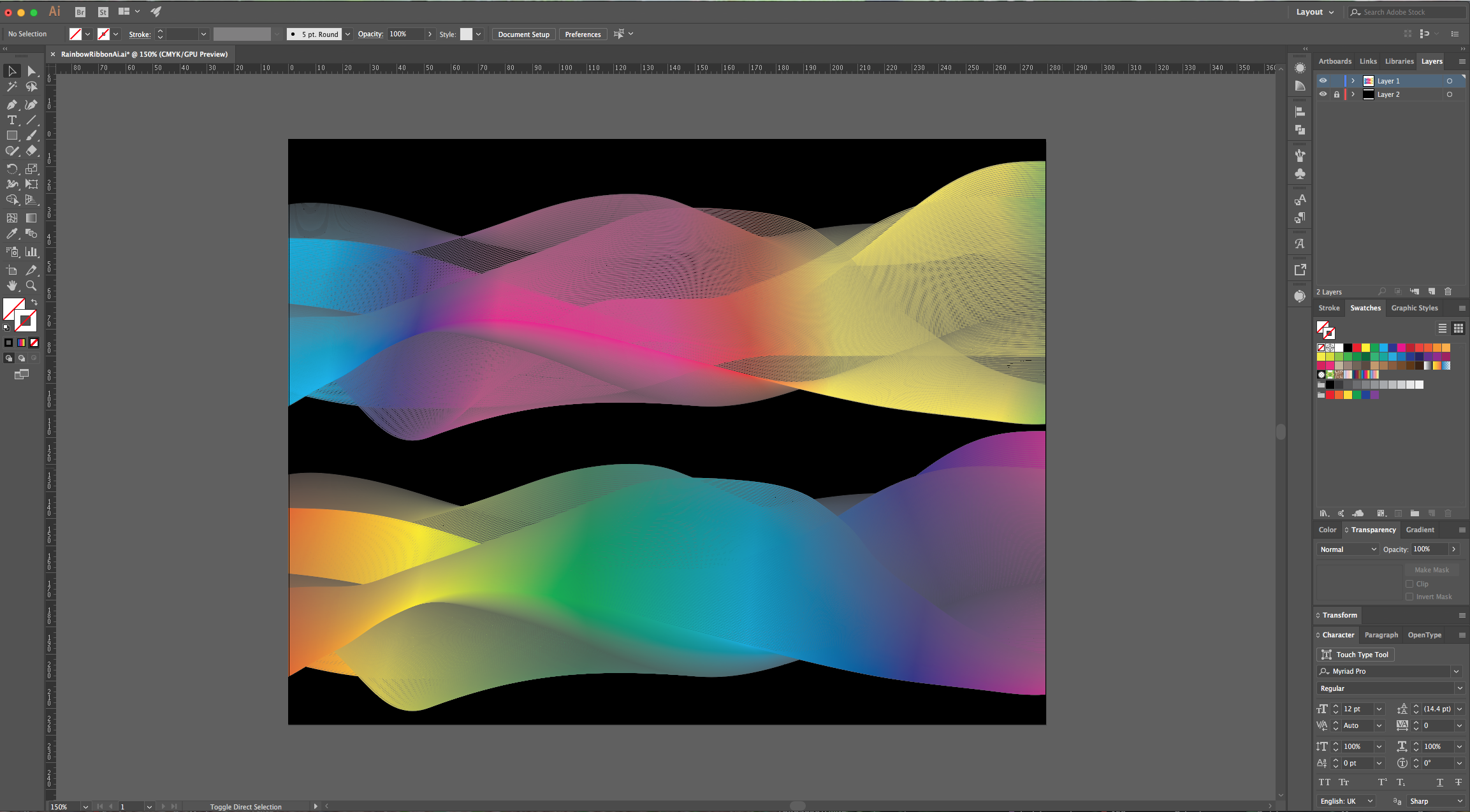
10 - Your “Artwork” should look similar to this.
by @lornacane
Related Tutorials
Illustrator Tutorials
How to Make a Wavy Line in Illustrator
In this tutorial learn a super quick and easy way to draw a wavy line in Adobe Illustrator.
Illustrator Tutorials
How to Create a Transparent Gradient in Illustrator
Learn how to create a transparent gradient in Adobe Illustrator with this step by step tutorial.
Illustrator Tutorials
Wavy Text in Illustrator
Learn how to create Wavy Text in Illustrator using two Methods in this tutorial.
Illustrator Tutorials
How to Make a Ribbon Banner in Illustrator
Discover how to make a ribbon banner in Adobe Illustrator with this step by step tutorial.
Illustrator Tutorials
How to Gradient Fill Text in Adobe Illustrator
In this tutorial we will show you how to gradient fill text in Adobe Illustrator.
Illustrator Tutorials