By Design Bundles
Photoshop Tutorials4 min
Add image into text in Photoshop
1- Open Photoshop and create a new file.
2- Select the type tool, select your font set the font size and select the smooth option. Type your text.
3- Open your image in a new window.
4- Click and drag the image onto the text window.
5- Your image will now be over the text.
6- Select CTRL +T to select the image , then holding the shift + Alt keys, drag and resize the image over your text to fit the screen. Click enter once finished.
7- Right click the image layer and select Create clipping mask.
8- Using the move tool you can position the image where you want it to be in your text. Now we need to add a shadow to make the image/text pop on the page.
9- Create an new layer.
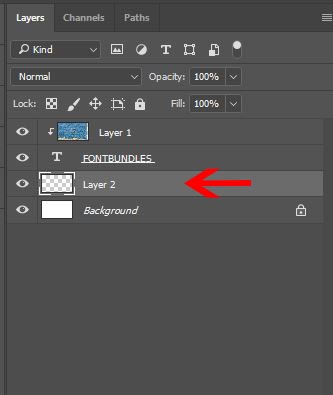
10- Click and drag your new layer below the text layer.
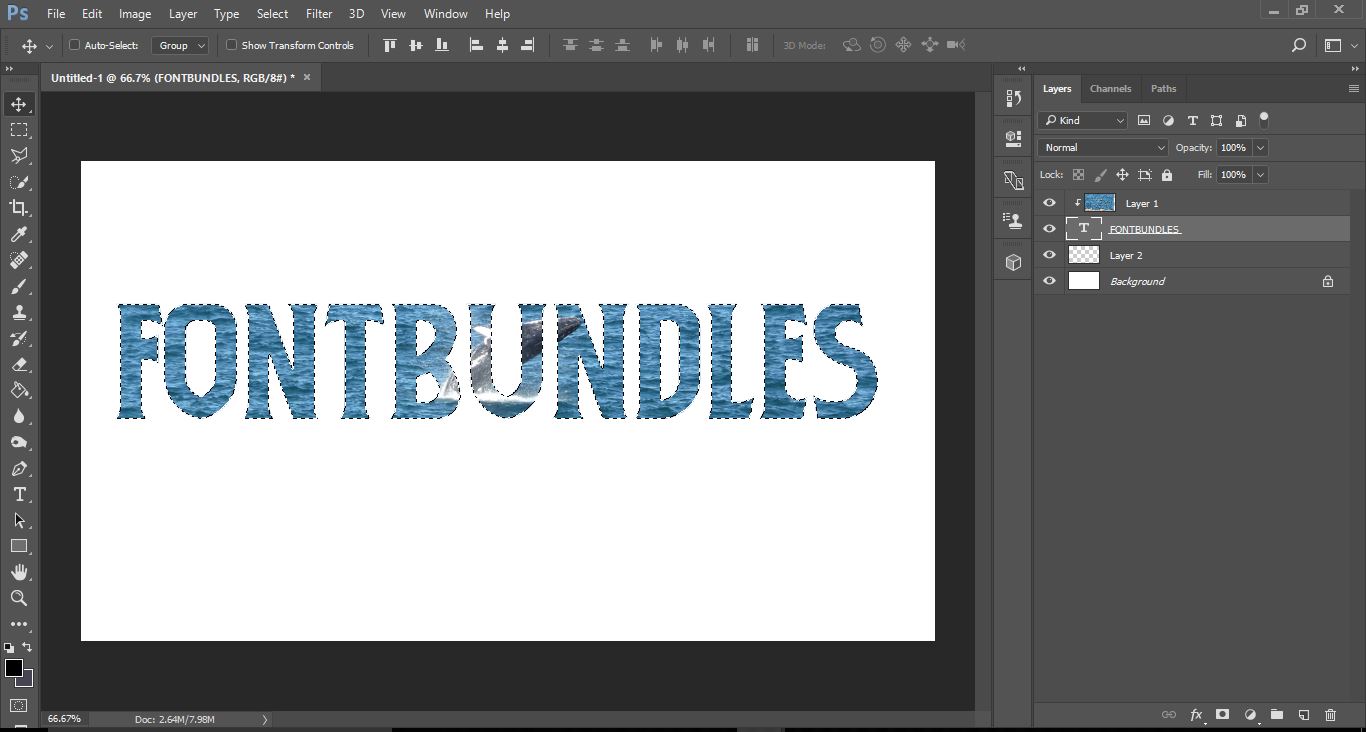
11- Select Ctrl + click on the text layer to select the text. Marching ants will appear around your text.
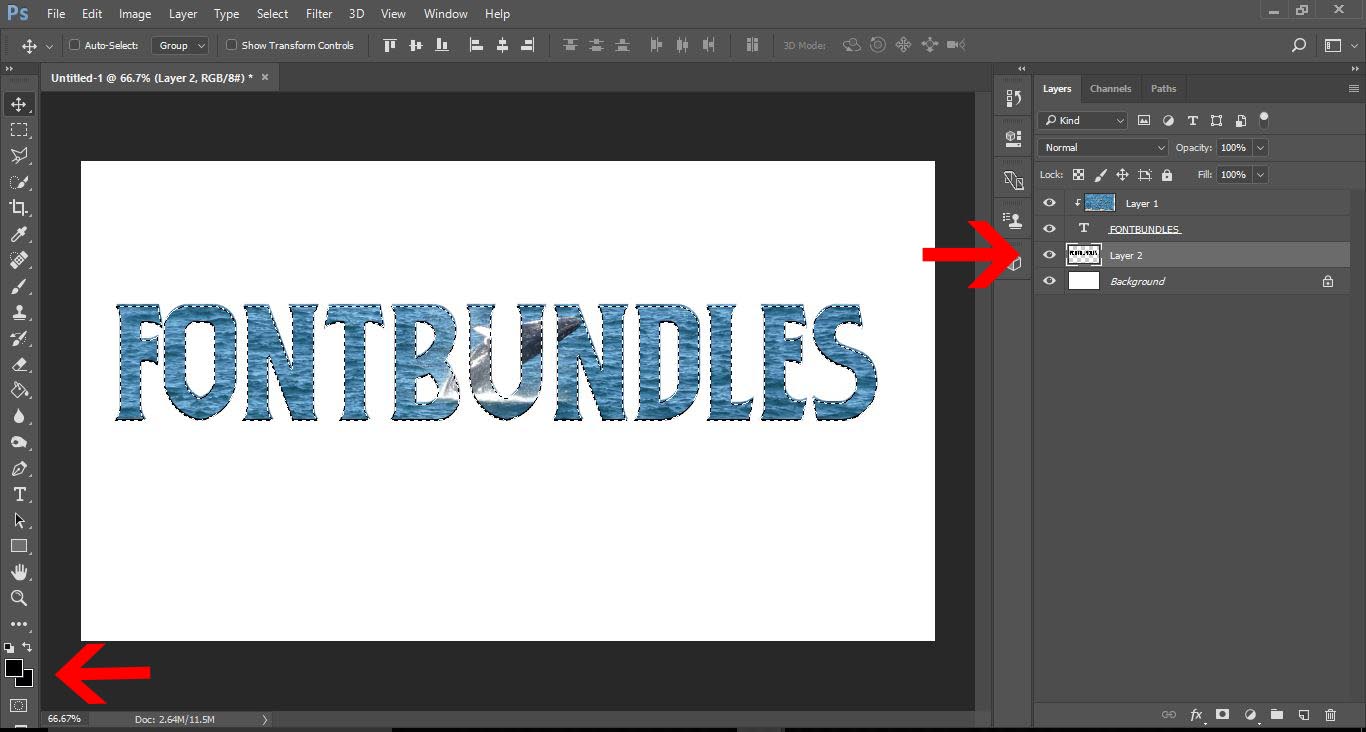
12- Click the new layer and then select the paint bucket tool. Make sure that the color is set to black.
13- Click on the move tool then drag your shadow down slightly.
14- We now need to blur the shadow slightly. Click on Filter > Blur > motion blur.
15- Adjust the blur to your needs. I used a - 50 angle and 40 pix distance. Click OK.
16- Your shadow is now complete to make the text pop.
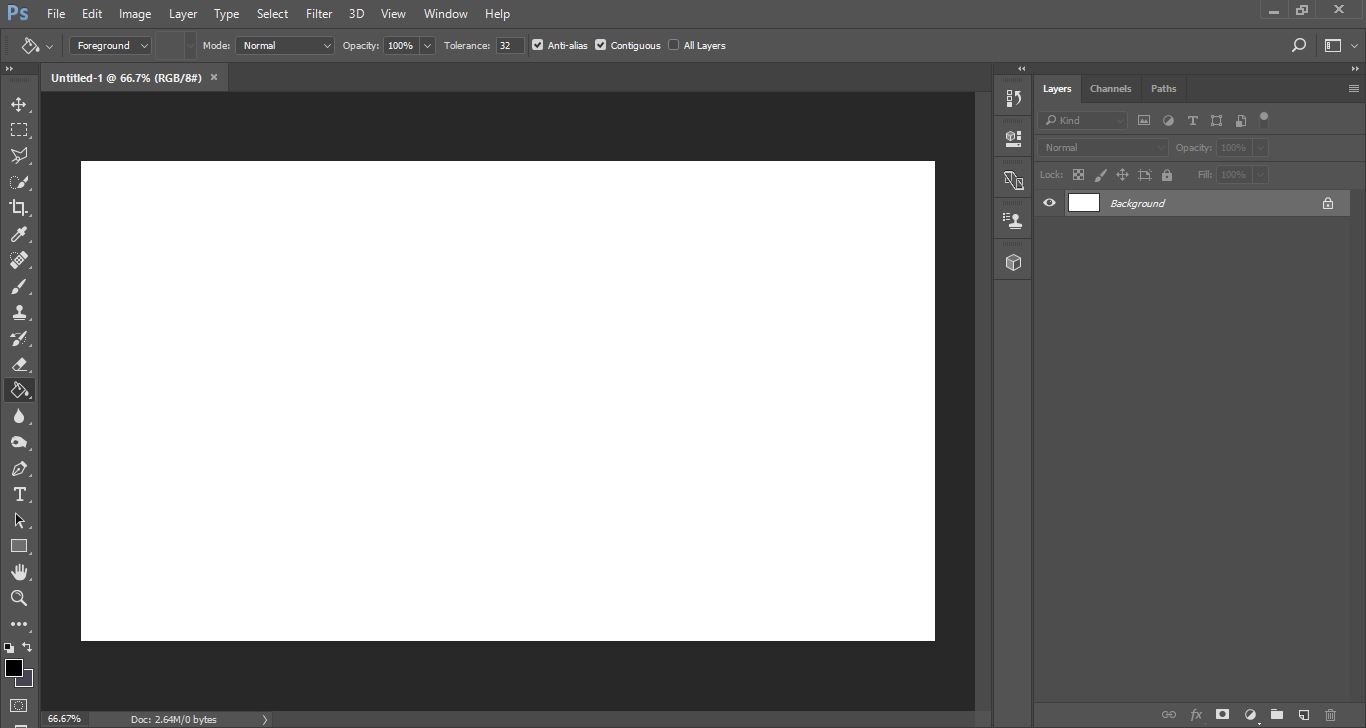
2- Select the type tool, select your font set the font size and select the smooth option. Type your text.
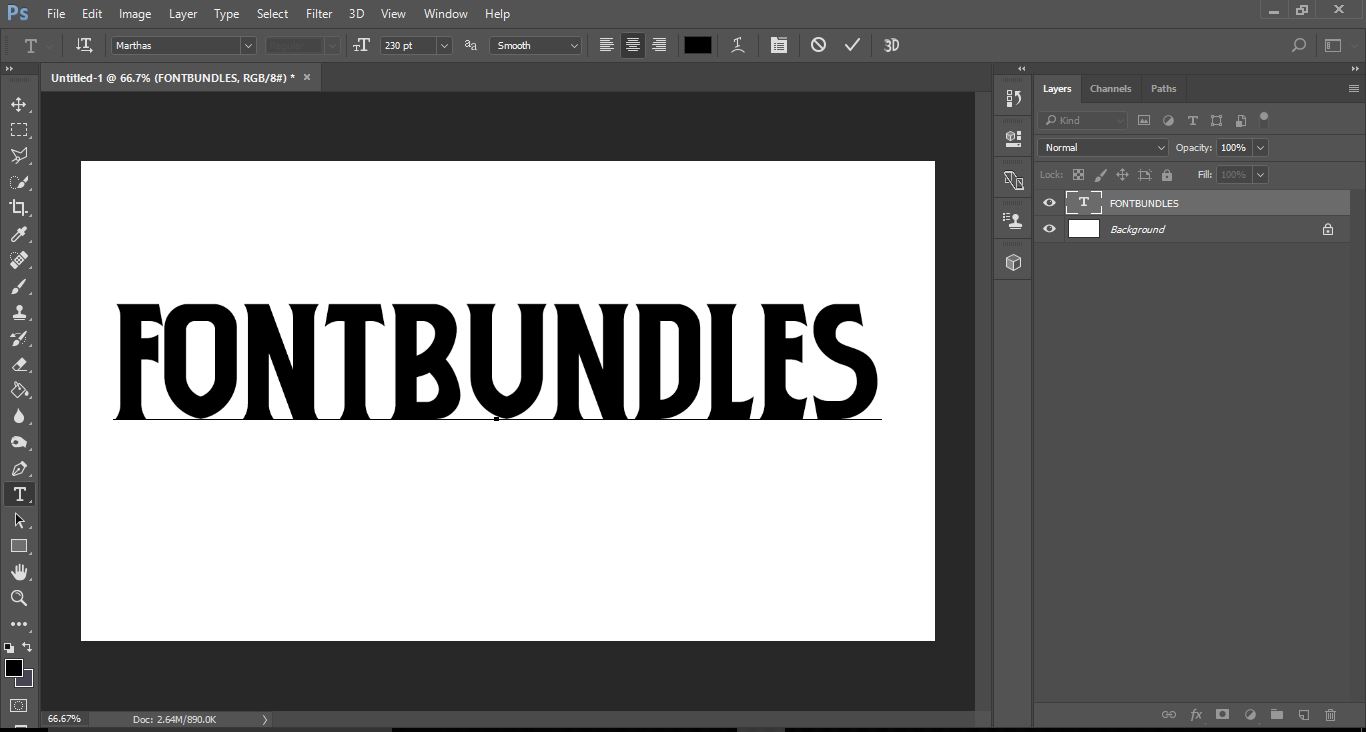
3- Open your image in a new window.
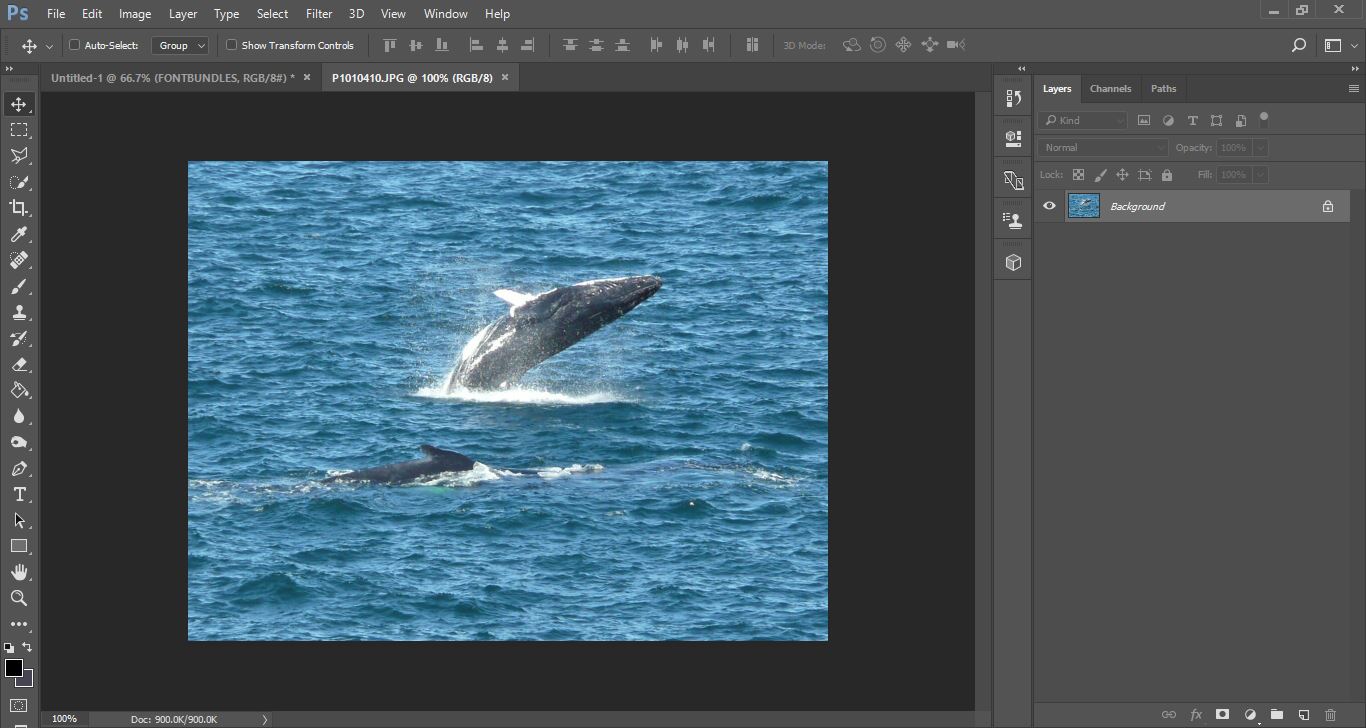
4- Click and drag the image onto the text window.
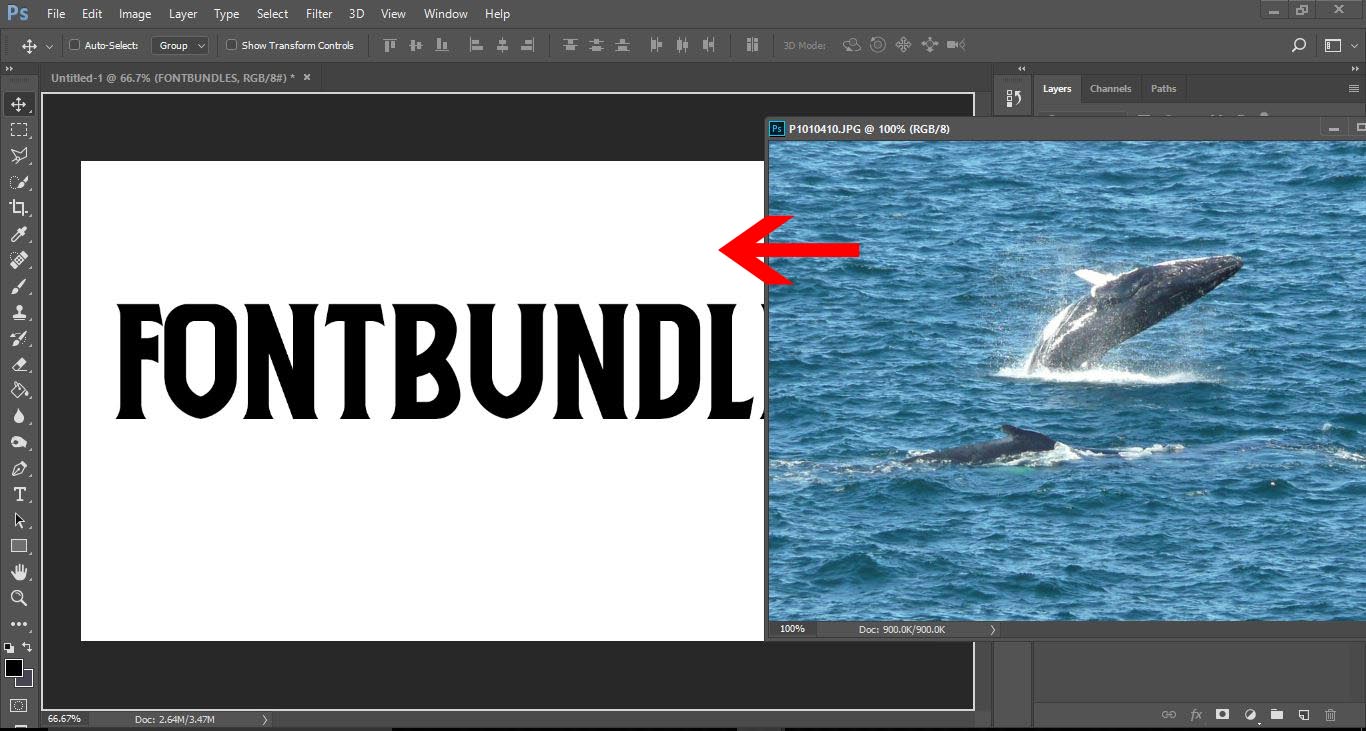
5- Your image will now be over the text.
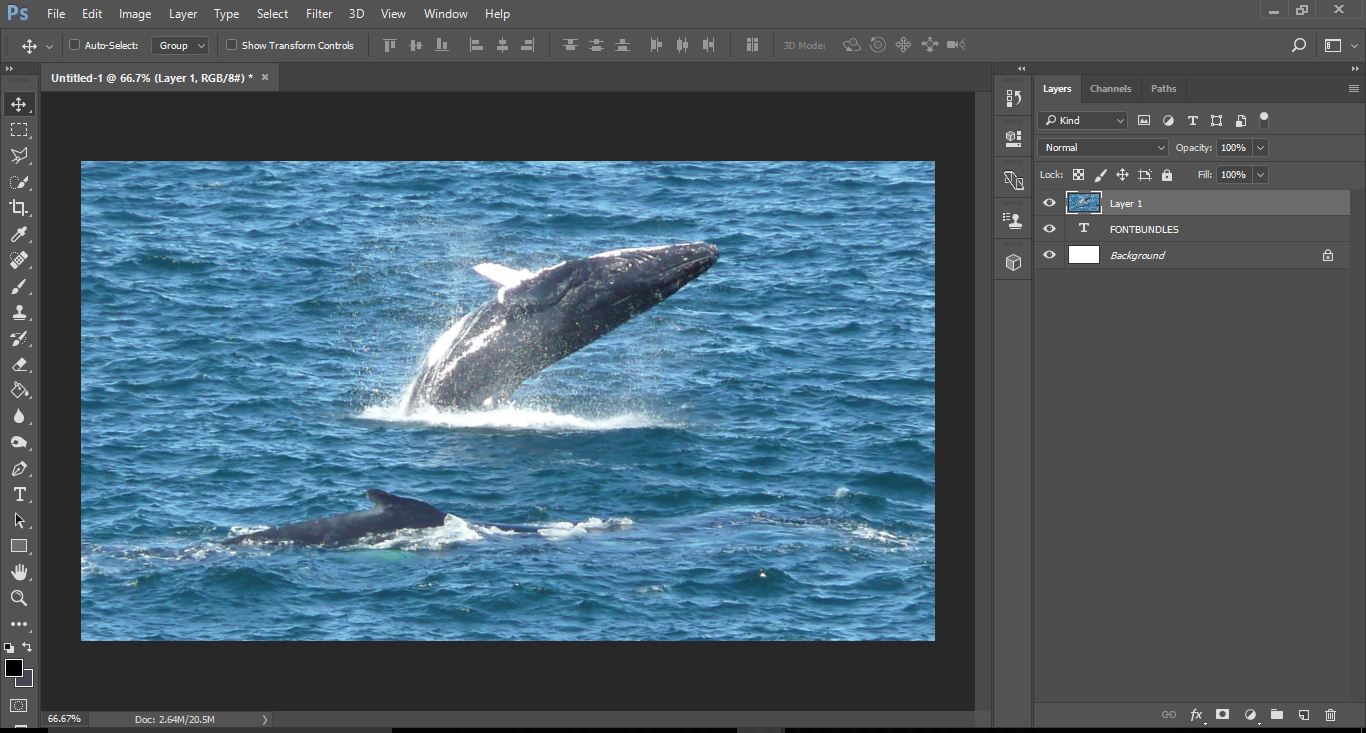
6- Select CTRL +T to select the image , then holding the shift + Alt keys, drag and resize the image over your text to fit the screen. Click enter once finished.
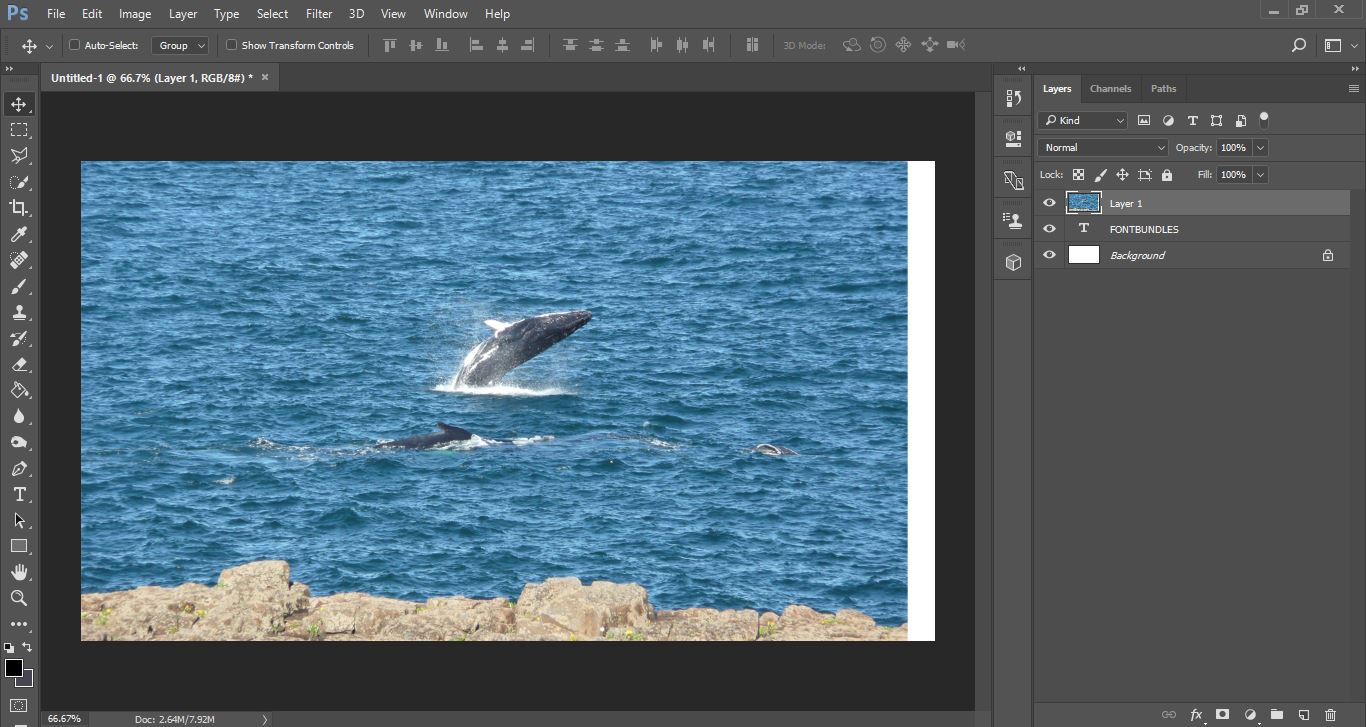
7- Right click the image layer and select Create clipping mask.
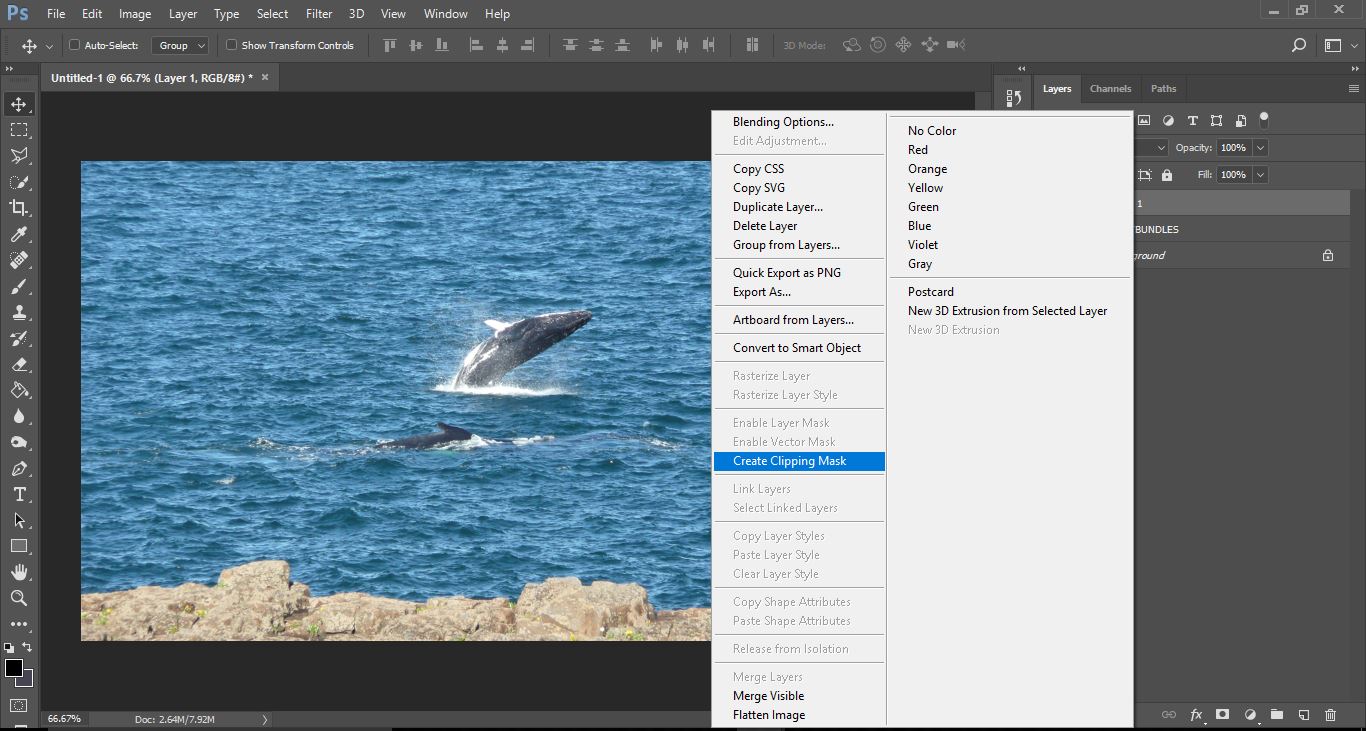
8- Using the move tool you can position the image where you want it to be in your text. Now we need to add a shadow to make the image/text pop on the page.
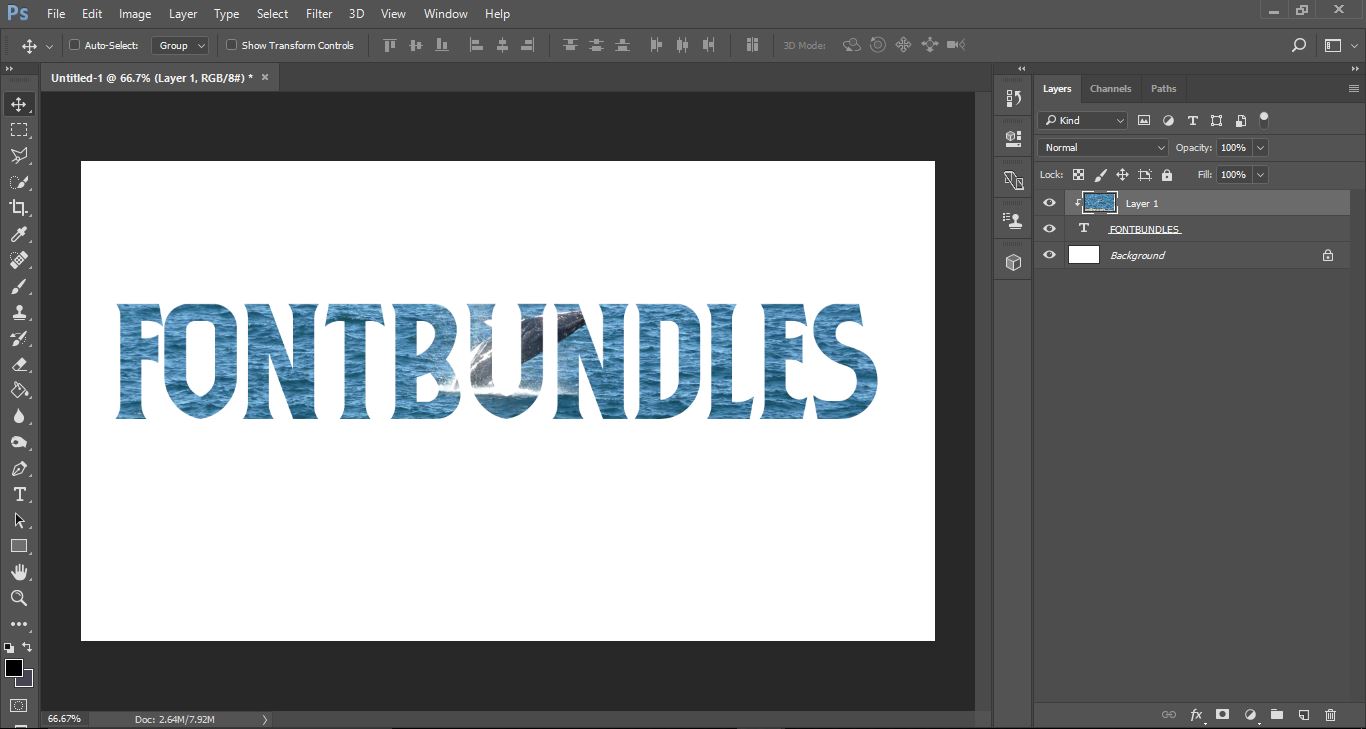
9- Create an new layer.
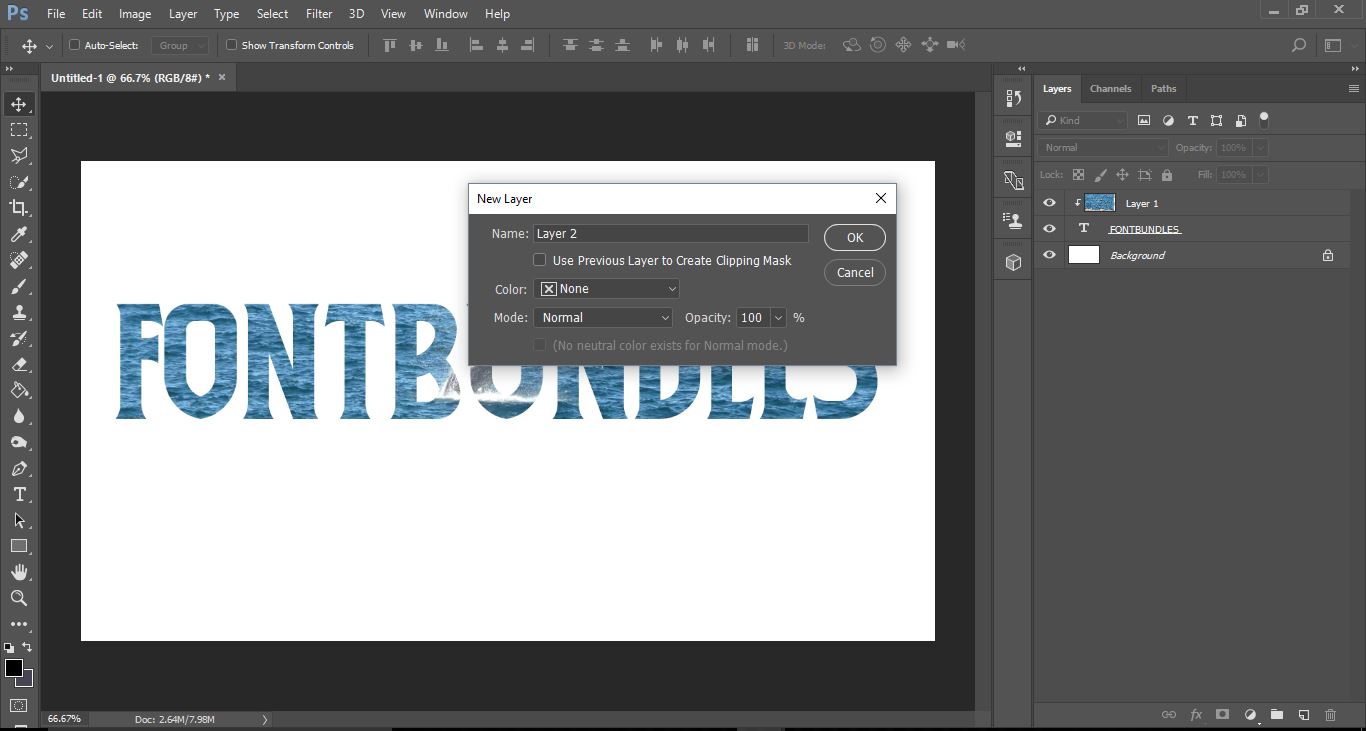
10- Click and drag your new layer below the text layer.
11- Select Ctrl + click on the text layer to select the text. Marching ants will appear around your text.
12- Click the new layer and then select the paint bucket tool. Make sure that the color is set to black.
13- Click on the move tool then drag your shadow down slightly.
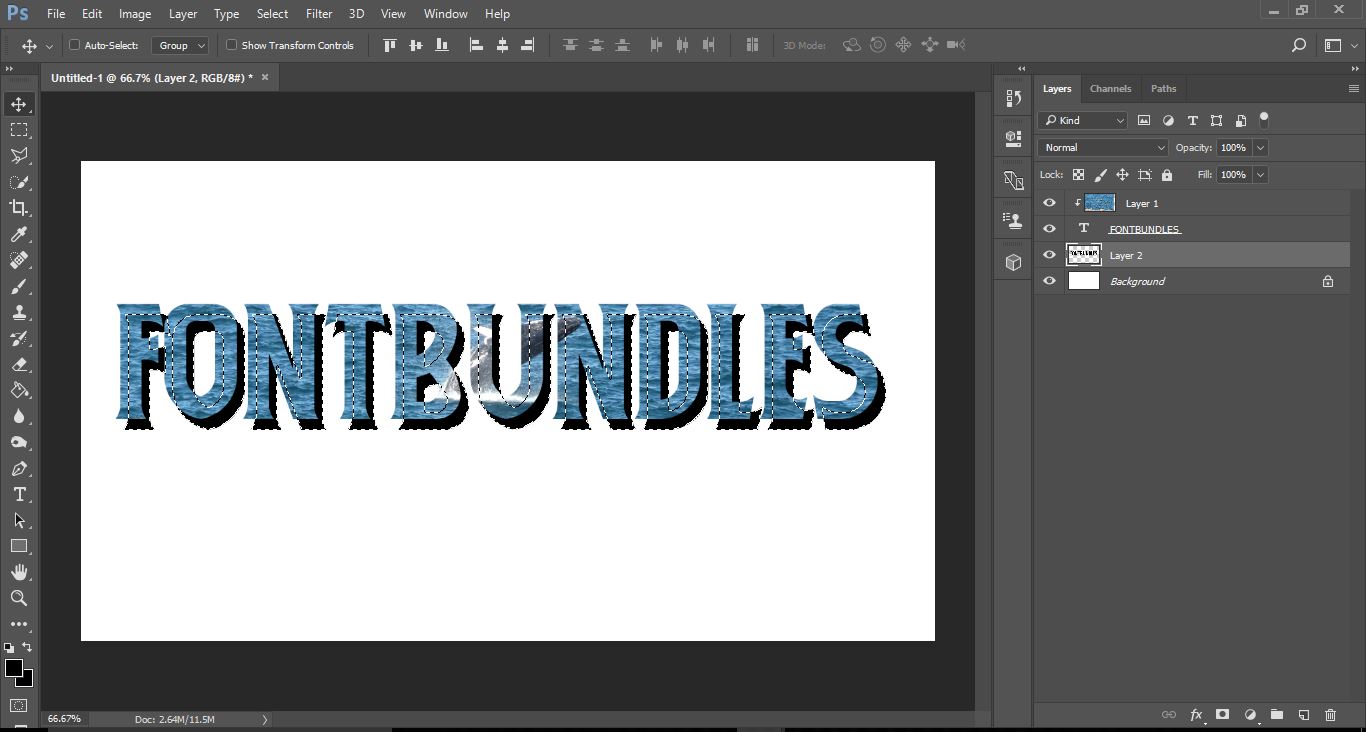
14- We now need to blur the shadow slightly. Click on Filter > Blur > motion blur.
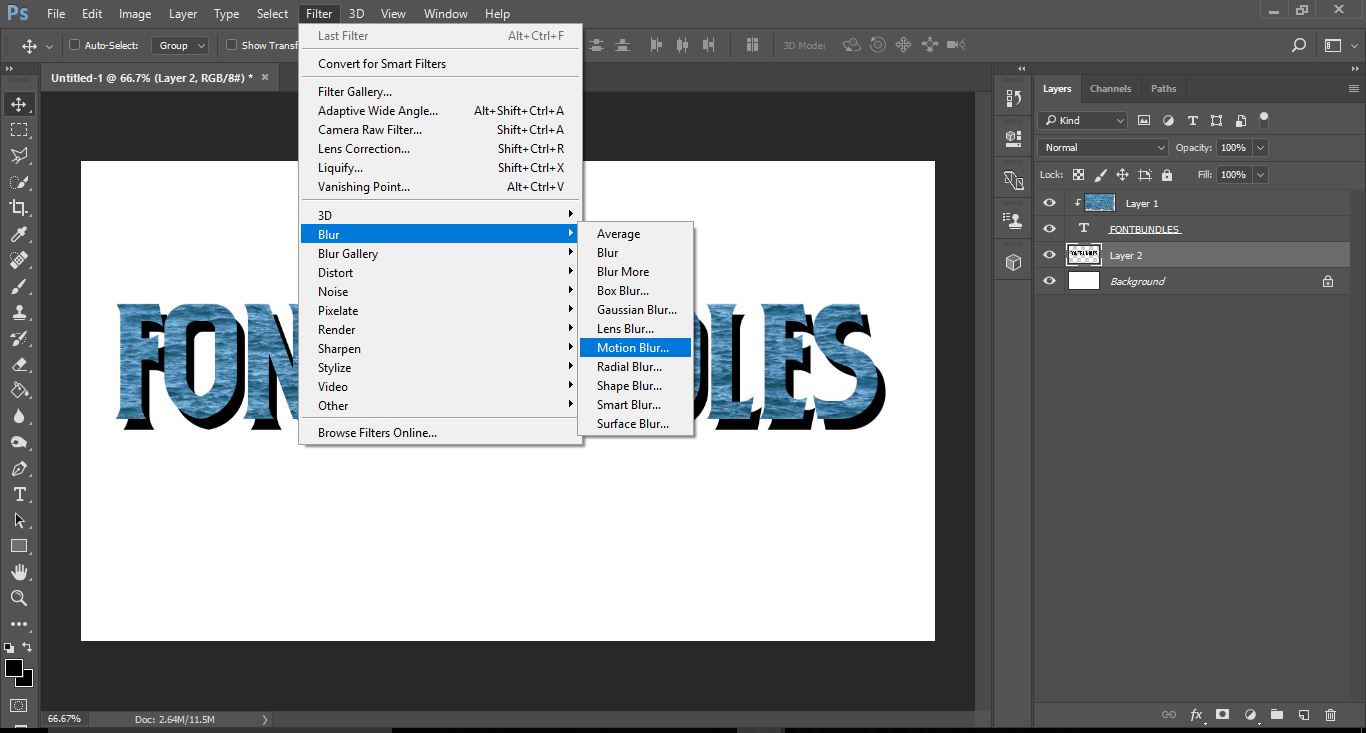
15- Adjust the blur to your needs. I used a - 50 angle and 40 pix distance. Click OK.
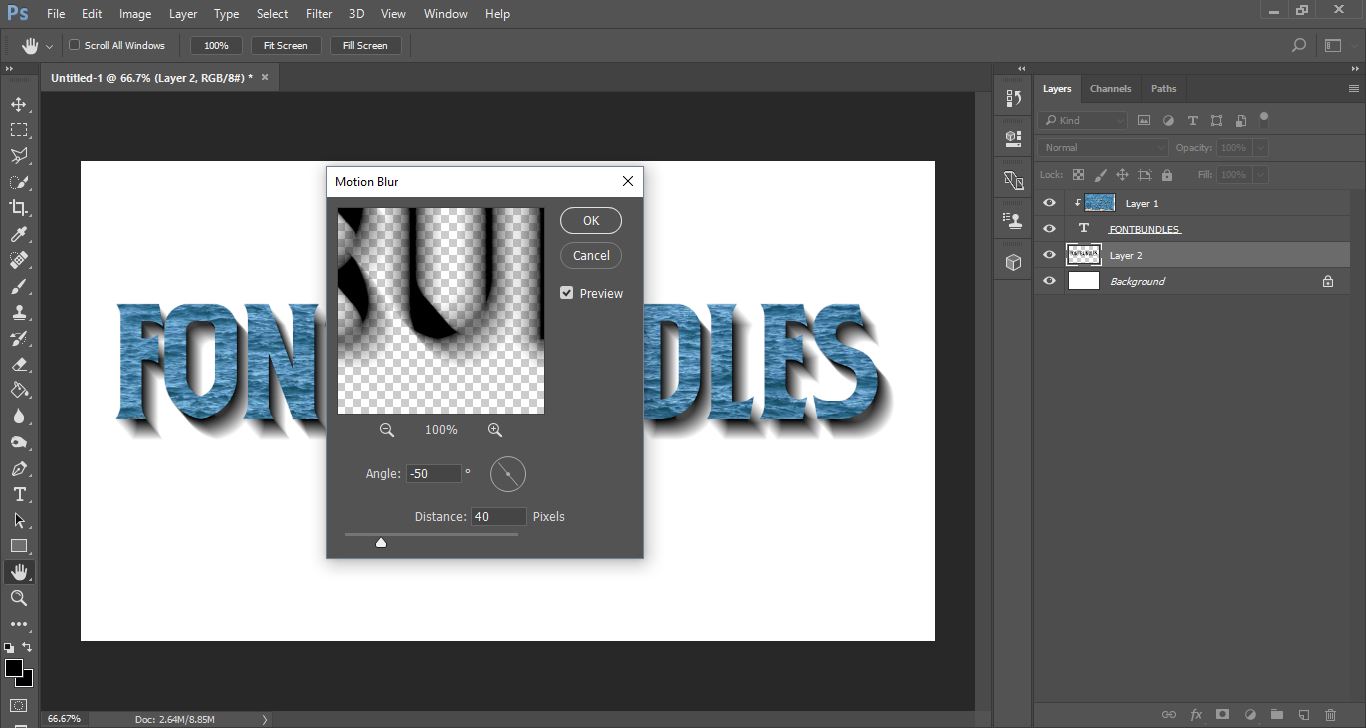
16- Your shadow is now complete to make the text pop.
Related Tutorials
Photoshop Tutorials
How to Add Glitter to Images in Photoshop
Learn how to add glitter to your images in Photoshop with this tutorial.
Photoshop Tutorials
Add Rain to images in Photoshop
Photoshop Tutorials
How to Use Text Effects in Photoshop
With Photoshop Text Effects, you can create text with impact in just a few steps.
Inkscape Tutorials
How to warp text into the shape of an object in Inkscape
Discover how to warp text into the shape of an object in Inkscape.
Affinity Tutorials
How to Add Text in Affinity Photo
Learn how to Add Text in Affinity Photo with this step by step tutorial.
Photoshop Tutorials
Image Burned in Wood in Photoshop
In this tutorial, discover how to create a realistic wood burned effect in Adobe Photoshop.