By Design Bundles
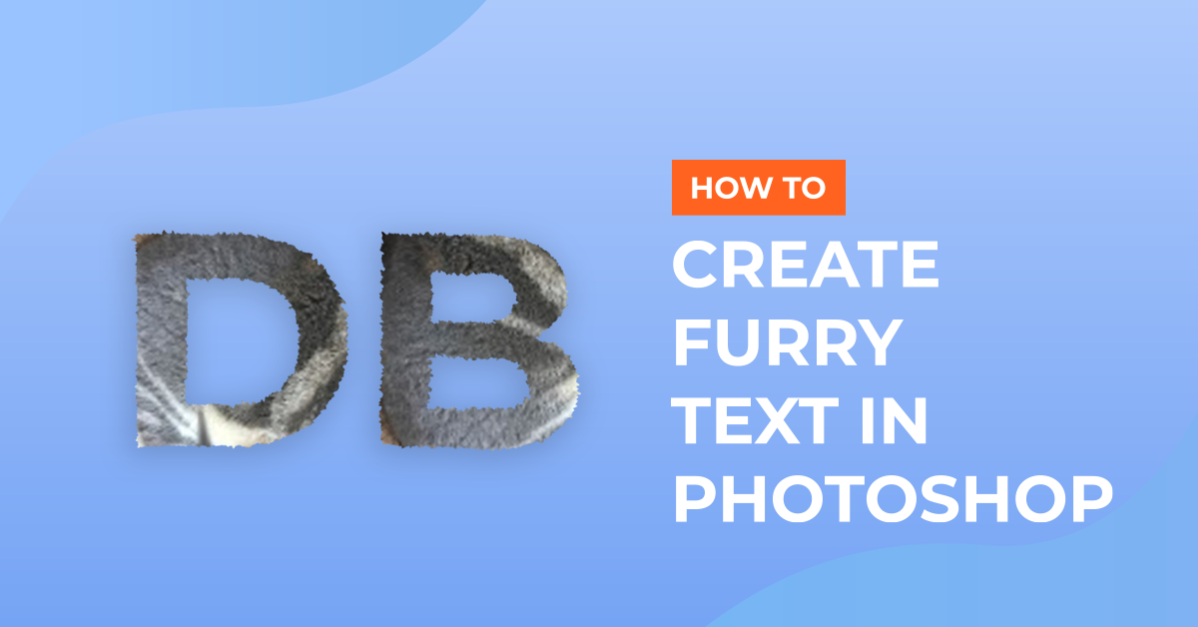
Creating Furry Text in Photoshop
1- Open Photoshop.
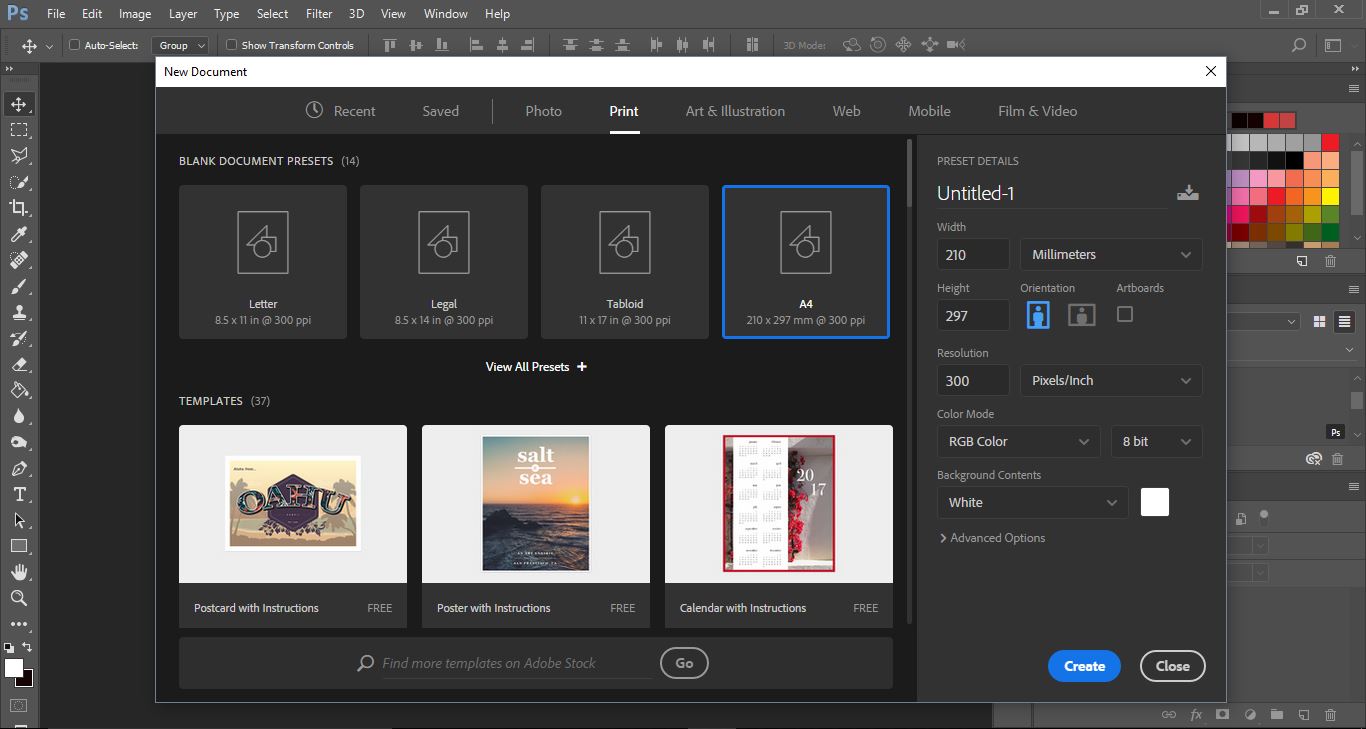
2-Create a new file or open the file you would like to add your text to.
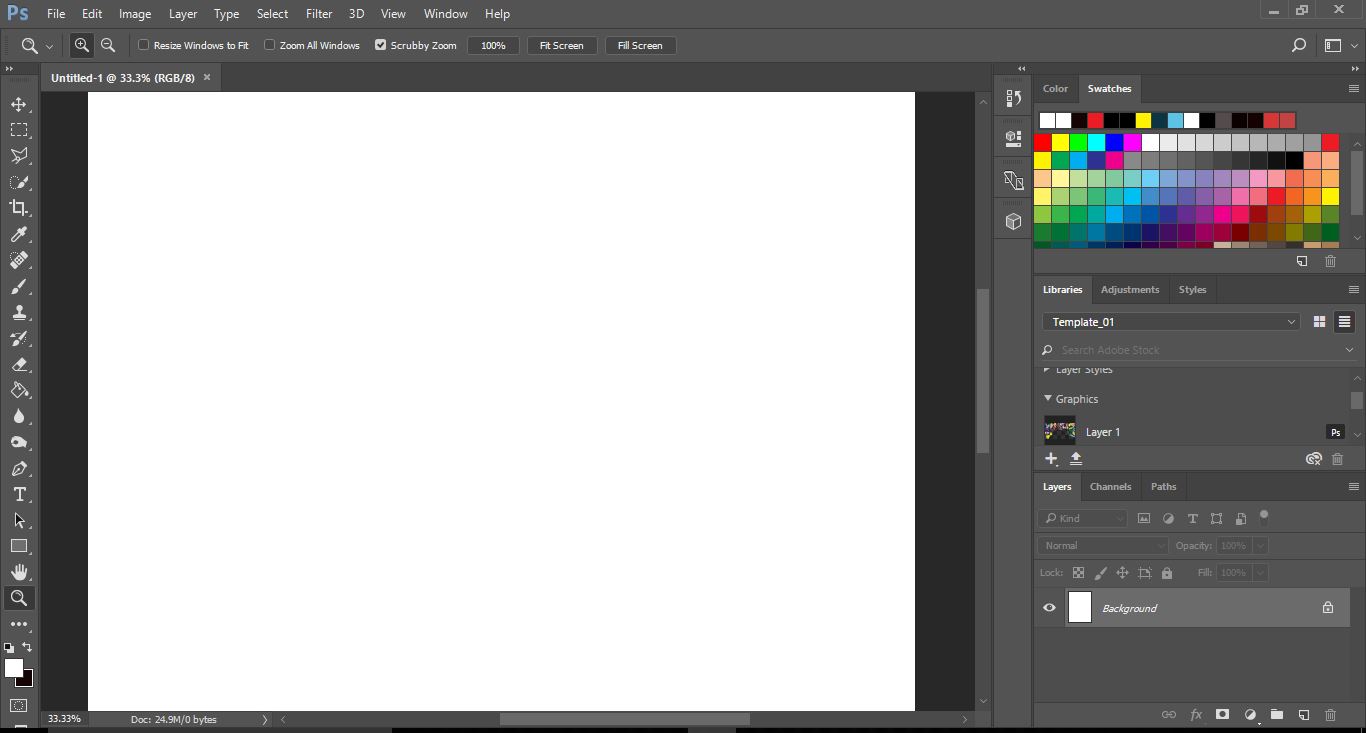
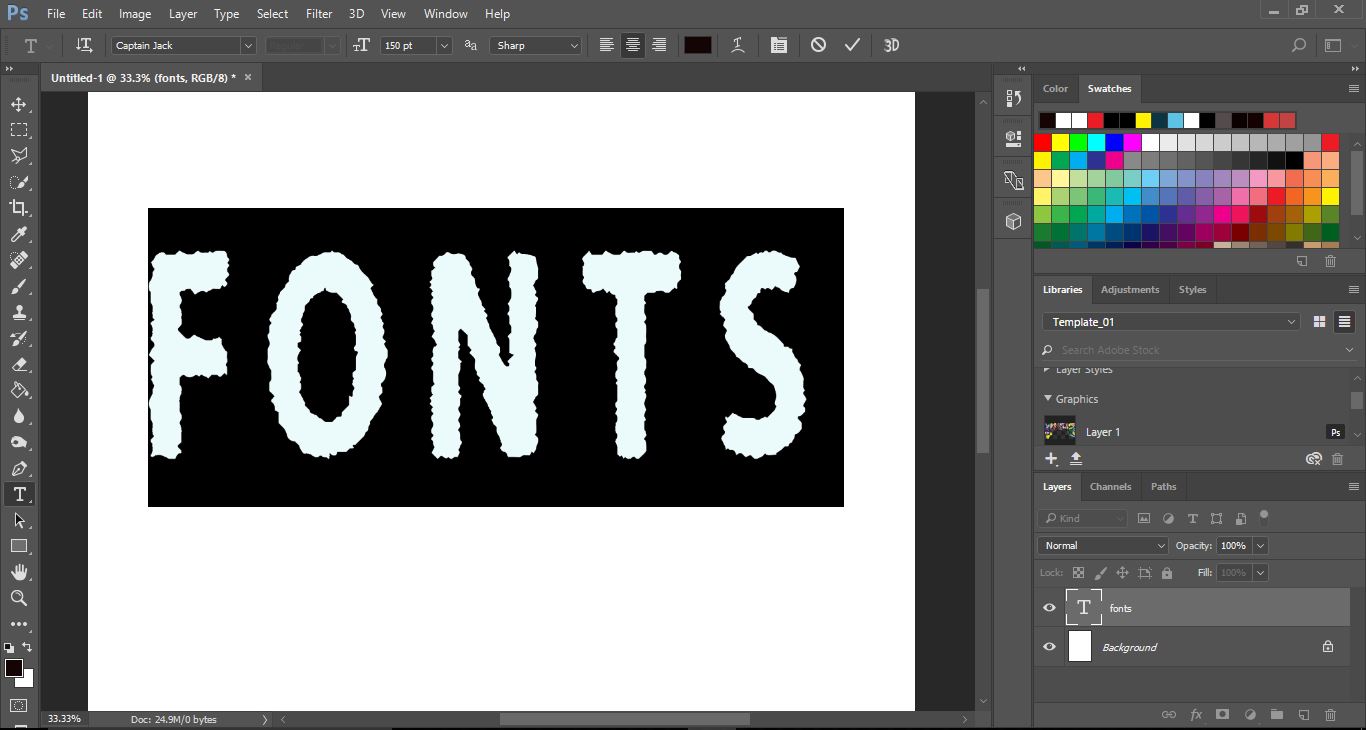
3- Select the text tool and type your text. Highlight and change the font to the one you would like to use. I have found bold fonts with rough edges make for the best fonts when creating a furry effect.
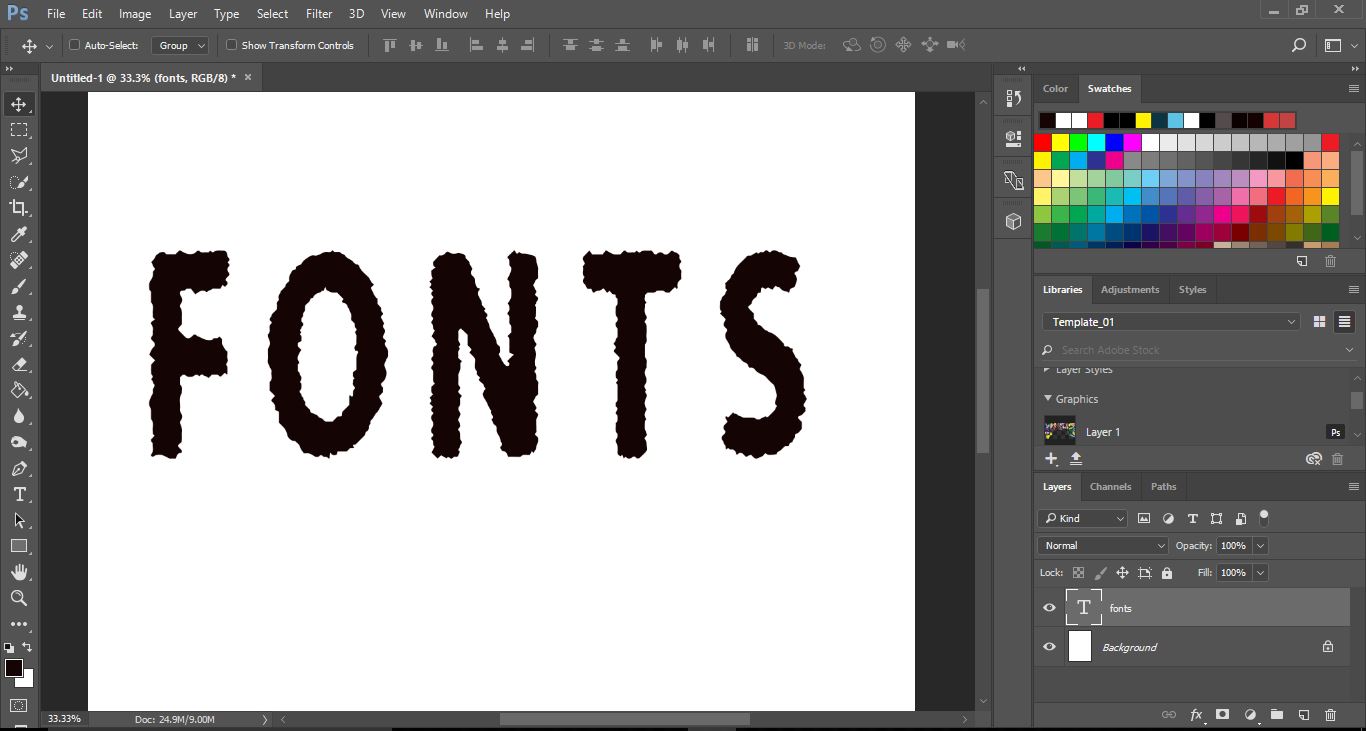
4- Adjust your text size.
5-Open the picture you will use for the fur effect. I am using a picture of my cat Loki.
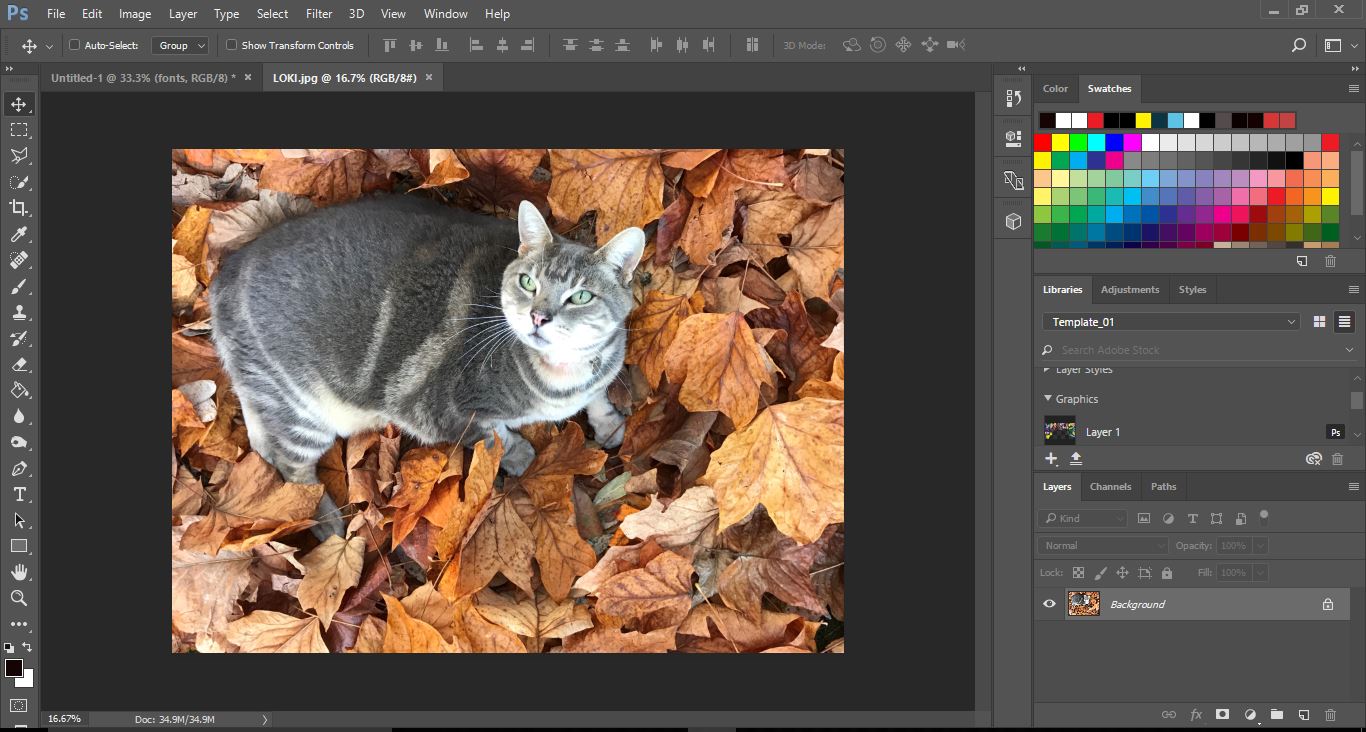
6- Click and drag the image onto your work space where the text is. Close the fur image we will not need it again.
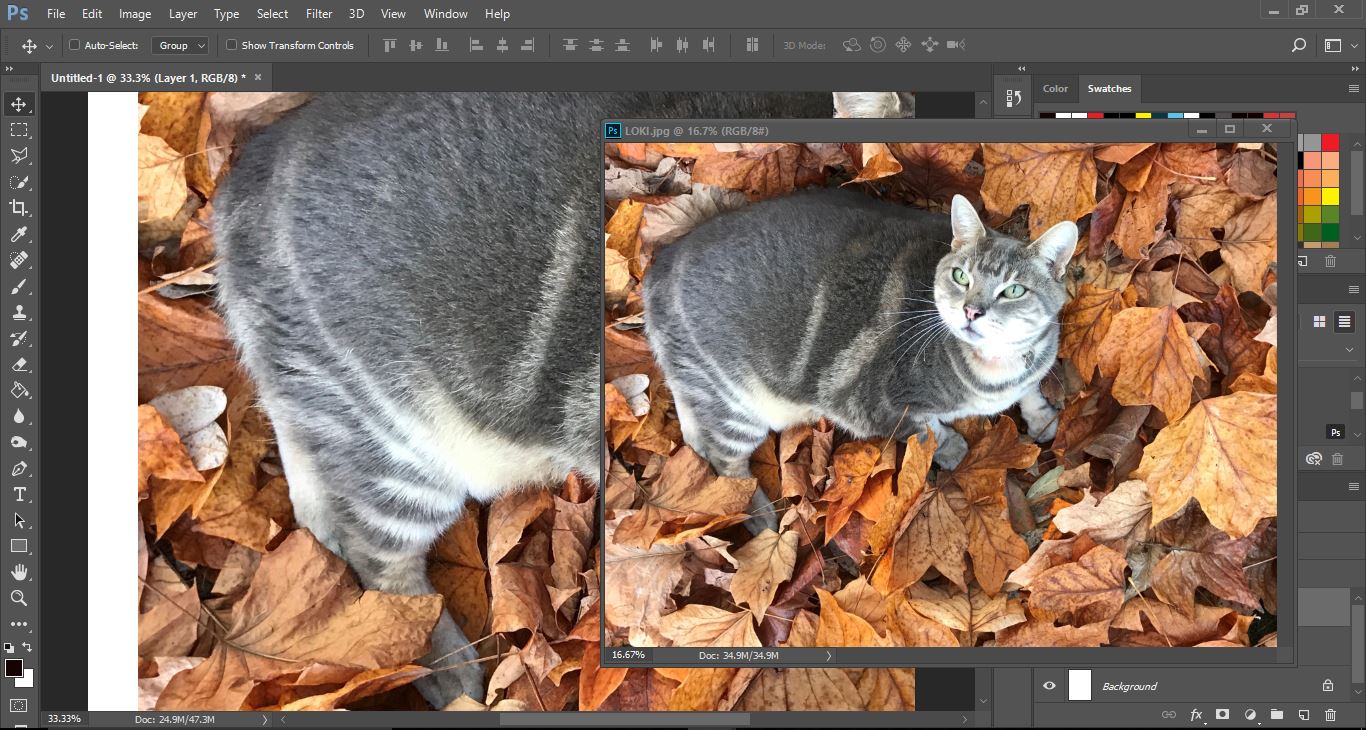
7- Rename the layer to fur layer so we know which one we need to use.
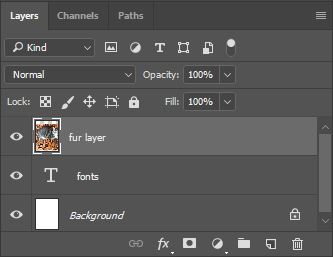
8- Select your text layer. Click and hold Ctrl at the same time to lad the selection of the text onto the fur. you will see the text as marching ants.

9- With the fur layer selected, click on the mask icon at the bottom of the layers tab. this will apply a mask.
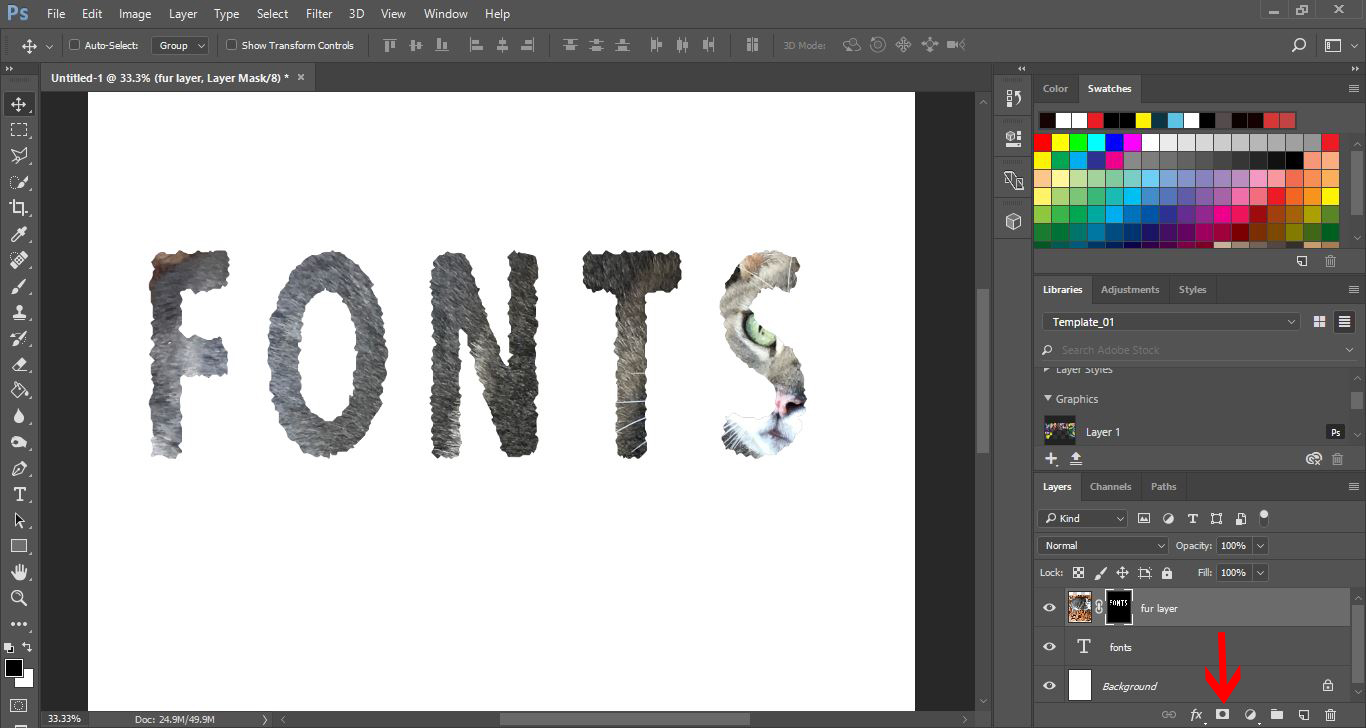
10- Select the fur layer with the mask and unselect the link that is between the image and the mask. This will let us affect either the image or mask without affecting both at the same time. Select the fur image in the layer.
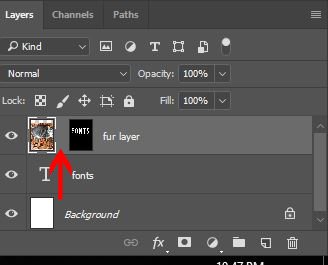
11- With the fur image selected you can now move the image behine the mask around to find the best fur. You can also make the fur image larger or smaller depending if you want to change the size of the fur. I will be making my image larger to the face of my cat is not in the text.

12- Finally you can select the clone tool and hold Alt key and click the part of the fur you wold like to clone. then add the cloned fur to the parts of the text you want to edit.
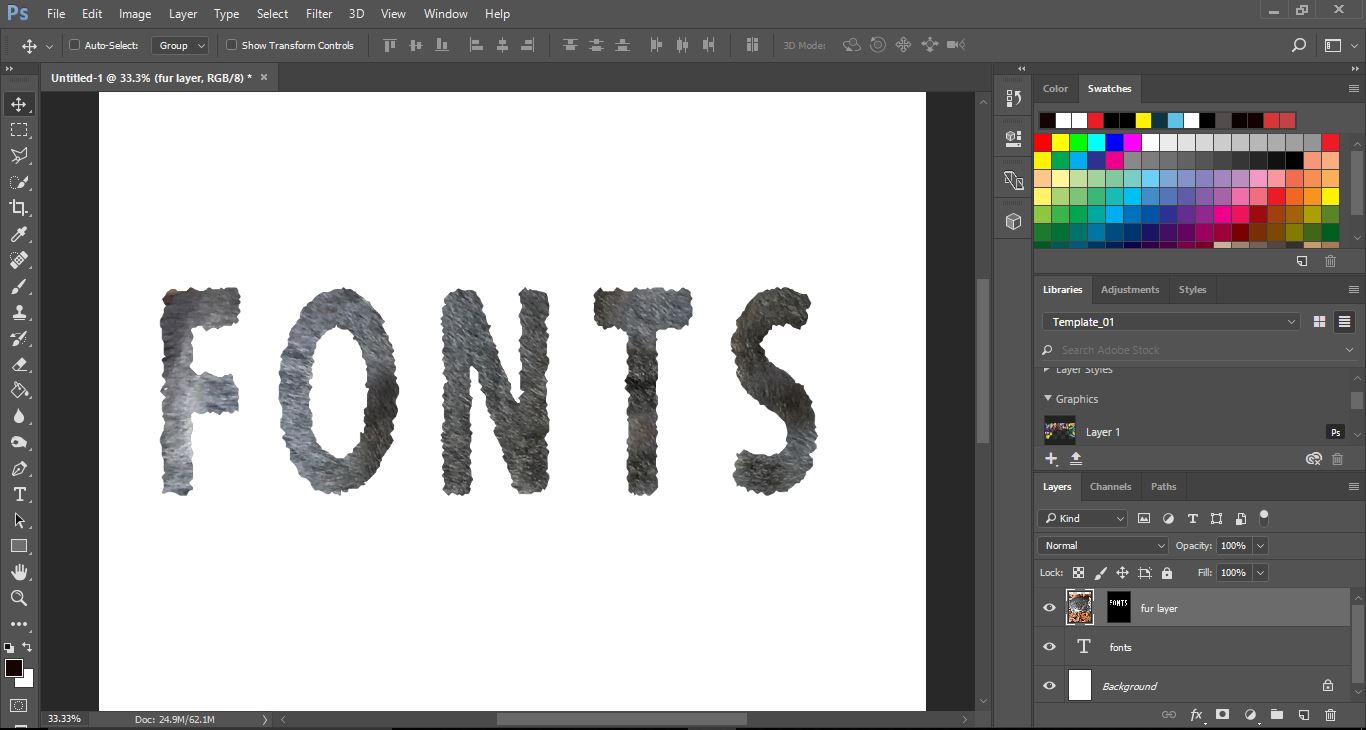
The font used is Captain Jack by SmartDesigns.