By Design Bundles
How to Make an Instagram Bingo Template in Photoshop
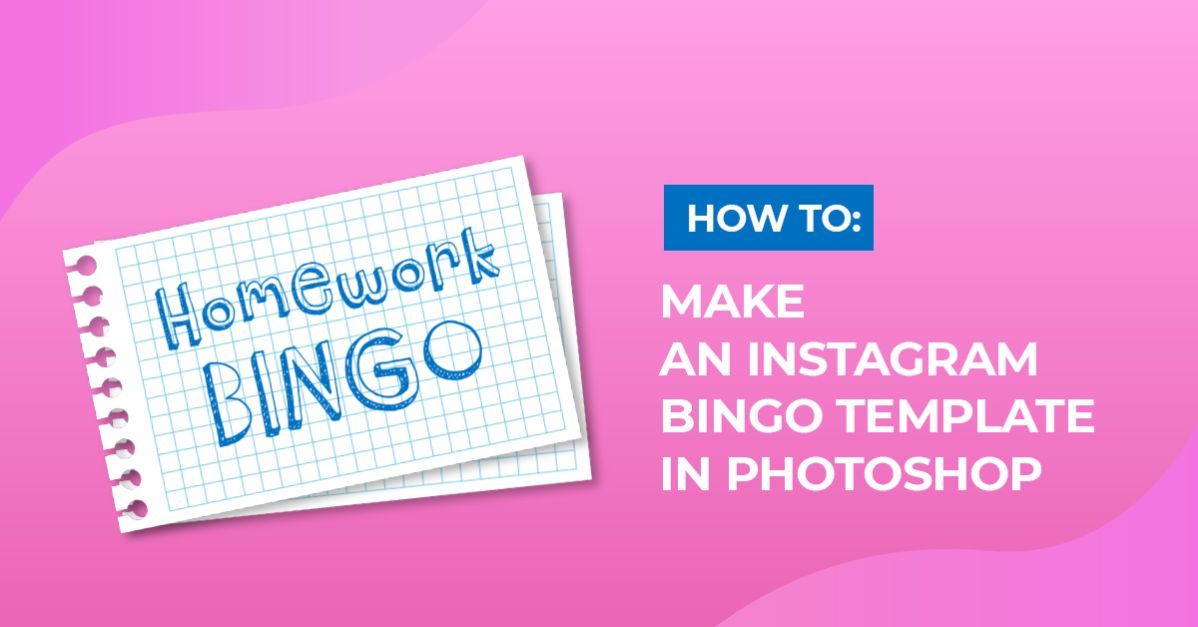
In this tutorial, we will be making an Instagram Bingo Template in Photoshop. Bingo template images can be used as the base for an Instagram Story. You can tag friends or followers and challenge them to post the same story. Bingo story posts are a great way to get to know your followers, let them know you, and increase engagement.

We are going to learn how to create a blank school-themed bingo template for Instagram. For this tutorial we will be usingimages of school suppliesandsticky note images. If you would like to skip the design process altogether, Design Bundles has many greatInstagram social media templates.
For the text we will useCalifornia Love,theBarn Acre font,andSunset Chaserfrom Font Bundles.After making the bingo card, you can use the template as a base to create another card for Instagram.
Step 1 - Create Your Document
In Photoshop, create a new 1080 x 1920 px @ 72 dpi document. This is the appropriate size for Instagram highlights and stories.


Step 2 - Add the Background to Your Document
We are using some outlined notebook pages as our background. You can choose any type of compatible file you want. This could be a solid color or gradient fill layer, a pattern or illustration. To bring them in, just drag their thumbnail onto your canvas to import.

You may need to use Free Transform (Command/Control + T) to resize and or/ rotate them. You can also go to Edit > Transform and use some of the editing options available.

Once you are done, hit Enter or click on the checkmark on the top menu to commit the changes.

Step 3 - Add Decorative Elements and a title
We are going to add some school-themed elements to complement the background. Depending on the type of files you are using you may need to copy (Command/Control + C) and paste (Command/Control + V) them. Alternatively just drag them into your document.
Once imported, use Free Transform (Command/Control + T) to resize and or/ rotate them if needed. You can also arrange them to fit your design.

Now, we are going to add a title to our Instagram Bingo Template. Click on theHorizontal Type tool (T). Next, select the font you like from the font menu, then type out the title for your Instagram Bingo Template.

Step 4 - Add the Bingo Card Grid Slots
We are now going to add the shapes that mark the bingo grid slots. You can add them with the Shape tool (U). You alsocreate a new layer by clicking on the small icon at the bottom of the Layers panel. Then, use whatever technique you want.
We decided to use a brush from the Legacy Brushes from Photoshop. To select the brush, click on the down arrow next to the active brush. This will open the Brush Preset Picker and the Legacy Brushes folder. In the Default Brushes folder, scroll down and choose the Crayon brush.
If the Legacy Brushes folder is not available, you will need to click the gear icon at the top right of the panel and click Legacy Brushes. Then, when promptedabout restoringthe Legacy Brushes Set to the list, click Ok.

The size of the shapes will depend on the amount of spaces you want added to the bingo card. We added 20 slots to our Instagram Bingo Template.

Step 5 - Add Text and Group Bingo design
In this step we will add some text, adjust any details if needed and group our design. Using the Horizontal Type Tool, add text to your Instagram Bingo Template.

Have a look over your design in case you want to make some changes. You may want to adjust the color of the title, add hashtags, social media information and so on.
Next, we want to group the elements.In the Layers panel, select the thumbnails of all the elements you want to include in your template. Group them together by clicking on the small folder icon at the bottom of the panel.

Step 6 - Create Bingo card variations
Using the template you can quickly create variations of the Bingo card. Do this by duplicating the group folder (Command/Control + J)then changing or adding elements.

You can also create different designs and keep them in separate folders for later use.

Now, save your Bingo card and post it on your Instagram story. Start off by just posting the blank template as a highlight on your profile. This way others can save and use it even after the original one expires. You can use the marker tool available on Instagram to tick off the bingo boxes, tag some friends and have fun comparing your results!
Next up check out our tutorials on replacing the sky in Photoshop, changing the color of objects, and creating a flat character in Photoshop.