By Design Bundles
Photoshop Tutorials4 min
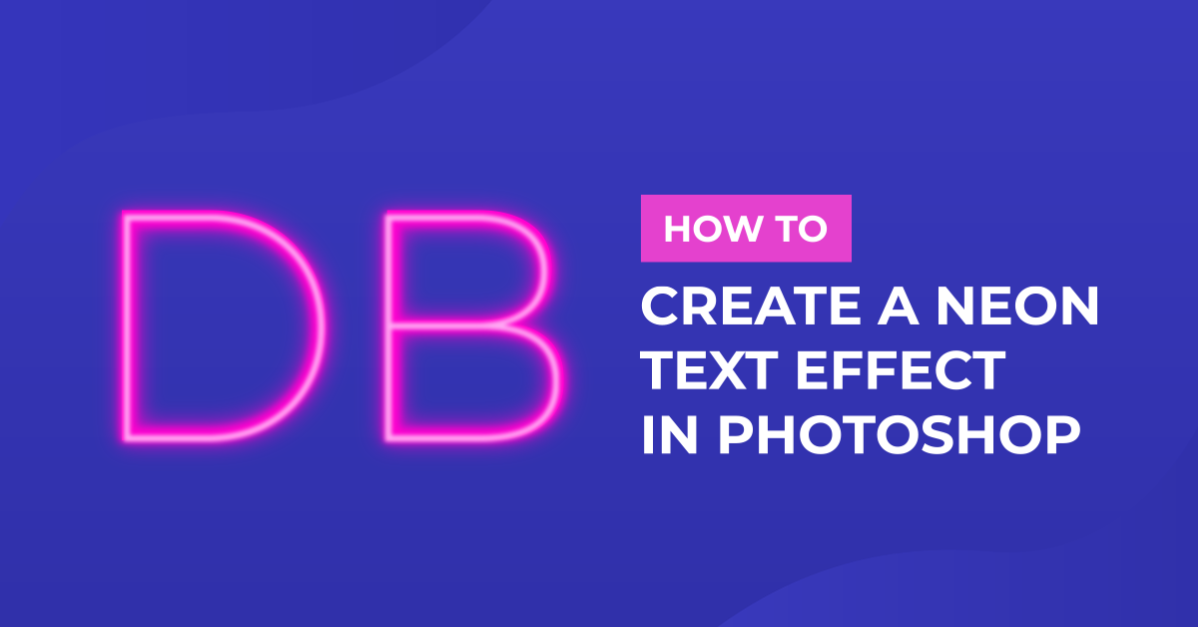
Neon Text Effect in Photoshop
1 – In Photoshop create a New Document or Open an existing one.


2 – Choose the “Paint Bucket Tool” (G) from your Toolbox and fill your background with black.

3 – Choose the “Type Tool” (T) and type your text. We chose the font Zipper from Fontbundles.net for ours. Make its color Cyan or a light shade of blue.

4 – Select your text and convert it to a “Smart Object”. This is important if you want to make corrections or modify your text later. Right click your layer and choose “Duplicate Layer” or go to Layer > Duplicate Layer. Then hide the duplicate for later use.


5 – Go to Filter > Blur > Gaussian Blur and give it a Radius of 15.0 pixels.


6 – Go to Layer > Layer Style > Blending Options or double click on your layer and apply the following values:


7 – We decided to reduce the amount of Gaussian Blur. To do this, double click on the smart filter and reduce the Radius to 5.0 pixels.

8 – Duplicate this layer and give it an Opacity of 50%.

9 – Select your first duplicate (The one you did at the beginning) move it to the top and make it visible and set its “Blending Mode” to “Color Dodge”. Then apply a Gaussian Blur of 100 px.


10 – The result should look like this.

by @lornacane
2 – Choose the “Paint Bucket Tool” (G) from your Toolbox and fill your background with black.
3 – Choose the “Type Tool” (T) and type your text. We chose the font Zipper from Fontbundles.net for ours. Make its color Cyan or a light shade of blue.
4 – Select your text and convert it to a “Smart Object”. This is important if you want to make corrections or modify your text later. Right click your layer and choose “Duplicate Layer” or go to Layer > Duplicate Layer. Then hide the duplicate for later use.
5 – Go to Filter > Blur > Gaussian Blur and give it a Radius of 15.0 pixels.
6 – Go to Layer > Layer Style > Blending Options or double click on your layer and apply the following values:
7 – We decided to reduce the amount of Gaussian Blur. To do this, double click on the smart filter and reduce the Radius to 5.0 pixels.
8 – Duplicate this layer and give it an Opacity of 50%.
9 – Select your first duplicate (The one you did at the beginning) move it to the top and make it visible and set its “Blending Mode” to “Color Dodge”. Then apply a Gaussian Blur of 100 px.
10 – The result should look like this.
by @lornacane
Related Tutorials
Inkscape Tutorials
How to Create a Neon Text Effect in Inkscape
Create a Neon Text Effect in Inkscape with this step-by-step tutorial!
Photoshop Tutorials
How to Make a Graffiti Text Effect in Photoshop
Learn how to create a realistic grafitti text effect in Photoshop.
Photoshop Tutorials
How to Create a Holographic Text Effect in Photoshop
Discover how to create a holographic text effect in Photoshop with this step by step tutorial.
Procreate Tutorials
How to Create a Neon Text Effect in Procreate
In this step-by-step tutorial, you will learn how to create a Neon Effect in Procreate.
Photoshop Tutorials
Chalk Text Effect in Photoshop
In this tutorial, learn how to turn any font into chalk text in Photoshop with the Brush tool.
Affinity Tutorials