By Design Bundles
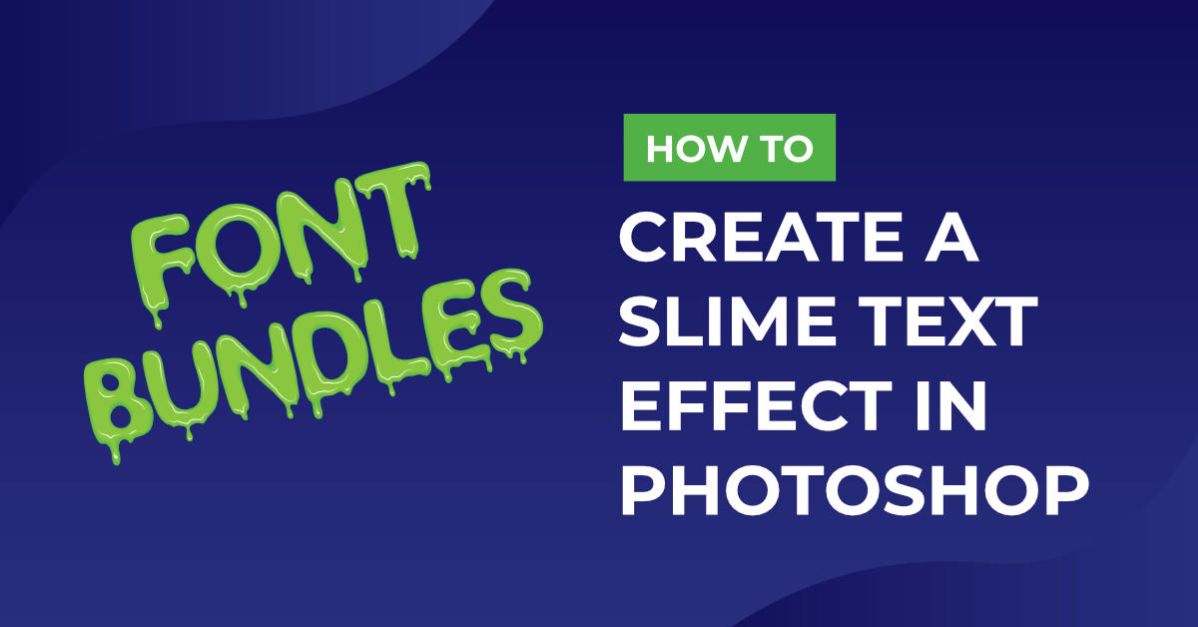
Slime Text Effect Photoshop
For this tutorial you will need a background texture, we used one that has water drops, but you can choose any image you like as long as it’s of a darker shade.
1 – Create a New Document in Photoshop and import your background into it. Resize it to your liking.


2 - Double-click on it in the “Layers Panel” to bring out the “Blending Options” dialog window and apply the following values:
Inner Glow:

Color Overlay:

Gradient Overlay:

3 – Create a New Levels Adjustment Layer in the “Adjustments” menu and tweak the values to create more contrast. Clip the Adjustment layer to your Background by clicking the Clip button in the bottom left corner of your panel.


4 – Select Your two layers (Texture and Levels Adjustment) right-click on them and duplicate them and then right-click un the duplicates and select “Merge Layers”.


5 - On the resulting layer go to Filters > Other > High Pass and use a Radius of 10 px. Change the layer Blending Mode to “Soft Light”.


6 – Type some text, we used Brain Melt from Font Bundles. Double-click on your text layer make the fill color green (we used #3e9f13) and apply the following values in the Blending Options:

Bevel & Emboss: (Shadow Mode color #204601)


Inner Shadow: (Blend Mode color #1e6433)

Inner Glow:

Satin:

Gradient Overlay: (Color 1 #039d06, Color 2 #43fe09 and Location 47%)


Outer Glow:

Drop Shadow:


7 – Right-click on your text layer and select “Rasterize Type” (this will flatten your text so make any changes before and maybe duplicate the layer so you can edit the text in case you need it). To duplicate you can drag your layer to the “New Layer” button at the bottom of your “Layers” panel. (Flecha).


8 – Select your “Brush Tool” (B) and choose a brush size of around 46 and 100% Hardness and draw some dripping on your text

9 – Your text should look like this:

by @lornacane