By Design Bundles
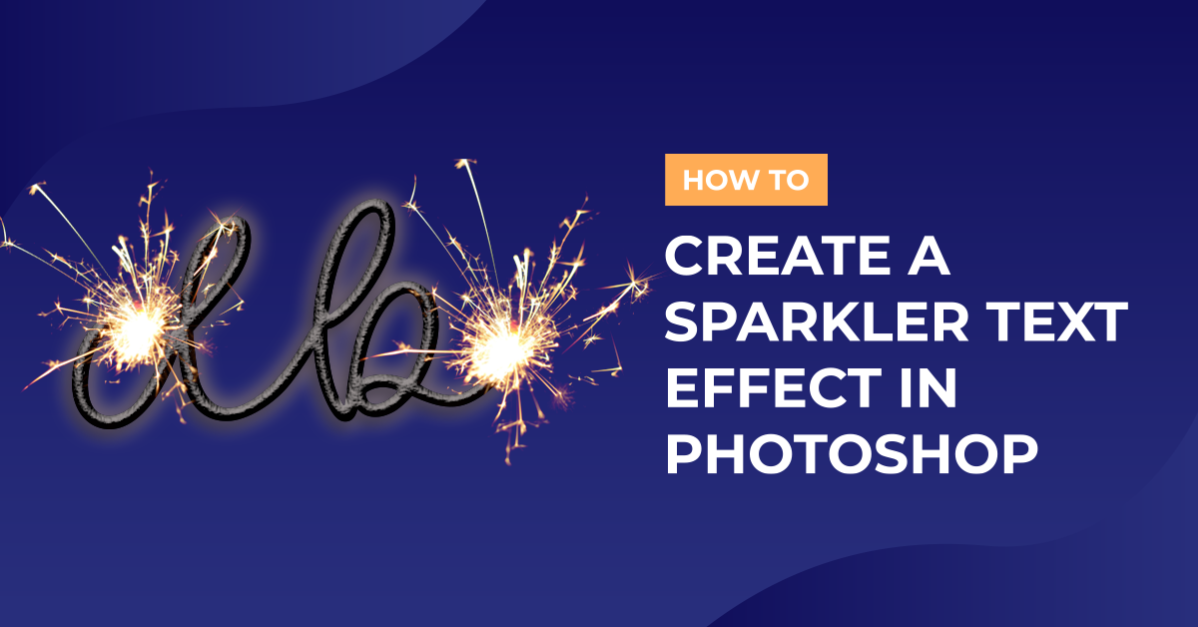
Sparkler Text Effect Photoshop
For this tutorial, we are using “Hatterline” Font from FontBundles, a background image, and some stock photos of sparks.
1 - In Photoshop, open the image you chose as background. Select the “Type Tool” (T), choose the font you want, and type your text.


2 - Duplicate your text (Command/Control + J), right-click on the duplicate and convert it to a “Smart Object”. Hide your original text by clicking the little eye icon to the left of the thumbnail.

3 - Double-click on the duplicate and apply the following “Layer Styles”:
Bevel & Emboss: “Highlight Mode” color #c5bdbd.

Texture:

Inner Shadow:

Inner Glow: #9192a7.

Color Overlay: # 6e6b71.

Drop Shadow:

4 - Duplicate your original text layer again, change the “Fill” color to white, convert it to a “Smart Object” and place it on top of your layers.

5 - Double-click on this layer to apply the following “Layer Styles”:
Outer Glow: #f0a444 (we chose it from our background). Change the “Blending Mode” to “Color”.


6 - Open your spark images and transfer them to your document (Command/Control + C to copy and Command/Control + V to paste).

7 - Change the “Blending Mode” to “Lighten” and position them on top of your text. You can resize and/or rotate them (Command/Control + T). Use the “Eraser Tool” (E) to delete any unwanted portions of the sparks images.

8 - If you notice some “Fog” on the background of one of the “Sparks” layers adjust the “Levels” (Command/Control + L) moving the “Shadows” lever slightly to the right.


9 - Check out your text:

by @lornacane