By Design Bundles
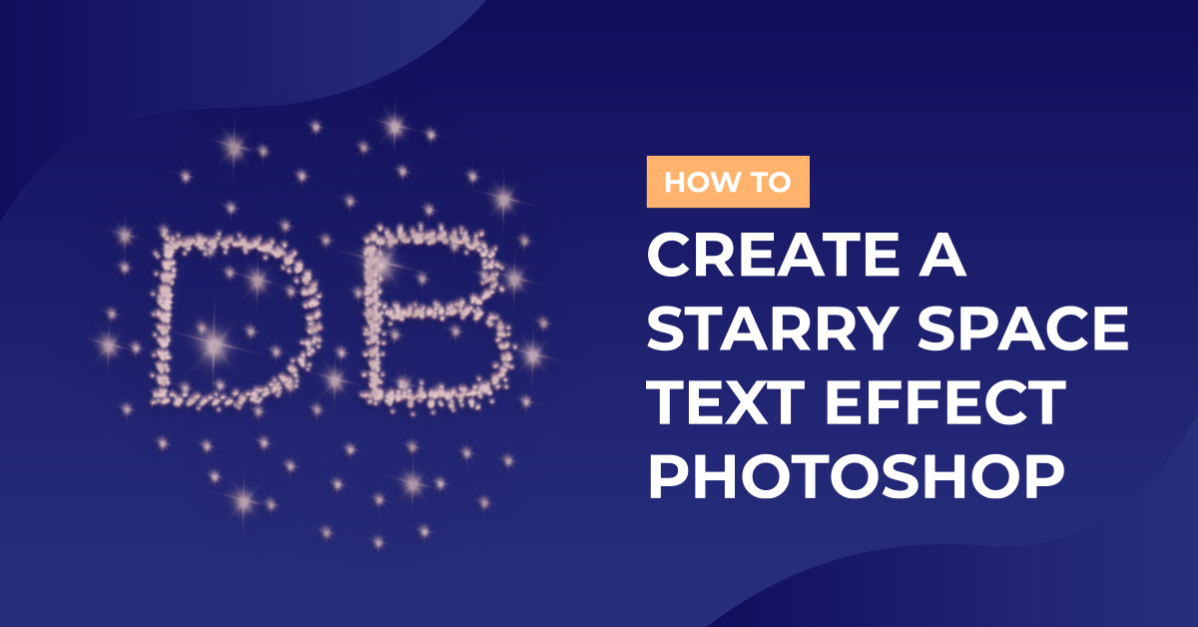
Starry Space Text Effect Photoshop
For this tutorial, we are using Zipper from Font Bundlesand a background from Space Watercolor Backgrounds.
1 – In Photoshop create a New Document or open an existing one. We used Image number 5 from Space Watercolors Backgrounds.

2 – Select your “Type Tool” (T) choose your font and size and type your text. Make sure you are using white as Fill color.

3 – Select the “Brush Tool” (B) and open the “Brush Panel”. Choose a “Star” brush and apply the following settings:

Brush Tip Shape: Size 120 px, Spacing 75%.

Shape Dynamics: Size Jitter 95 %, Angle Jitter 50%.

Scattering: Scatter 51%, Count 1.

Color Dynamics: Check “Apply Per Tip”, Foreground/Background Jitter: 100%

4 – Right-click your text layer and select “Create Work Path” and then hide your text by clicking the little eye icon to the left of the layer.


5 – Create a New Layer by clicking on the “New Layer” button at the bottom of the “Layers” menu. Then set the “Foreground” and “Background” colors to #bbd1f7 and # d8c6f3. You may want to change them depending on the colors of your background image.

6 – Select the “Direct Selection Tool” and right-click on the “Work Path” select “Stroke Path”, then choose “Brush” as Tool and make sure “Simulate Pressure” is not checked. Click Ok. Repeat this many times (we did it 5 or 6 times) until you are happy with your result. Press “P” and then hit “Enter” to remove the Work Path.


7 – Duplicate your layer many times by clicking Command/Control + J to make your stars pop more. And turn the “Blending Options” of the duplicates to “Vivid Light”.

8 – Turn on your text layer and double-click on it to invoke the “Layer Styles” dialog and apply the following values:
Inner Shadow:

Outer Glow:

Drop Shadow:

9 – Your work should look like this:

by @lornacane