

By Design Bundles
SCAL Tutorials4 min
How to Create Decorative Borders to Foil in SCAL4
1- Open SCAL4. Click on the library icon and select the folder that you want to select the shapes for your decorative border. Alternatively you can import a file from your PC.
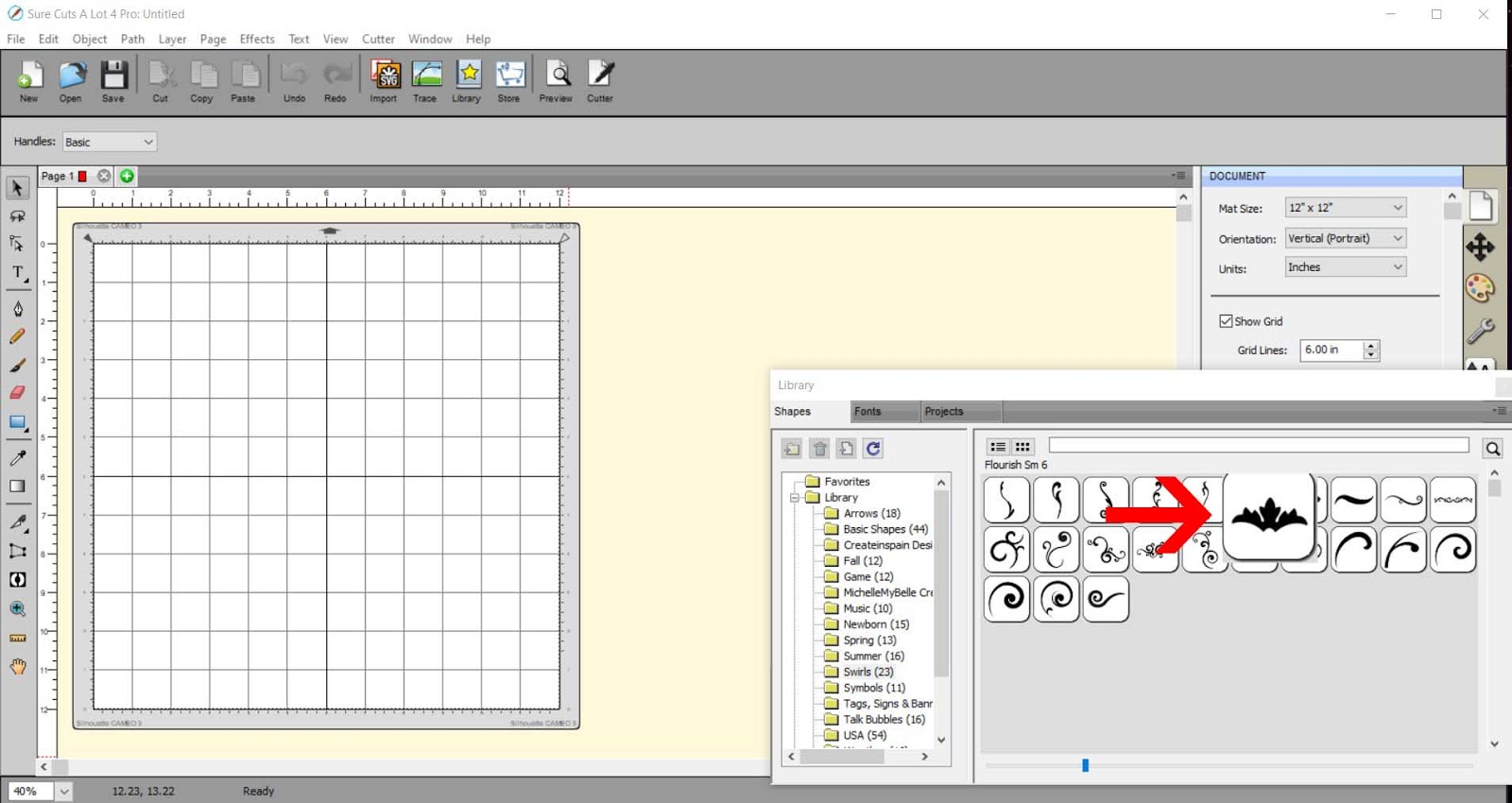
2- Select your shape.
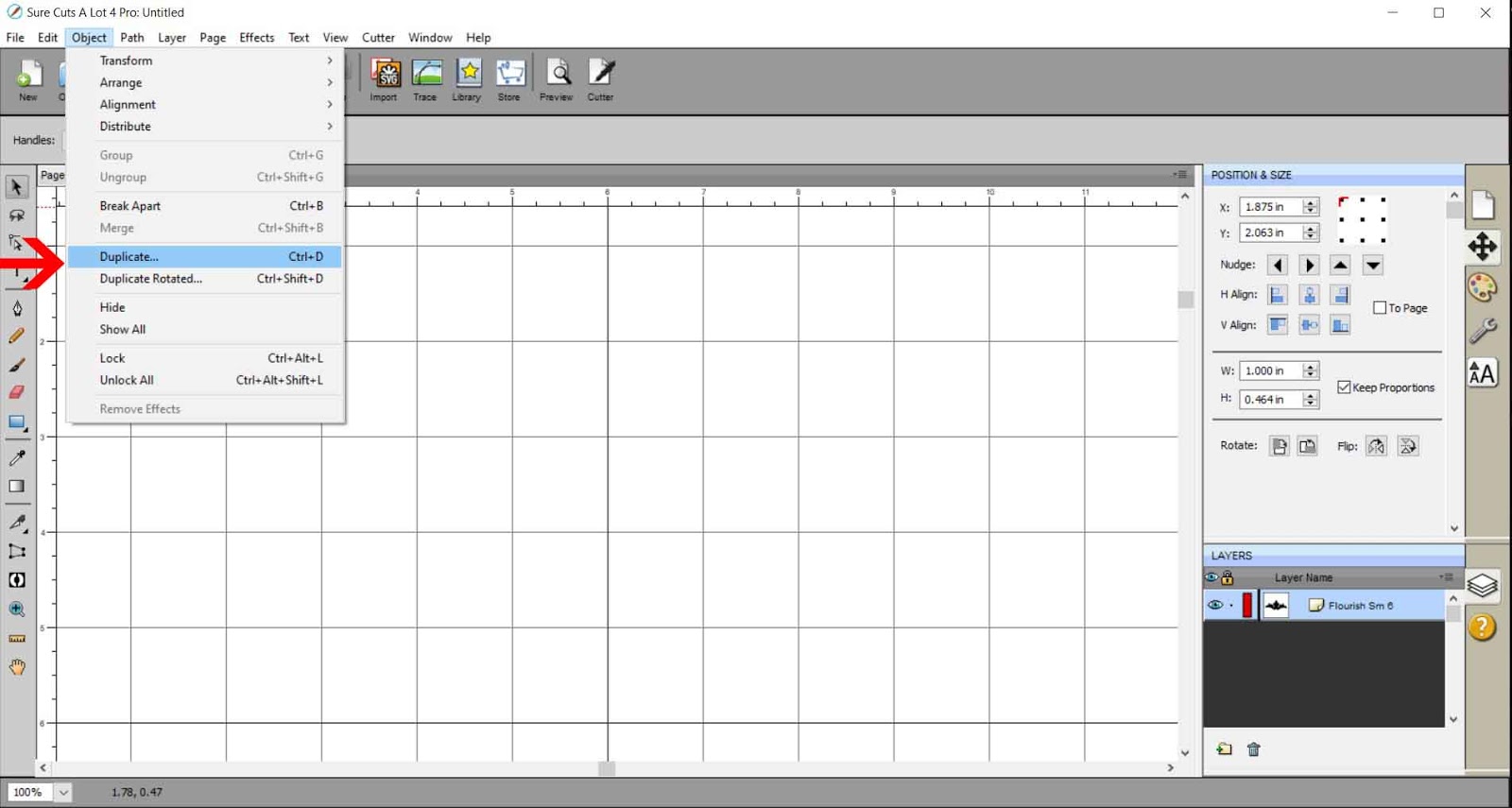
3- With the shape selected, go to object- duplicate.
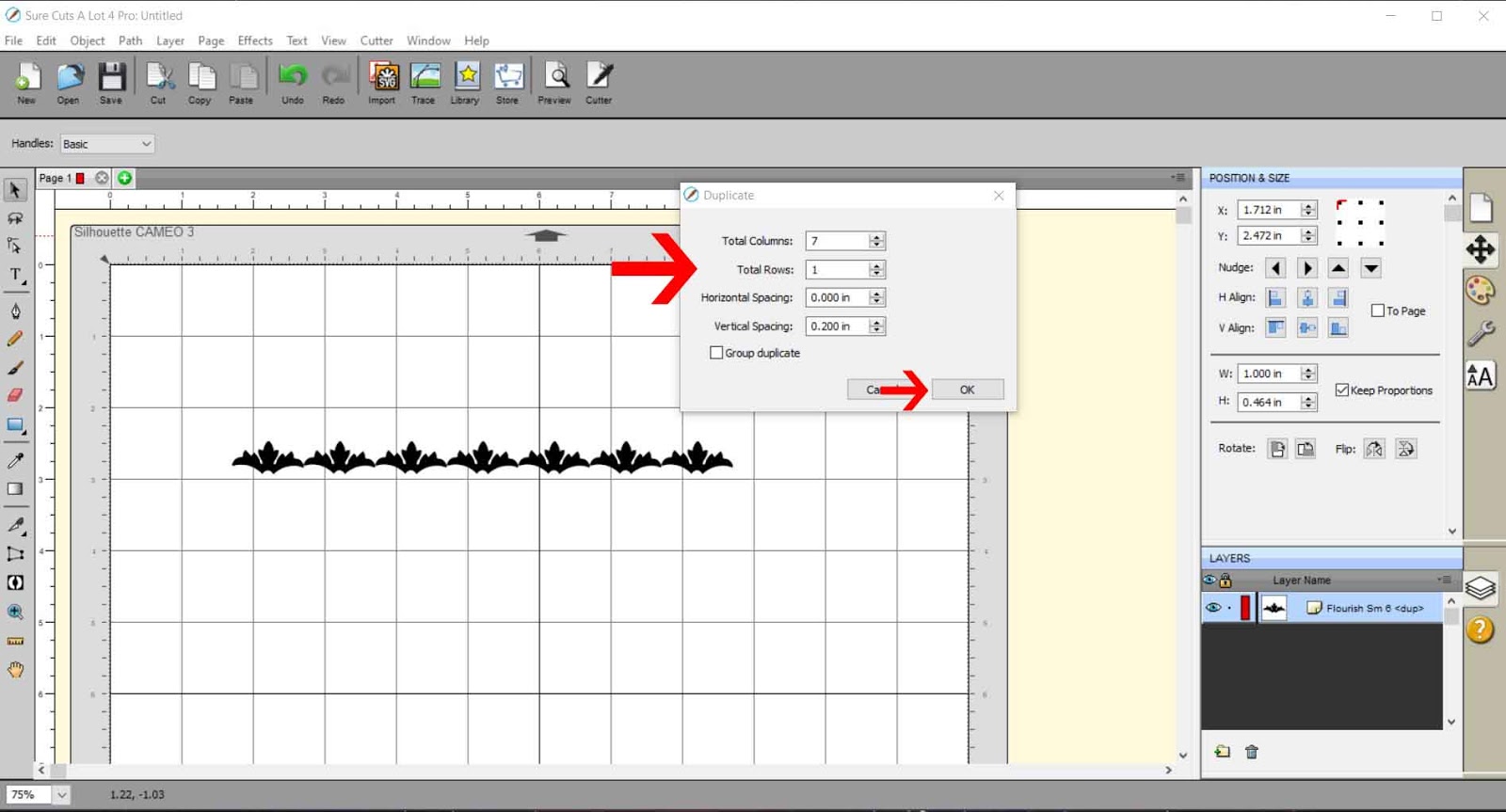
4- Add how many columns (shapes in a row) you would like so you get the width you need for your decorative border. Adjust the width between them also so they just overlap. Click OK.
5- As you can see close up, the edges just overlap.
6- With all of them selected, go to path- union.
7- As you can see the shapes are now all welded together.
8- With the shapes selected, go to object, rotate.
9- Rotate the design to 180 degrees.
10- Click on library again. Select a square or rectangle.
11- Resize the shape to the same width as the decorative edge.
12- Move the shapes to they slightly overlap.
13- With both selected, go to path- union.
14- The decorative border is now complete ready to foil. You can adjust the total size of the design .
15- To save as a SVG, go to file - export.
16- Select 72 dpi. Make sure you select design space compatiable if you are exporting to use for cricut design spacce.
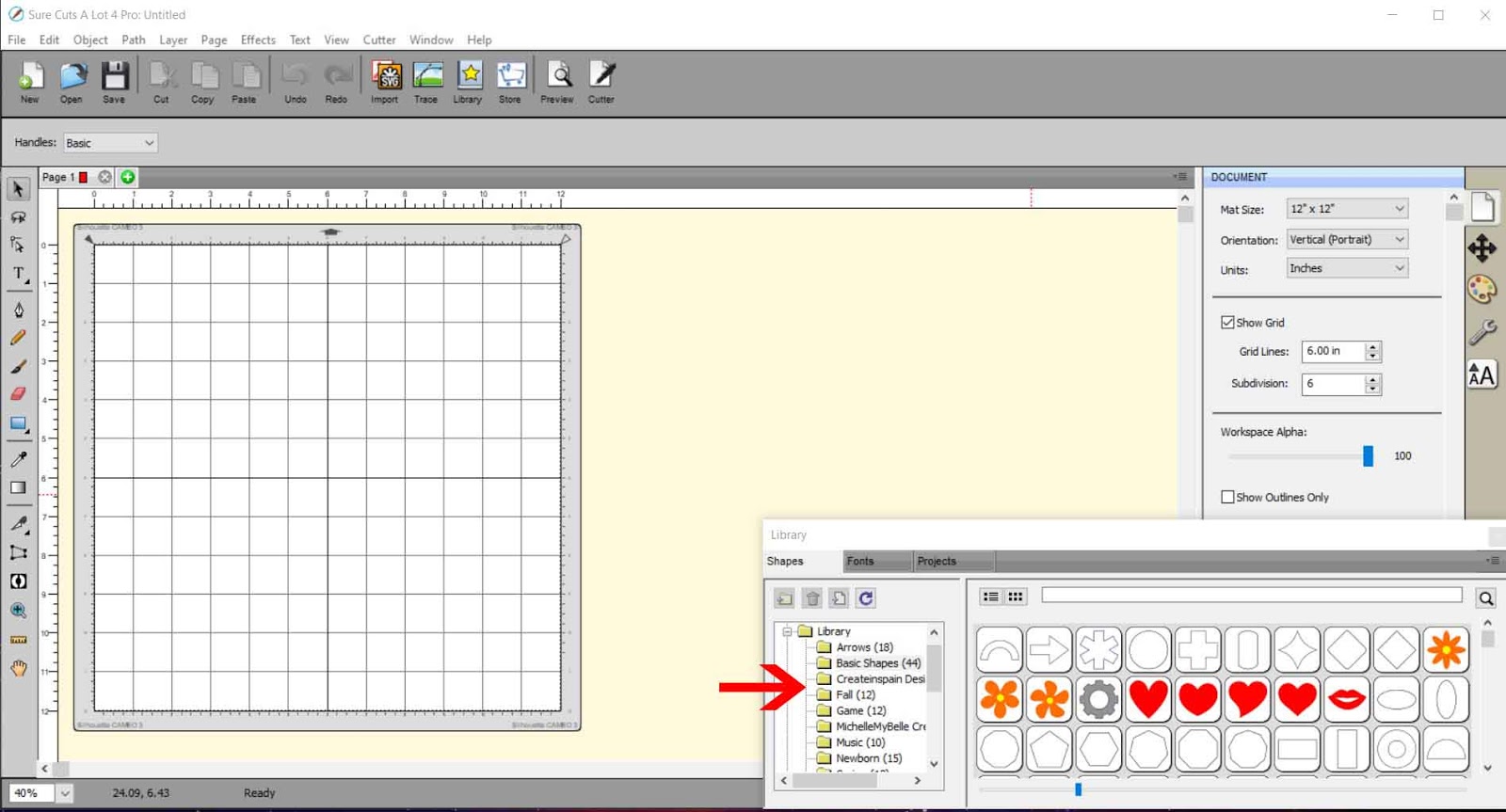
2- Select your shape.
3- With the shape selected, go to object- duplicate.
4- Add how many columns (shapes in a row) you would like so you get the width you need for your decorative border. Adjust the width between them also so they just overlap. Click OK.
5- As you can see close up, the edges just overlap.
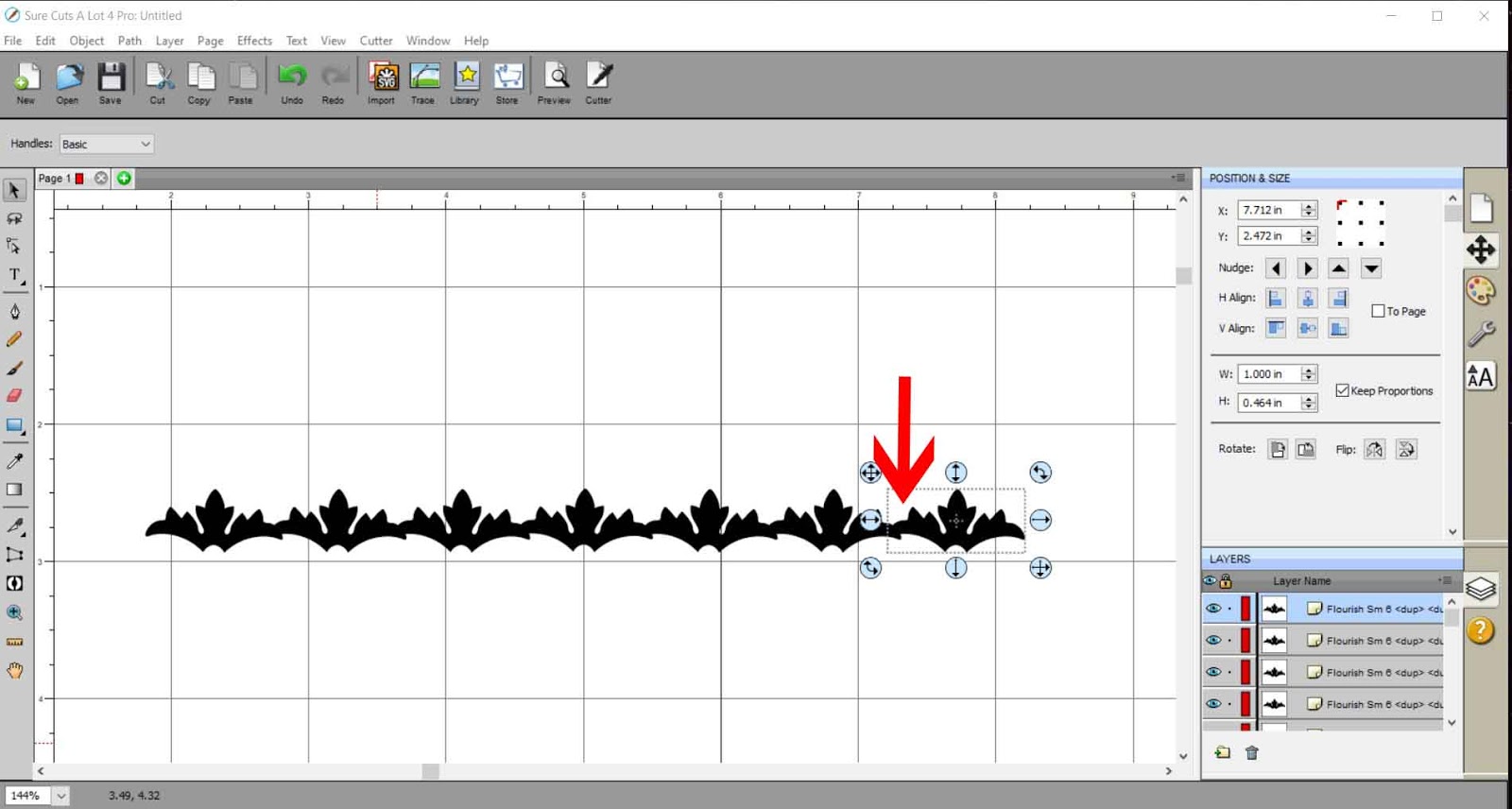
6- With all of them selected, go to path- union.
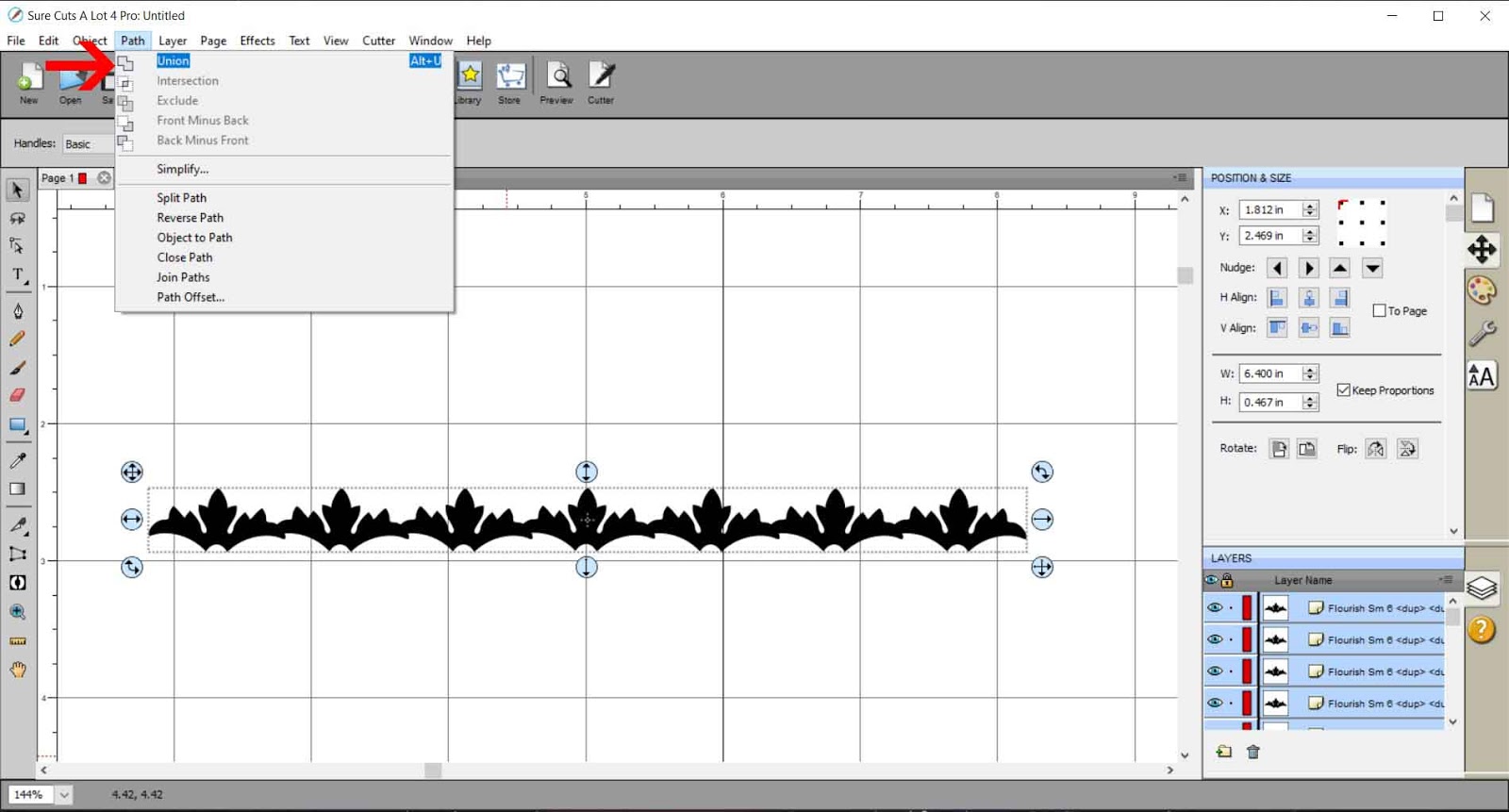
7- As you can see the shapes are now all welded together.
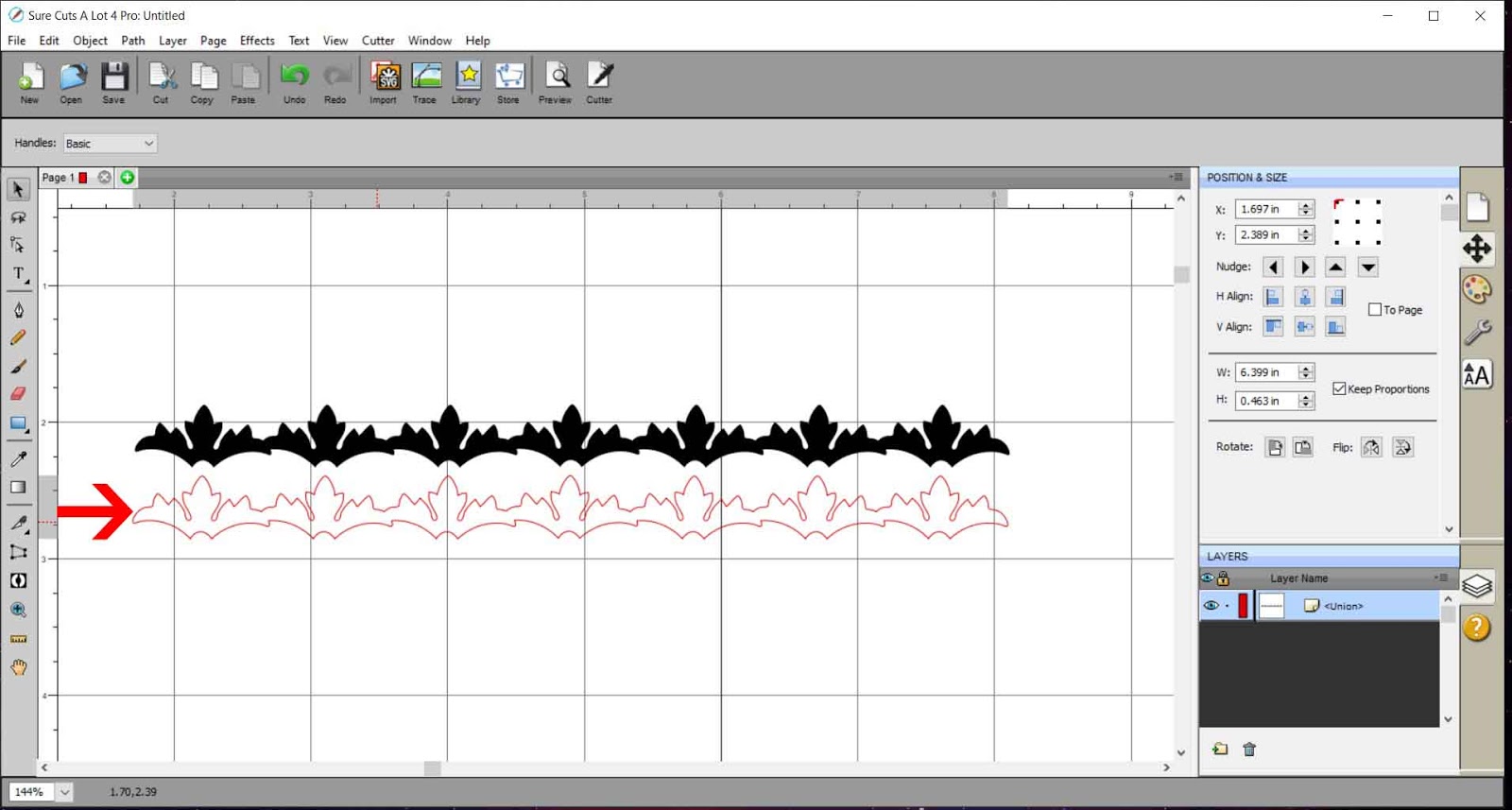
8- With the shapes selected, go to object, rotate.

9- Rotate the design to 180 degrees.

10- Click on library again. Select a square or rectangle.
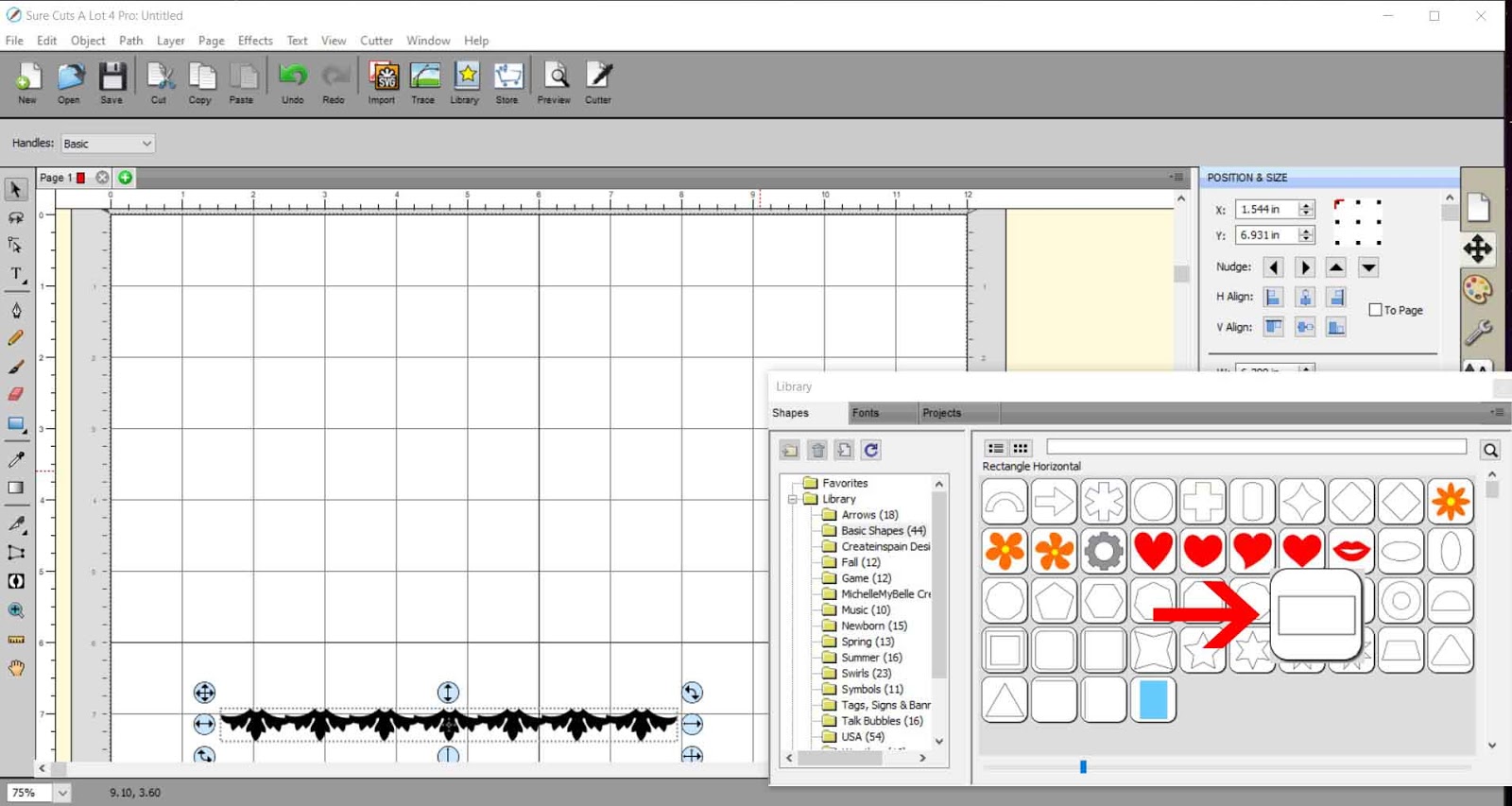
11- Resize the shape to the same width as the decorative edge.

12- Move the shapes to they slightly overlap.

13- With both selected, go to path- union.

14- The decorative border is now complete ready to foil. You can adjust the total size of the design .

15- To save as a SVG, go to file - export.
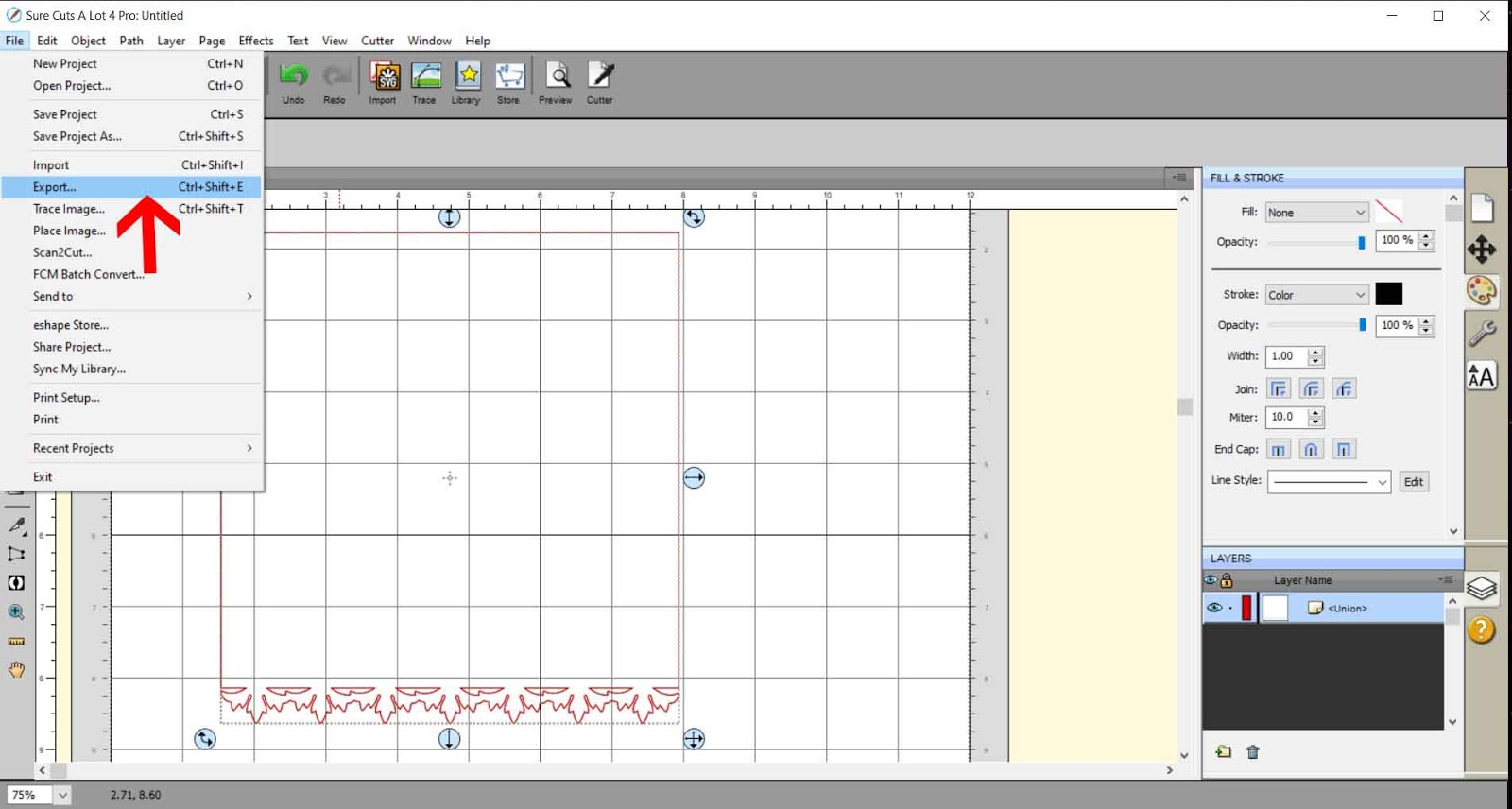
16- Select 72 dpi. Make sure you select design space compatiable if you are exporting to use for cricut design spacce.

Related Tutorials
Silhouette Tutorials
How to create decorative borders with the foil quill in Silhouette studio
Inkscape Tutorials
How to Create Decorative Borders in Inkscape
Discover how to create a decorative border with this step-by-step Inkscape tutorial.
Cricut Tutorials
Creating decorative borders in Cricut Design Space using the foil quill
Learn how to to make unique borders for cards or other craft projects!