By Design Bundles
Scan N Cut Tutorials2 min
Brother Scan N Cut Character input function tutorial
*note- CM900 machine used.
1- Turn on Brother Scan N Cut machine.
2- Click on the pattern icon.
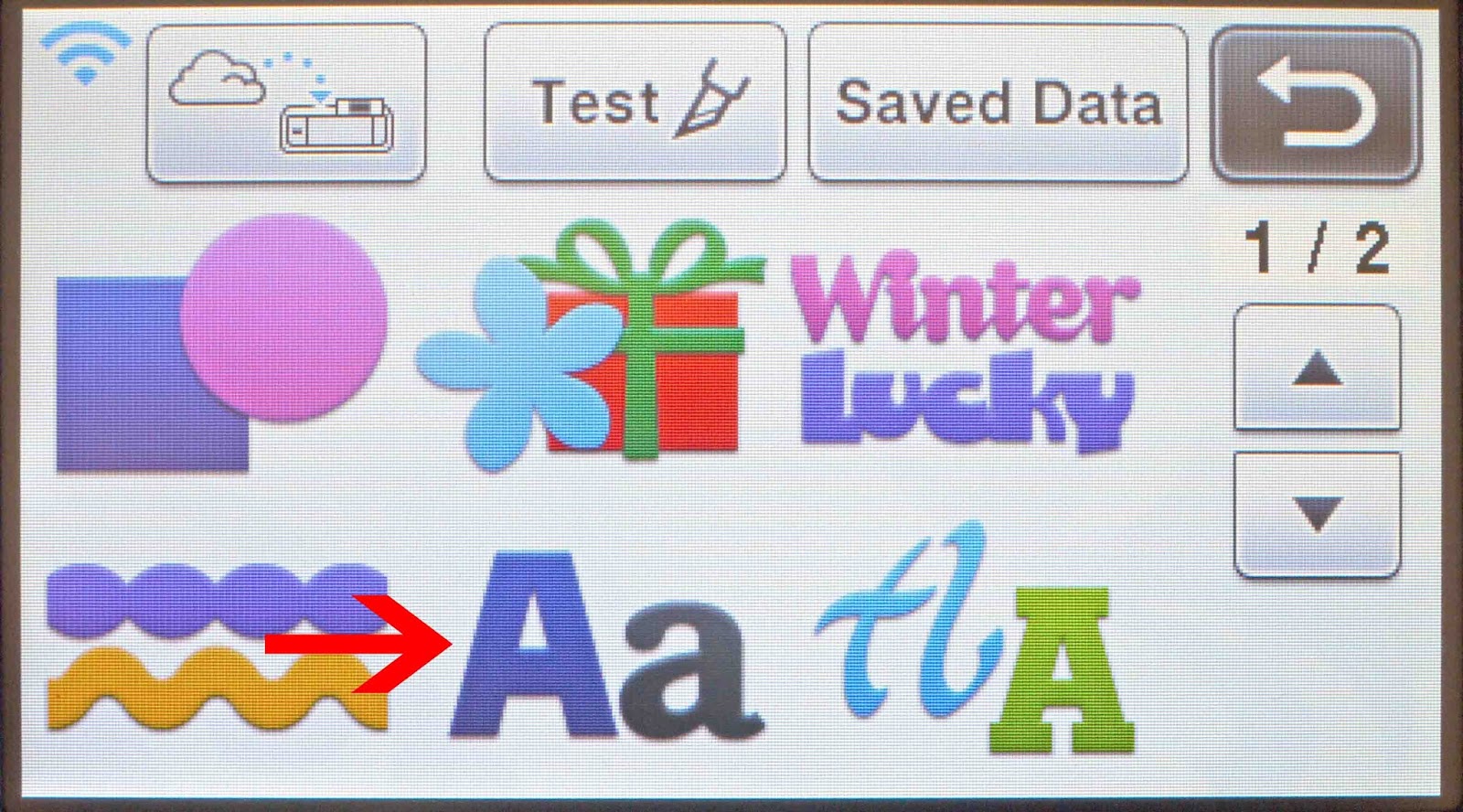
3- Select the Character icon.
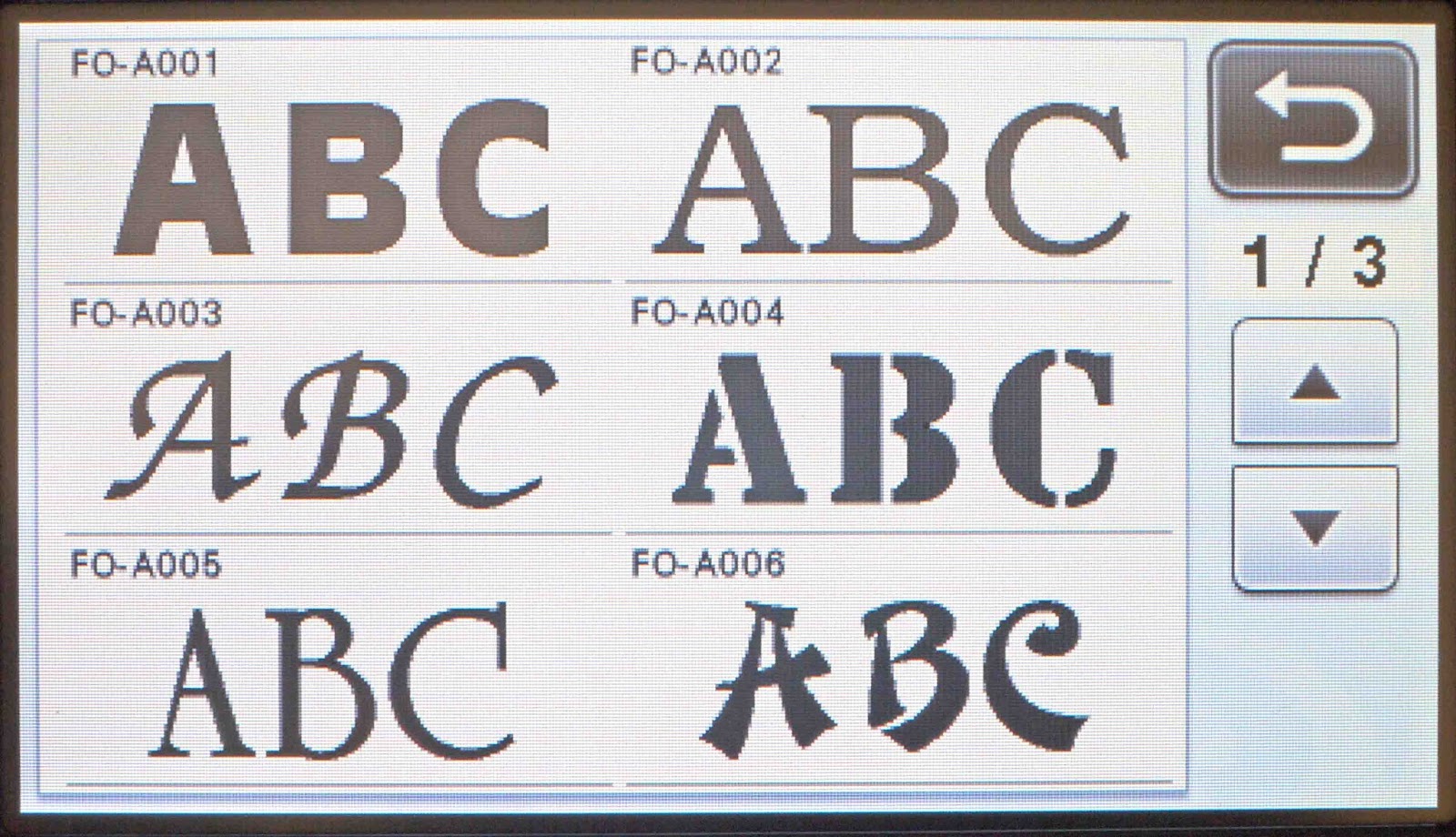
4- Select the font you would like to use.
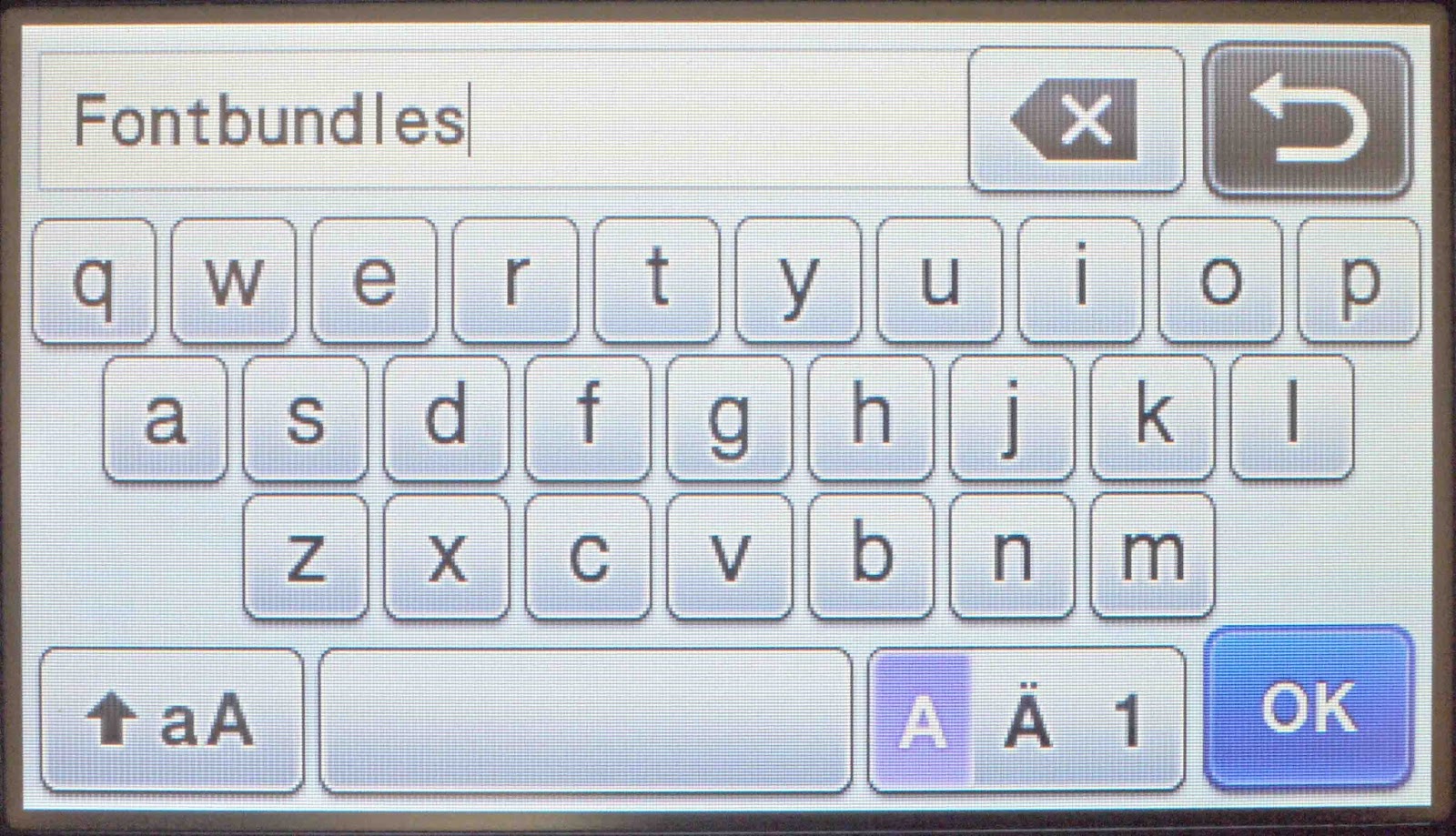
5- Type in your text and click OK.
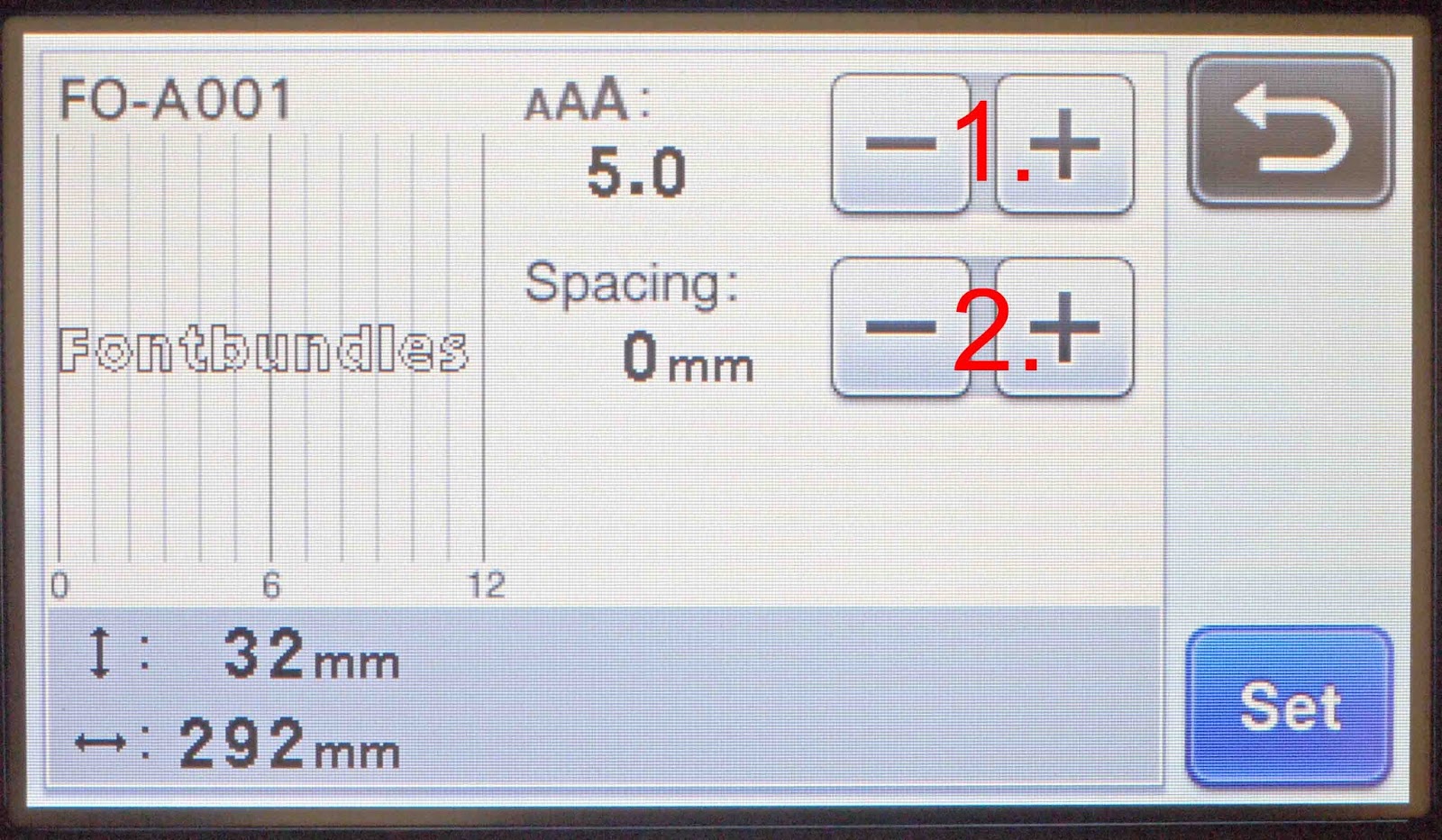
6- You can now see the text. You can use the + and - to alter the size (1) or the line spacing (2). Once you are happy click on set.
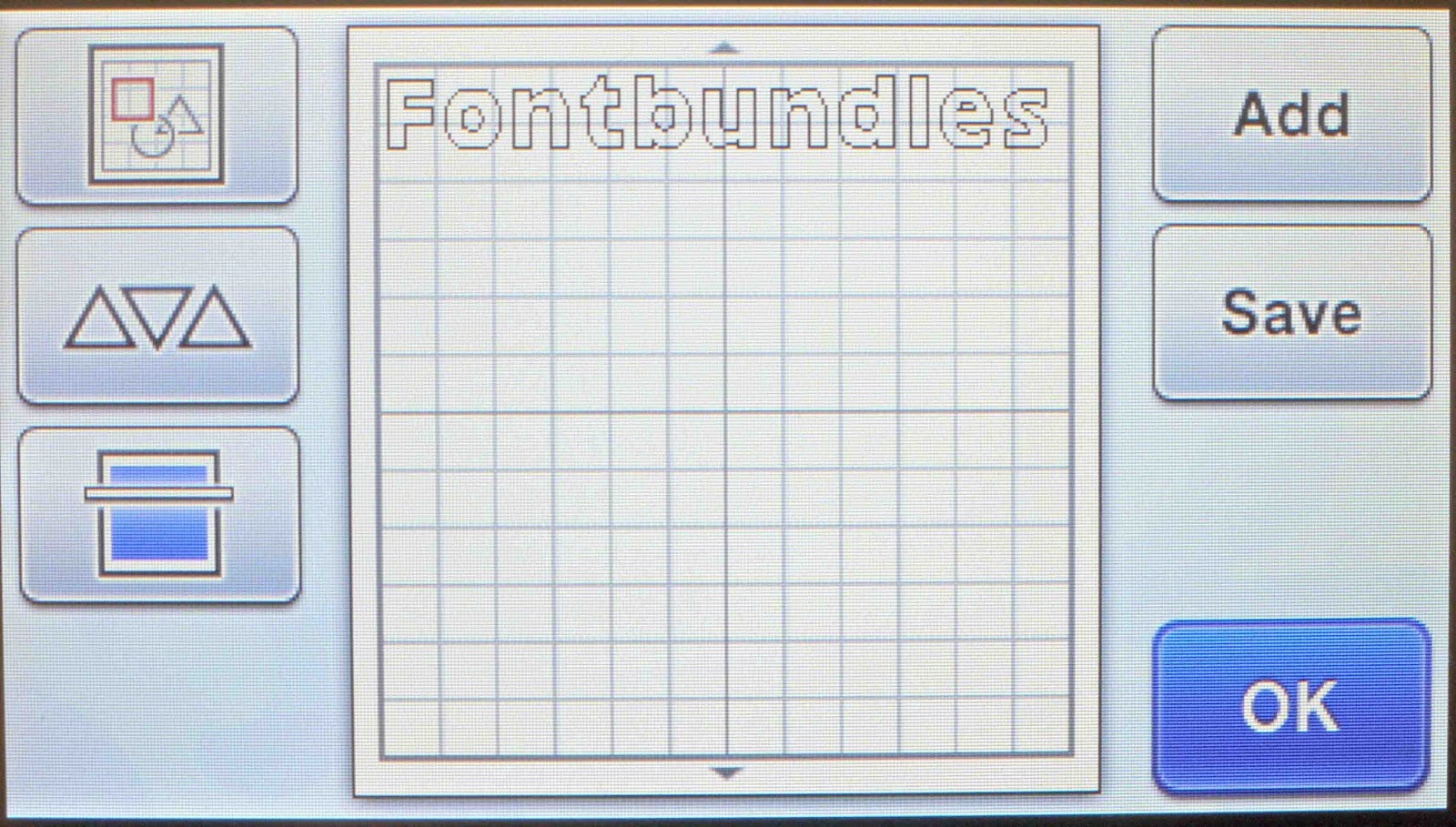
7- You will now see your text on the canvas. If you are happy click OK.
8- You can now select the cut icon and then the start/stop button on your machine.
1- Turn on Brother Scan N Cut machine.
2- Click on the pattern icon.
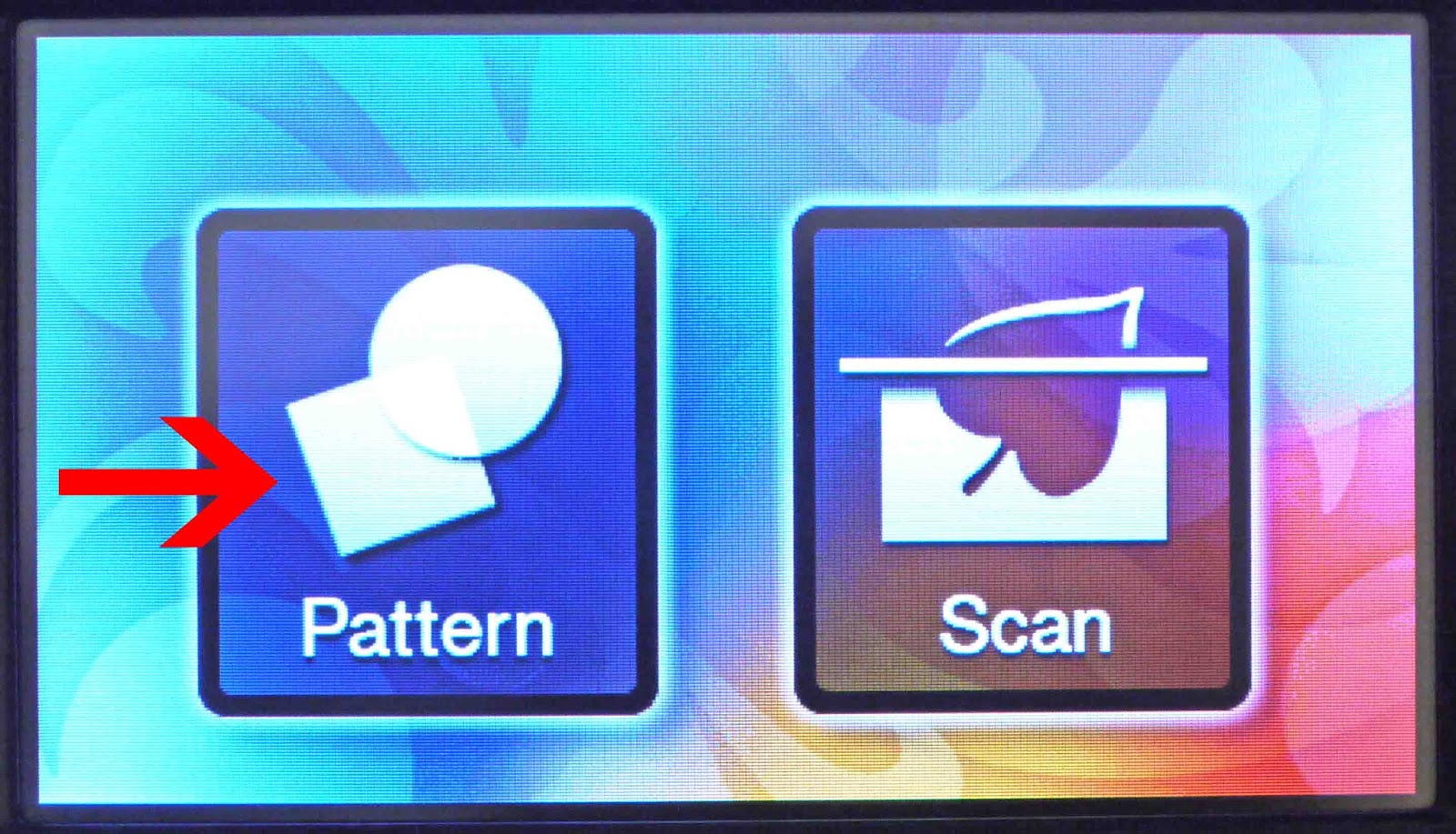
3- Select the Character icon.
4- Select the font you would like to use.
5- Type in your text and click OK.
6- You can now see the text. You can use the + and - to alter the size (1) or the line spacing (2). Once you are happy click on set.
7- You will now see your text on the canvas. If you are happy click OK.
8- You can now select the cut icon and then the start/stop button on your machine.

Related Tutorials
Scan N Cut Tutorials
Brother Scan N Cut- Welding in Brother Scan N Cut tutorial
Scan N Cut Tutorials
Brother Scan N Cut Direct Cut Tutorial
Scan N Cut Tutorials
Adjusting objects and text using the node function in brother scan and cut canvas workspace
Scan N Cut Tutorials
Brother Scan N Cut- Auto layout function
Scan N Cut Tutorials
How to make a image larger than your cutting mat in Brother Scan N Cut canvas workspace
Learn how to cut designs larger than your cutting mat in Brother Scan N Cut canvas.
Scan N Cut Tutorials