By Design Bundles
Silhouette Tutorials4 min
How to Cut Stamped Images Without a Picscan Mat in Silhouette Studio
1- Open Silhouette Studio. Click on the page setup icon. Adjust the media to A4 (or letter if in USA).
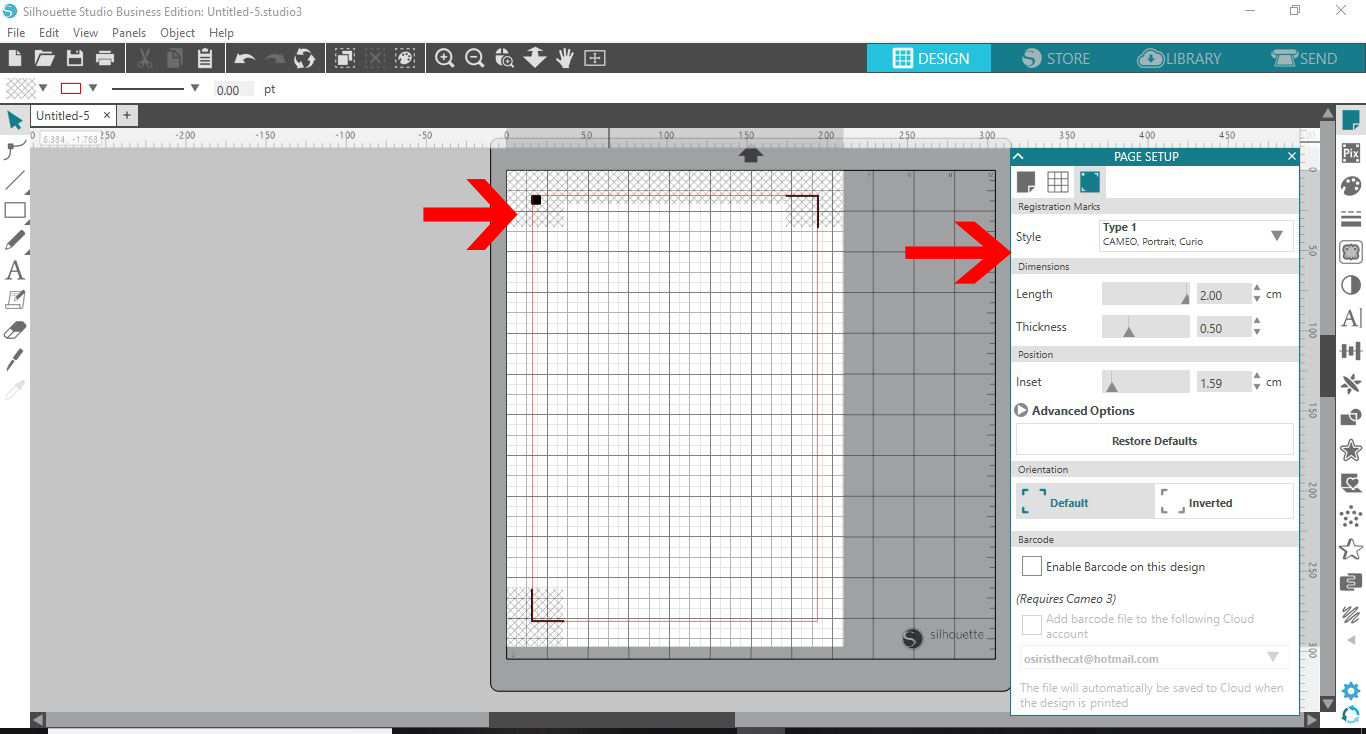
2- Turn on the registration marks. Print the blank page with the registration marks on them.
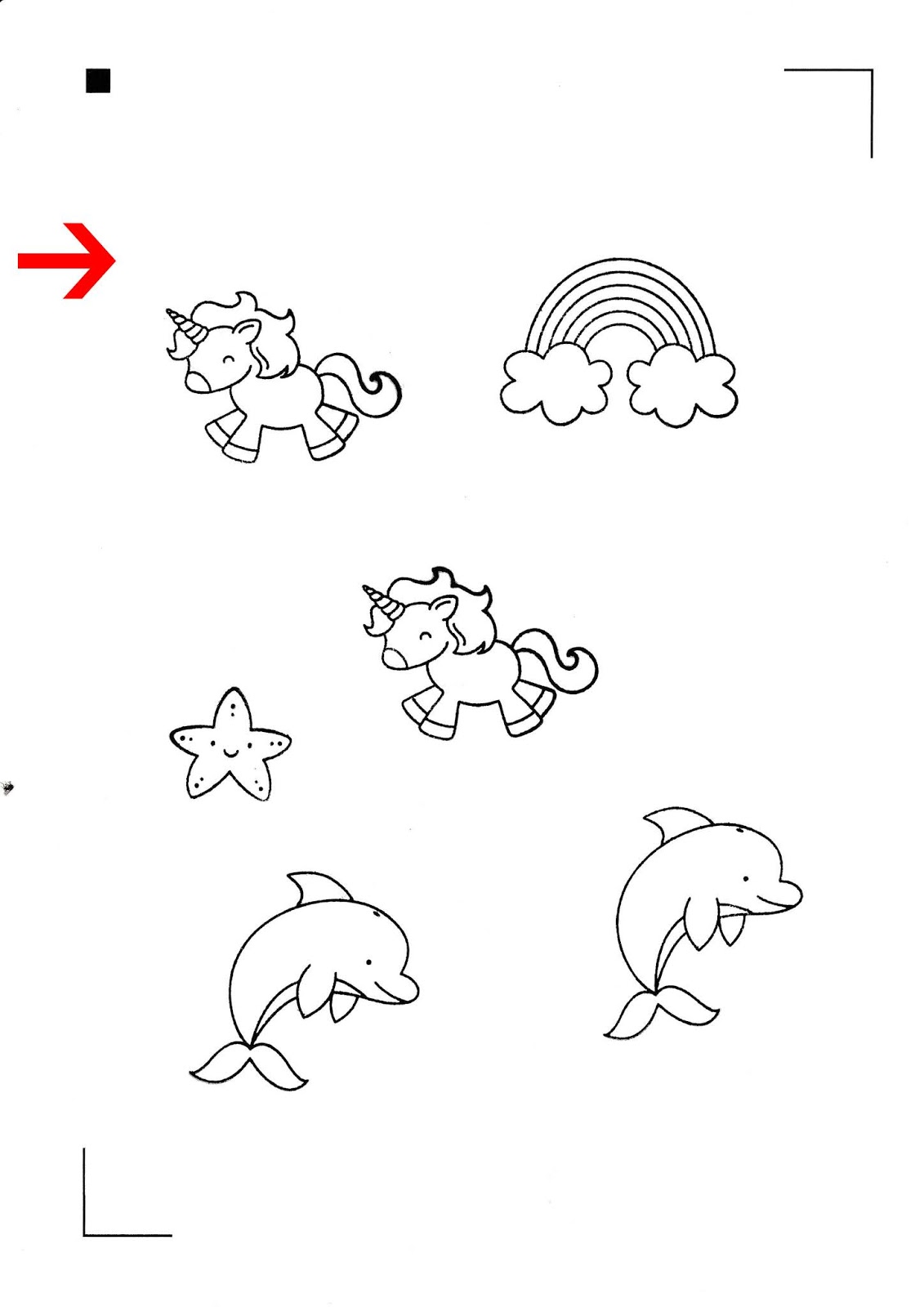
3- On the blank paper with the registration marks printed, stamp your images within the marks.
Place your sheet of paper/card into your scanner and scan into your PC. Scan as a Jpeg. Save.
4- Go to file - merge. Select your scanned file.
5- Your scanned image will appear on your workspace.
6- Move your scanned page over the registration marks in your workspace. Line them up evenly.
7- Go to the trace icon and click. Select trace area.
8- Your images will highlight. Adjust the trace settings to get the best trace. Click the trace icon.
9- As you can see all your stamped images are traced.
10- With your trace lines in the correct place. click on them and then go to the offset icon.
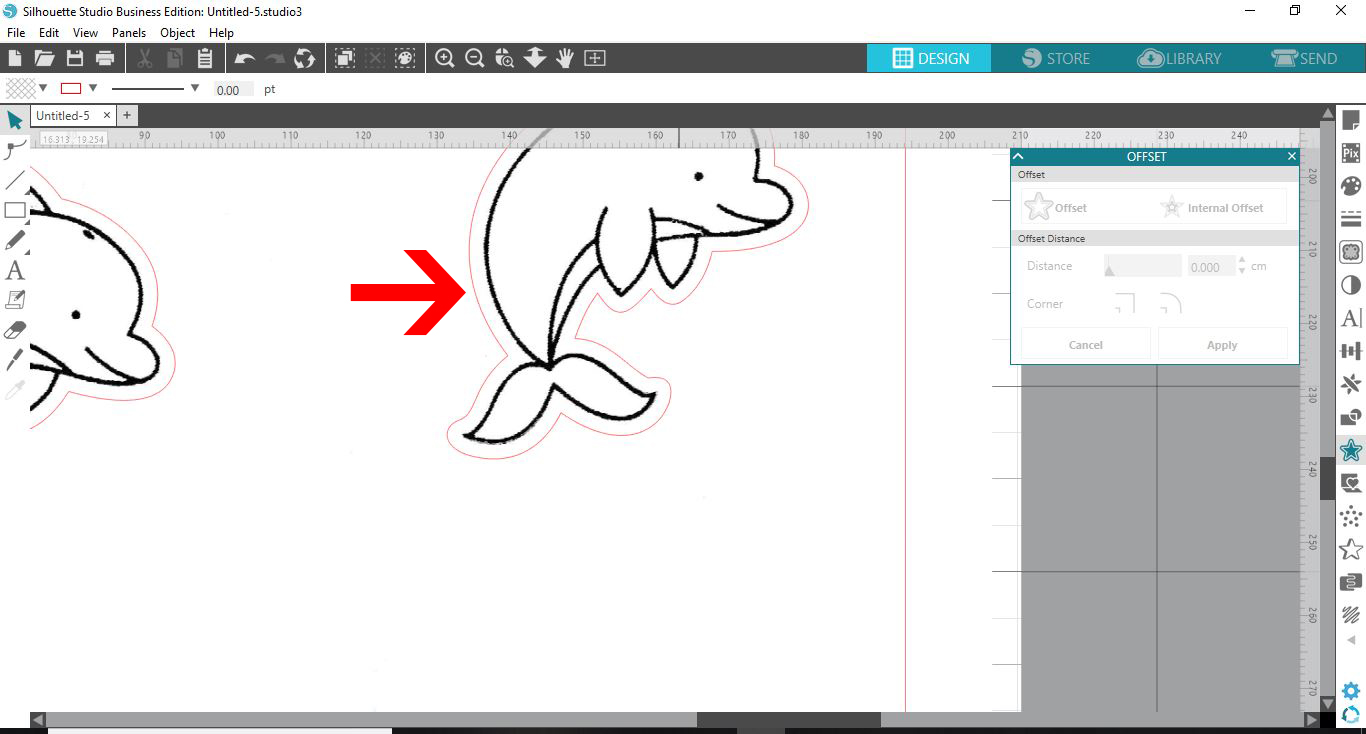
11- An offset will appear around your stamped images. Delete the original trace lines.
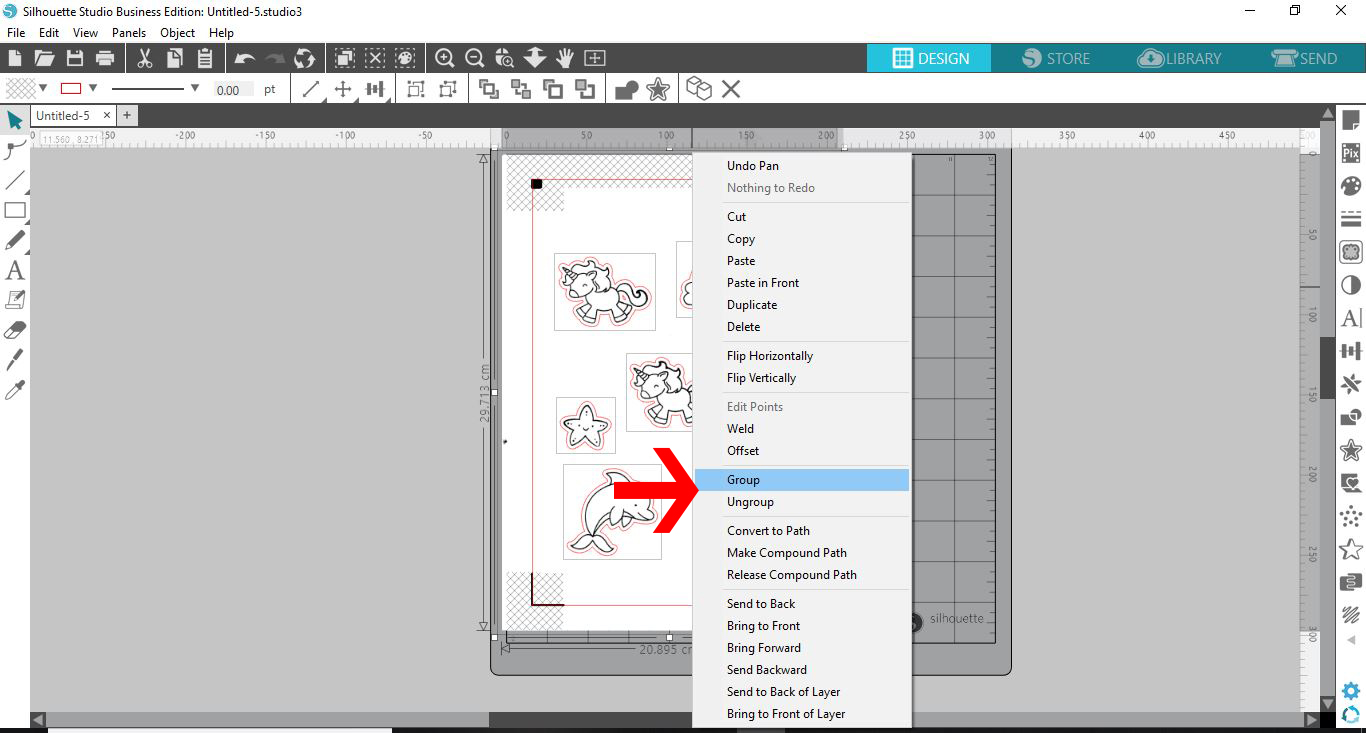
12- With the offset cut lines and your images selected, right click and group them together so they do not move.
13- Place your stamped images on your cut mat, then go to send. The software will read the registration marks. You can now cut the stamped images.
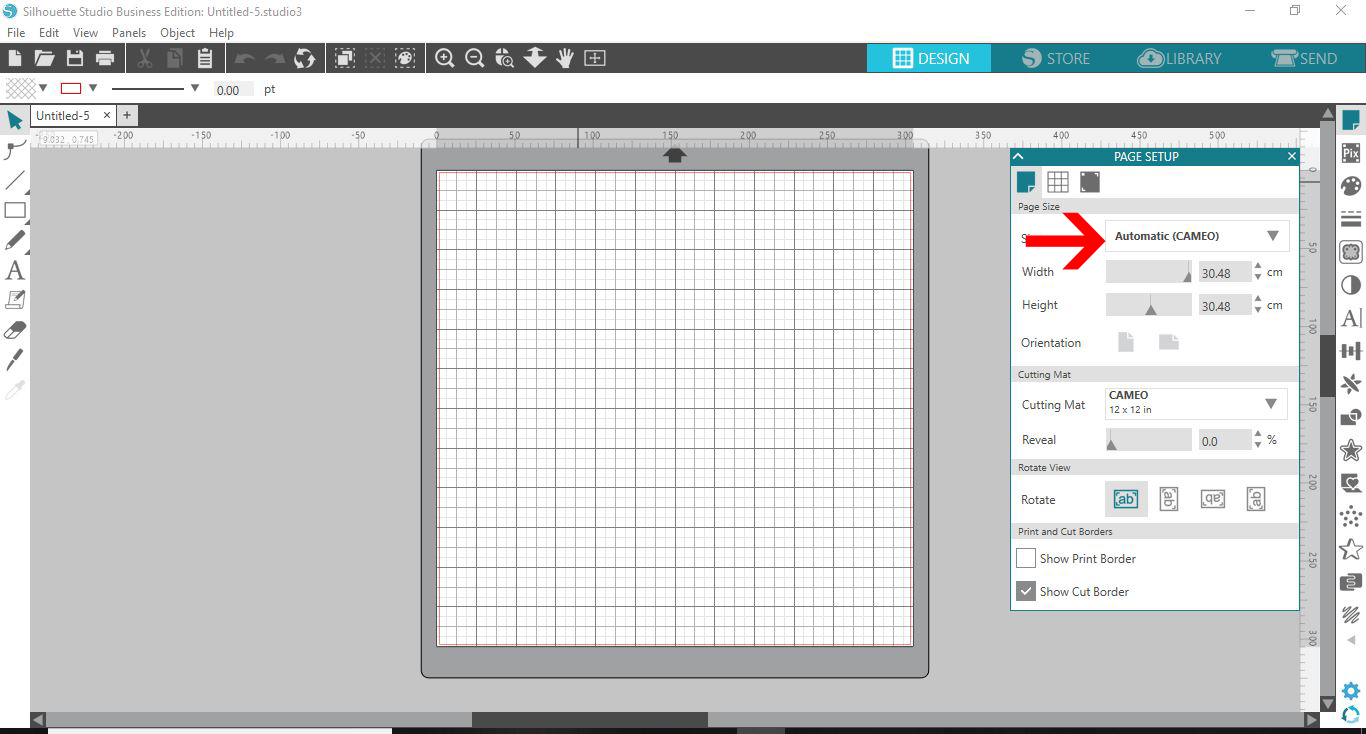
2- Turn on the registration marks. Print the blank page with the registration marks on them.
3- On the blank paper with the registration marks printed, stamp your images within the marks.
Place your sheet of paper/card into your scanner and scan into your PC. Scan as a Jpeg. Save.
4- Go to file - merge. Select your scanned file.
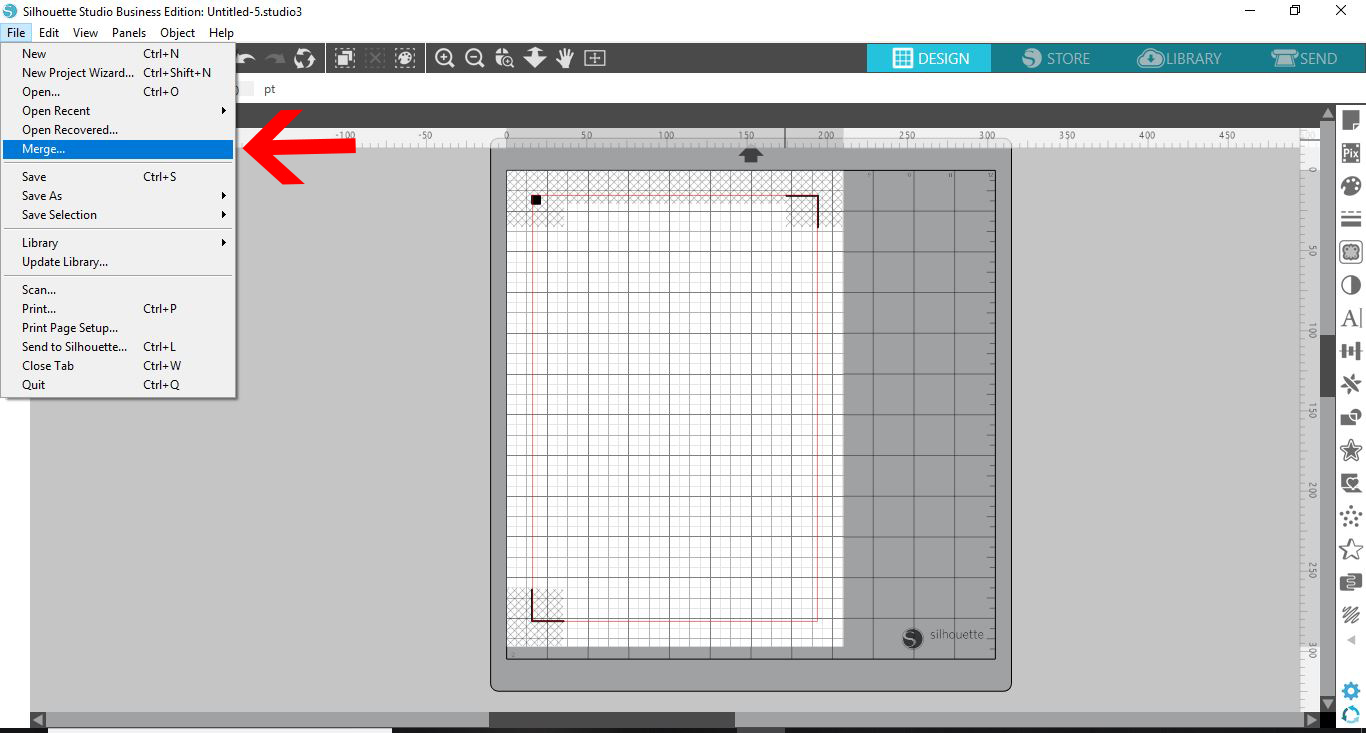
5- Your scanned image will appear on your workspace.

6- Move your scanned page over the registration marks in your workspace. Line them up evenly.
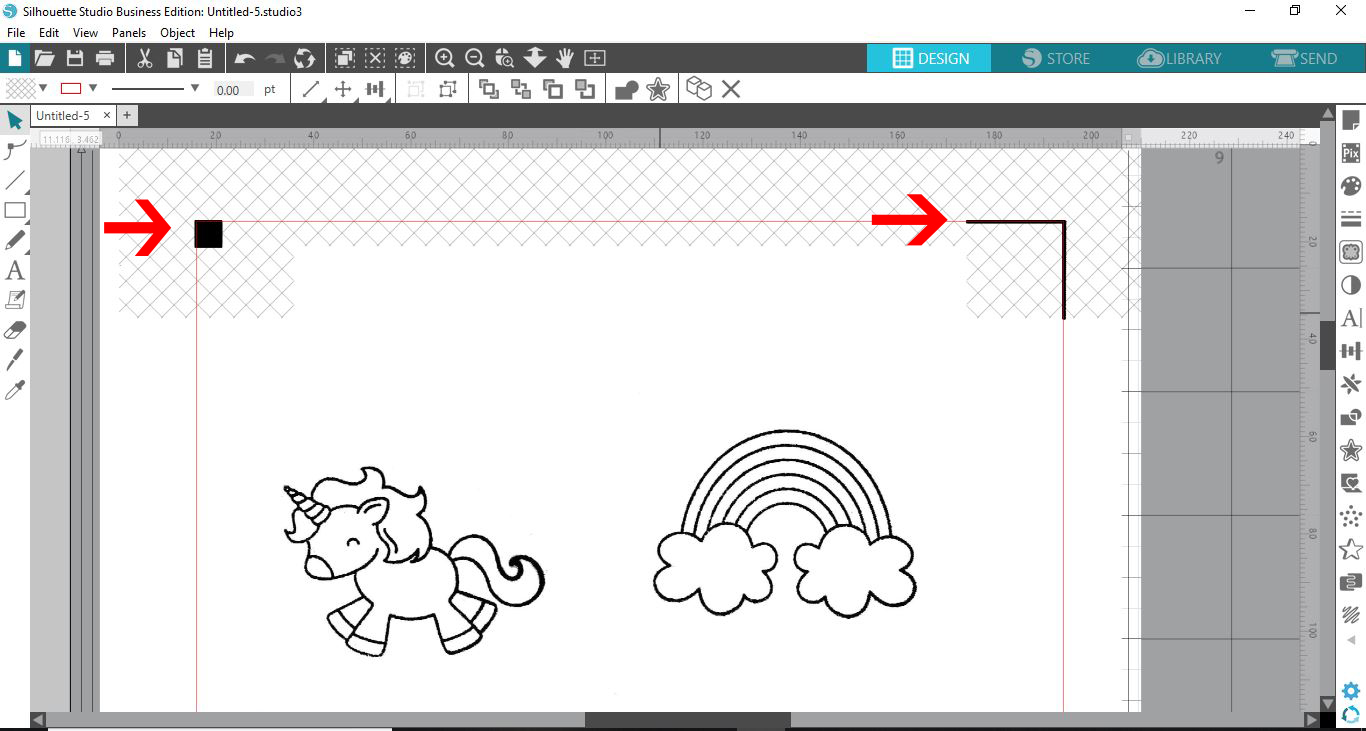
7- Go to the trace icon and click. Select trace area.
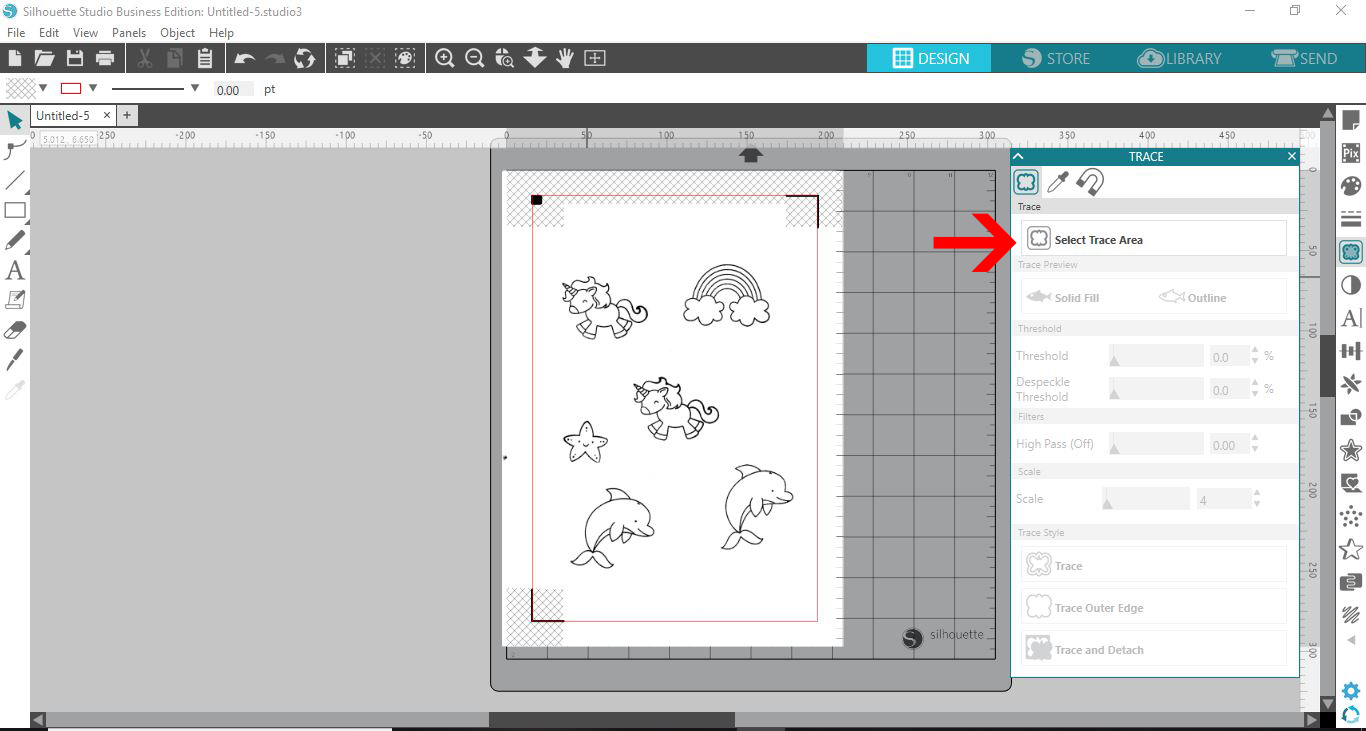
8- Your images will highlight. Adjust the trace settings to get the best trace. Click the trace icon.

9- As you can see all your stamped images are traced.
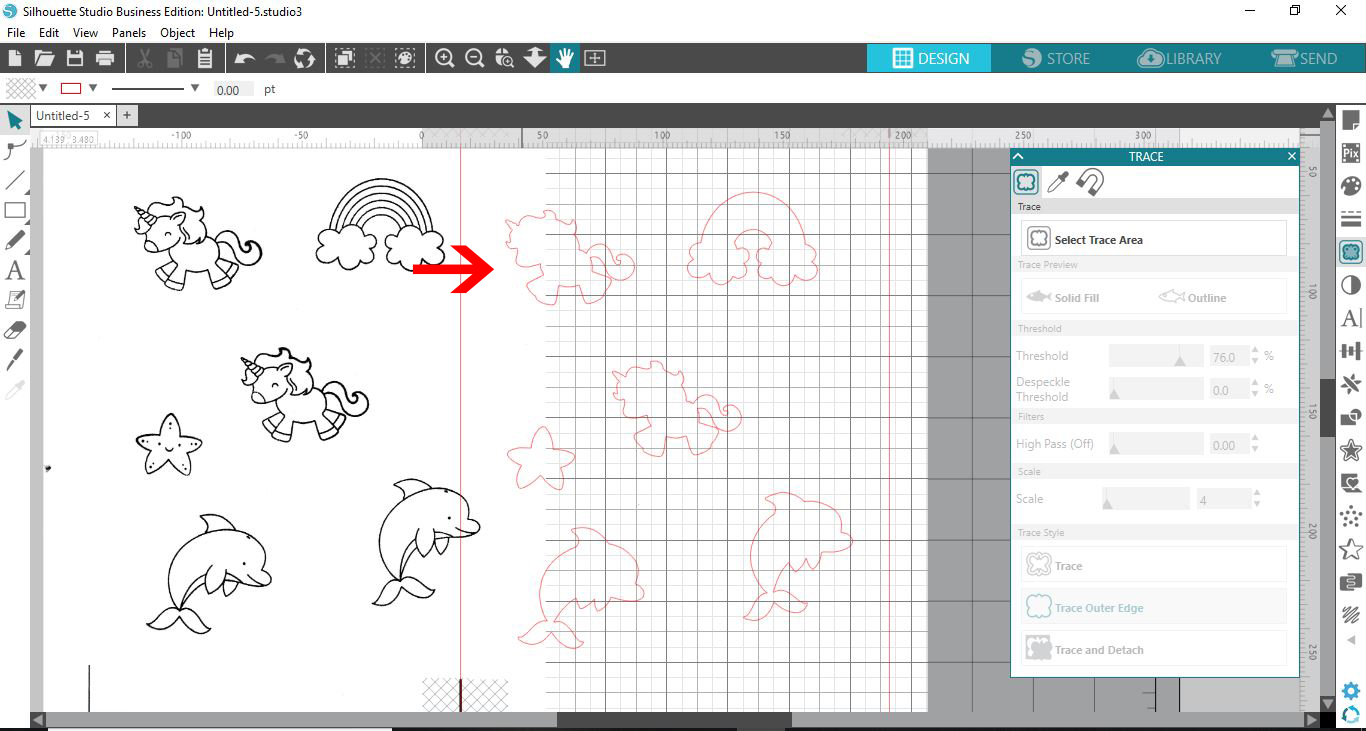
10- With your trace lines in the correct place. click on them and then go to the offset icon.
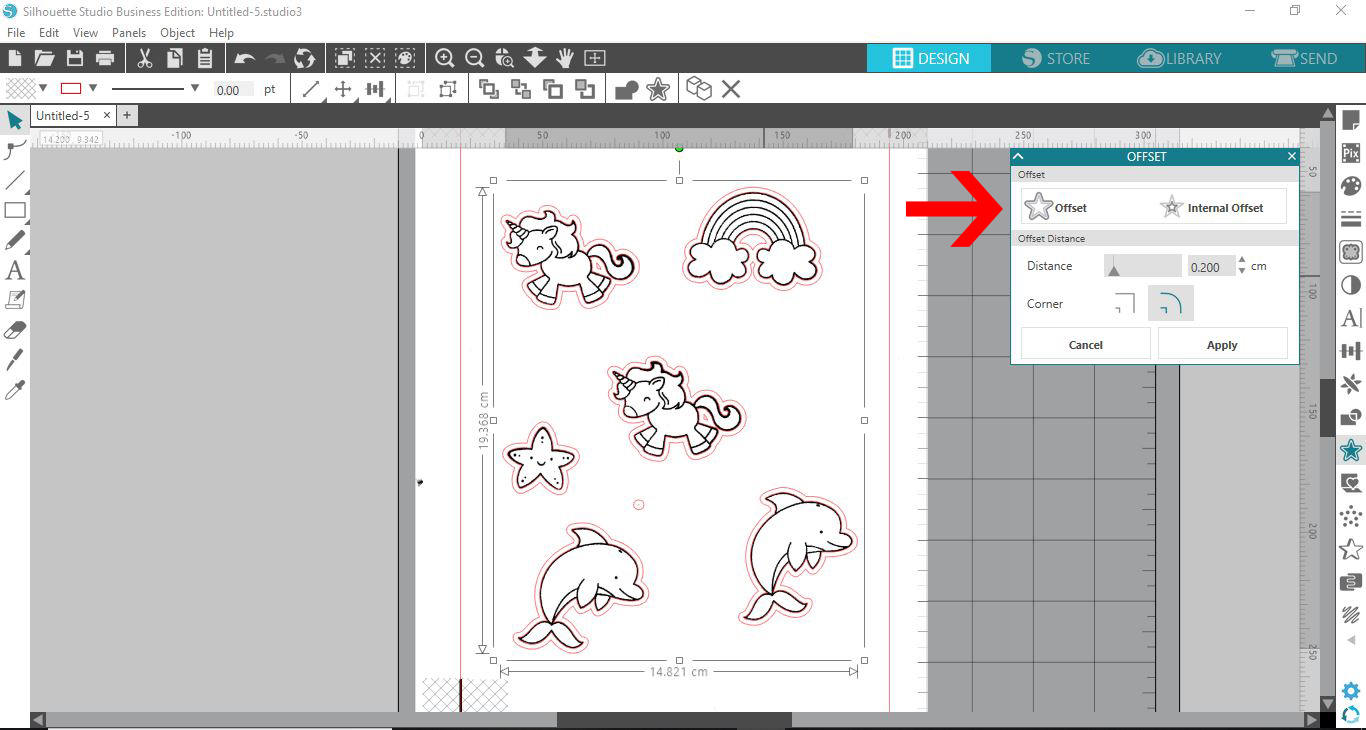
11- An offset will appear around your stamped images. Delete the original trace lines.
12- With the offset cut lines and your images selected, right click and group them together so they do not move.
13- Place your stamped images on your cut mat, then go to send. The software will read the registration marks. You can now cut the stamped images.

Related Tutorials
Silhouette Tutorials
Removing Unwanted Cut Lines in Silhouette Studio
Today, we'll show you three methods of removing unwanted cut lines in Silhouette Studio.
Silhouette Tutorials
How to Fill Text with Images in Silhouette Studio
Silhouette Tutorials
How To Convert and Cut an EPS file in Silhouette Studio
In this tutorial we will show you two methods to convert and cut an EPS file in Silhouette Studio.
Silhouette Tutorials
How to Make a Print and Cut in Silhouette Studio
Silhouette Tutorials
Cut by Layers in Silhouette Studio
Learn how to cut by layers with this video and step by step Silhouette tutorial.
Silhouette Tutorials