
By Design Bundles
Silhouette Tutorials2 min
Importing digital papers into Silhouette Studio
1- Open silhouette studio. Click on the open file option.
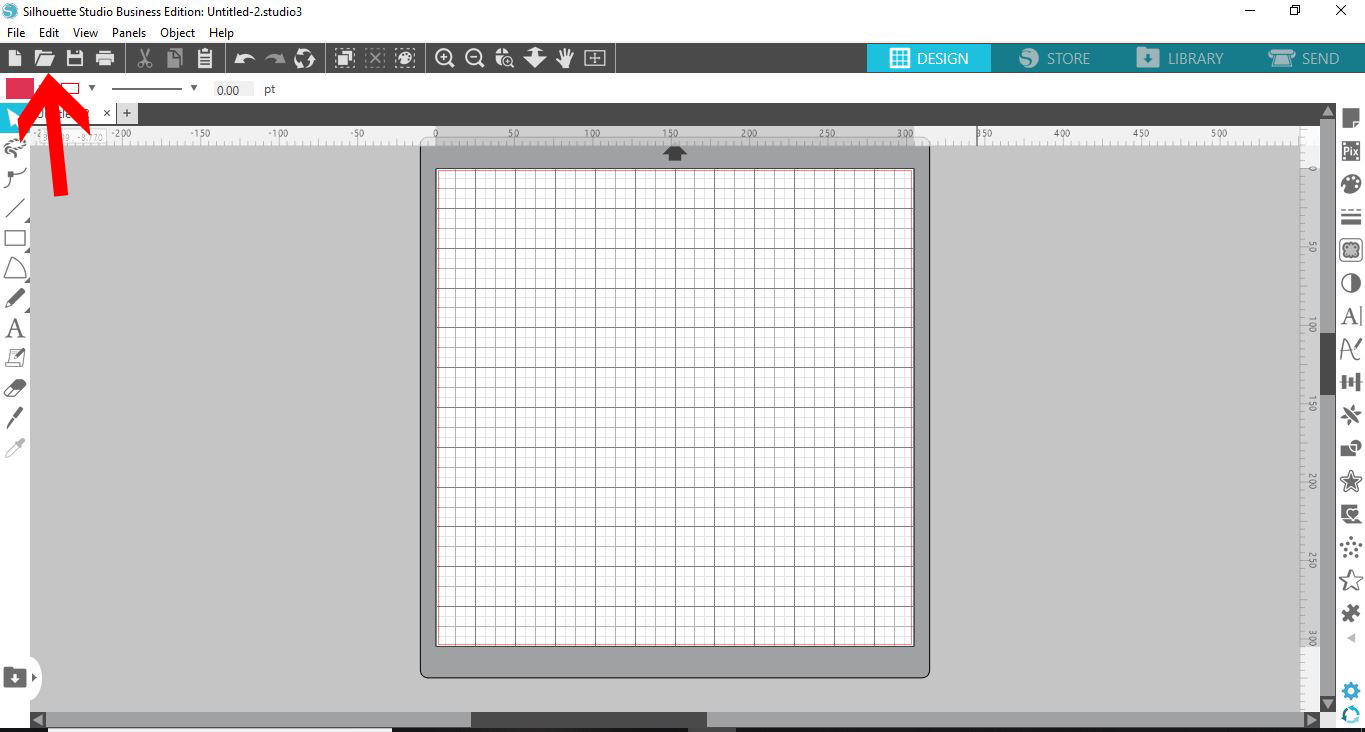
2- Go to library then import to library.
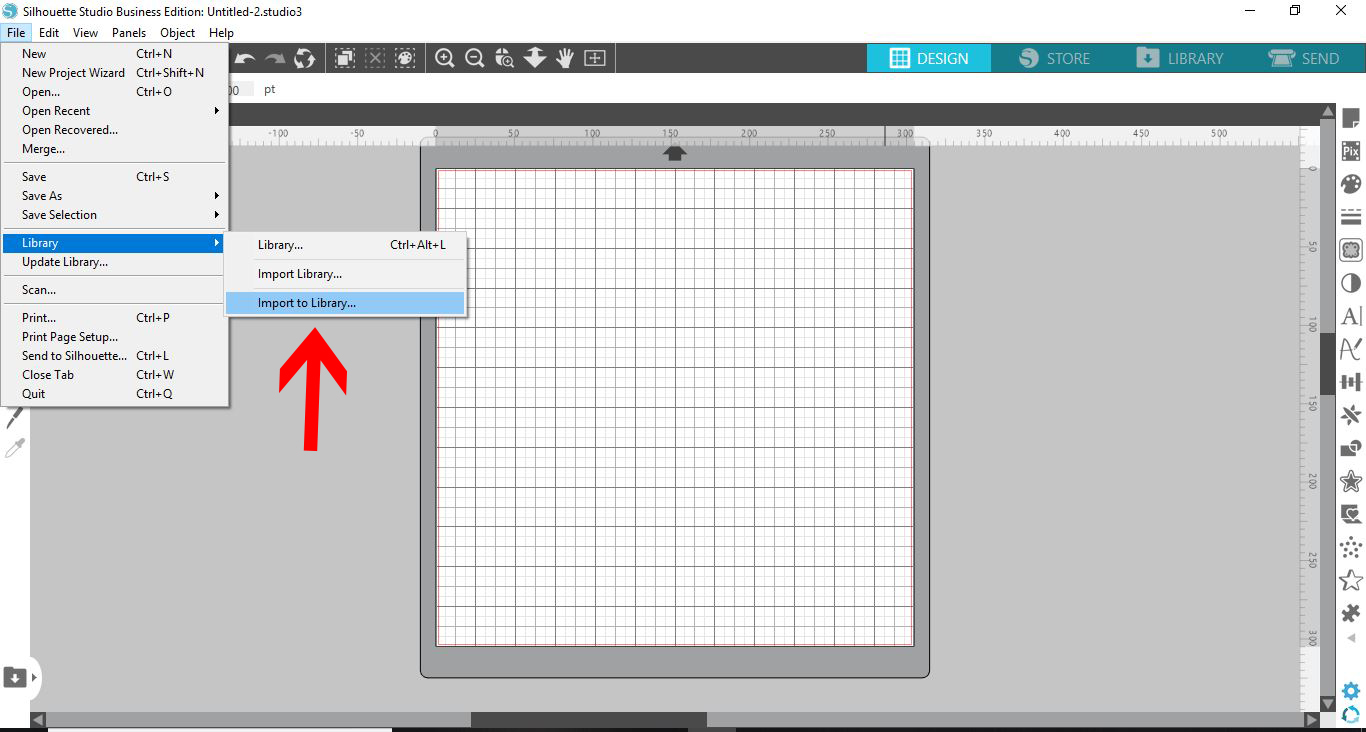
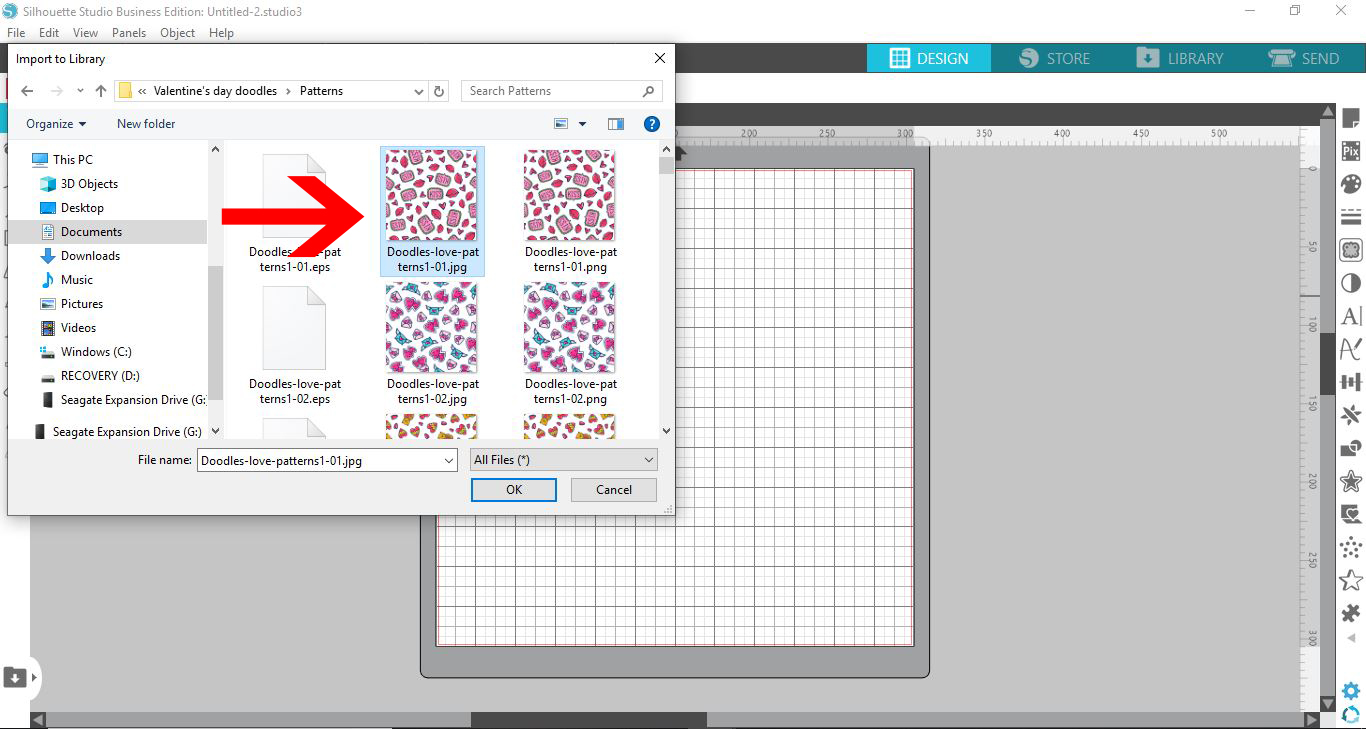
3- Select the digital paper you would like to use. I am using Valentine's day clipart and patterns
4- The paper will upload into your silhouette library.
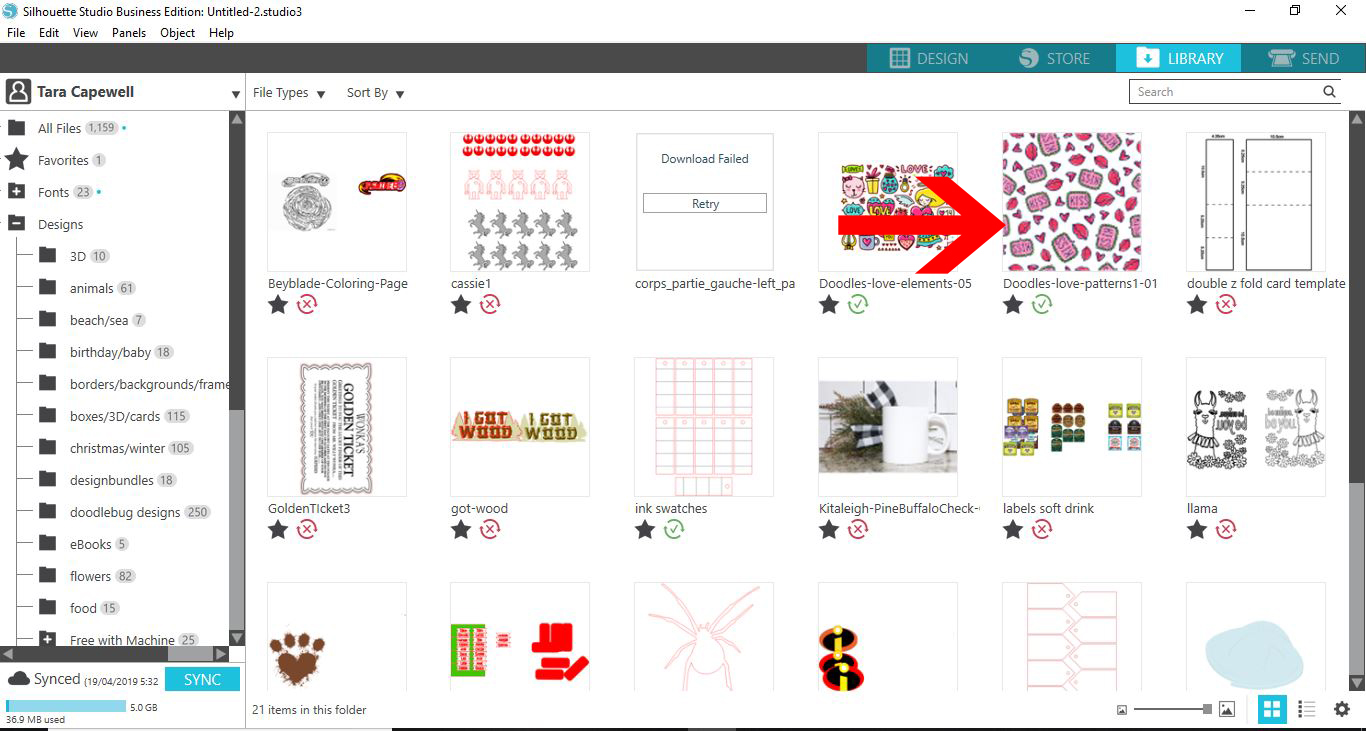
5- Click and drag the digital paper to the patterns folder.
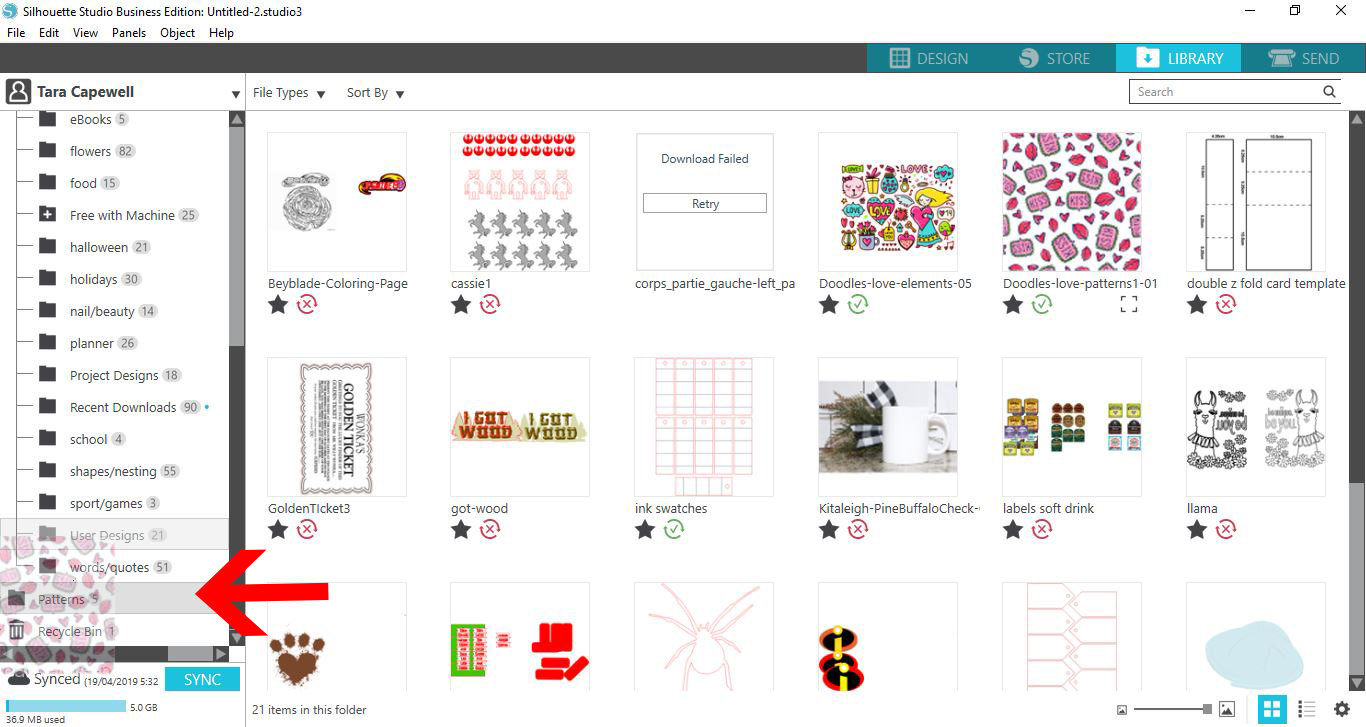
6- Your digital paper is now in the pattern folder ready for use.
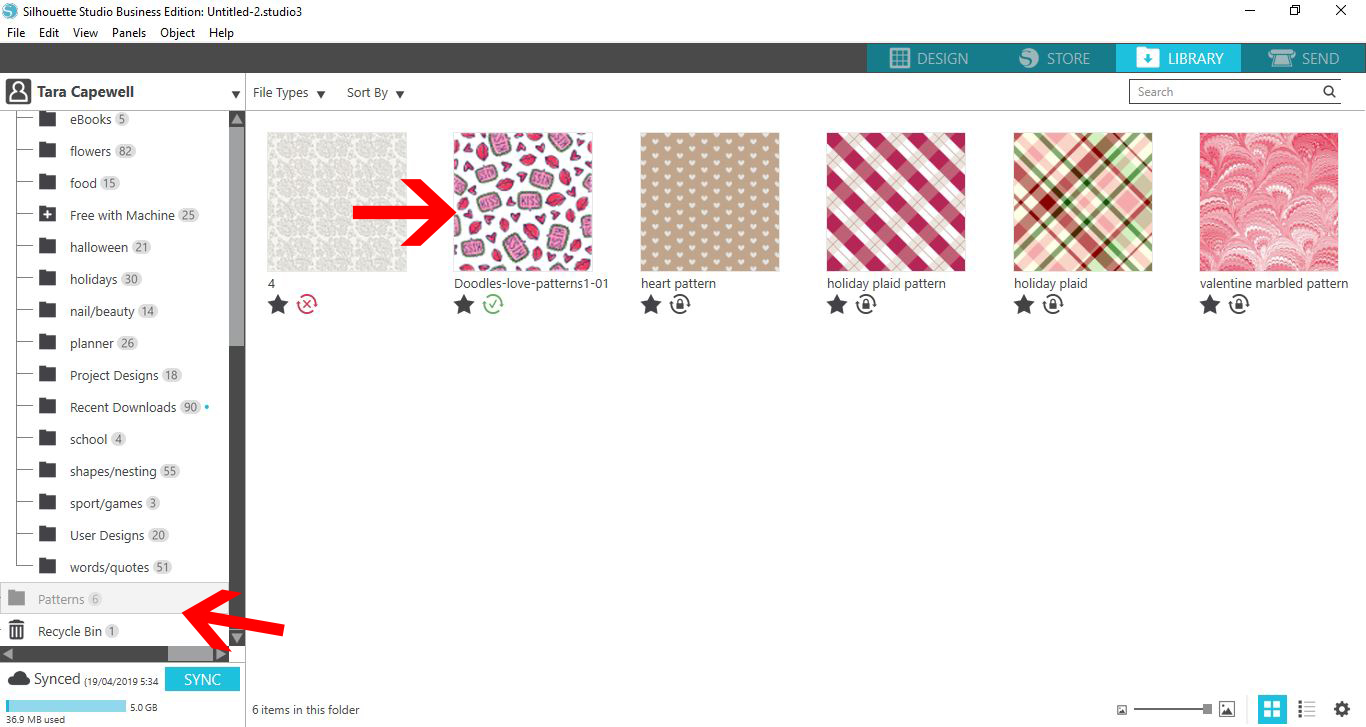
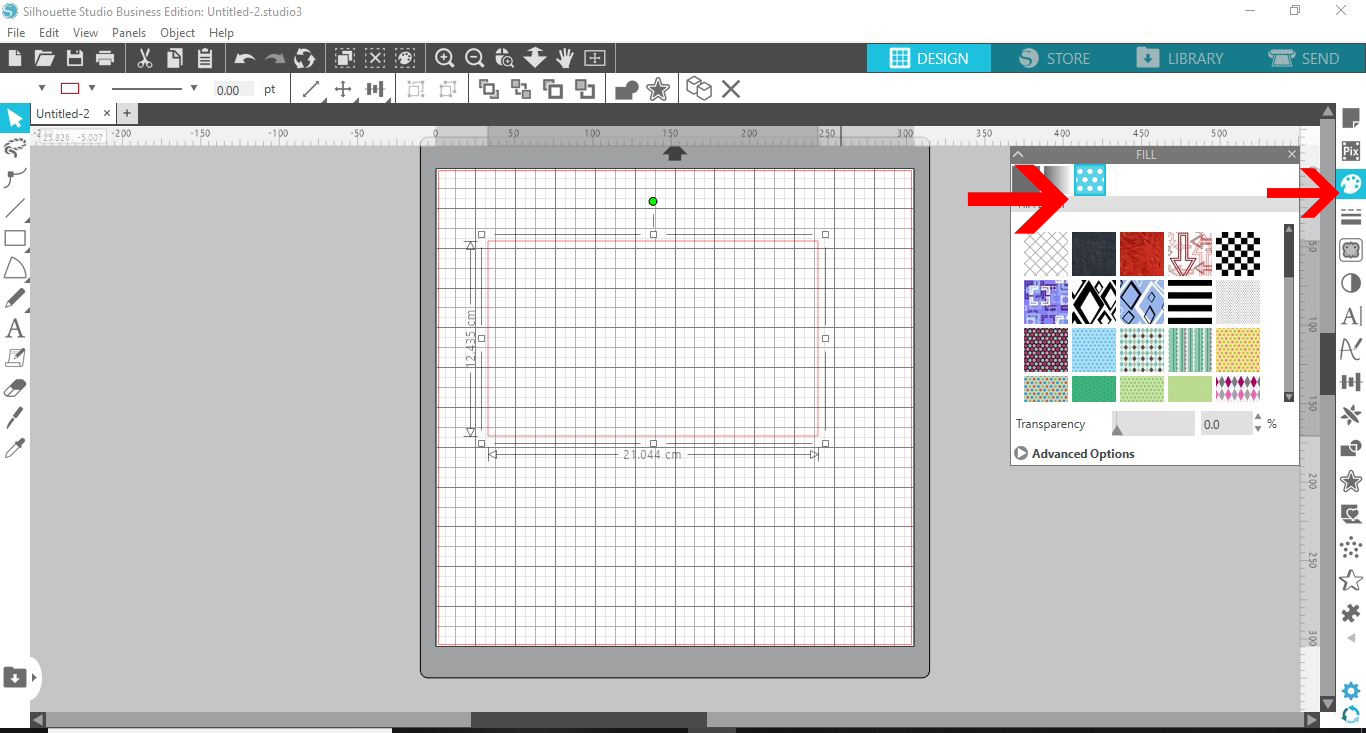
7- To access the digital paper Click on the fill panel and select the fill pattern option.
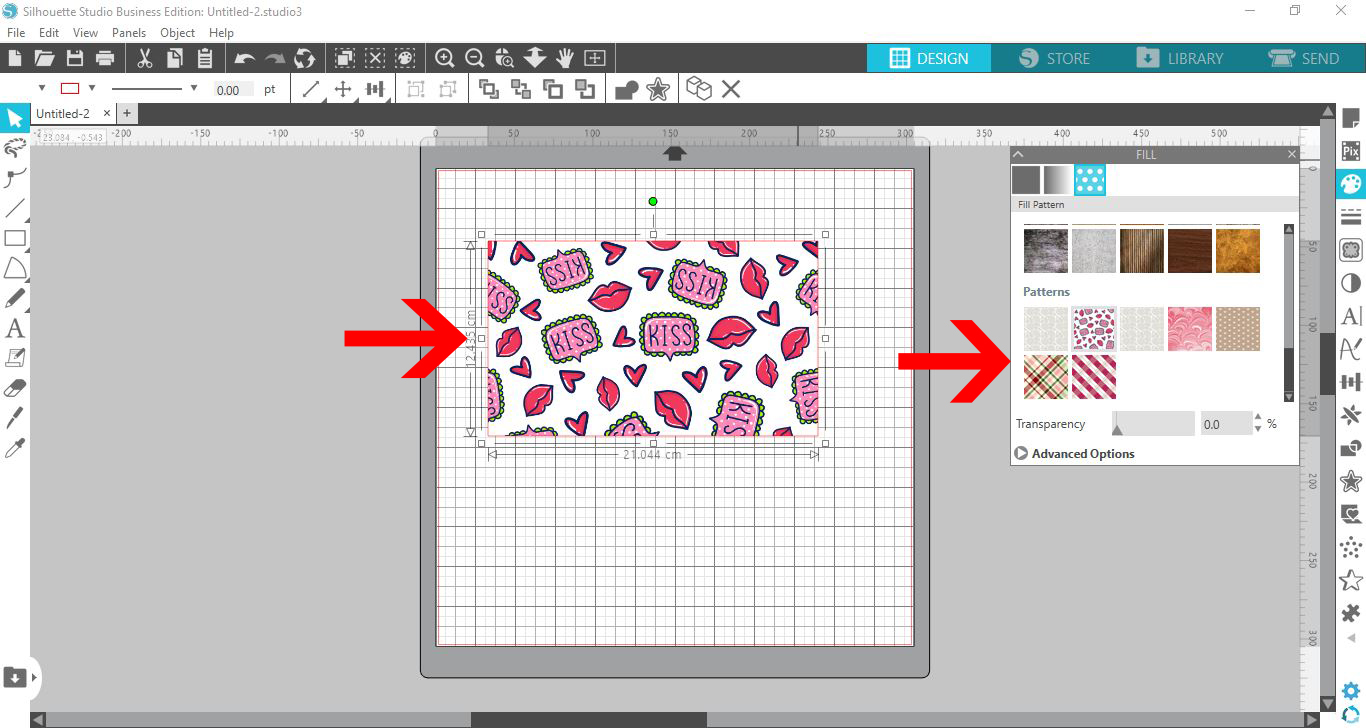
8- Scroll down to the uploaded pattern section. Select the design/text/shape you would like the pattern in and then click on the desired pattern.
Related Tutorials
Silhouette Tutorials
Filling Text with Digital Patterns and Papers in Silhouette Studio
Filling text with digital patterns and papers in Silhouette Studio is so easy with our tutorial.
Silhouette Tutorials
How to Use Digital Papers in Silhouette Studio
Silhouette Tutorials
How to Import Patterns Into the Silhouette Studio Library
In this tutorial, learn how to import patterns to Silhouette Studio in 3 Easy Steps!
Silhouette Tutorials
How to Bulk Import Files into Silhouette Studio Library
In this tutorial you will learn how to bulk import files into the Silhouette Studio Library.
Silhouette Tutorials
Importing Ai and EPS Files into Silhouette V4.1
Silhouette Tutorials
Removing Unwanted Cut Lines in Silhouette Studio
Today, we'll show you three methods of removing unwanted cut lines in Silhouette Studio.