By Design Bundles
Silhouette Studio Lock Layer Tool
Using the lock layer tool in Silhouette Studio can be super helpful when designing to ensure layers aren't getting moved around.
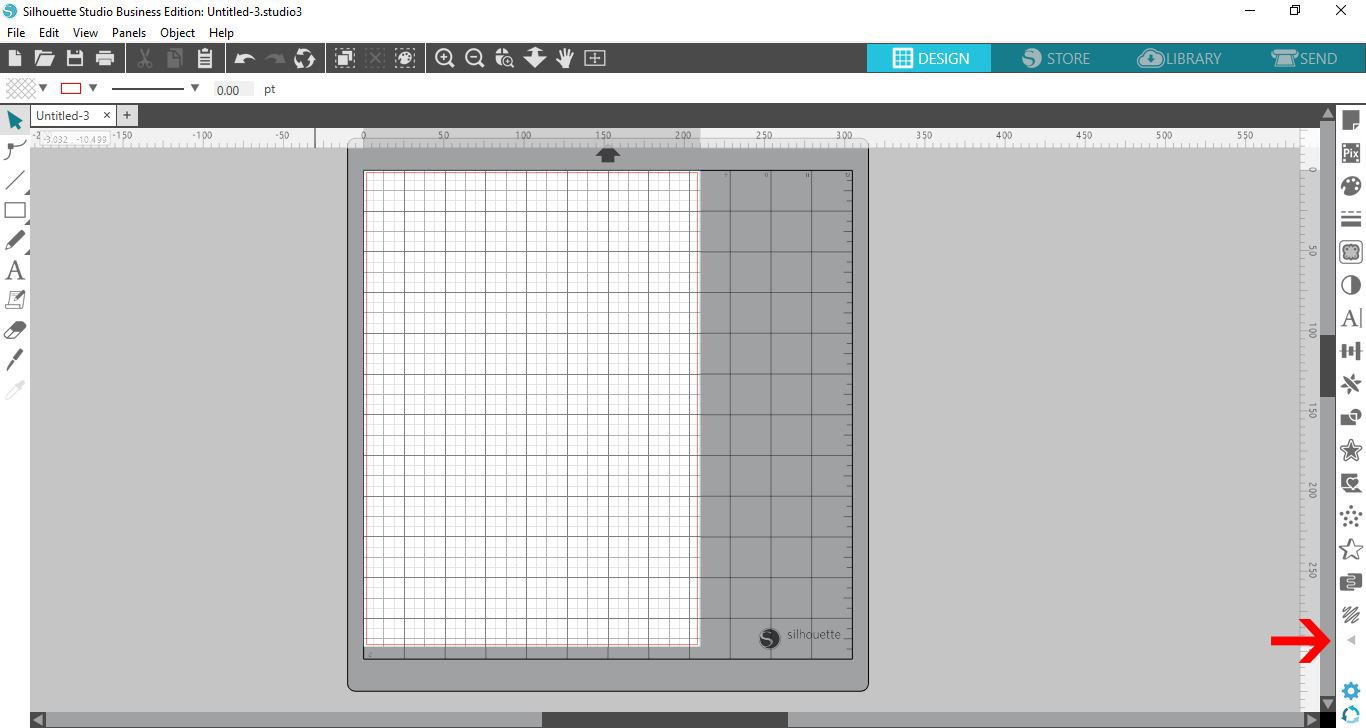
Step 1 - Click the triangle icon
Open Silhouette Studio and click on the little triangle icon at the bottom right of the toolbar.
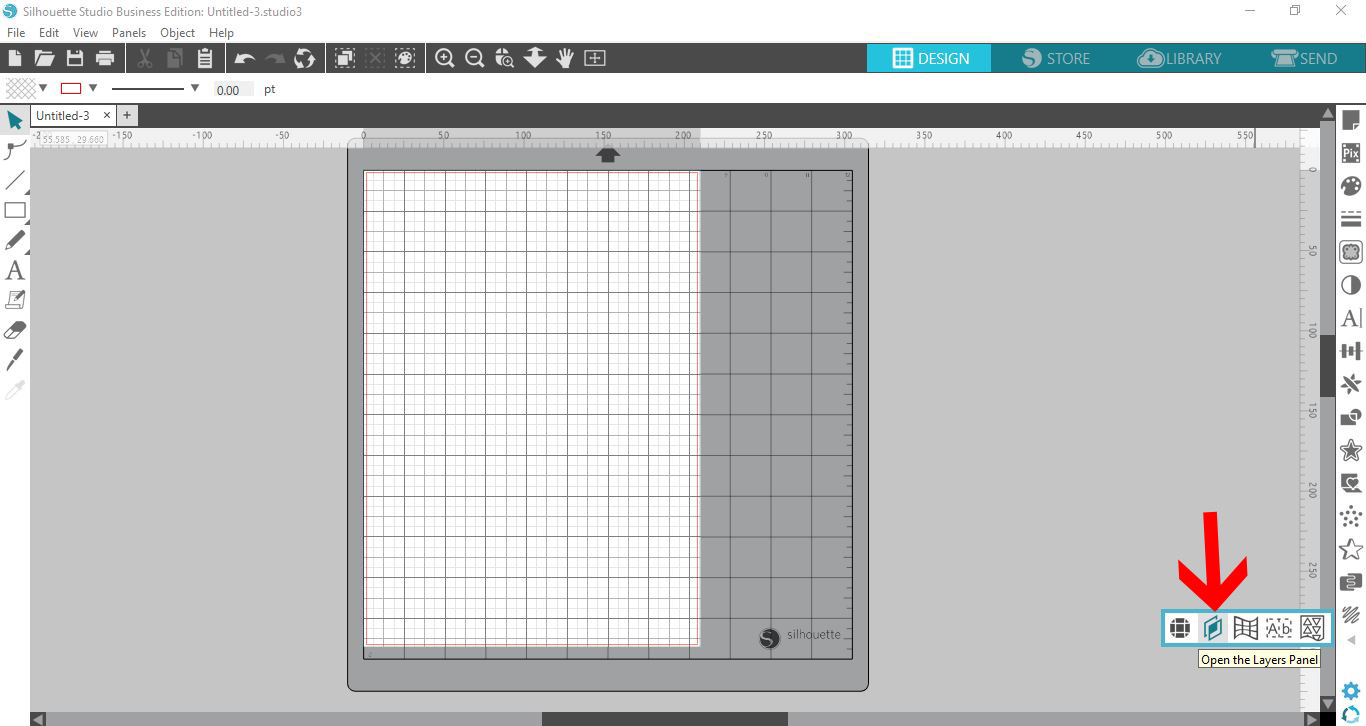
A pop out toolbar will appear. Click on the layer tab icon.
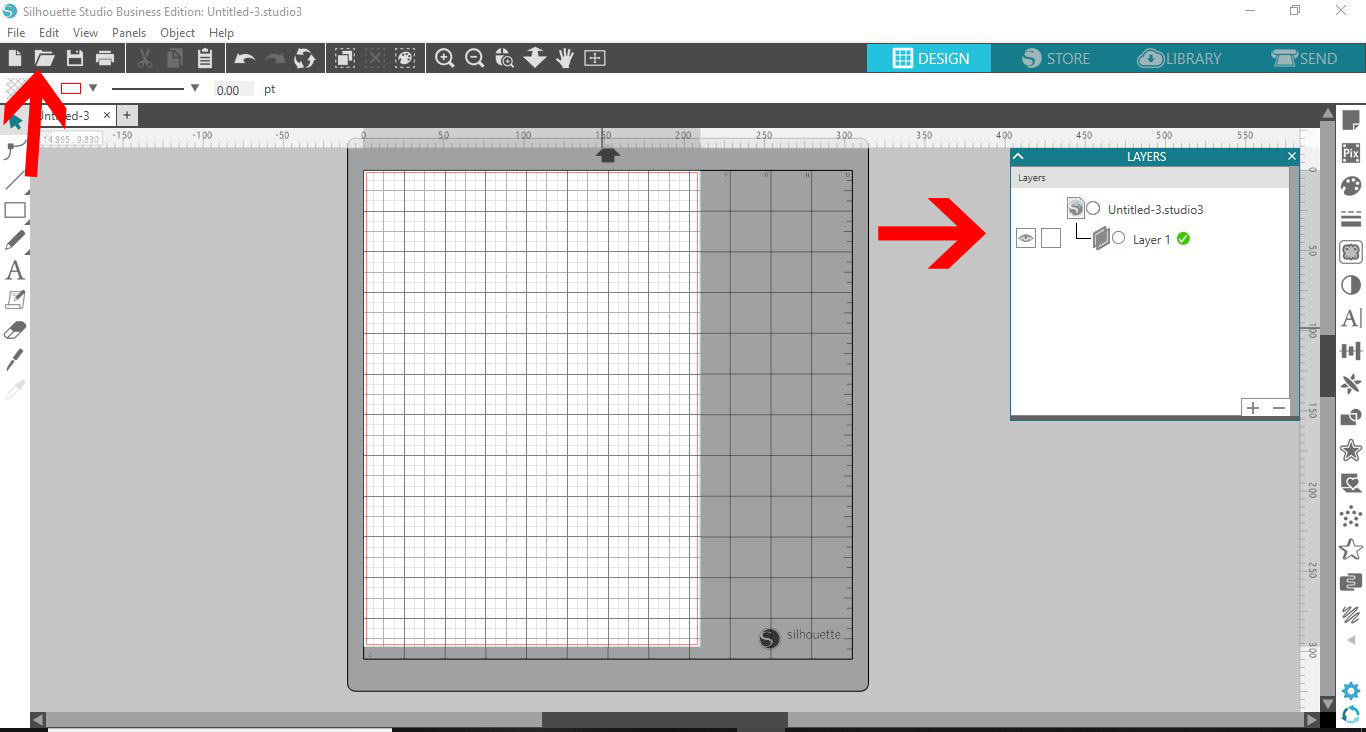
Step 2 - Open your file
The layer panel will appear on your screen. Open your file.
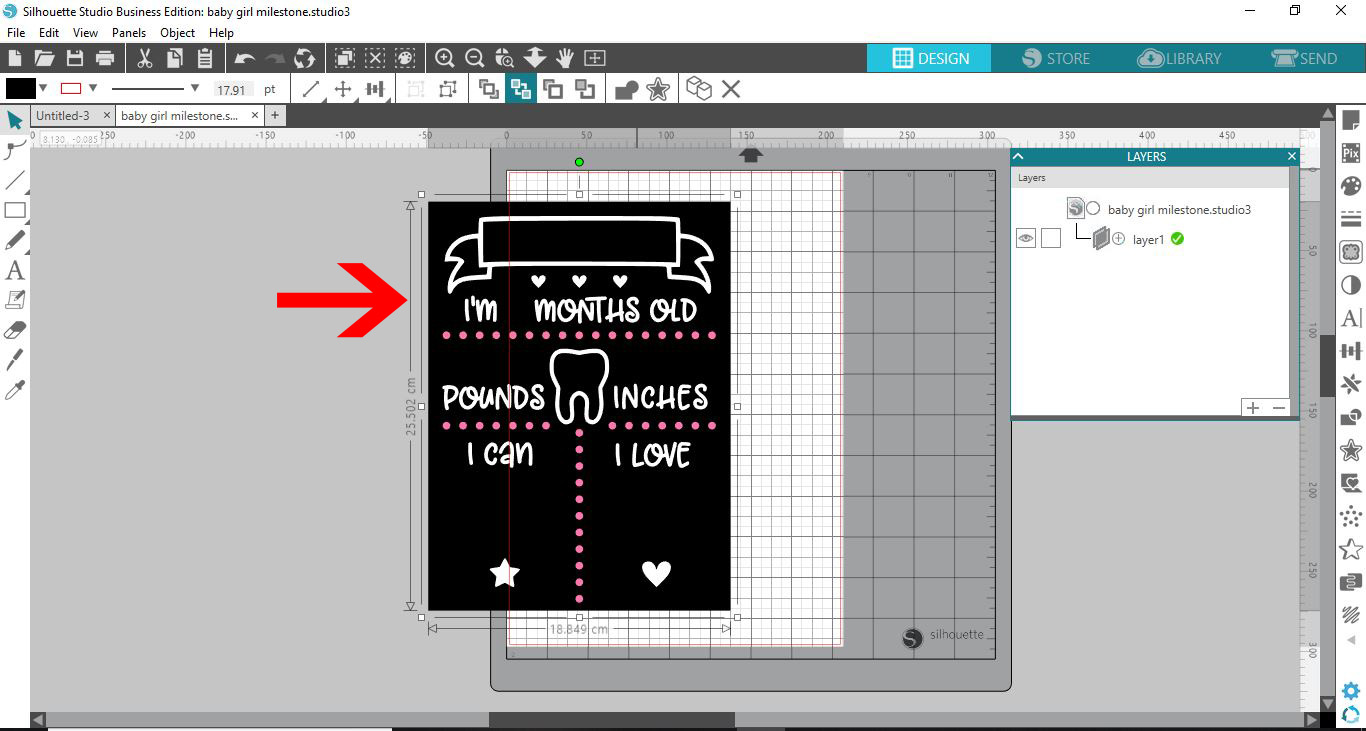
Your design will appear on the design space. I am using Baby milestone SVG from Design Bundles.

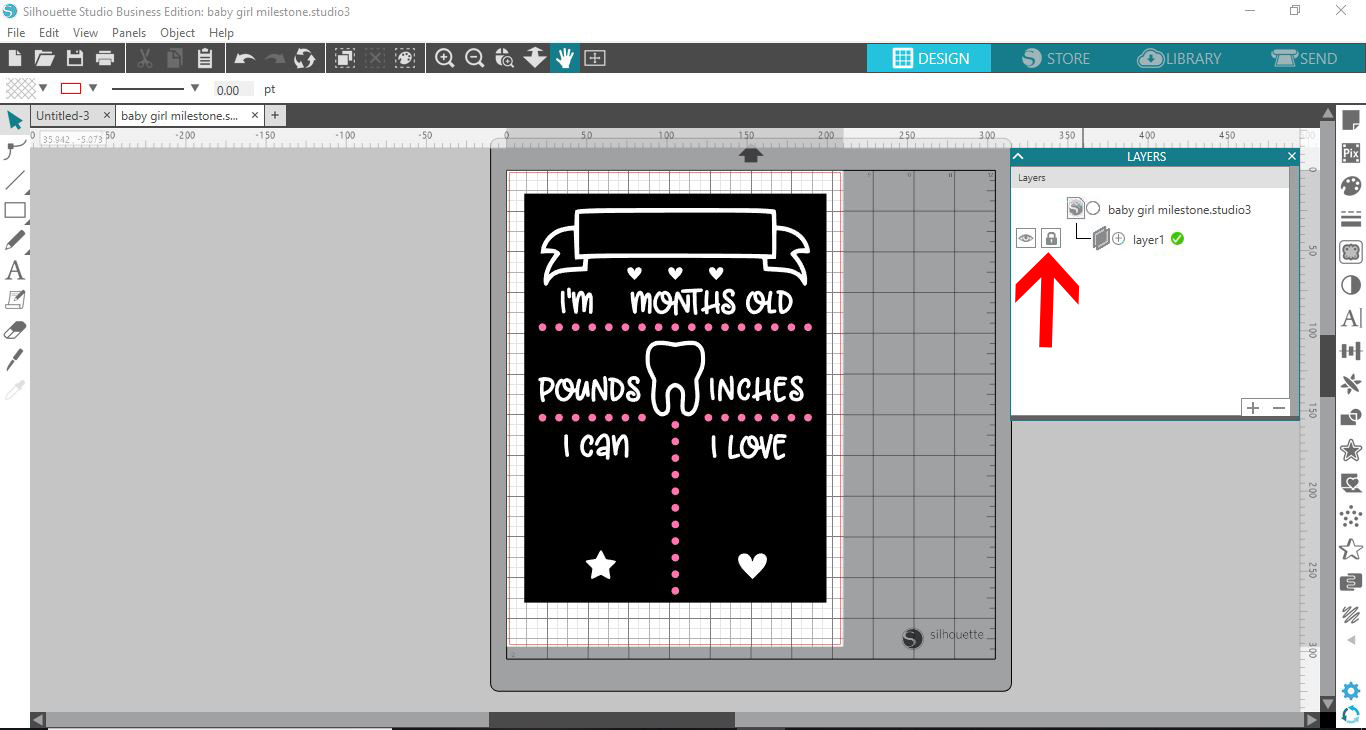
Your design is layer 1. There are two icons available for you to use. The little eye icon is to hide the image on your design space, and the second blank box is the lock layer option. When the lock layer option is not selected your image/design can move freely around your design space.
Step 3 - Click on the padlock icon
When the lock layer icon is selected, you will see a little padlock in the box. This will lock the design in place so it cannot move. The lock layer option is great when you are having to add many elements onto a single design. With it selected you will not accidentally select the design and move it (and therefore making everything out of alignment).
If you want to add new elements and be able to lock those as well, click on the + icon on the layers tab. This will create a new layer for you to add your text/image/shape.
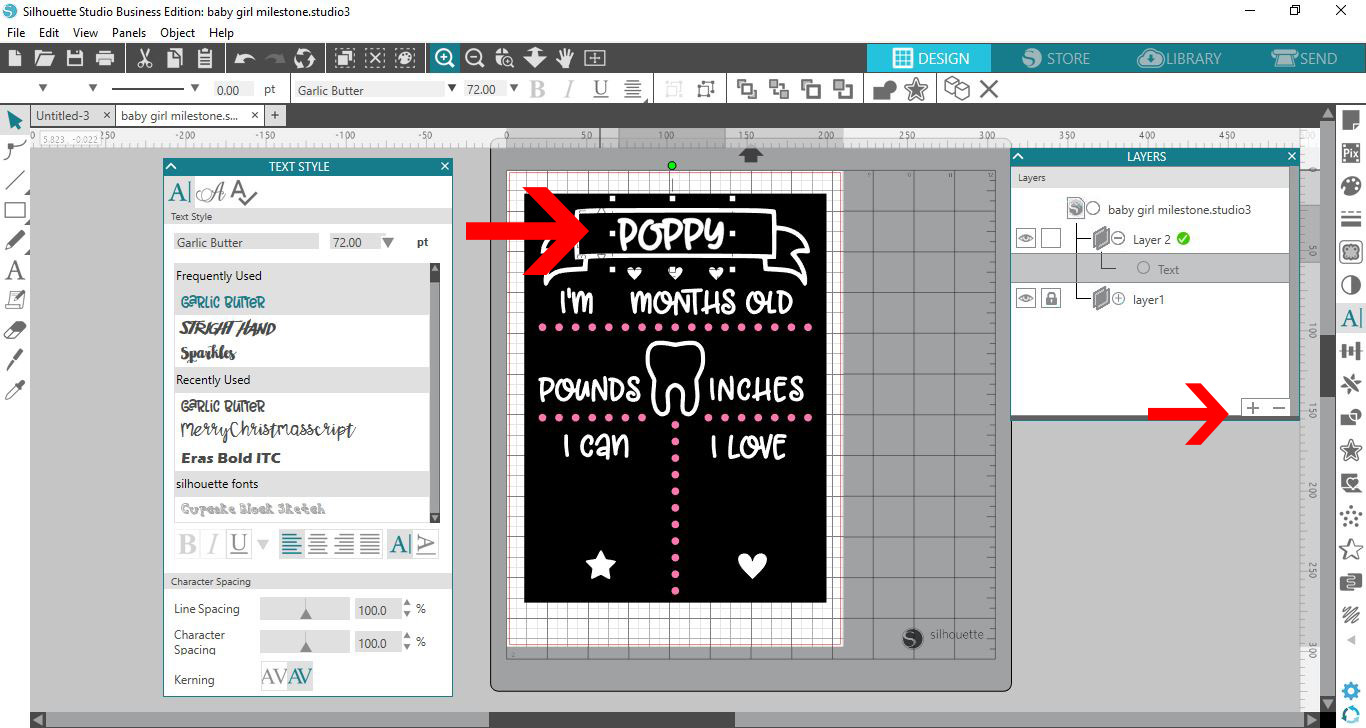
You can now click on the lock box on layer 2 so the text/image etc is locked in place also. You can repeat this technique for every part of your design so nothing moves out of place as you add more designs or text.
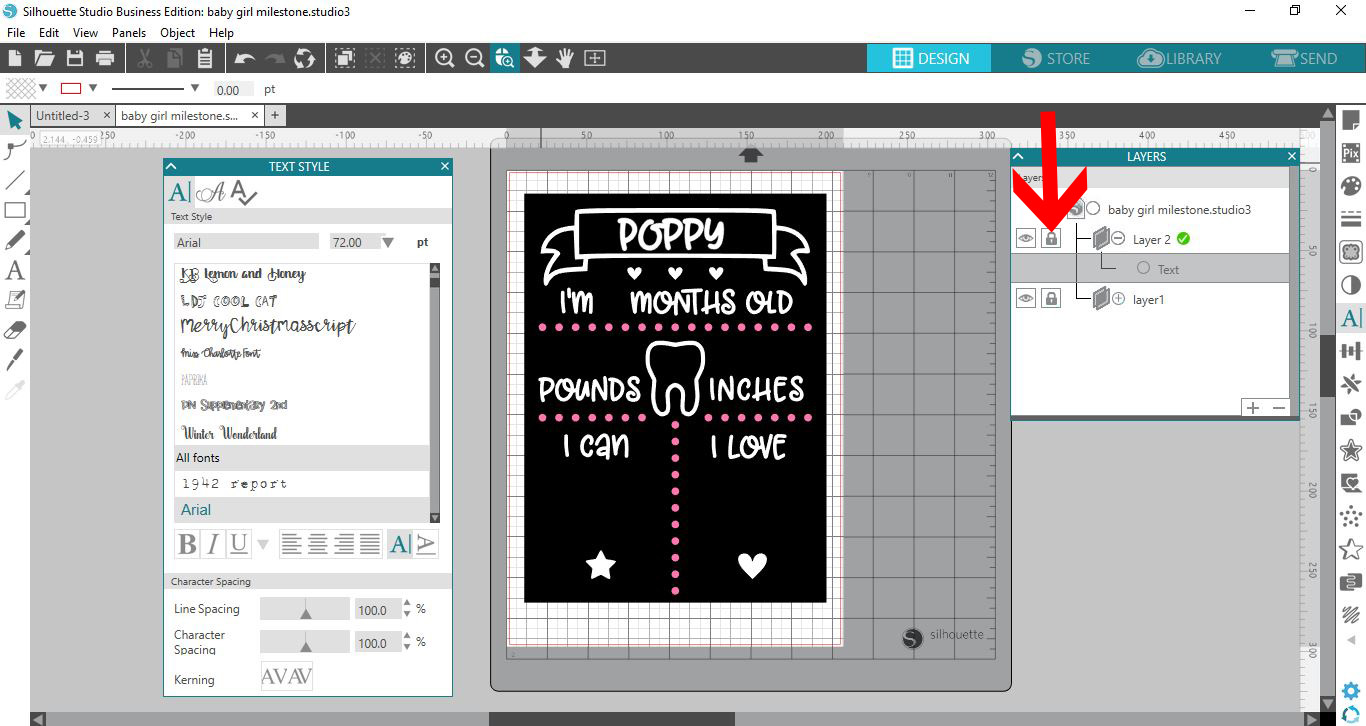
You have now learned how to use the lock layer tool in Silhouette Studio!