By Design Bundles
Silhouette V4 New Sketch Features
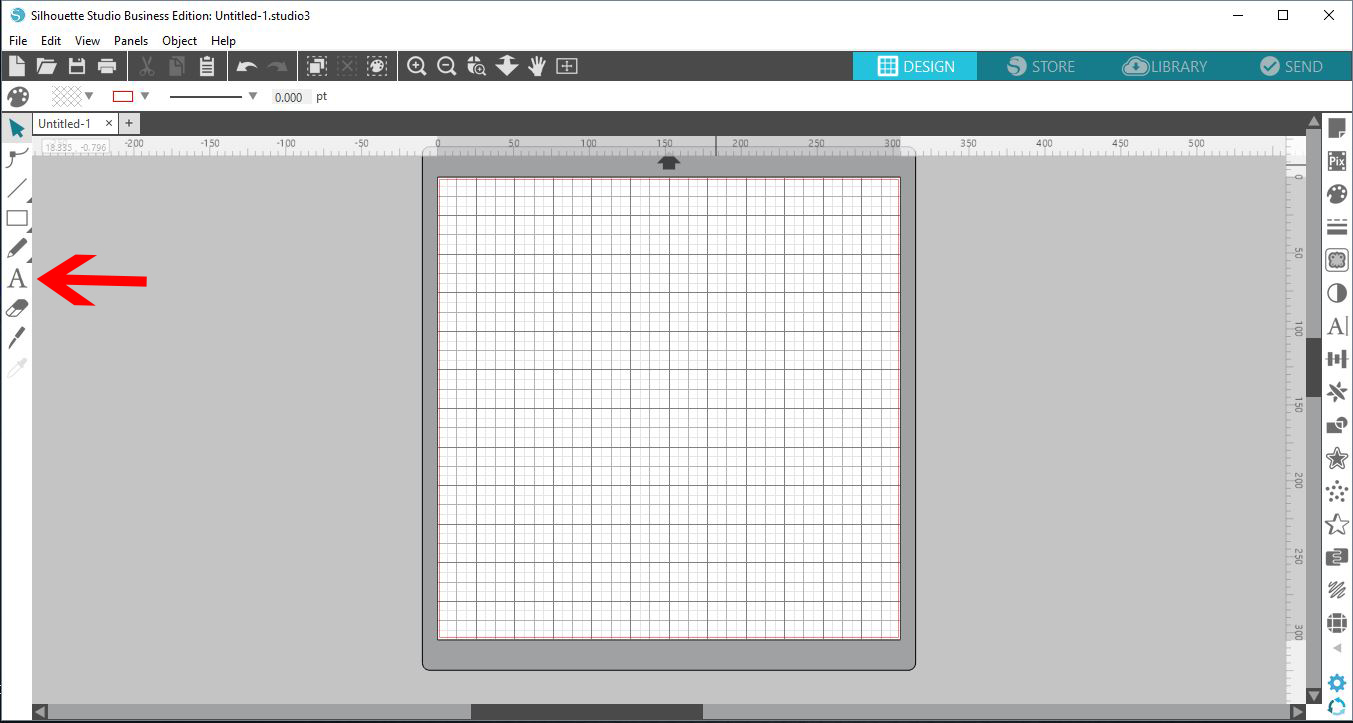
1- Open up Silhouette Studio and access the text tool.
2- Type your text.
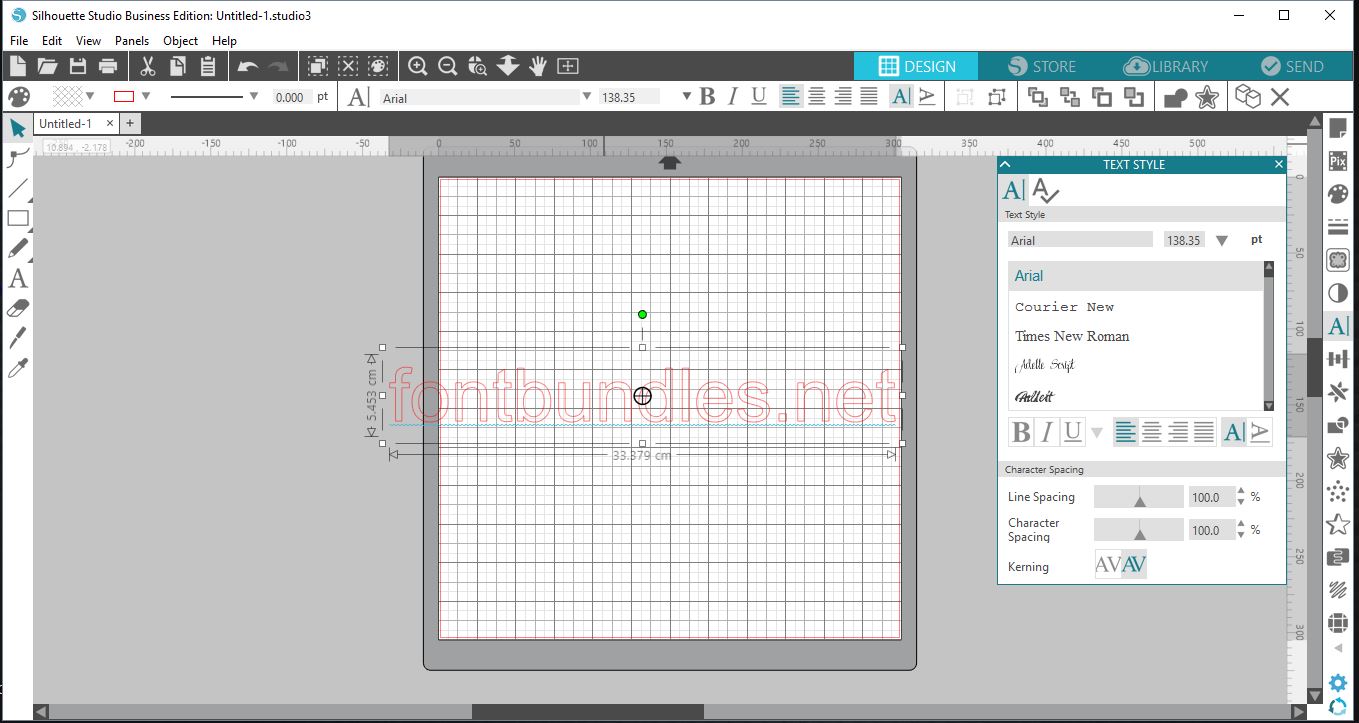
3-Select the text panel from the right toolbar and select your font. When using the sketch feature a bigger bold font tends to work better. I am usingBlack Velvet 2from fontbundles.net
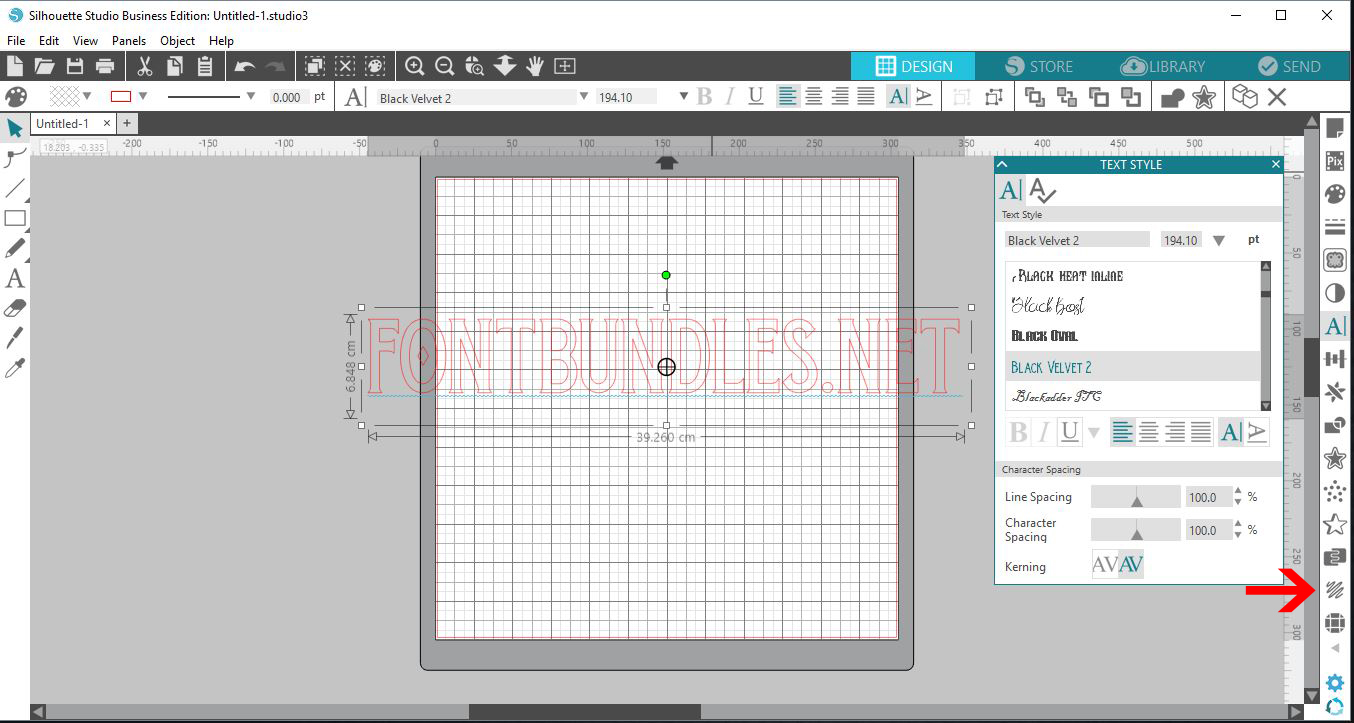
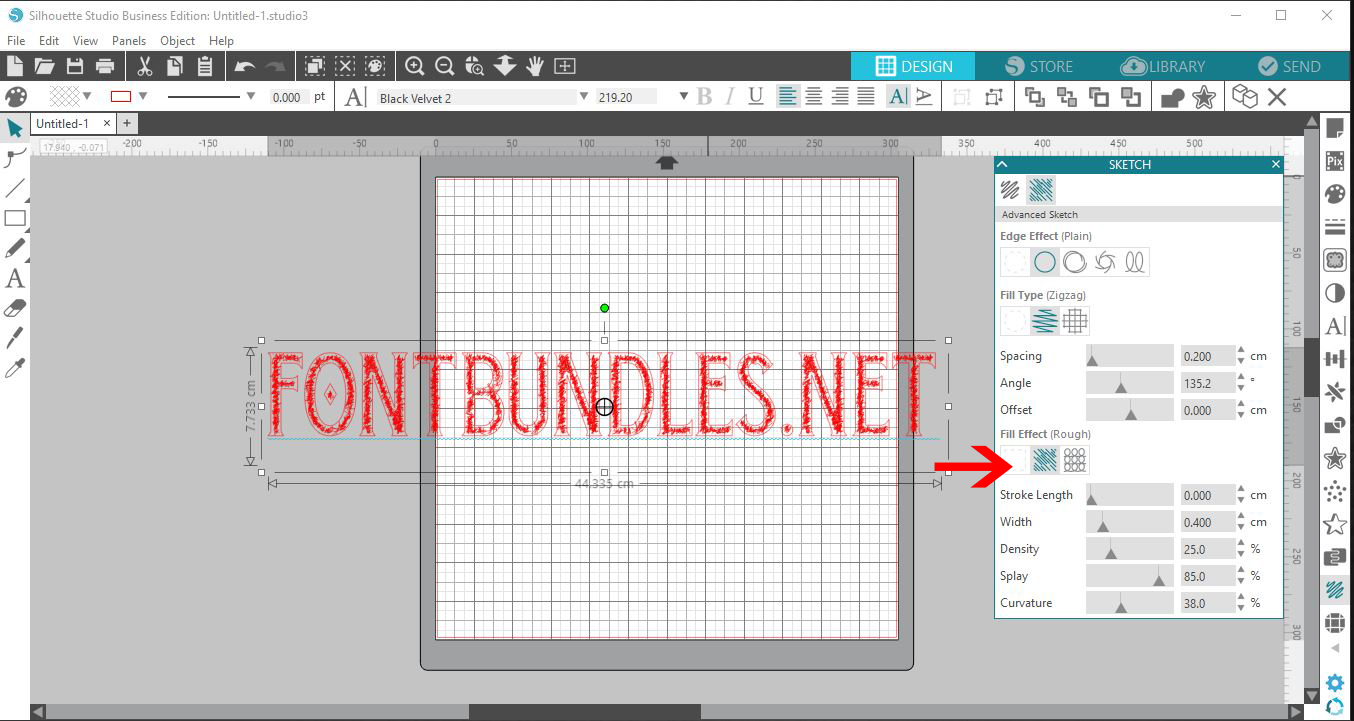
4- Once you have the font selected select the the sketch icon in the right toolbar. the sketch panel will appear.
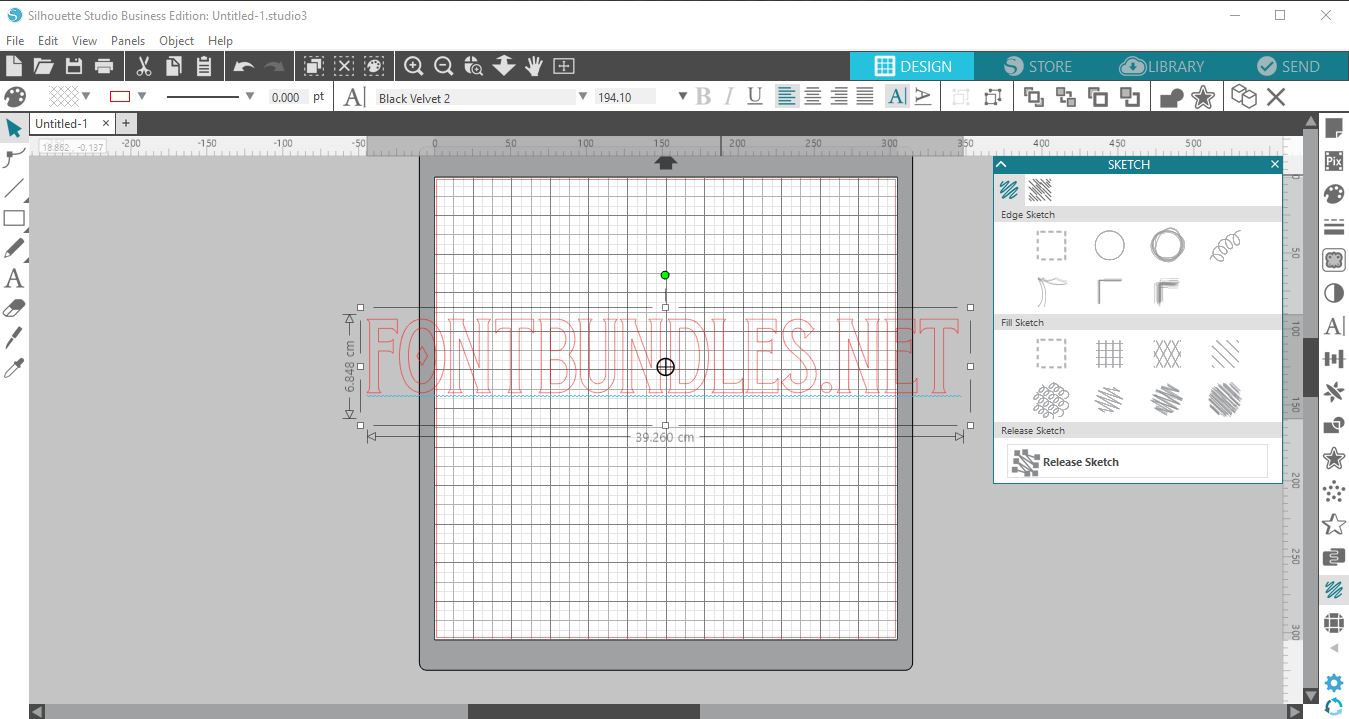
5- You can select the basic sketch features to change your font appearance. (It is good to note to remember to change the file to a no cut file when using the sketch feature. this is specifically for pens in your machine.)
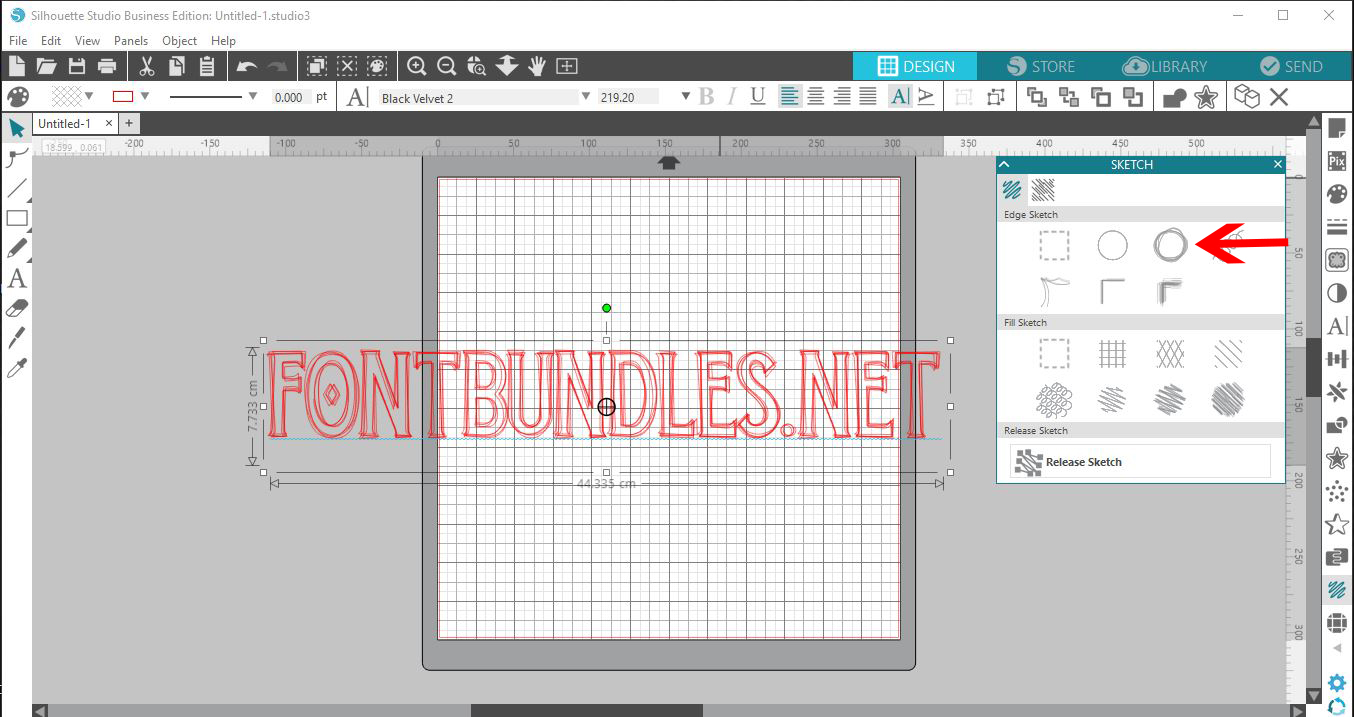
6-You can also now use the advanced sketch options. This gives you further ways to use the sketch function.
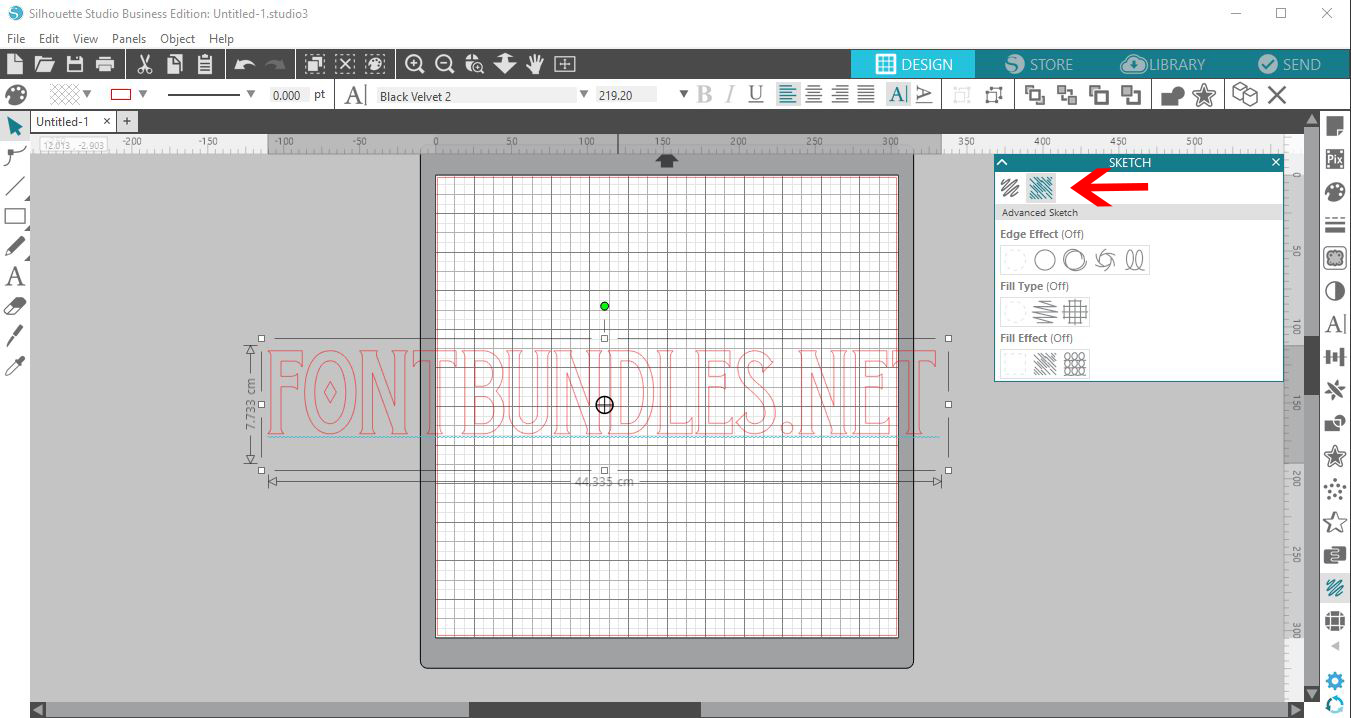
7-Toy can select the sketch fill option which will fill the inside of the text with the chossen sketch fill type.
You can adjust this within the advanced settings by changing the spacing between the "scribble" change the angle or offset.
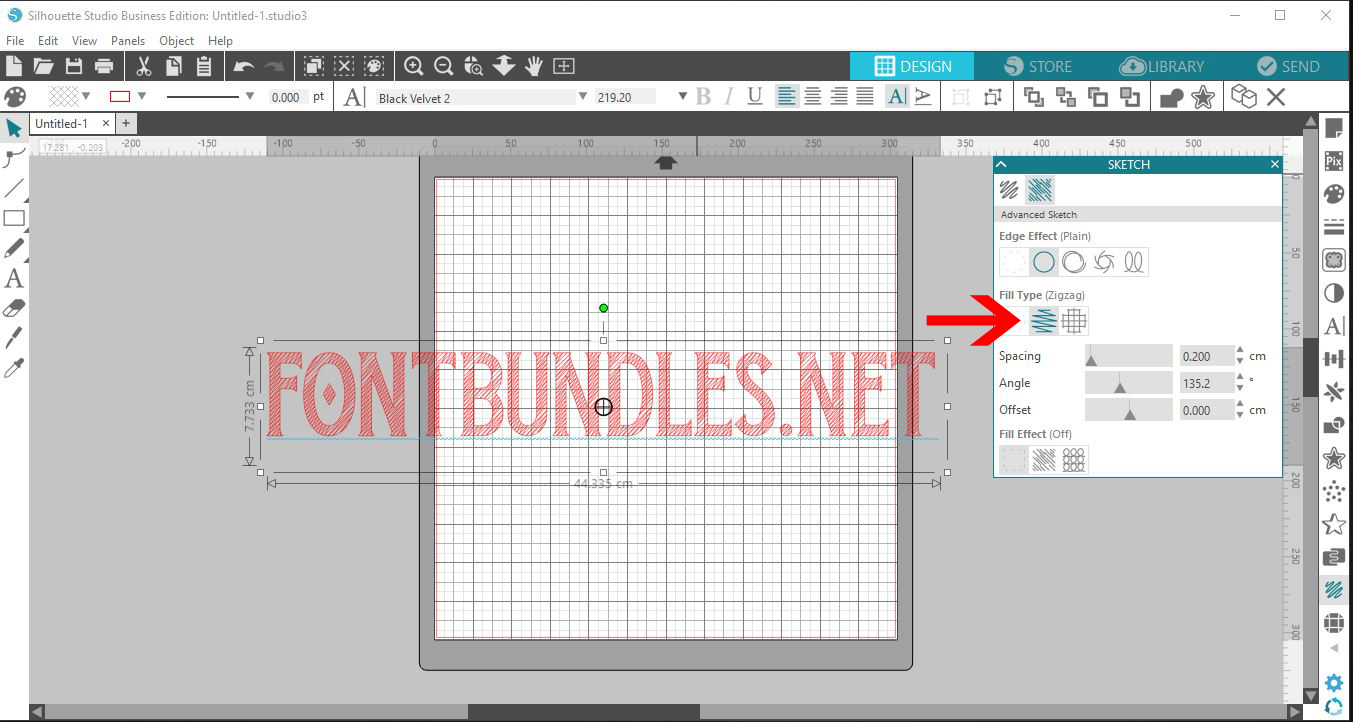
8-You can also adjust the fill effect to get even more effects with the sketch options. This includes adjusting the length, width ,density and curvature of the lines in the sketch.