By Design Bundles
New Export Options in Silhouette Business Edition SVG, PDF and JPEG
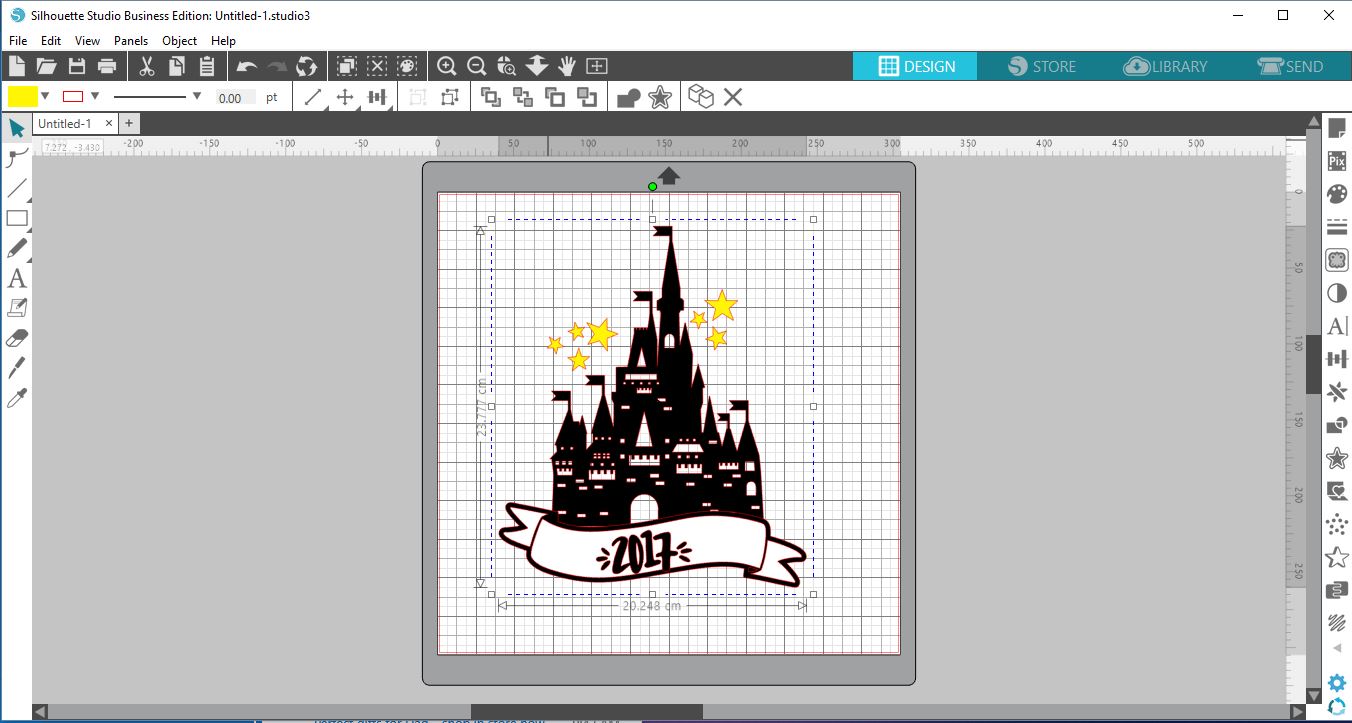
1- Open Silhouette Studio.
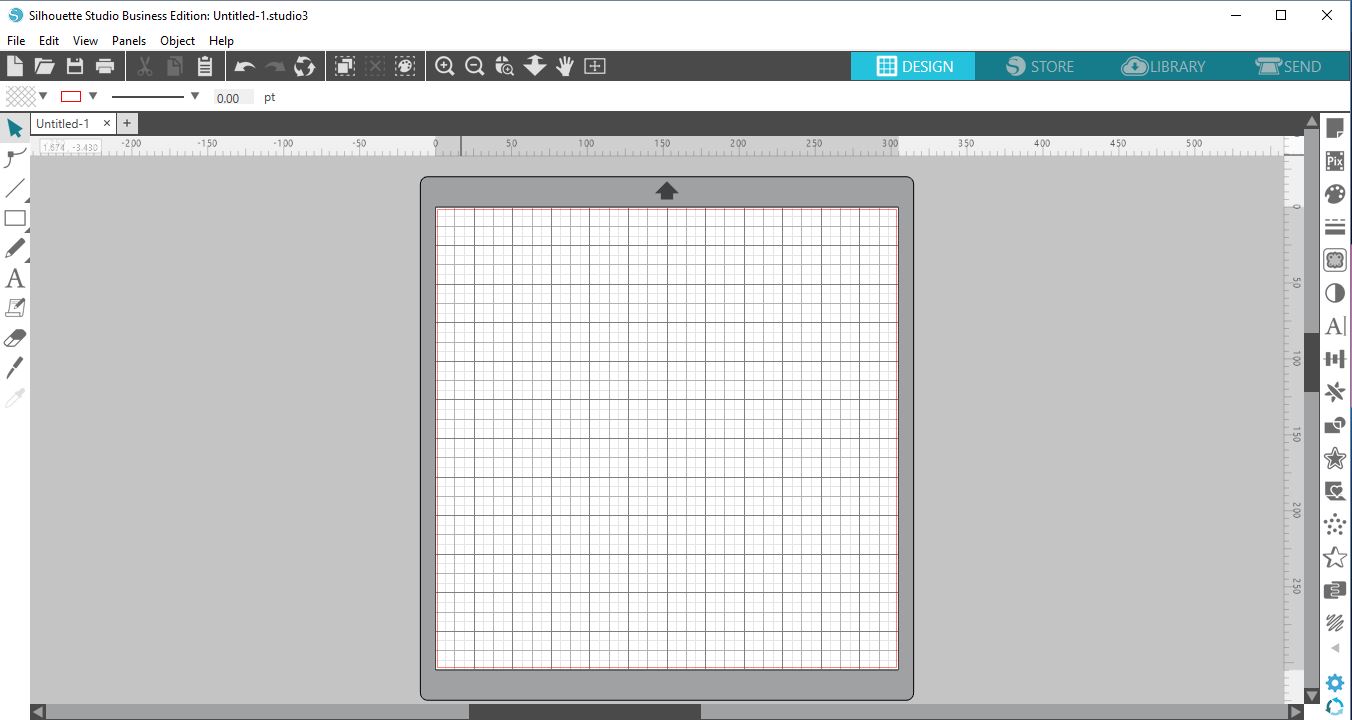
2- Create your design.
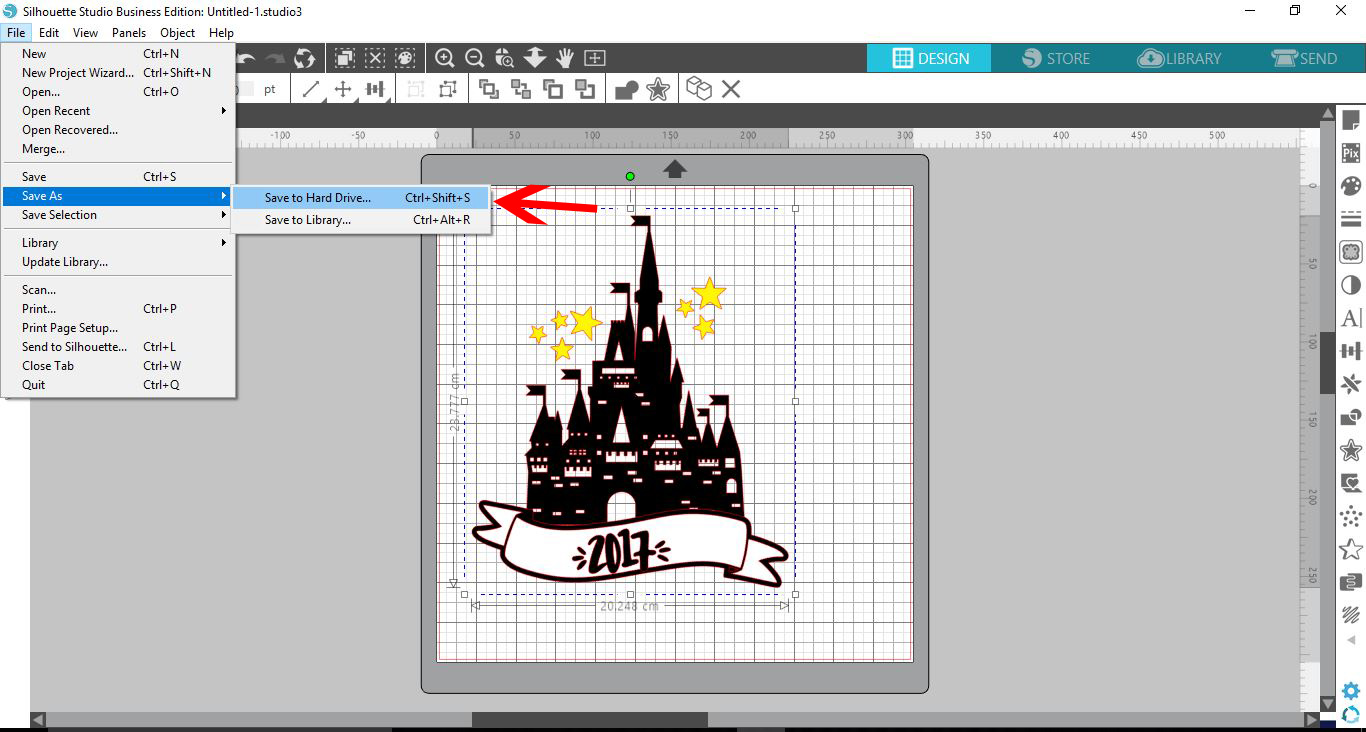
3- Once you have finished your project you can now Select File > Save to > Save to hard drive.
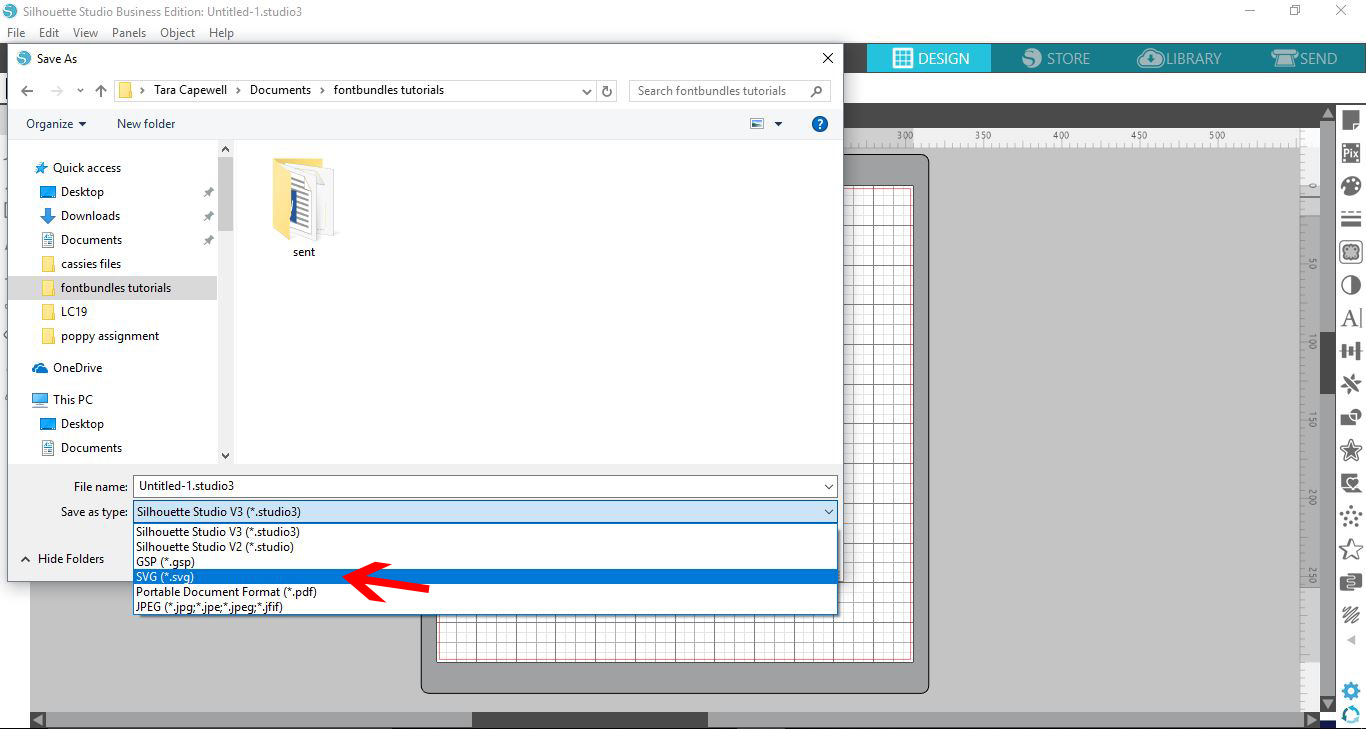
4- A new window will appear to save your file. In the drop down box you now have the option to save your file as SVG, PDF or JPEG as well as the regular options like Sil file.
5- When saving as a SVG file, you may get a Export restrictionnotification. The means you are trying to export a silhouette store design. As these are sold by silhouette they can not be exported.
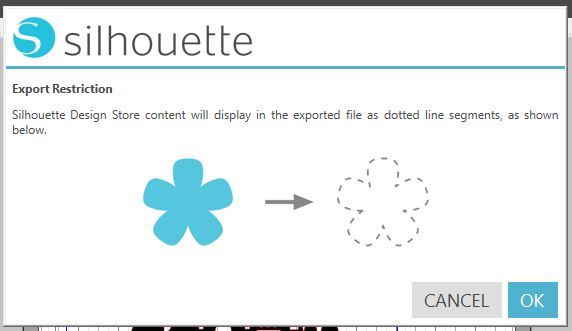
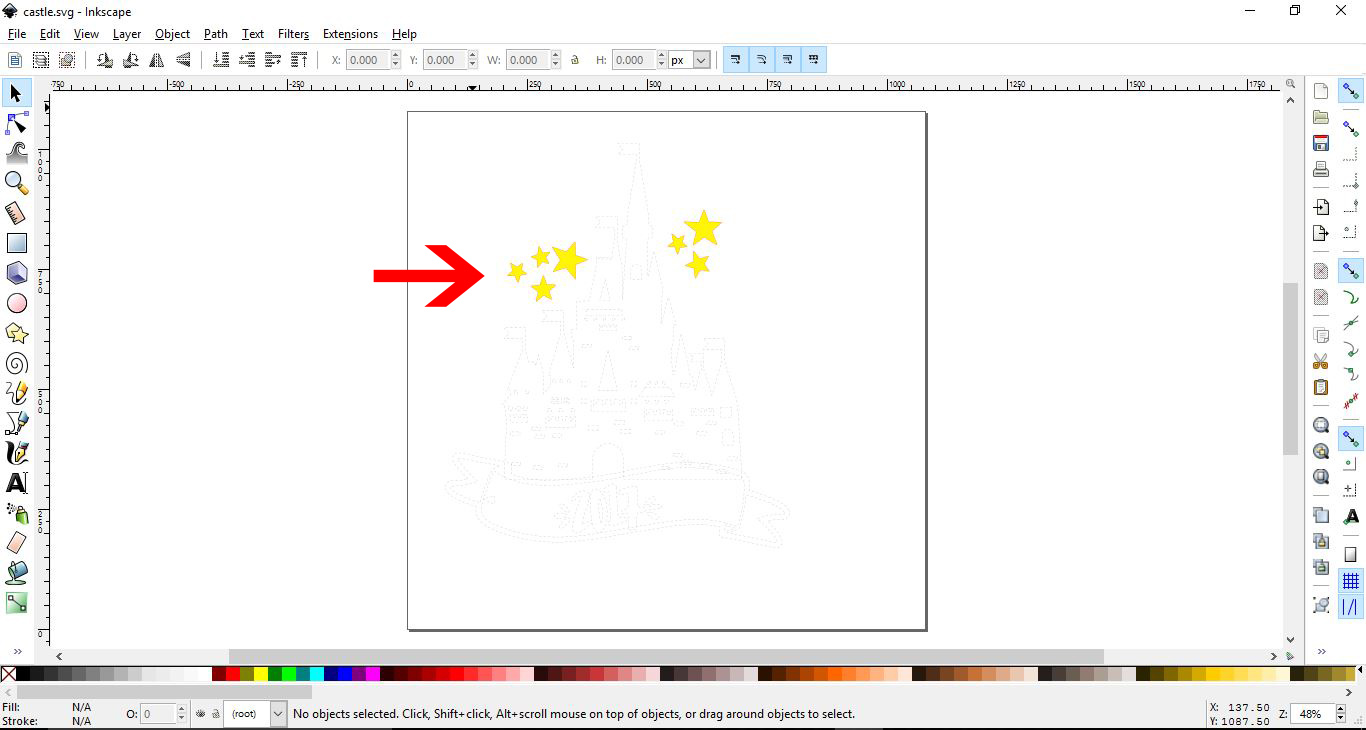
6-When opening the saved SVG file into another program only the files that are not silhouette owned will appear. The rest will appear as dotted lines so you know what was meant to be there.
Below i have opened the file in inkscape to show the appearance of the dotted lines.
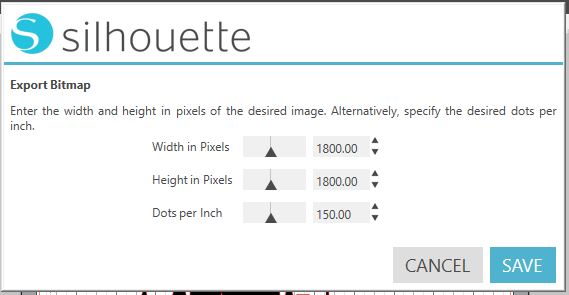
7- When saving as a JPEG you will be given the option to save to the size you would like.
8- Once You save as a JPEG your design will be shown as per below.