Get Unlimited Access to Millions of Craft Designs, Templates, Fonts and More! Start Creating for Free Now

DesignBundles.NET
Pricing
DesignBundles.NET

Categories

New

Account

Start Free Trial
How to add a brush in Adobe Illustrator

By Design Bundles

How to add a brush in Adobe Illustrator

Ensure that your brushes have been downloaded and unzipped ready to install.

1- Open Adobe Illustrator.
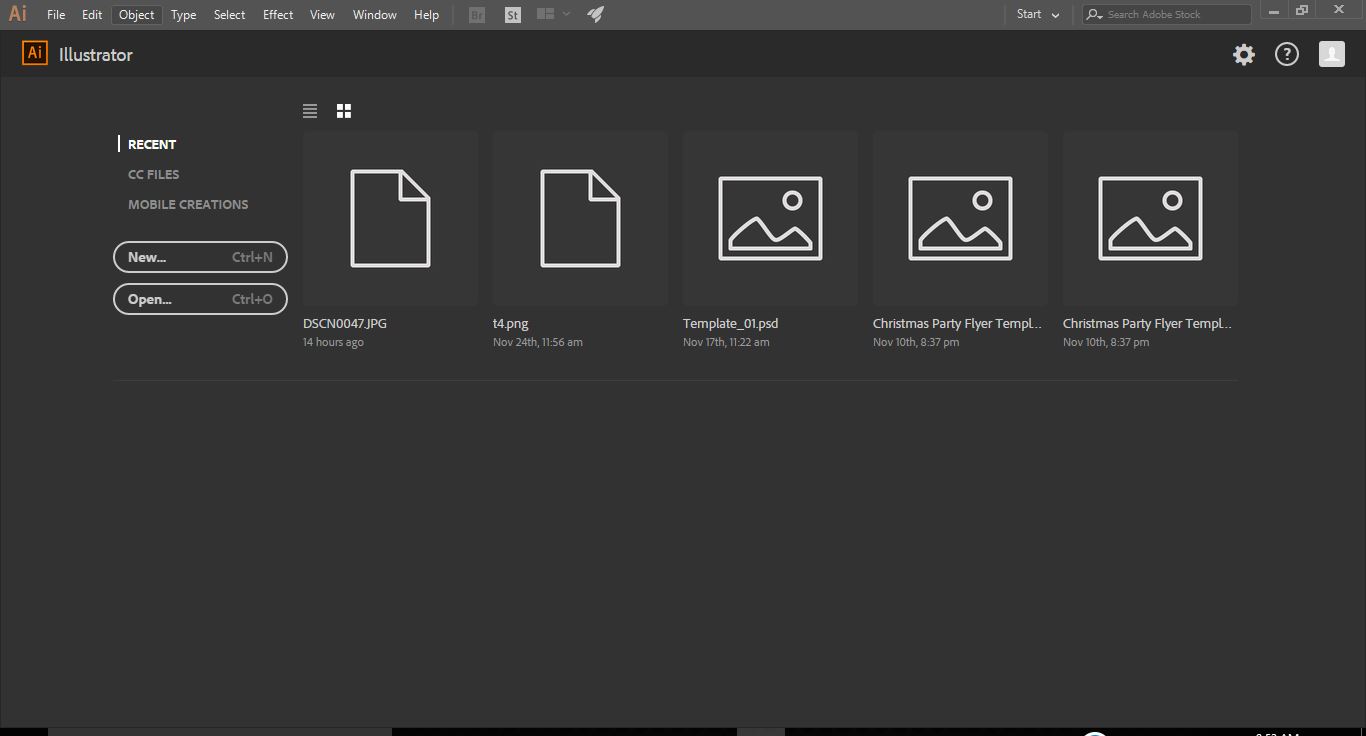
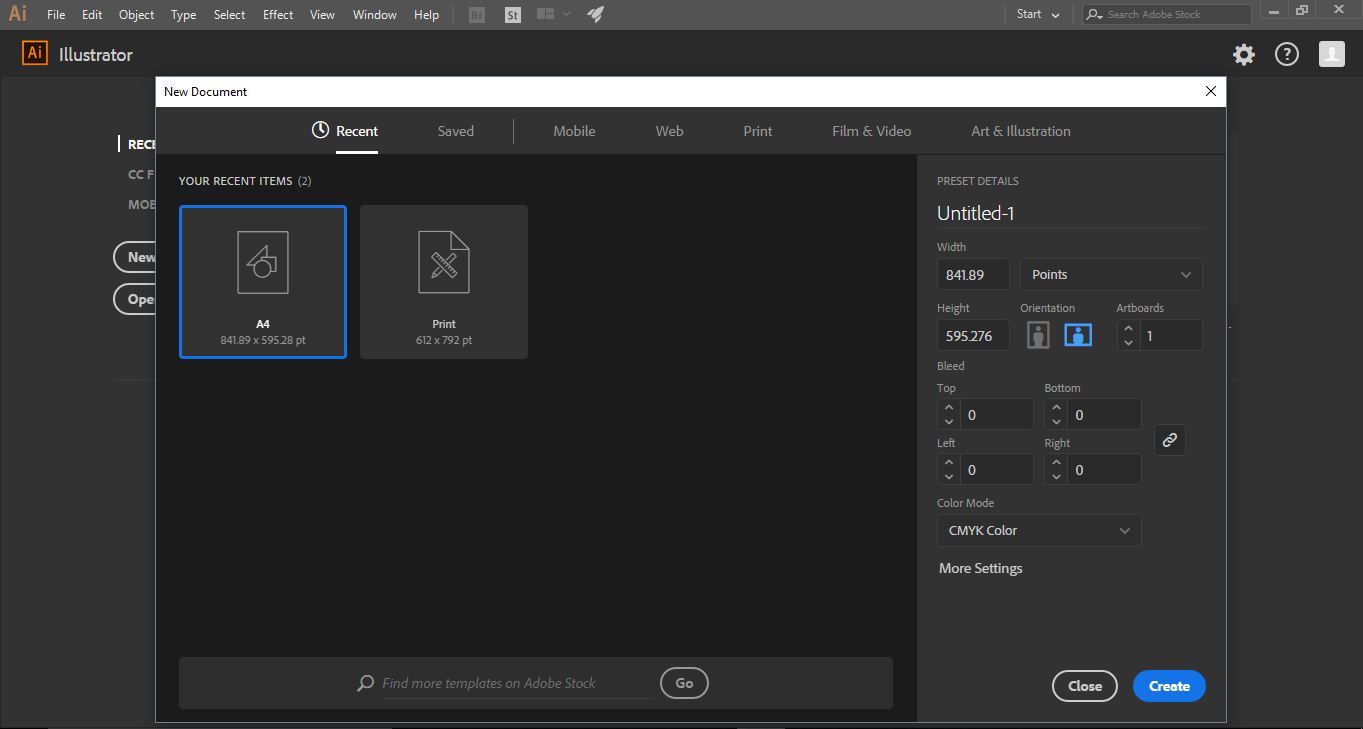
2- Create a new document.
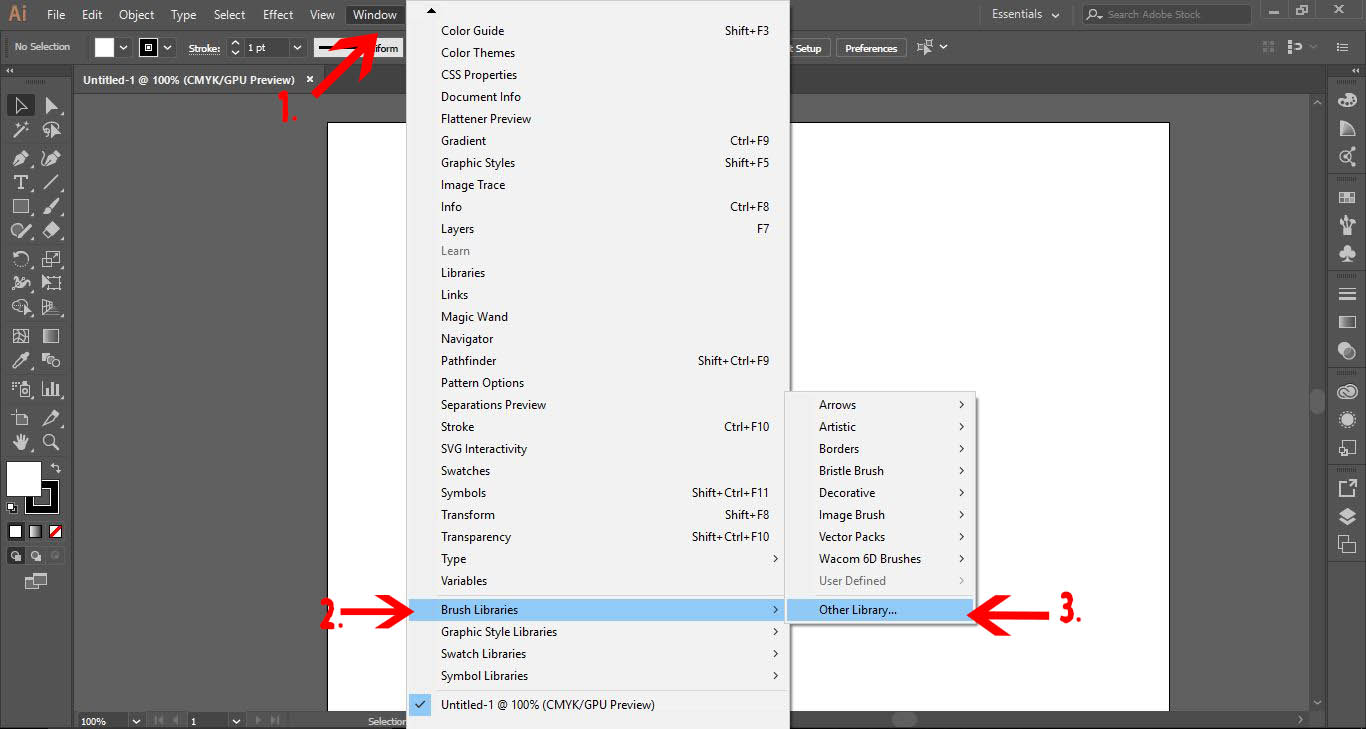
3- On the top toolbar, select Window (1) > Brush Libraries (2) > Other Libraries (3).
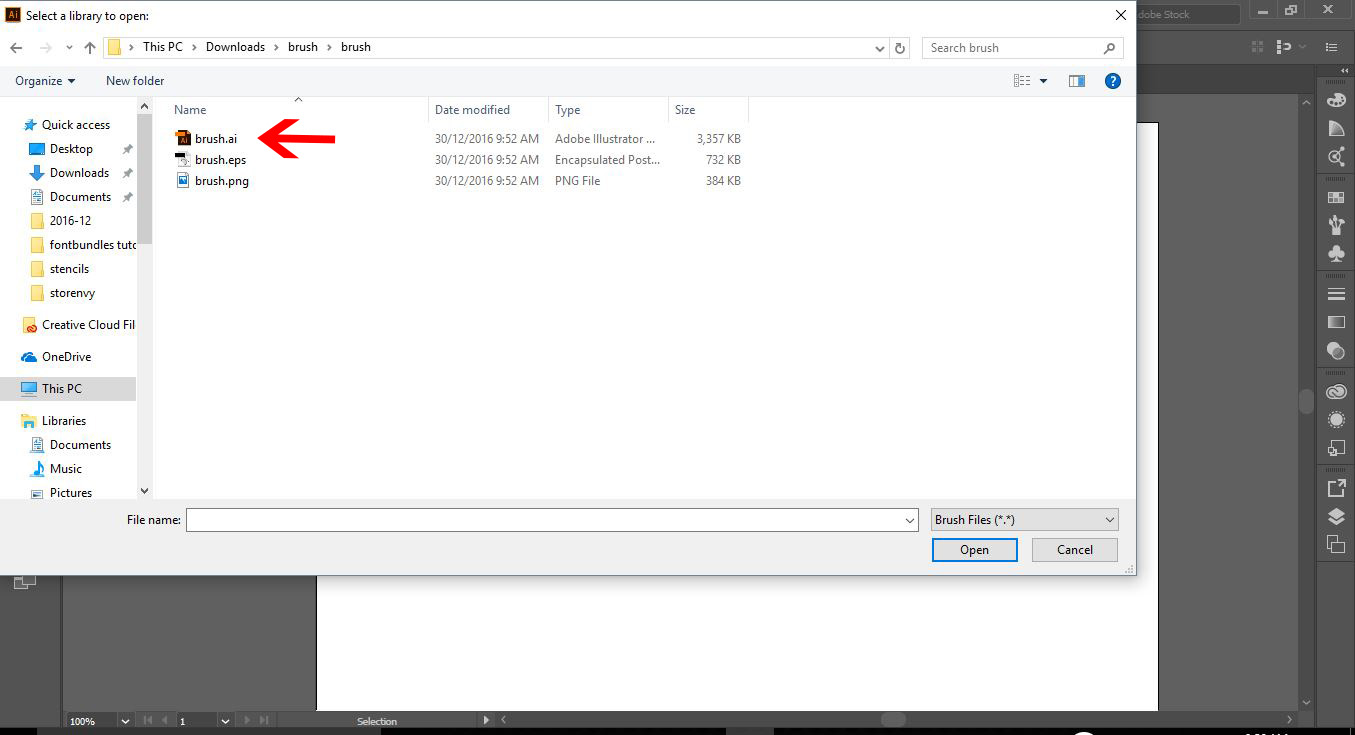
4- A new window will pop up. Browse and find where your brush is downloaded. Select the brush file and click open.
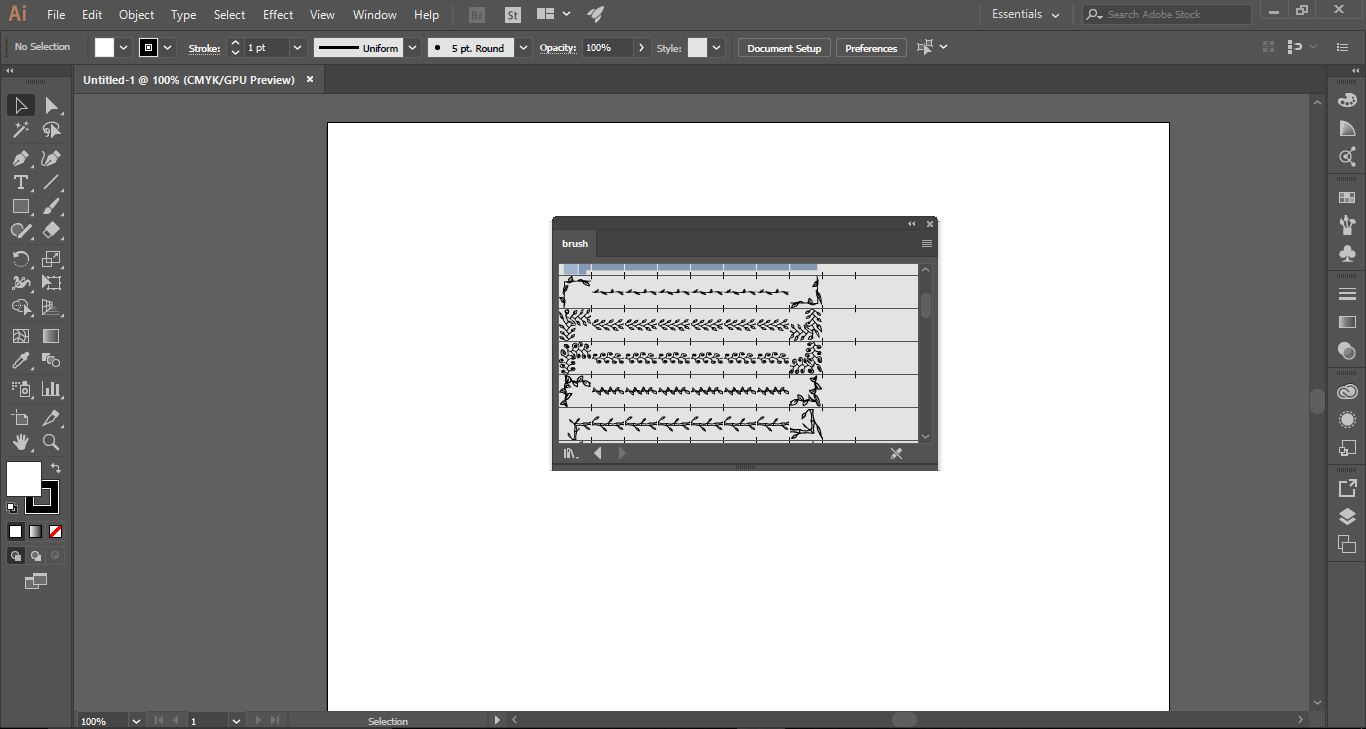
5- A brush palette will appear with the new installed brushes.
6-Select the paintbrush tool from the left toolbar (1).Next select the brush you would like to use (2).
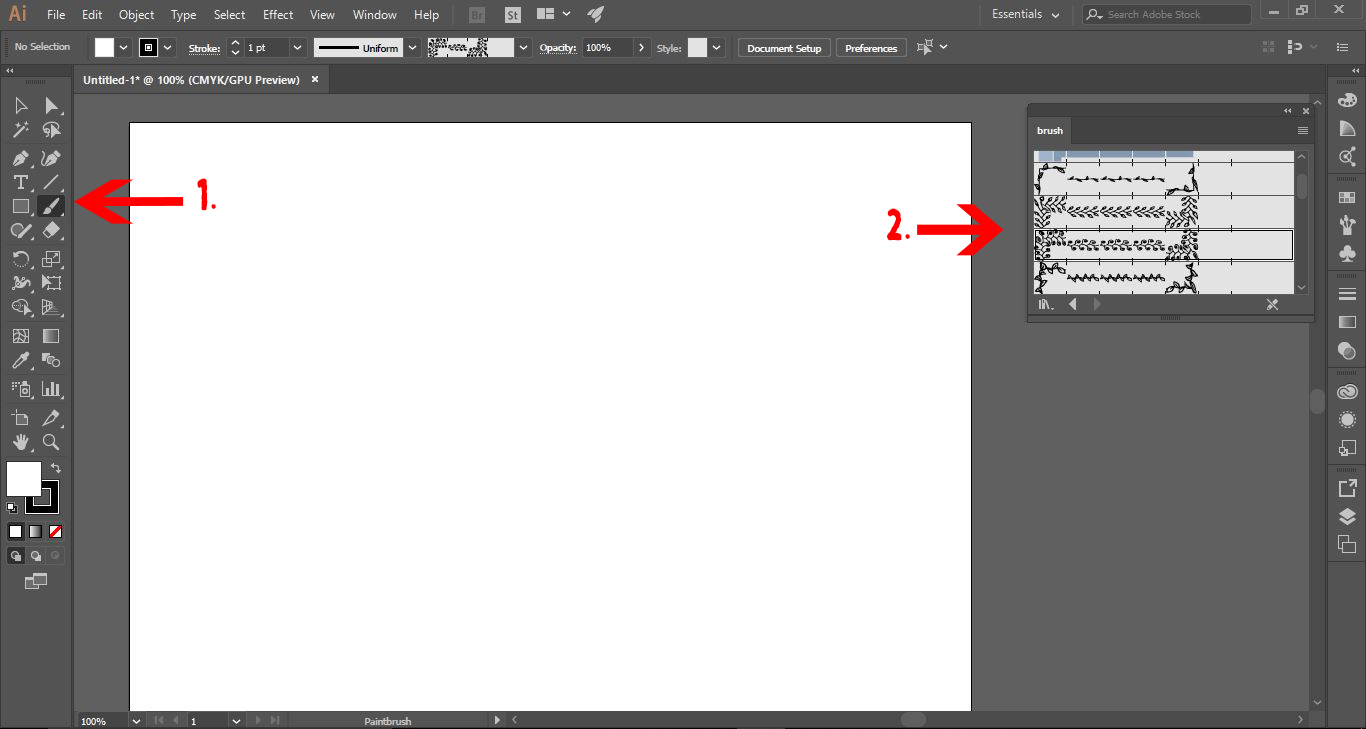
7-Draw your shapes or patterns you require with the paintbrush.
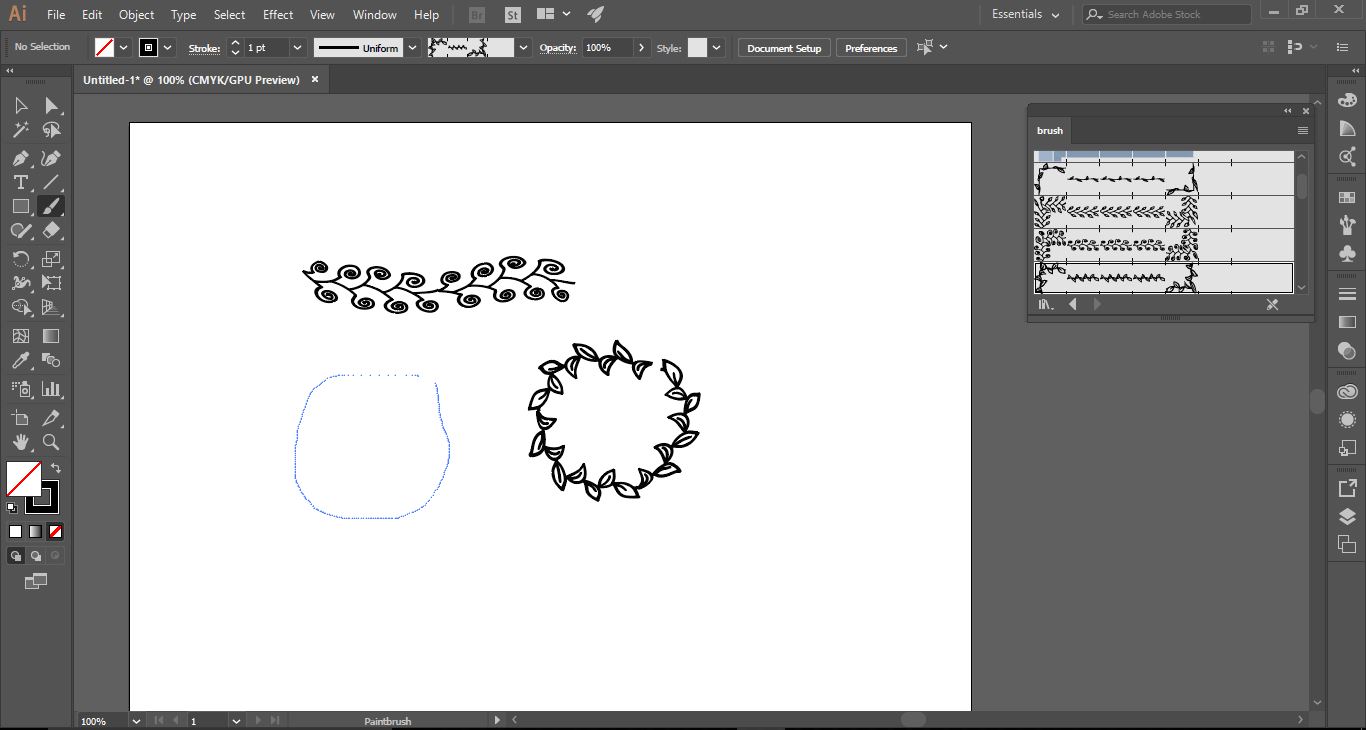
8- Click on the Direct selection tool (1). click onto the Brush shape (2).
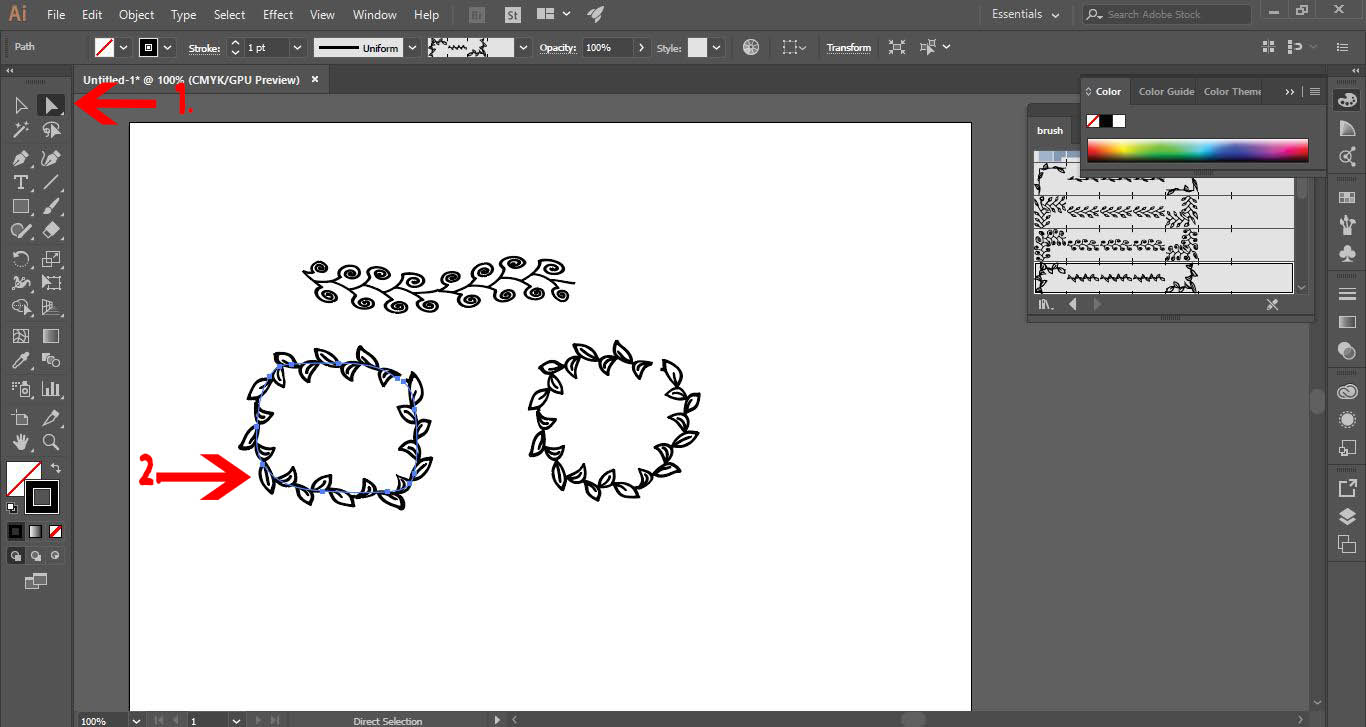
9- By selecting the points highlighted when the brush lines are selected, you can manipulate the shape to your needs. If you click on a point and drag you can curve your brush lines too.
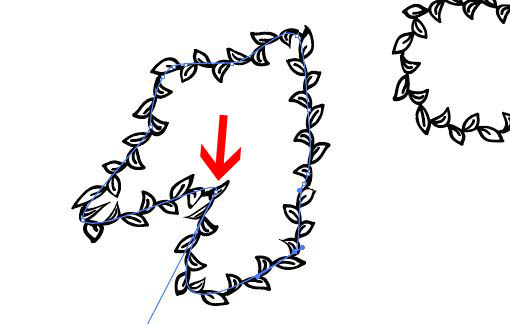
I have used theSet of Brushes for Illustratorby Babii Design.
Related Tutorials

Illustrator Tutorials

How to Create SVGs in Adobe Illustrator

In this tutorial, learn how to create and save a SVG in Adobe Illustrator.
Illustrator Tutorials

How to resize an image without losing quality in Adobe Illustrator

Learn how to resize an image without losing quality in Ai.
Illustrator Tutorials

How to Add Texture in Illustrator

In this tutorial we will show you how to add texture in Adobe Illustrator by using layer masks.
Illustrator Tutorials

Place Images Inside Text in Adobe Illustrator

In this Adobe Illustrator tutorial, learn how to quickly place images inside text.
Illustrator Tutorials

How to use Glyphs in Adobe Illustrator

If you want to learn how to use glyphs in Illustrator, we'll show you how in this beginner tutorial.
Illustrator Tutorials

Editing Text in Adobe Illustrator

With this step by step tutorial we'll show you everything you need to know about editing text.

Keep going

You may also like

All illustrator tutorials
The weekly drop

Fresh tutorials, trends & free files.

Join 6 million makers getting our best craft guides and exclusive freebies straight to their inbox.

No spam. Unsubscribe anytime.