Get Unlimited Access to Millions of Craft Designs, Templates, Fonts and More! Start Creating for Free Now

DesignBundles.NET
Pricing
DesignBundles.NET

Categories

New

Account

Start Free Trial
How to Change Artboard Size in Illustrator

By Design Bundles

How to Change Artboard Size in Illustrator

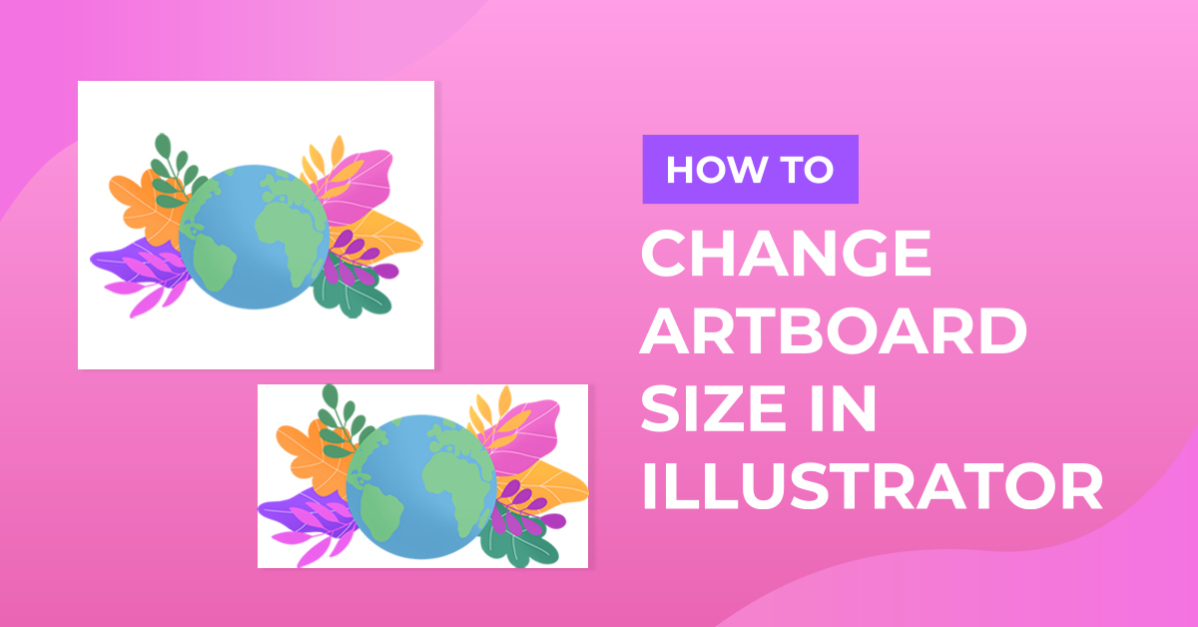
Learn how to change your Artboards size in Adobe Illustrator with this step by step tutorial.

In Adobe Illustrator, your artboards are essentially your digital paper. You will create your designs and illustrations within this space. When you go to export, save or print your Illustrator document, these are the pages that will output.

In this tutorial we will take you through 2 processes of how to change the size of your artboard in Adobe Illustrator. For my artwork, I am using the Irene Florentina from Font Bundles.

Resizing single or multiple artboards

Artboards can be easily resized whether you have one or many.

Step 1 - Open and select artboards to resize

Let us begin by opening your artboards panel. If the panel is not in your right toolbar, select Window > Artboards.

adobe illustrator select artboards

Within this panel you can select individual artboards. You can also click and hold shift to select more.

illustrator multiple artboards

Step 2 - Resize your artboards

You can open individual Artboard Options by selecting the artboard icon on the right of your artboard name.

open artboards illustrator

Alternatively, select the burger menu in the top right of the Artboard panel, then select Artboard Options.

artboard options illustrator

Here, you can change various features of the artboards. Once you have amended your sizes, select OK to apply the changes.

illustrator resize artboard canvas

resize artwork in illustrator

Resizing artboards to fit your artwork

When using artboards you may need to adjust the sizing to fit your artwork. Create or resize your artwork to your desired size.

resize artboard to fit design

Next, fit your artwork to the artboard size. Select Object > Artboards > Fit to Artwork bounds.

fit to artwork bounds illustrator

Your artboard will then fit to the edges of your design.

artboard and design resized illustrator

If you enjoyed this tutorial you may also like our Illustrator tutorials on loading and saving color swatches, creating an SVG, and making a seamless pattern.
Related Tutorials

Illustrator Tutorials

How to resize an image without losing quality in Adobe Illustrator

Learn how to resize an image without losing quality in Ai.
Illustrator Tutorials

How to Save Artboards to PDFs in Illustrator

In this Illustrator tutorial, we'll show you how to reorder artboards, and save as PDF files.
Illustrator Tutorials

How to Use Artboards in Illustrator

Learn all you need to know about using Artboards in Illustrator with this step by step tutorial.
Procreate Tutorials

How to Change the Opacity of a Layer in Procreate

Learn how to easily change the opacity of a layer in Procreate with these two methods
Illustrator Tutorials

How to Make a Wavy Line in Illustrator

In this tutorial learn a super quick and easy way to draw a wavy line in Adobe Illustrator.
Illustrator Tutorials

How to Create SVGs in Adobe Illustrator

In this tutorial, learn how to create and save a SVG in Adobe Illustrator.

Keep going

You may also like

All illustrator tutorials
The weekly drop

Fresh tutorials, trends & free files.

Join 6 million makers getting our best craft guides and exclusive freebies straight to their inbox.

No spam. Unsubscribe anytime.