By Lorna Cana
How to Perspective Distort in Illustrator
In this tutorial, we will learn how to use the Perspective Distort tool, which is a part of Free Transform in Illustrator. It can be used to alter the perspective of an object horizontally or vertically. You can also use the Free Distort tool to apply a free-form distortion.
This is an alternative to the Perspective tool. It is a better and less complicated option to use if you only want to change the perspective of an isolated object.
For this example, we will use a hand drawn serif font for our text, but you can check out more font duos or trios from Font Bundles.
Step 1 - Convert Text to Curves
If you are going to apply the distortion to text, you will need to turn it into paths first. So, after you have typed and adjusted your text, select it and go to Type > Create Outlines to convert it.

If you want to use multiple lines of text, you can apply a different distortion to each line. In order to do this, you need to have them as separate groups.

Step 2 - Use the Perspective Distort Tool
First, select your text, or any other object you want to apply the distort effect to. Then, click on the Free Transform tool (E) on the toolbar.
You should now see a little menu on your document withPerspective Distort as the third icon from top to bottom. Once you click on it, some round handles will appear at the corners of your selection.

If you don’t see the tool, you may need to go to Window > Toolbars and select Advanced from the sub-menu.

Step 3 - Adjust the Perspective Distort Handles
The Perspective Distort tool handles will allow us to change how our text appears. Now, click + drag the handles to move them and distort the perspective of your selection.
Moving up and down will change the perspective of the vertical axis. Moving them left and right will change the perspective of the horizontal axis instead.

Step 4 - Adjust Perspective of Corners Independently
The perspective of corners in your selection can be distorted independently with the Free Distort tool. It should be the last icon on the small menu.
When you select a corner, you should be able to move it independently from any axis. This will allow you to adjust the perspective with a free-form distortion.

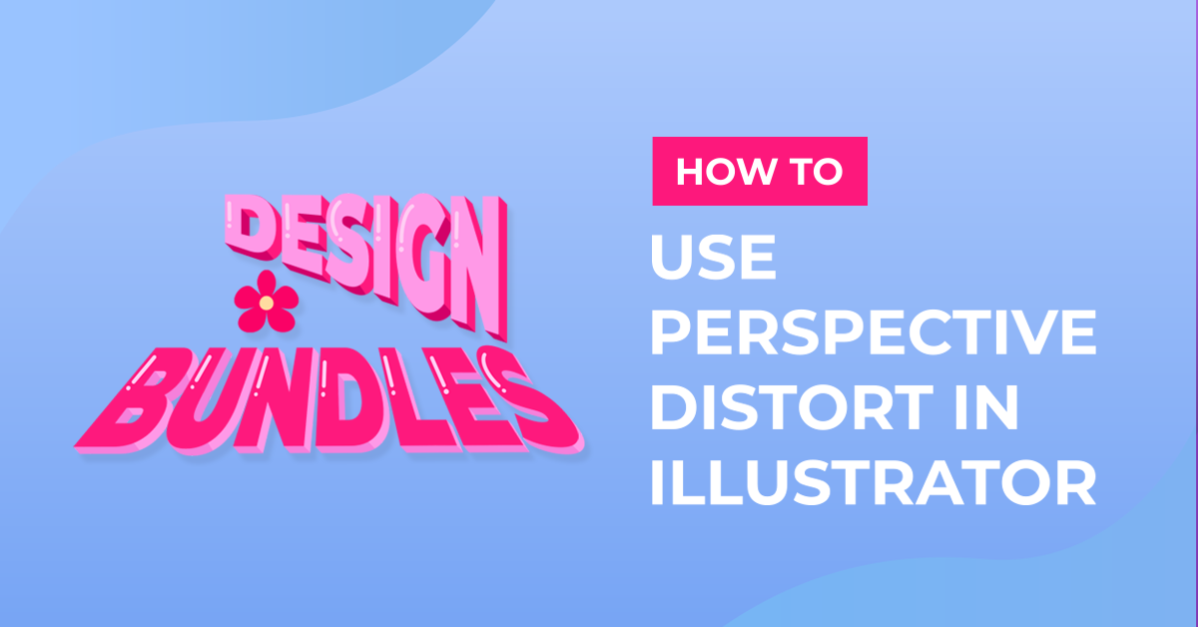
Here is our result after using the Perspective Distort tool for our text.

Next up, check out our tutorials on how to use the width tool in Illustrator, using the pathfinder tool, and how to use the blend tool in Illustrator.