By Design Bundles
How to Convert Text to Path in Inkscape
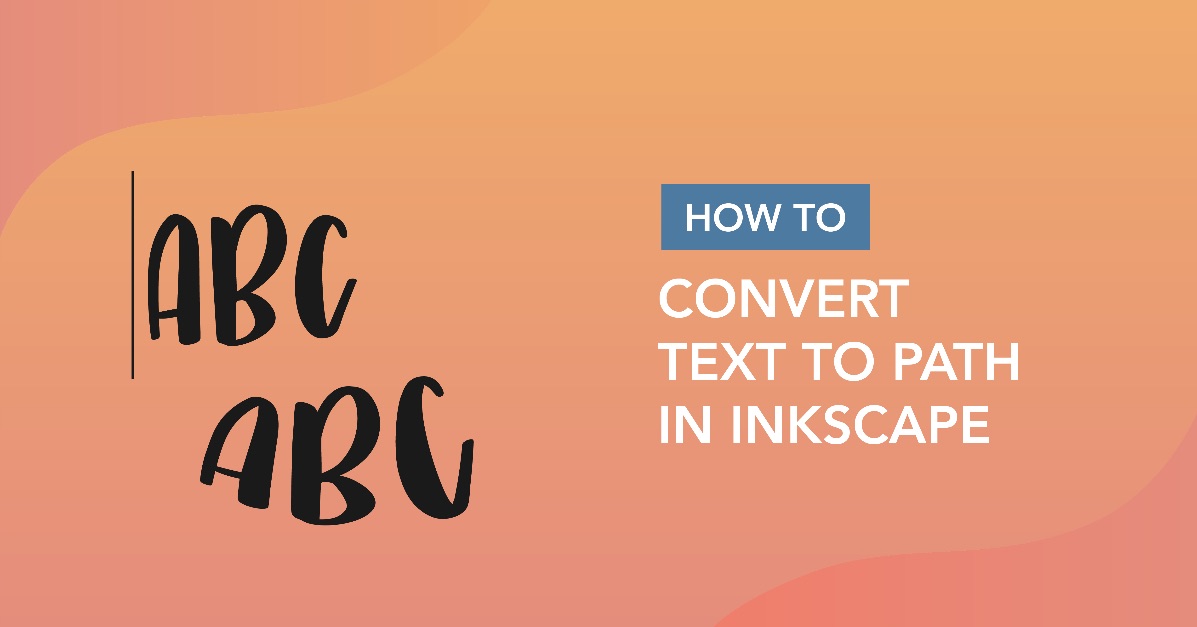
In this tutorial, we will demonstrate how to convert text to path in Inkscape. This step is one of the most crucial steps in Inkscape that needs to be done before making any modifications to your text design.
To illustrate this process, I’ll be using the Bitterlove font, but you can find several great fonts with swashes just like it on Font Bundles.
Step 1 - Type Out Text Design
To start, click on the Text tool, which is located on the left toolbar. The same tool can be accessed by clicking "T" on your keyboard as well. After you have access to the Text tool, click anywhere on the artboard to type out the desired text.
Finally, use the Font tab to choose a satisfying font for the text project. You can either type in the font's name or scroll through the available fonts until you see the perfect one.

You will not be able to make any changes to this font just yet.
Step 2 - Change Text to Path
With the text design still selected, click on the Path button located on the far top of the artboard and click Object to Path.

You will now be able to make modifications to your text design using Inkscape tools.
A great tool to make quick modifications is the Node tool. You can easily use this tool to make adjustments to the selected item by moving the nodes. Nodes are the small squares around the selected object or text. Simply select the node with the Node tool and then drag it to a new position. Continue this process until you are pleased with the new design.

Well done! You have successfully converted text to path and even started altering items within your design using the Node tool.
If you want to learn more ways to alter and improve your text design, make sure to check out our guides on using fonts in Inkscape, fixing font clipping, and accessing font glyphs in Inkscape.