By Design Bundles
Photoshop Tutorials3 min
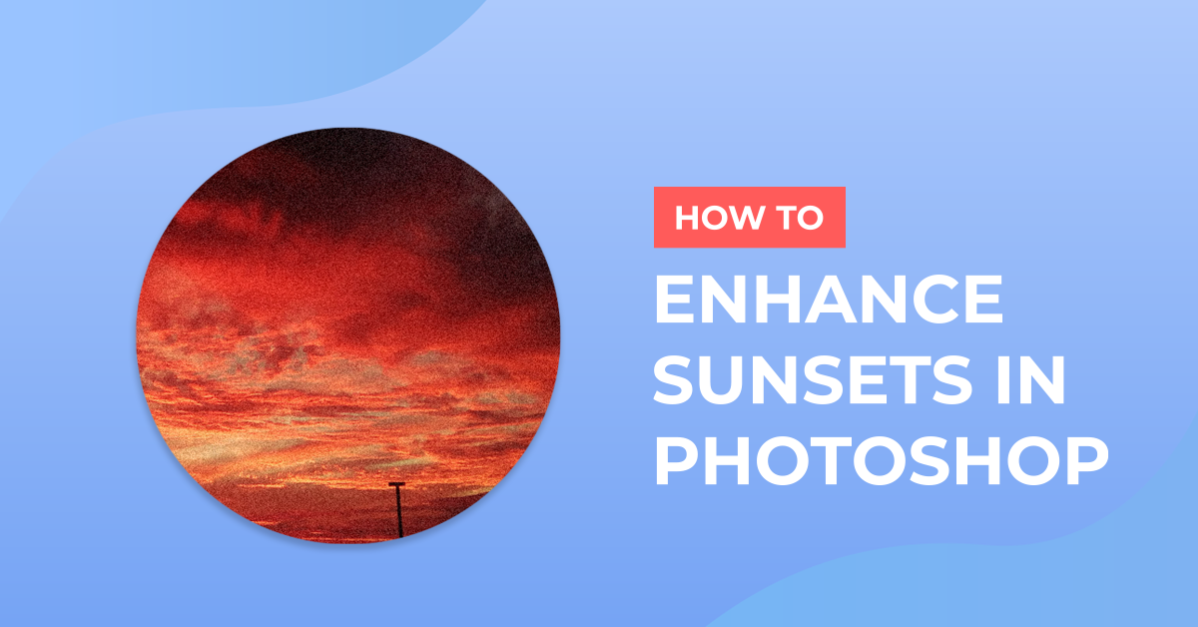
Enhance Sunsets in Photoshop
For this tutorial, you will need the image or images of sunsets.
1 - In Photoshop, open the Image you chose to work with.

2 - In the “Adjustments Panel” create a “New Gradient Map Adjustment Layer” on top and then, click on top of the “Gradient” to open the “Gradient Editor”.


3 - Make sure “Foreground to Background” is selected and that Black and White are assigned to “Foreground” and “Background” respectively. Double-click on the Black Swatch and change the color to Red (#f60d08).


4 - Then, do the same with the White Swatch and change the color to “Yellow” (#f8df13).


5 - Change the “Blending Mode” to “Overlay” and the “Opacity” to 20%.


6 - In the “Adjustments Panel” create a “New Curves Adjustment Layer” on top of everything and choose the “Medium Contrast (RGB)” preset. Lower the “Opacity” to 35%.


7 - Then, create a “New Curves Adjustment Layer” on top of everything and input a value of 8 to “Black Point” and a value of 240 to the “White Point”. Lower the “Opacity” to 60%.


8 - Check it out. You may need different values and/or settings depending on the image you are working with.

1 - In Photoshop, open the Image you chose to work with.
2 - In the “Adjustments Panel” create a “New Gradient Map Adjustment Layer” on top and then, click on top of the “Gradient” to open the “Gradient Editor”.
3 - Make sure “Foreground to Background” is selected and that Black and White are assigned to “Foreground” and “Background” respectively. Double-click on the Black Swatch and change the color to Red (#f60d08).
4 - Then, do the same with the White Swatch and change the color to “Yellow” (#f8df13).
5 - Change the “Blending Mode” to “Overlay” and the “Opacity” to 20%.
6 - In the “Adjustments Panel” create a “New Curves Adjustment Layer” on top of everything and choose the “Medium Contrast (RGB)” preset. Lower the “Opacity” to 35%.
7 - Then, create a “New Curves Adjustment Layer” on top of everything and input a value of 8 to “Black Point” and a value of 240 to the “White Point”. Lower the “Opacity” to 60%.
8 - Check it out. You may need different values and/or settings depending on the image you are working with.
by @lornacane
Related Tutorials
Photoshop Tutorials
How to Use Text Effects in Photoshop
With Photoshop Text Effects, you can create text with impact in just a few steps.
Photoshop Tutorials
How to Create Speech Bubbles in Photoshop
Learn how to create and edit fun speech bubbles in Photoshop using custom shapes.
Photoshop Tutorials
How to Make Sublimation Designs in Photoshop
Discover how to make sublimation designs in Photoshop that you can use to create beautiful gifts.
Photoshop Tutorials
How to Use EPS Files in Photoshop
In this tutorial, learn how to use EPS files in Photoshop as Smart Objects to maintain image quality
Photoshop Tutorials
Image Burned in Wood in Photoshop
In this tutorial, discover how to create a realistic wood burned effect in Adobe Photoshop.
Photoshop Tutorials
Easy See through Cut Out Text in Photoshop
Create a see-through cut out text design in Photoshop with these easy to follow steps.