By Design Bundles
Photoshop Tutorials7 min
Fireworks in Photoshop
For this tutorial, we will need a background image with a night sky and some images of fireworks to apply.
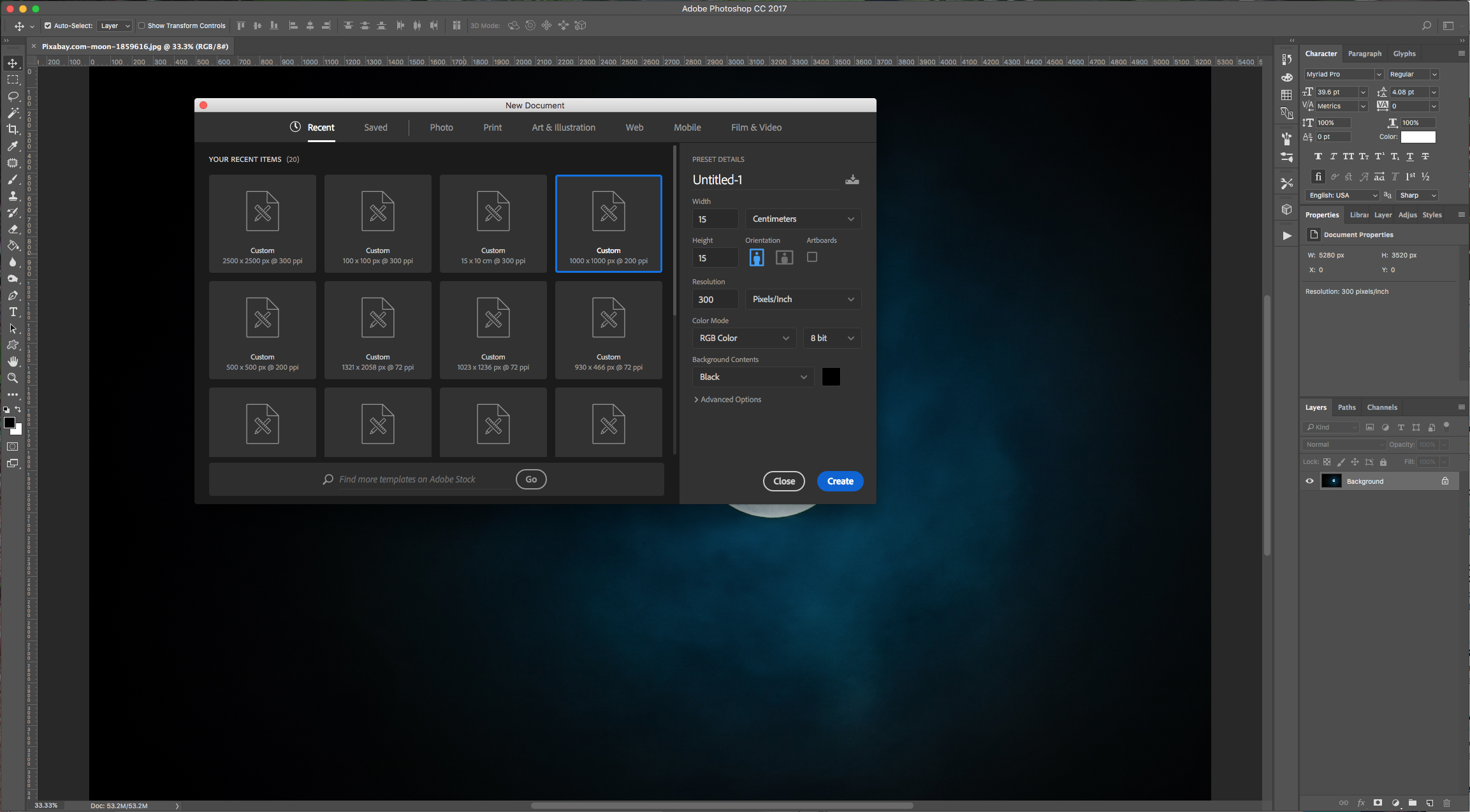
1 - Create a New Document, make it 10 x 10 centimeters (about 1772 pixels) at 300 dpi and use Black as your “Background” color.
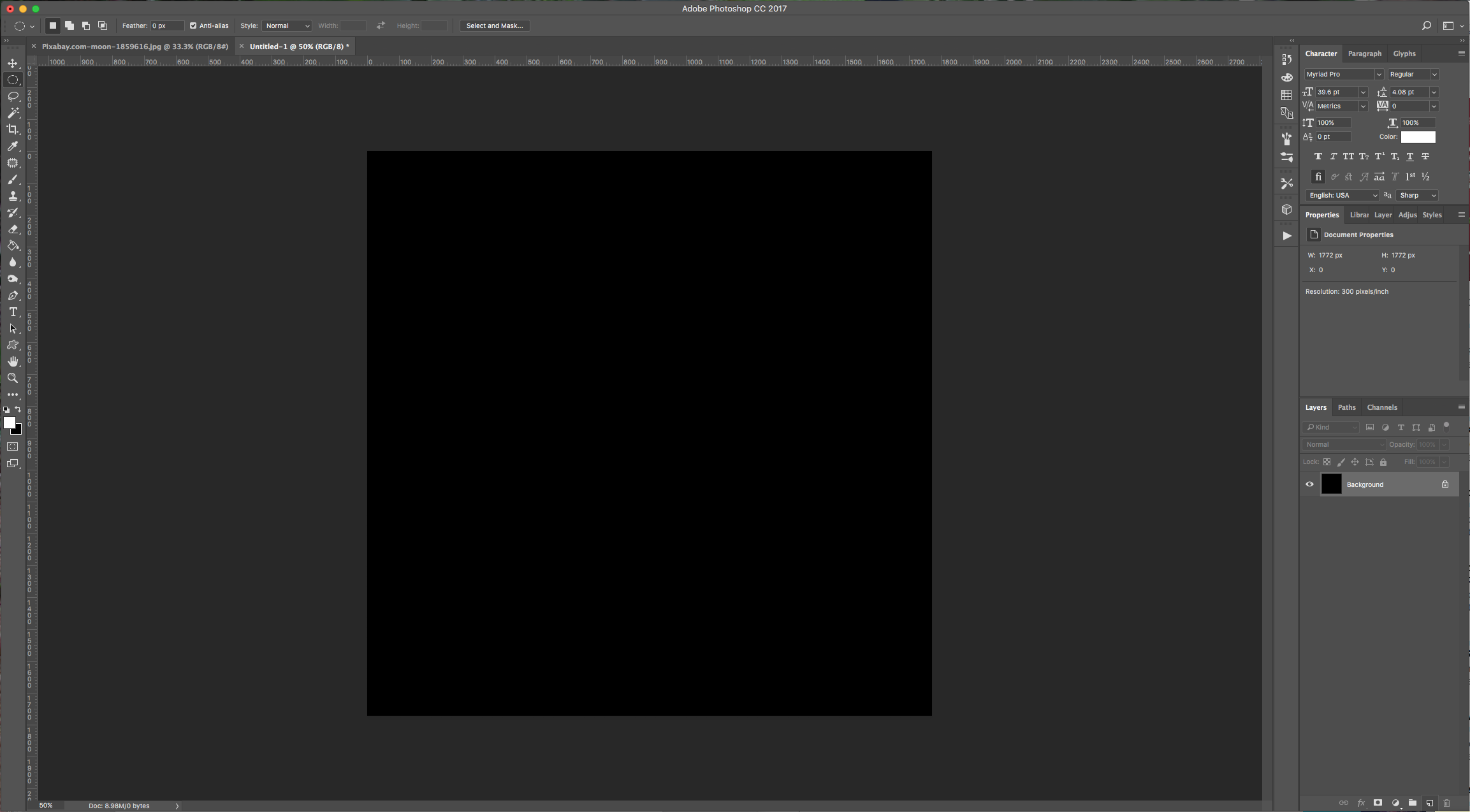
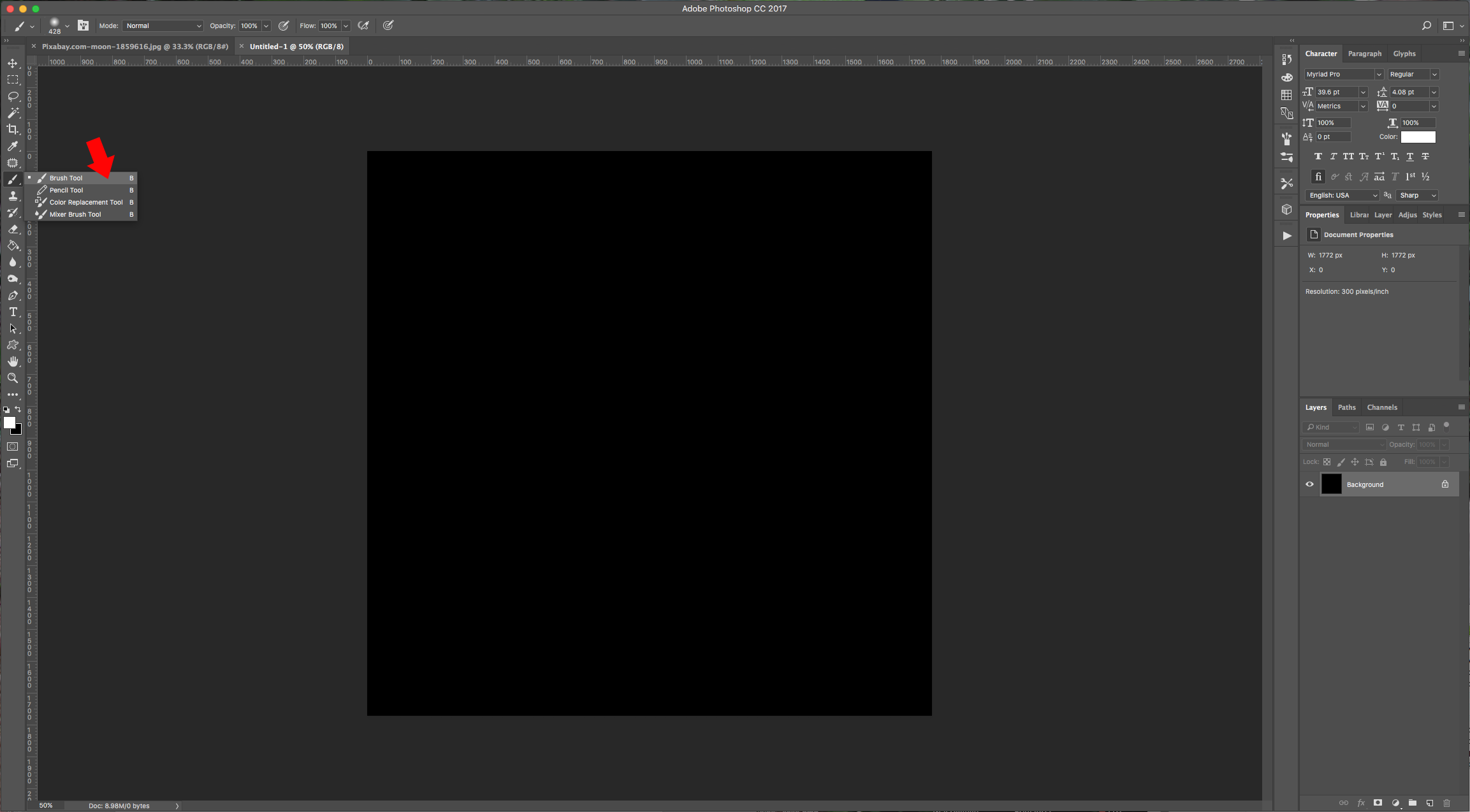
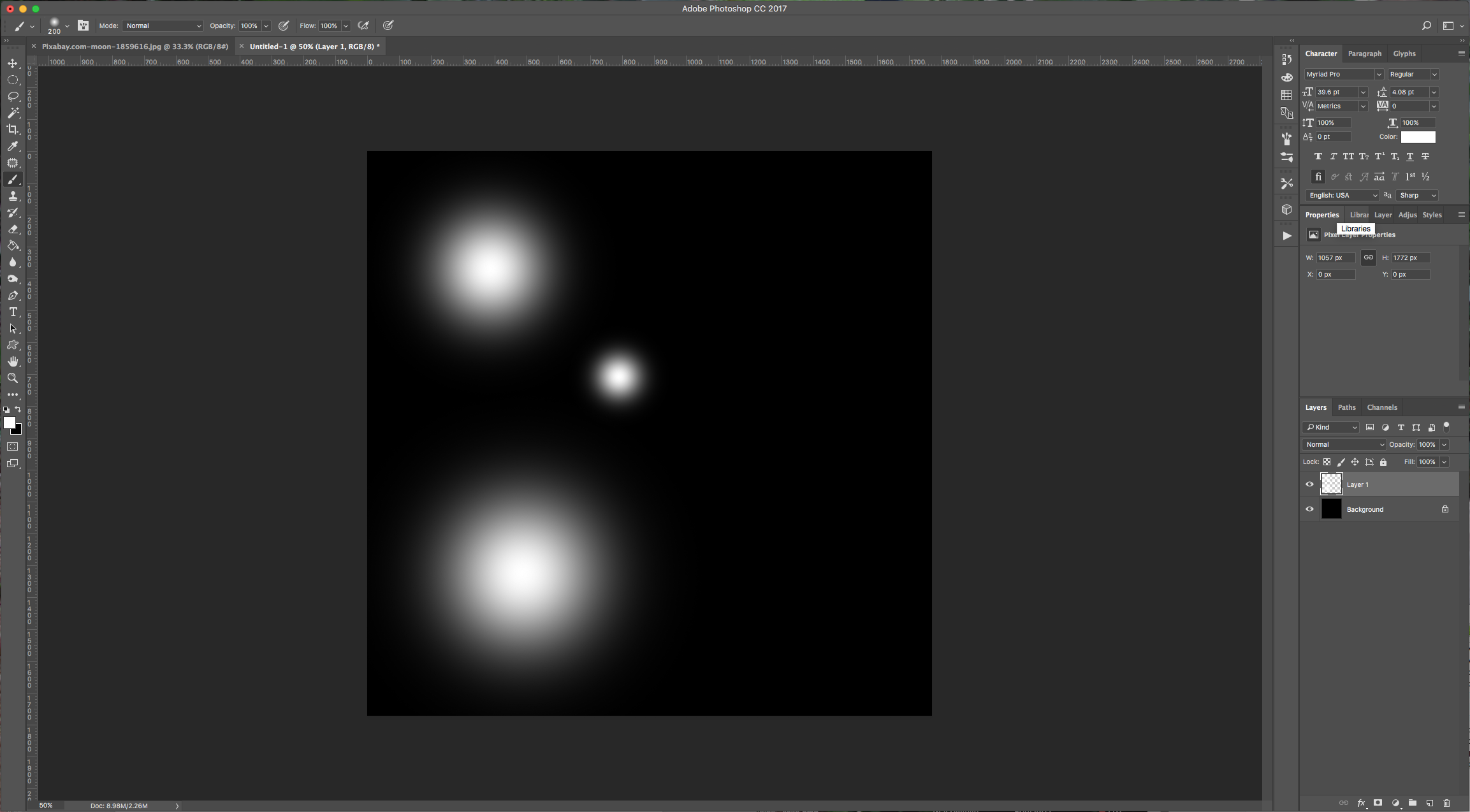
2 - Create a “New Layer” by clicking on the icon at the bottom of the “Layers” menu. Select your “Brush Tool” (B), choose white as “Fill” color and use a soft (0% Hardness) and big (about 500 pixels) brush to draw some circles in your document. Resize the brush and make a couple of circles. (we used 200, and 700 pixels).
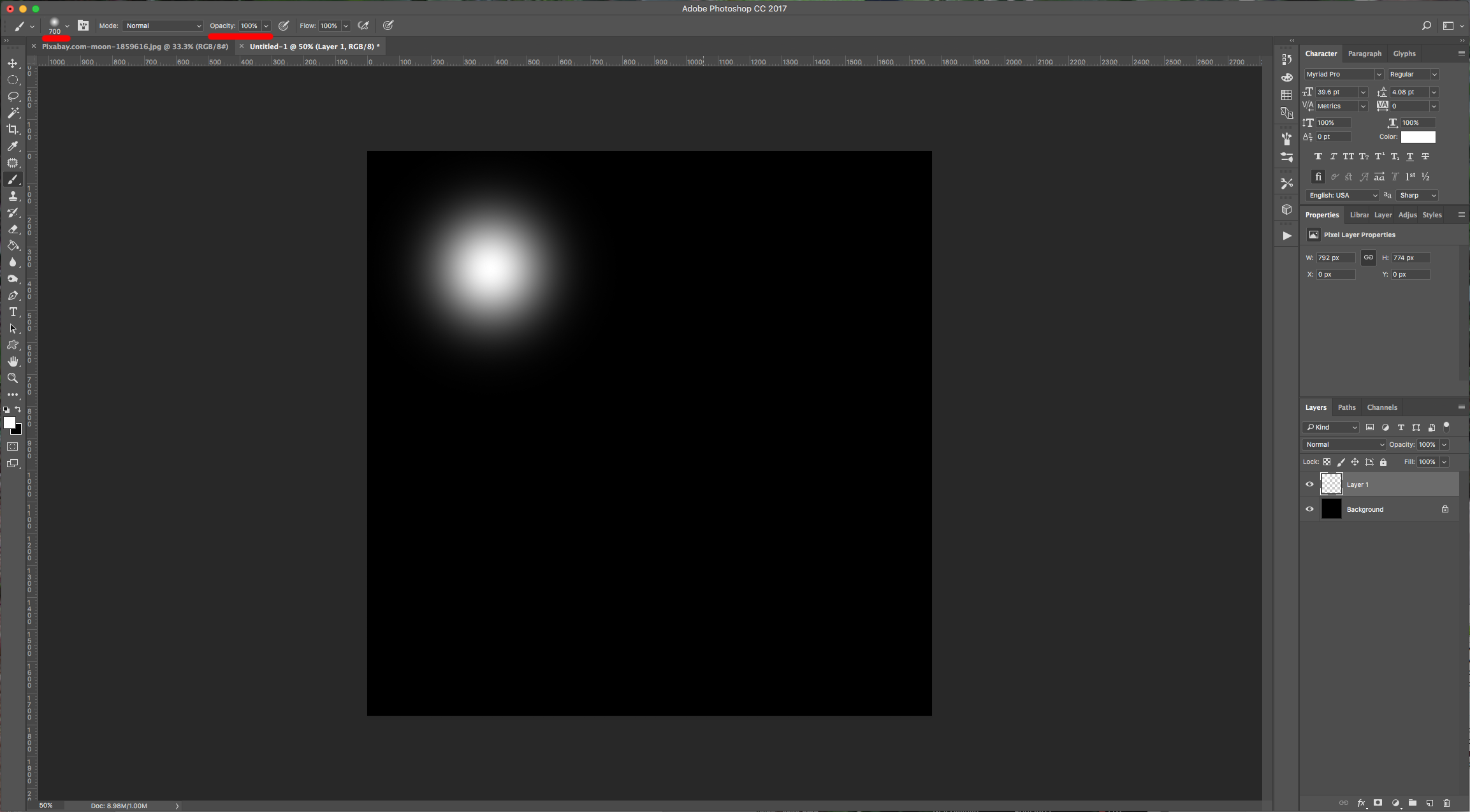
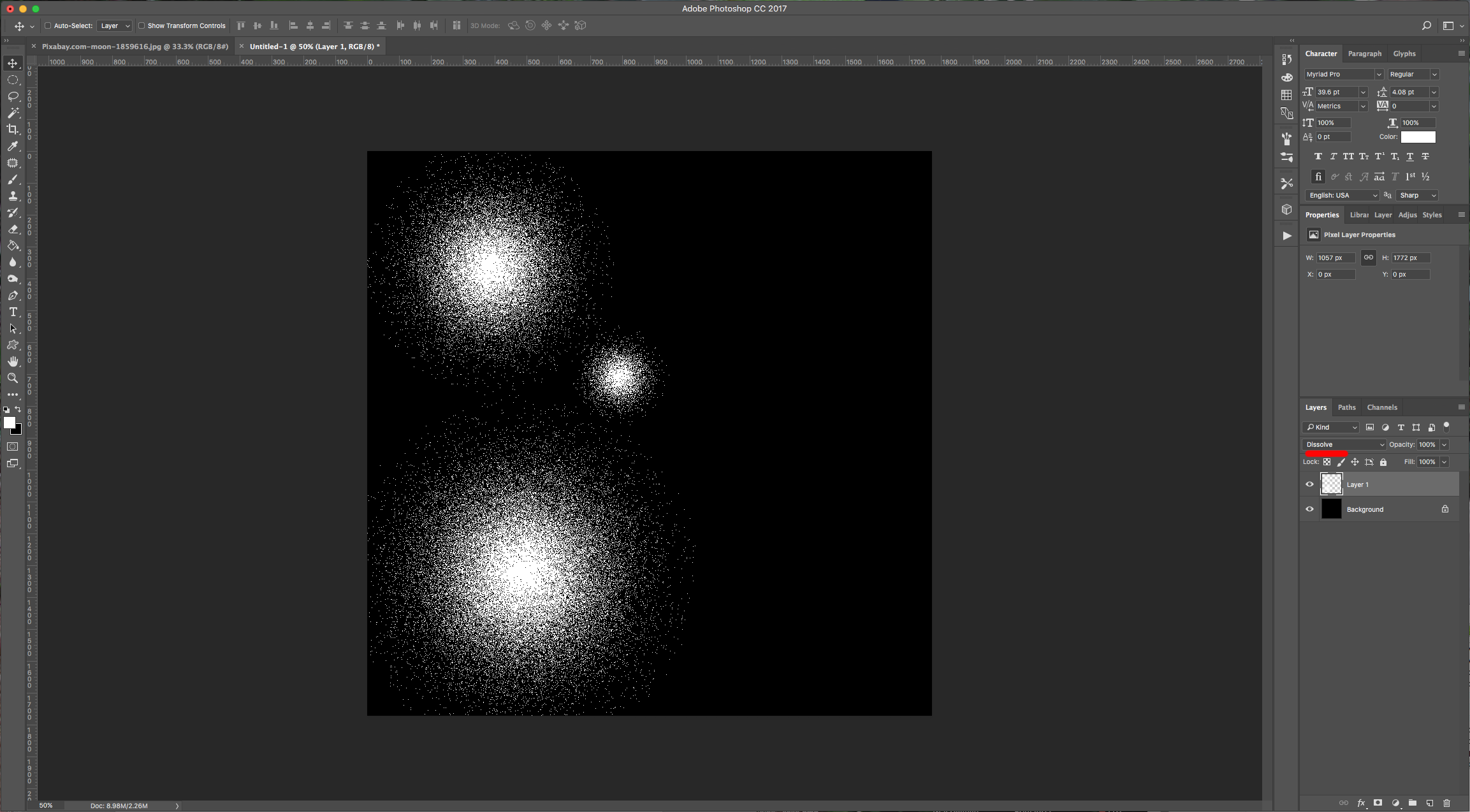
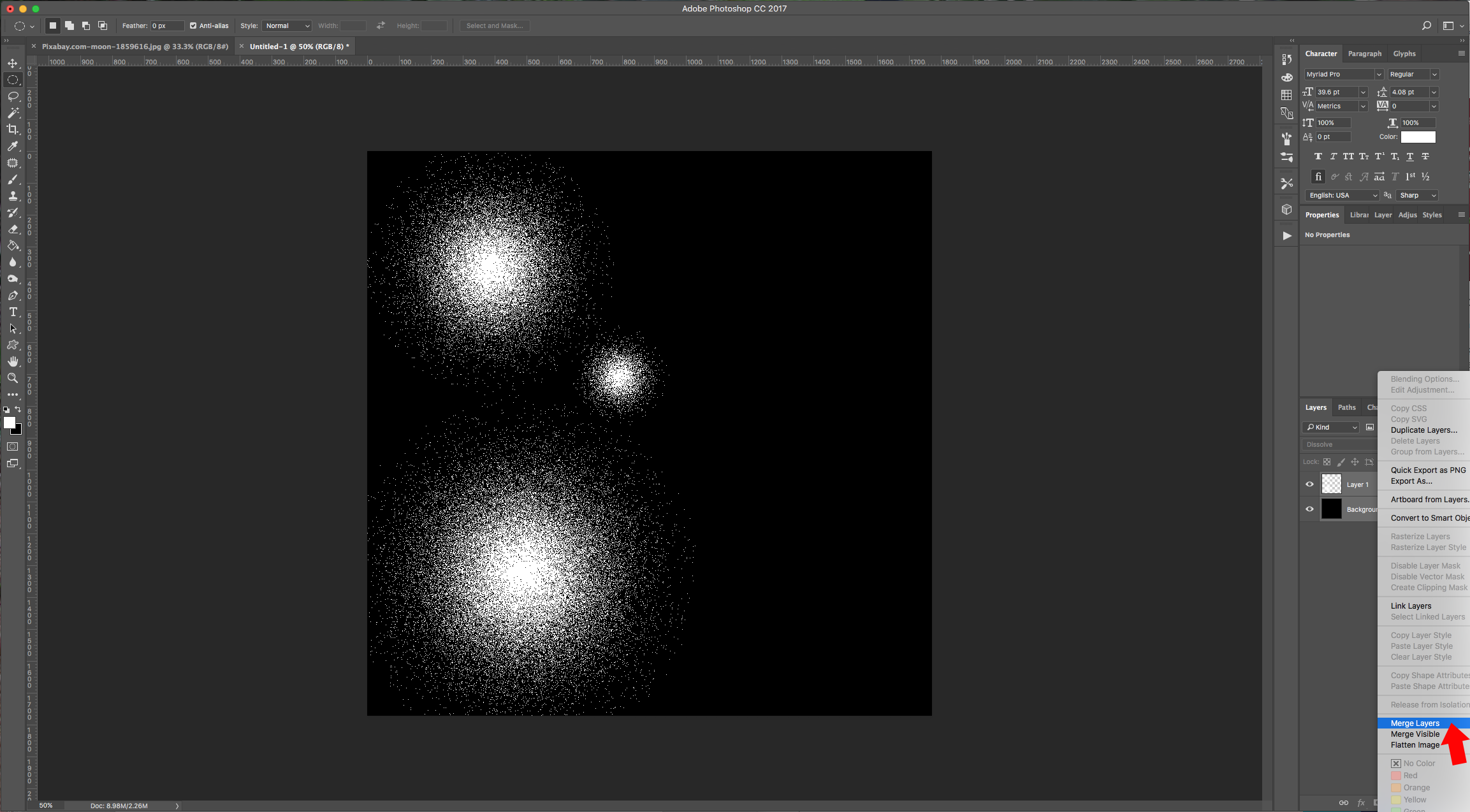
3 - Change the “Blending Mode” of the layer to “Dissolve”. Then, select both layers, right-click on the thumbnails and choose “Merge Layers”.
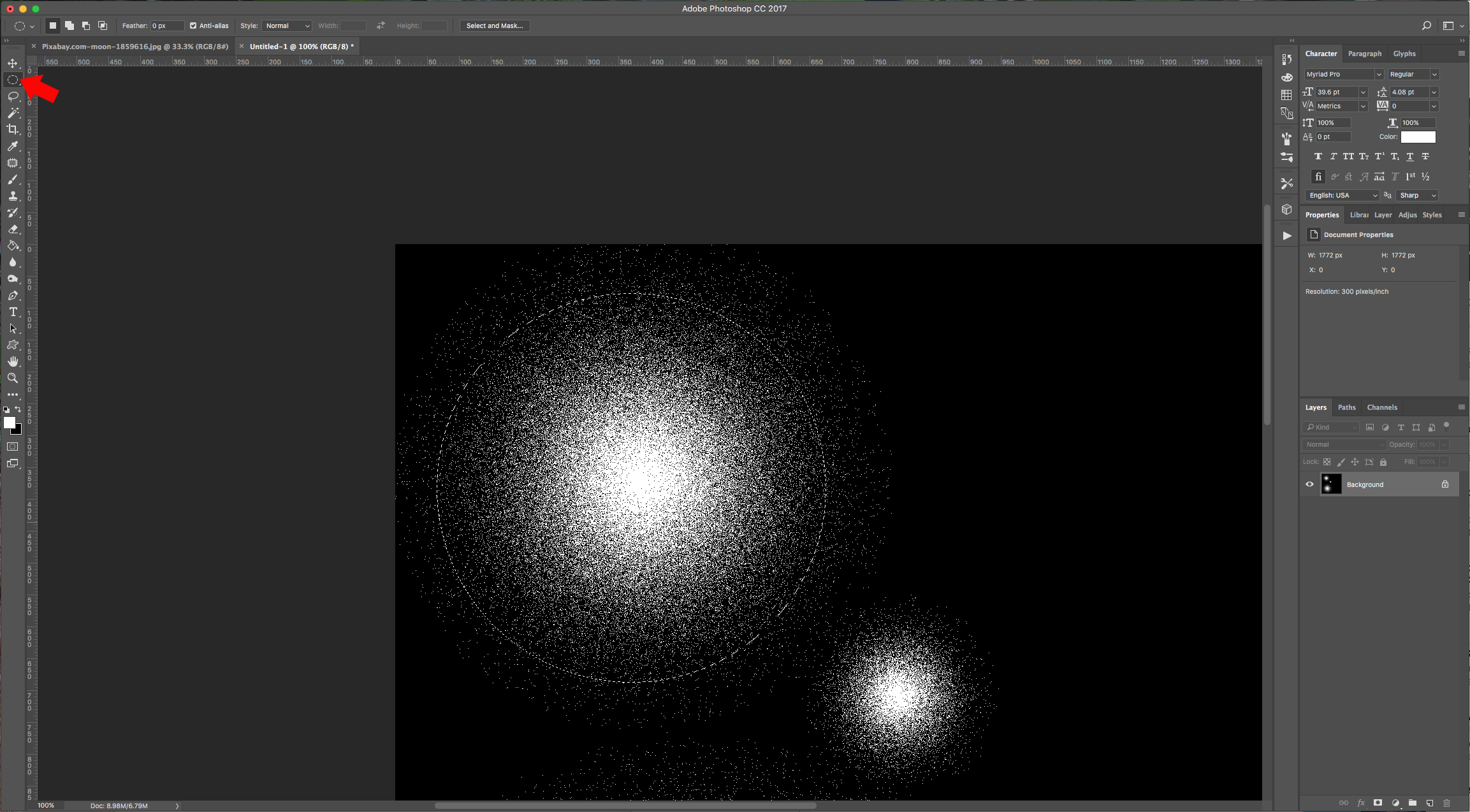
4 - Select the “Elliptical Marquee Tool” (M) and make a circle that covers almost all the center of one of your white bursts (to make the circle proportionate draw it while holding the “Shift” key).
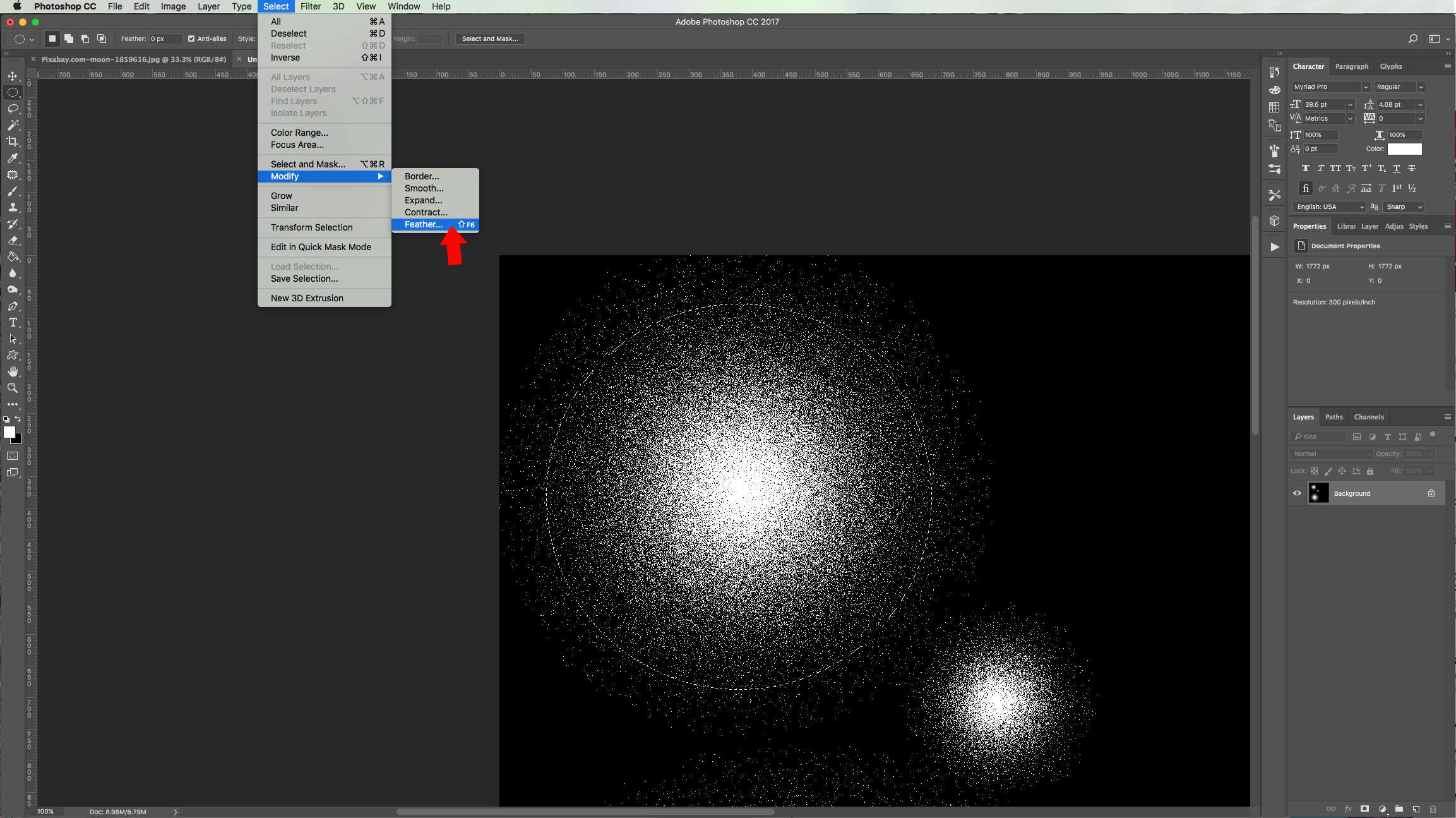
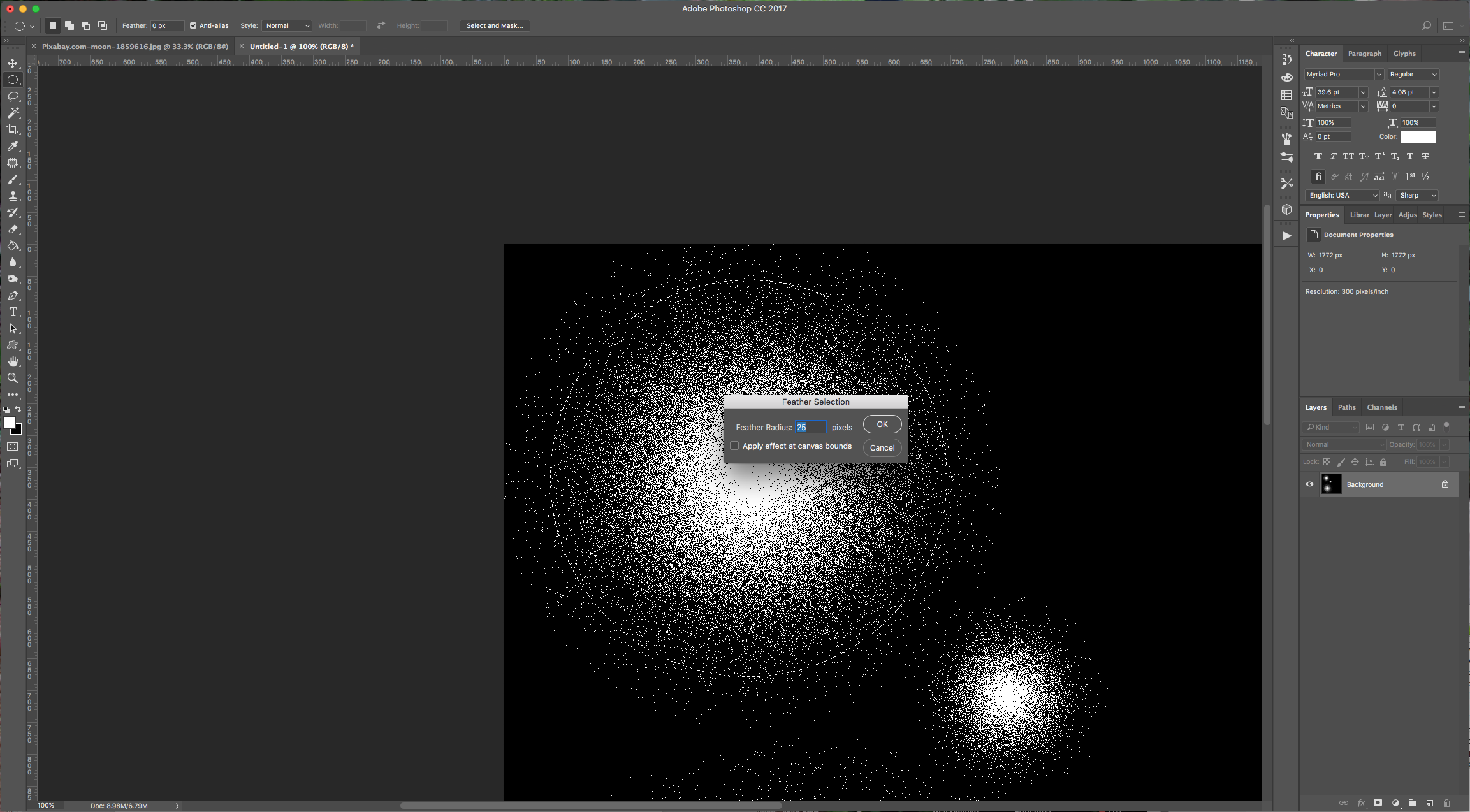
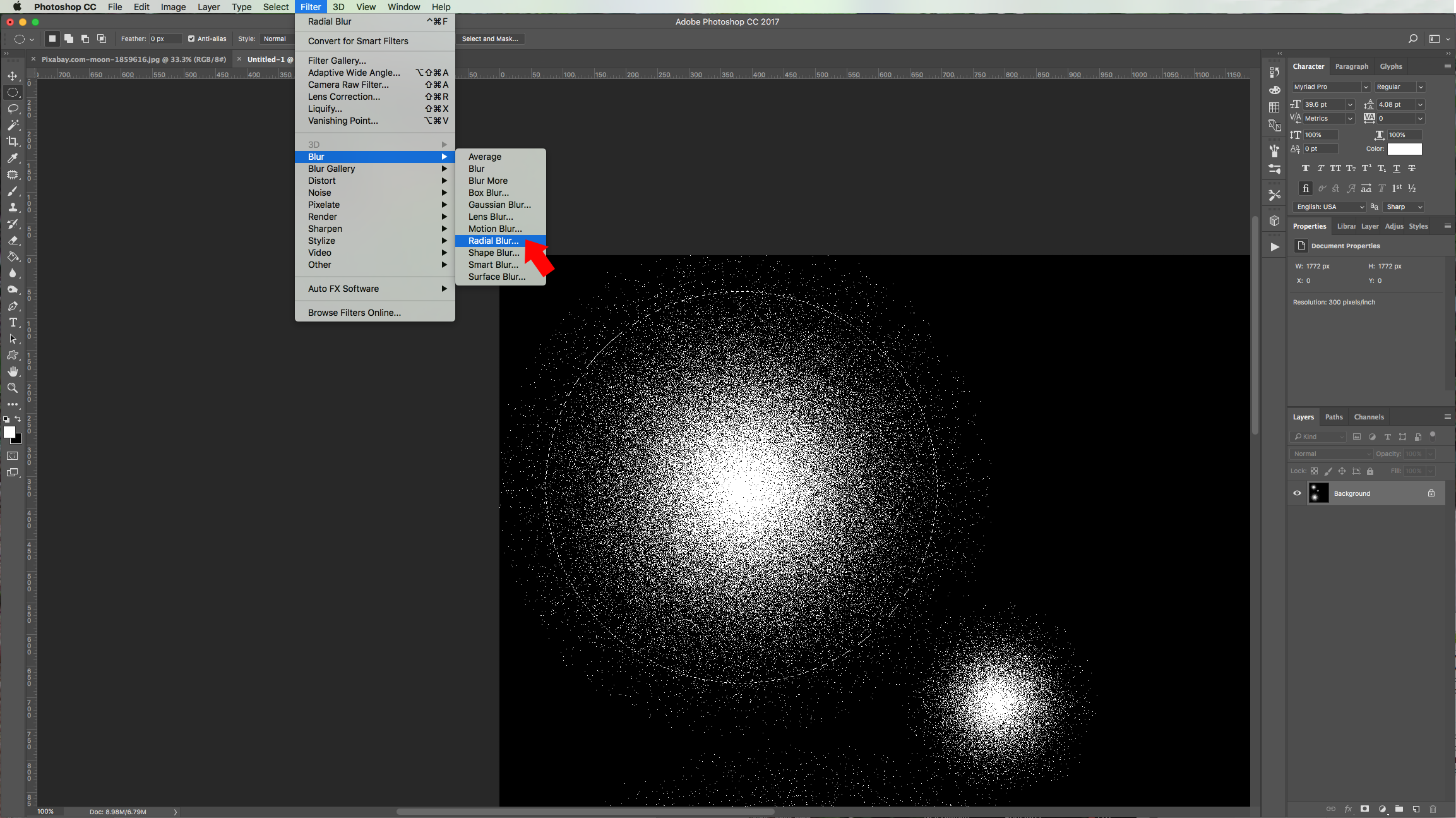
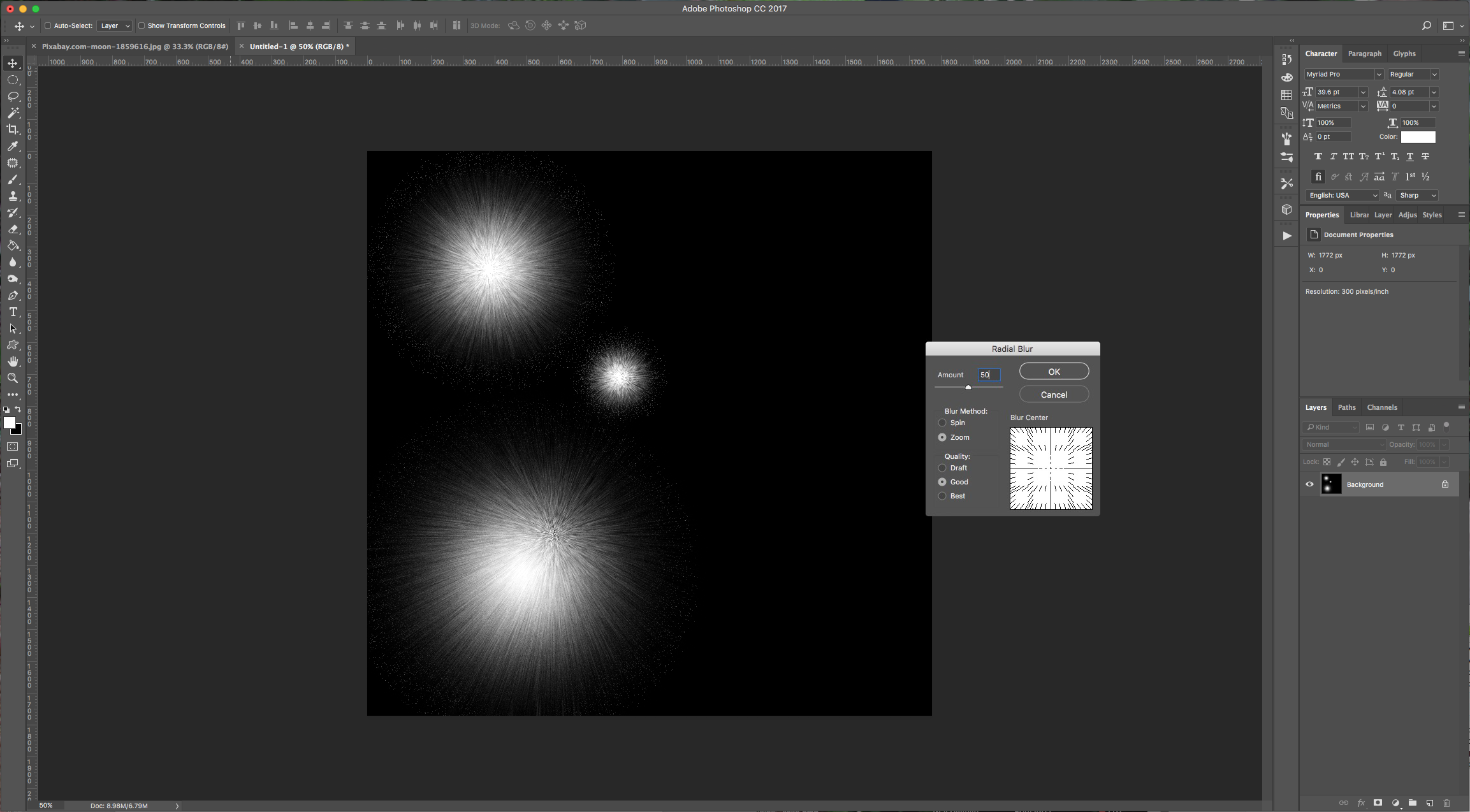
5 - Go to Select > Modify > Feather (Shift + F6) and input a 25 pixels “Radius”. Then, go to Filter > Blur > Radial Blur, input 50% in “Amount”, use “Zoom” as “Blur Method” and a “Good Quality”. You can hide and unhide your selection using Command/Control + H. Repeat for each burst.
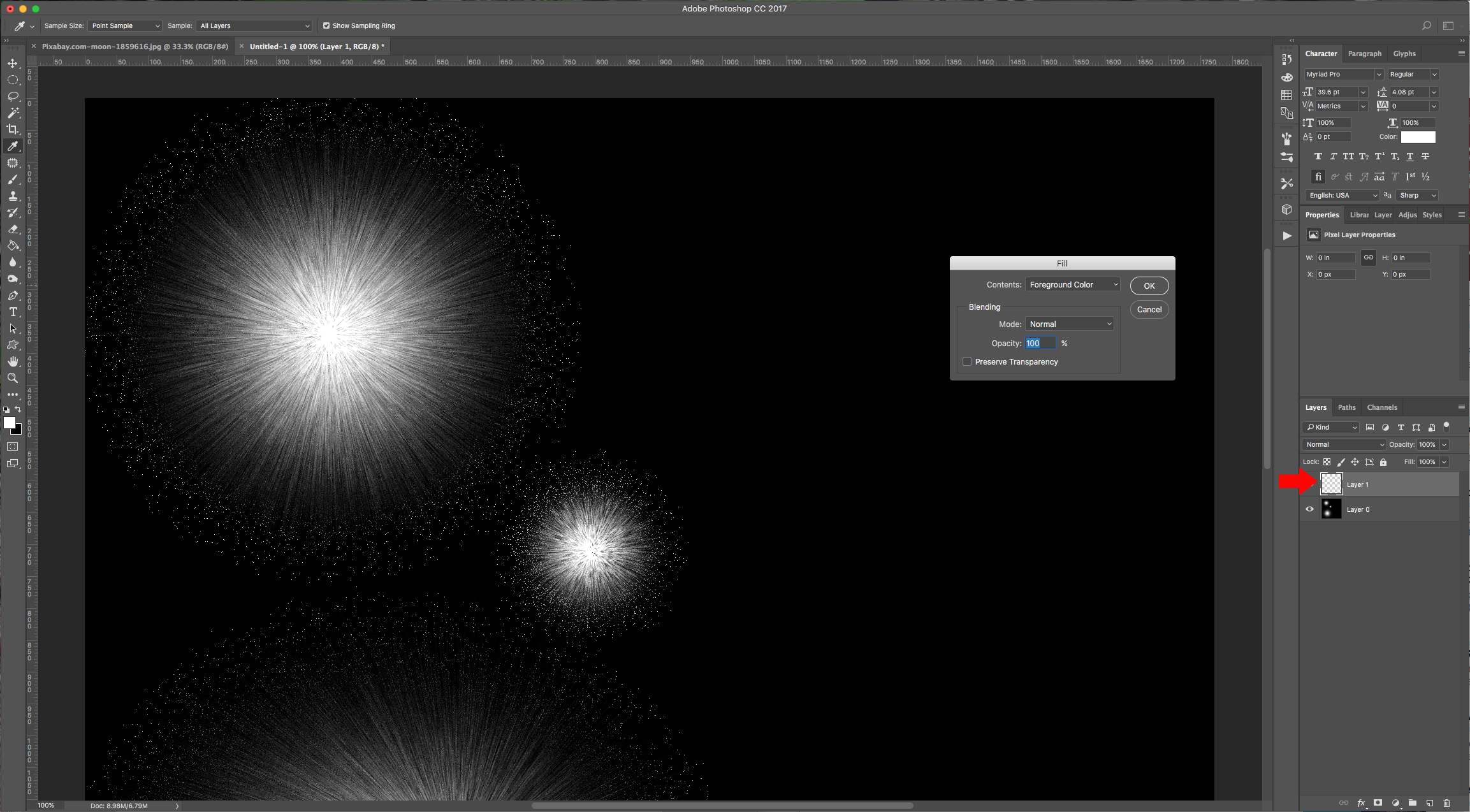
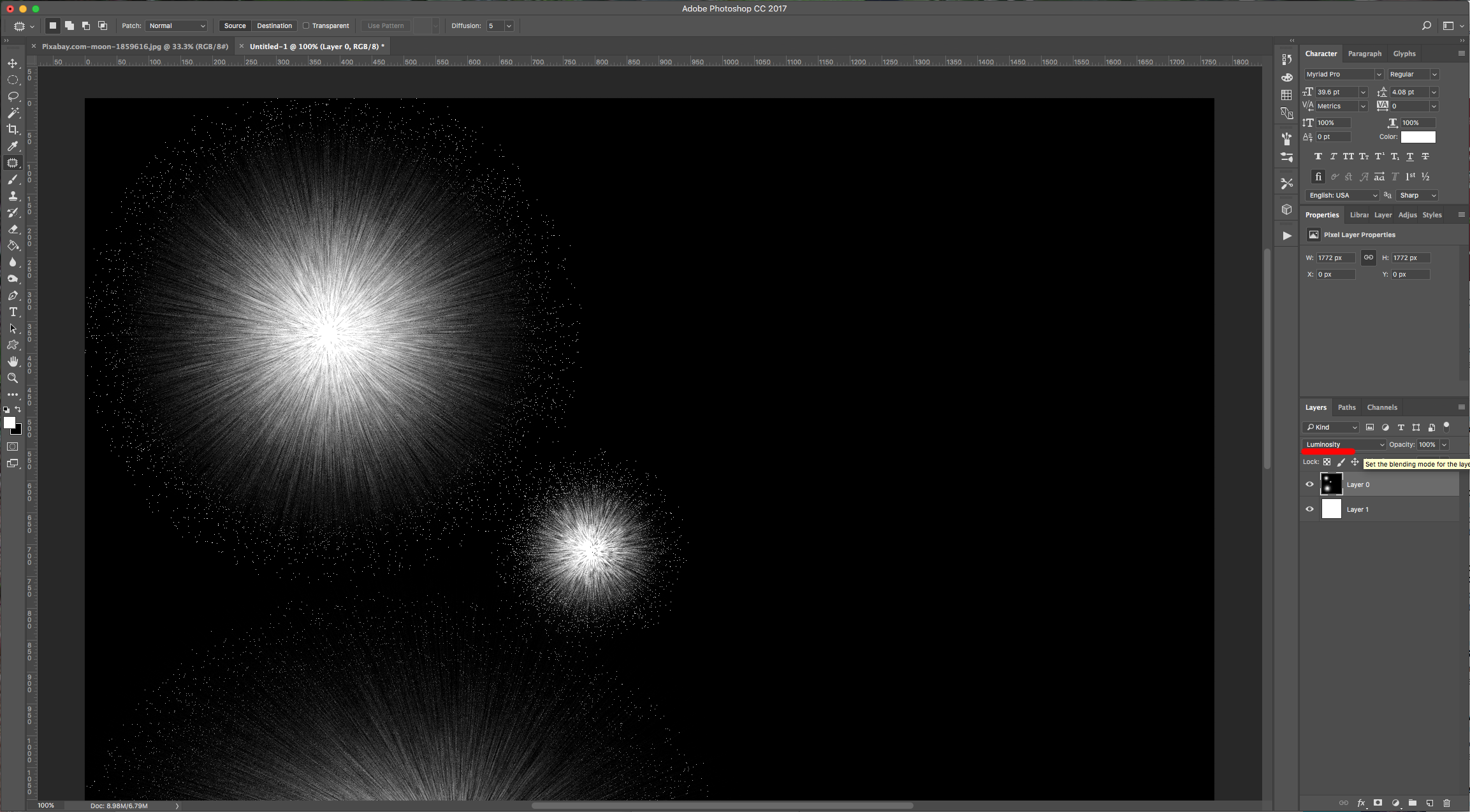
6 - Create a “New Layer” fill it with white (Shift + F5), and place it under your first layer. Double-click on the “Background” layer to make it editable and change the “Blending Mode to” Luminosity”.
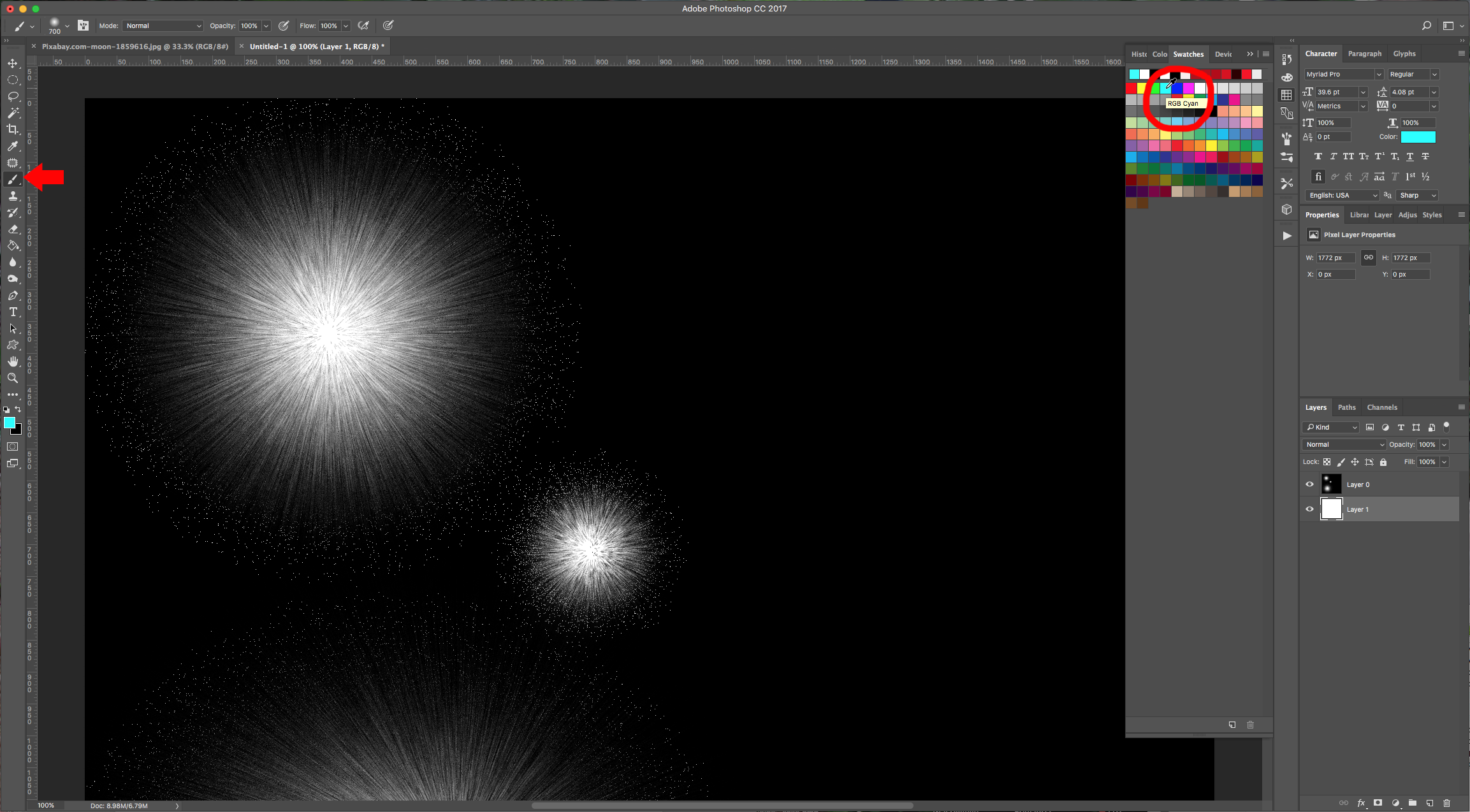
7 - Select your “Brush Tool” (B) and choose a bright color and paint with it to make your fireworks pop. Change the color and brush size for each burst.
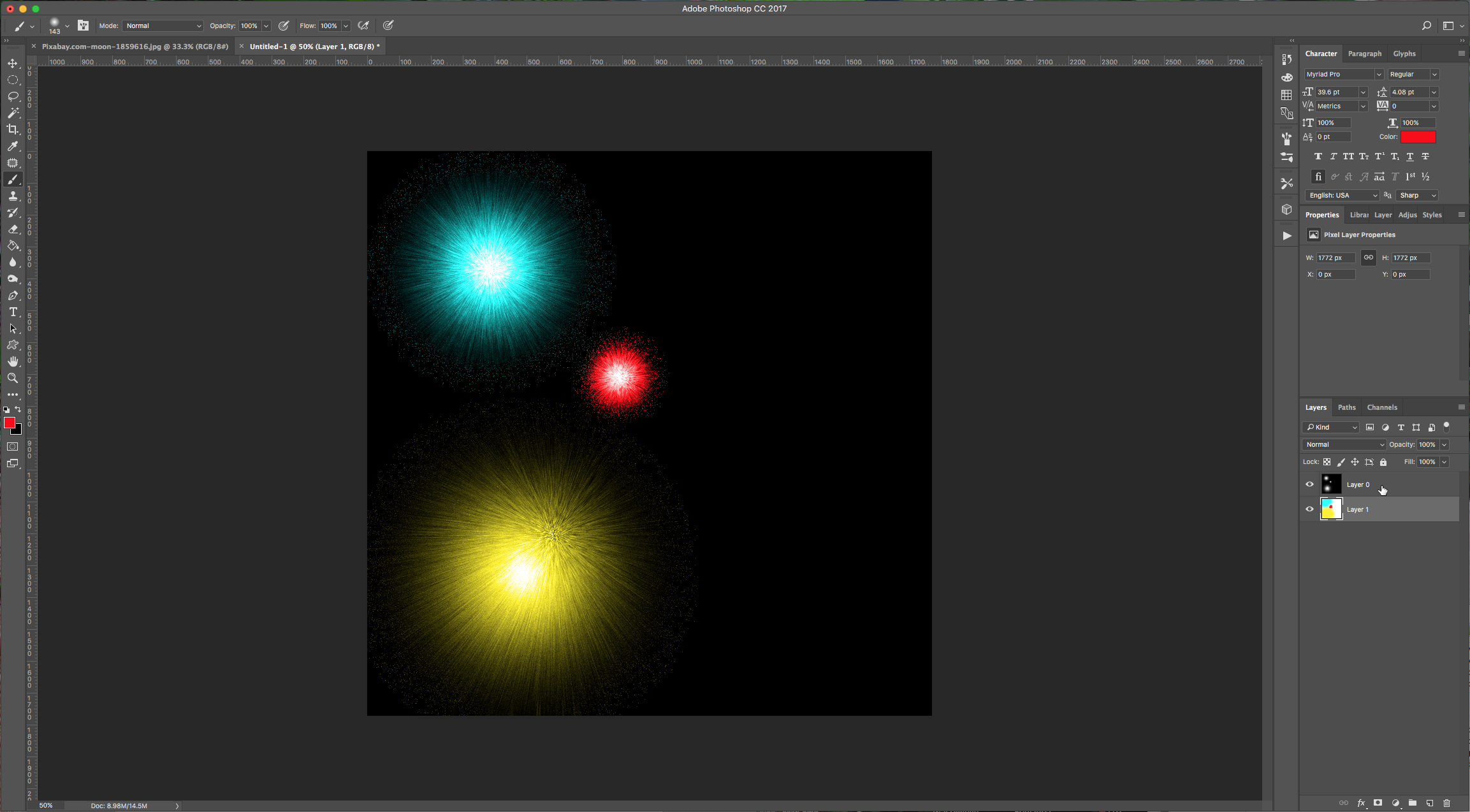
8 - When you are finished, select your layers and merge them. Save your file.
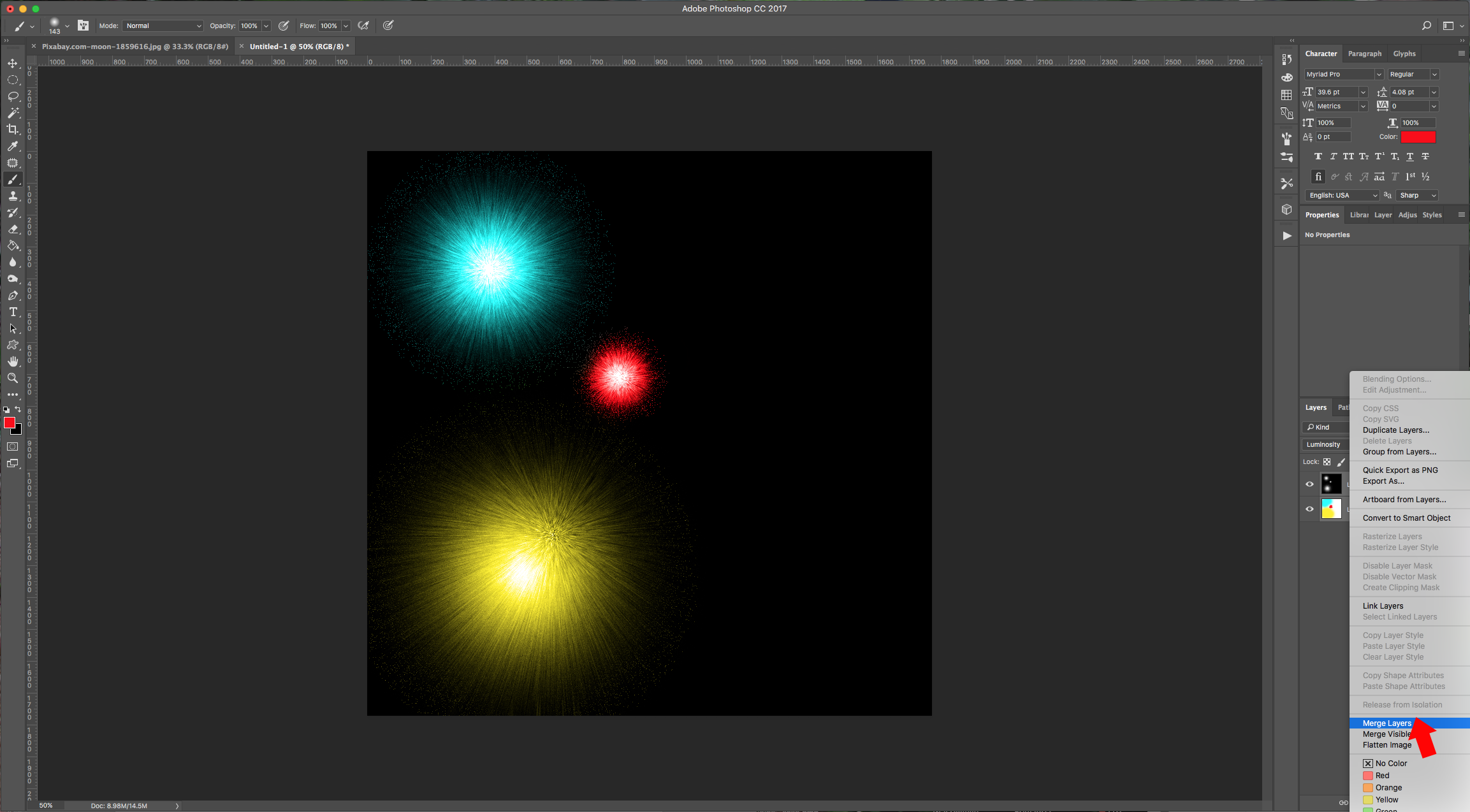
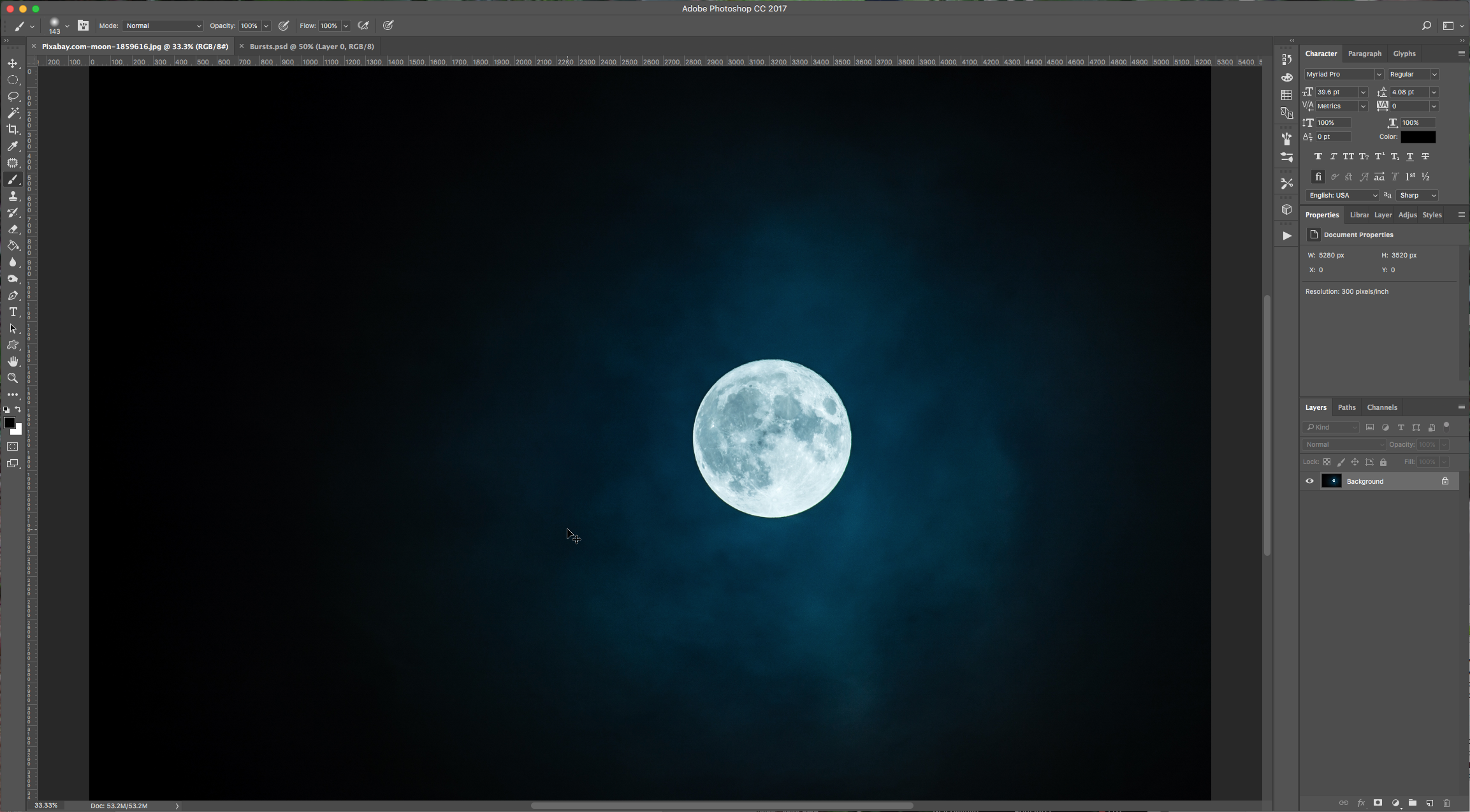
9 - Now, open your background image in Photoshop. Open the Fireworks images and copy them (Command/Control + C and Command/Control + V) into your “Background” file. Copy your newly created fireworks too.
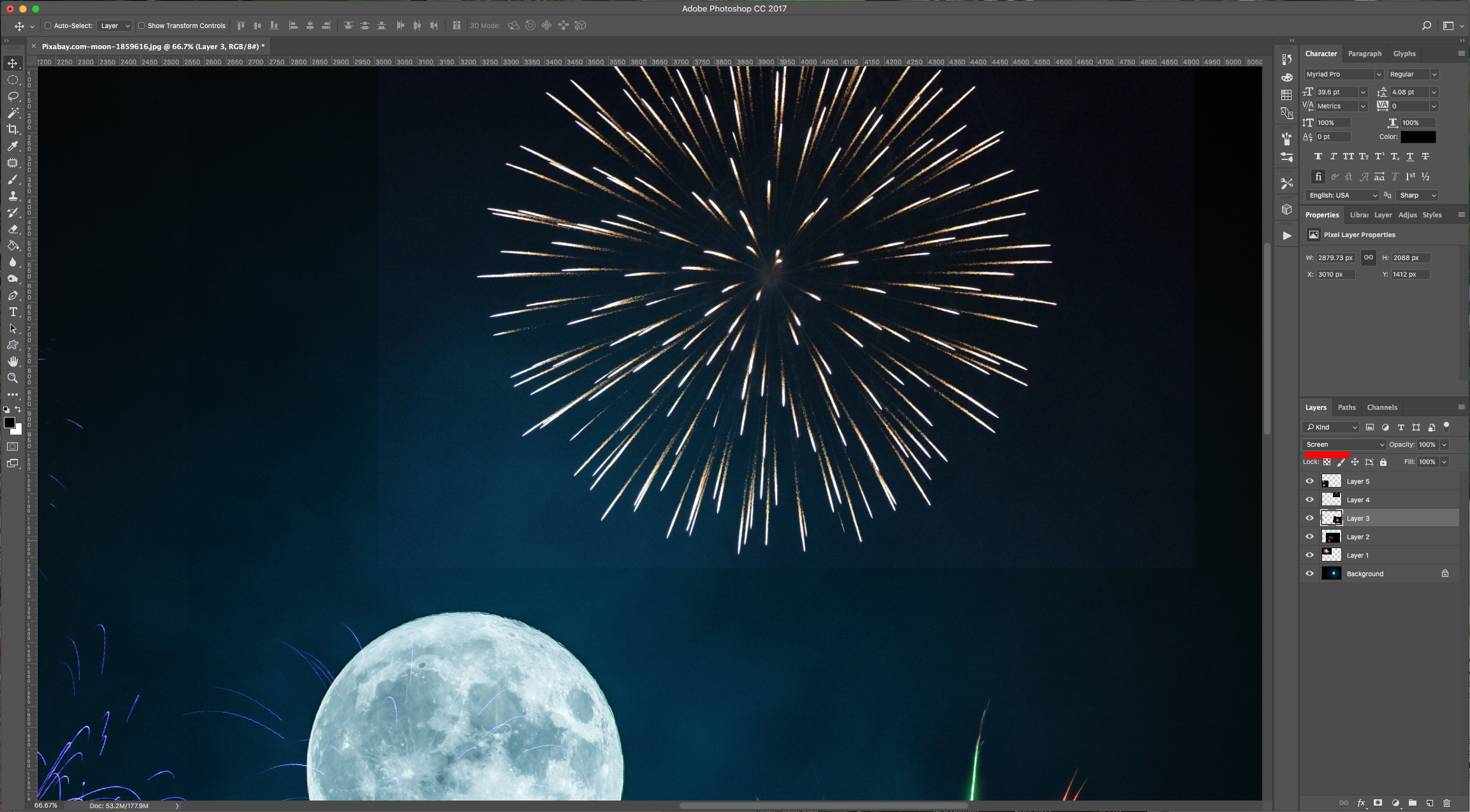
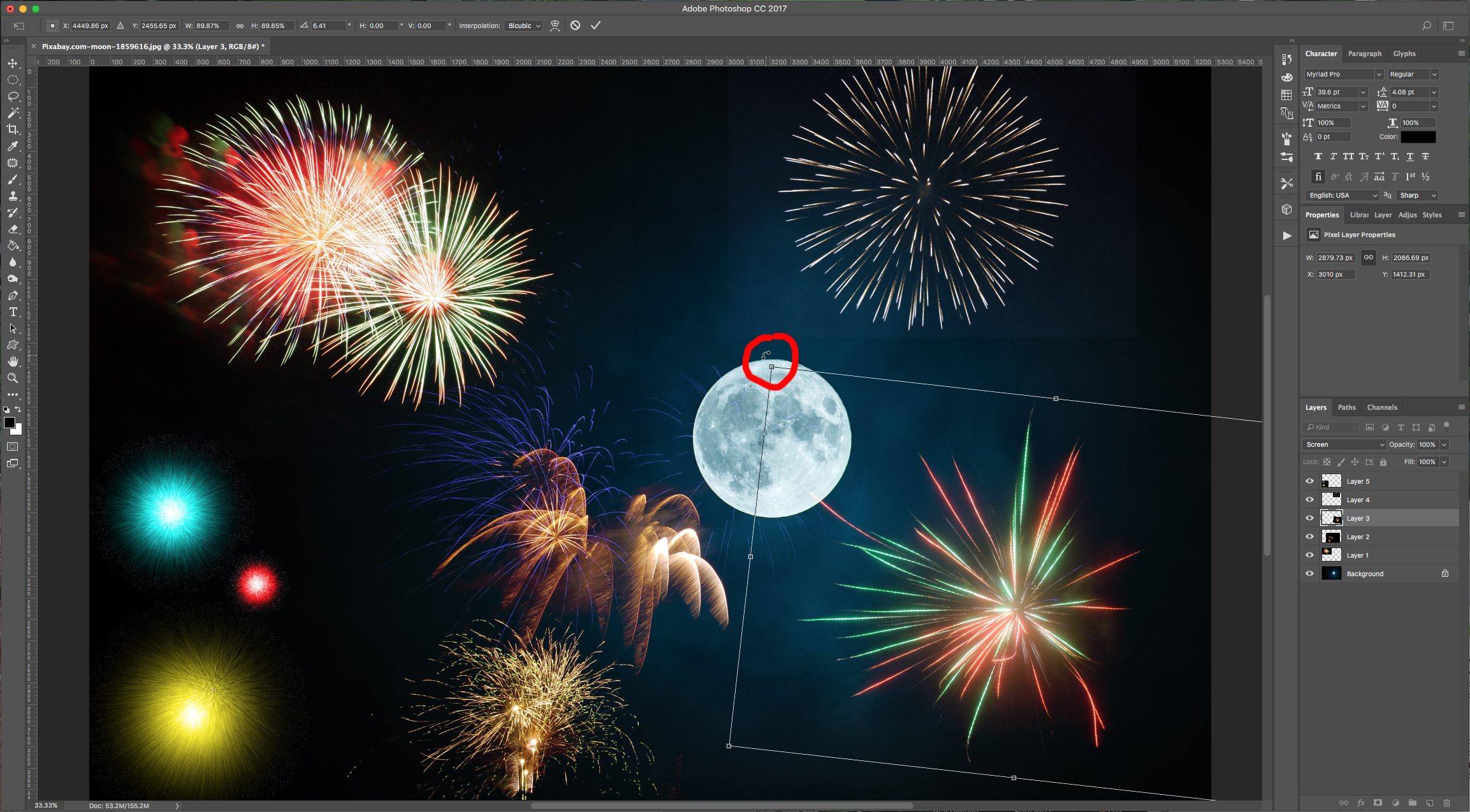
10 - Change the “Blend Mode” of the fireworks layers to “Screen” and place them around your image using the “Move Tool” (V).
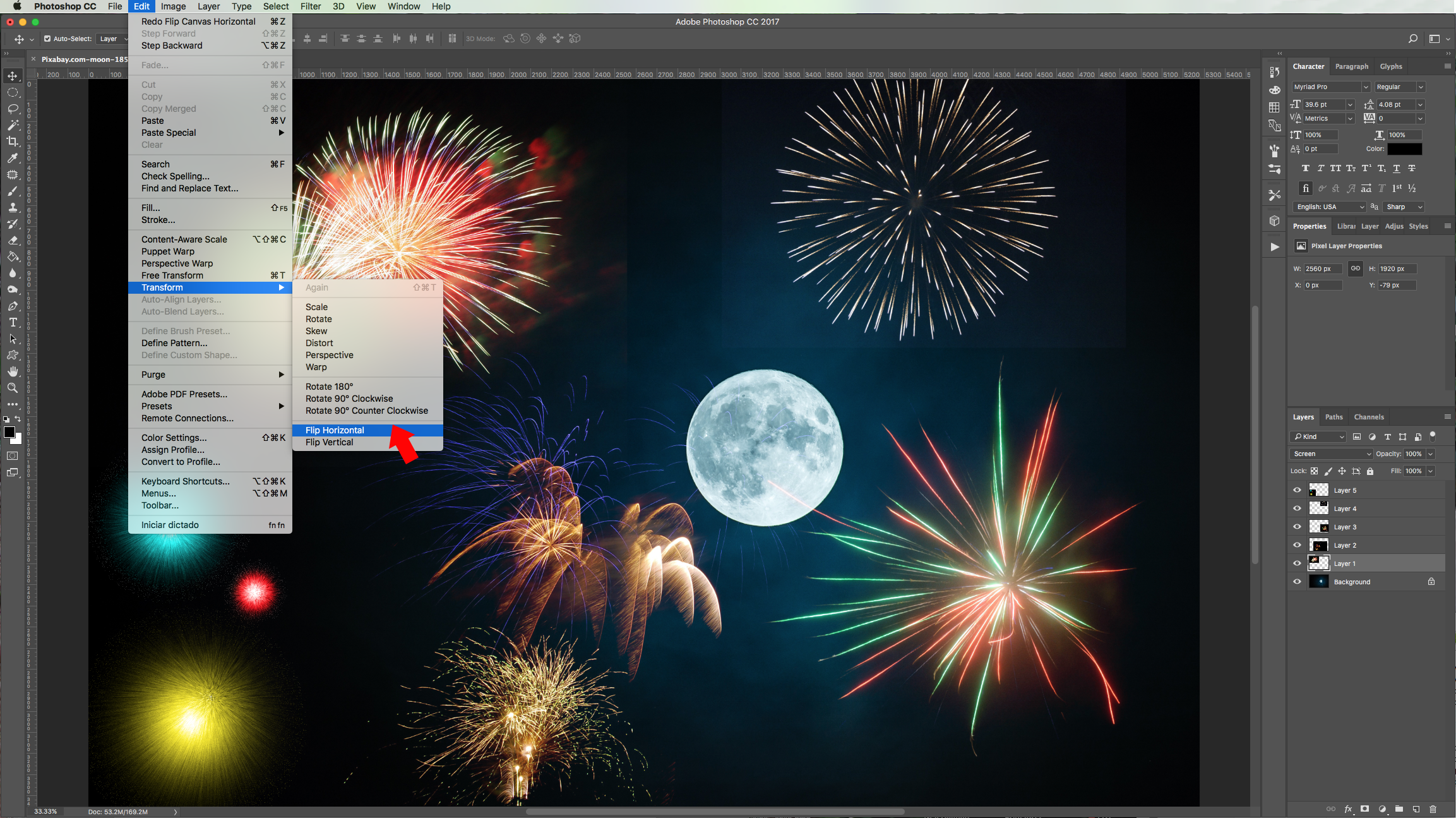
11 - You can go to Edit > Transform and “Scale”, “Distort”, “Flip”, etc. your layer.
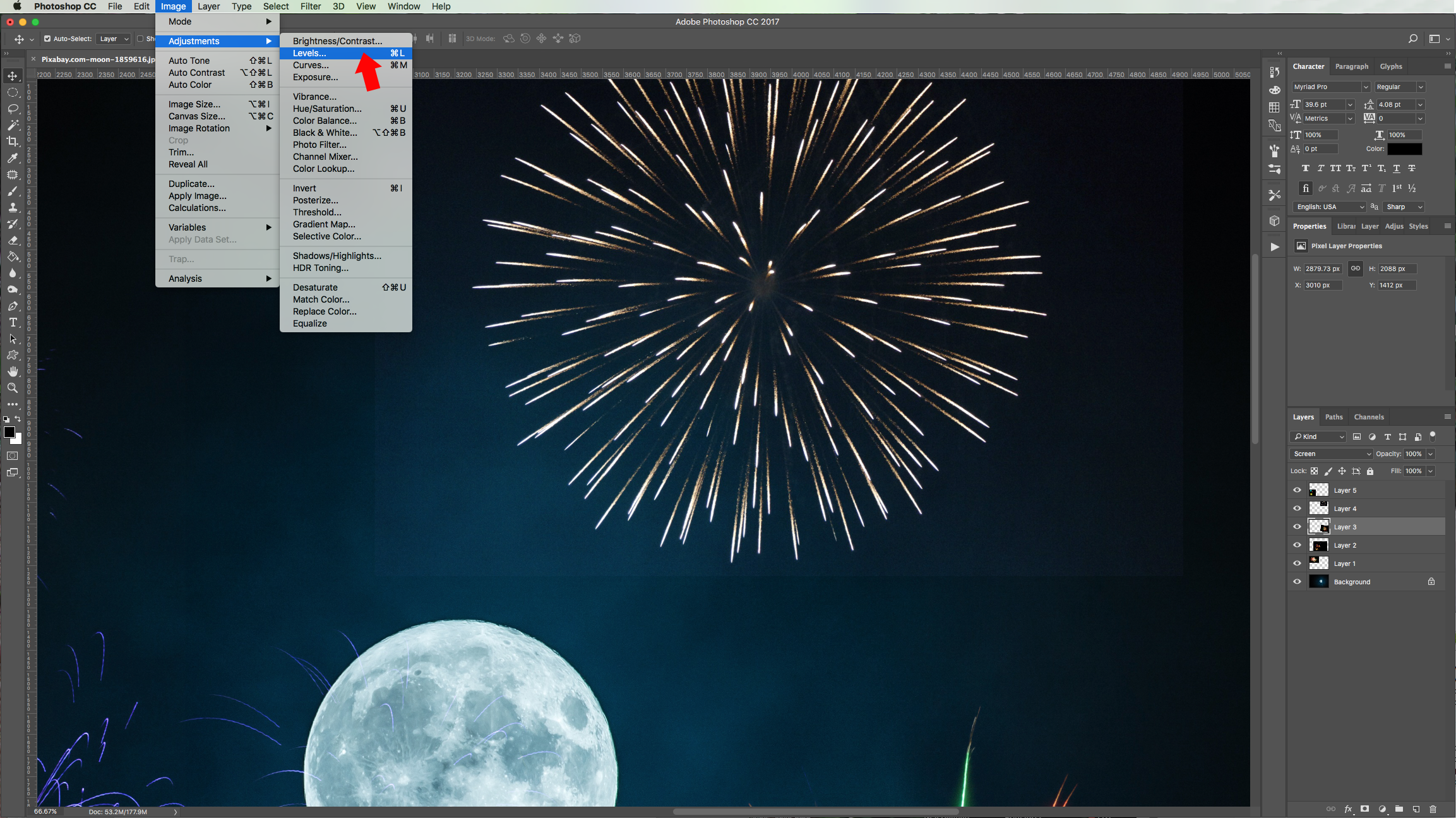
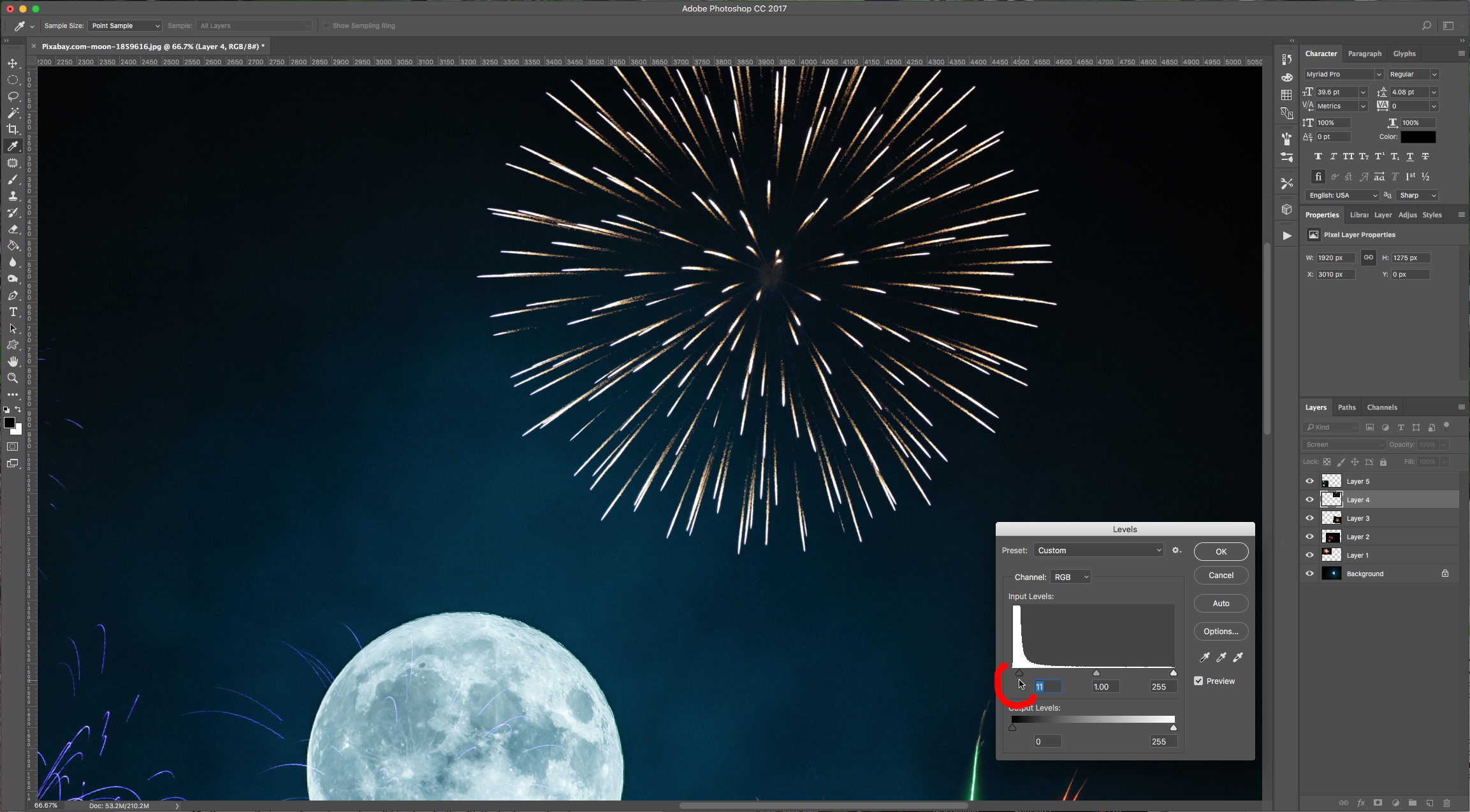
12 - If you see that one of your layers doesn’t blend perfectly with the background, go to Image > Adjustments > Levels (Command/Control + L) and move the left lever (Shadows) slightly to the right to fix it.
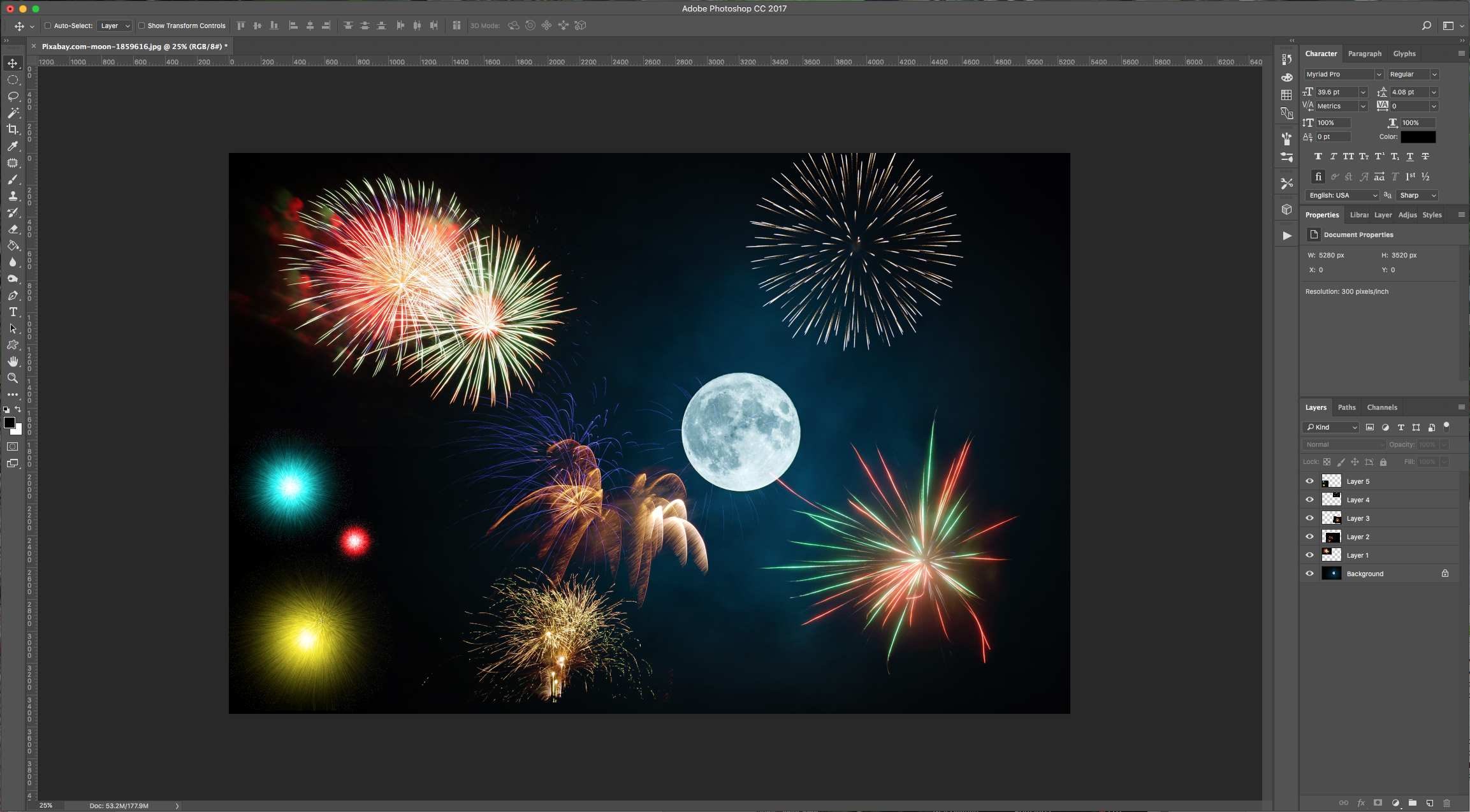
13 - Check out your work.
1 - Create a New Document, make it 10 x 10 centimeters (about 1772 pixels) at 300 dpi and use Black as your “Background” color.
2 - Create a “New Layer” by clicking on the icon at the bottom of the “Layers” menu. Select your “Brush Tool” (B), choose white as “Fill” color and use a soft (0% Hardness) and big (about 500 pixels) brush to draw some circles in your document. Resize the brush and make a couple of circles. (we used 200, and 700 pixels).
3 - Change the “Blending Mode” of the layer to “Dissolve”. Then, select both layers, right-click on the thumbnails and choose “Merge Layers”.
4 - Select the “Elliptical Marquee Tool” (M) and make a circle that covers almost all the center of one of your white bursts (to make the circle proportionate draw it while holding the “Shift” key).
5 - Go to Select > Modify > Feather (Shift + F6) and input a 25 pixels “Radius”. Then, go to Filter > Blur > Radial Blur, input 50% in “Amount”, use “Zoom” as “Blur Method” and a “Good Quality”. You can hide and unhide your selection using Command/Control + H. Repeat for each burst.
6 - Create a “New Layer” fill it with white (Shift + F5), and place it under your first layer. Double-click on the “Background” layer to make it editable and change the “Blending Mode to” Luminosity”.
7 - Select your “Brush Tool” (B) and choose a bright color and paint with it to make your fireworks pop. Change the color and brush size for each burst.
8 - When you are finished, select your layers and merge them. Save your file.
9 - Now, open your background image in Photoshop. Open the Fireworks images and copy them (Command/Control + C and Command/Control + V) into your “Background” file. Copy your newly created fireworks too.
10 - Change the “Blend Mode” of the fireworks layers to “Screen” and place them around your image using the “Move Tool” (V).
11 - You can go to Edit > Transform and “Scale”, “Distort”, “Flip”, etc. your layer.
12 - If you see that one of your layers doesn’t blend perfectly with the background, go to Image > Adjustments > Levels (Command/Control + L) and move the left lever (Shadows) slightly to the right to fix it.
13 - Check out your work.
by @lornacane
Related Tutorials
Photoshop Tutorials
How to Use Text Effects in Photoshop
With Photoshop Text Effects, you can create text with impact in just a few steps.
Photoshop Tutorials
How to Create Speech Bubbles in Photoshop
Learn how to create and edit fun speech bubbles in Photoshop using custom shapes.
Photoshop Tutorials
How to Make Sublimation Designs in Photoshop
Discover how to make sublimation designs in Photoshop that you can use to create beautiful gifts.
Photoshop Tutorials
How to Use EPS Files in Photoshop
In this tutorial, learn how to use EPS files in Photoshop as Smart Objects to maintain image quality
Photoshop Tutorials
Image Burned in Wood in Photoshop
In this tutorial, discover how to create a realistic wood burned effect in Adobe Photoshop.
Photoshop Tutorials
Easy See through Cut Out Text in Photoshop
Create a see-through cut out text design in Photoshop with these easy to follow steps.